Jotform’s Canadian SIN Validator widget makes it easy to collect and verify Canadian Social Insurance Numbers (SINs) directly within your forms. The widget automatically checks whether the entered SIN follows the correct 9-digit format and validates it using the official checksum algorithm, helping you catch formatting errors before the form is submitted.
Whether you’re creating employee onboarding forms, contractor registration forms, HR documents, benefits applications, or other forms that require SIN information, this widget helps improve data accuracy, reduce manual verification, and create a smoother experience for your users.
Here are a few ways to use it:
- Employee onboarding forms — Verify Social Insurance Numbers when collecting information from new hires to help ensure accurate employee records.
- Contractor registration forms — Validate SIN entries from freelancers, consultants, or contractors before processing their information.
- Benefits and payroll forms — Collect valid SINs for payroll setup, tax reporting, and employee benefits enrollment.
- Government or compliance-related applications — Help ensure that submitted SINs follow the correct format before applications are reviewed.
Note
The Canadian SIN Validator widget is designed specifically for validating Canadian Social Insurance Numbers (SINs) and may not work correctly with other identification number formats.
Adding and Setting Up the Canadian SIN Validator Widget
With just a few simple steps, you can add a field to your form that automatically verifies Social Insurance Numbers as users enter them, helping improve data accuracy and reduce manual validation. Here’s a quick how-to:
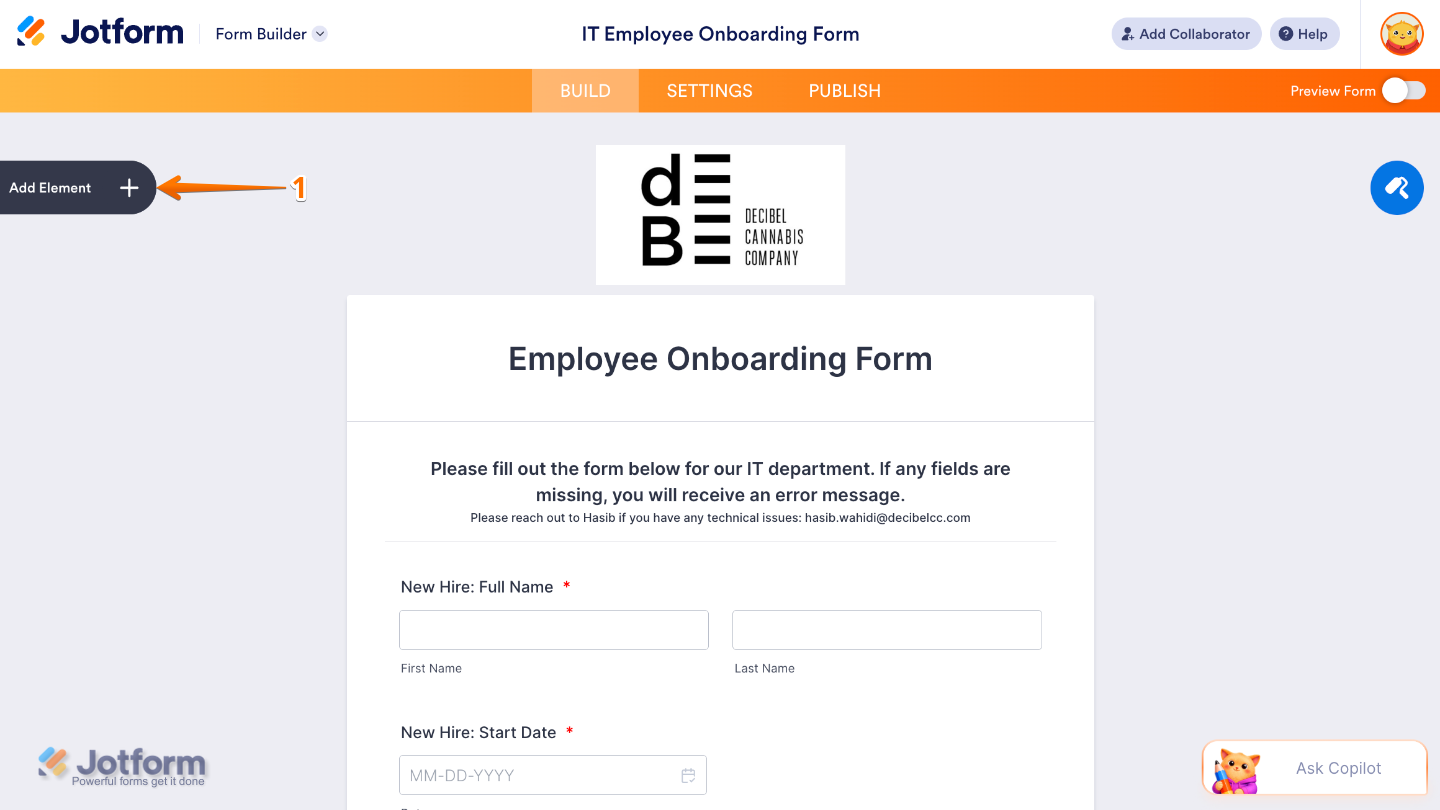
- In Form Builder, click on Add Element on the left side of the page.
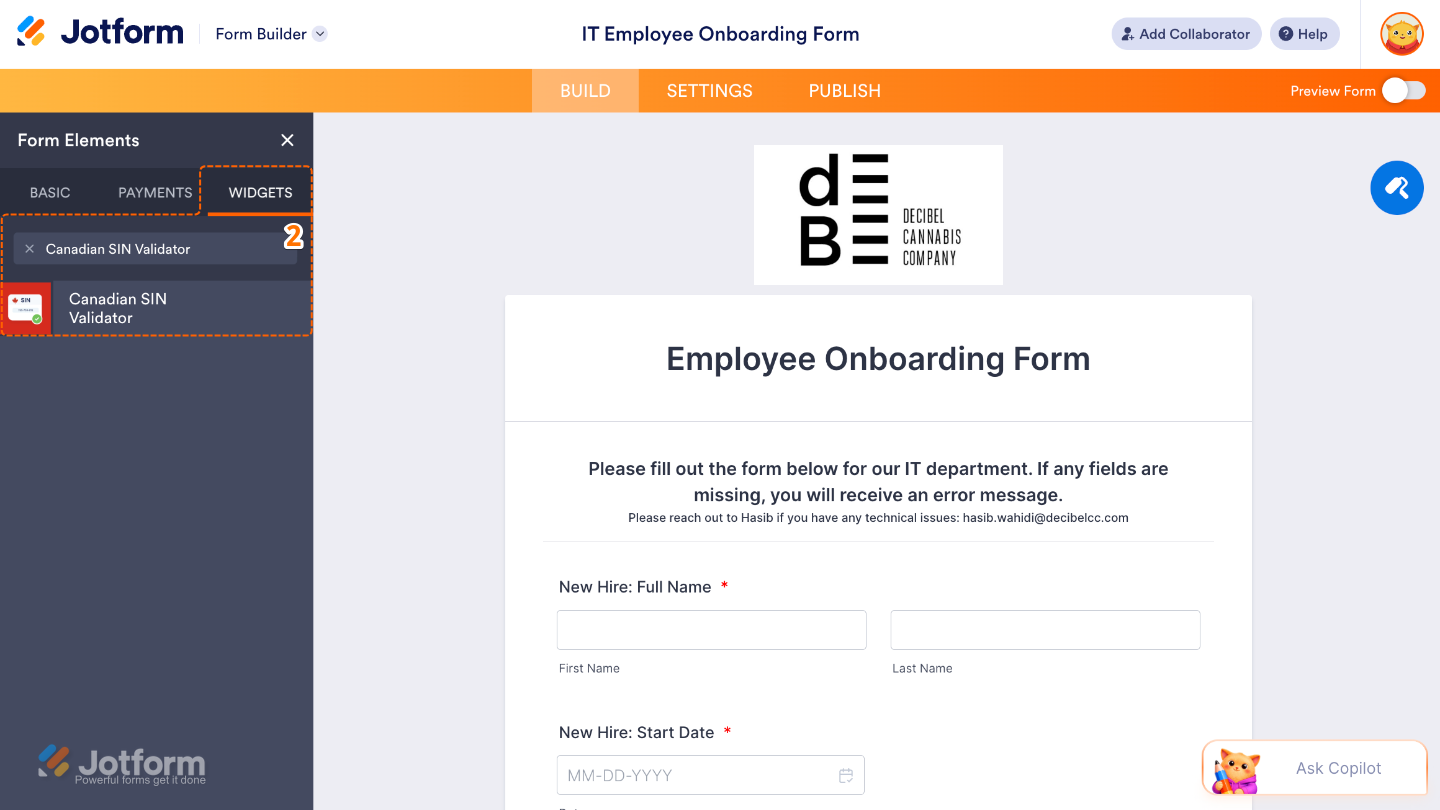
- Now, in the Form Elements menu, under the Widgets tab, search for Canadian SIN Validator and then click on it. Or, just drag and drop it to where you want it to be on your form.
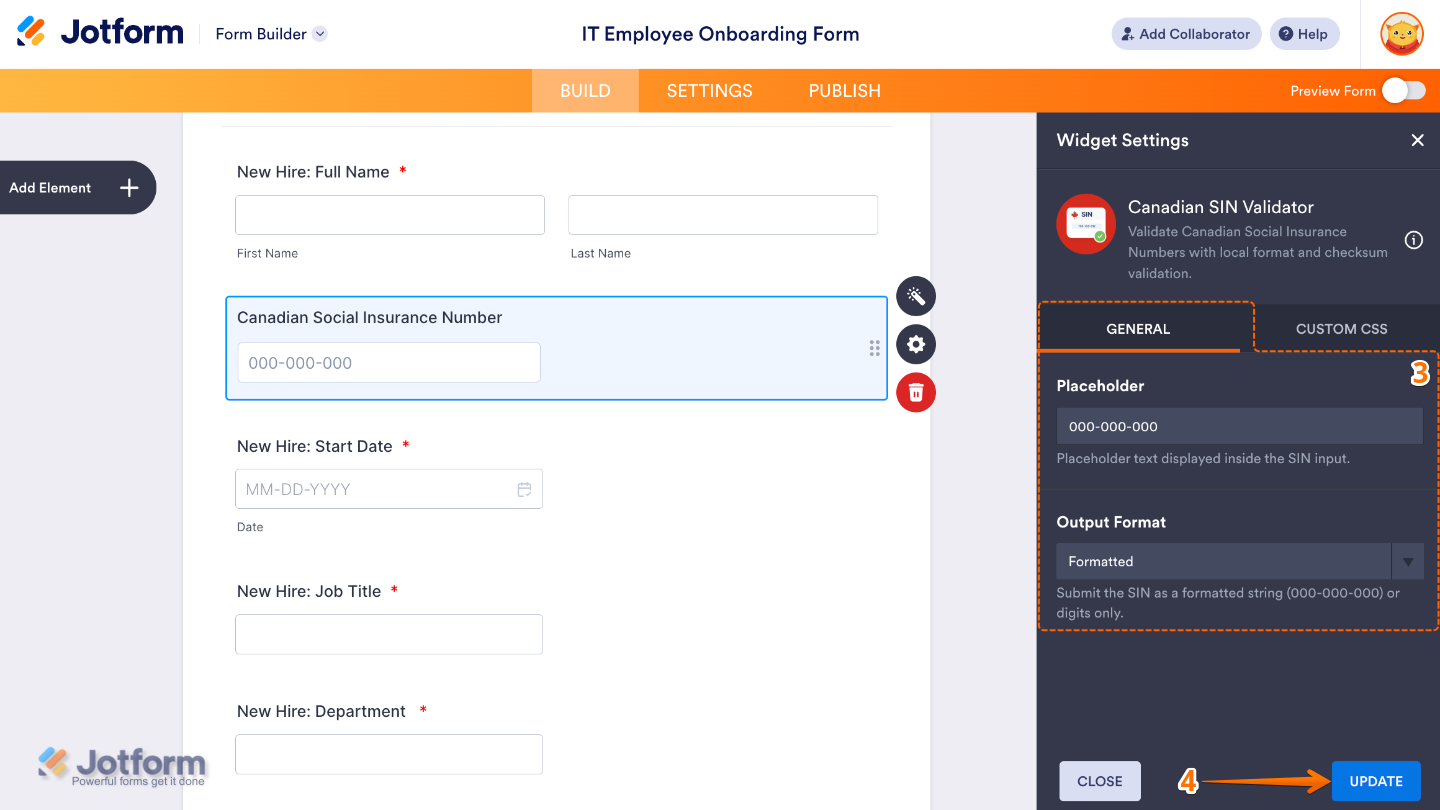
- Next, in the Widget Settings window that opens on the right side of the page, set up the following options:
- Placeholder — Use this to display sample text or a hint inside the field before users enter their SIN.
- Output Format — This determines how the validated SIN will be stored and displayed in form submissions.
- Formatted — Displays the SIN in the submission table using a standard, easy-to-read format with spaces. For example, 123 456 789
- Digits Only — Stores and displays the SIN as a continuous string of numbers without spaces or formatting. For example, 123456789
- Once you’re done, click on Update.
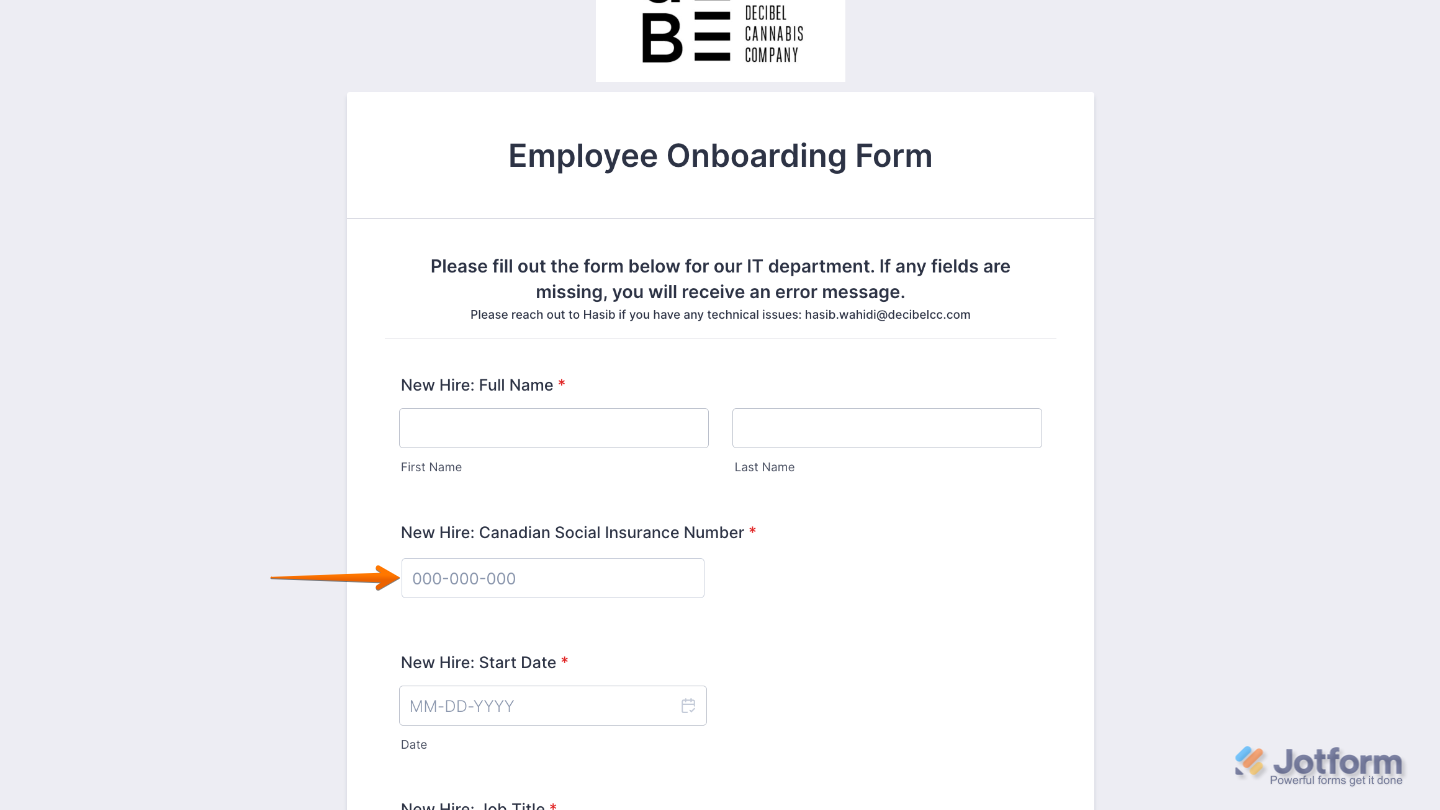
That’s it. You’ve successfully added and set up the Canadian SIN Validator widget on your form. Your form can now automatically validate Social Insurance Numbers as users enter them, helping improve data accuracy and reduce submission errors. Ready to see it in real time? Have a look at this demo form.
You can also configure the widget properties, like alignment, labels, size, visibility, and more, to control how it looks and behaves on your form. For a full breakdown of how to do it, head over to our guide on How to Access and Configure the Question Properties of a Widget.
Note
For advanced styling of the Canadian SIN Validator widget, you can add your own custom CSS code under the Custom CSS tab in the Widget Settings. Our guide on How to Inject CSS Codes to Widgets walks you through everything.
Pro Tips
- Mark the field as Required to ensure respondents provide a SIN before submitting the form.
- Test your form before publishing to confirm the validation and output format work as expected for your workflow.

Send Comment: