Jotform’s Code Editor widget makes it easy to add a coding field right inside your form, so users can write or paste code directly when they submit. It’s perfect for things like coding challenges, developer applications, or technical feedback forms where clean, formatted code input is a must. With syntax highlighting and a simple interface, the widget keeps everything readable and user-friendly—no messy plain text boxes required.
Here are a few ways to use it:
- Collect Code Submissions — If you’re running a coding contest, hackathon, or programming challenge, this widget makes it easy for participants to submit their solutions in a proper code format.
- Use It for Technical Job Applications — If you’re hiring developers, you can ask applicants to paste in code samples as part of the application process. The widget keeps everything structured and professional.
- Gather Bug Reports or Support Requests — When users need to share snippets of code for troubleshooting, this widget ensures their submission stays formatted and easy to read.
- Add It to Training or Coursework Forms — Teachers and trainers can use the widget in assignments so students can turn in code directly through the form.
Adding and Setting Up the Code Editor Widget
Adding the Code Editor widget to your form gives your users a clean, easy way to write or paste code directly into their submissions. Here’s the quick way to do it:
- In Form Builder, click on Add Element on the left side of the page.

- Now, in the Form Elements menu, under the Widgets tab, search for Code Editor and then click on it. Or, just drag and drop it to where you want it to be on your form.

- Next, in the Widget Settings menu that opens on the right side of the page, set up the following options:
- Language — Choose the programming language you want the editor to recognize. This way, the editor highlights your code correctly and helps keep everything neat and readable—whether it’s JavaScript, HTML, Python, or something else.
- Theme — Customize the look of your editor to match your style. You can go with a light theme, a dark theme, or others—whatever feels easiest on your eyes while working.
- Height — Decide how tall you want the code editor field to be. If you’re expecting longer code snippets, giving it a little extra height makes scrolling less of a hassle.
- Width —Adjust how wide the editor appears so it fits nicely with the rest of your form layout. A wider editor gives users more room to work with their code comfortably.
- Once you’re done, click on Update.
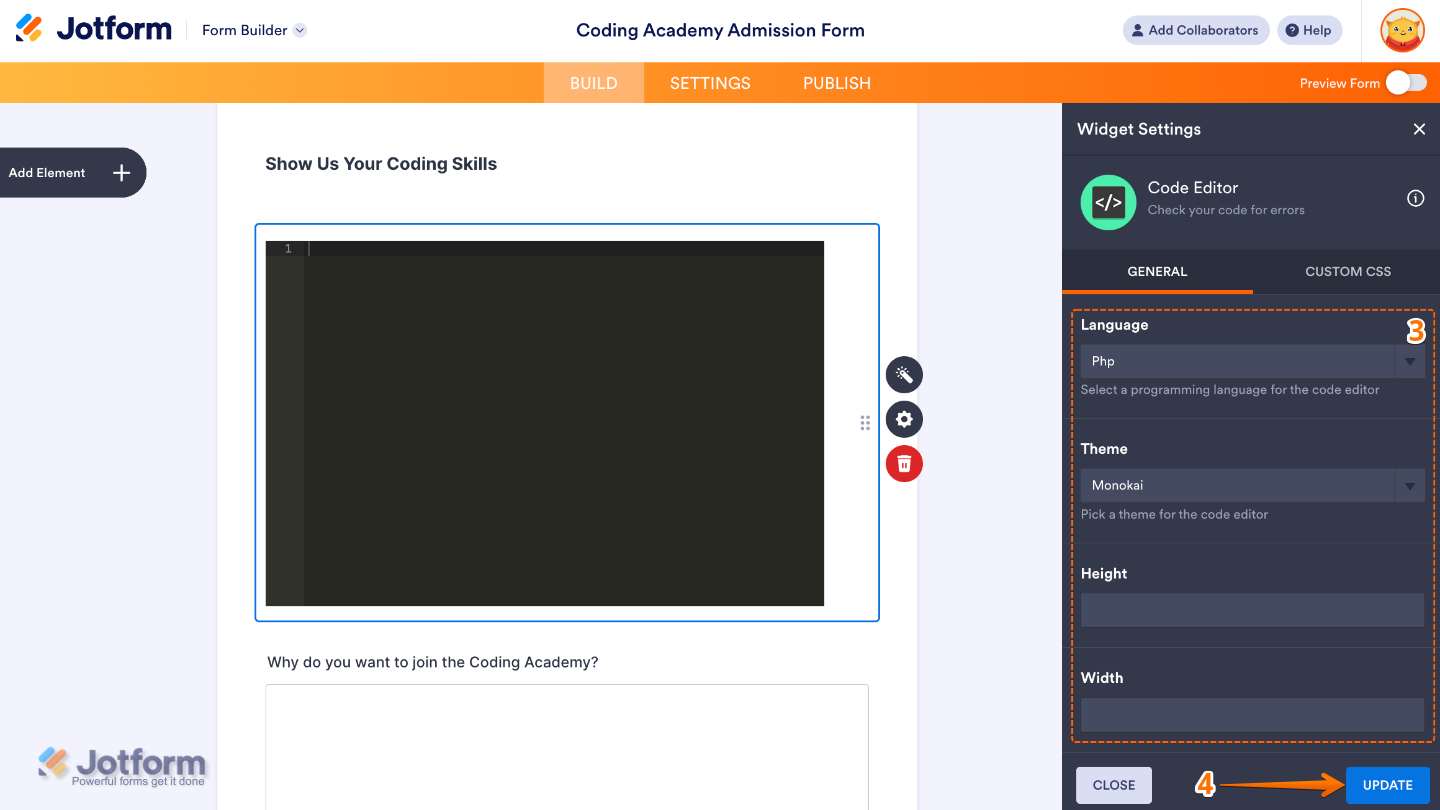
That’s it. You’ve successfully added and set up the Code Editor widget to your form. Now, you have a field in your form that makes it easy for users to share clean, readable code without the hassle of messy formatting. Curious how it works on a live form? Check out this Demo Form.
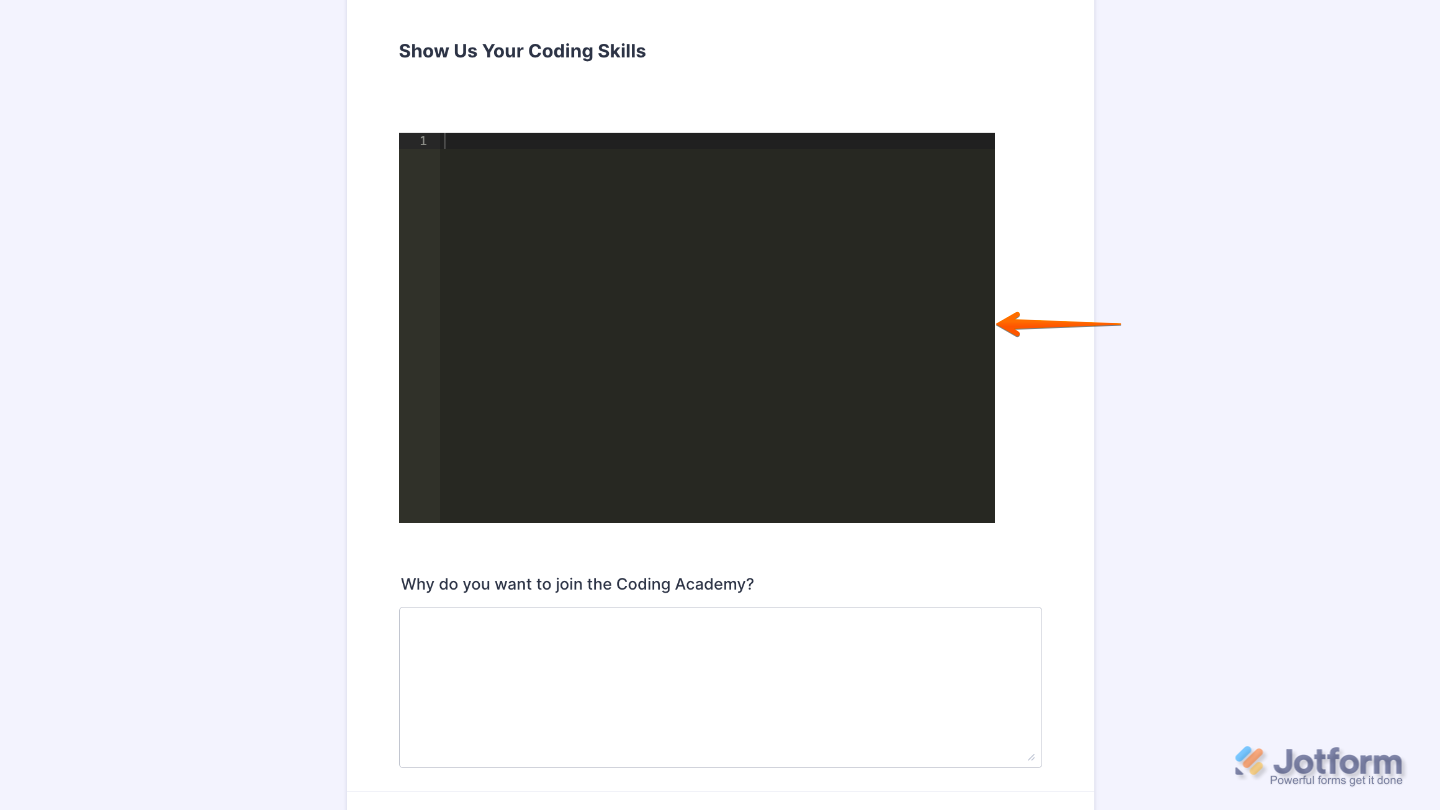
To further customize your Code Editor field appearance, just click on the Gear icon to open its properties.
Note
For advanced styling, you can add your own custom CSS under the Custom CSS tab in the widget settings and style the Code Editor field. Our guide on How to Inject CSS Codes to Widgets walks you through everything.

Send Comment: