Jotform’s Digital Clock widget is a simple yet handy tool that lets you display the current time right on your form. Whether you’re creating a time-sensitive quiz, scheduling form, or just want to give your form a modern, interactive touch, this widget helps keep everything on track. You can even customize how the clock looks and choose the format that works best for your needs. It’s a small feature that can make a big difference in making your forms more engaging and useful.
Here are a few ways to use it:
- Display the Current Time — Show users the exact time while they’re filling out your form. This can be useful for timed activities, sign-ins, or logging when something happens.
- Add a Professional Touch — Including a live clock makes your form feel polished and dynamic, especially for business or event-related forms.
- Perfect for Check-Ins and Attendance — If you’re tracking when people arrive or sign in, the digital clock gives them a clear reference for recording accurate times.
- Great for Time-Sensitive Forms — For contests, applications, or reservations with strict deadlines, having a visible clock reminds users of the time so they don’t miss out.
Adding and Setting Up the Digital Clock Widget
Adding the Digital Clock widget to your form is a quick way to make it more user-friendly and time-aware. Here’s the quick way to do it:
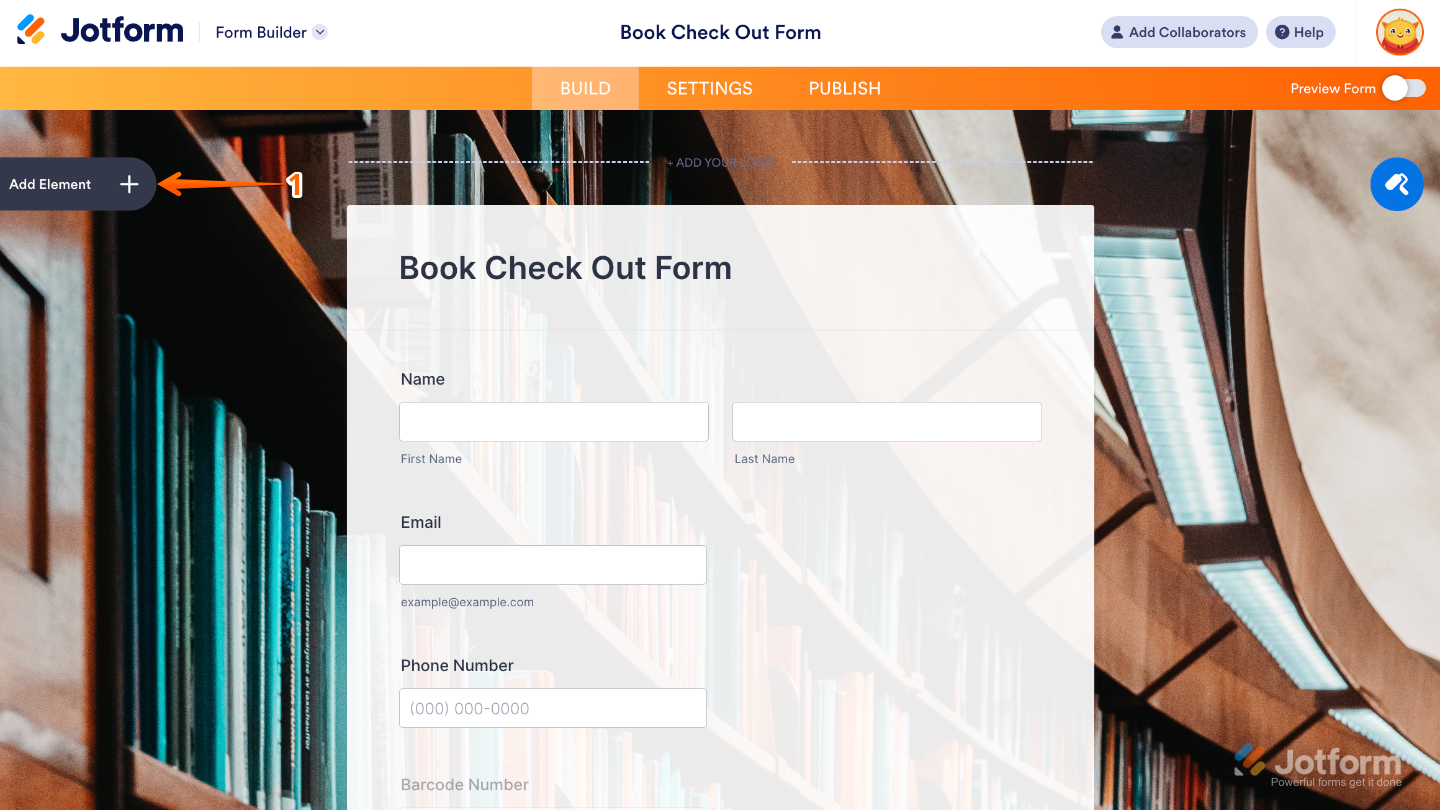
- In Form Builder, click on Add Element on the left side of the page.
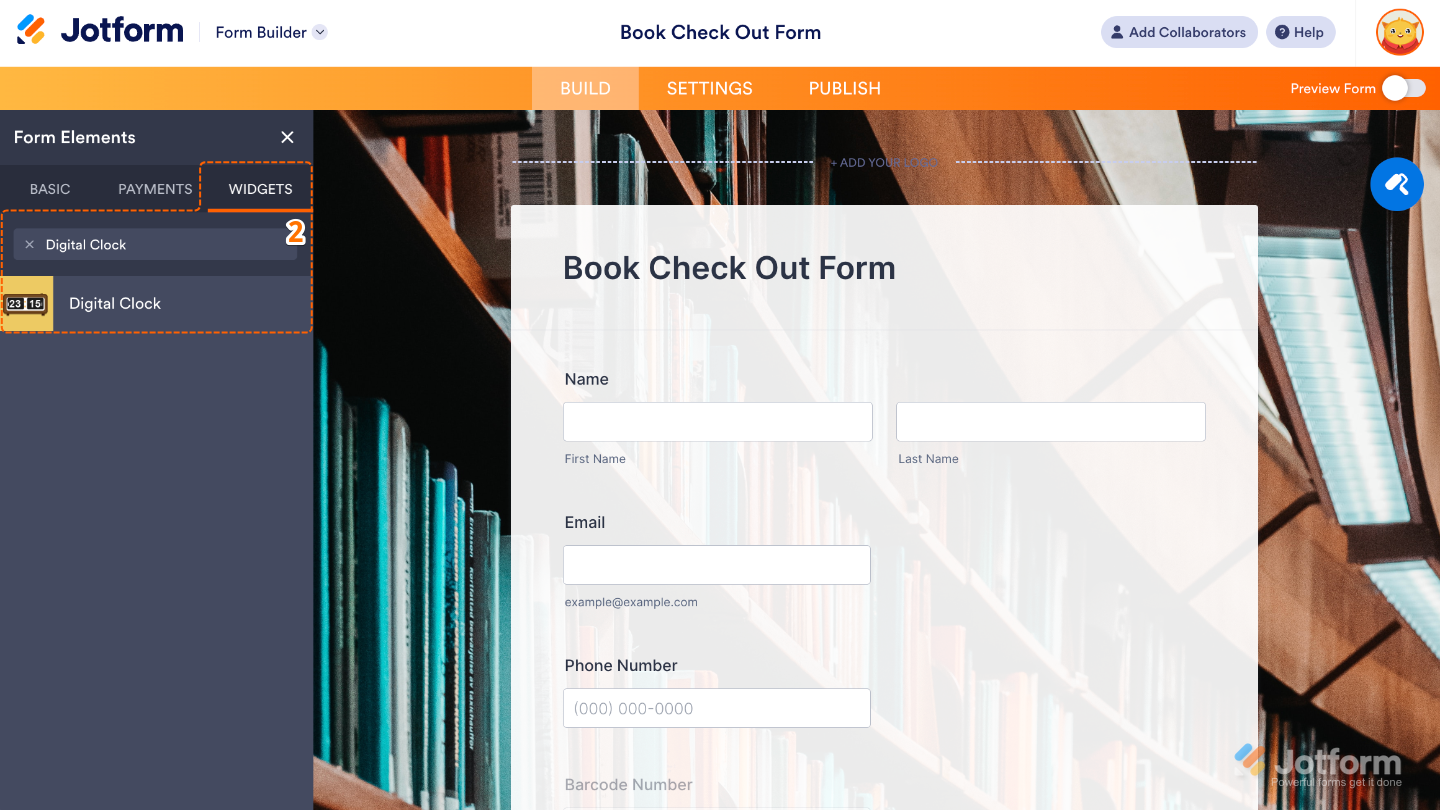
- Now, in the Form Elements menu, under the Widgets tab, search for Digital Clock and then click on it. Or, just drag and drop it to where you want it to be on your form.
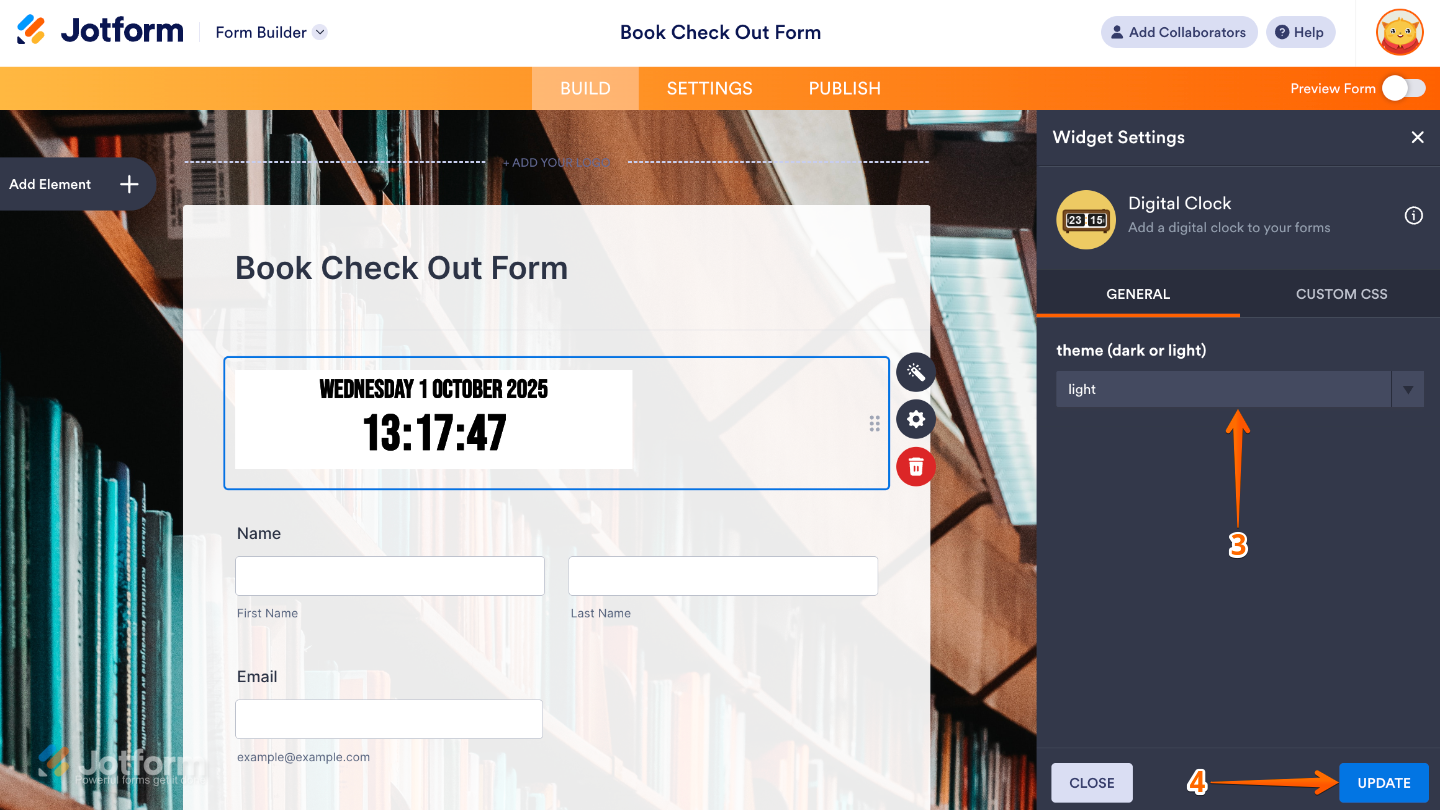
- Next, in the Widget Settings menu that opens on the right side of the page, set up the Theme option to choose how the clock looks on your form (dark or light).
- Once you’re done, click on Update.
That’s it. You’ve successfully added and set up the Digital Clock widget to your form. Now, you have a field in your form that shows a live digital clock, giving your users an easy way to keep track of the time while filling it out. Curious how it works on a live form? Check out this Demo Form.
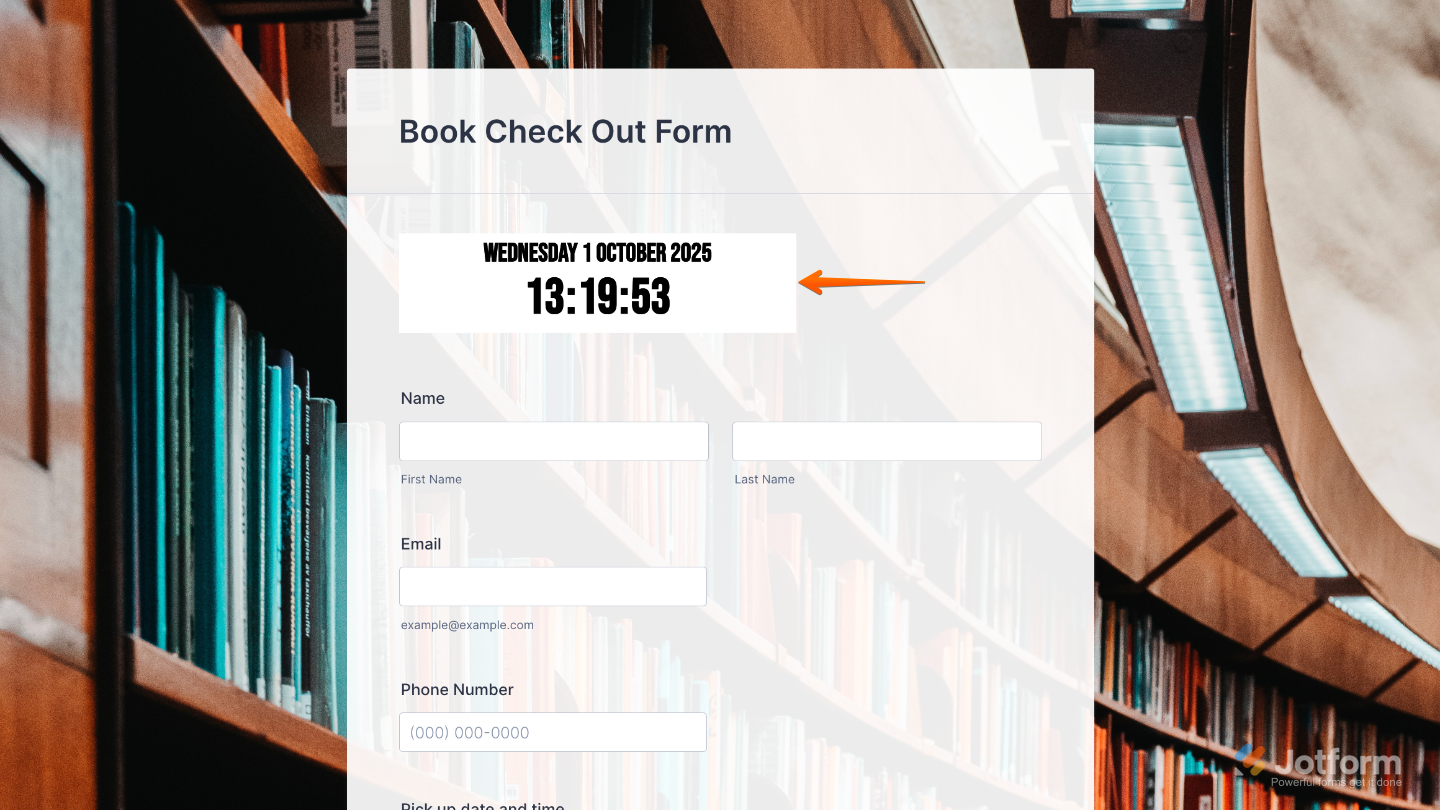
To further customize your Digital Clock field appearance, just click on the Gear icon to open its properties.
Note
For advanced styling, you can add your own custom CSS under the Custom CSS tab in the widget settings and style the Digital Clock field. Our guide on How to Inject CSS Codes to Widgets walks you through everything.

Send Comment: