Jotform’s Drawing Board widget can easily add a blank canvas to your form where users can express ideas, submit hand-drawn notes, or even provide digital signatures. It’s perfect for art submissions, design feedback, classroom activities, and more.
Here are a few ways to use it:
- Medical or Service Forms — Professionals can use it to capture diagrams, quick sketches, or even medical notes that are easier to draw than describe.
- Encourage Creative Input — Perfect for design ideas, brainstorming, or letting kids draw something fun. Users can sketch their thoughts instead of just writing them out.
- Visual Feedback — If you’re gathering feedback on layouts, maps, or plans, users can mark up or doodle their suggestions right on the form.
- Learning and Education — Teachers can use it for assignments where students draw diagrams, solve math problems, or sketch answers.
Notes
- All sketches or drawings submitted through the widget are saved as image files and included in the form submission.
- This widget does not include drawing tools like shapes or text, it supports freehand drawing only.
Adding and Setting Up the Drawing Board Widget
If you’re looking for a fun and creative way for users to draw, sketch, or sign right on your form, the Drawing Board widget is a perfect fit. Setting it up is quick—here’s how:
- In Form Builder, click on Add Element on the left side of the page.
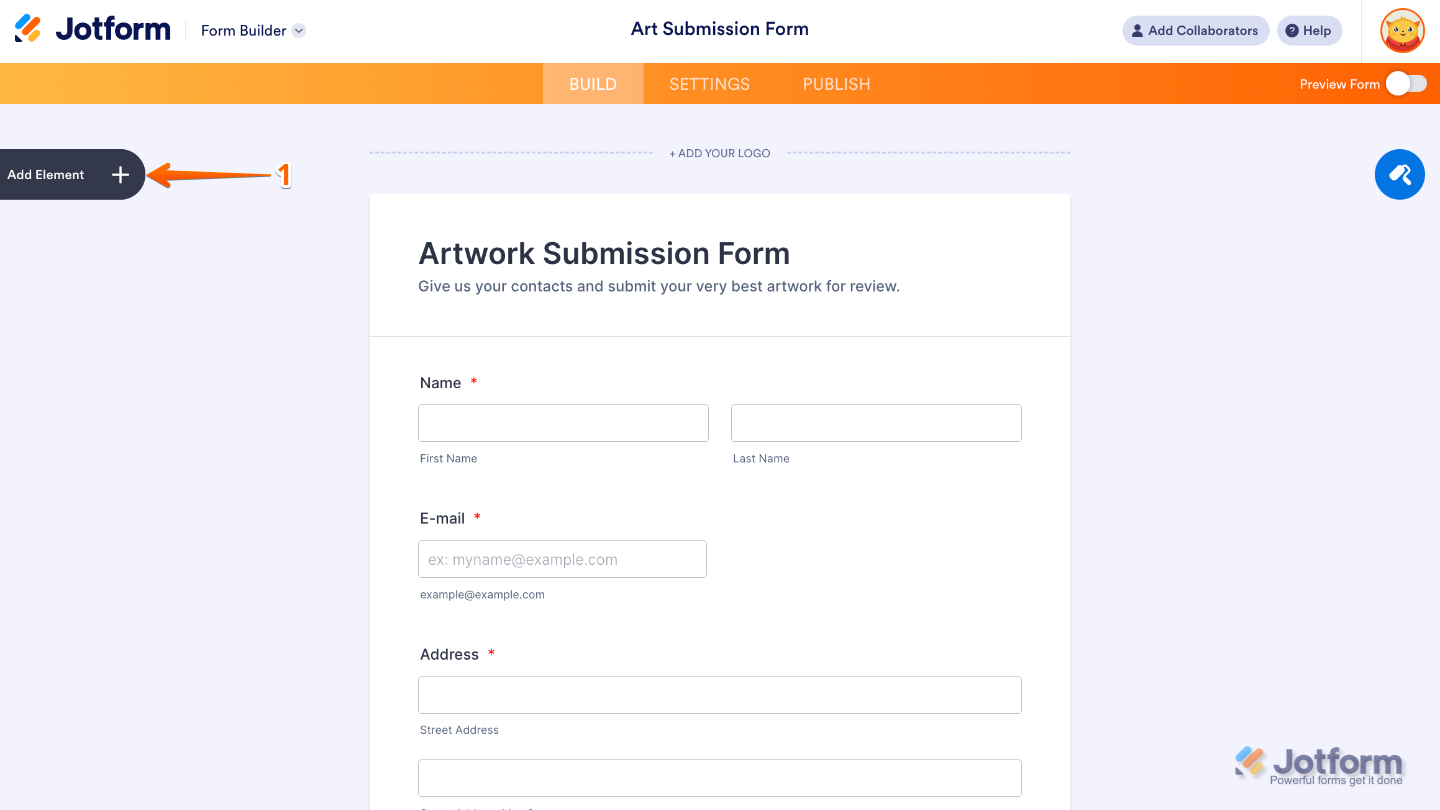
- Now, in the Form Elements menu, under the Widgets tab, search for Drawing Board and then click on it. Or, just drag and drop it to where you want it to be on your form.
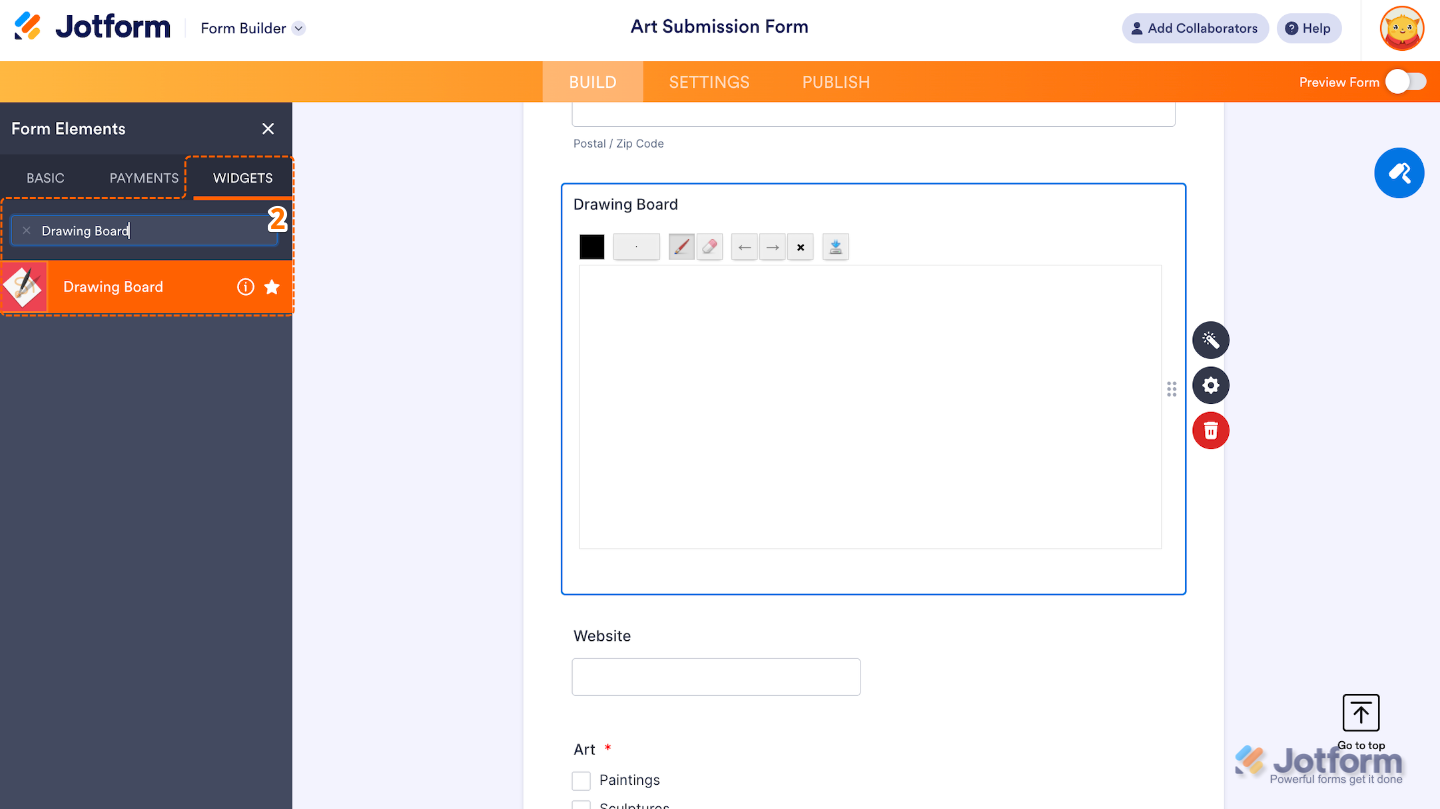
That’s it. You’ve successfully added and set up the Drawing Board widget to your form. Now, your user can freehand draw with different colors and shapes on your form. Curious how it works on a live form? Check out this Demo Form.
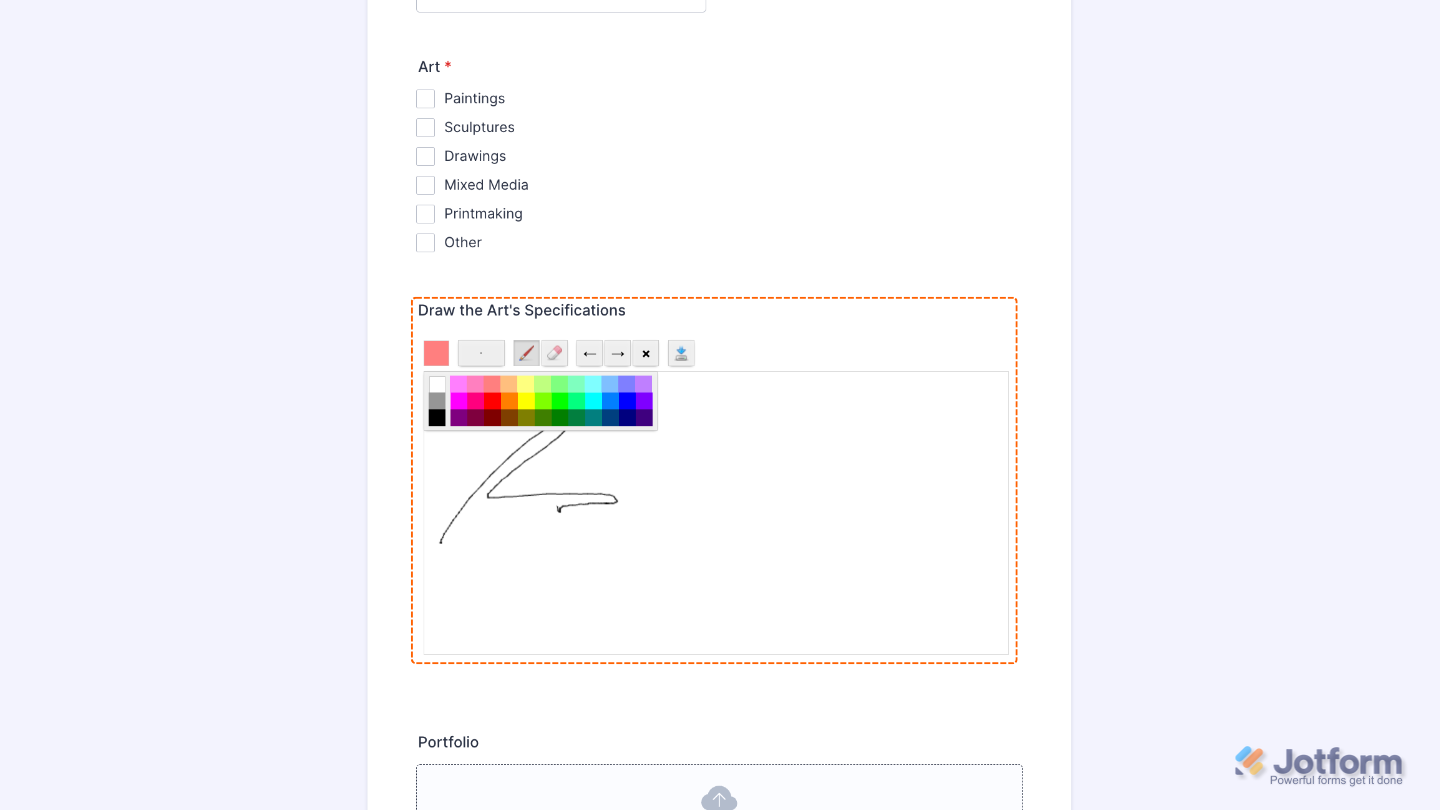
To further customize your Drawing Board field appearance, just click on the Gear icon to open its properties.
Note
For advanced styling, you can add your own custom CSS under the Custom CSS tab in the widget settings and style the Drawing Board field. Our guide on How to Inject CSS Codes to Widgets walks you through everything.
Pro Tips
- Pair it with File Upload or Text fields so users can explain their drawing or attach related files for extra context.
- Get creative with digital signatures—this widget can work as a more flexible, free-form alternative to standard signature fields.
- Enable Preview Before Submit so users can quickly review their sketch before sending it in.
- For the best experience across devices, keep the drawing board at a reasonable size and test how it looks on both mobile and desktop.

Send Comment: