With Jotform’s Drawing Captcha widget, you can keep your form safe from spam without making things frustrating for your users—security made simple and hassle-free. Instead of typing out hard-to-read characters, your visitors simply draw a quick shape to prove they’re human. It’s simple, interactive, and keeps your form safe and clean.
Here are a few ways to use it:
- Prevent Spam Submissions — You can use the Drawing Captcha widget to require users to complete a simple drawing task before submitting the form. This helps block bots and reduces spam entries.
- Add a User-Friendly Security Check — The widget provides a more interactive and less frustrating alternative to traditional CAPTCHA methods. Users can easily complete the task without solving complex puzzles.
- Protect Contact and Lead Forms — For contact, inquiry, or lead generation forms, the widget ensures that submissions come from real users. This keeps your data clean and reliable.
- Secure Registration Forms — You can use the widget to add an extra layer of verification for sign-ups or account registrations. This helps prevent automated or fake account creation.
Notes
- The Drawing Captcha widget is designed to make spam protection less frustrating for your users—no more squinting at hard-to-read letters!
- If your form audience includes people with vision challenges, consider turning on the Increase Contrast option to make the image easier to trace.
Adding and Setting Up the Add to Drawing Captcha Widget
Adding the Drawing Captcha widget to your form gives you a fun and secure way to block bots. You can do it in a few simple steps:
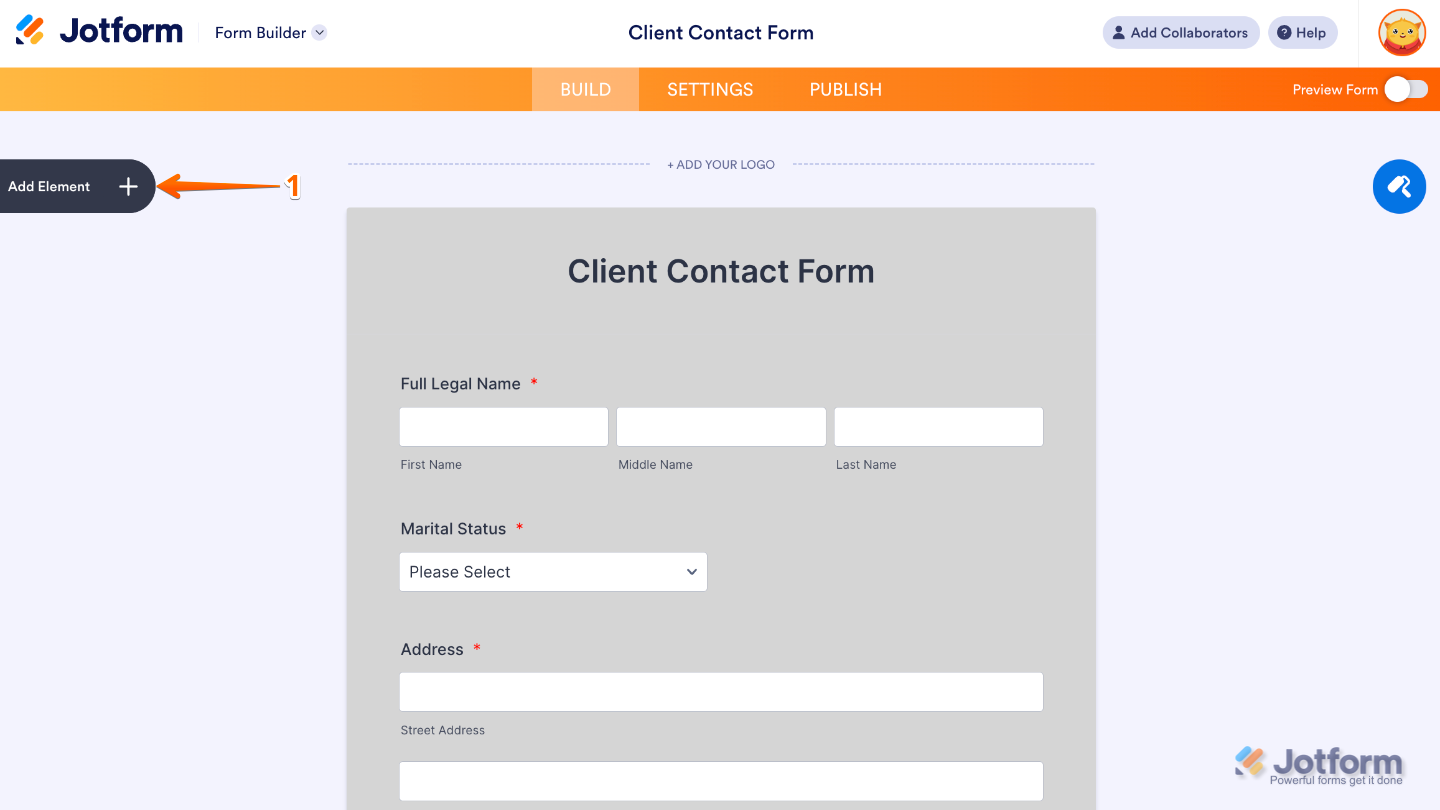
- In Form Builder, click on Add Element on the left side of the page.
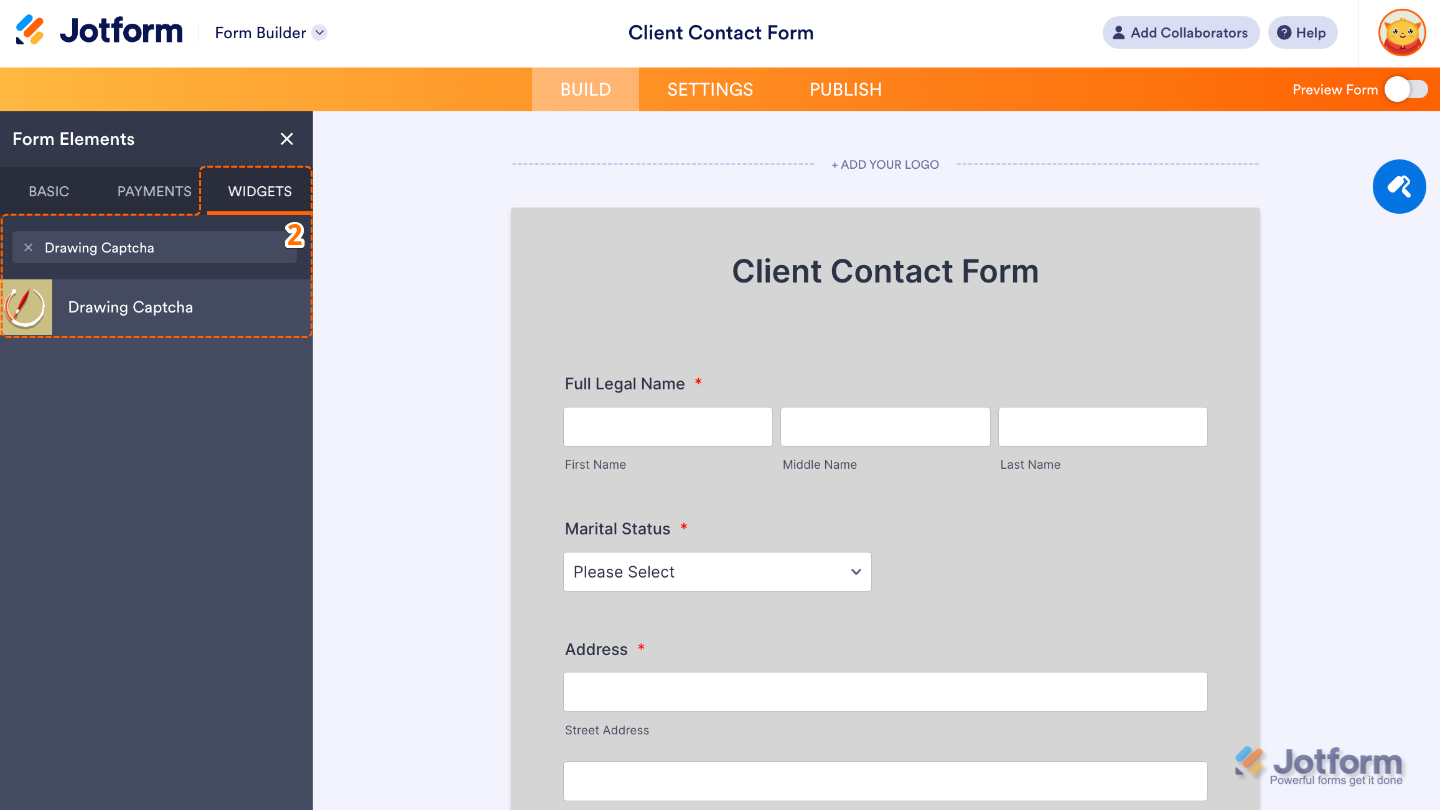
- Now, in the Form Elements menu, under the Widgets tab, search for Drawing Captcha and then click on it. Or, just drag and drop it to where you want it to be on your form.
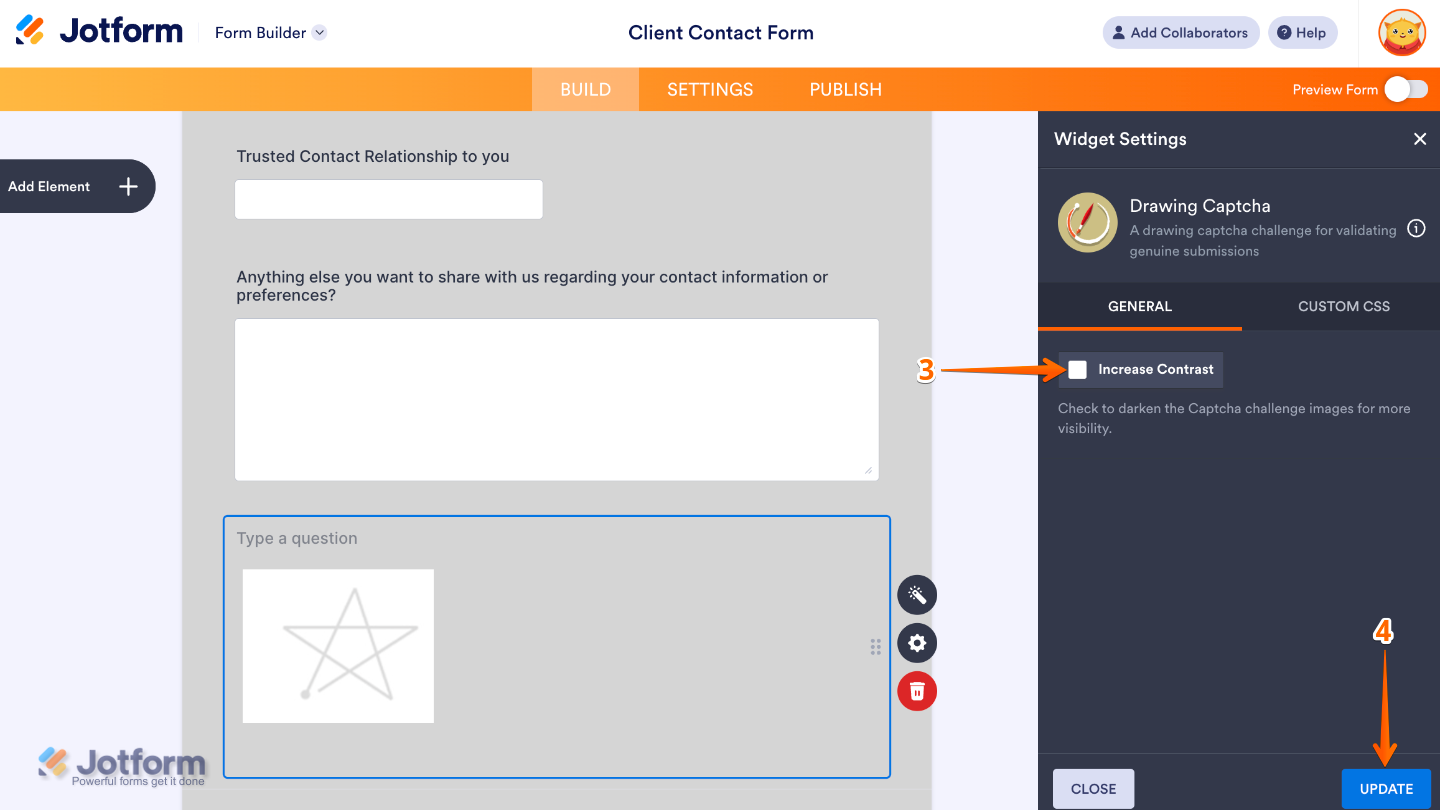
- Next, in the Widget Settings window that opens on the right side of the page, check the box next to Increase Contrast if you’d like to make the image easier for users to see and trace.
- Once you’re done, click on Update.
That’s it. You’ve successfully added and set up the Drawing Captcha widget to your form. Now, you have a field in your form that lets users skip the hassle of typing hard-to-read letters—instead, they simply trace a quick image, and once it’s done correctly, they can submit the form with ease. Curious how it works on a live form? Check out this Demo Form.
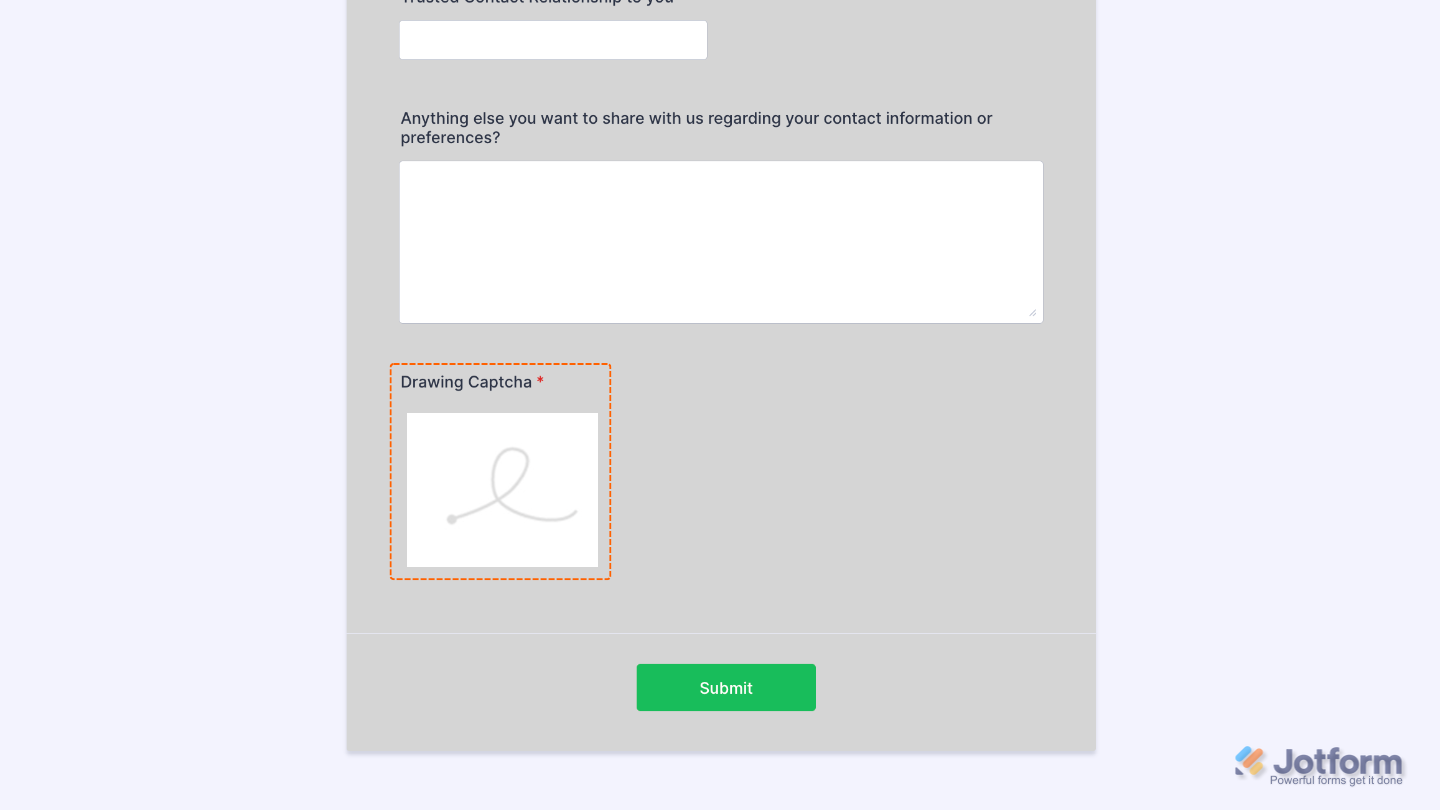
To further customize your Drawing Captcha field’s appearance, just click on the Gear icon to open its properties.
Note
For advanced styling, you can add your own custom CSS under the Custom CSS tab in the widget settings and style the Drawing Captcha field. Our guide on How to Inject CSS Codes to Widgets walks you through everything.
Pro Tip
Use the Drawing Captcha on high-traffic forms like contact forms, sign-up forms, or survey forms to reduce bot submissions while keeping things simple for real users.

Send Comment: