Jotform’s Dropdown with Paging widget lets you display a long list of options in a clean, easy-to-navigate way, perfect for keeping your form organized and user-friendly. Instead of overwhelming users with a massive dropdown list, this widget breaks options into manageable pages, making it easier to browse and select what they need. Whether you’re listing countries, products, or categories, this widget keeps your form clean, fast, and easy to navigate.
Here are a few ways to use it:
- Handle Long Lists with Ease — If your dropdown includes hundreds of items (like product SKUs, employee names, or course titles), paging keeps it neat and prevents users from feeling lost.
- Make Selection Faster — By organizing options into smaller sets, users can find what they’re looking for without having to scroll through a massive wall of text.
- Perfect for Large Inventories — E-commerce or order forms can benefit big time—you can list all your items without making the dropdown feel cluttered.
- Great for Membership or Directory Forms — If you’re listing members, locations, or departments, paging helps users browse efficiently without being overwhelmed.
Note
The Dropdown with Paging widget behaves just like a regular dropdown in terms of form submission and data handling.
Adding and Setting Up the Dropdown with Paging Widget
If your form has a long list of choices, the Dropdown with Paging widget is a great way to keep things neat and easy to browse. Setting it up takes no time—here’s how:
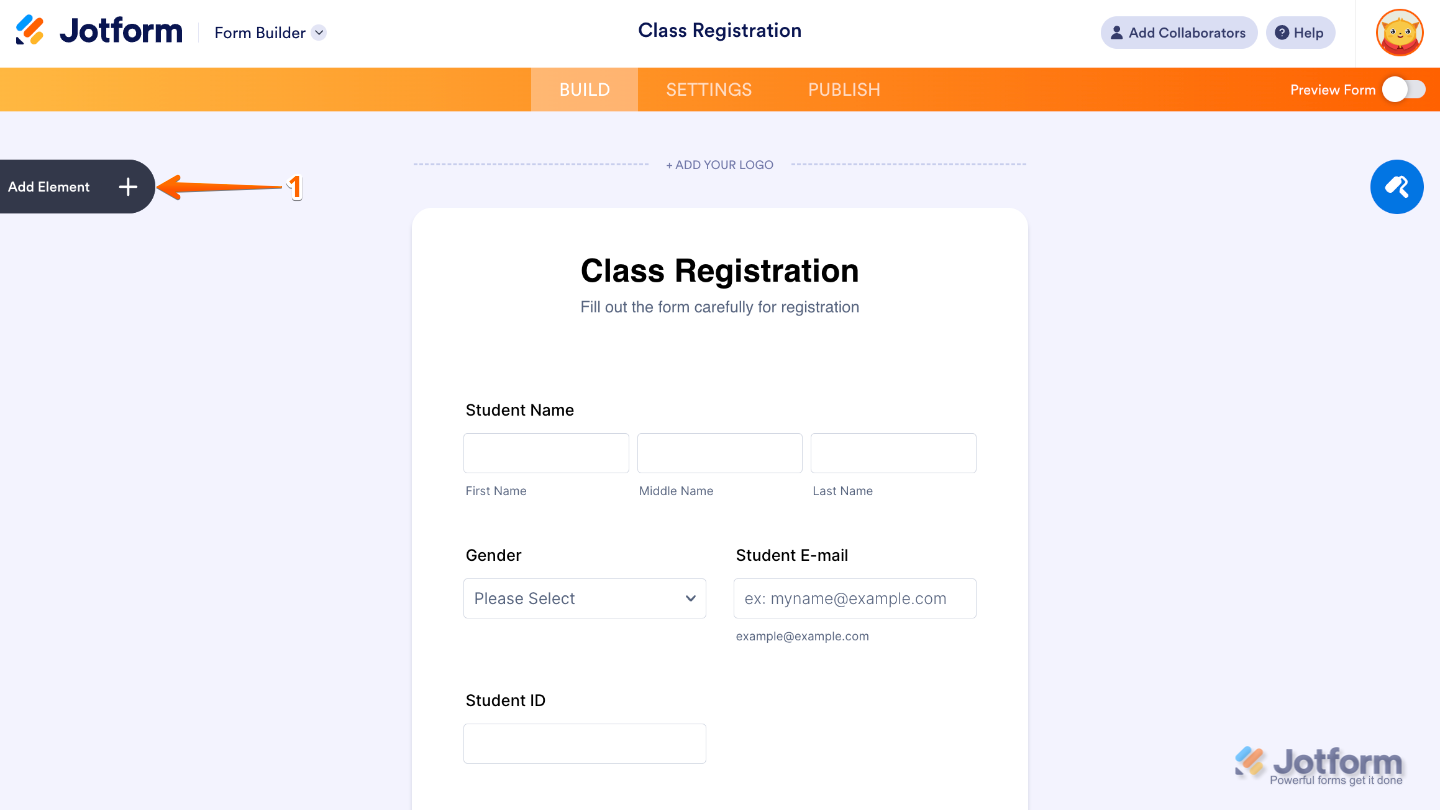
- In Form Builder, click on Add Element on the left side of the page.
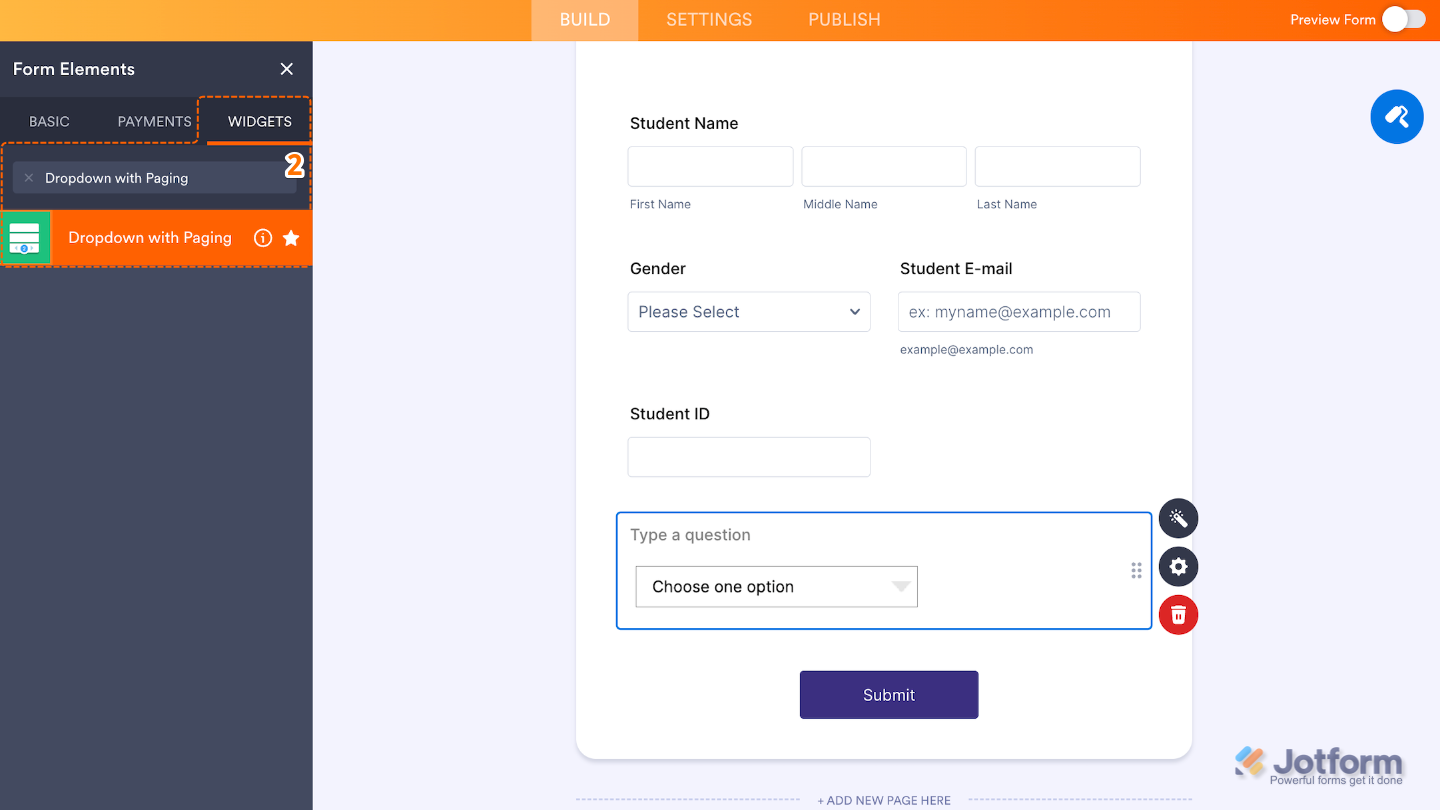
- Now, in the Form Elements menu, under the Widgets tab, search for Dropdown with Paging and then click on it. Or, just drag and drop it to where you want it to be on your form.
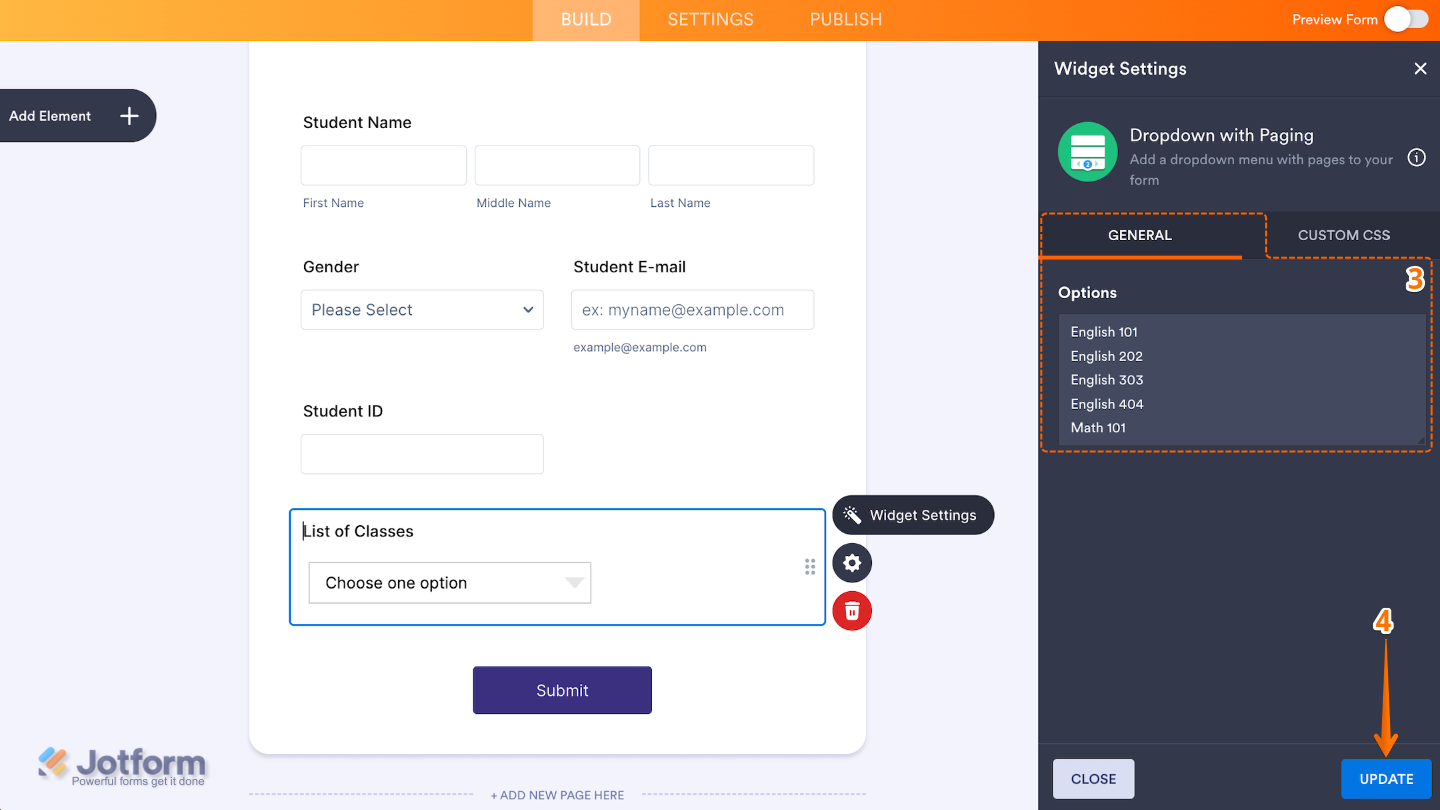
- Next, in the Widget Settings window that opens on the right side of the page, set up your Options. Just list each dropdown choice on a new line; this is where you’ll add everything your users can pick from.
- Once you’re done, click on Update.
That’s it. You’ve successfully added and set up the Dropdown with Paging widget to your form. Now, you have a field in your form that makes it super easy for users to pick an option from a long list, no endless scrolling needed. Wondering how it looks in action? Check out this Demo Form.
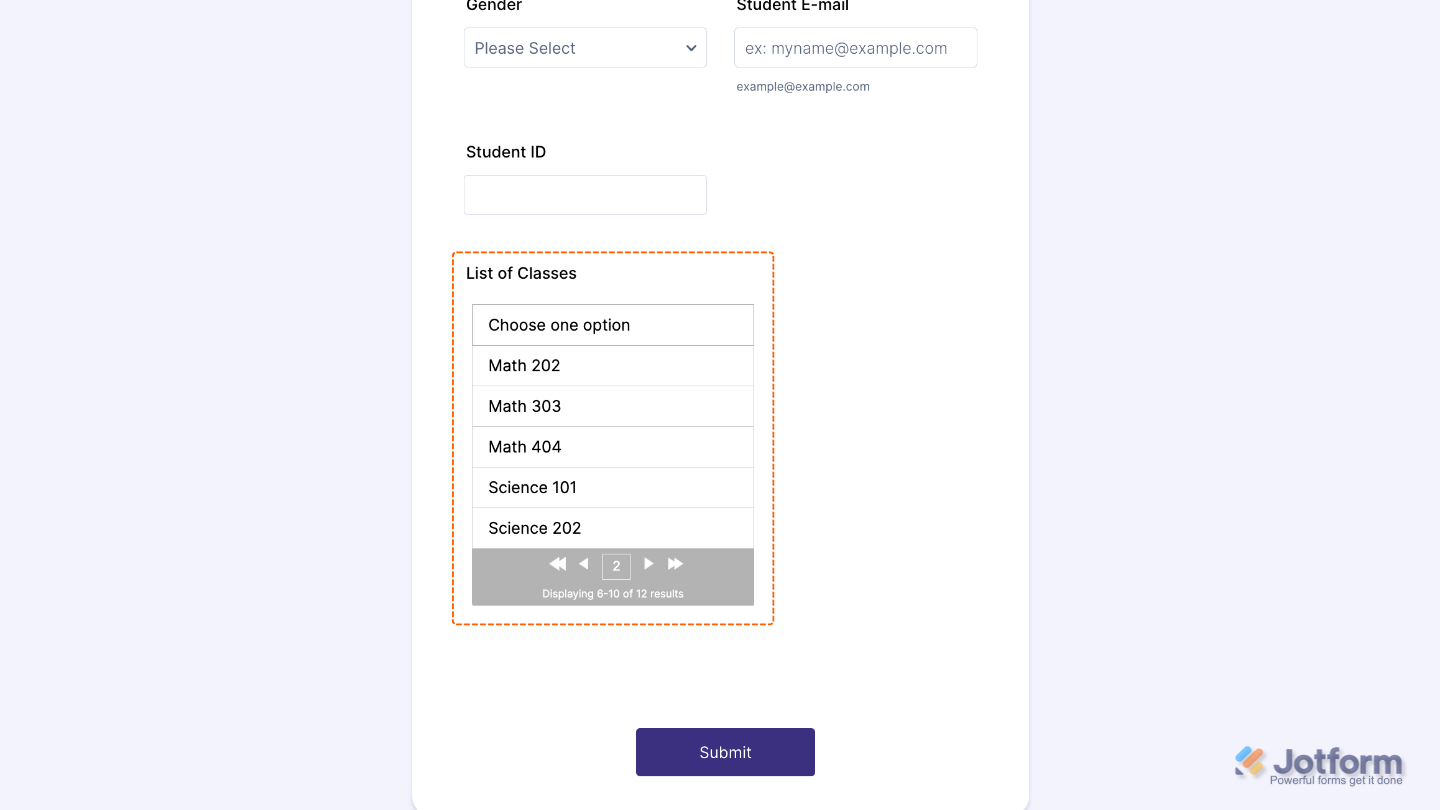
To further customize your Dropdown with Paging field appearance, just click on the Gear icon to open its properties
Note
For advanced styling, you can add your own custom CSS under the Custom CSS tab in the widget settings and style the Dropdown with Paging field. Our guide on How to Inject CSS Codes to Widgets walks you through everything.
Pro Tip
Group similar options together when possible, so users can easily find what they’re looking for.

Send Comment: