Jotform’s Fancy Radios widget is a fun and stylish way to upgrade the basic radio button field on your form. Instead of plain circles, you can display your options with eye-catching buttons that make selecting answers more engaging. Whether you’re running surveys, polls, or any form where users need to pick just one choice, this widget adds a modern, polished touch that’s both functional and visually appealing.
Here are a few ways to use it:
- Create Visually Appealing Single-Choice Questions — You can use the Fancy Radios widget to present single-choice options in a more stylish format. Its enhanced design makes forms look more modern and engaging.
- Highlight Product or Plan Selections — The widget works well for selecting products, packages, or subscription plans. The visually distinct options help users compare choices more easily.
- Design Interactive Survey Questions — You can use the Fancy Radios widget to make survey questions more interactive. The improved visual style encourages users to respond and improves the overall experience.
- Improve Mobile-Friendly Selections — The larger and clearer selection buttons make it easier for users to choose an option on mobile devices, reducing selection errors.
Note
The Fancy Radios widget only allows users to select one option at a time, just like regular radio buttons.
Adding and Setting Up the Add to Fancy Radios Widget
Adding the Fancy Radios widget to your form lets you swap out plain radio buttons with stylish, modern ones—no coding needed. Here’s the quick way to do it:
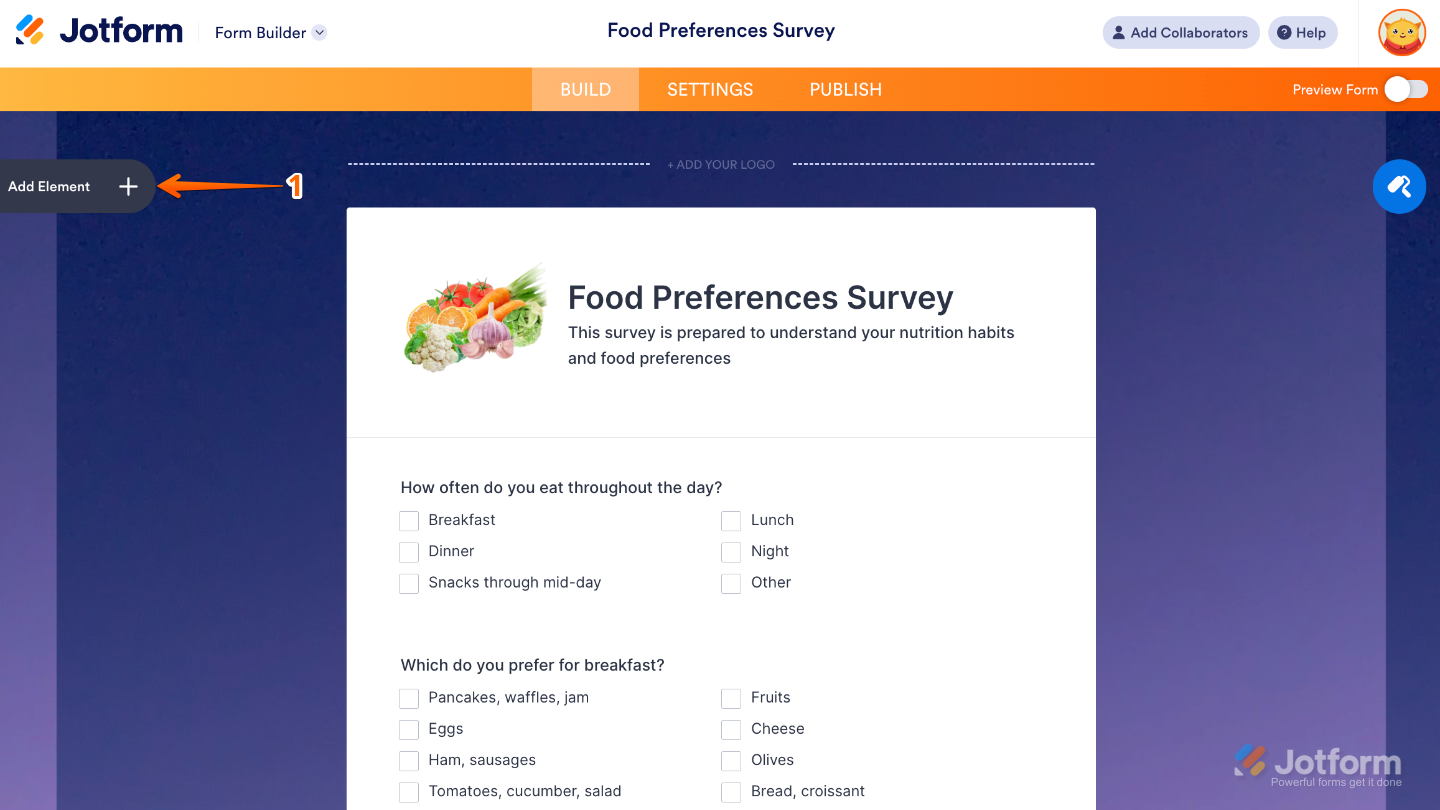
- In Form Builder, click on Add Element on the left side of the page.
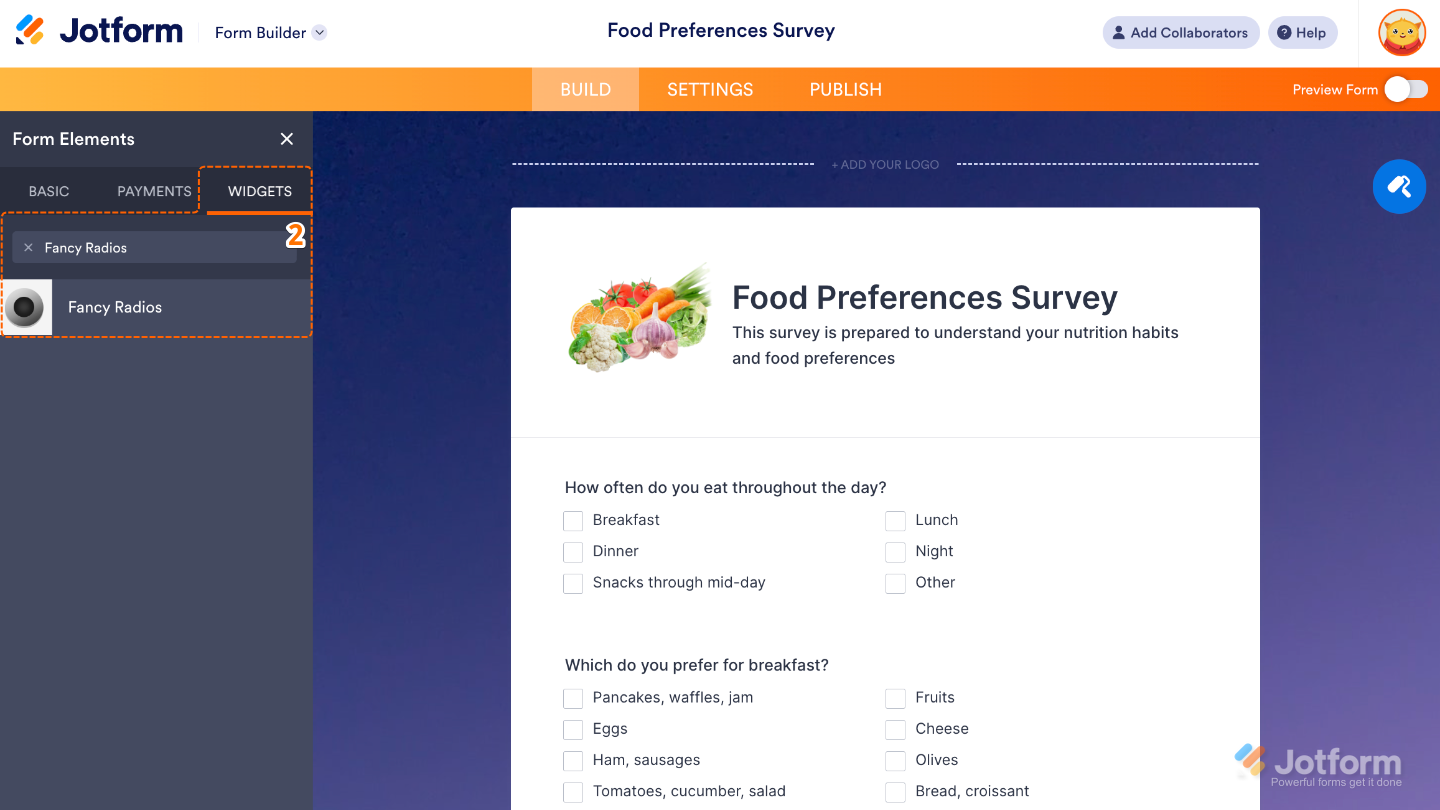
- Now, in the Form Elements menu, under the Widgets tab, search for Fancy Radios and then click on it. Or, just drag and drop it to where you want it to be on your form.
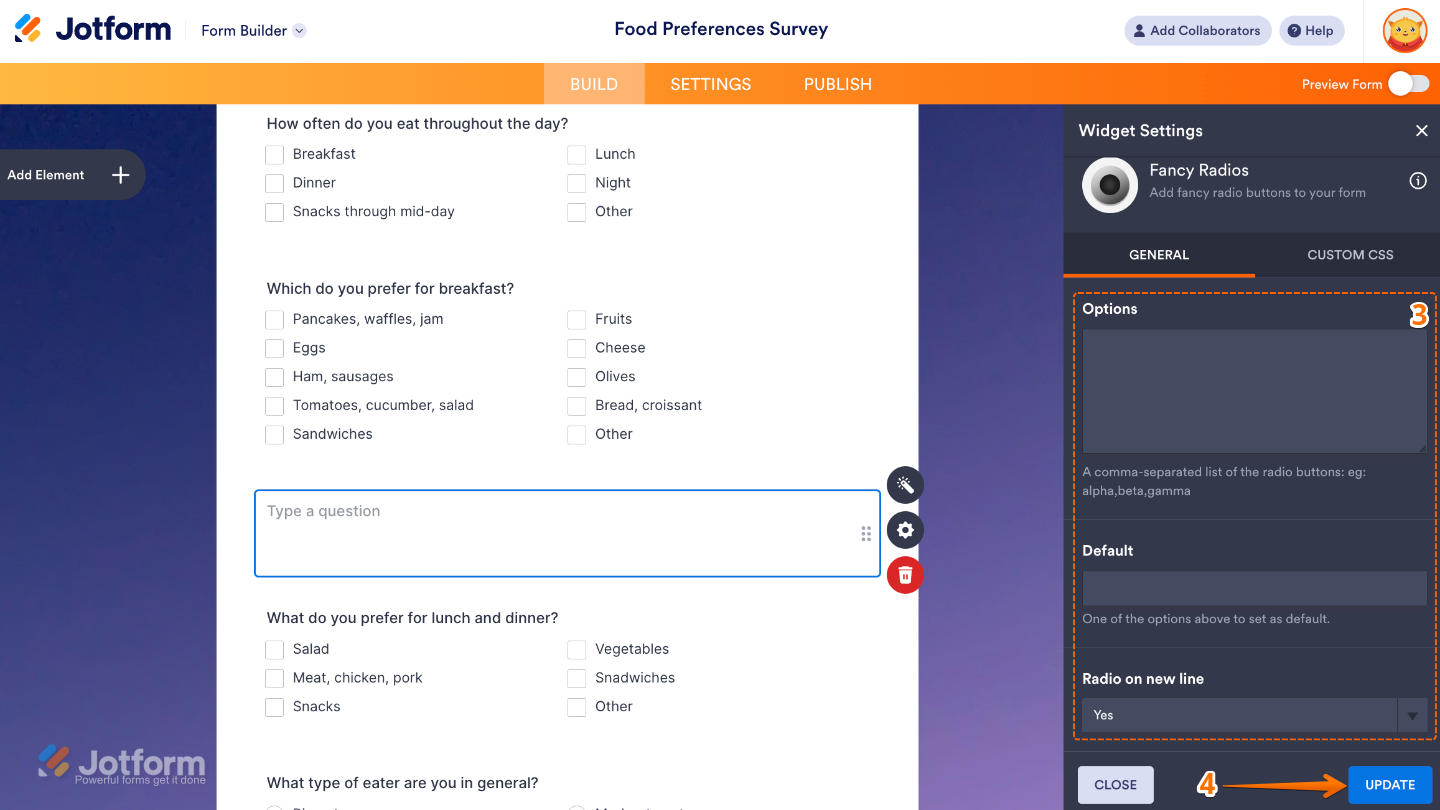
- Next, in the Widget Settings menu that opens on the right side of the page, set up these options:
- Options — Type in the choices you’d like people to pick from, and each one will show up as a stylish radio button on your form.
- Default — Choose one option to be pre-selected when someone opens your form—perfect if you have a most popular or recommended choice.
- Radio on new line — Switch this on if you’d like each radio button to appear on its own line. It’s a great way to keep things neat—especially when your options have longer text.
- Once you’re done, click on Update.
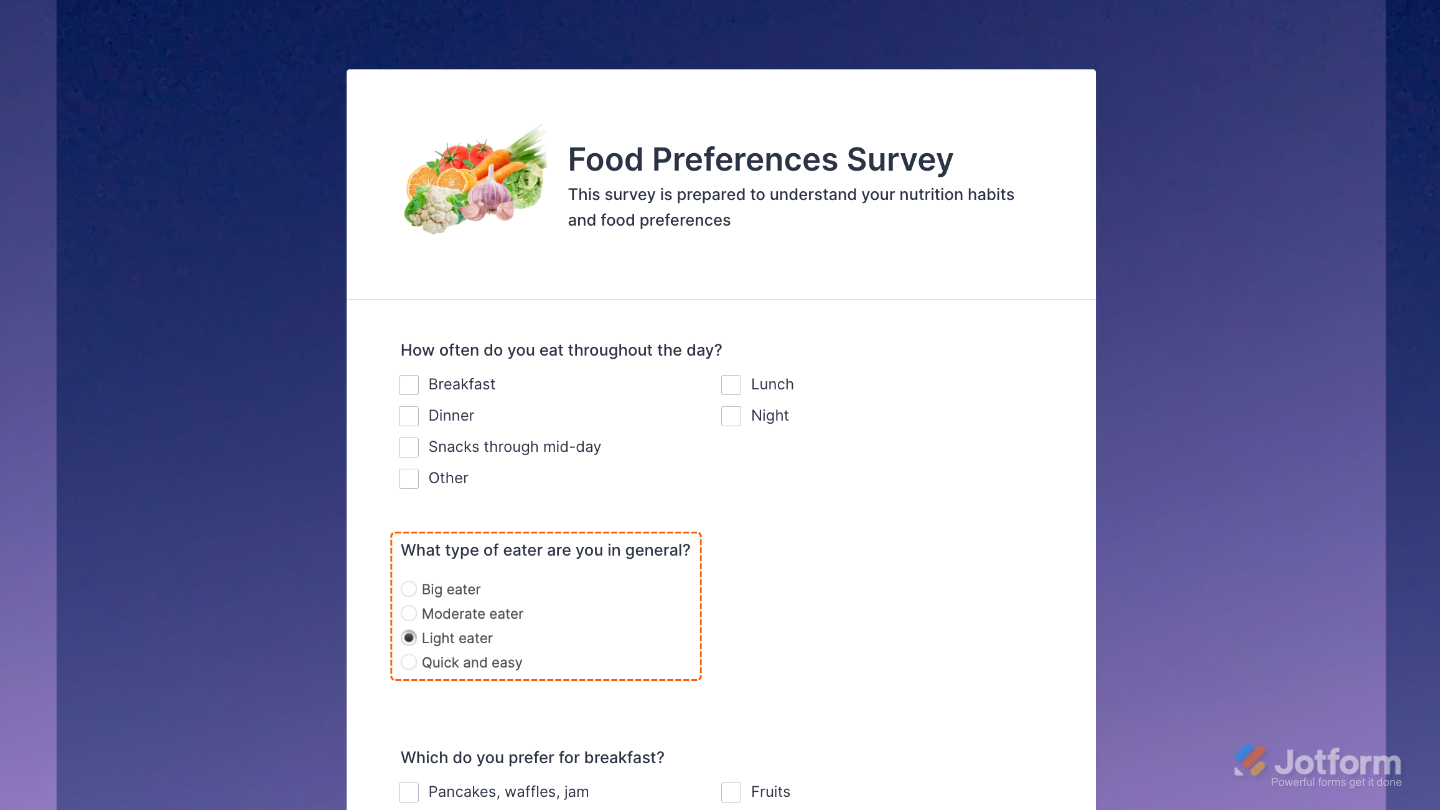
That’s it. You’ve successfully added and set up the Fancy Radios widget to your form. Now, you have a field in your form that turns plain radio buttons into stylish, eye-catching choices—making it easier and more fun for users to pick their answer. Curious how it works on a live form? Check out this Demo Form.
To further customize your Fancy Radios field’s appearance, just click on the Gear icon to open its properties.
Note
For advanced styling, you can add your own custom CSS under the Custom CSS tab in the widget settings and style the Fancy Radios field. Our guide on How to Inject CSS Codes to Widgets walks you through everything.
Pro Tips
- Keep option text short and clear for the best visual effect—shorter text looks neater inside stylish buttons.
- If you have a recommended choice, set it as the default to guide users without forcing their selection.

Send Comment: