Jotform’s Fixed Format widget makes it easy to keep form responses neat and consistent. Whether you’re collecting phone numbers, dates, or ID codes, this tool helps ensure answers follow the exact format you need. With just a quick setup, you can guide users to fill out fields correctly every time—keeping your forms organized and your data clean.
Here are a few ways to use it:
- Enforce a Specific Input Pattern — You can use the Fixed Format widget to ensure users enter information in a required structure, such as ID numbers or reference codes. This helps maintain consistent and standardized data.
- Collect Phone Numbers in a Set Format — The widget allows you to define a specific phone number pattern, ensuring all submissions follow the same format. This reduces formatting errors and improves readability.
- Gather Identification or License Numbers — For forms that require passport numbers, driver’s licenses, or employee IDs, the widget ensures entries match the expected character and number pattern.
- Standardize Postal or Zip Codes — You can use the widget to control how postal or zip codes are entered, especially when a country requires a specific alphanumeric structure.
Notes
- The Fixed Format widget is great for fields that need a specific structure (like phone numbers, dates, or ID codes).
- Keep in mind that users can only enter information in the exact format you set—so be clear about what’s expected.
Adding and Setting Up the Fixed Format Widget
Adding the Fixed Format widget to your form makes it easy to create fields that follow a specific structure—like phone numbers, dates, or codes. Setting it up takes no time at all—here’s how:
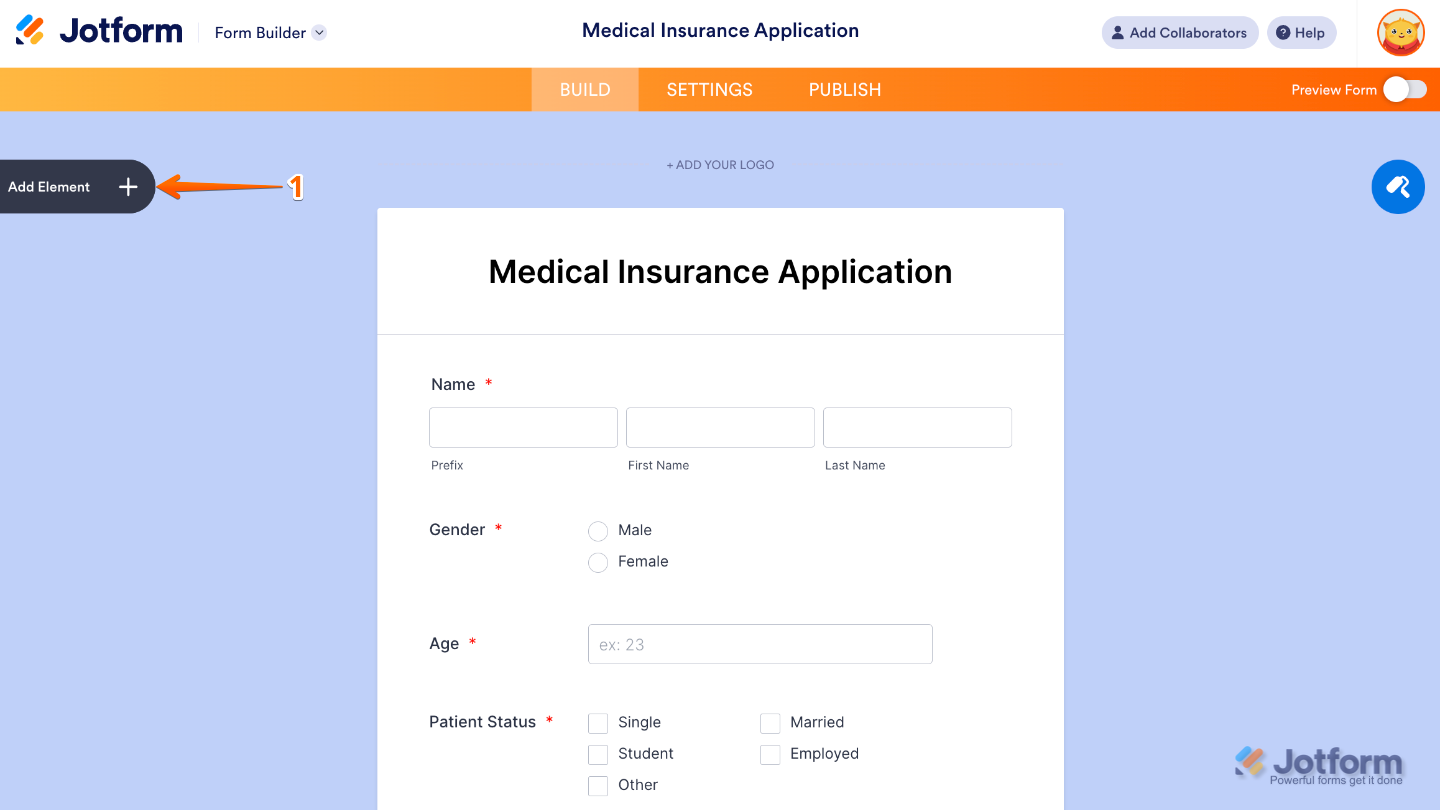
- In Form Builder, click on Add Element on the left side of the page.
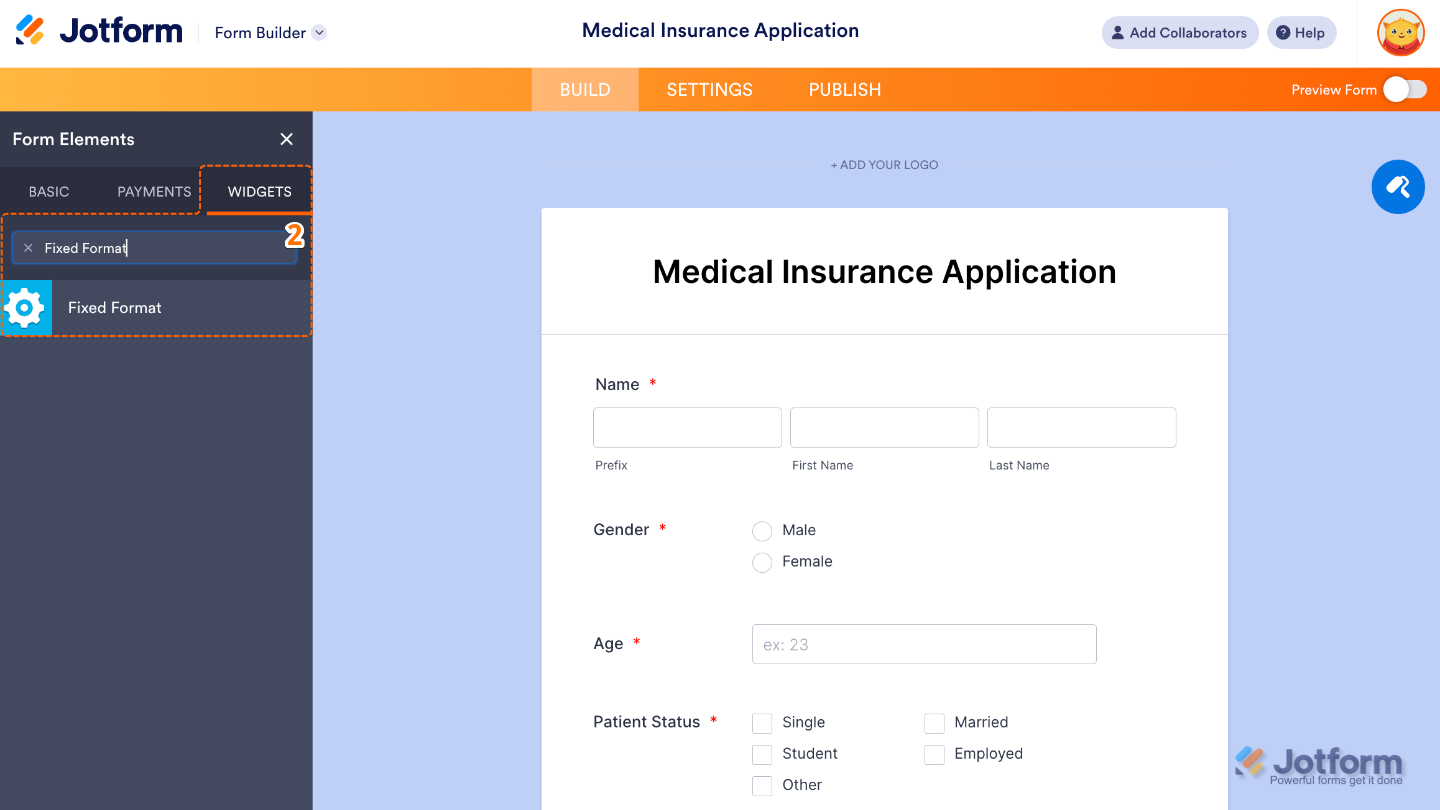
- Now, in the Form Elements menu, under the Widgets tab, search for Fixed Format and then click on it. Or, just drag and drop it to where you want it to be on your form.
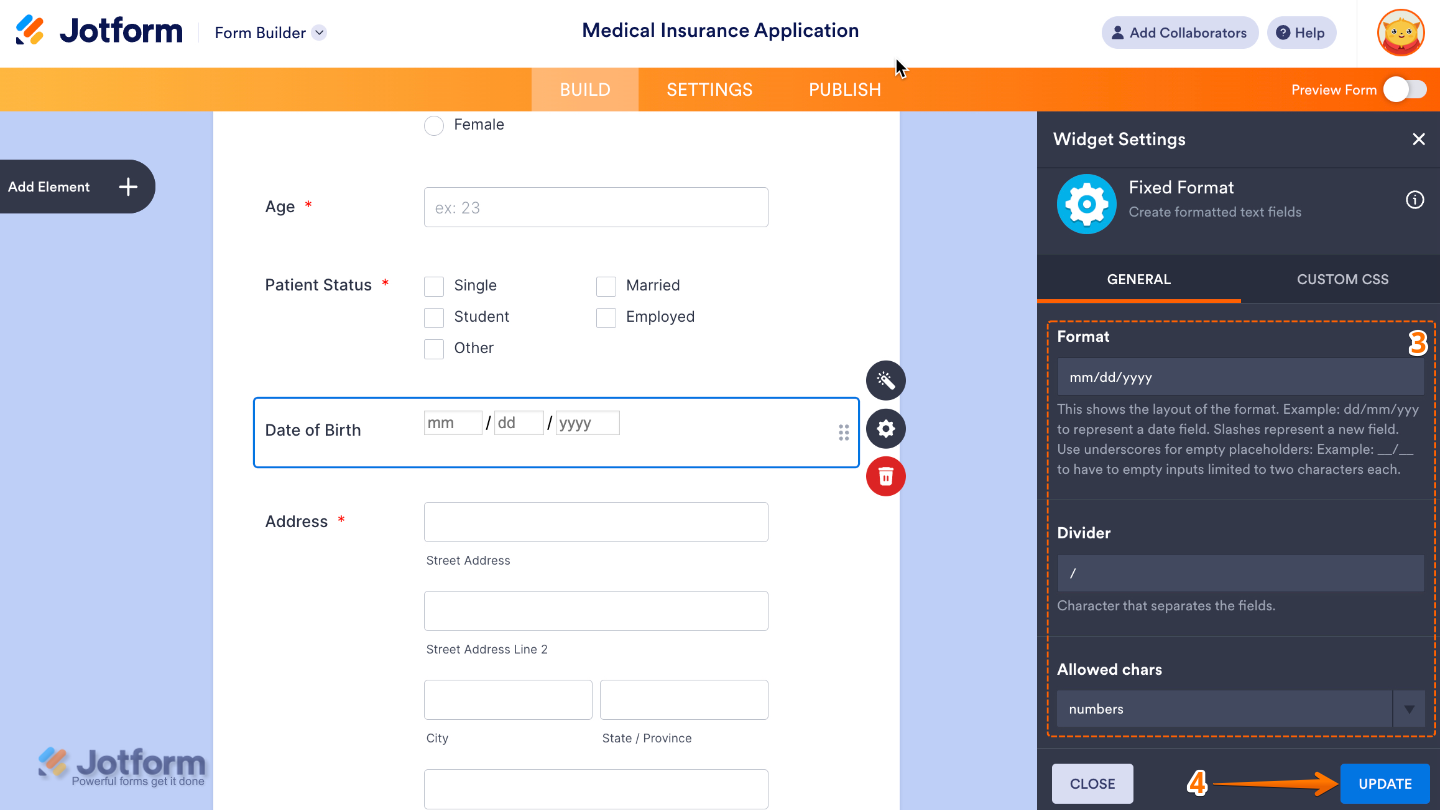
- Next, in the Widget Settings window that opens on the right side of the page, set up the following options:
- Format — Set the pattern or structure you want users to follow. Example: XXX-XXX-XXXX for phone numbers or DD/MM/YYYY for dates. Each character represents the type of input users can enter.
- Divider — Define the separator between parts of the format. Example: a dash -, slash /, or space. If your format is a phone number, the divider could be – so it looks like 123-456-7890.
- Allowed Chars — Controls which characters users are allowed to type into the field. Example: only numbers (0–9) for phone numbers, or letters and numbers for IDs.
- Once you’re done, click on Update.
That’s it. You’ve successfully added and set up the Fixed Format widget to your form. Now, you have a field in your form that guides users to enter information in the exact format you need, keeping your form responses clear and consistent. Curious how it works on a live form? Check out this Demo Form.
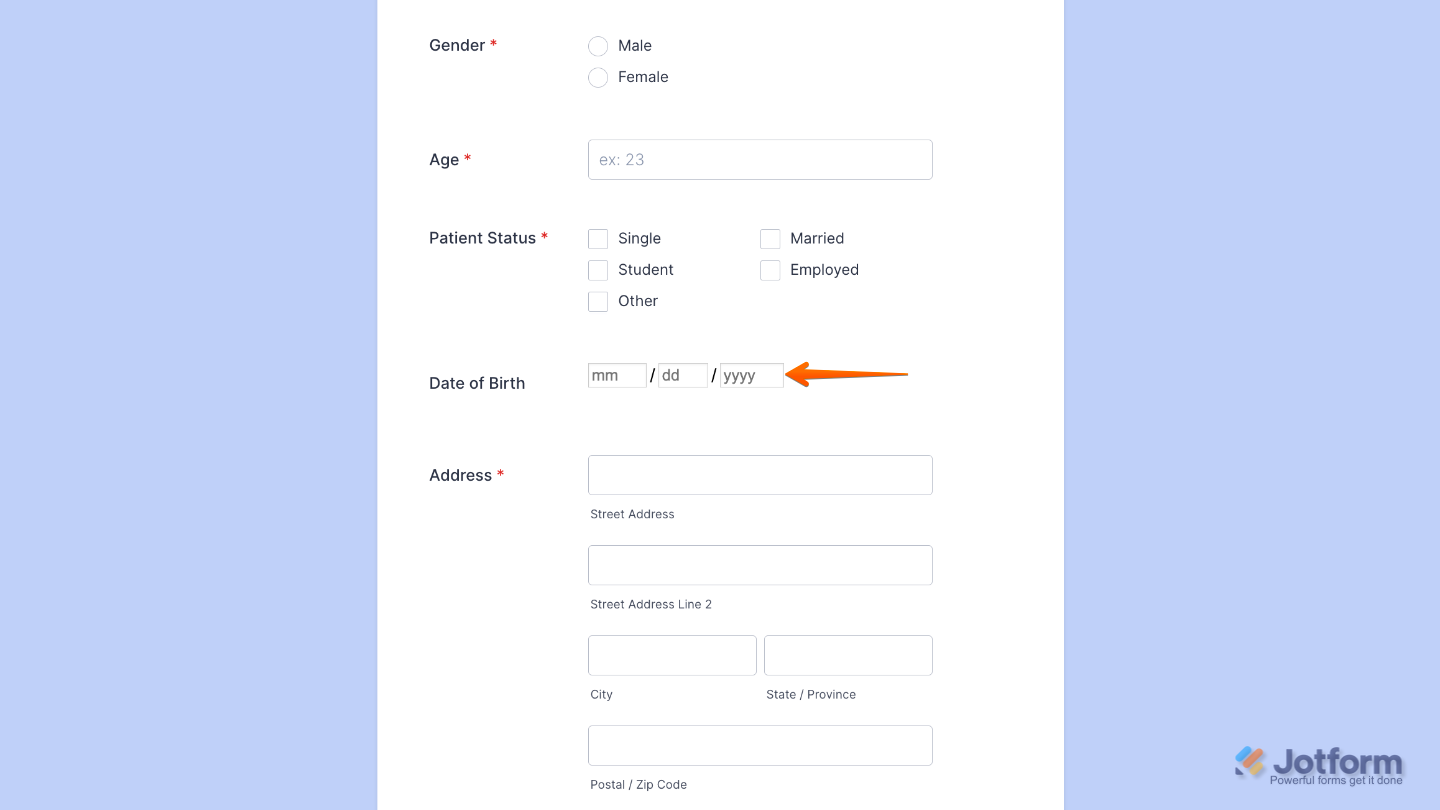
To tweak how your Fixed Format field looks, just click the Gear icon to open its settings and adjust it to your liking.
Note
For advanced styling, you can add your own custom CSS under the Custom CSS tab in the widget settings and style the Fixed Format field. Our guide on How to Inject CSS Codes to Widgets walks you through everything.
Pro Tips
- Test your form before publishing to make sure the format works smoothly on both desktop and mobile.
- If you collect international data (like phone numbers), consider whether you need different formats for different regions.

Send Comment: