Jotform’s Flat Radio Buttons widget is a simple way to give your form a modern, polished look. With clean, stylish buttons laid out in a flat theme, it not only makes your form more visually appealing but also keeps the user experience front and center.
Here are a few ways to use it:
- Let Users Select Product Colors — You can use the Color Picker widget to allow customers to choose their preferred product color, such as for custom apparel, merchandise, or printed materials. This makes the selection process more visual and accurate.
- Collect Branding Preferences — The widget is useful for design request forms where clients need to specify brand or theme colors. Instead of typing a color name, they can select the exact shade they want.
- Customize Event or Theme Settings — For event planning forms, users can choose theme colors for decorations, invitations, or digital assets. This helps organizers understand the client’s visual preferences clearly.
- Gather UI or Website Design Inputs — Web designers and developers can use the widget to let clients select preferred interface colors for buttons, backgrounds, or accents. This ensures precise communication of design expectations.
Notes
- The Flat Radio Buttons widget swaps out the standard radio buttons for a clean, modern design, giving your form a polished, professional look.
- It’s perfect for situations where users only need to pick one option from a list of choices.
Adding and Setting Up the Flat Radio Buttons Widget
Adding the Flat Radio Buttons widget to your form replaces the standard radio buttons with a clean, stylish design that’s easy to read and tap. Here’s the quick way to do it:
- In Form Builder, click on Add Element on the left side of the page.

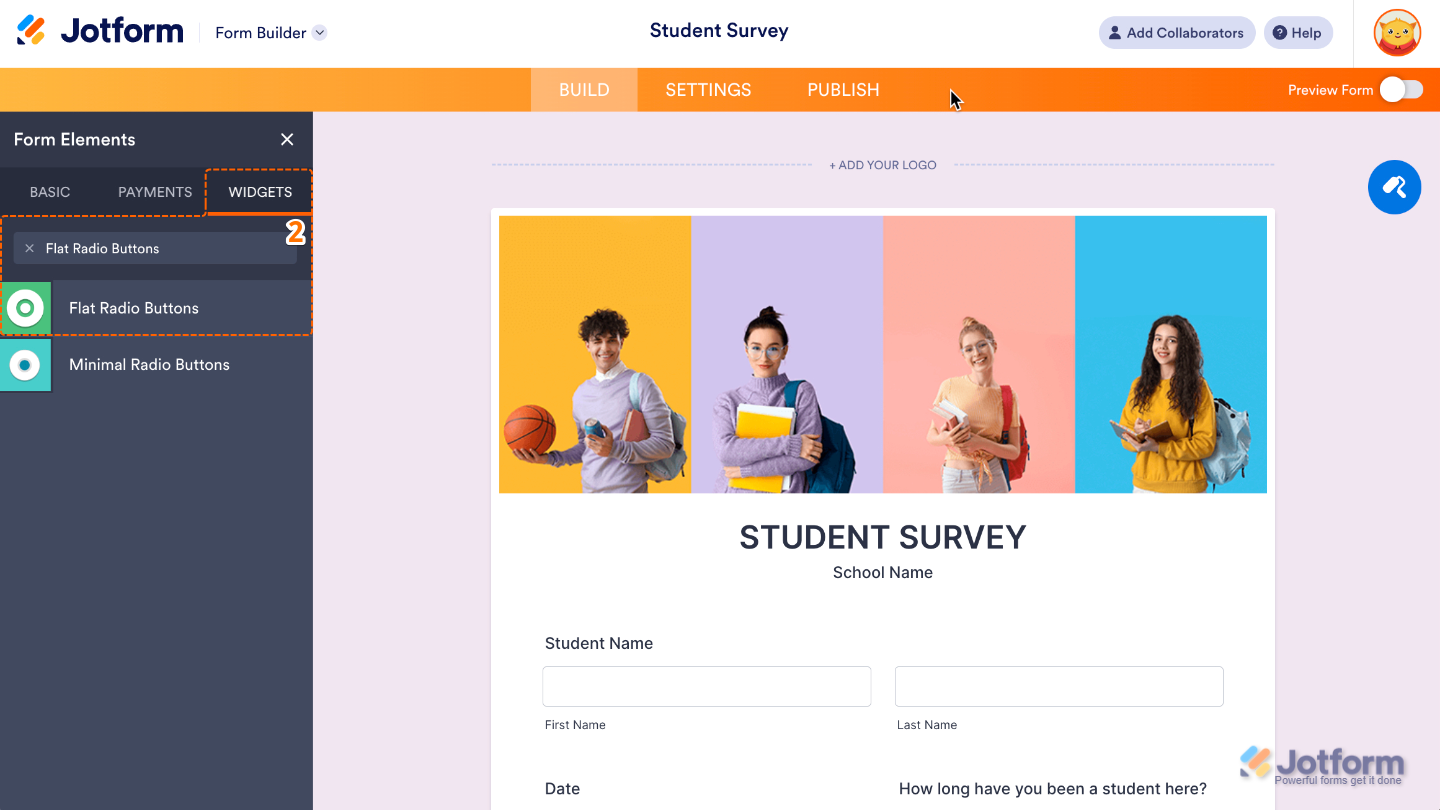
- Now, in the Form Elements menu, under the Widgets tab, search for Flat Radio Buttons and then click on it. Or, just drag and drop it to where you want it to be on your form.
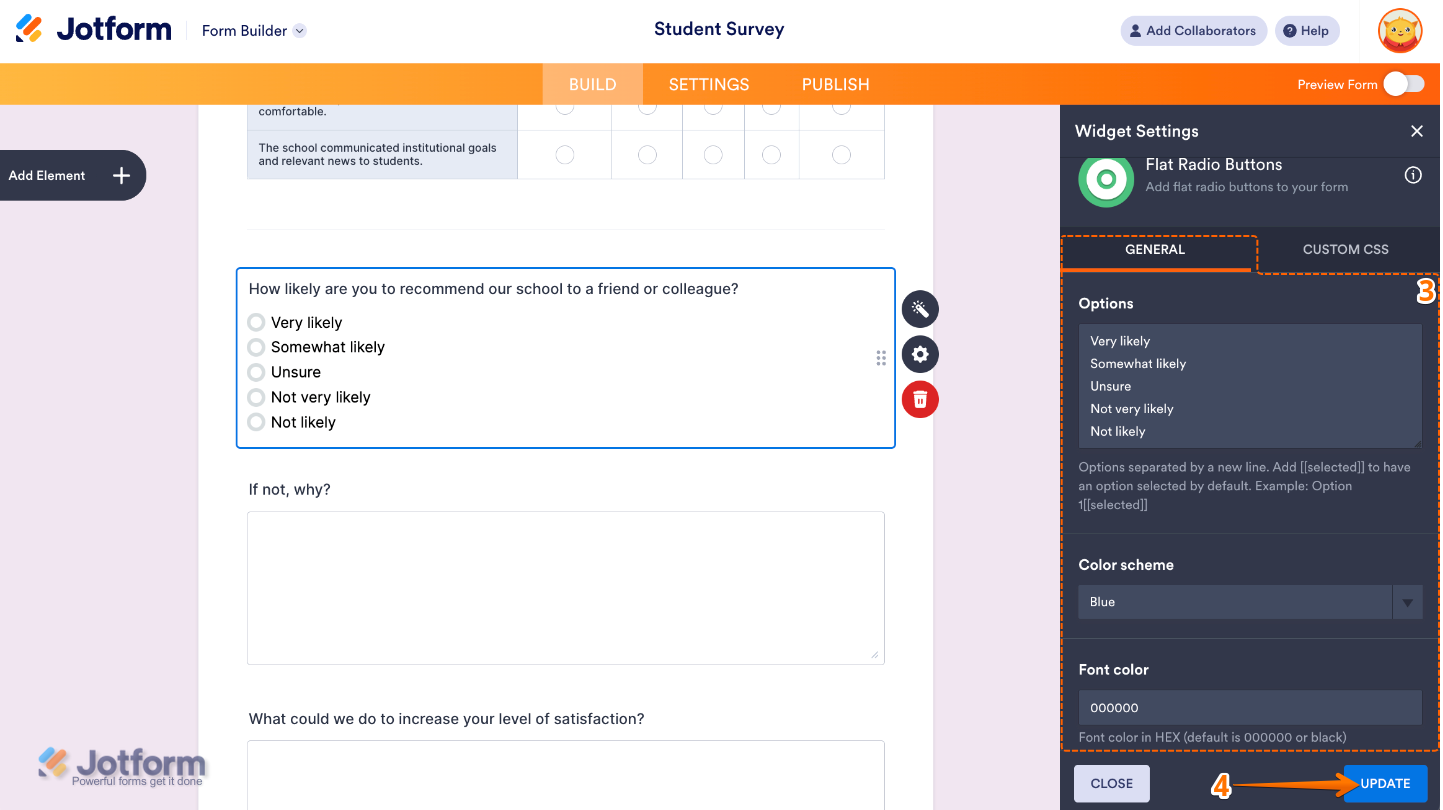
- Next, in the Widget Settings menu that opens on the right side of the page, set up the following options:
- Options — Type in the choices you’d like your users to see—each line you add will turn into its own clickable radio button.
- Color Scheme — Pick the style that best fits your form, giving your radio buttons a clean, modern look that blends perfectly with your design.
- Font Color — Set the text color of your options so they’re easy to read and align with your form’s branding.
- Once you’re done, click on Update.
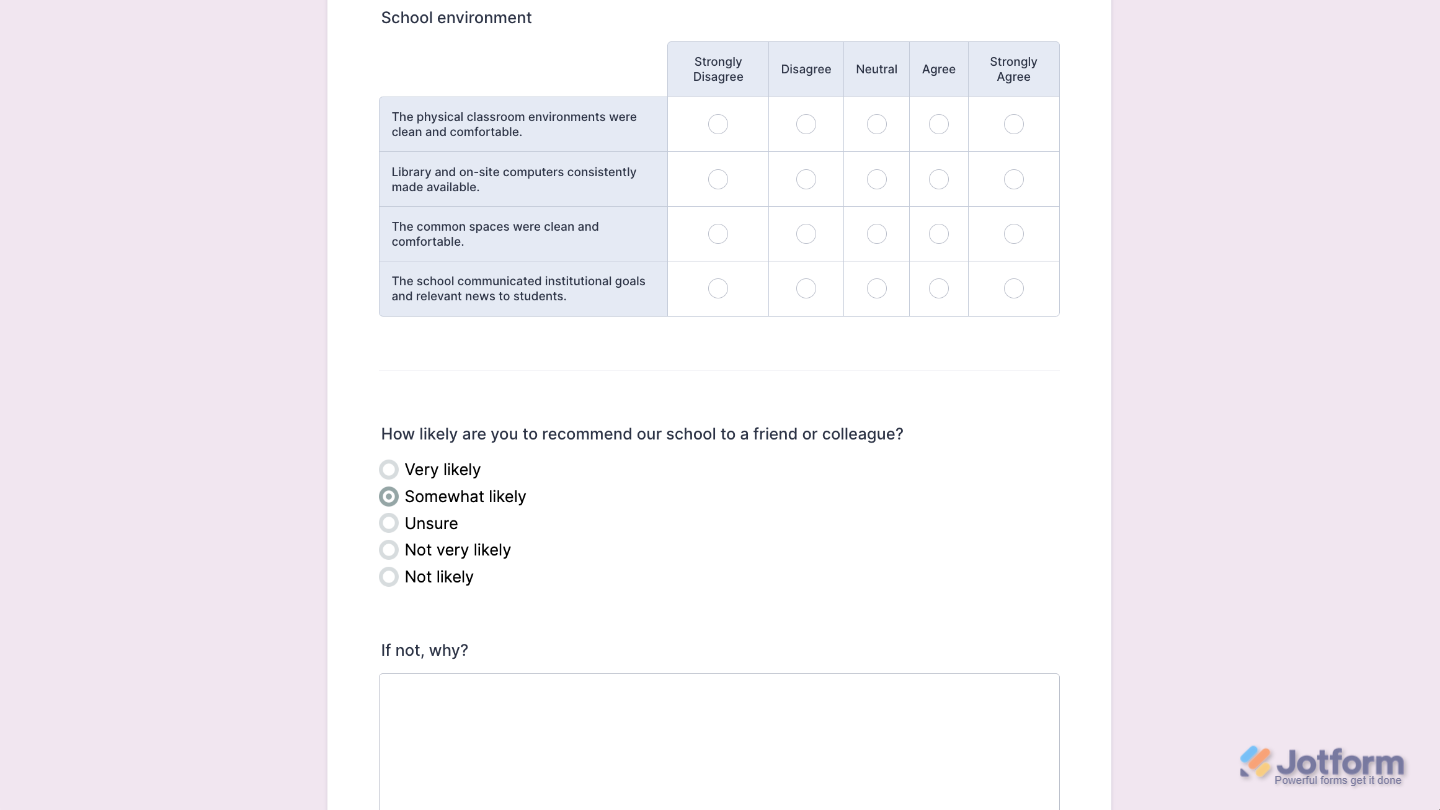
That’s it. You’ve successfully added and set up the Flat Radio Buttons widget to your form. Now, you have a field in your form that makes choosing options look sleek and modern with flat-style radio buttons— a breeze for users to interact with. Curious how it works on a live form? Check out this Demo Form.
To tweak how your Flat Radio Buttons field looks, just click the gear icon to open its settings and adjust it to your liking.
Note
For advanced styling, you can add your own custom CSS under the Custom CSS tab in the widget settings and style the Flat Radio Buttons field. Our guide on How to Inject CSS Codes to Widgets walks you through everything.
Pro Tips
- Keep your option labels short and clear so they look neat and easy to scan.
- If you want your form to feel cohesive, choose a button style and color that matches your form’s branding or overall vibe.

Send Comment: