Jotform’s Get User Agent widget is a simple but powerful tool that quietly collects technical details about your users—like their browser, operating system, and device type—as they fill out your form. This information can help you better understand your audience, troubleshoot issues, or even improve your form’s performance. It all happens in the background, so your users can focus on filling out your form without any extra steps.
Here are a few ways to use it:
- Identify the User’s Browser and Device — You can use the Get User Agent widget to capture information about the browser and device a user is using when submitting a form. This helps you understand how users access your forms.
- Troubleshoot Technical Issues — The widget is useful for support or bug-report forms because it automatically records the user’s browser and operating system. This information helps developers diagnose compatibility issues more efficiently.
- Analyze User Environment for Testing — Developers and testers can use the widget to gather data about the environments in which their forms are accessed. This helps ensure the form performs correctly across different browsers and devices.
- Improve Customer Support Requests — When users submit support tickets, the widget can include their device and browser details. This allows support teams to replicate issues and provide more accurate solutions.
Notes
- The Get User Agent widget automatically collects details about a user’s browser, operating system, and device type when they submit your form.
- Everything runs quietly in the background—users don’t see or interact with the Get User Agent widget.
Adding and Setting Up the Get User Agent Widget
Adding the Get User Agent widget to your form lets you automatically collect details about your users’ browser and operating system, making it easier to troubleshoot issues and understand what devices people use. Here’s the quick way to do it:
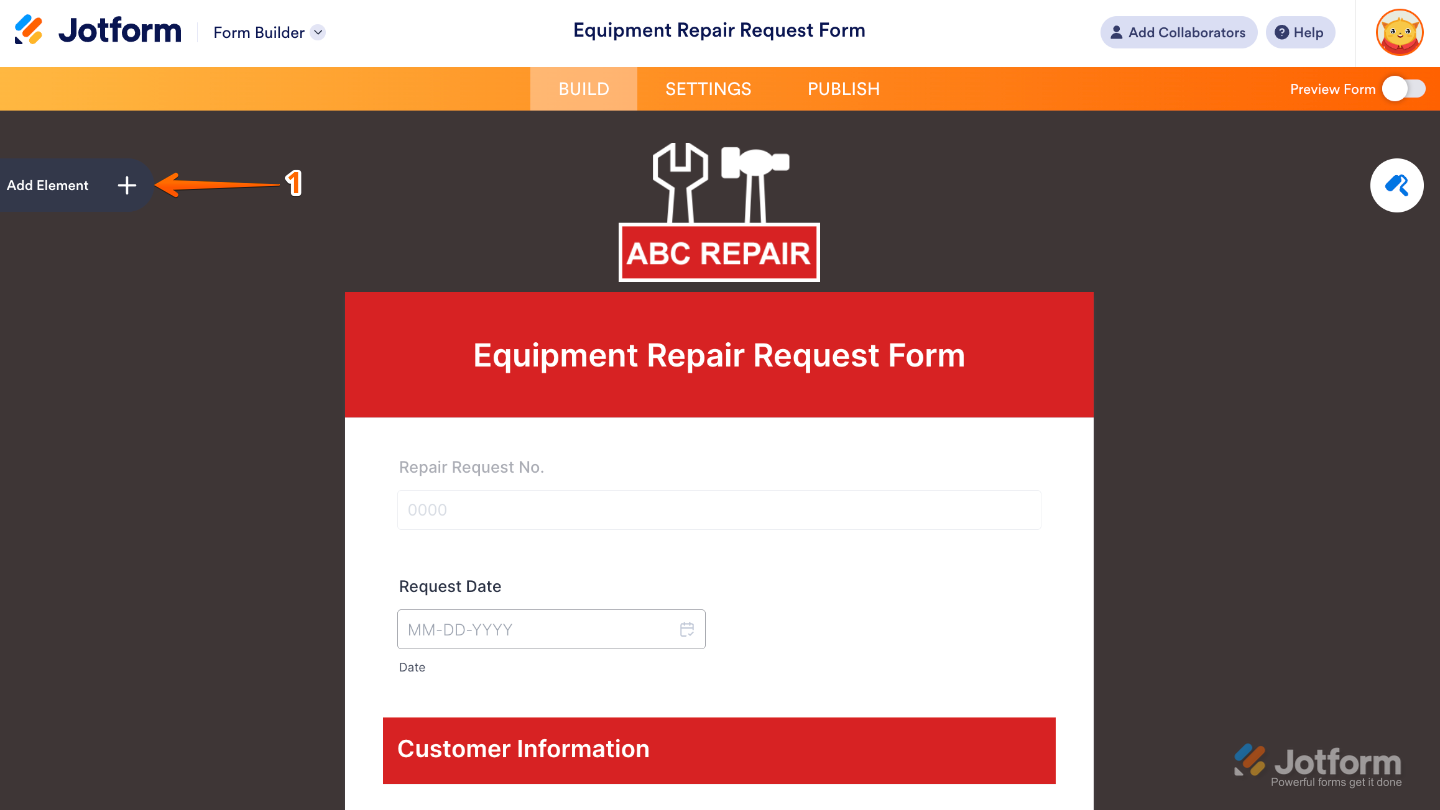
- In Form Builder, click on Add Element on the left side of the page.
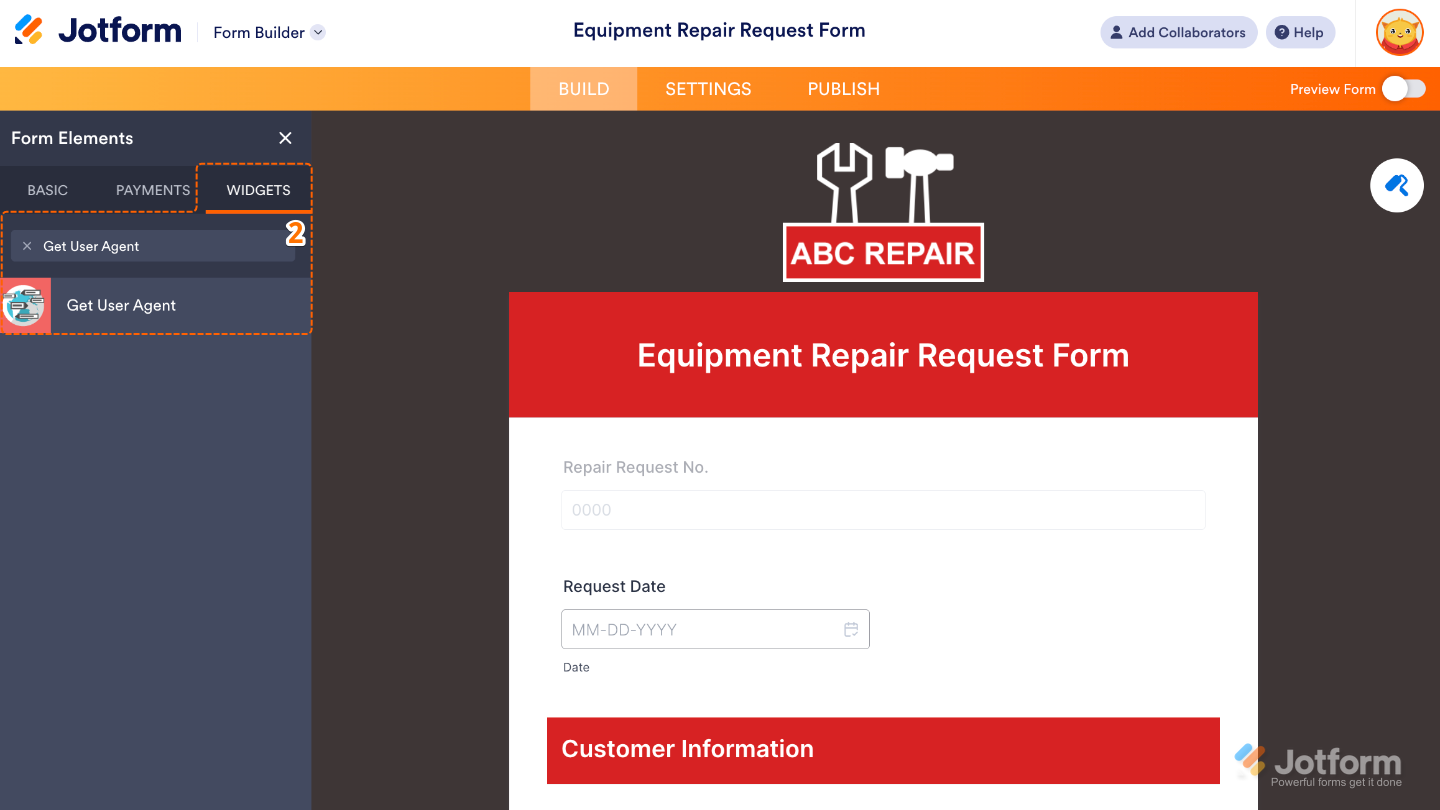
- Now, in the Form Elements menu, under the Widgets tab, search for Get User Agent and then click on it. Or, just drag and drop it to where you want it to be on your form.
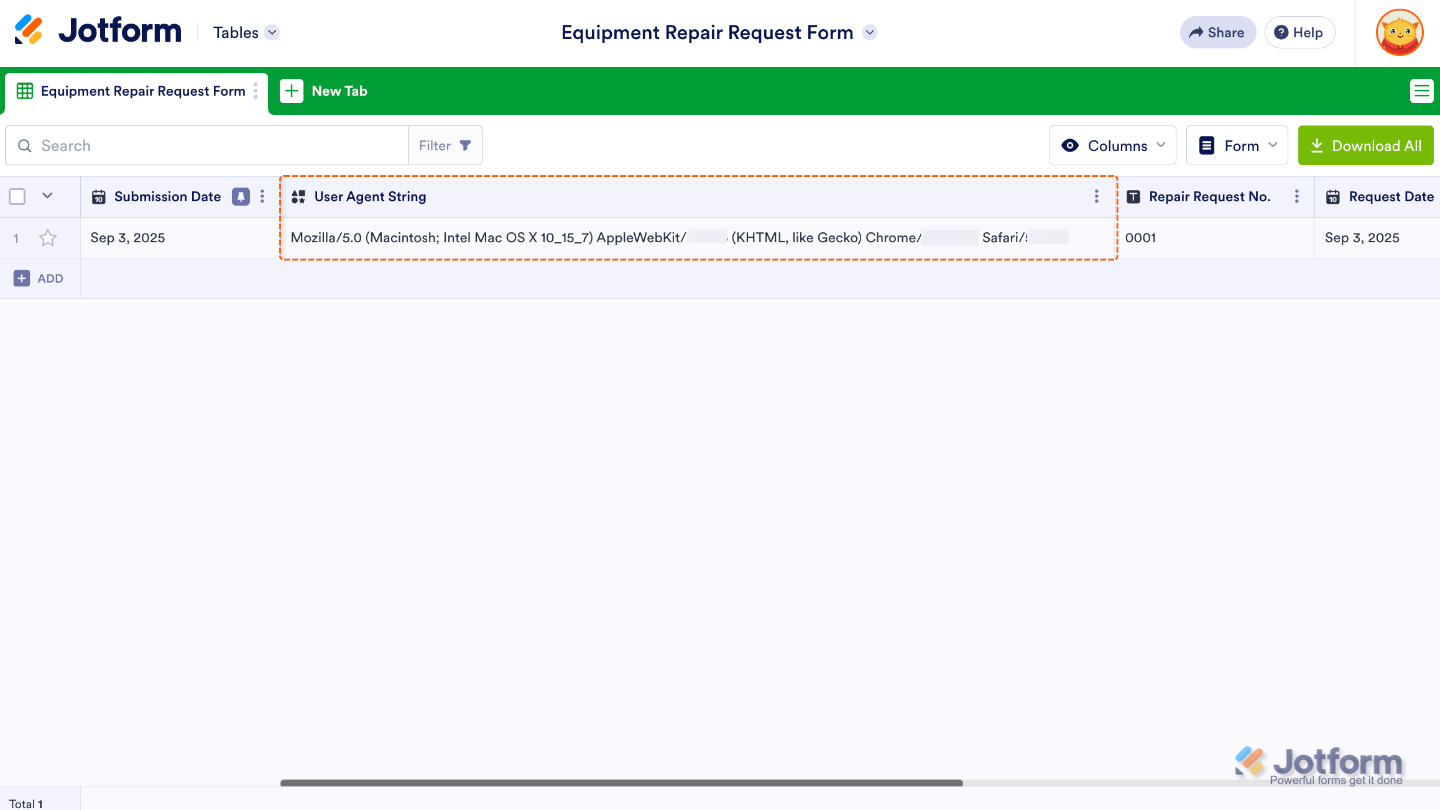
That’s it. You’ve successfully added and set up the Get User Agent widget to your form. Now, you have a field in your form that collects technical details about how people access your form. Here’s an example result:
To further customize your Get User Agent field’s appearance, just click on the Gear icon to open its properties.
Note
For advanced styling, you can add your own custom CSS under the Custom CSS tab in the widget settings and style the Get User Agent field. Our guide on How to Inject CSS Codes to Widgets walks you through everything.
Pro Tips
- Use it on support or bug report forms. This way, you’ll instantly know if a user’s issue is linked to their browser or device.
- Keep it transparent. If needed, mention in your form description that some technical data is collected—it builds trust with your users.

Send Comment: