Jotform’s Hidden Box widget lets you add an input field to your form that is not visible to users. When the form loads, it can automatically capture helpful details such as browser type, device, language, screen resolution, and time zone. You can also pre-populate this field using a URL parameter when needed.
Here are a few ways to use it:
- Automatically collect technical details about your users’ devices.
- Track where form submissions are coming from in the background.
- Pass hidden data between pages using URL parameters.
- Store system or tracking information without showing it to respondents.
Whether you’re building a new form or editing an existing one, you can add and configure the Hidden Box widget in just a few steps. This is how it’s done:
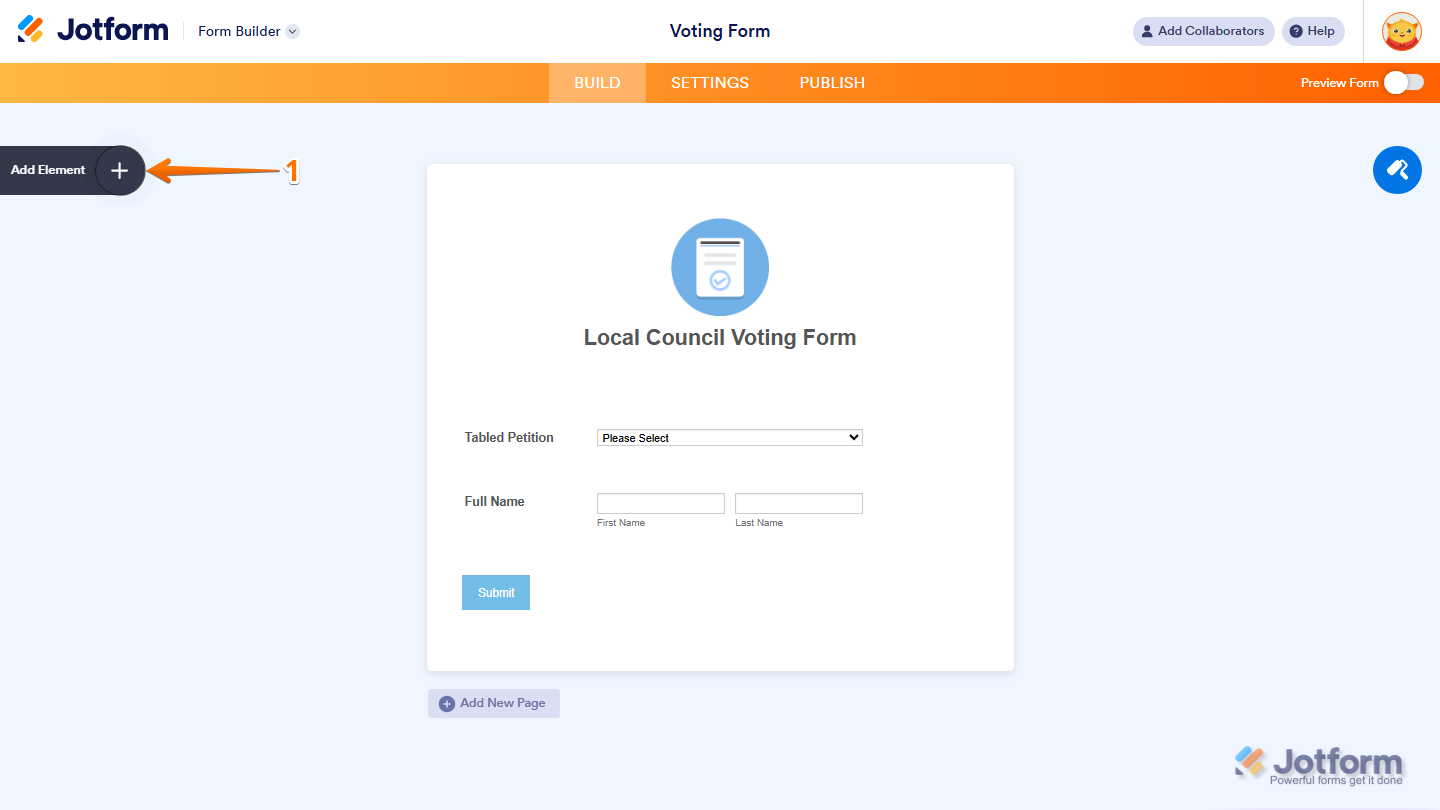
- In Form Builder, click on Add Element on the left side of the page.
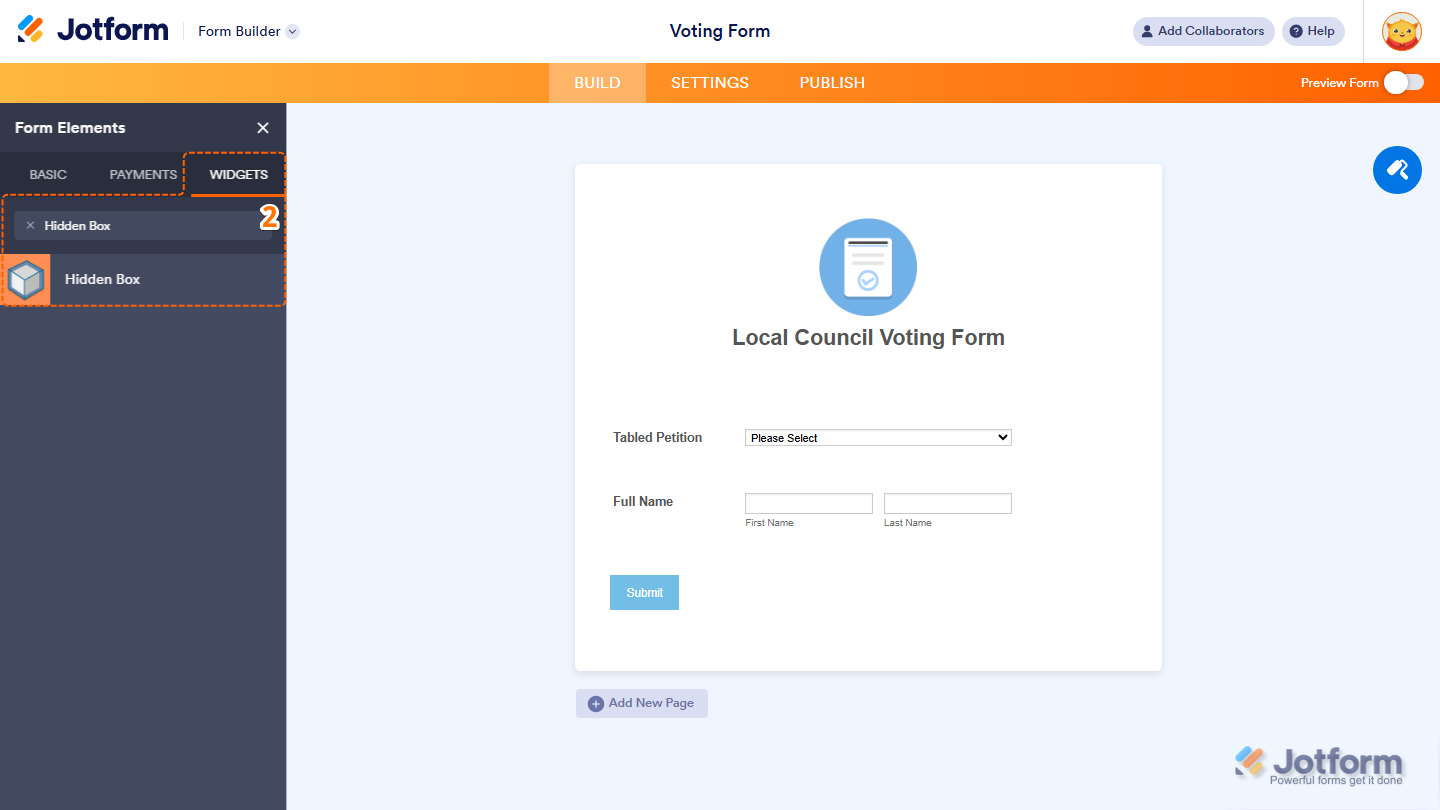
- Now, in the Form Elements menu, under the Widgets tab, search for Hidden Box, and then click on it. Or, just drag and then drop it to where you want it to be on your form.
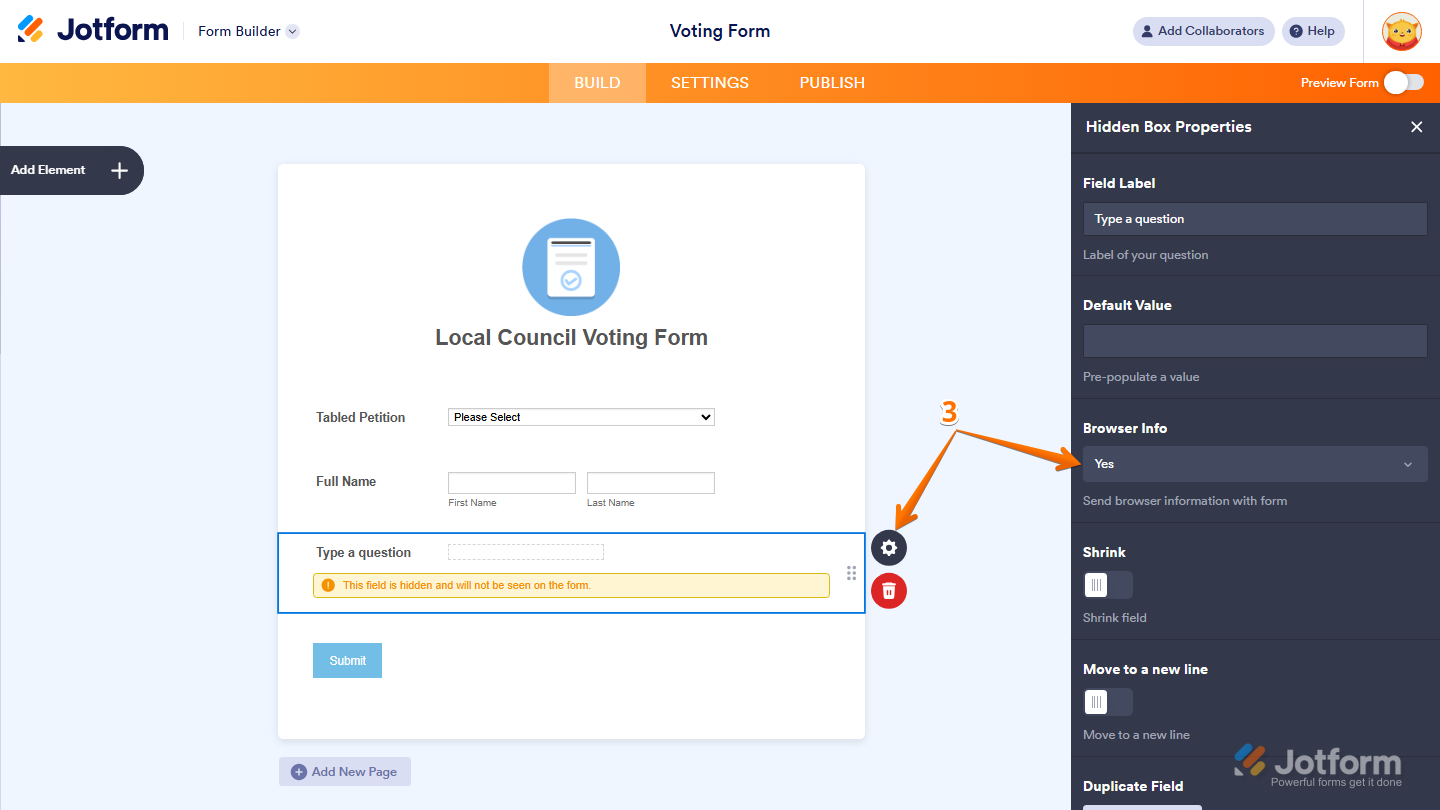
- Next, click on the Gear icon and set the Browser Info to Yes to start collecting browser information and you’re done.
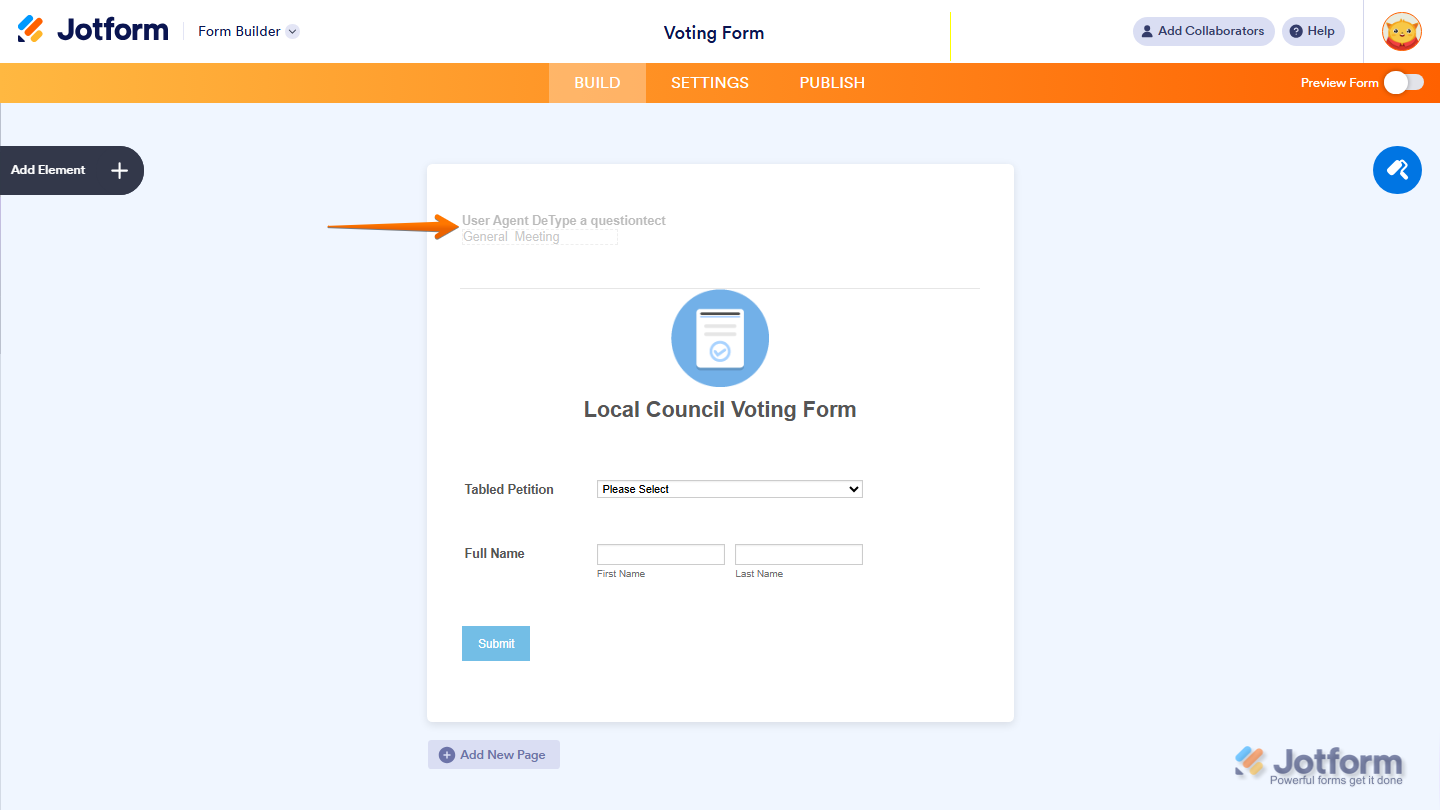
That’s it. You’ve added and set up the Hidden Box widget on your form. It will now automatically collect browser information in the background without affecting your users’ experience. Want to see how it works in real time? Take a look at this Demo Form.
Note
You can also configure the widget properties, like alignment, labels, size, visibility, and more, to control how it looks and behaves in your form. Check out our guide on How to Access and Configure the Question Properties of a Widget to learn more.

Send Comment: