Jotform’s Image Choices widget makes your form more visual and engaging by letting users select their answers using images instead of plain text. Whether you’re creating a product survey, a quiz, or a design preference form, this widget is perfect for adding a creative touch to your questions. Just upload your images to a web location and add their links in the widget settings.
Here are a few ways to use it:
- Make Forms More Interactive — Turn simple questions into a visual experience. Instead of reading through text options, users can pick what they want just by selecting an image.
- Perfect for Surveys and Polls — Use it to ask people about their favorite designs, logos, colors, or products — visuals make decisions faster and more enjoyable.
- Great for Product or Menu Selections — If you’re offering items for sale or booking (like food, clothes, or decor), users can see exactly what they’re choosing before submitting.
- Simplify Design Feedback — If you need clients to choose between design drafts, layouts, or style concepts, let them pick visually—no confusing filenames or long descriptions required.
Adding and Setting Up the Image Choices Widget
Make your form more fun and interactive with Jotform’s Image Choices widget. Setting it up takes no time—here’s how:
- In Form Builder, click on Add Element on the left side of the page.
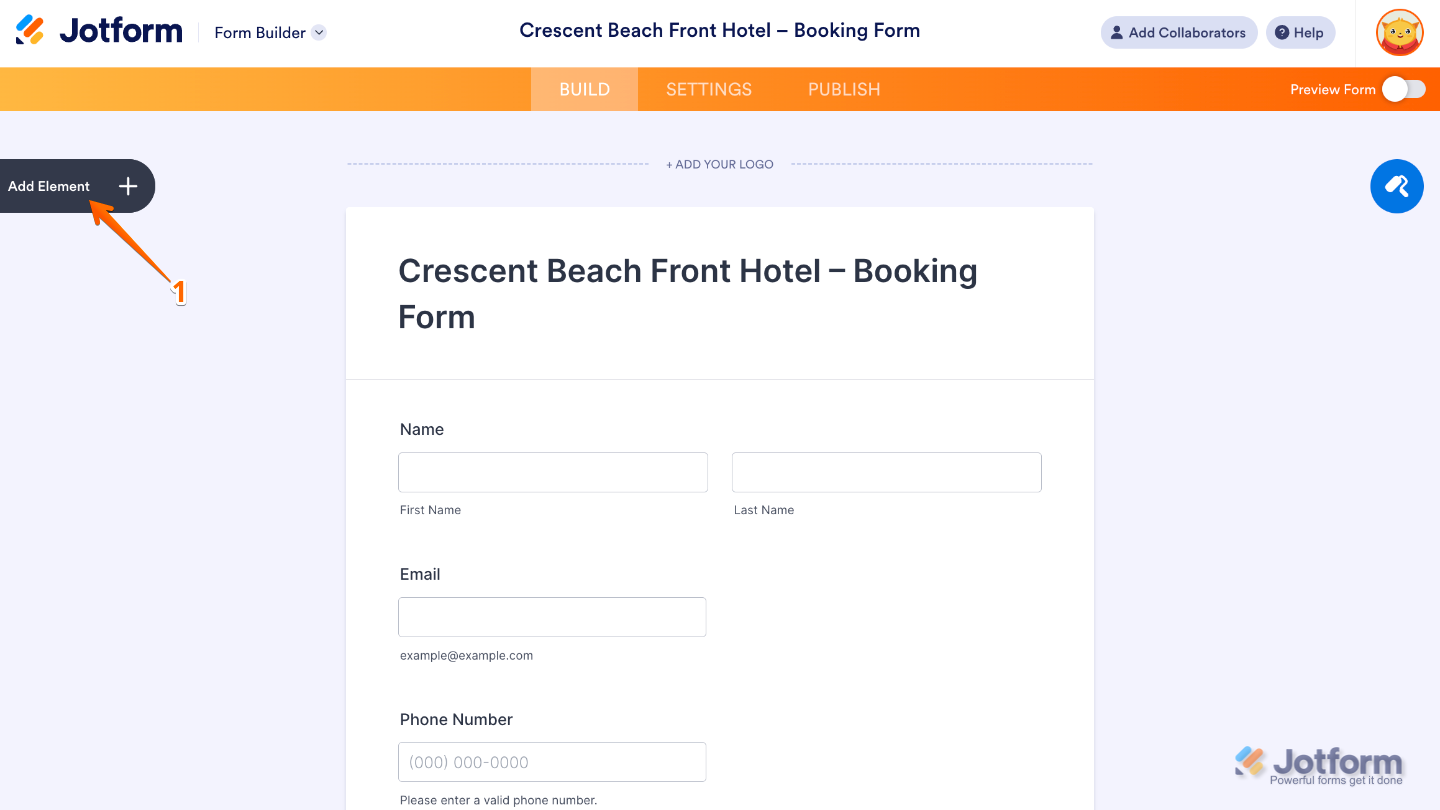
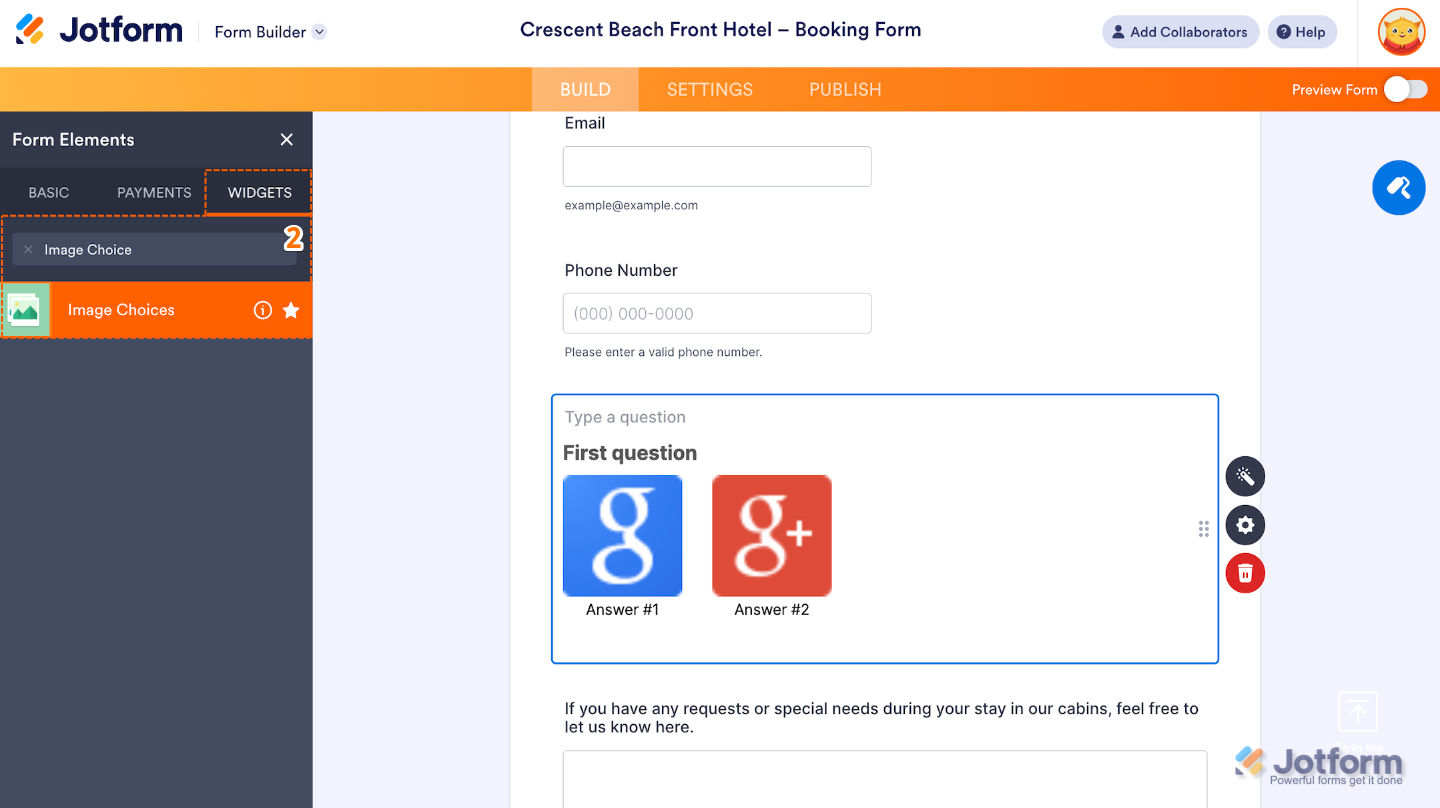
- Now, in the Form Elements menu, under the Widgets tab, search for Image Choices and then click on it. Or, just drag and drop it to where you want it to be on your form.
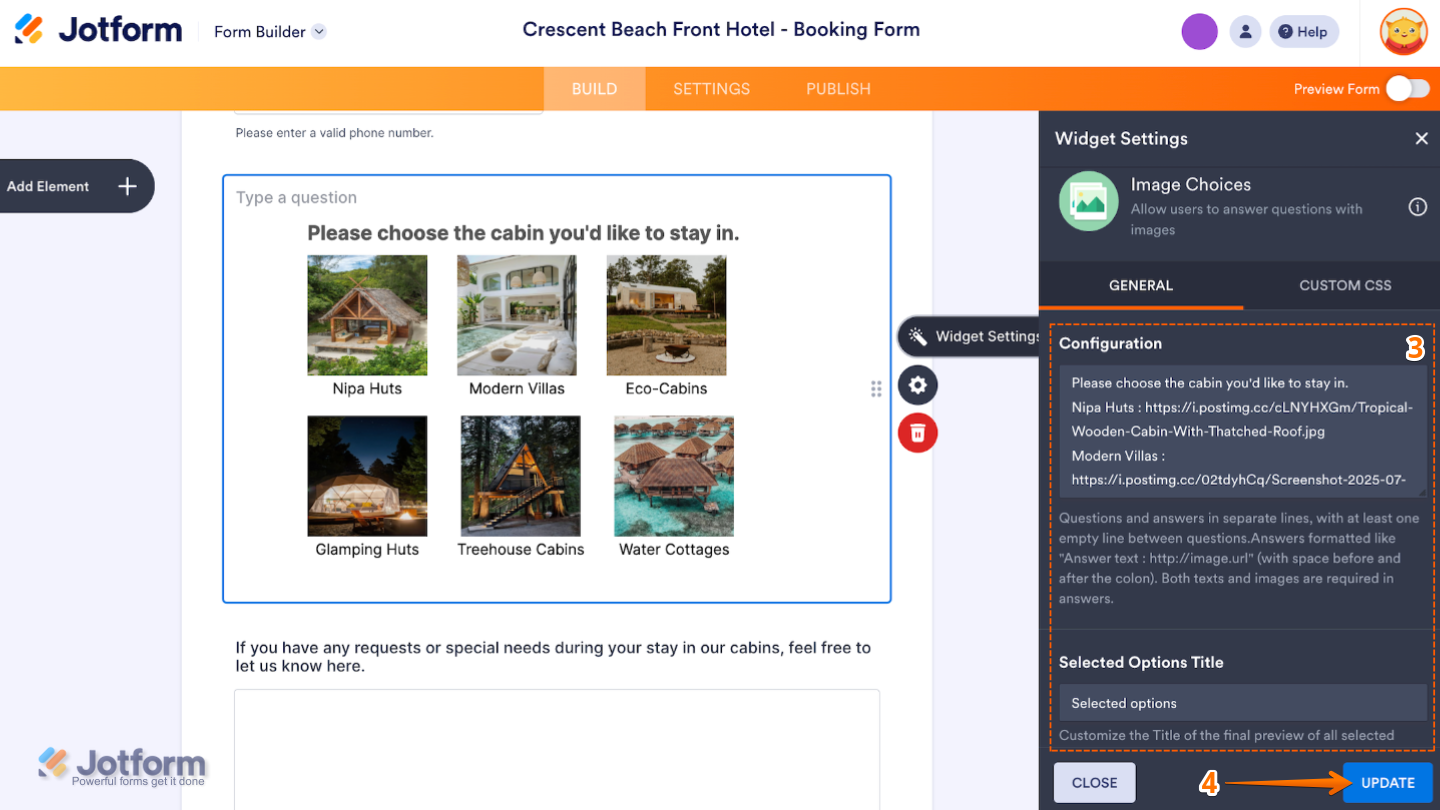
- Next, in the Widget Settings window that opens on the right side of the page, set up the following options:
- Configuration — This is where you list each option along with its corresponding image. Each line includes the text label and the image URL, usually in this format: Option 1: https://link-to-image.com/image1.jpg
- Selected Options Title — Edit this to customize the label that will appear in the field once a user makes a selection.
- Once you’re done, click on Update.
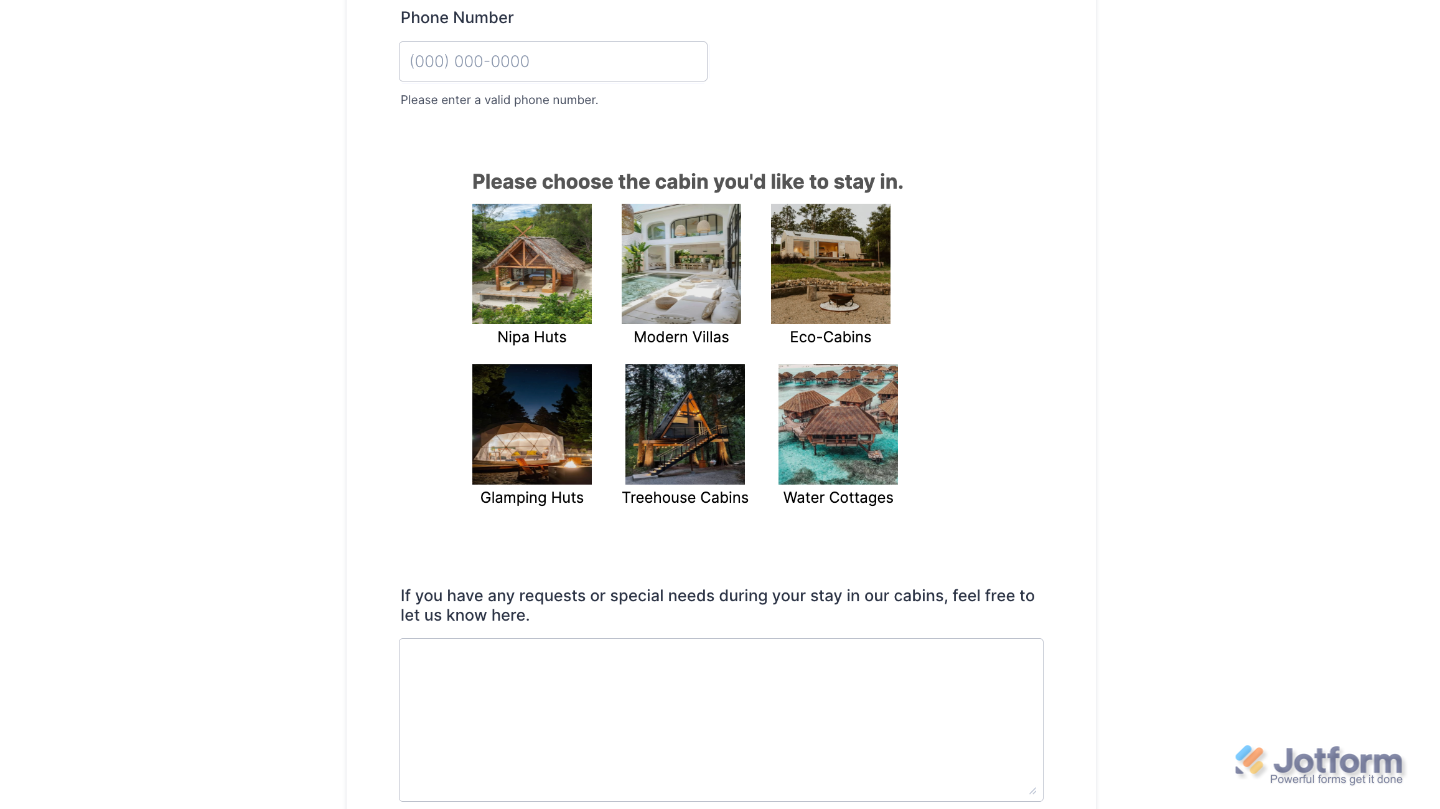
That’s it. You’ve successfully added and set up the Image Choices widget to your form. Now, you have a field in your form that will show one question at a time and automatically move to the next as soon as the user picks an answer. Wondering how it looks in action? Check out this Demo Form.
To further customize your Image Choices field appearance, just click on the Gear icon to open its properties.
Note
For advanced styling, you can add your own custom CSS under the Custom CSS tab in the widget settings and style the Image Choices field. Our guide on How to Inject CSS Codes to Widgets walks you through everything.
Pro Tips
- Use a Reliable Image Host: Upload your images to trusted platforms like Imgur, Postimages, Dropbox (with direct link conversion), or your own server to ensure they load quickly and consistently.
- Keep It Visually Consistent: Use uniform image sizes and aspect ratios to maintain a clean and professional look in your form.

Send Comment: