Jotform’s International Telephone Picker widget lets users enter their phone numbers with the correct country code, making it easier to collect accurate and properly formatted contact details. Whether you’re reaching out to clients, collecting leads, or setting up support requests, this widget is a helpful tool for global communication.
Here are a few ways to use it:
- Collect Global Phone Numbers with Ease — Whether your form is for customers, clients, or event participants, this widget ensures that phone numbers come in complete with the correct country code. No more missing digits or confusing formats!
- Perfect for International Businesses — If you’re working with a global audience, the widget helps standardize phone entries so you don’t have to figure out what “+44” or “+63” belongs to.
- Enhance Customer Support Forms — For support or callback requests, it guarantees you’re capturing a valid phone number so your team can reach the user without hiccups.
- Smooth Out Registration and Sign-Up Forms — Make your registration process faster and friendlier by letting users select their country from a dropdown instead of typing everything out manually.
Note
The widget doesn’t validate the number itself but ensures that it starts with a valid international code.
Adding and Setting Up the International Telephone Picker Widget
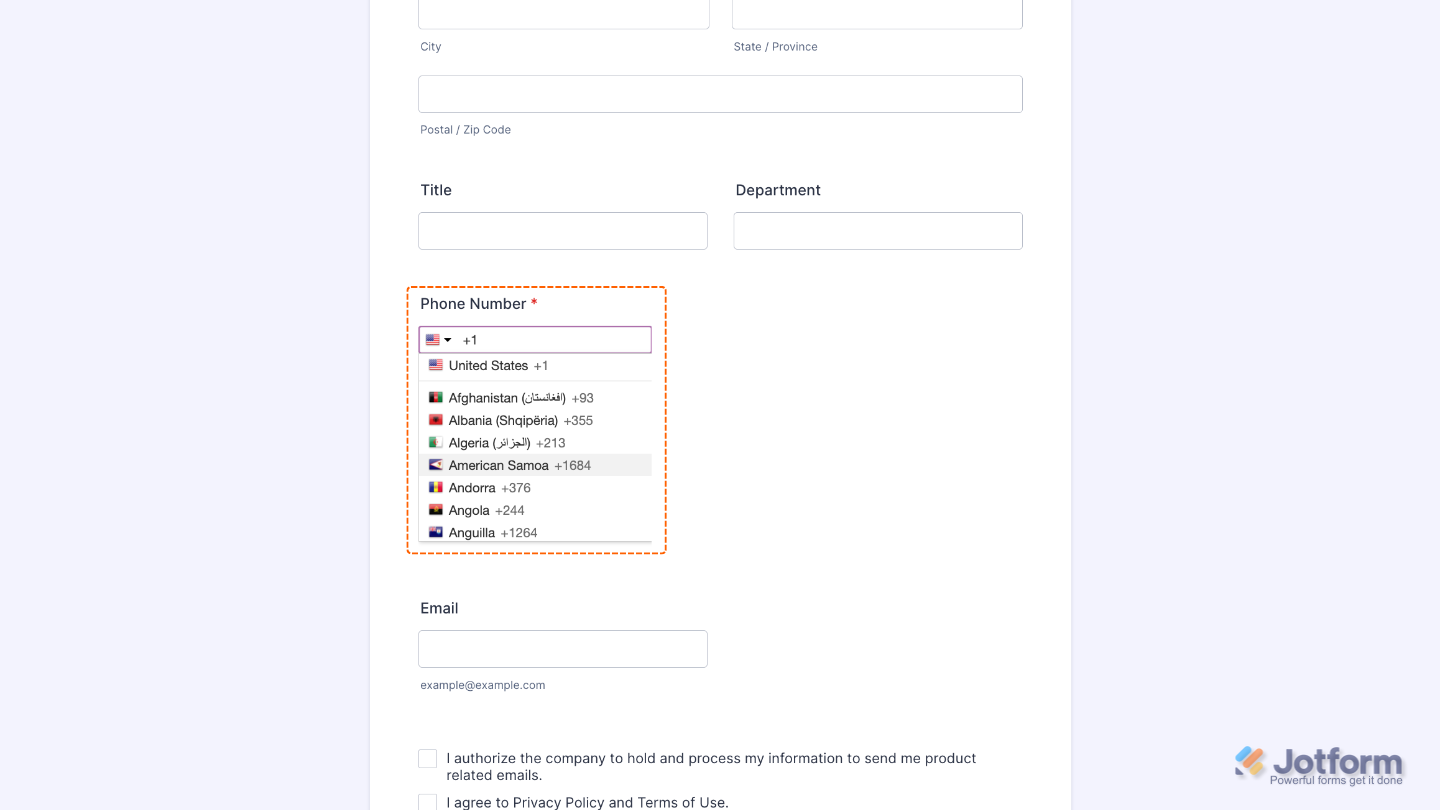
Add the International Telephone Picker widget to your form to let users select their country from the field, automatically revealing the area code for their location. To get going, here’s what you’ll do:
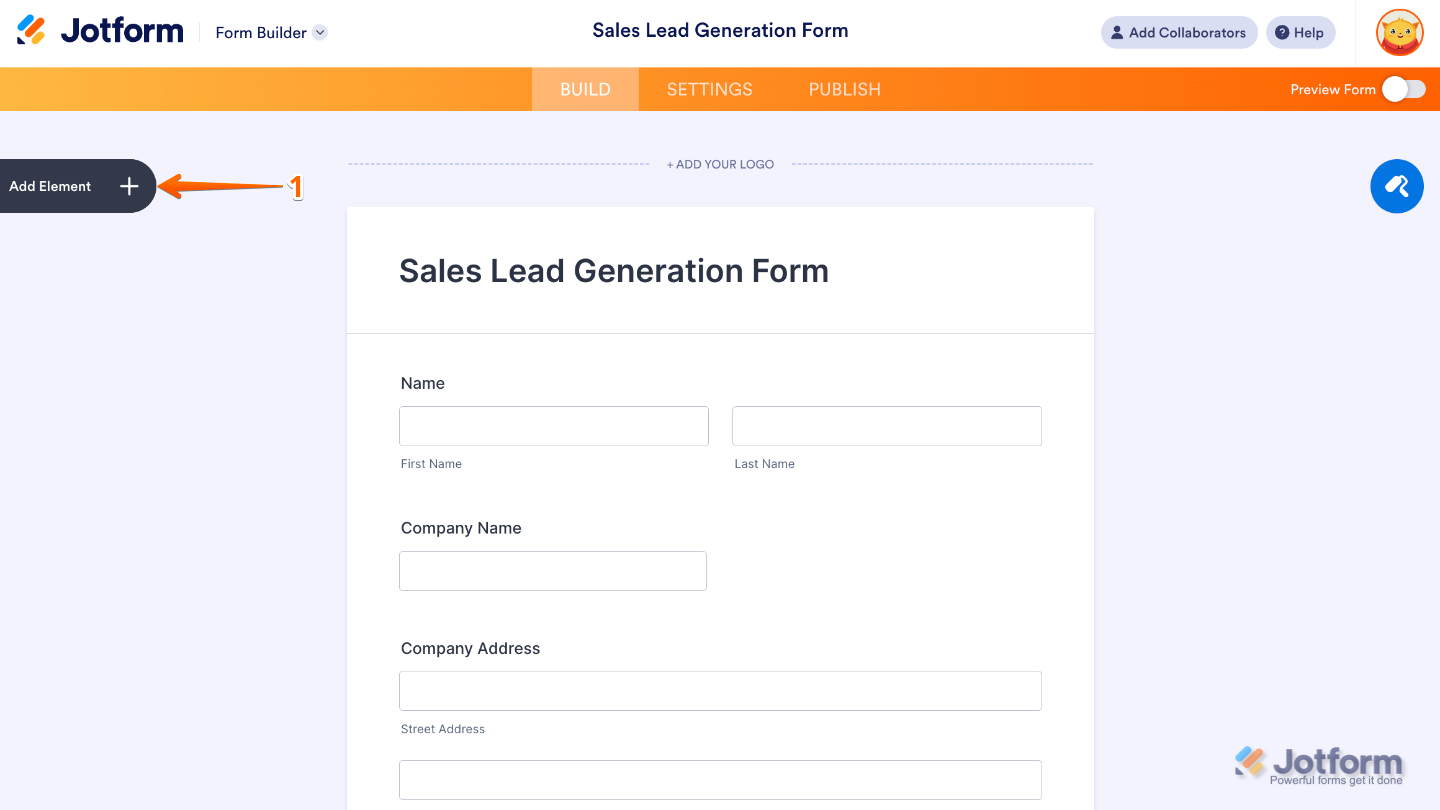
- In Form Builder, click on Add Element on the left side of the page.
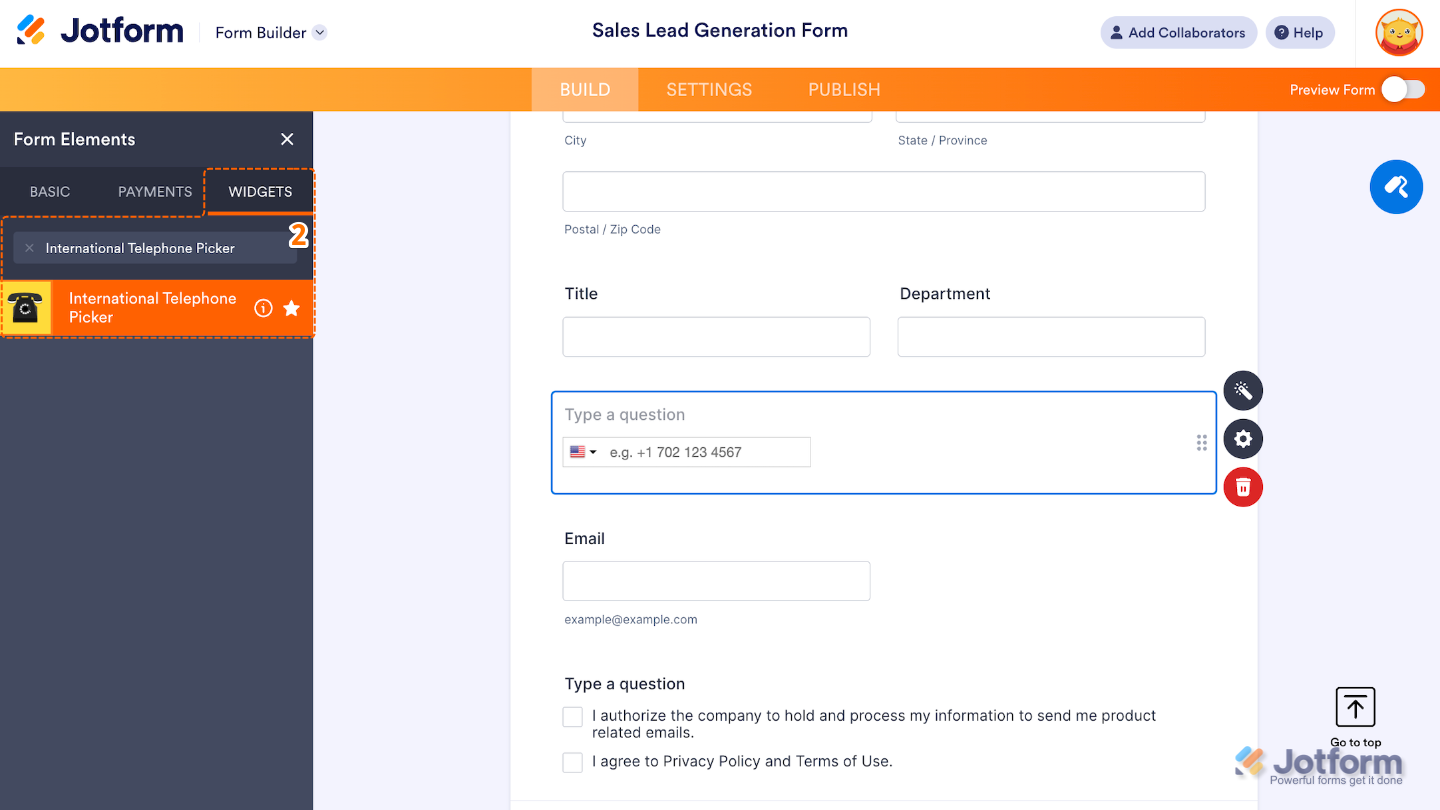
- Now, in the Form Elements menu, under the Widgets tab, search for International Telephone Picker and then click on it. Or, just drag and drop it to where you want it to be on your form.
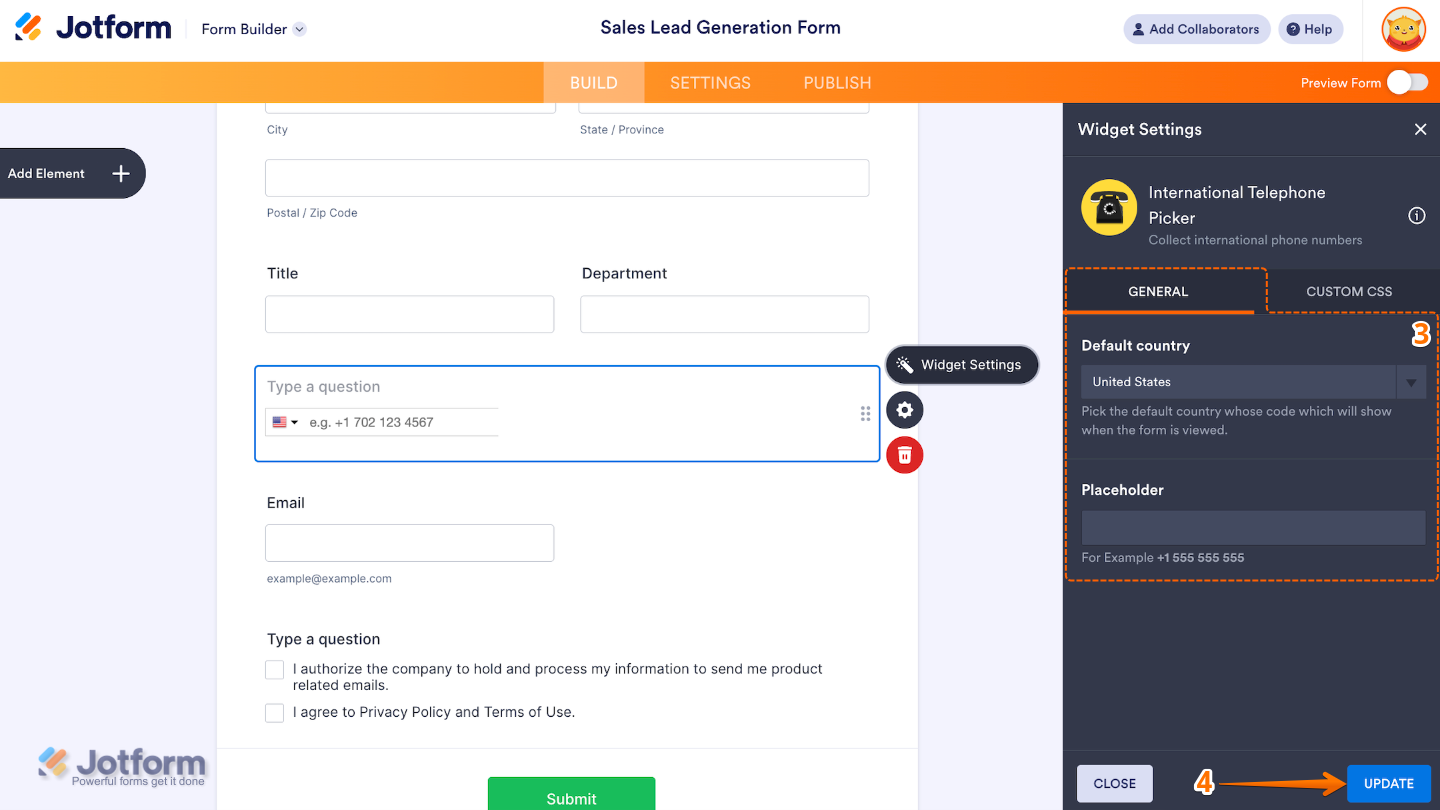
- Next, in the Widget Settings window that opens on the right side of the page, set up the following options:
- Default Country — Select an option to set which country’s dialing code and flag will be selected by default when the form loads.
- Placeholder — Set this up to add a gray text that appears inside the input field before the user types anything.
- Once you’re done, click on Update.
That’s it. You’ve successfully added and set up the International Telephone Picker widget to your form. Your form now has a field that helps users enter phone numbers in the correct format with the appropriate country code. Wondering how it looks in action? Check out this Demo Form.
To further customize your International Telephone Picker field appearance, just click on the Gear icon to open its properties.
Note
For advanced styling, you can add your own custom CSS under the Custom CSS tab in the widget settings and style the International Telephone Picker field. Our guide on How to Inject CSS Codes to Widgets walks you through everything.
Pro Tips
- Improve communication accuracy by making sure all submitted phone numbers include the country code.
- Customize the widget’s label or placeholder text to guide users on how to enter their phone number.
- Test the widget on both desktop and mobile to make sure it works well across devices for a smooth user experience.

Send Comment: