Jotform’s Language Picker widget makes your forms more welcoming by letting people choose the language they’re most comfortable with. Whether your audience is global or just multilingual, this widget ensures everyone can understand and interact with your form with ease. It’s a simple way to create an inclusive experience and make sure your message reaches everyone clearly.
Here are a few ways to use it:
- Let Users Switch Form Languages Easily — You can use the Language Picker widget to allow users to switch between available languages within the form. This makes your form more accessible to a wider audience.
- Support International Audiences — The widget is ideal for businesses or organizations that serve users from different countries. It ensures that respondents can interact with the form in their preferred language.
- Improve User Experience and Accessibility — By offering language options, the widget helps users better understand questions and instructions. This leads to more accurate and complete responses.
- Simplify Multilingual Form Management — Instead of creating multiple versions of the same form, you can use the widget to manage translations within a single form. This saves time and keeps everything organized.
Notes
- The Language Picker widget comes with a ready-made list of global languages, so you don’t have to manually type them in.
- The widget automatically displays as a dropdown menu, keeping your form neat and easy to use.
Adding and Setting Up the Add to Airport Picker Widget
Adding the Language Picker widget to your form makes it easy for users to choose their preferred language without you having to create a list manually. Setting it up is quick—here’s how:
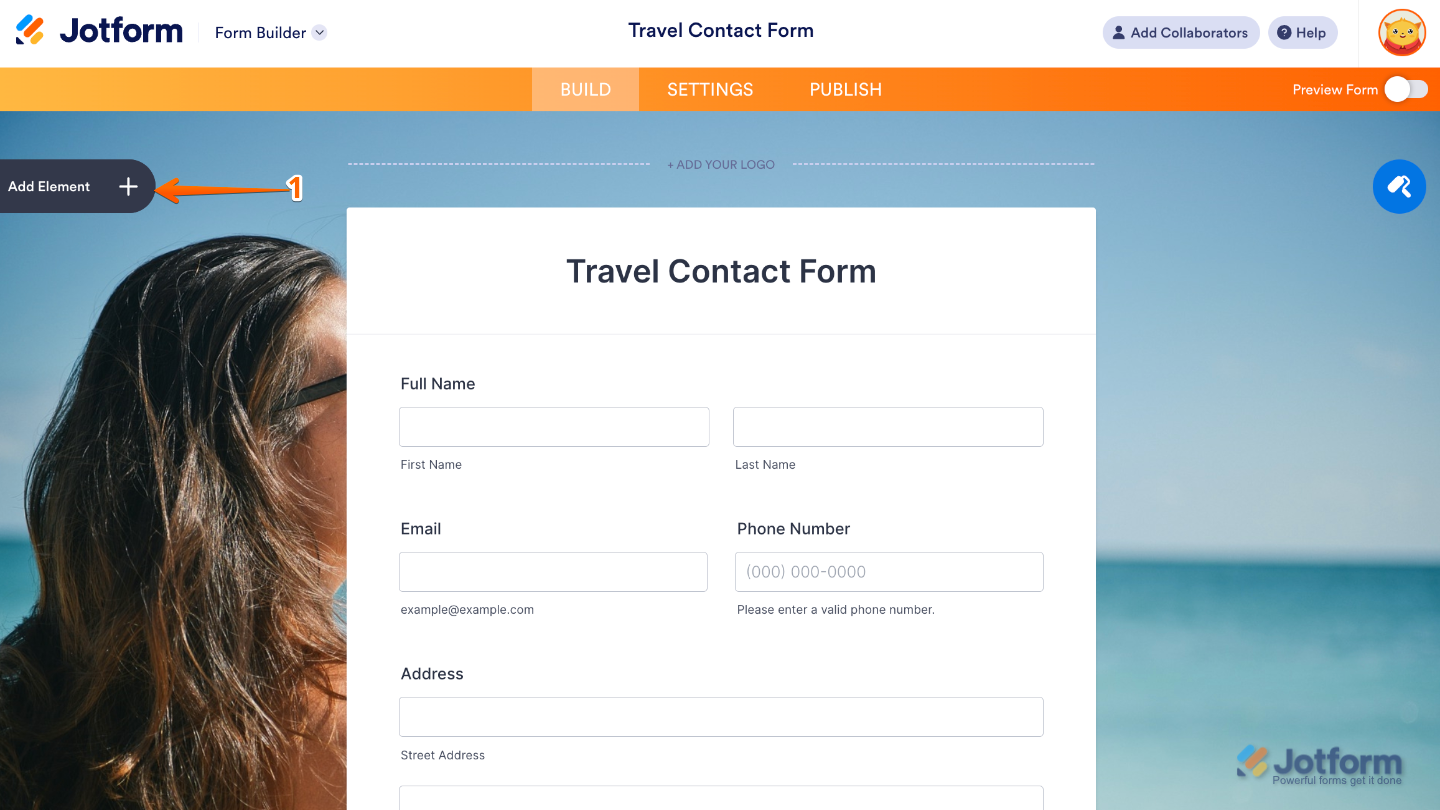
- In Form Builder, click on Add Element on the left side of the page.
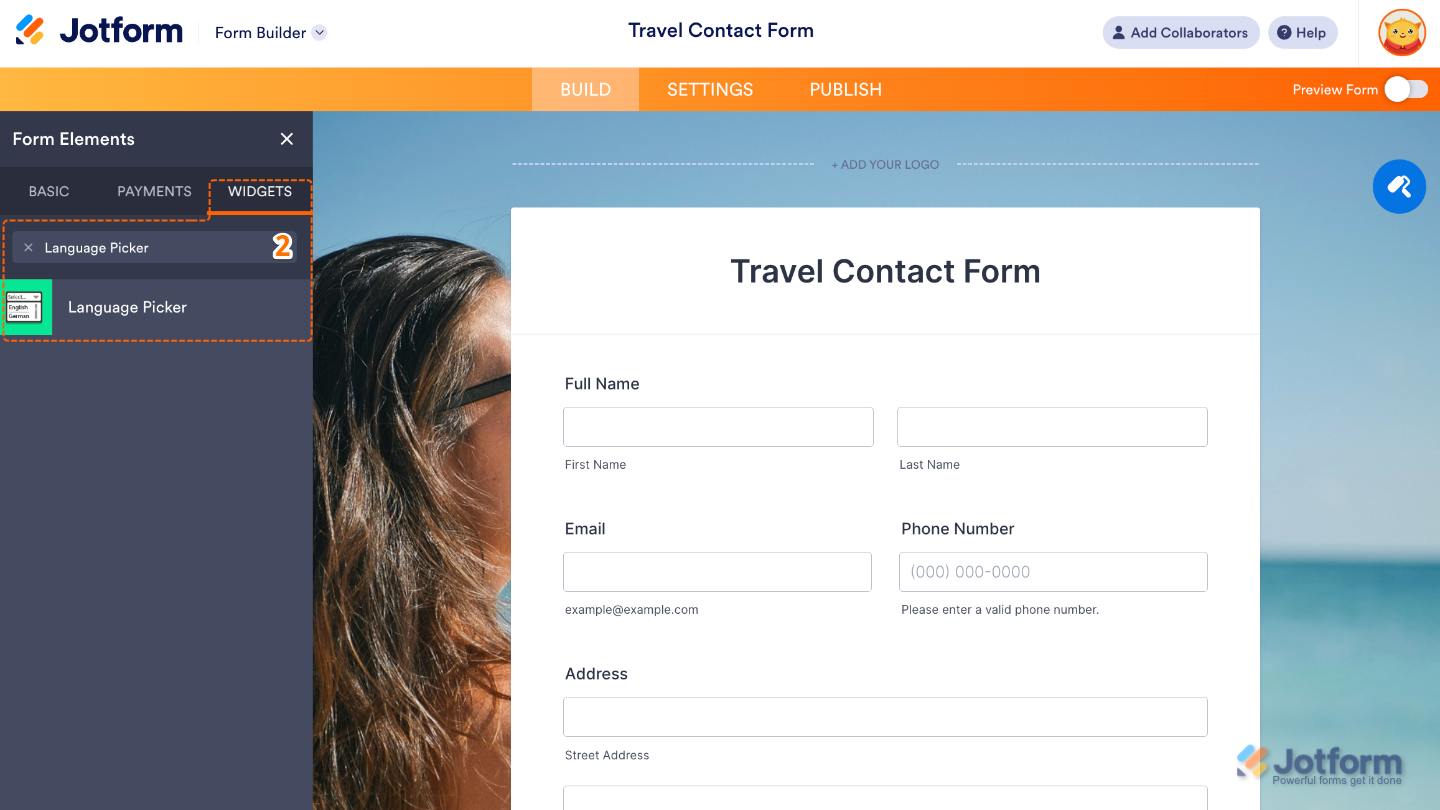
- Now, in the Form Elements menu, under the Widgets tab, search for Language Picker and then click on it. Or, just drag and drop it to where you want it to be on your form.
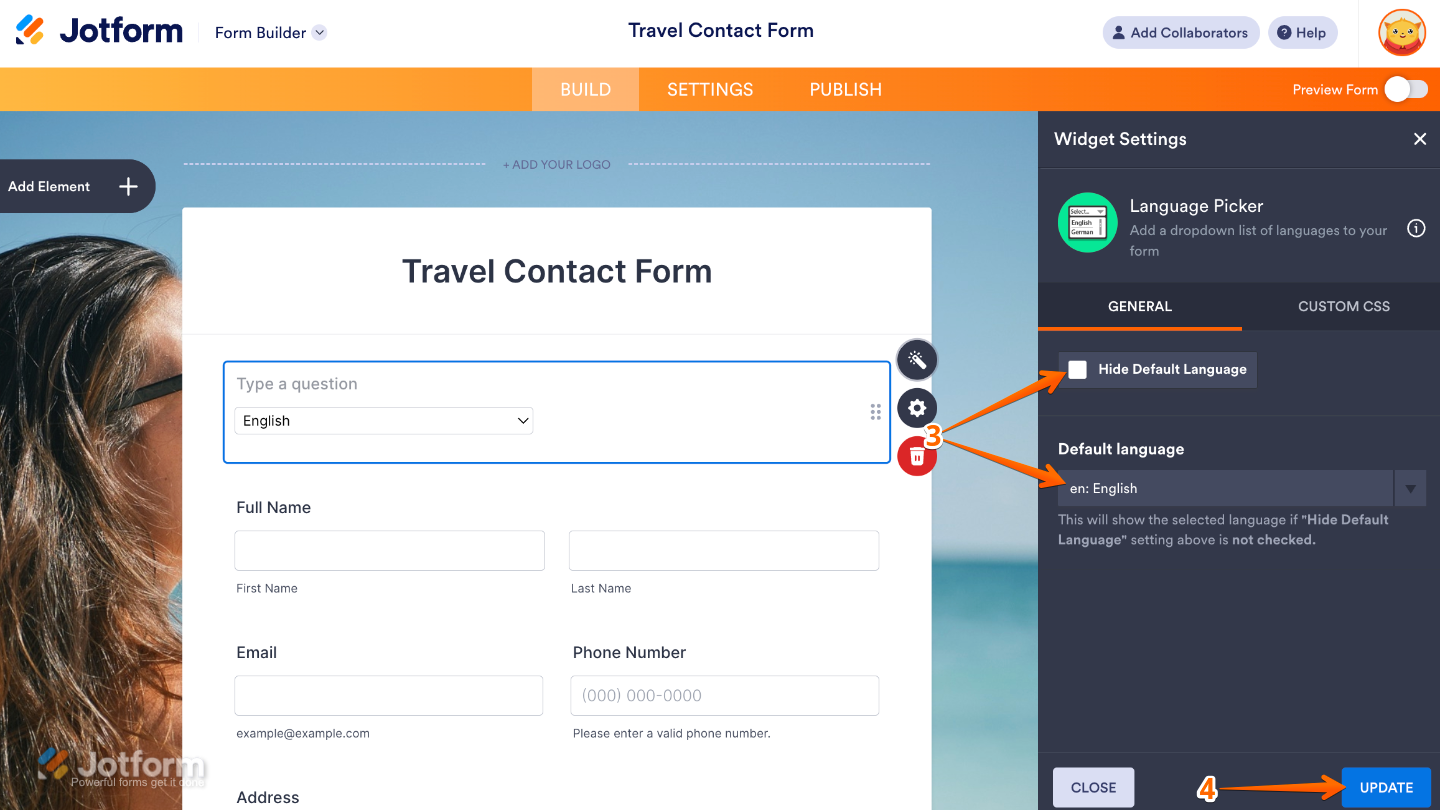
- Next, in the Widget Settings menu that opens on the right side of the page, set up these options:
- Hide Default Language — Check the box if you’d like to keep the default language hidden from the dropdown list. It keeps things simple and uncluttered—perfect when most of your users will be using that language anyway.
- Default Language — Pick the language that will automatically show up when someone opens your form. This is a great way to save users a step, especially if most of your audience speaks the same language.
- Once you’re done, click on Update.
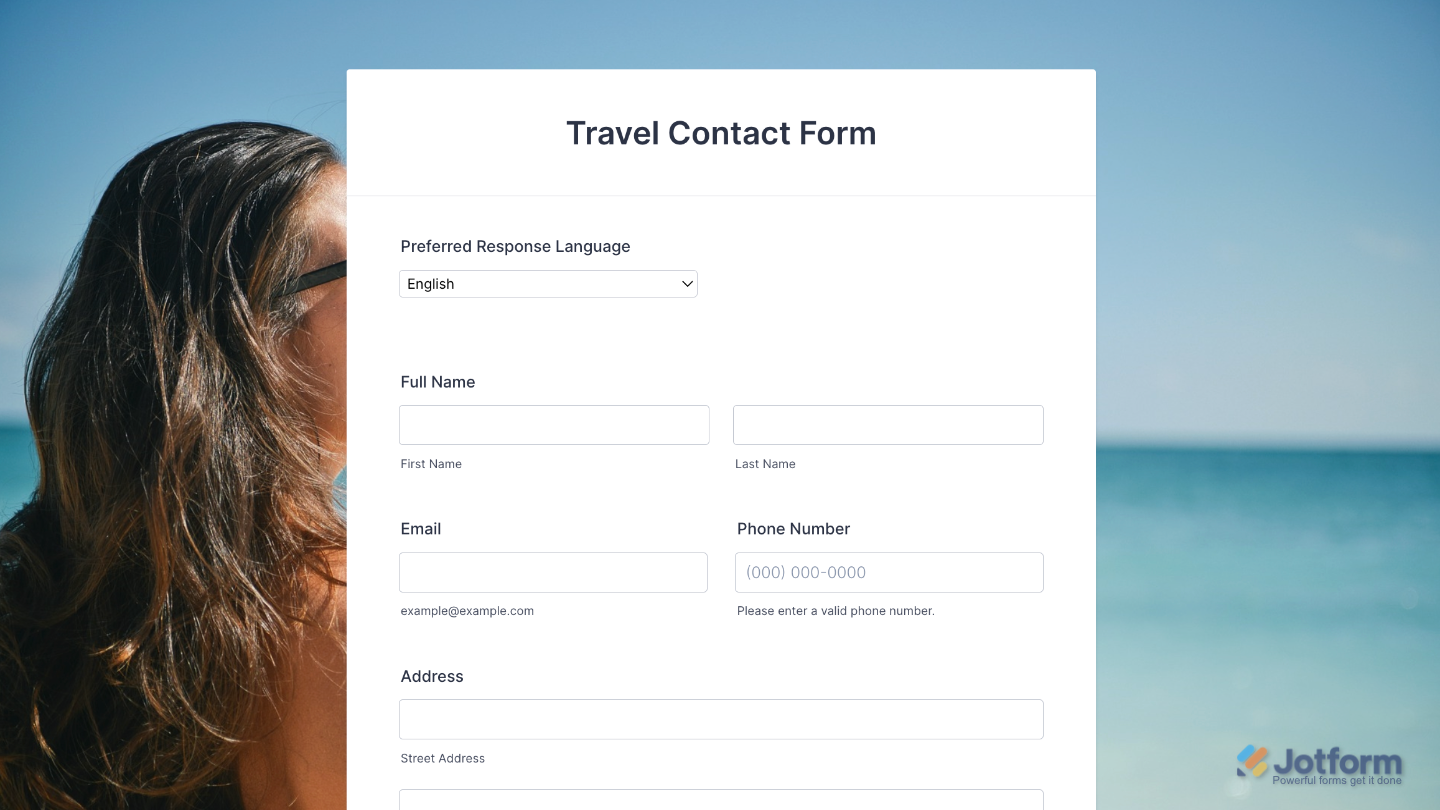
That’s it. You’ve successfully added and set up the Language Picker widget to your form. Now, you have a field in your form that lets users easily pick their language from a ready-made dropdown list. Curious how it works on a live form? Check out this Demo Form.
To further customize your Language Picker field’s appearance, just click on the Gear icon to open its properties.
Note
For advanced styling, you can add your own custom CSS under the Custom CSS tab in the widget settings and style the Language Picker field. Our guide on How to Inject CSS Codes to Widgets walks you through everything.
Pro Tips
- If you offer multilingual forms, let users pick their language first for a smoother experience.
- Filter submissions by language preference to better serve different user groups.

Send Comment: