Jotform’s Line Radio Buttons widget lets you display single-choice options in a sleek, inline format, perfect for saving space and making selections feel quick and effortless. Whether you’re asking a yes-or-no question, letting people choose their favorite option, or narrowing down preferences, this widget makes it easy for users to pick their answer with just one click.
Here are a few ways to use it:
- Create Clean, Horizontal Single-Choice Questions — You can use the Line Radio Buttons widget to display answer choices in a single horizontal row instead of a vertical list. This keeps your form compact and visually organized.
- Design Rating or Scale Questions — The widget works well for satisfaction ratings, agreement scales, or numerical scores. Placing options in a straight line makes it easier for users to compare and select one answer quickly.
- Improve Mobile-Friendly Selection — Because the options are aligned in one row, users can quickly tap their preferred answer on mobile devices, creating a smoother experience.
- Save Vertical Space in Long Forms — If your form contains many single-choice questions, the Line Radio Buttons widget helps reduce scrolling by keeping each question compact.
Note
The widget is designed for single-choice selections only. If you need multiple selections, consider using a Multiple Choice Element instead.
Adding and Setting Up the Line Radio Buttons Widget
Adding the Line Radio Buttons widget gives your form a fresh, modern look while keeping everything simple and easy for your users to navigate. Setting it up takes no time at all—here’s how:
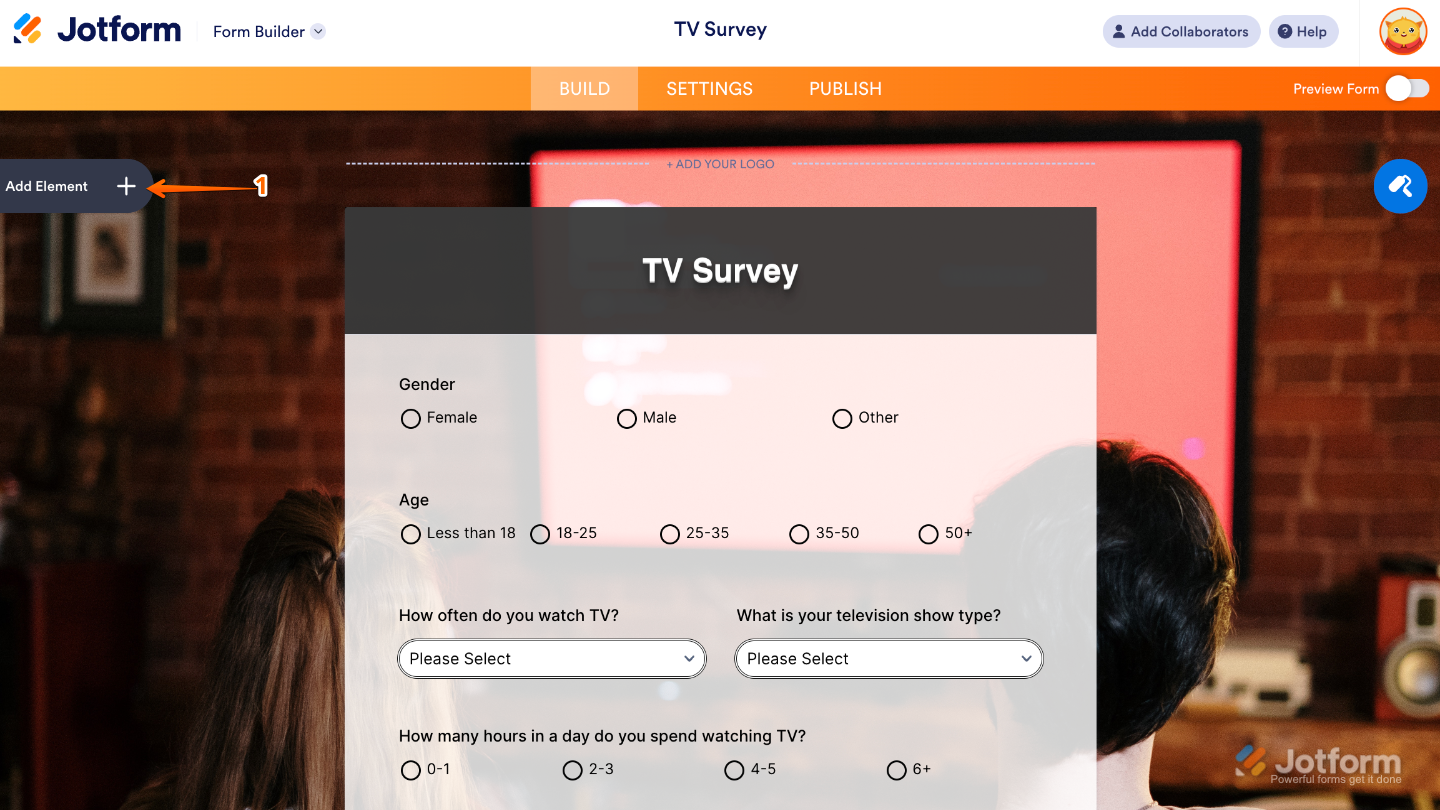
- In Form Builder, click on Add Element on the left side of the page.
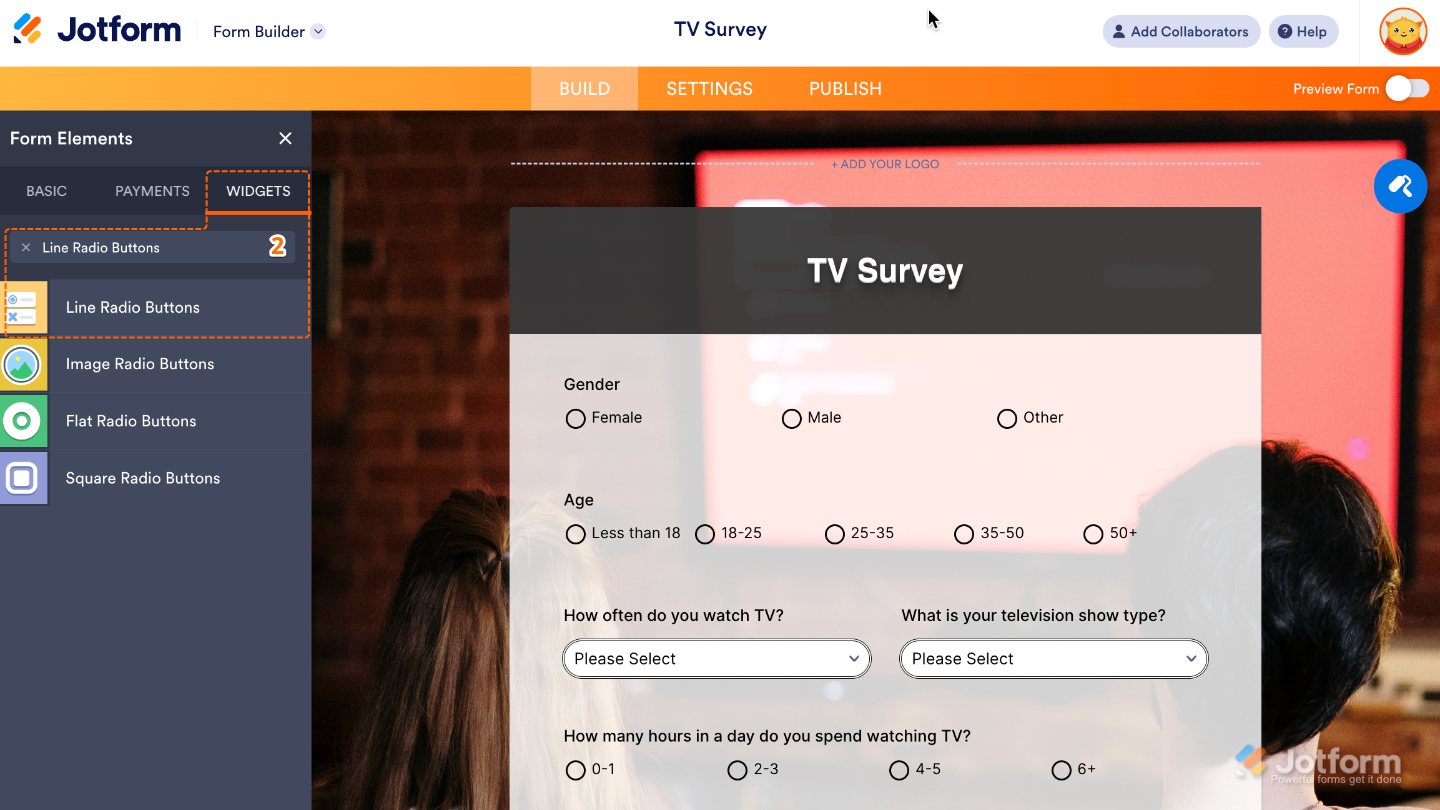
- Now, in the Form Elements menu, under the Widgets tab, search for Line Radio Buttons and then click on it. Or, just drag and drop it to where you want it to be on your form.
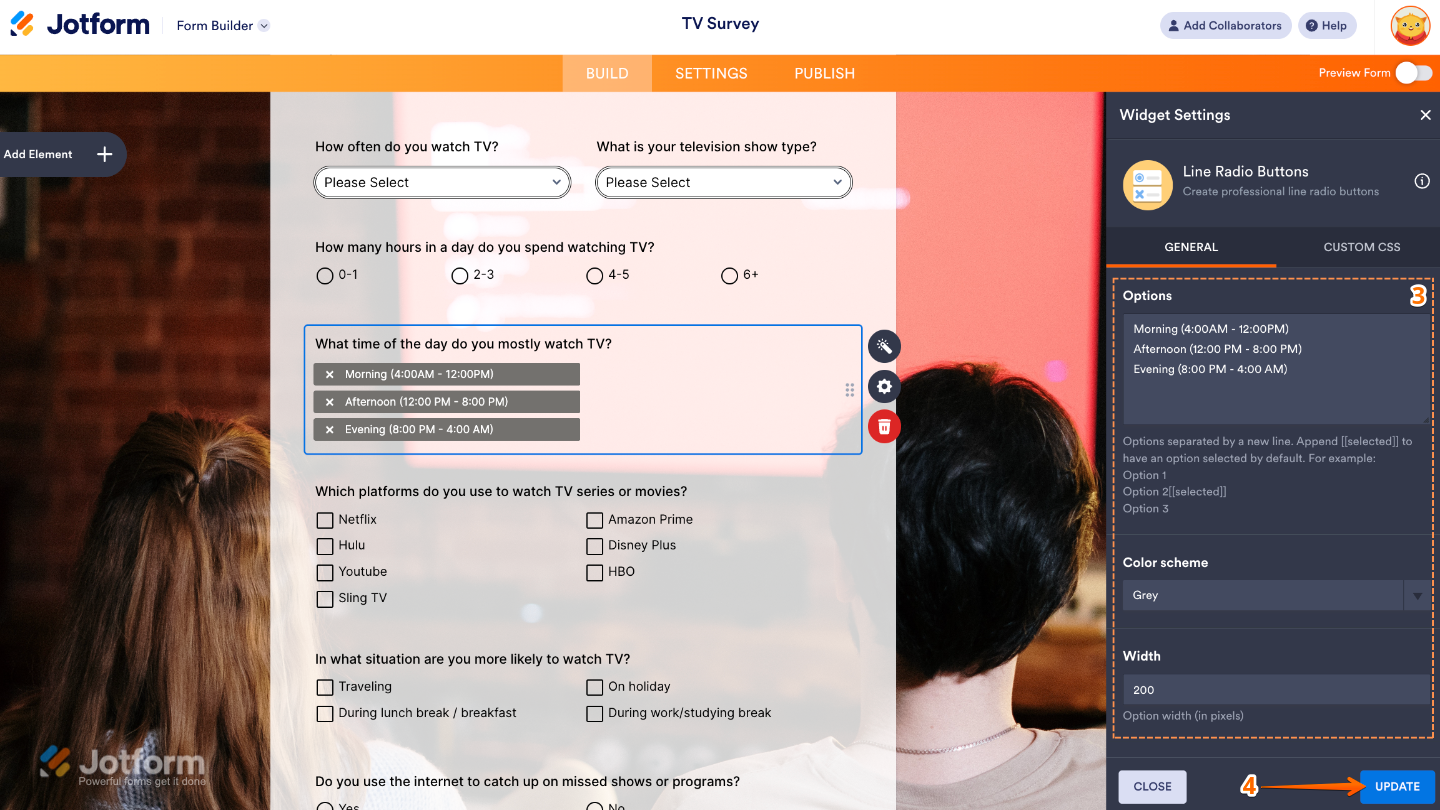
- Next, in the Widget Settings window that opens on the right side of the page, set up the following options:
- Options — Type in all the options you’d like to show, and each one will appear as its own radio button.
- Color Scheme — Choose the style and colors for your radio buttons to keep them looking perfectly in sync with your form’s design and brand.
- Width — Set the widget’s width so it fits your form’s layout just right.
- Once you’re done, click on Update.
That’s it. You’ve successfully added and set up the Line Radio Buttons widget to your form. Now, you have a field in your form that transforms your normal radio buttons into line radio buttons with room for more text. Curious how it works on a live form? Check out this Demo Form.
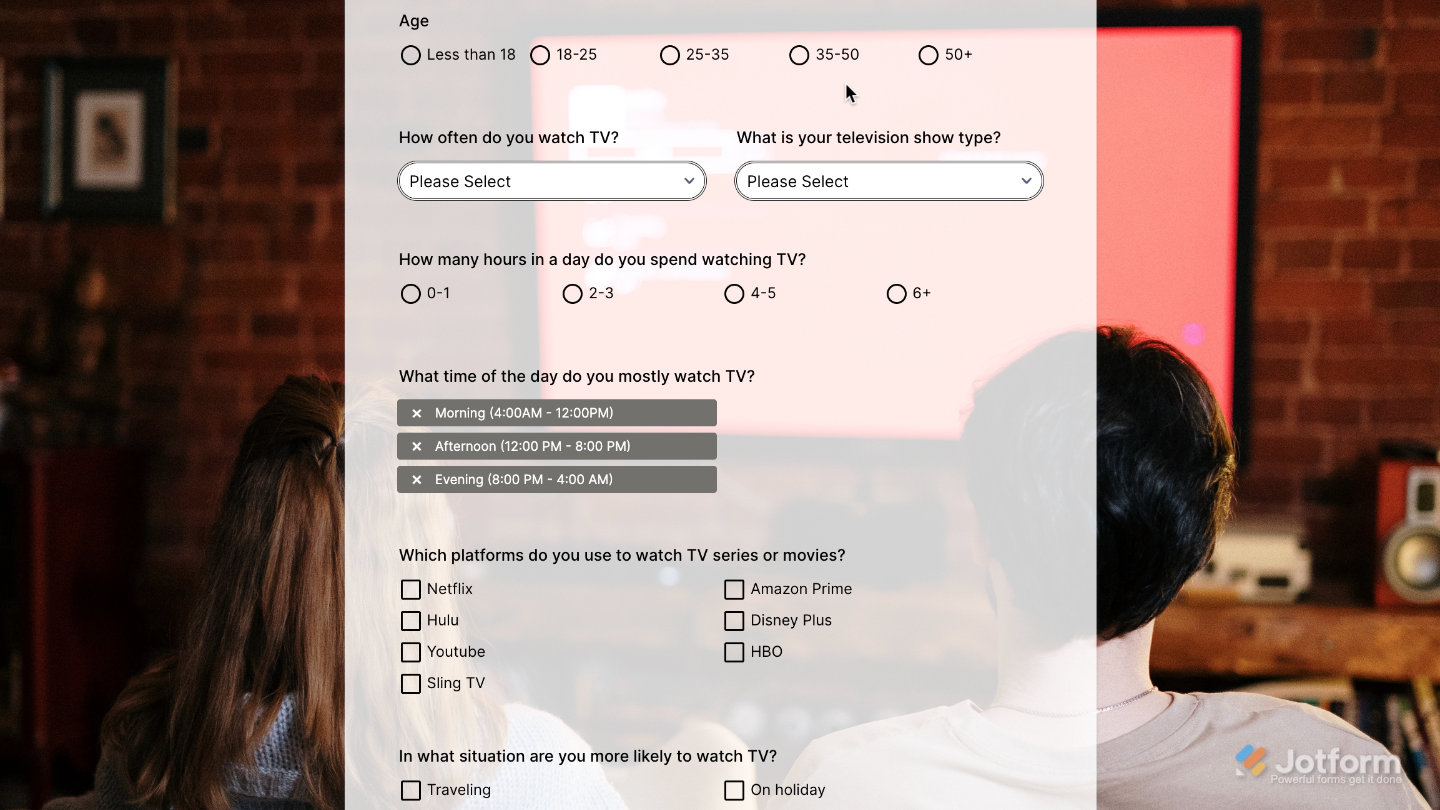
To further customize your Line Radio Buttons field’s appearance, just click on the Gear icon to open its properties.
Note
For advanced styling, you can add your own custom CSS under the Custom CSS tab in the widget settings and style the Line Radio Buttons field. Our guide on How to Inject CSS Codes to Widgets walks you through everything.
Pro Tips
- Keep your option labels short and to the point so the layout stays clean and easy to scan.
- Match the widget’s colors and fonts with the rest of your form for a cohesive, professional look.
- Double-check that the buttons are easy to tap and the text is clear on smaller screens for a smooth mobile experience.

Send Comment: