Jotform’s Mini Date Picker widget makes picking a date on your form quick and effortless. Whether you’re collecting booking details, scheduling appointments, or just keeping things neat with a simple date field, this widget has you covered. It’s a handy, collapsible calendar that pops open with a click, lets users select a date, and then neatly tucks itself away—keeping your form looking clean and organized. It’s a perfect little tool for bookings, reservations, or appointments.
Here are a few ways to use it:
- Collect Simple Date Inputs in Compact Forms — You can use the Mini Date Picker widget when you need users to select a date without taking up too much space. Its compact design makes it ideal for short forms or embedded layouts.
- Add Date Fields to Registration Forms — The widget works well for collecting event dates, preferred attendance days, or availability in registration forms. It keeps the form clean while still providing an easy date selection tool.
- Gather Birthdates or Personal Dates — You can use the Mini Date Picker widget to collect birthdates, anniversaries, or other important personal dates in a user-friendly way.
- Schedule Appointments or Service Dates — For booking or request forms, the widget allows users to quickly select a preferred service or appointment date without navigating a large calendar interface.
Note
The Mini Date Picker widget is great for forms where you just need a quick, clean way to capture a date without extra fields.
Adding and Setting Up the Mini Date Picker Widget
Adding the Mini Date Picker widget to your form makes choosing dates quick and easy. Here’s the quick way to do it:
- In Form Builder, click on Add Element on the left side of the page.
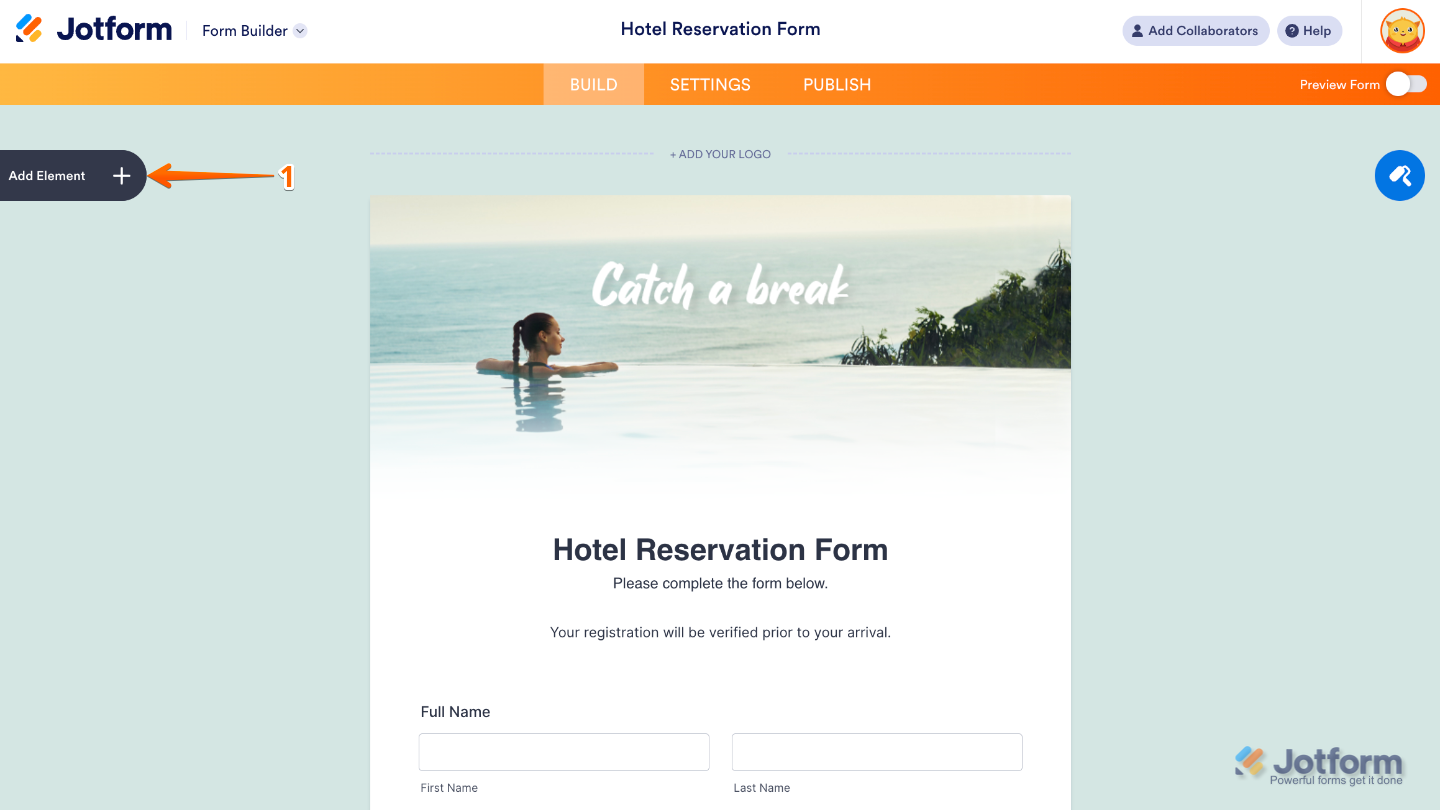
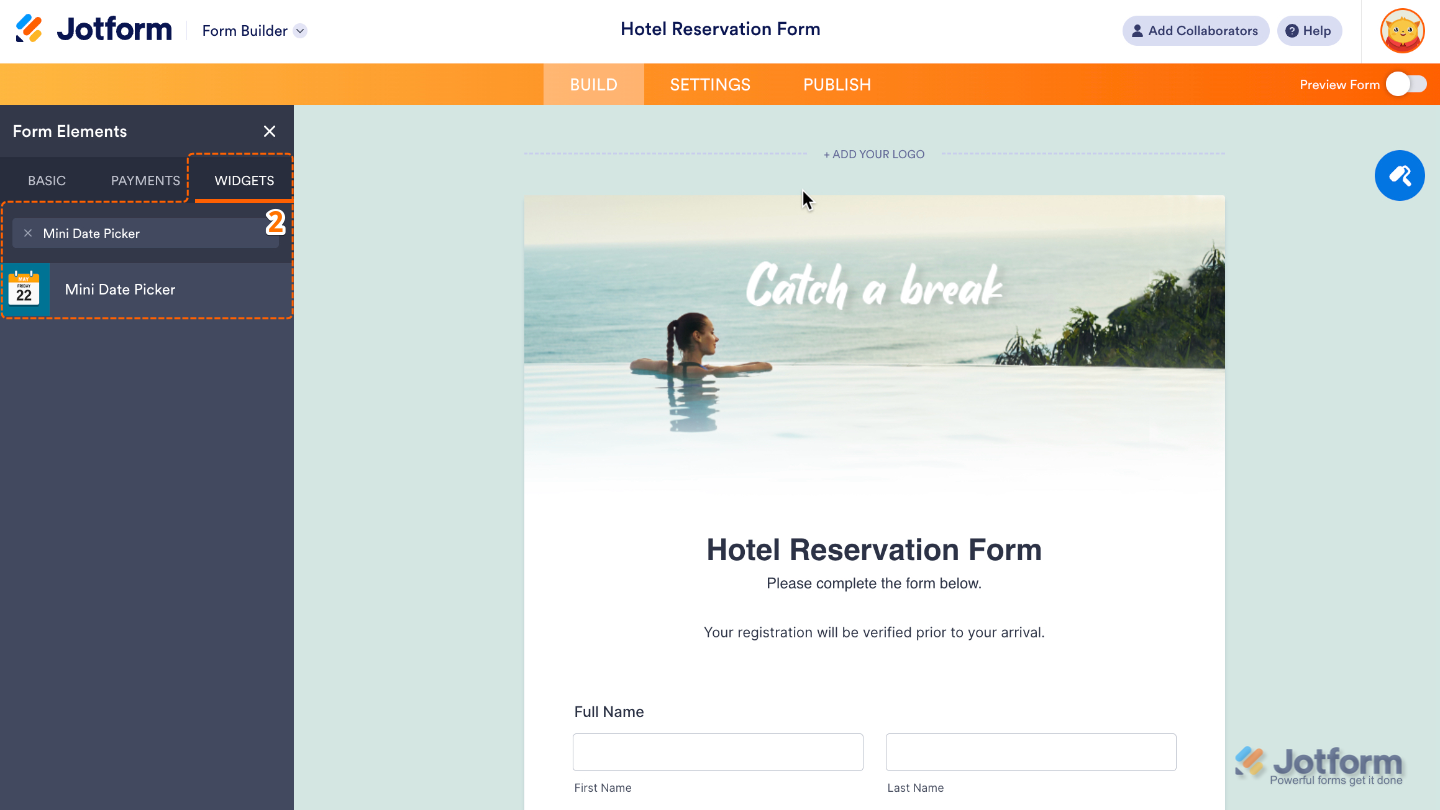
- Now, in the Form Elements menu, under the Widgets tab, search for Mini Date Picker and then click on it. Or, just drag and drop it to where you want it to be on your form.
- Next, in the Widget Settings window that opens on the right side of the page, set up the Date Format option to decide how the date will be displayed once a user selects it.
- Once you’re done, click on Update.
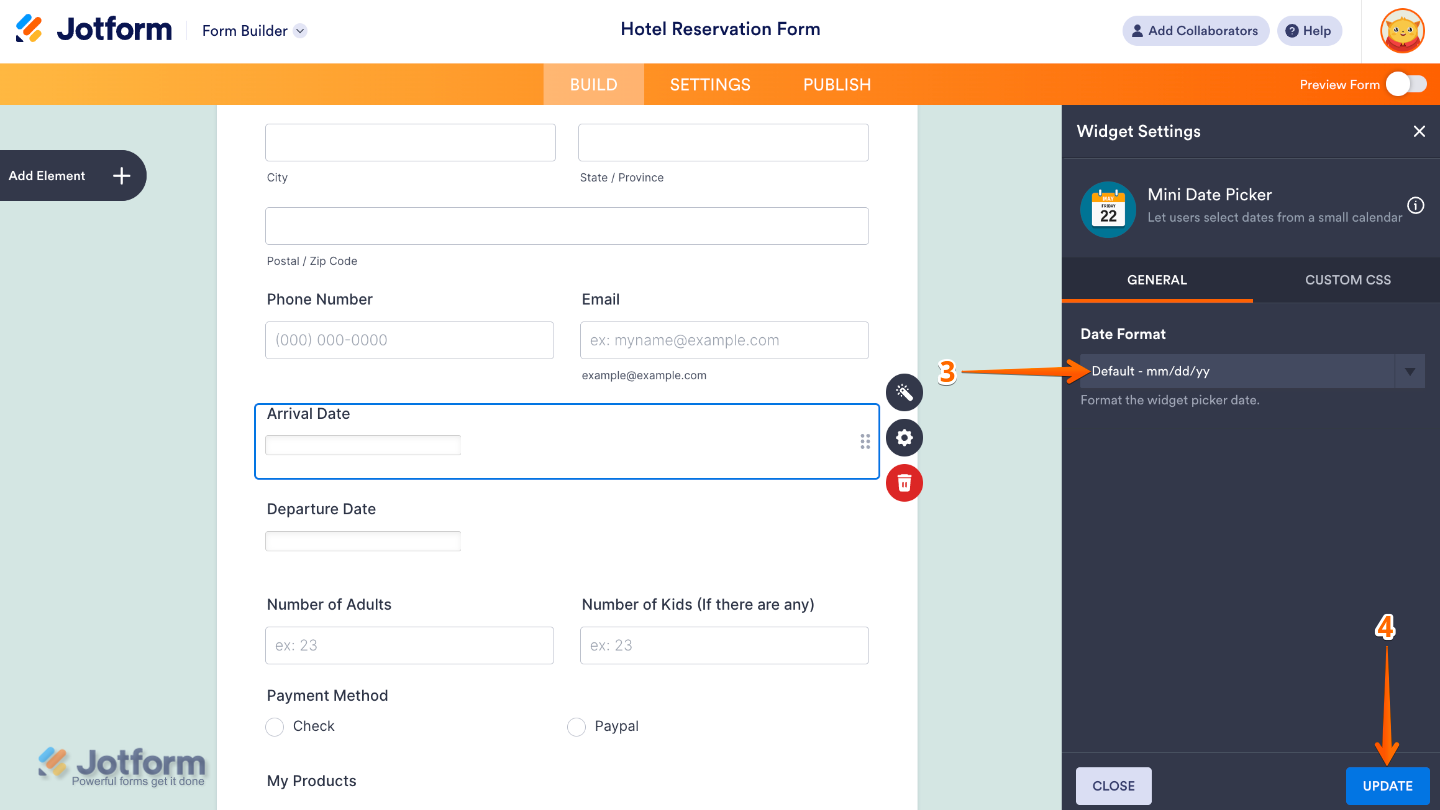
That’s it. You’ve successfully added and set up the Mini Date Picker widget to your form. Now, you have a field in your form that lets users quickly pick a date from a neat little calendar that pops up when needed and tucks away after—keeping your form simple, clean, and easy to use. Curious how it works on a live form? Check out this Demo Form.
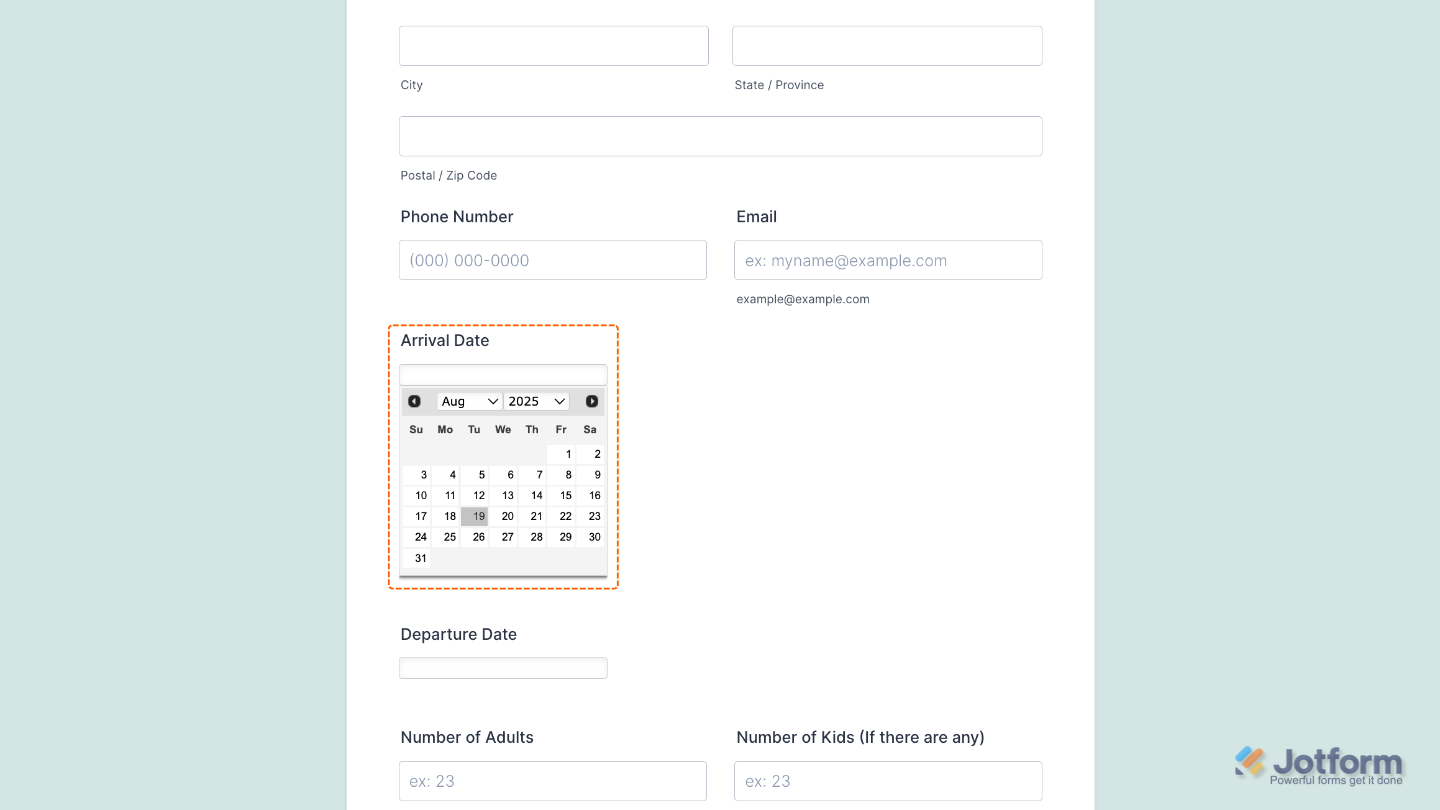
To tweak how your Mini Date Picker field looks, just click the gear icon to open its settings and adjust it to your liking.
Note
For advanced styling, you can add your own custom CSS under the Custom CSS tab in the widget settings and style the Mini Date Picker field. Our guide on How to Inject CSS Codes to Widgets walks you through everything.
Pro Tips
- The widget’s collapsible calendar works beautifully on mobile devices, so your users can pick a date on the go without hassle.
- Always test how the date looks once selected—this ensures the format and style feel natural with the rest of your form.

Send Comment: