Jotform’s Narrative Fields widget lets you create engaging, fill-in-the-blank style questions right in your form. It’s a great way to make data collection feel more conversational while keeping things structured. Whether you’re building quizzes, surveys, or creative forms, this widget helps you capture responses in a more interactive and story-like format.
Here are a few ways to use it:
- Create More Engaging Forms — Make your forms feel less like a questionnaire and more like a story. For example: “My name is ___ and I’m interested in ___.” It’s simple, but way more engaging than plain text boxes.
- Collect Personal Info in a Friendly Way — Instead of listing fields like “Name,” “Age,” and “City,” you can design one flowing sentence where users fill in the details. It feels lighter and less formal.
- Use It for Surveys or Quizzes — Turn survey questions into short narratives, making them easier to read and quicker to answer. Perfect for fun quizzes or casual feedback forms.
- Perfect for Applications — Use it for job, scholarship, or membership forms to collect info in a more personalized, less intimidating format.
Note
The widget supports multiple blanks, each with its own size and hint text to guide users.
Adding and Setting Up the Narrative Fields Widget
If you’d like to write your own custom questions with fill-in-the-blank spaces, the Narrative Fields widget is a great fit for your form. Just place the blanks where you want users to add their answers; it’s that simple. You’ll just need to do this:
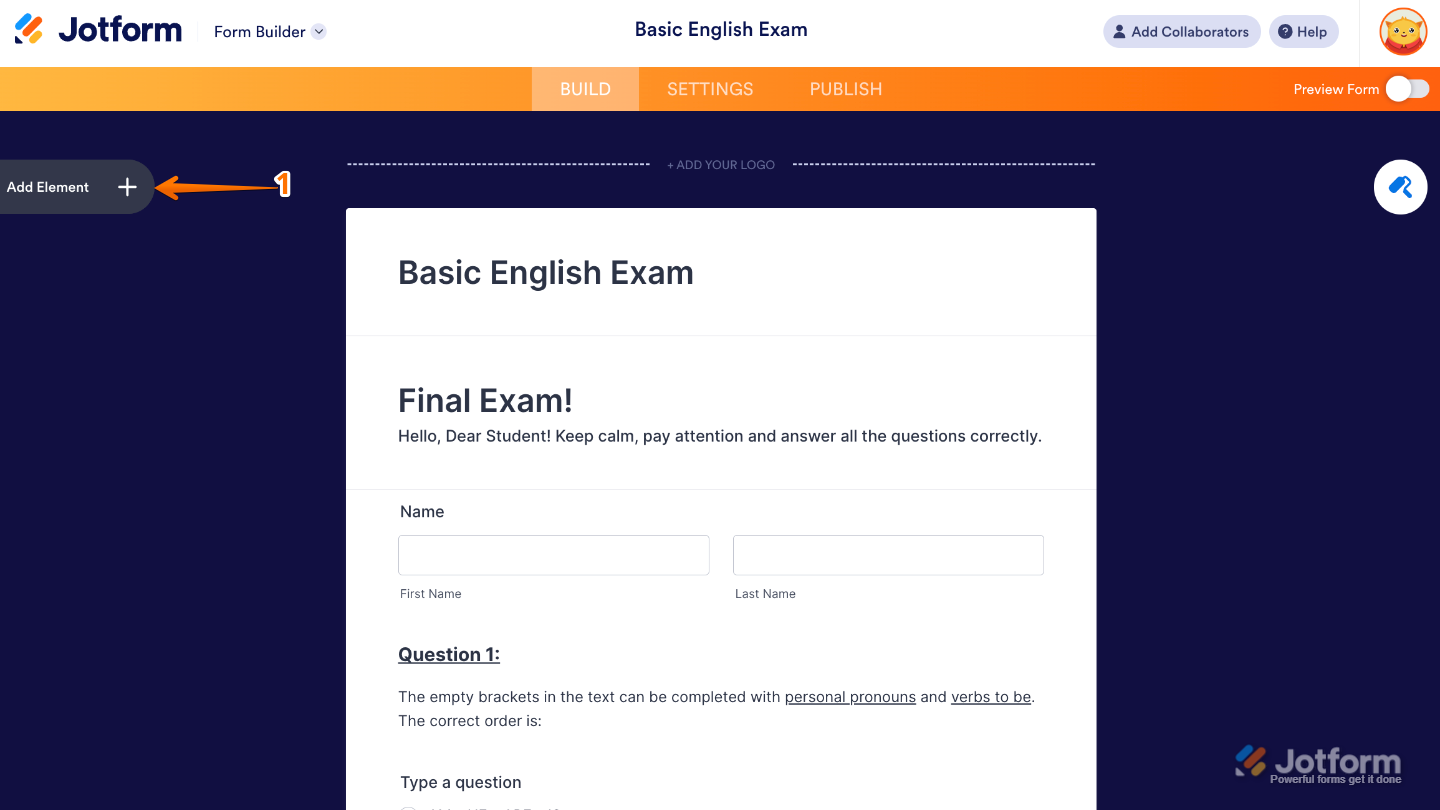
- In Form Builder, click on Add Element on the left side of the page.
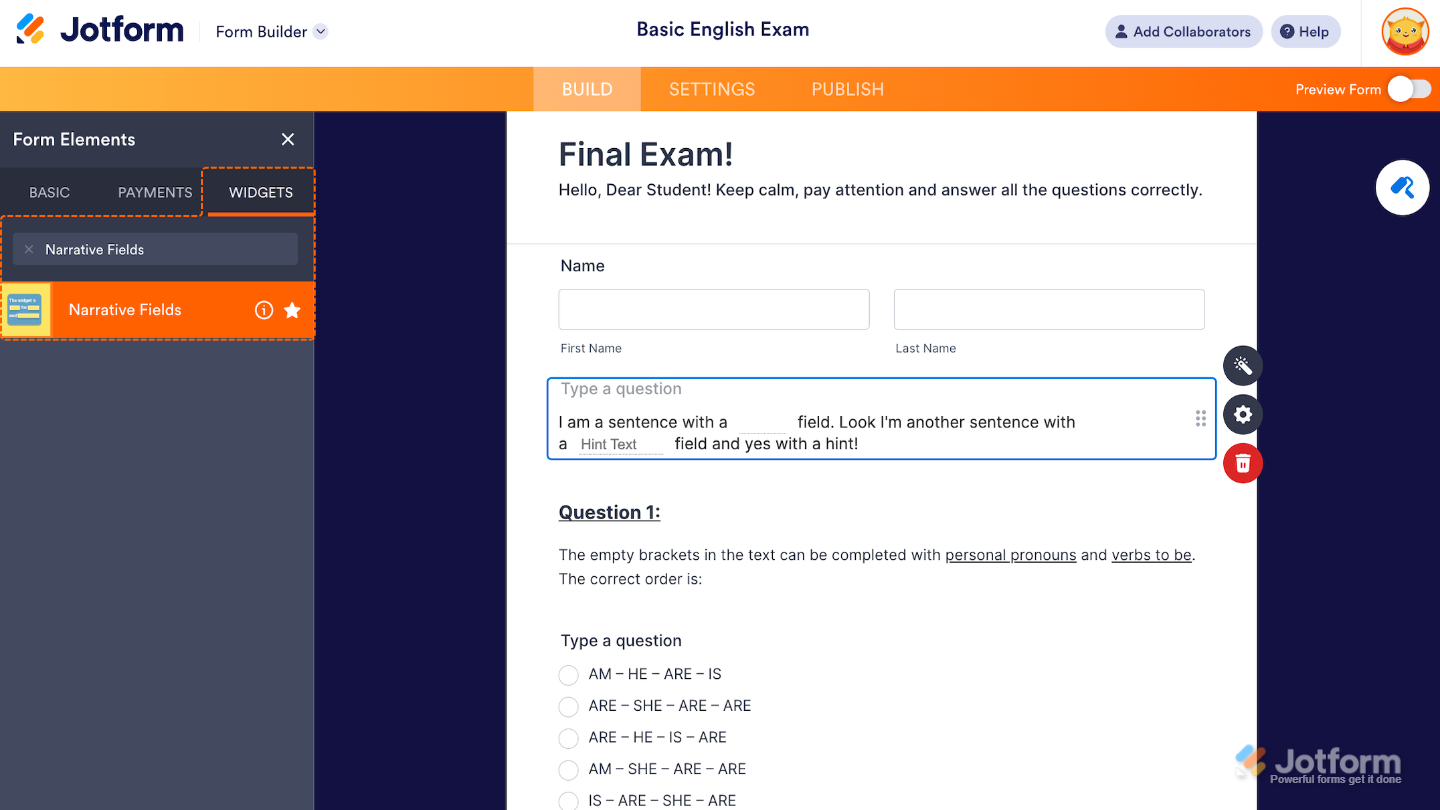
- Now, in the Form Elements menu, under the Widgets tab, search for Narrative Fields and then click on it. Or, just drag and drop it to where you want it to be on your form.
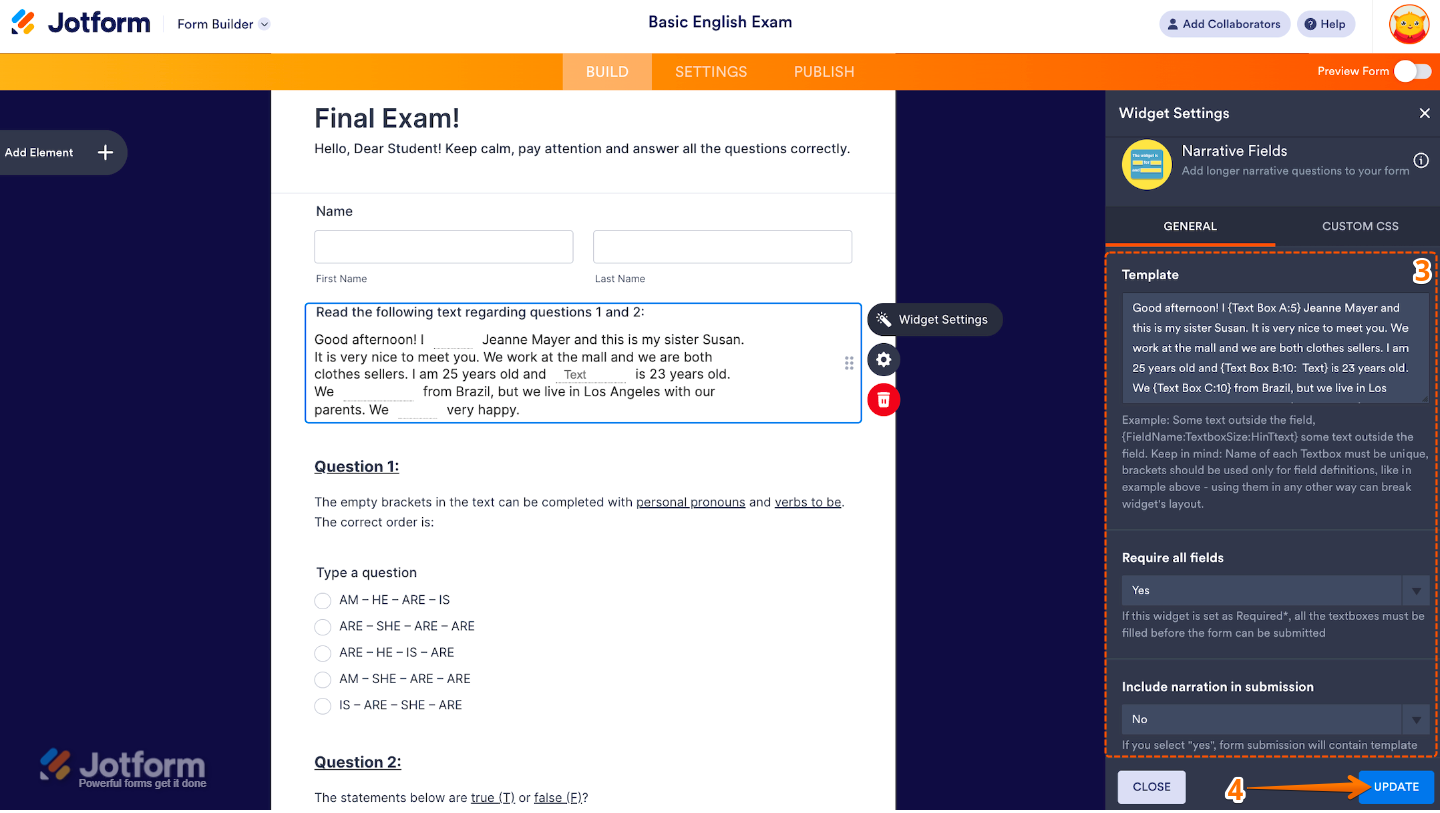
- Next, in the Widget Settings window that opens on the right side of the page, set up the following options:
- Template — Write your custom sentence or paragraph here, and use this format to show where users should fill in their answers: {FieldName:TextboxSize:HintText}.
- Require all Fields — When turned to Yes, this setting makes every blank required, so users need to complete all fields before submitting the form.
- Include Narration in Submission — When enabled, it gives you a complete, readable sentence or story in your submission data instead of just separate input values.
- Once you’re done, click on Update.
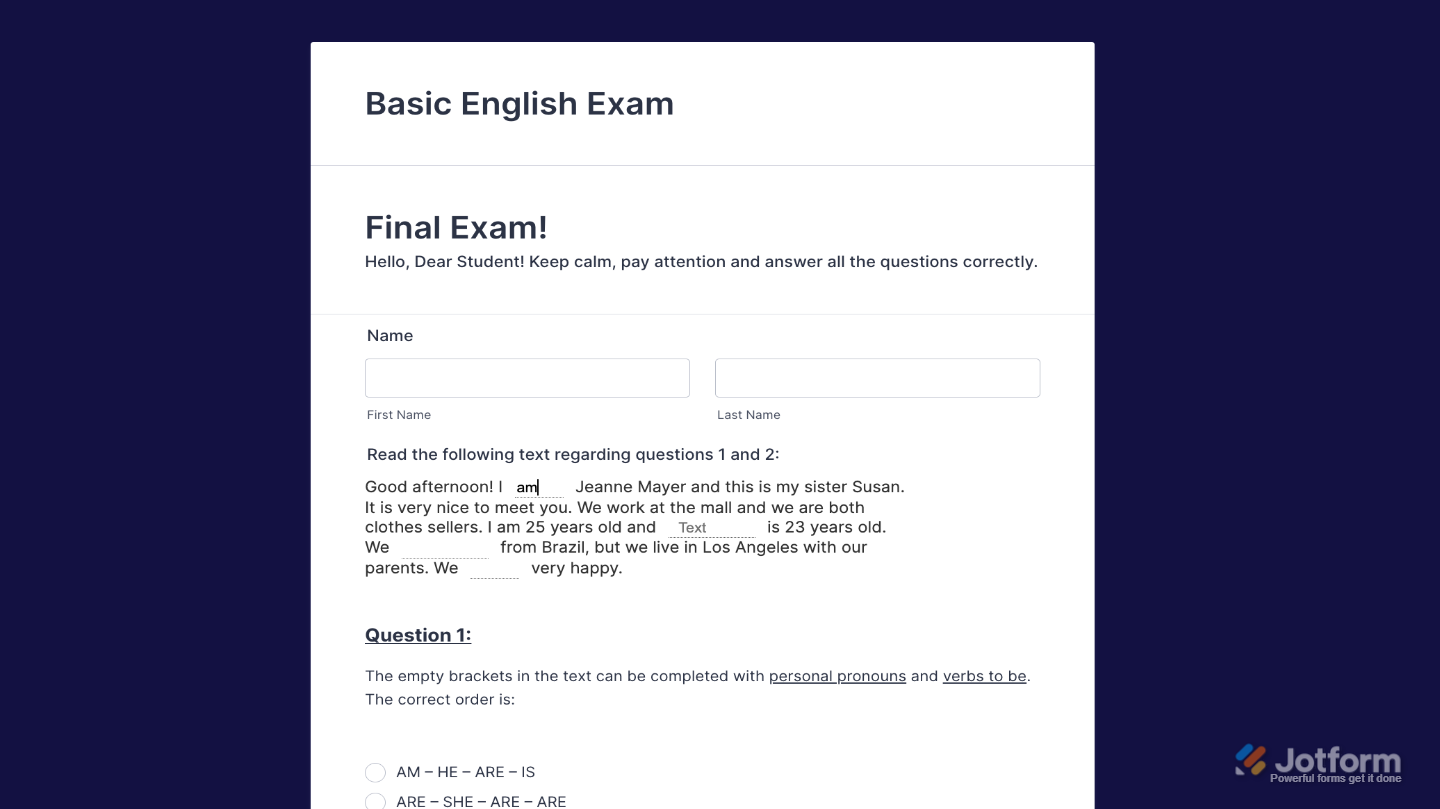
That’s it. You’ve successfully added and set up the Narrative Fields widget to your form. Now, you’ve created an interactive, fill-in-the-blank style text fields in a sentence or paragraph format. Curious how it works on a live form? Check out this Demo Form.
To further customize your Narrative Fields field appearance, just click on the Gear icon to open its properties.
Note
For advanced styling, you can add your own custom CSS under the Custom CSS tab in the widget settings and style the Narrative Fields field. Our guide on How to Inject CSS Codes to Widgets walks you through everything.
Pro Tips
- Adjust text box sizes based on expected input length, short for names, longer for comments.
- Use hint text wisely to guide users on what type of answer to enter.
- Test your template before publishing to make sure fields appear where expected and hint texts are helpful.

Send Comment: