The Pastebin widget, powered by Pastebin, lets your users easily paste or write large blocks of text or code without worrying about formatting or cluttering your form. Adding richer, more flexible input options to your form can make a big difference—especially when you’re collecting technical content. It’s a clean, convenient way to handle snippets, logs, scripts, or any long-form text that doesn’t fit well in a standard field.
Here are a few ways to use it:
- Collect Code Snippets with Ease — If your form is meant for developers, designers, or IT teams, this widget is perfect for collecting bits of code. It keeps formatting intact, so users can paste their scripts, CSS, HTML, or API responses without everything turning into a messy block of text.
- Accept Technical Logs or Error Messages — When you’re gathering bug reports or support requests, users can paste long error logs or system messages neatly. This makes the details easier to read and saves you time when reviewing submissions.
- Share Long Text Without the Clutter — For feedback forms, reports, or research studies, the Pastebin Widget lets users share large chunks of text—like excerpts, drafts, or notes—without overwhelming the rest of the form.
- Streamline Collaboration and Reviews — If you’re running peer reviews or internal requests, this widget helps keep submissions clean and organized. Everyone sees exactly what was pasted, just the way it was written.
Adding and Setting Up the Pastebin Widget
Adding the Pastebin widget to your form gives your users a simple way to share code, text snippets, or any content in a clean, organized format. Setting it up takes no time at all—here’s how:
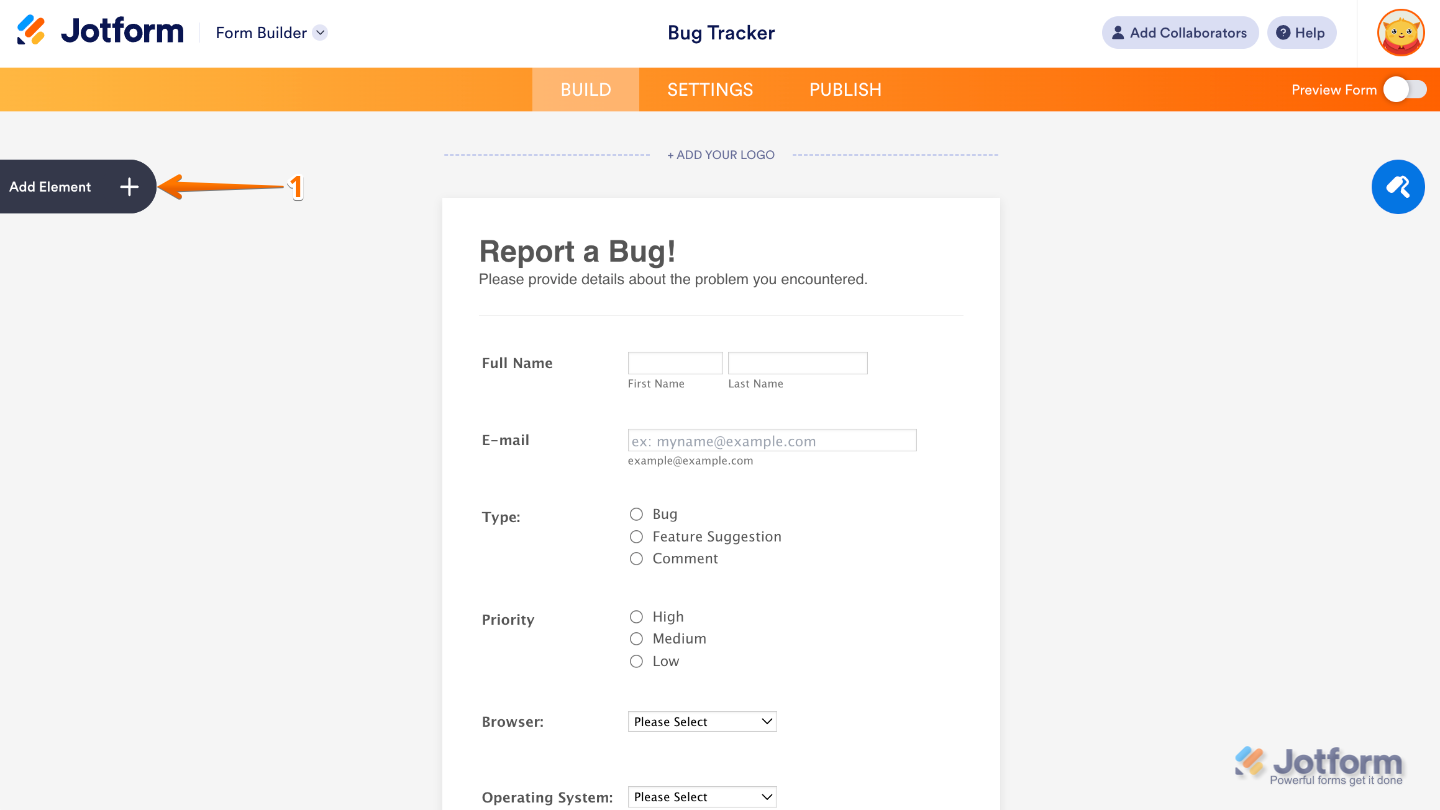
- In Form Builder, click on Add Element on the left side of the page.
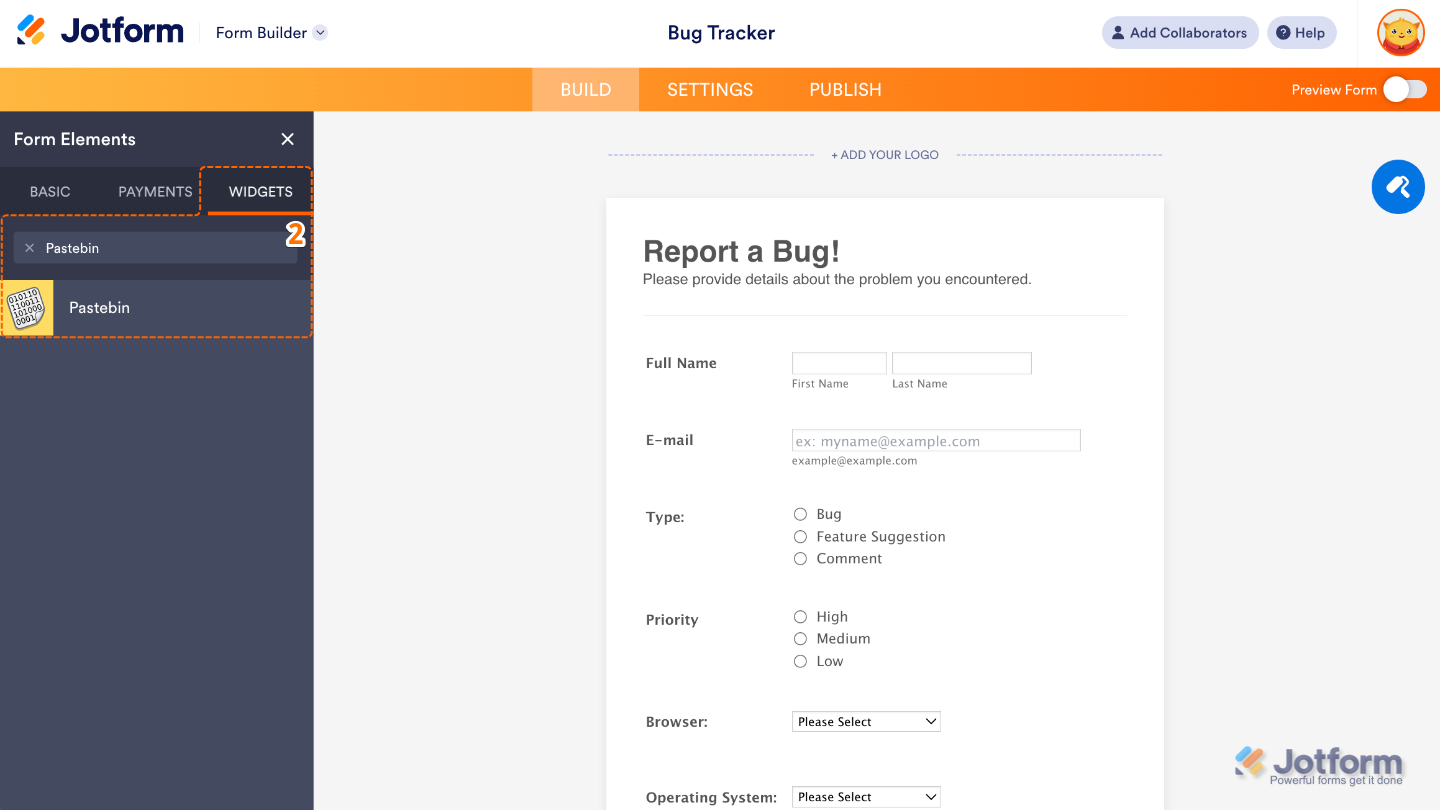
- Now, in the Form Elements menu, under the Widgets tab, search for Pastebin and then click on it. Or, just drag and drop it to where you want it to be on your form.
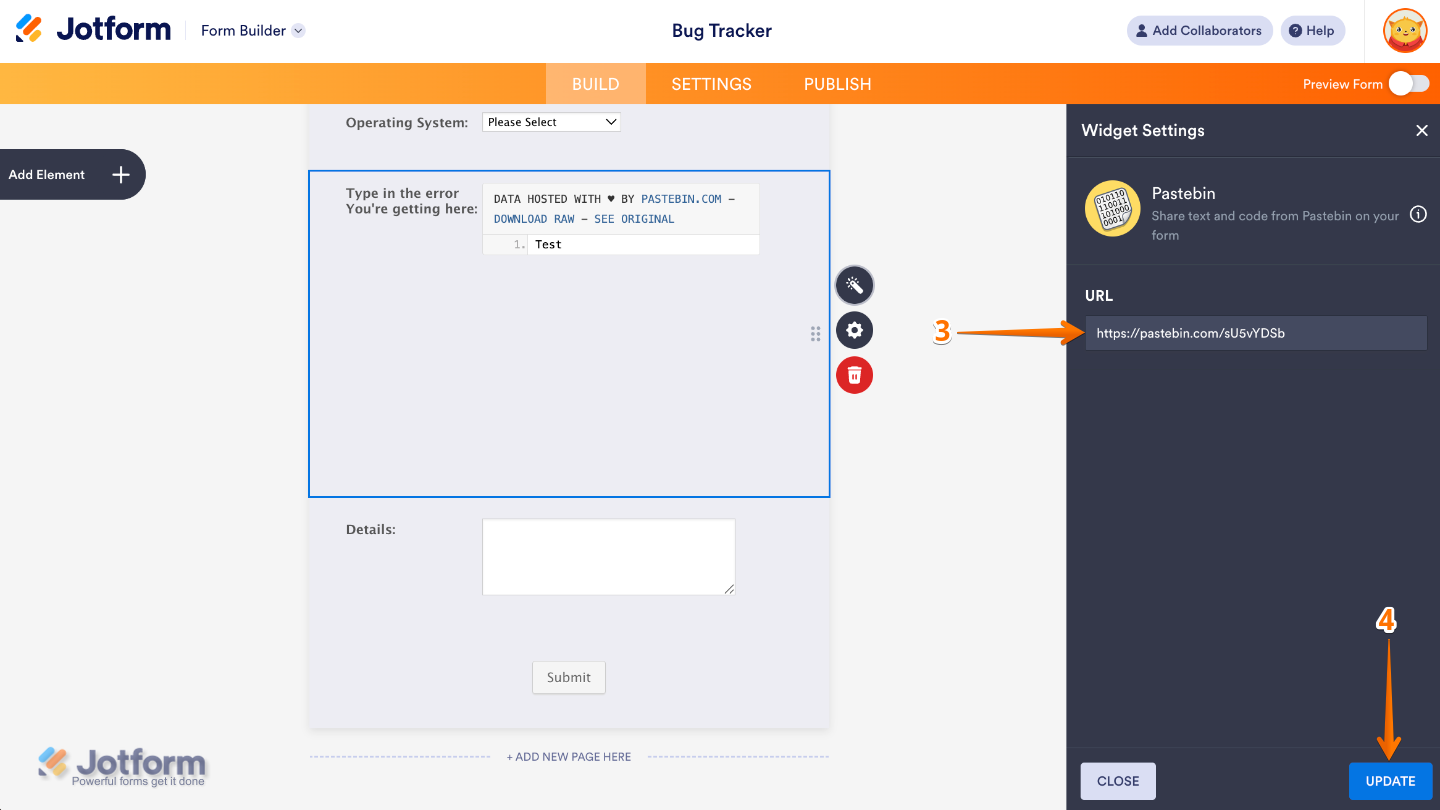
- Next, in the Widget Settings menu that opens on the right side of the page, paste your Pastebin link into the URL option. Once you add your Pastebin URL here, the widget automatically pulls in the code or text you stored on Pastebin and displays it neatly inside your form.
- Once you’re done, click on Update.
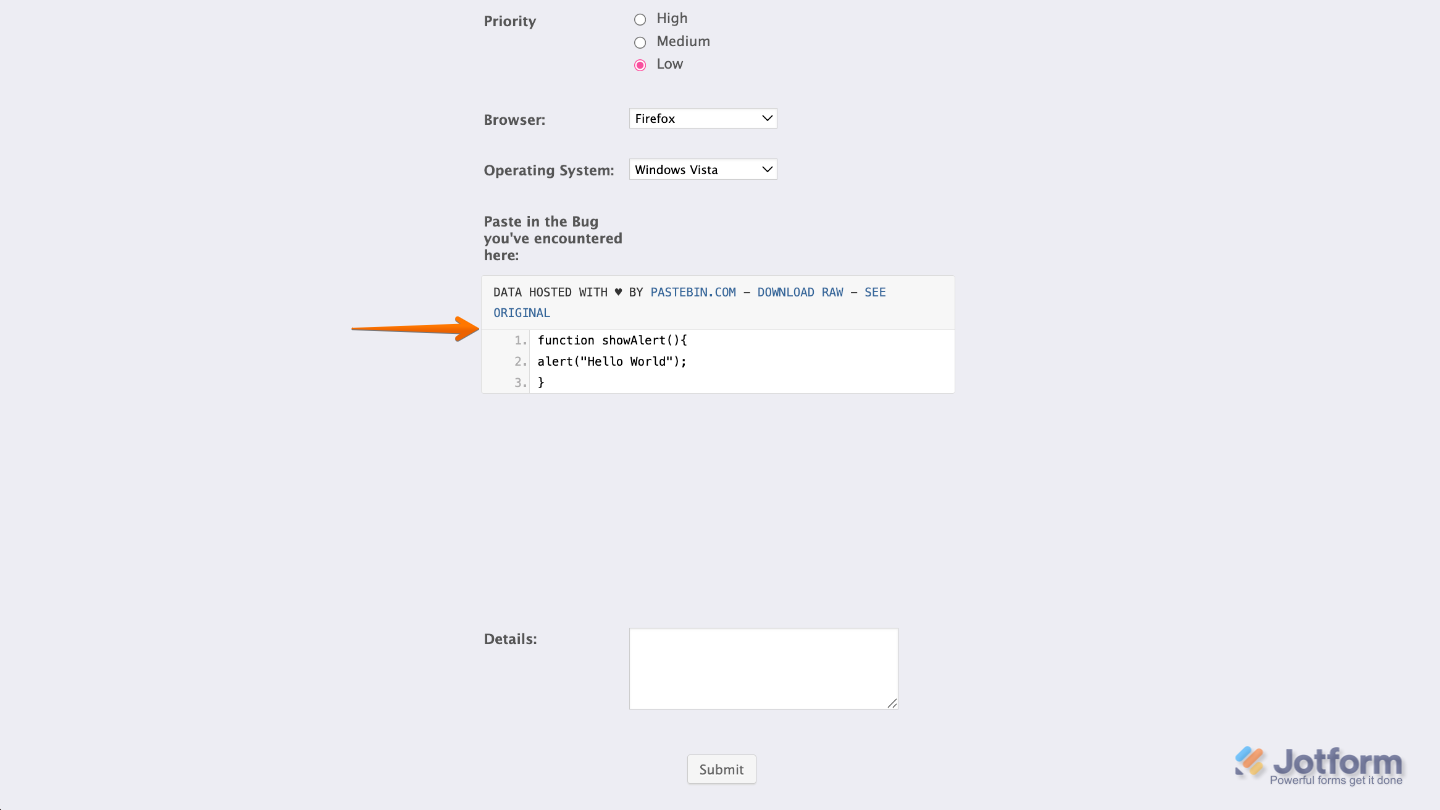
That’s it. You’ve successfully added and set up the Pastebin widget on your form. Now your users can easily share text or code in a neat, readable format, making content submission clearer and more organized. Curious how it works on a live form? Check out this Demo Form.
You can also configure the widget properties, like alignment, labels, size, visibility, and more, to control how it looks and behaves on your form. To learn how it’s done, see our guide on How to Access and Configure the Question Properties of a Widget.
Pro Tip2
- Encourage users to paste properly formatted code. The cleaner the snippet, the easier it is for you (and others) to review it later.
- If the code contains sensitive info, remind users to remove credentials or private data before pasting.

Send Comment: