Jotform’s Phone Element lets you collect phone numbers in a structured format, making it easier to capture accurate contact details from your users. You can choose how the number is displayed and ensure entries follow the correct format.
Here are a few ways to use it:
- Collect phone numbers for contact or support.
- Standardize number formatting across submissions.
- Reduce input errors with structured fields.
- Use for callbacks, registrations, or verification forms.
Whether you’re starting fresh or updating a form, adding and setting up the Phone element takes only a few steps. Here’s a quick how-to:
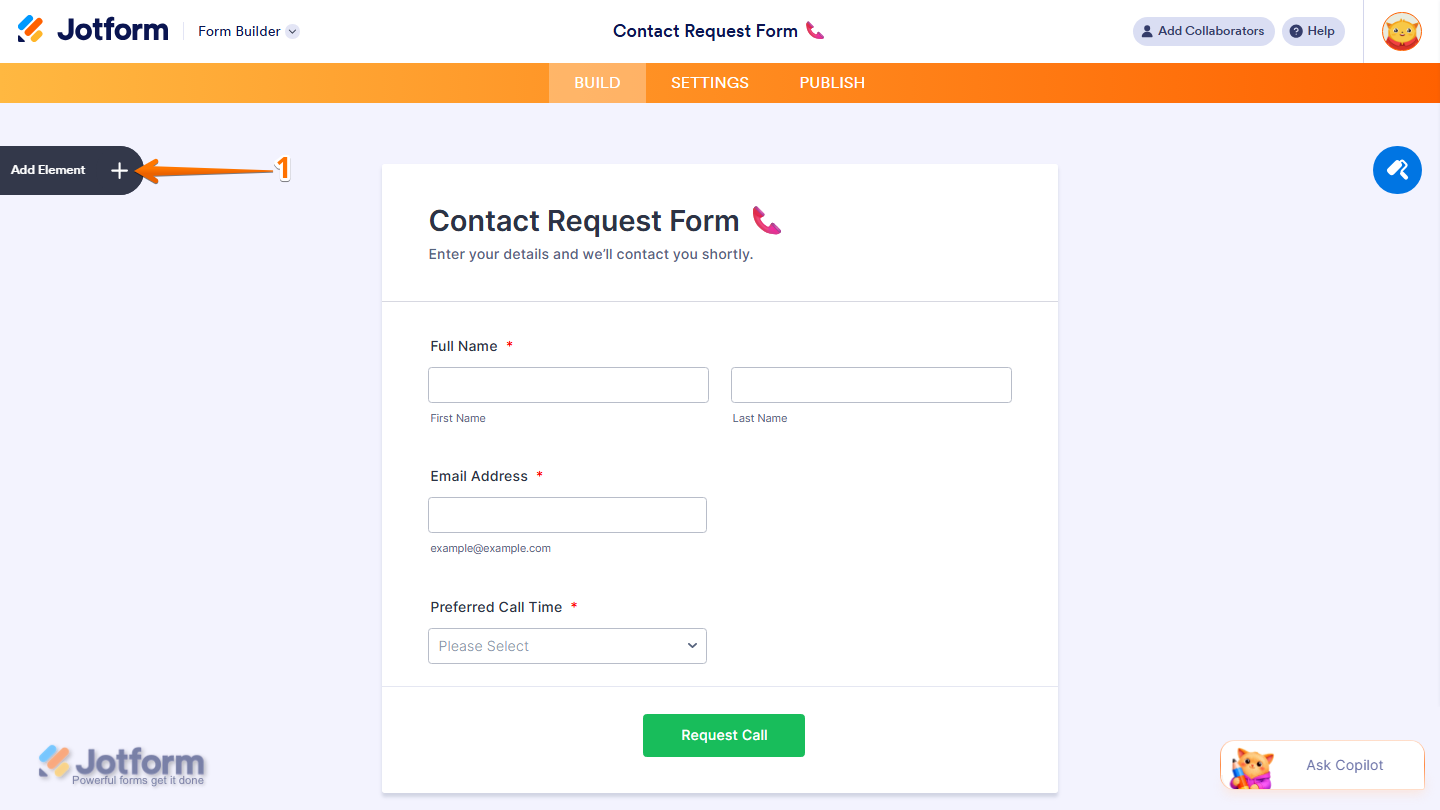
- In Form Builder, click on Add Element on the left side of the page.
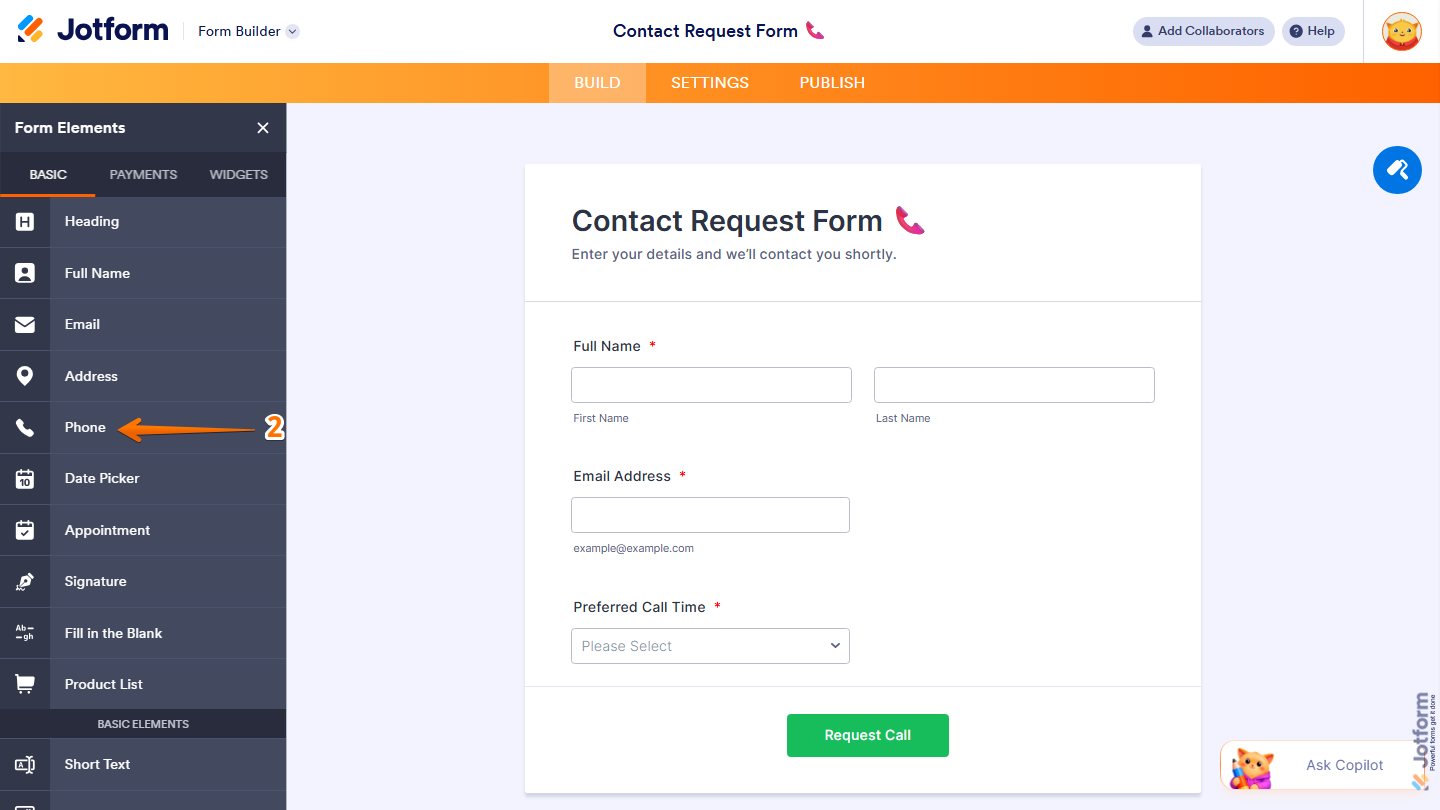
- Now, in the Form Elements menu, under the Basic tab, click on Phone. Or, just drag and drop it to where you want it to be on your form.
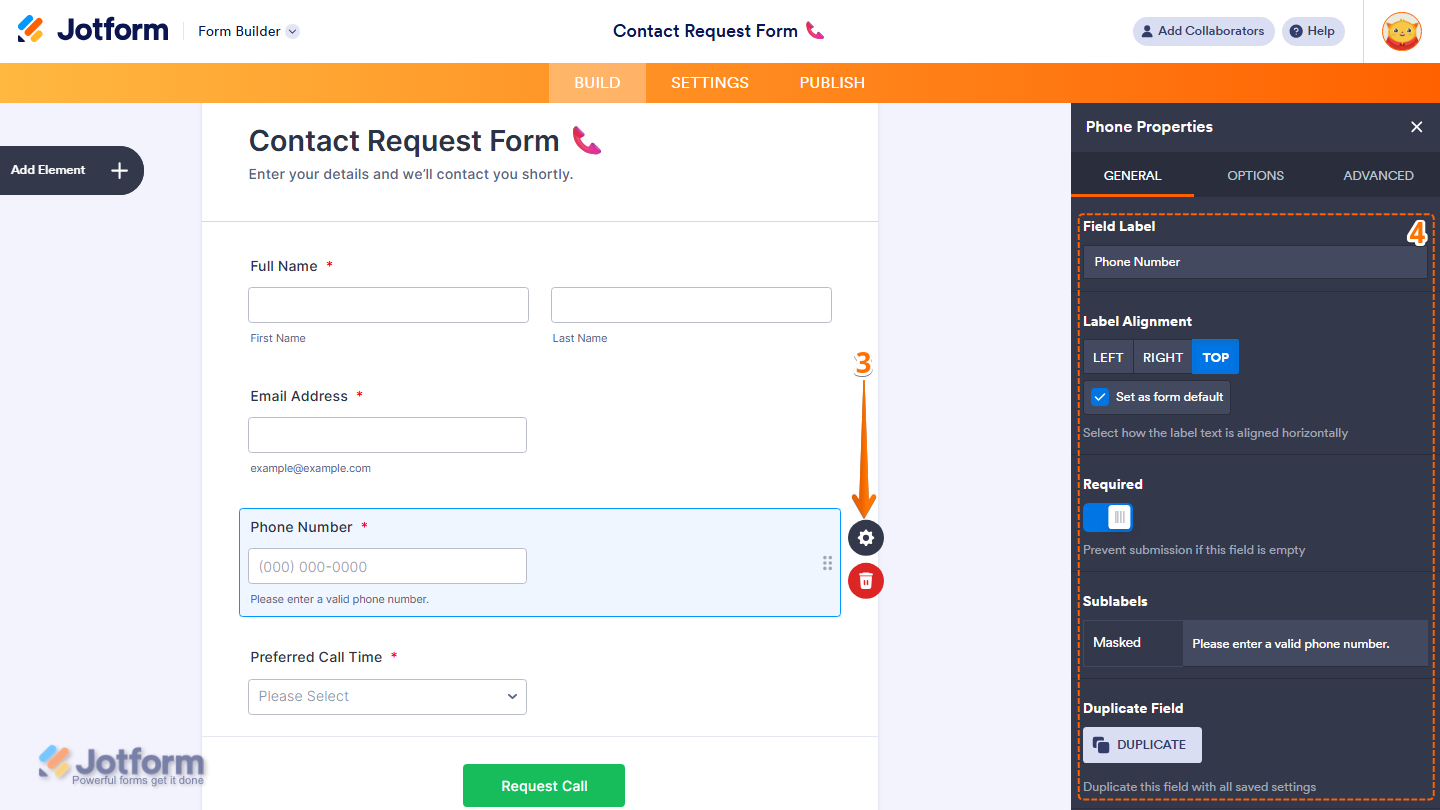
- Next, click on the Gear icon to open the Phone Properties menu on the right side of the page.
- Then, under the General tab, set up these things:
- Field Label — Enter the label that will appear above the phone field on your form.
- Label Alignment — Choose how the label is aligned. Options include Left, Right, and Top. Check Set as form default to apply this alignment to all fields on your form.
- Required — Toggle this on to prevent form submission if this field is left empty.
- Sublabels — Customize the sublabel text that appears below the phone field. The Masked sublabel shows the expected phone number format to guide form fillers.
- Duplicate Field — Click on Duplicate to create a copy of this field with all its saved settings.
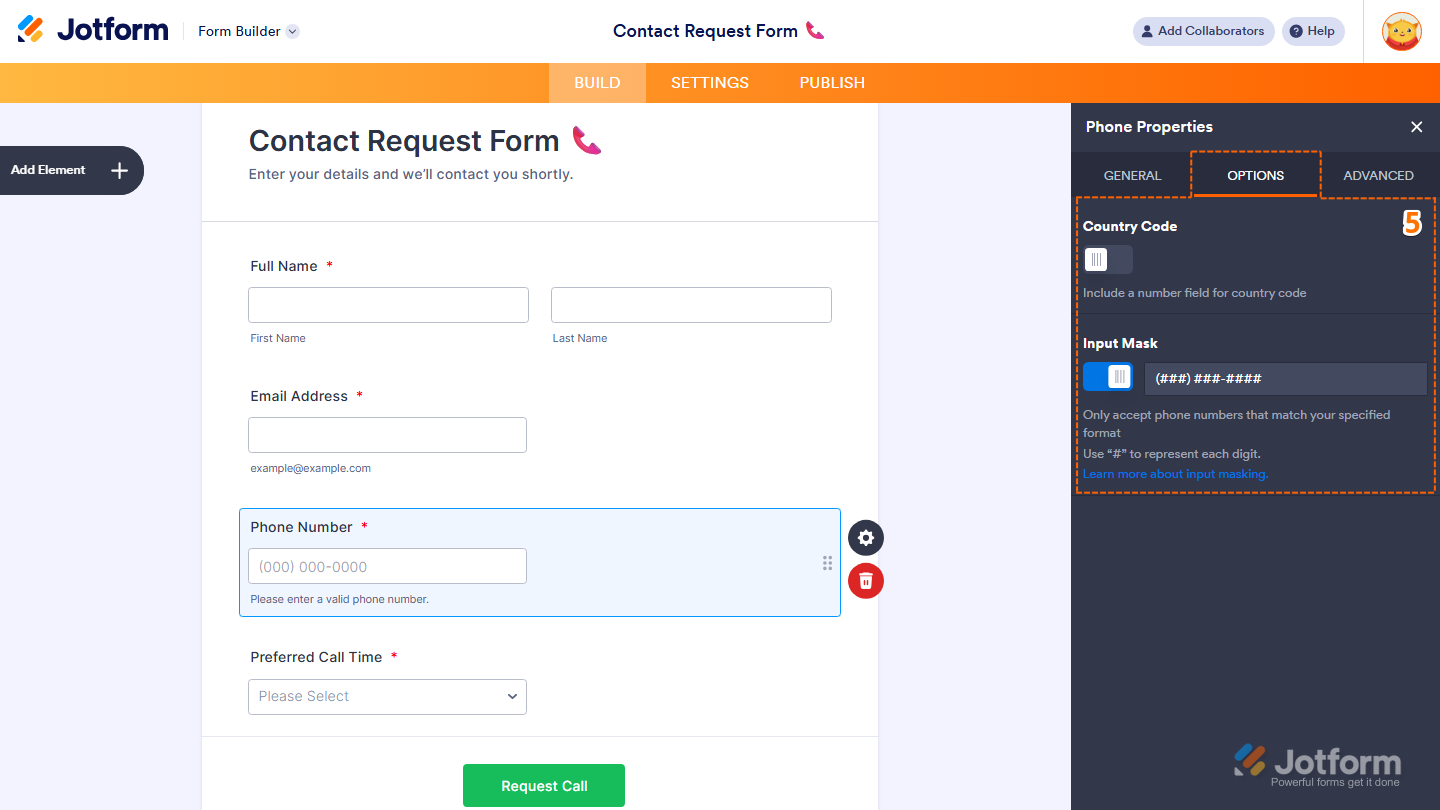
- Next, click on the Options tab and set up the following:
- Country Code — Toggle this on to add a country code field next to the phone number field.
- Input Mask — Toggle this on to enforce a specific phone number format. Use # to represent each digit. The default format is (###) ###-####. Check out our guide on How to Set Content Mask on a Form Field Based on Another Field Input to learn more about it.
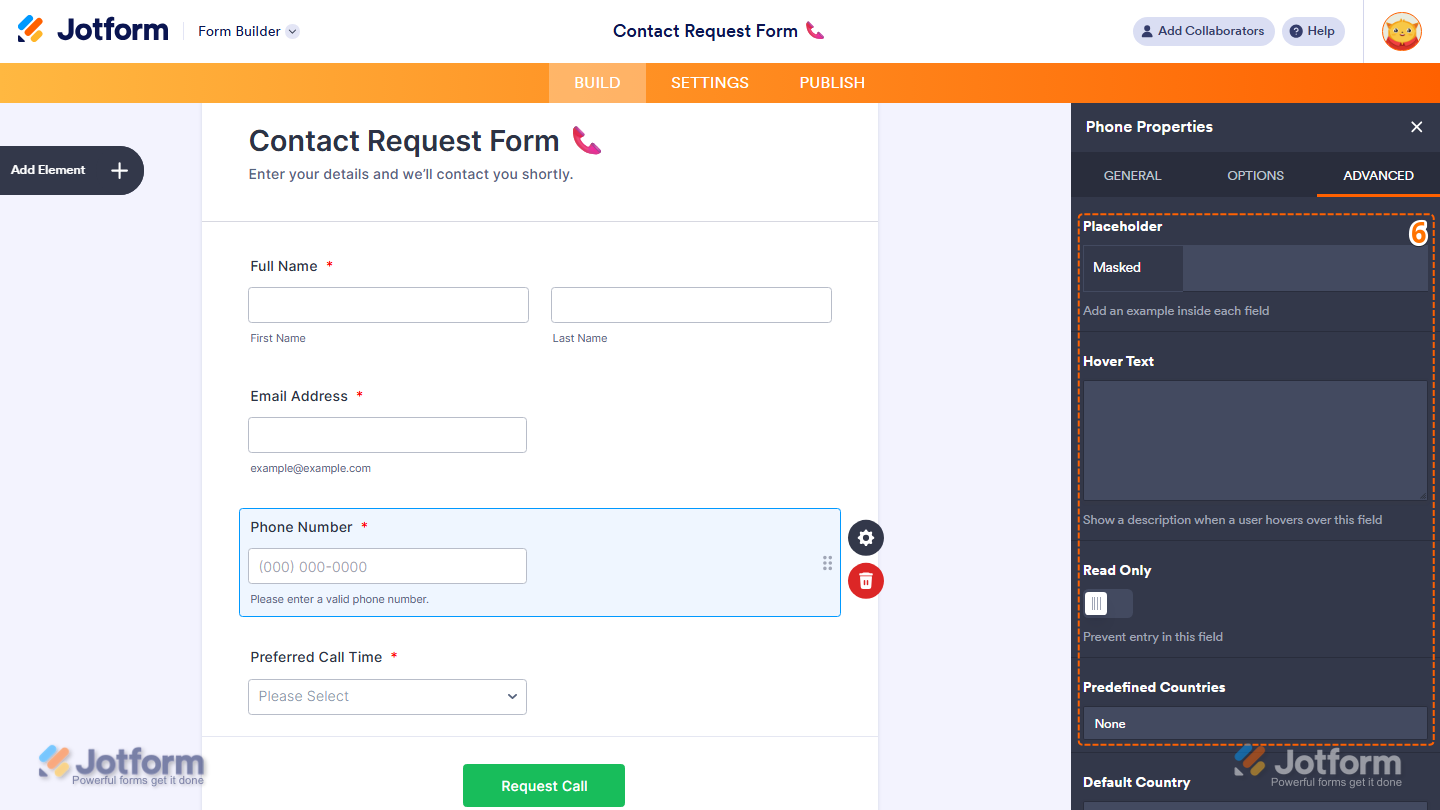
- Now, click on the Advanced tab and fill in the details for these fields:
- Placeholder — Add example text inside the phone field to guide form fillers on what to enter.
- Hover Text — Add a short description that appears when a user hovers over the field.
- Read Only — Toggle this on to prevent form fillers from entering or editing the field.
- Predefined Countries — Select a specific country to limit the country code options available to form fillers.
- Then, scroll down to continue configuring these options:
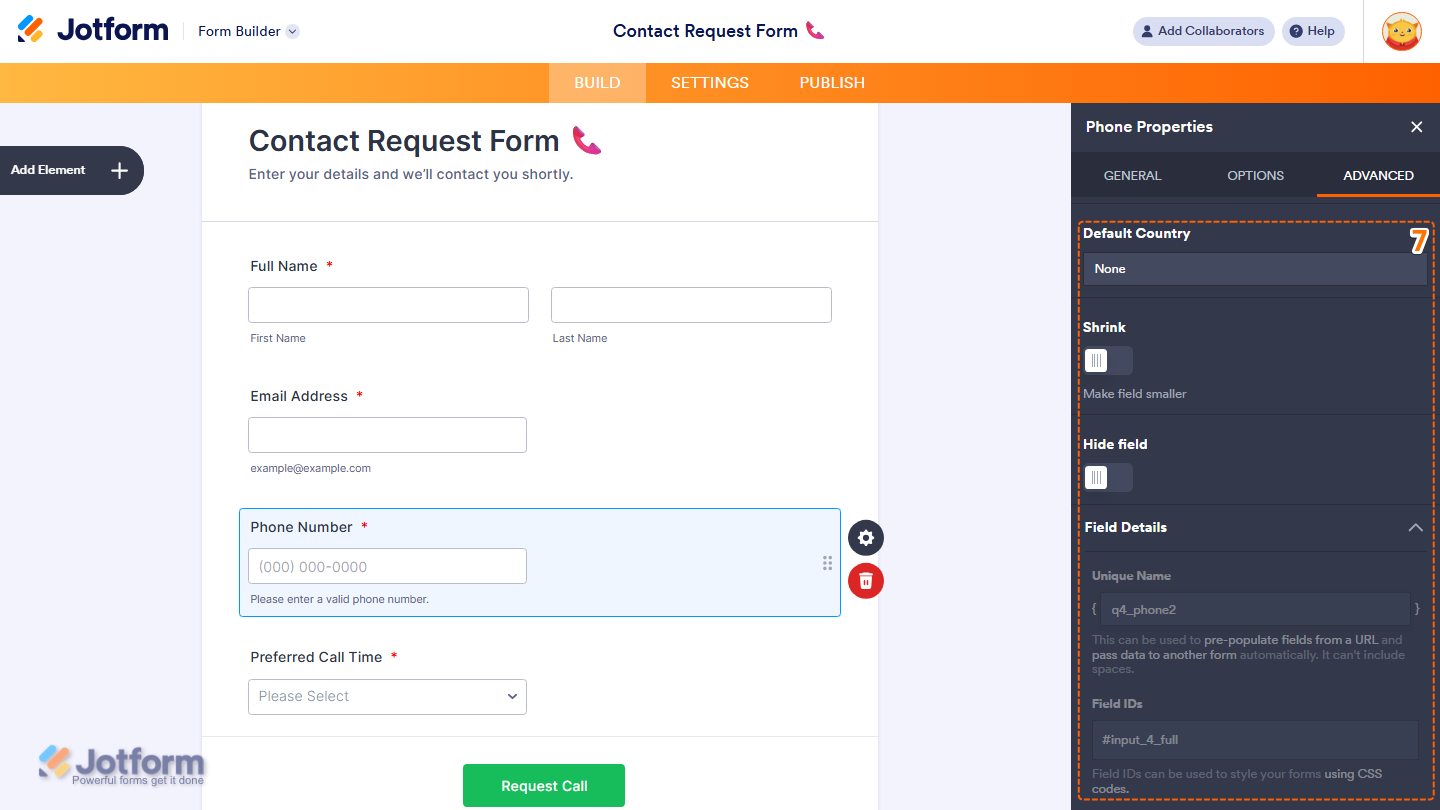
- Default Country — Select a default country code to pre-select for form fillers.
- Shrink — Toggle this on to make the field smaller in size.
- Hide Field — Toggle this on to hide the field from form fillers.
- Field Details — View additional technical information about the field:
- Unique Name — The unique identifier for the field, which can be used to pre-populate it from a URL or pass data to another form automatically.
- Field IDs — The CSS selector for the field, which can be used to style it with custom CSS.
Note
Any changes you make to the element are automatically saved.
That’s it. You’ve successfully added and set up the Phone Element on your form. Now, your form is ready to collect accurate and well-formatted contact numbers. You can always return to the field settings to adjust formatting, labels, or validation based on your needs.
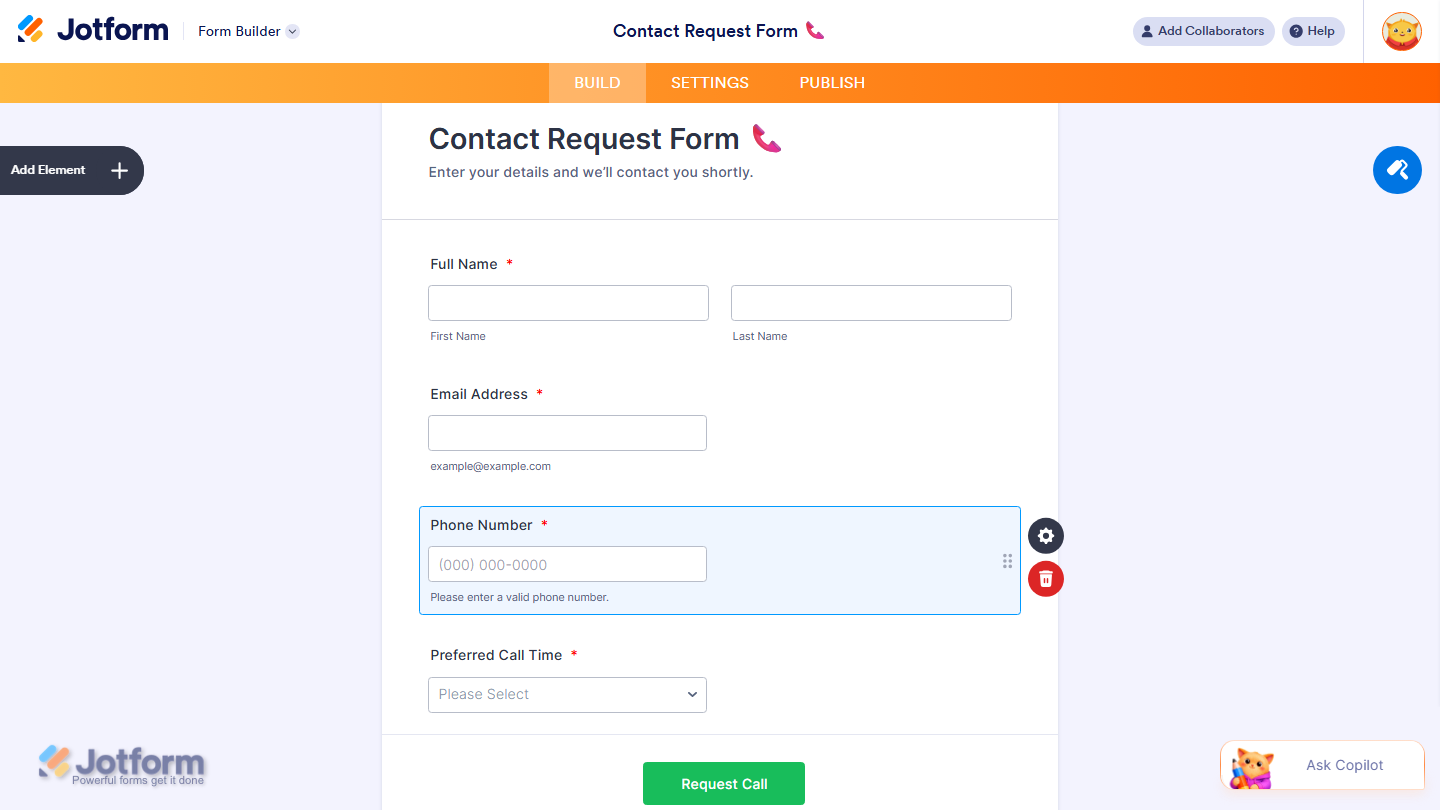
You can explore how it looks with this demo form.

Send Comment: