Jotform’s Phone Picker widget makes it easy for people to share their phone numbers in the right format, no matter where they are in the world. Instead of worrying about country codes or formatting, users can simply pick their country from a dropdown, and the widget fills in the right dialing code automatically.
Here are a few ways to use it:
- Collect International Phone Numbers Accurately — You can use the Phone Picker widget to allow users to select their country code before entering their phone number. This ensures numbers are formatted correctly for international submissions.
- Simplify Contact Forms for Global Audiences — The widget is ideal for businesses that serve customers worldwide. Users can easily choose their country from a dropdown list, making the form more user-friendly and professional.
- Reduce Data Entry Errors — By separating the country code from the phone number field, the widget minimizes formatting mistakes. This improves data accuracy and makes follow-ups easier.
- Improve Mobile Form Experience —The Phone Picker widget provides a streamlined input layout that works well on mobile devices. Users can quickly select their country and enter their number without confusion.
Adding and Setting Up the Phone Picker Widget
Adding the Mini Date Picker widget to your form is a smart way to collect phone numbers without the hassle of formatting. It’s easier than you think:
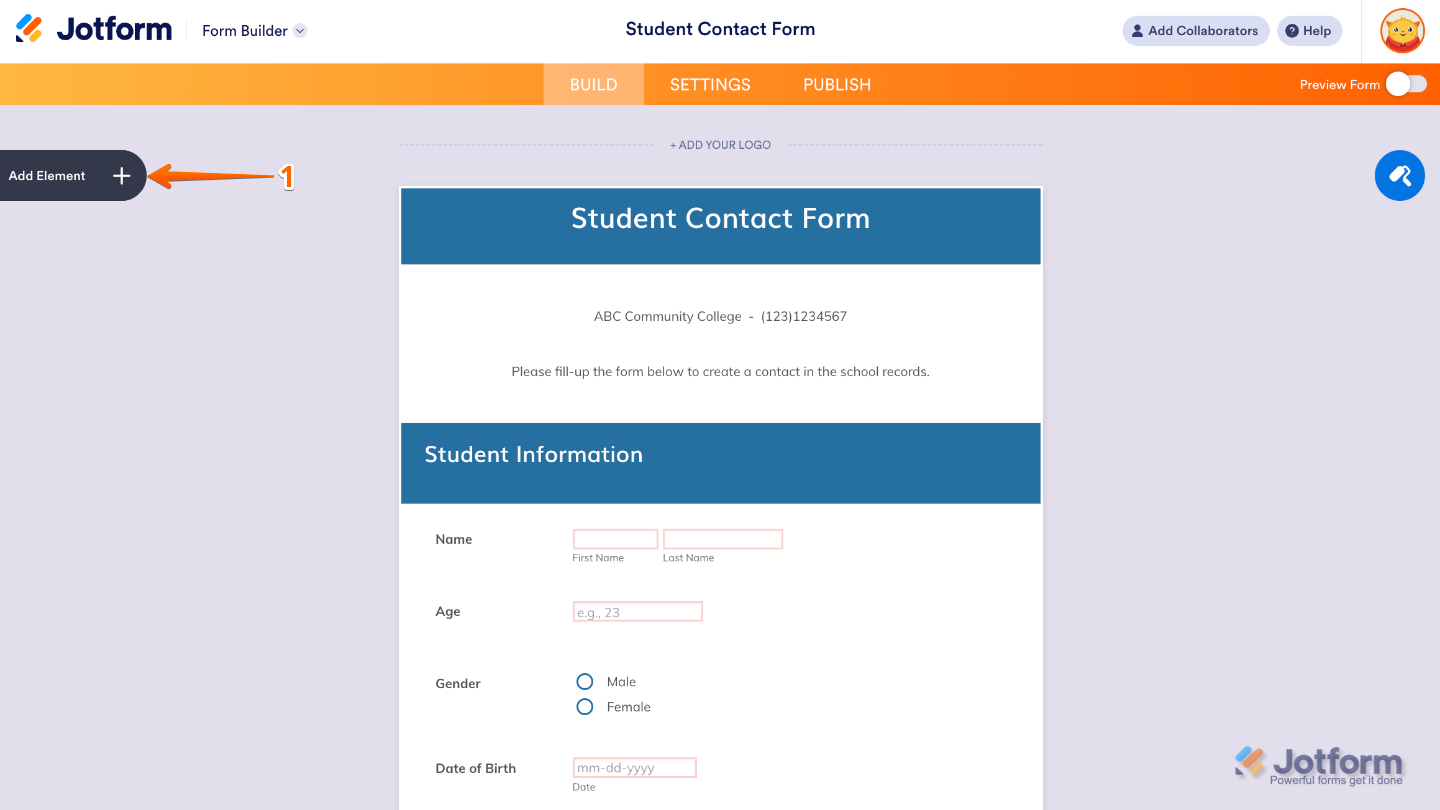
- In Form Builder, click on Add Element on the left side of the page.
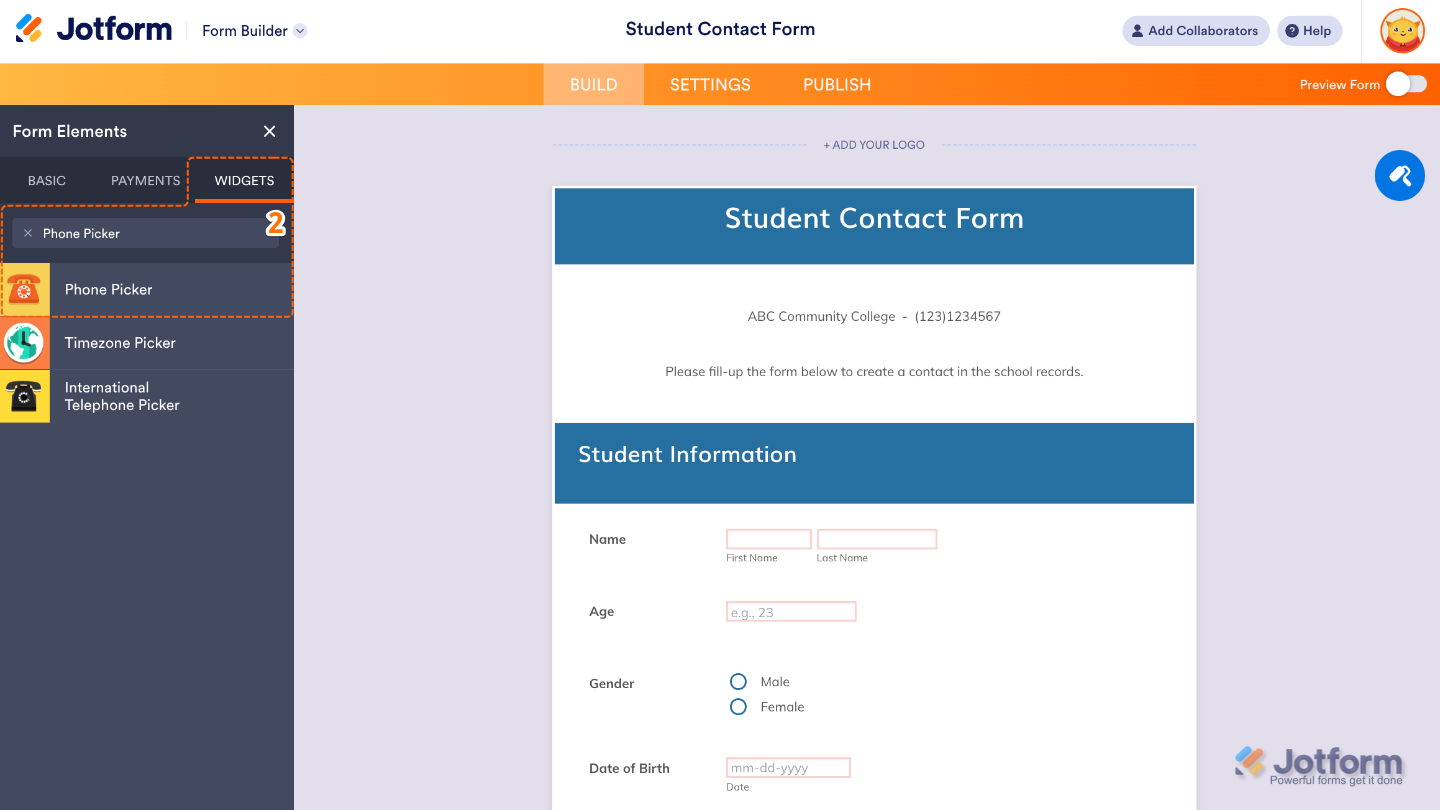
- Now, in the Form Elements menu, under the Widgets tab, search for Phone Picker and then click on it. Or, just drag and drop it to where you want it to be on your form.
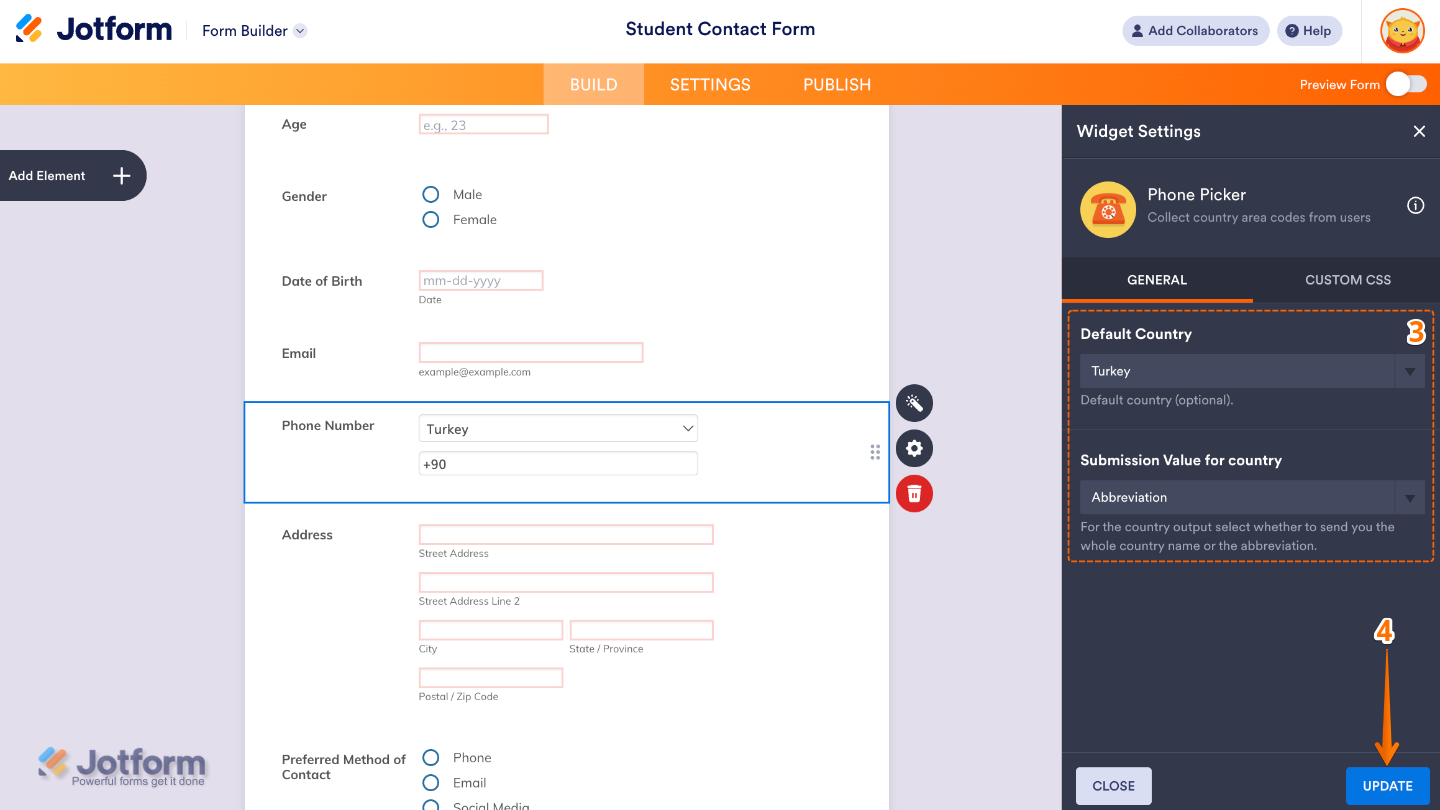
- Next, in the Widget Settings window that opens on the right side of the page, set up the following options:
- Default Country — Choose the country and dialing code you want to show by default when someone first opens your form.
- Submission Value for country — Decide how the country gets saved in your form’s submissions—either as the full country name or as a short abbreviation.
- Once you’re done, click on Update.
That’s it. You’ve successfully added and set up the Phone Picker widget to your form. Now your form has a phone number field that is handy, where users can simply pick their country, and the right dialing code will pop in automatically. Curious how it works on a live form? Check out this Demo Form.
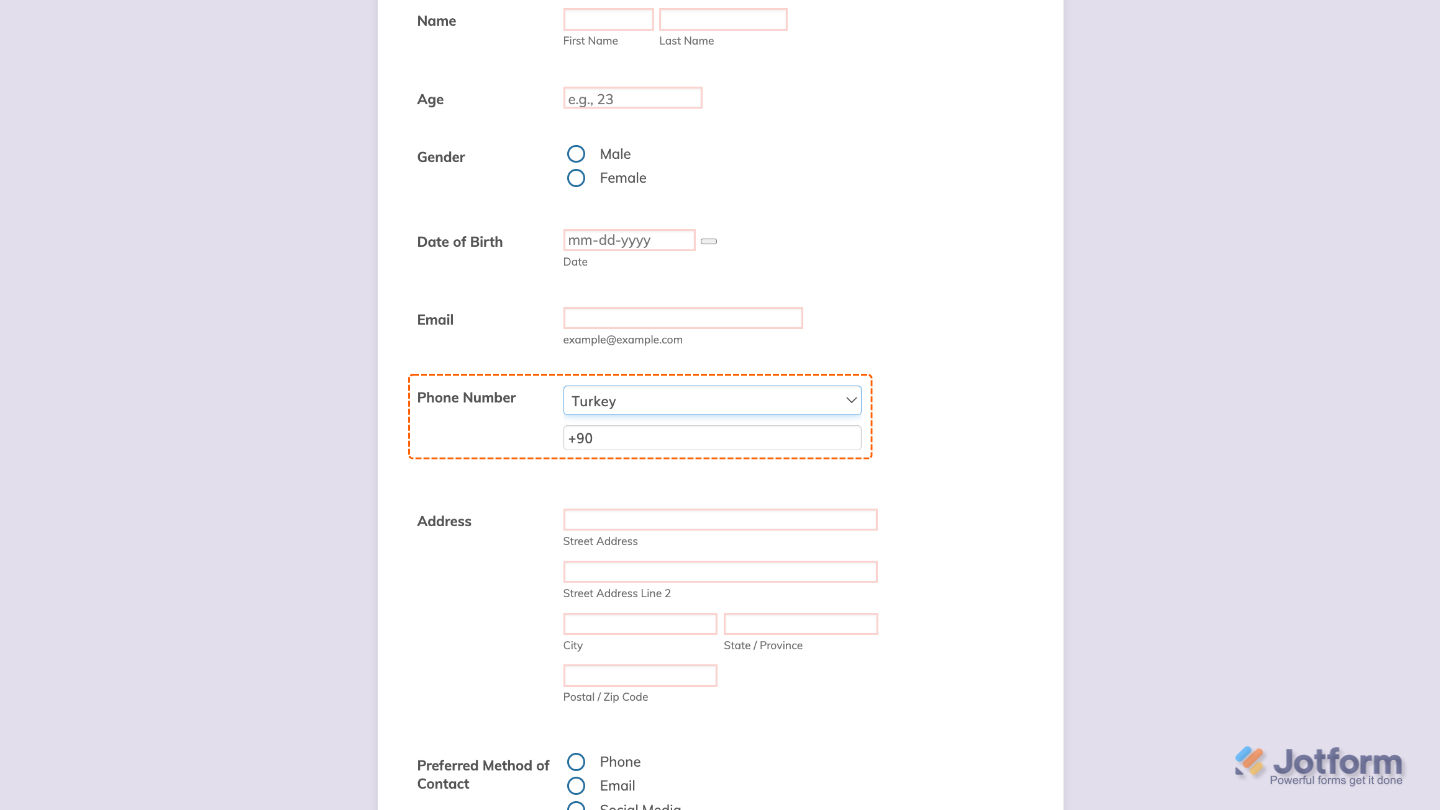
To tweak how your Phone Picker field looks, just click the gear icon to open its settings and adjust it to your liking.
Note
For advanced styling, you can add your own custom CSS under the Custom CSS tab in the widget settings and style the Phone Picker field. Our guide on How to Inject CSS Codes to Widgets walks you through everything.
Pro Tips
- If most of your users are from the same place, choose a default country and dialing code so they don’t have to search every time.
- Try the widget yourself with different countries to make sure it looks and works the way you expect.

Send Comment: