The Quotes widget makes it easy to sprinkle in motivational, funny, or insightful quotes that engage and delight your respondents. A good way to add a little inspiration or some thoughtful words to your form. It’s a simple way to make your form feel more personal and inviting, whether you’re sending a survey, running a contest, or just adding a touch of personality to your questions.
Here are a few ways to use it:
- Share Inspiring or Motivational Quotes — If you want to brighten someone’s day or set a positive tone, this widget is an easy win. You can display uplifting quotes that greet users as they fill out your form — perfect for wellness forms, onboarding flows, or anything where you want people to feel encouraged.
- Add Fun or Themed Messages — You can add themed quotes or witty lines that match your form’s vibe, a good way to run a holiday survey, host a creative contest, or even build an event registration page. It’s a simple way to make the experience feel more personal and memorable.
- Use Quotes as Helpful Prompts — You can share short tips, reminders, or thought-provoking lines that guide your users. For example, on feedback forms, you might show a quote about honesty or improvement to encourage thoughtful responses.
- Create Visual Breaks in Long Forms — Long forms can feel overwhelming, but slipping in a quote gives users a quick breather. It creates a natural pause, breaks up large sections, and helps keep users more engaged from start to finish.
Adding and Setting Up the Quotes Widget
Adding the Quotes widget to your form gives you a simple, engaging way to display inspiring or thoughtful messages. Setting it up takes no time at all—here’s how:
- In Form Builder, click on Add Element on the left side of the page.
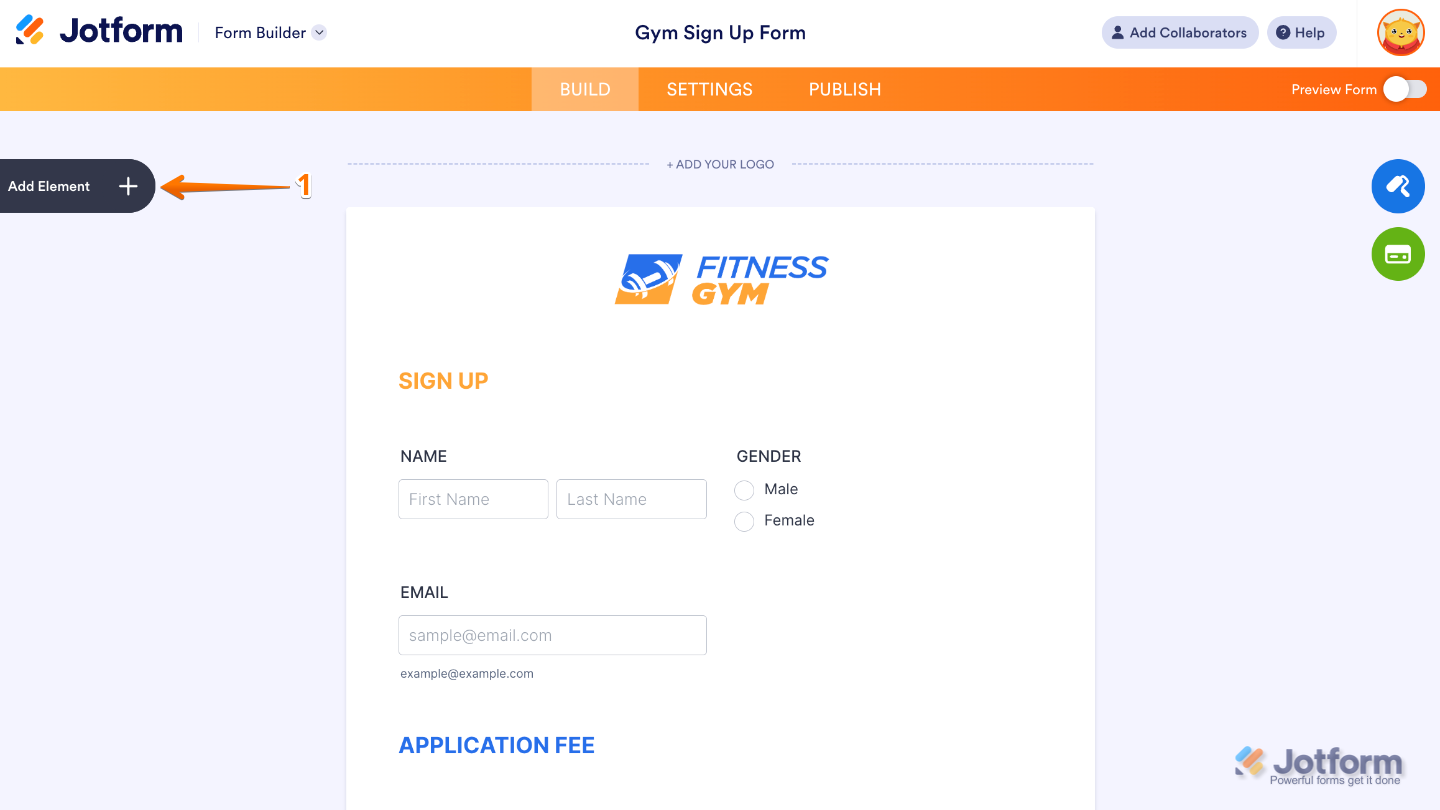
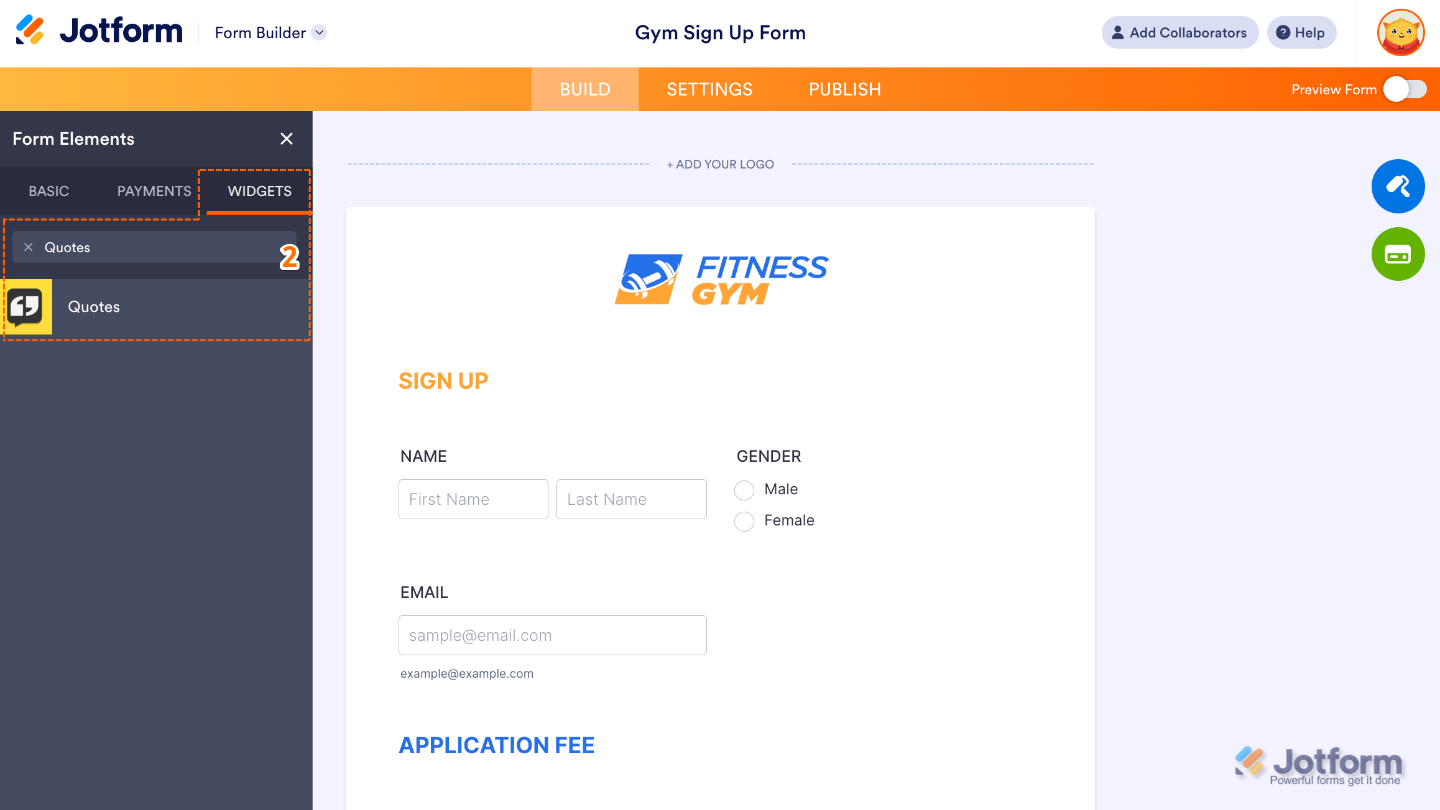
- Now, in the Form Elements menu, under the Widgets tab, search for the Quotes widget and then click on it. Or, just drag and drop it to where you want it to be on your form.
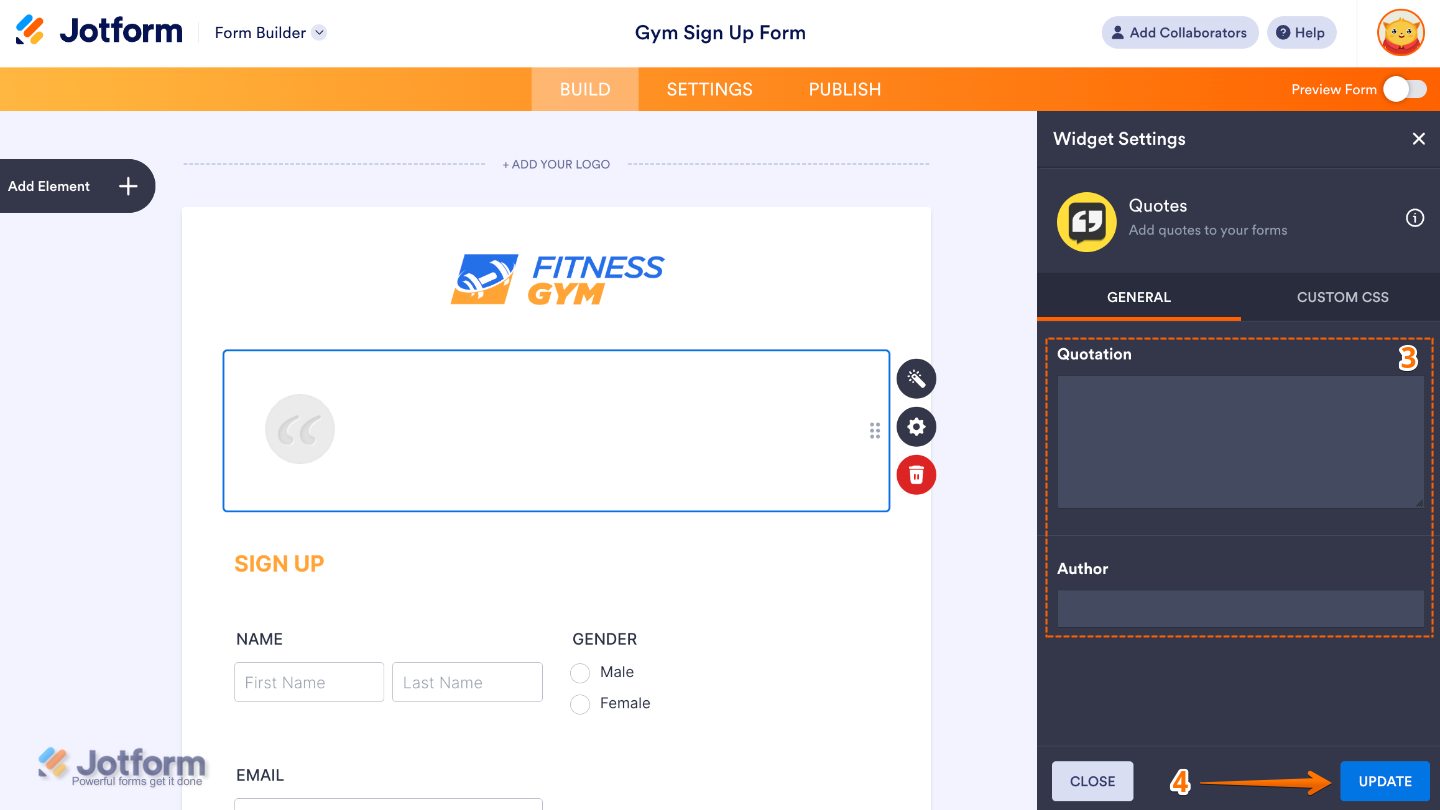
- Next, in the Widget Settings menu that opens on the right side of the page, set up these options:
- Quotation — Type in the actual quote you want to display in your form. It can be inspiring, funny, thoughtful, or anything that fits the mood you want to create.
- Author —Add the name of the person who said or wrote the quote. It’s optional, but adding the author gives your quote a nice finishing touch and helps give proper credit.
- Once you’re done, click on Update.
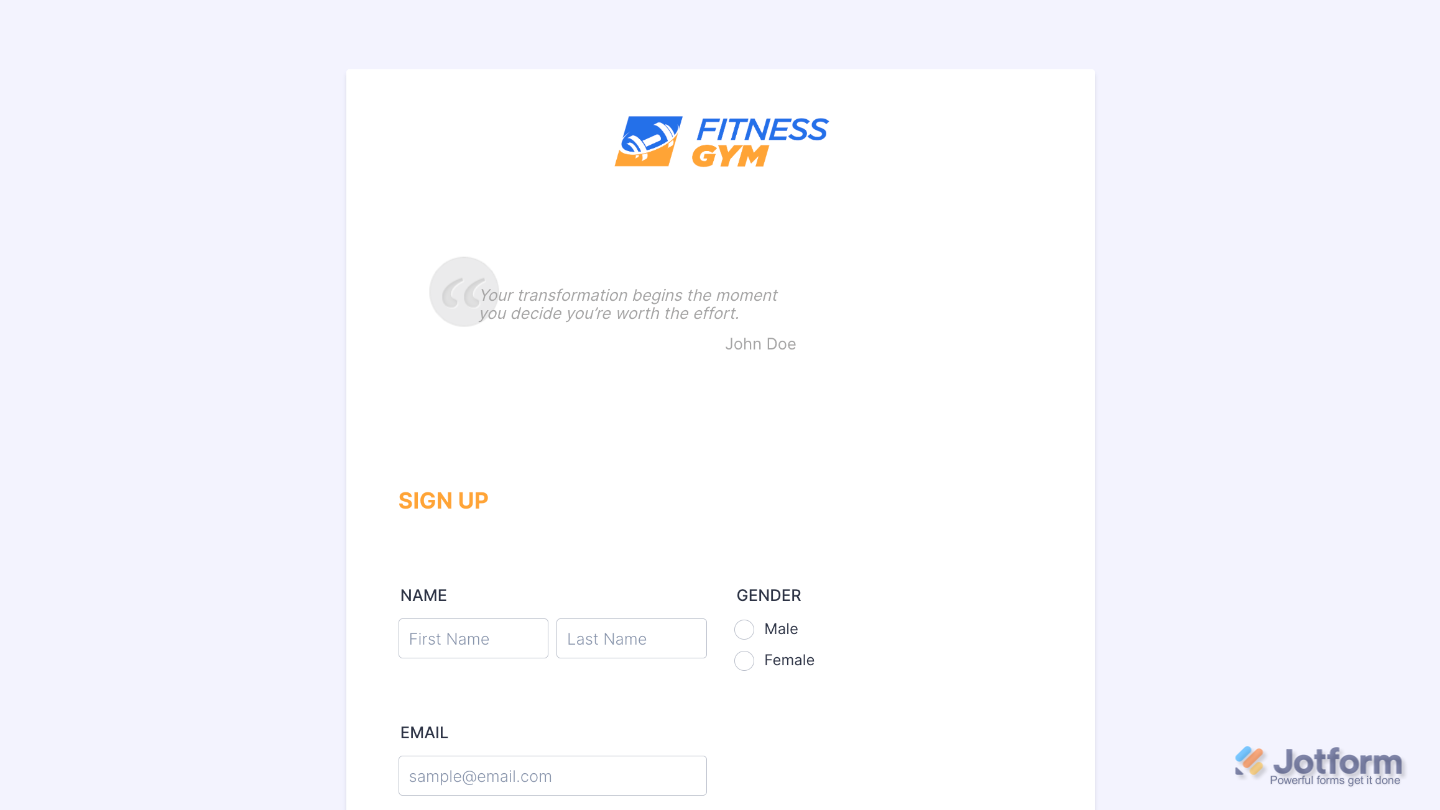
That’s it. You’ve successfully added and set up the Quotes widget on your form. Now you can display meaningful or motivational quotes that add personality and help create a more engaging experience for your users. Curious how it works on a live form? Check out this Demo Form.
To further customize your Quotes field appearance, just click on the Gear icon to open its properties.
Note
For advanced styling, you can add your own custom CSS under the Custom CSS tab in the widget settings and style the Quotes field. Our guide on How to Inject CSS Codes to Widgets walks you through everything.
Pro Tips
- Choose quotes that resonate with your audience and are easy to read. Short, meaningful lines work best—they grab attention without overwhelming the form.
- Preview the form to ensure the quotes appear correctly and scroll smoothly if you’re using multiple quotes or random rotation.

Send Comment: