Jotform’s Random Value Generator widget lets you add a unique, random string to each submission—perfect for tracking entries, creating reference numbers, or generating custom codes. You can customize the format to include numbers, letters, symbols, and even choose between uppercase or lowercase, giving you full control over how each value looks.
Here are a few ways to use it:
- Create Unique IDs — Give each submission its own unique number or code. Perfect for order IDs, customer reference numbers, or tracking forms.
- Generate Coupon or Ticket Codes — Running a promo, raffle, or event? The widget can assign a random code to each entry, making your process feel professional and organized.
- Add an Extra Layer of Security — Use random values as verification codes or tokens for special access. It’s a simple way to make things a little more secure.
- Keep Submissions Anonymous — If you’re running a survey or feedback form and want to track entries without collecting names, random values give you a way to organize responses without revealing identities.
Adding and Setting Up the Random Value Generator Widget
You can add a unique code to every form submission by using the free Random Value Generator widget, it’s a quick and helpful way to keep things organized. Setting it up is quick—here’s how:
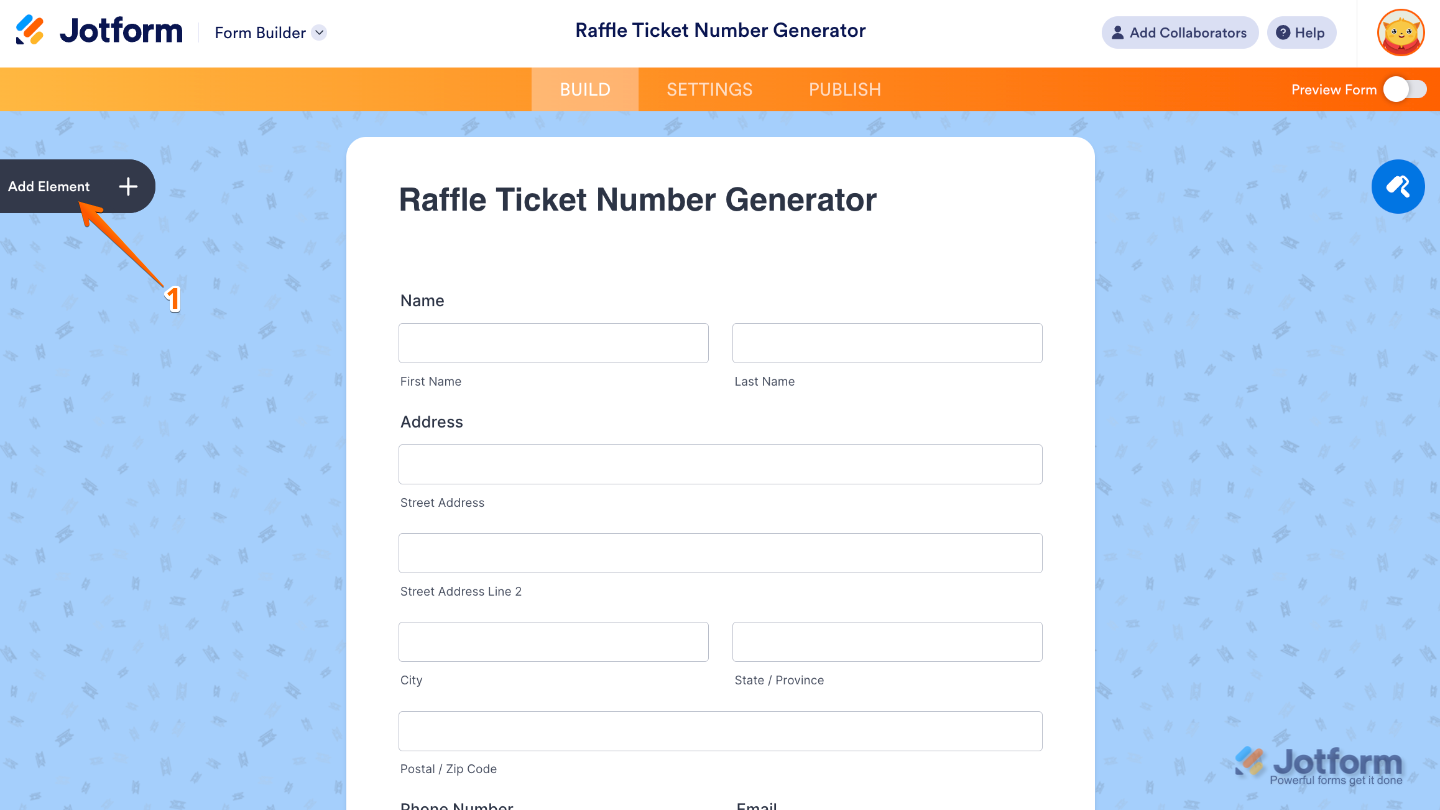
- In Form Builder, click on Add Element on the left side of the page
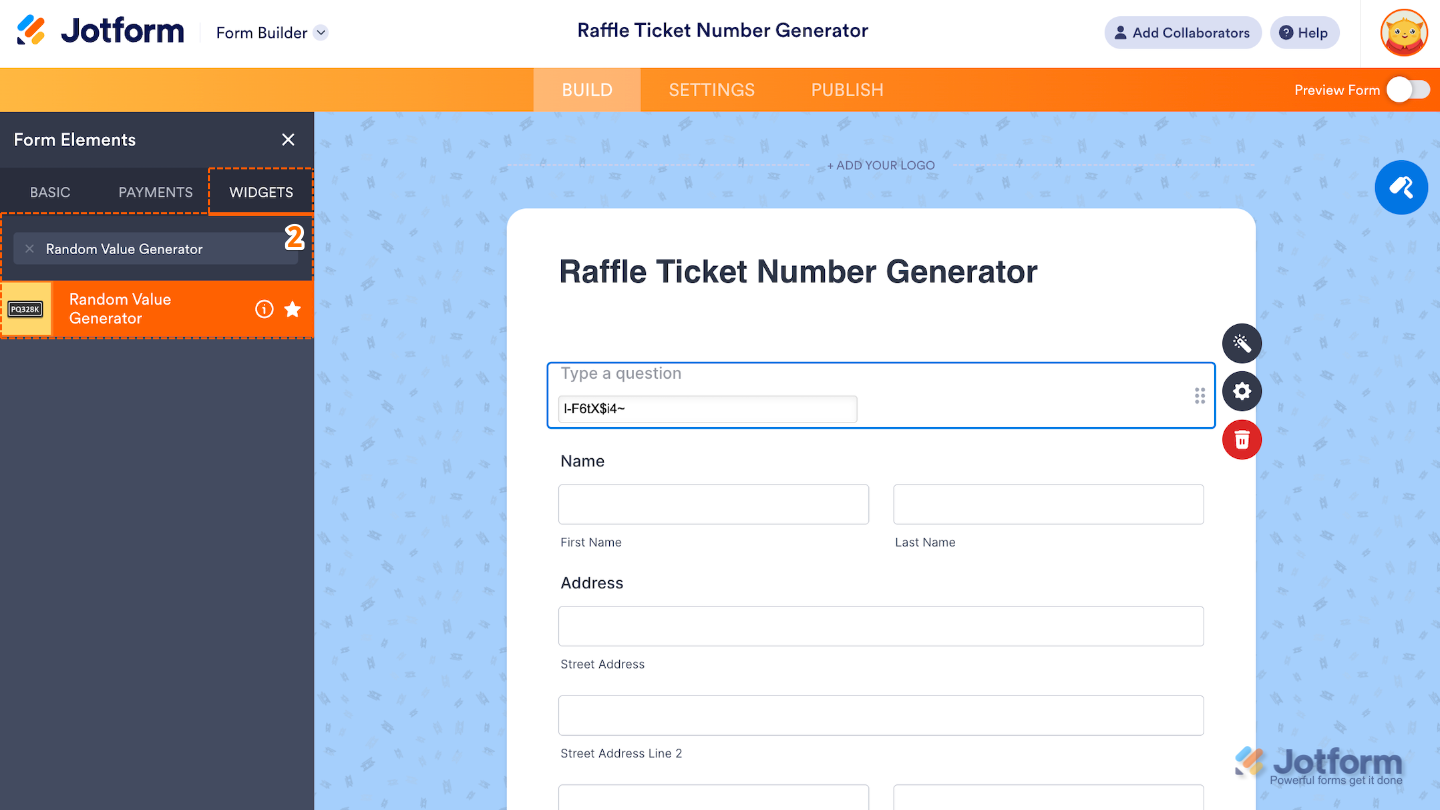
- Now, in the Form Elements menu, under the Widgets tab, search for Random Value Generator and then click on it. Or, just drag and drop it to where you want it to be on your form.
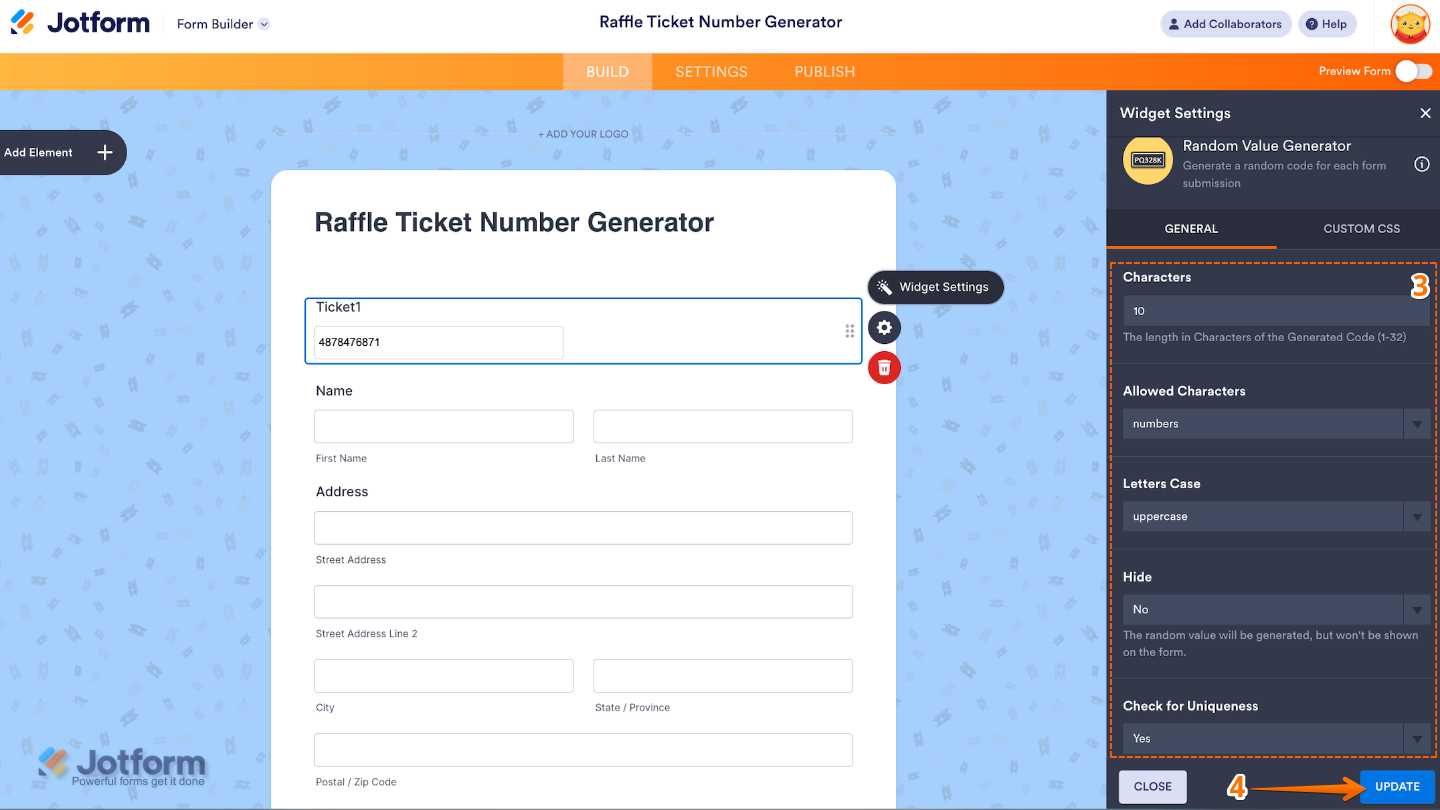
- Next, in the Widget Settings window that opens on the right side of the page, set up the following options:
- Characters — Set this up to decide how many characters the generated value should contain, longer values are usually better for uniqueness or security.
- Allowed Characters — Choose from letters, numbers, alphanumeric, or a combination of all to set how your code should look.
- Letters Case — Edit this to specify whether letters should be uppercase, lowercase, or both.
- Hide — Select the Yes option if you want to hide the field from users while still including it in the form submission.
- Check for Uniqueness — When the Yes option is selected, the generated value is unique across submissions.
- Once you’re done, click on Update.
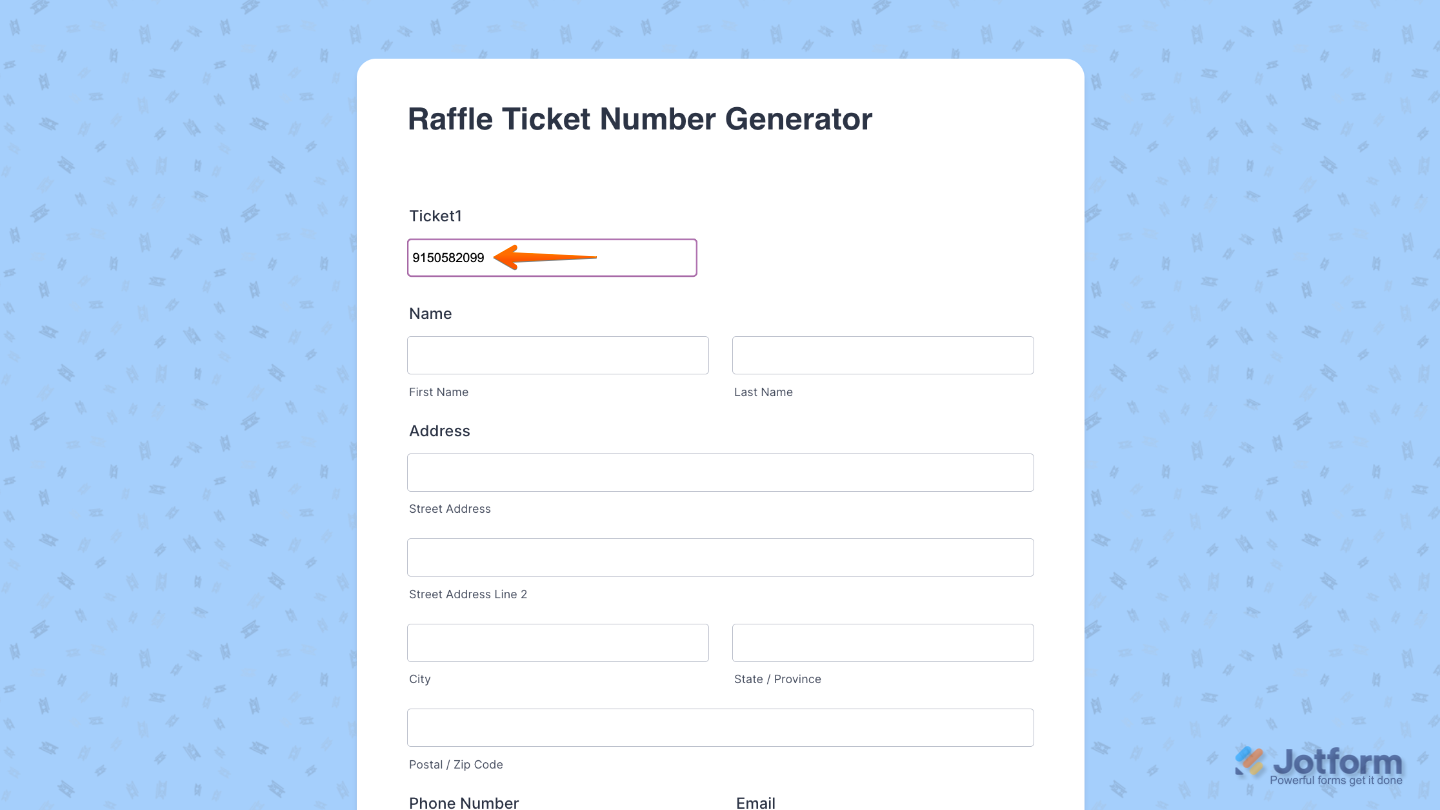
That’s it. You’ve successfully added and set up the Random Value Generator widget to your form. Now, you’ve added a field that creates a unique random value each time the form is loaded or submitted. Want a quick preview? This Demo Form shows how it works.
To further customize your Random Value Generator field appearance, just click on the Gear icon to open its properties.
Note
For advanced styling, you can add your own custom CSS under the Custom CSS tab in the widget settings and style the Random Value Generator field. Our guide on How to Inject CSS Codes to Widgets walks you through everything.

Send Comment: