The Reading Time widget helps set clear expectations by showing an estimated reading time for your form or specific sections, so users know what to expect before they dive in. Giving your form users a better idea of how much time they’ll need can make the whole experience feel easier and more welcoming.
Here are a few ways to use it:
- Set Clear Expectations Up Front — Adding a reading time lets users know how long a section or page will take to read. This simple heads-up helps people feel more comfortable starting—especially when your form includes important instructions, policies, or long explanations.
- Make Long Content Feel More Manageable — When users see This will only take about 2 minutes to read, long text suddenly feels less intimidating. It reassures them that they’re not about to get stuck in a wall of words.
- Improve Completion Rates — Clarity reduces hesitation. By showing reading time, users are more likely to keep going instead of abandoning the form because they think it will take too long.
- Perfect for Educational or Training Forms — If your form includes lessons, onboarding steps, or learning materials, the Reading Time Widget helps participants pace themselves and stay focused.
Adding and Setting Up the Reading Time Widget
Adding the Reading Time widget to your form gives your users an easy way to see how long it will take to read your content. Here’s a quick how-to:
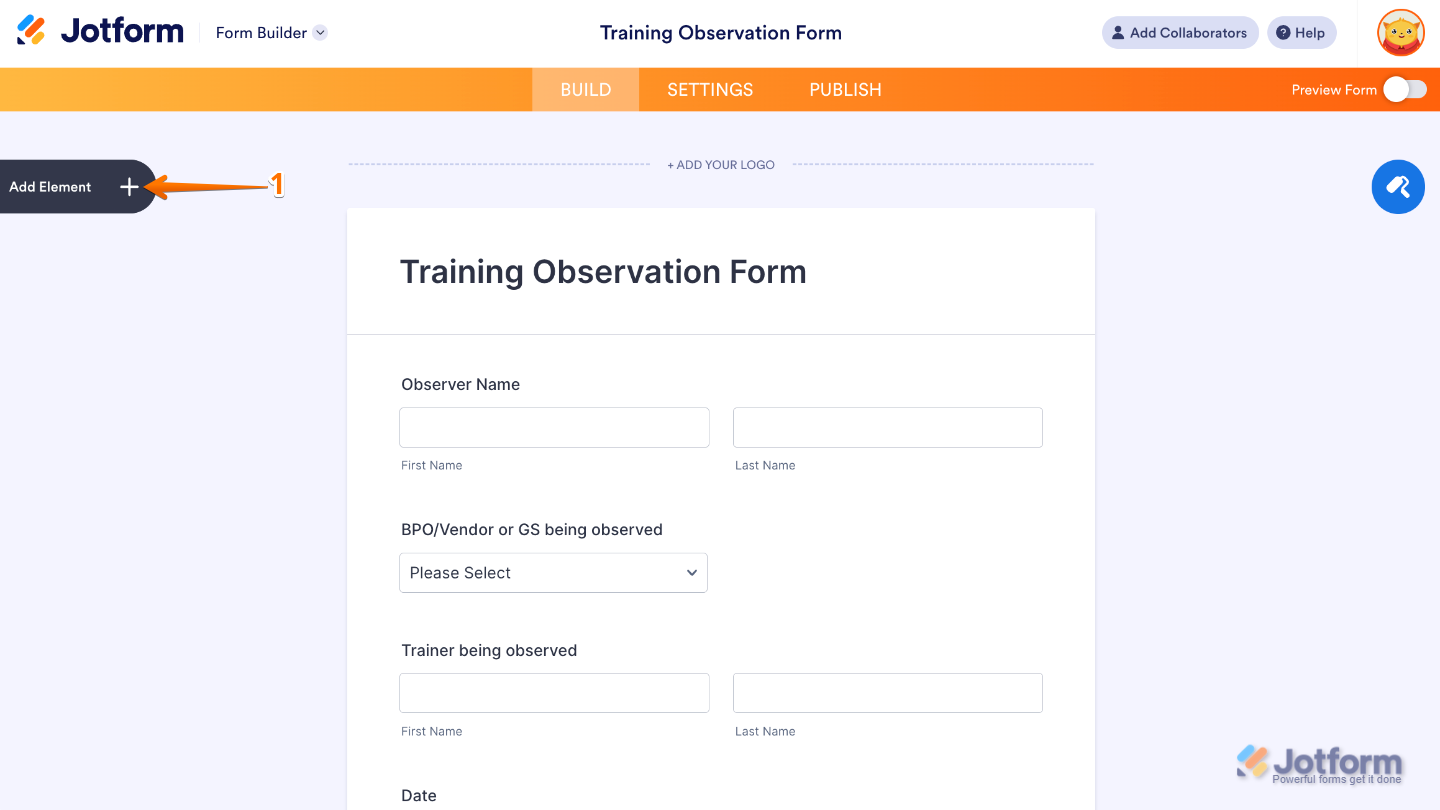
- In Form Builder, click on Add Element on the left side of the page.
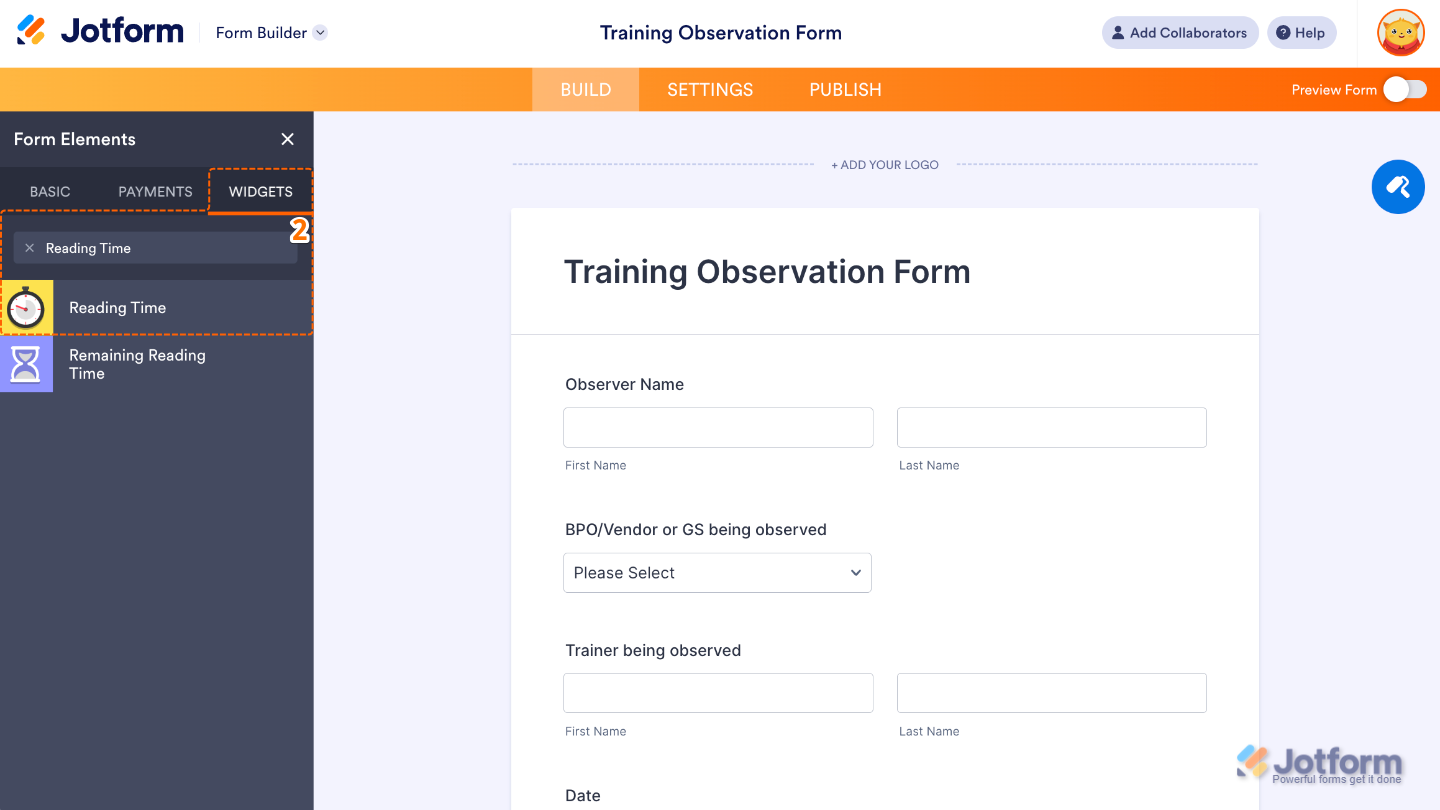
- Now, in the Form Elements menu, under the Widgets tab, search for Reading Time and then click on it. Or, just drag and drop it to where you want it to be on your form.
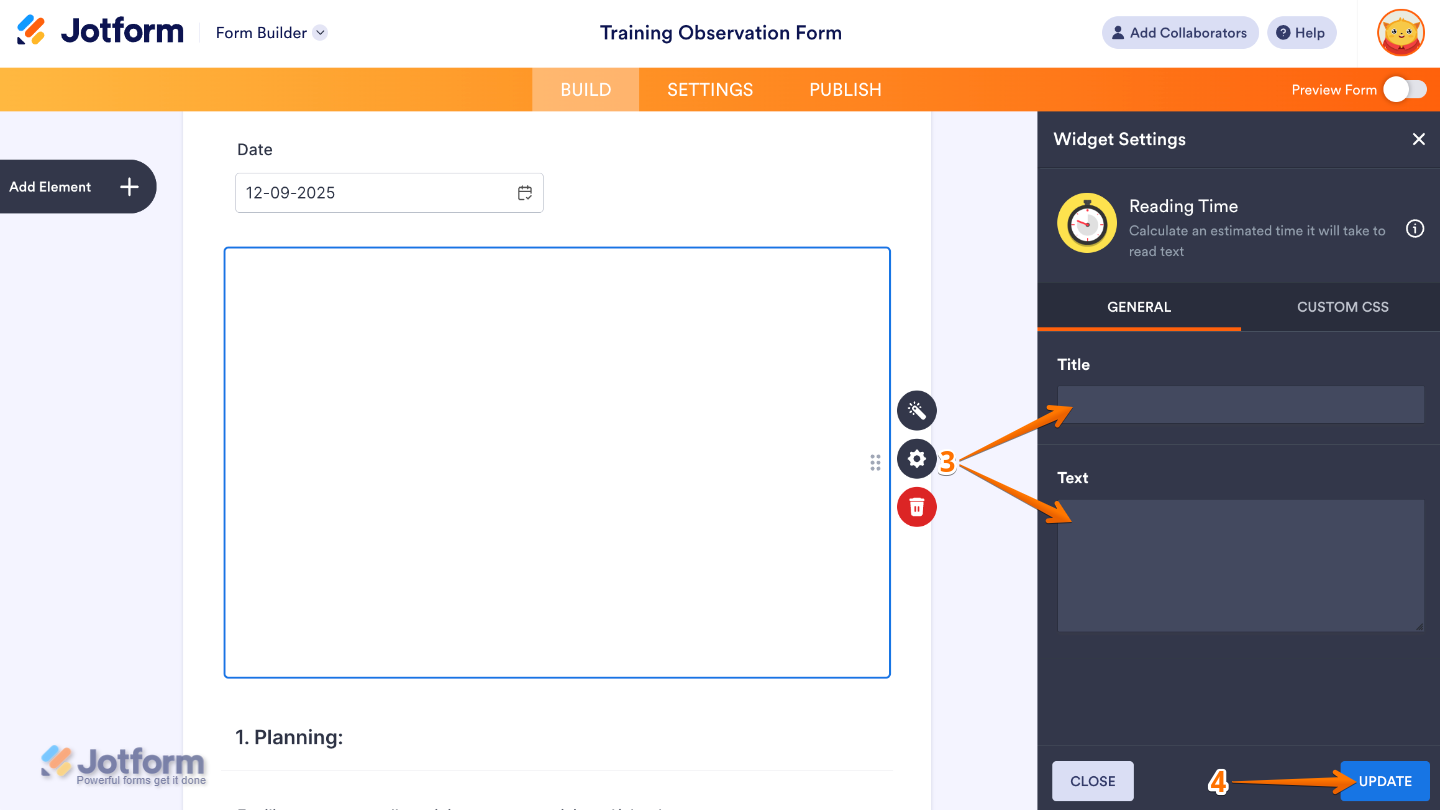
- Next, in the Widget Settings menu that opens on the right side of the page, set up these options:
- Title — Enter your widget headline or label that appears above the reading time estimate.
- Text —Add here your custom text that appears alongside or below the reading time.
- Once you’re done, click on Update.
That’s it! You’ve successfully added and set up the Reading Time widget on your form. Now your users can quickly see how long it will take to read your content, helping them manage their time and engage more effectively with your form. Curious how it works on a live form? Check out this Demo Form.
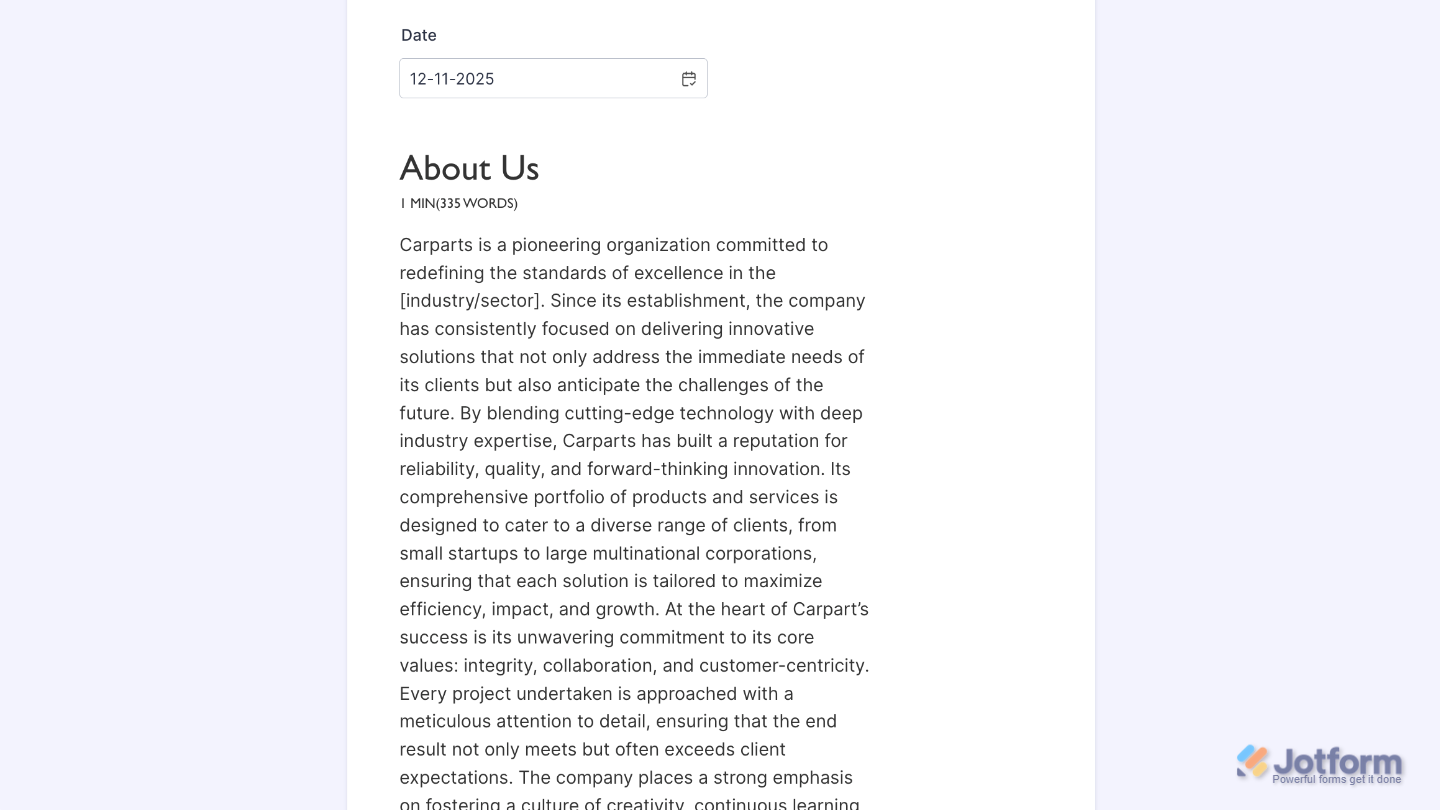
To further customize your Reading Time field appearance, just click on the Gear icon to open its properties.
Note
For advanced styling, you can add your own custom CSS under the Custom CSS tab in the widget settings and style the Reading Time field. Our guide on How to Inject CSS Codes to Widgets walks you through everything.
Pro Tips
- The widget calculates reading time based on text length. Breaking up long paragraphs with headings or bullet points not only improves readability but also gives a more accurate time estimate.
- Preview your form to make sure the reading time feels realistic. Adjust content or section breaks if the widget shows unusually long or short estimates.
- Use the reading time widget alongside progress bars or section headers to give users a clear sense of how far along they are.

Send Comment: