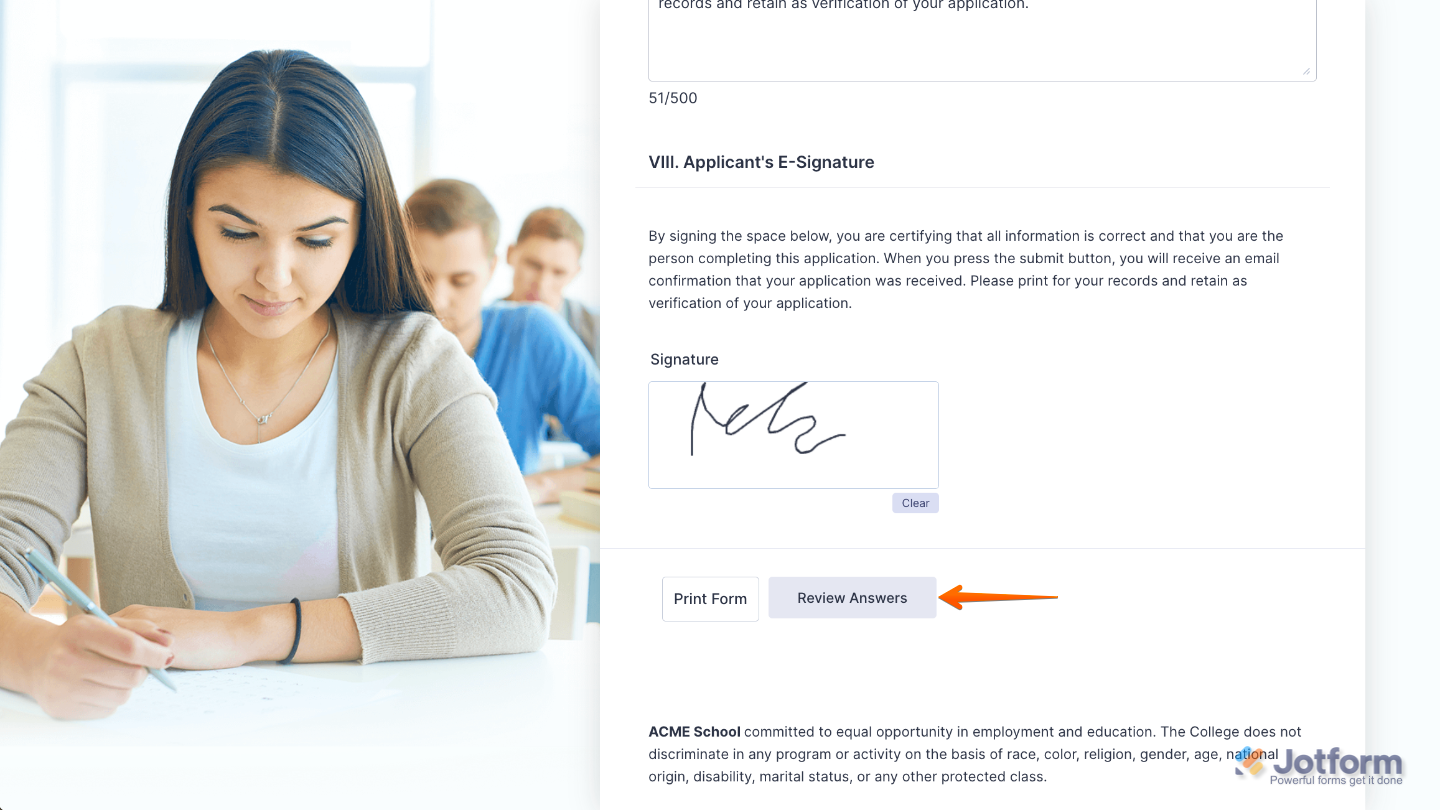
Jotform’s Review Before Submit widget lets people take one last look at their answers before hitting submit, and make any final changes if needed. It’s super handy for longer or more detailed forms where accuracy really counts. With this feature, users can feel more confident that they’ve completed everything properly, helping cut down on mistakes and missing information.
Here are a few ways to use it:
- Order forms — Give customers a chance to review their product selections, quantities, and total price before finalizing their purchase.
- Surveys or quizzes — Help respondents make sure they answered every question and made the choices they really intended.
- Applications — Perfect for job, grant, or membership applications where accuracy matters—applicants can confirm all details are correct before hitting submit.
- Complex forms — For long or multi-page forms, this feature reassures users that nothing got missed along the way.
Note
The Review Before Submit widget is available for Classic forms only. If you’re using a Card form, you can still get a similar review step by following our guide on How to Enable Review Before Submit Feature in Jotform Cards.
Adding and Setting Up the Review Before Submit Widget
By adding a Review Before Submit feature, users can feel reassured that everything looks just right, all before they send off the form. Setting it up takes no time at all—here’s how:
- In Form Builder, click on Add Element on the left side of the page.
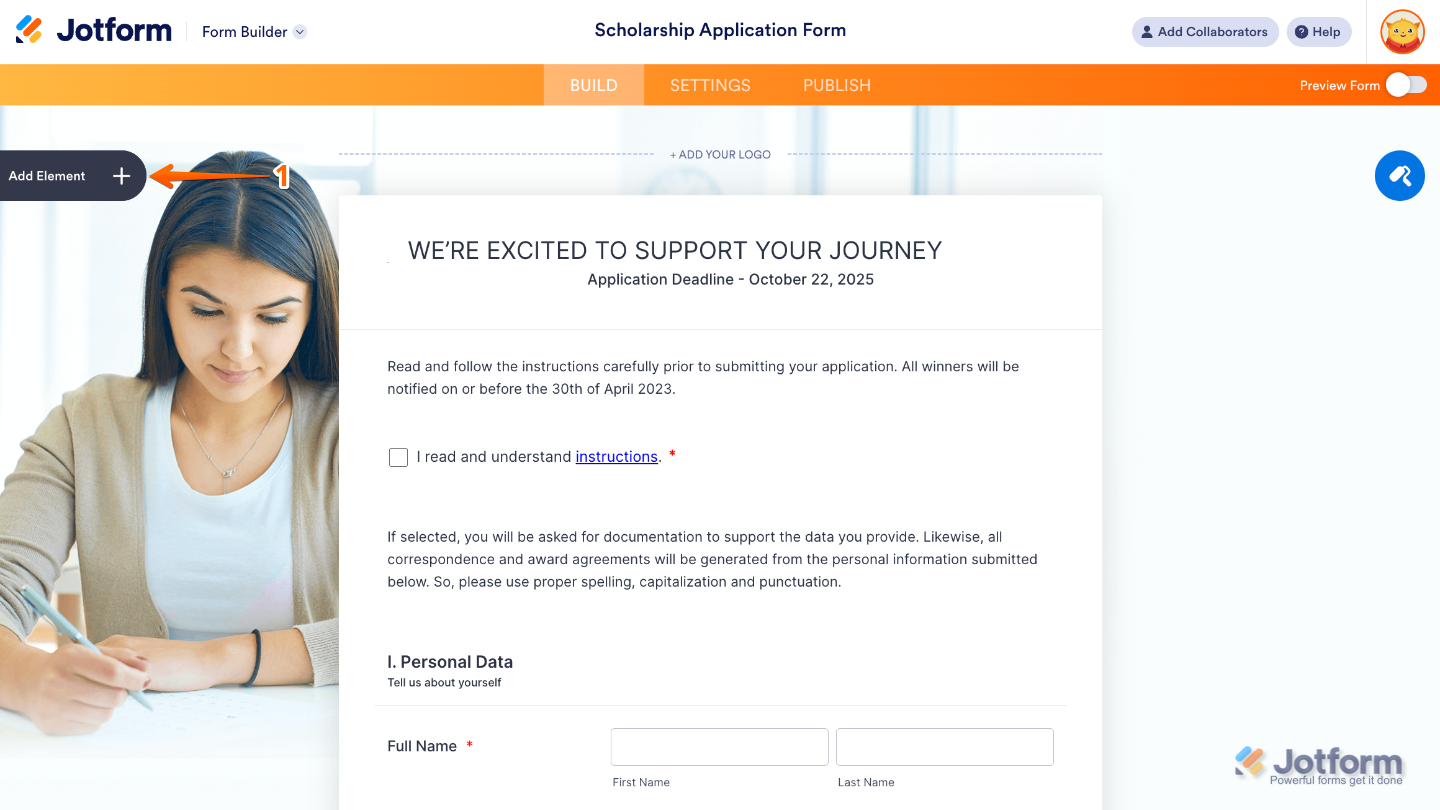
- Now, in the Form Elements menu, under the Widgets tab, search for Review Before Submit and then click on it. Or, just drag and drop it to where you want it to be on your form.
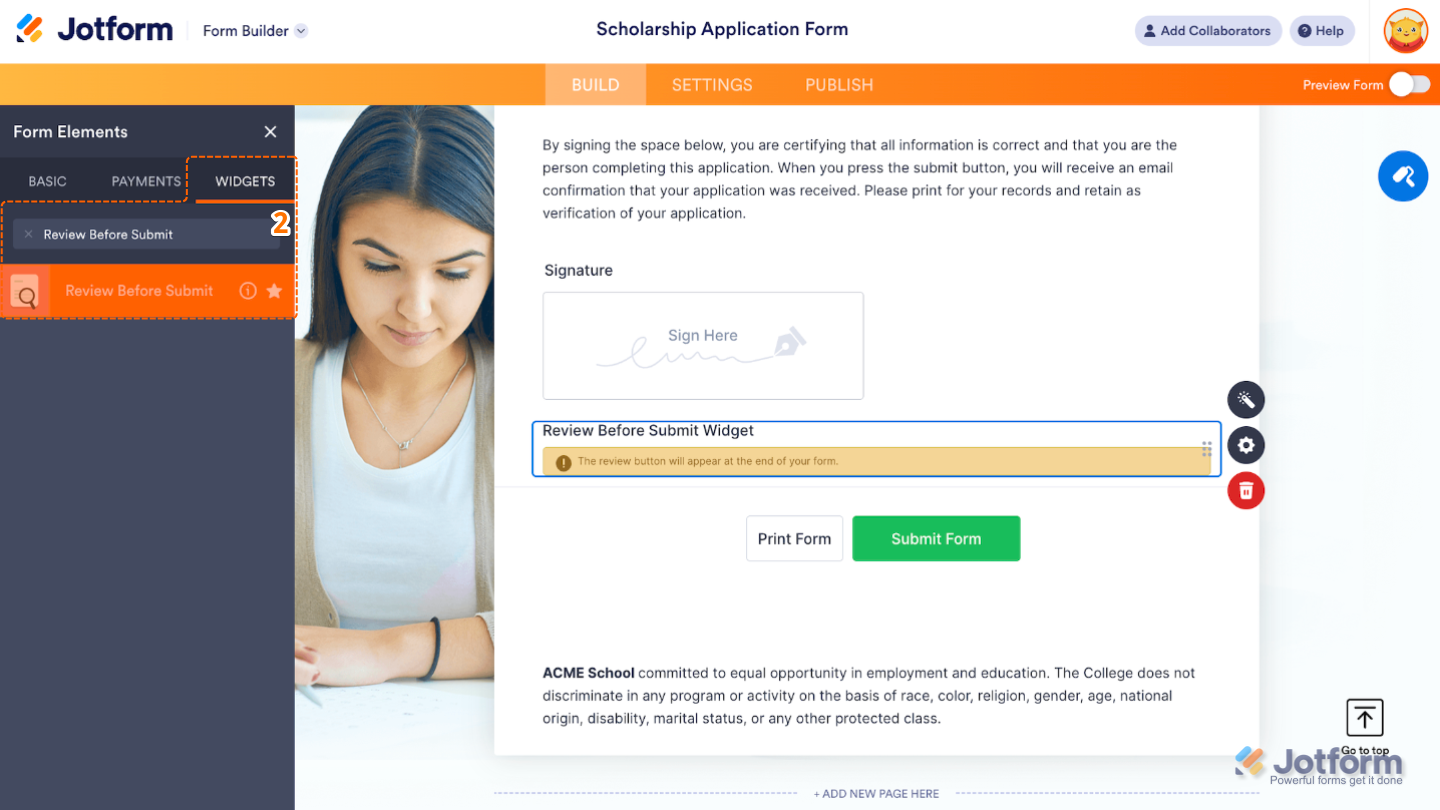
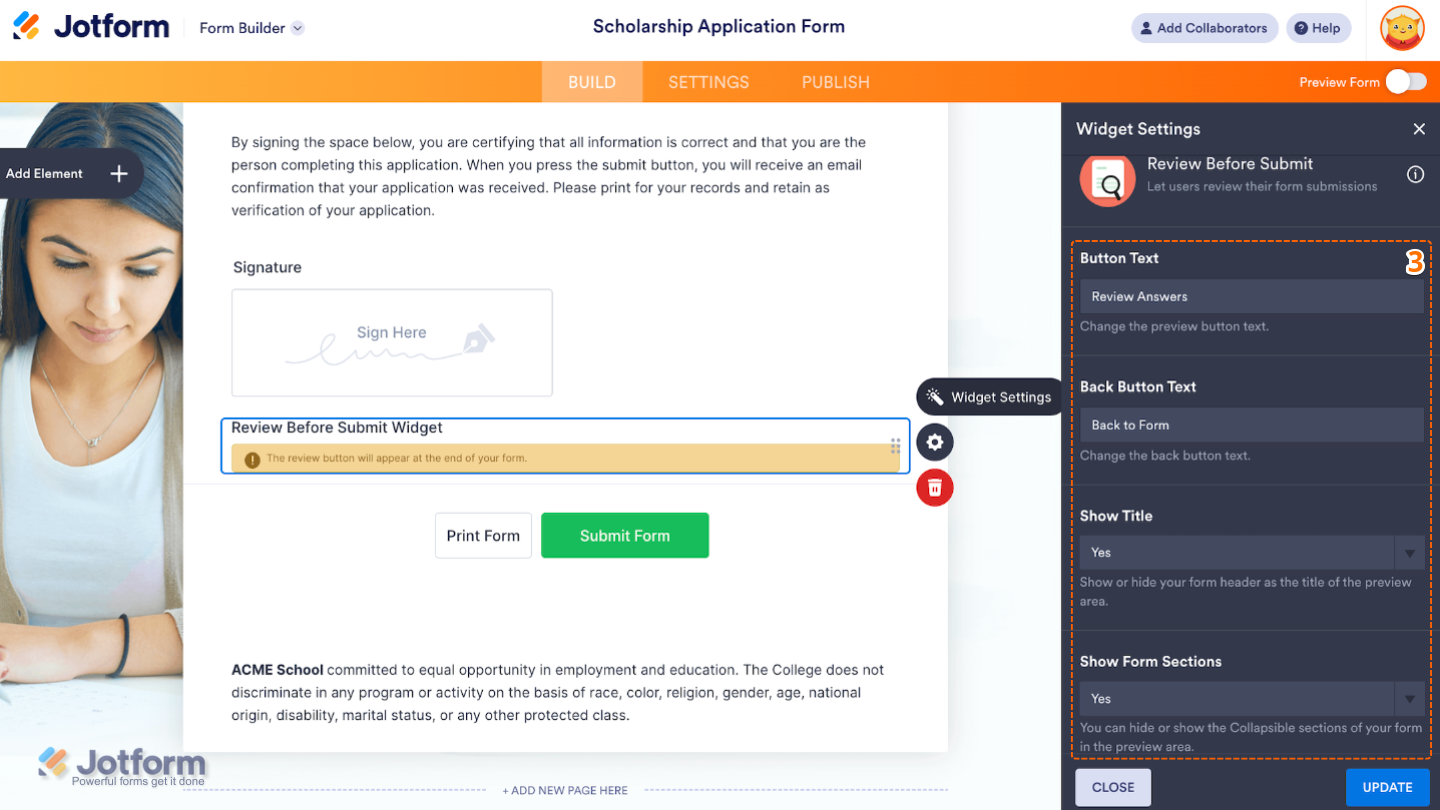
- Next, in the Widget Settings window that opens on the right side of the page, under the General tab, set up the following options:
- Button Text — Sets the label for the Review Before Submit button shown on the review screen
- Back Button Text — Lets you customize the text for the Back to Form button, which users click to return and edit their answers before submitting.
- Show Title — Toggle this Yes or No to show or hide the form header at the top of the review page.
- Show Form Sections — If your form uses Form Collapse or Section Headers, enabling this will group responses under those headings in the review.
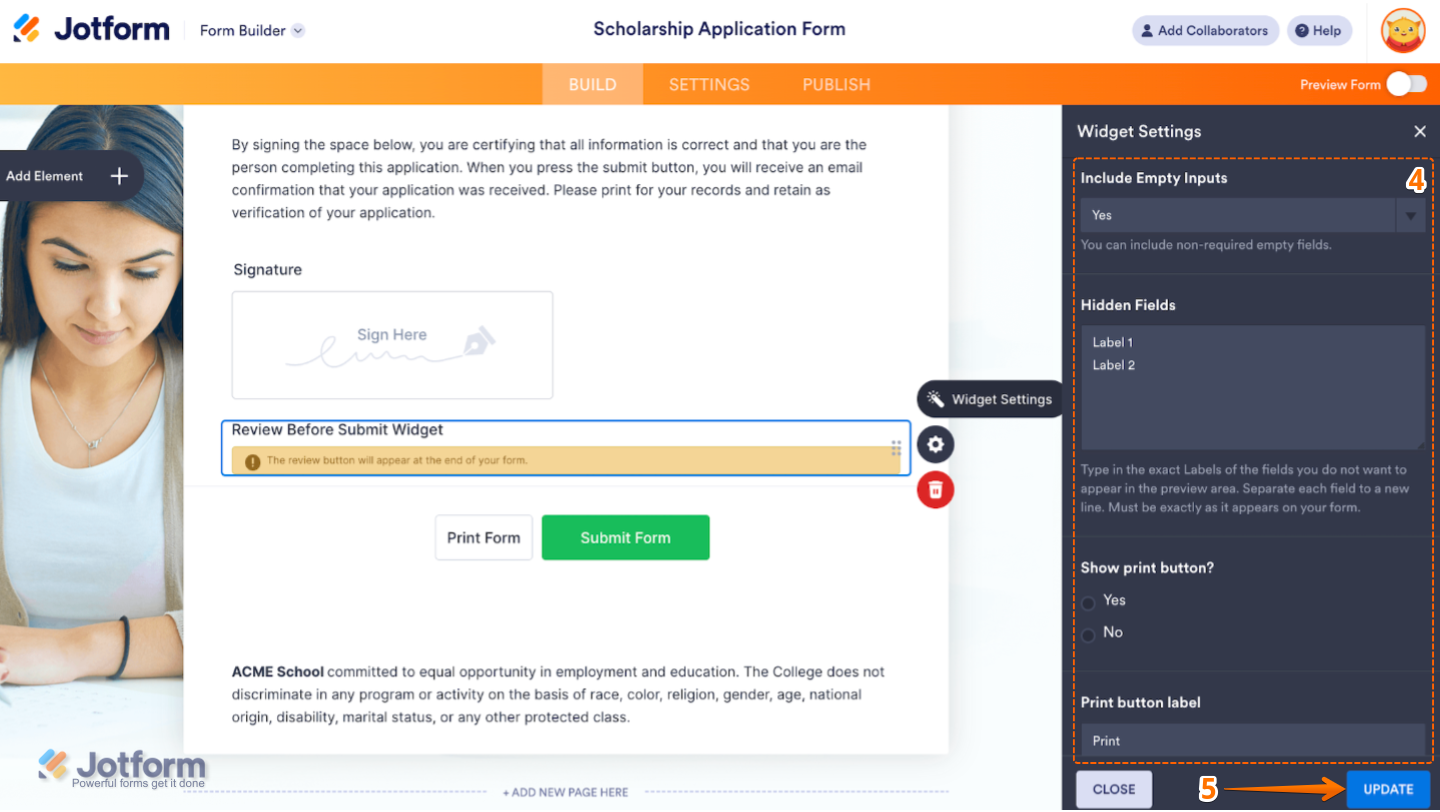
- Then, scroll down to the bottom and continue to set up these options:
- Include Empty Inputs — When set to Yes, fields with no user input will still appear on the review screen.
- Hidden Fields — Type in here the exact labels of the fields you do not want to appear in the preview area.
- Show Print Button — Adds a Print button to the review page so users can print their responses before submitting.
- Print Button Label — Set this up to customize the text shown on the Print button.
- Once you’re done, click on Update.
That’s it. You’ve successfully added and set up the Review Before Submit widget to your form. Now, your users have a chance to double-check everything before submitting, which helps reduce errors and missed fields. Want to see it in action? Take a look at this Demo Form.
To personalize how your Review Before Submit field looks, simply click the Gear icon to open its settings.
Pro Tip
- Add a quick note or message just before the review section to let users know they’ll have a chance to go back and make changes if needed.
- Give your form a test run from the user’s perspective to check that the review section looks clean, well-organized, and easy to read.

Send Comment: