The Roll Dice widget is perfect for adding a fun, interactive element to your form that surprises and delights your users. It lets respondents “roll” virtual dice right within your form, making quizzes, games, contests, or even random decision-making more exciting and engaging. Instead of a plain form, you can bring a little playful energy that keeps users entertained while they submit their responses.
Setting up the Roll Dice widget is quick and easy. You can customize the number of dice, the sides on each die, and even how the results are displayed, giving you full control over the experience. In just a few steps, you’ll have a form that’s not only functional but also interactive, fun, and memorable for everyone who fills it out.
Here are a few ways to use it:
- Make Your Forms More Playful and Interactive — If you want to add a little spark of fun, this widget is perfect. Users can “roll” a digital dice right inside your form, bringing an element of surprise and movement that makes the experience feel less like a task and more like a game.
- Use It for Randomized Selection — The dice roll gives you an easy, fair way to assign teams, pick a winner, or generate a random number. The widget instantly provides a random value that you can use in workflows, conditions, or simply display as part of the form’s results.
- Enhance Games, Quizzes, or Interactive Learning — If you’re building a learning activity, challenge, or game-based form, the Roll Dice Widget fits right in. Learners or players can roll the dice to determine steps, points, difficulty levels, or clues — making the whole experience more dynamic.
- Create Fun Decision-Making Tools — Sometimes people love leaving things up to chance. Use the widget to help users make small decisions, like choosing which prompt to answer or which category to explore next. It adds a lighthearted touch that makes your form feel unique.
Adding and Setting Up the Roll Dice Widget
Adding the Roll Dice widget to your form gives you a fun, interactive way to generate random numbers with a single tap. Here’s the quick way to do it:
- In Form Builder, click on Add Element on the left side of the page.
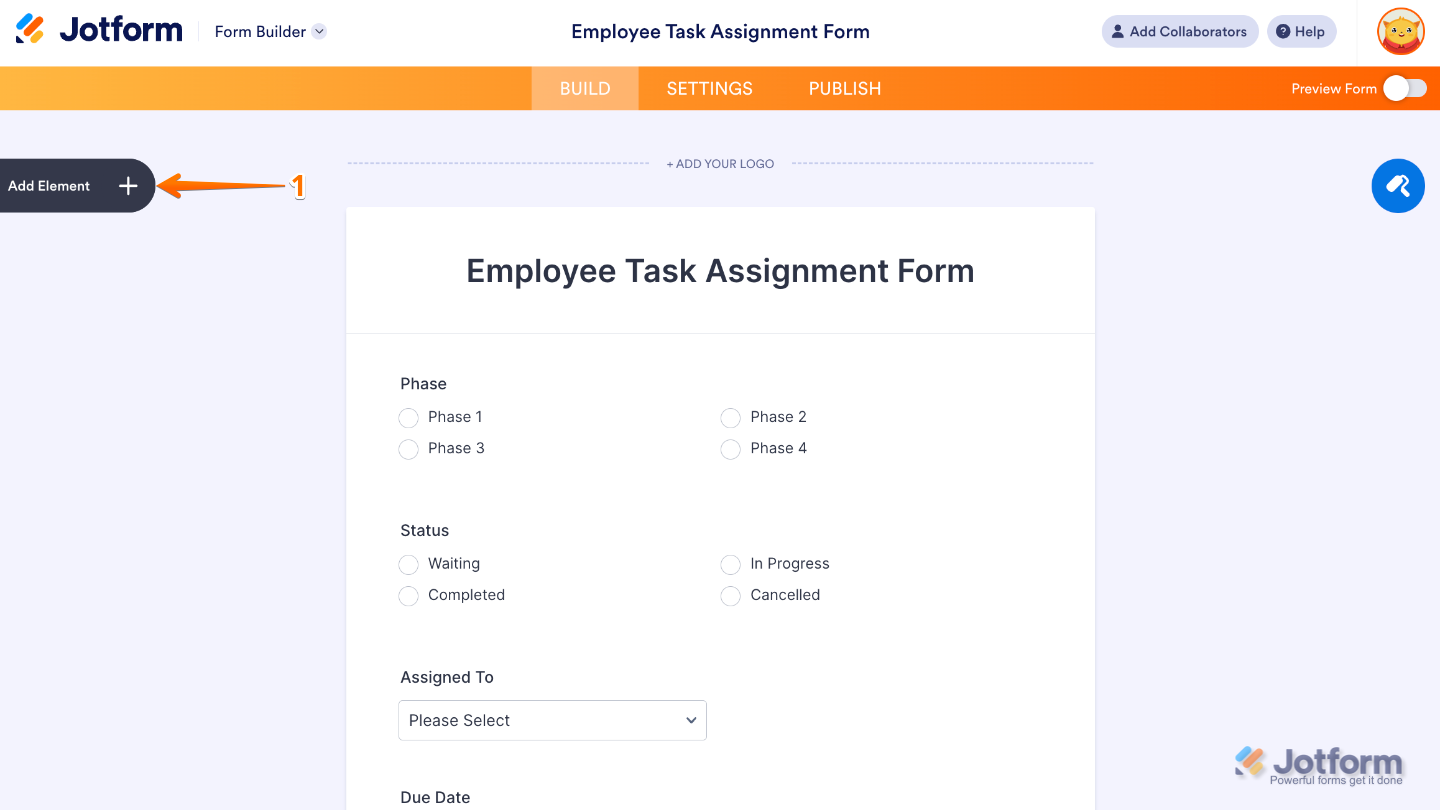
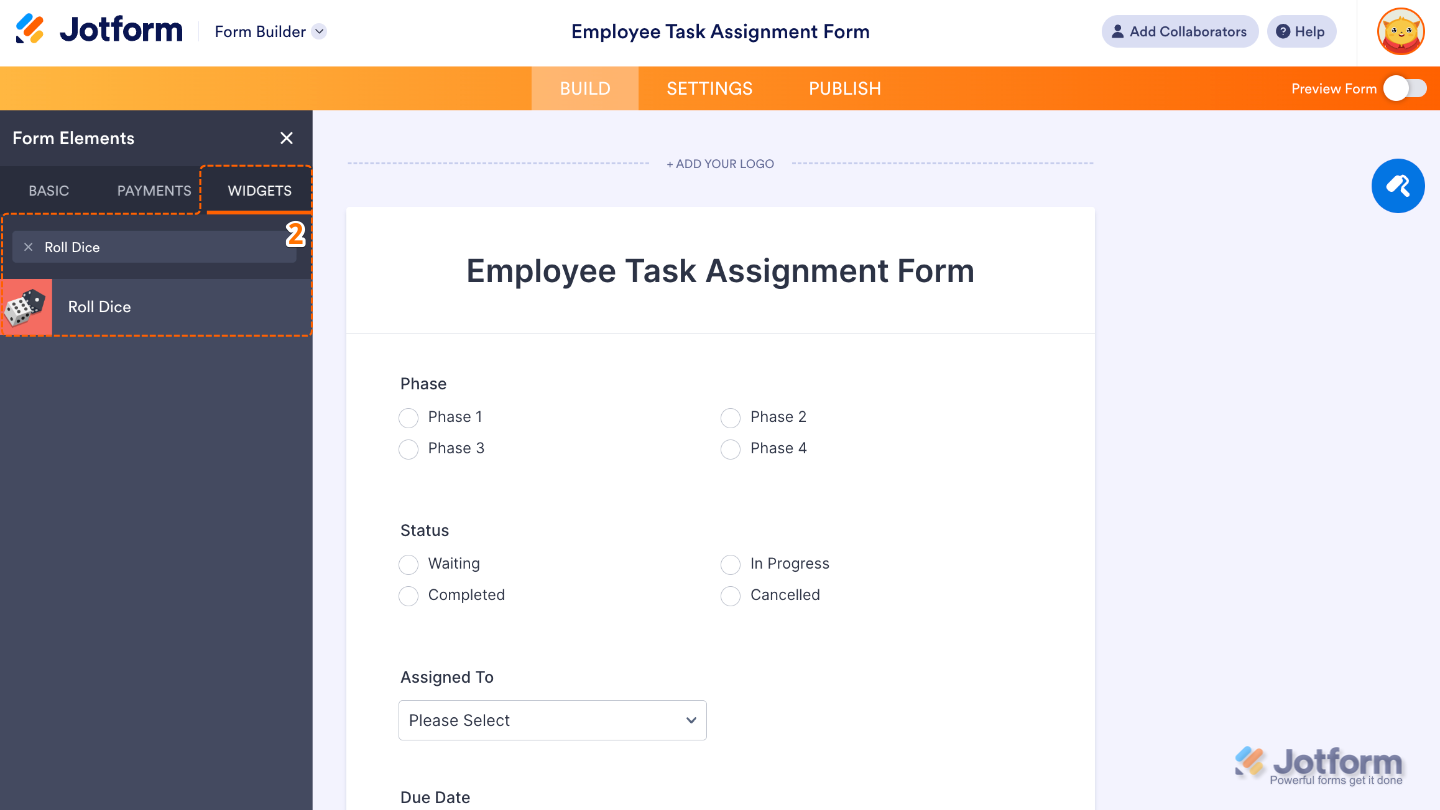
- Now, in the Form Elements menu, under the Widgets tab, search for Roll Dice and then click on it. Or, just drag and drop it to where you want it to be on your form.
That’s it. You’ve successfully added and set up the Roll Dice widget on your form. Now your users can generate random numbers instantly, making activities like games, draws, and quick decisions more fun and interactive. Curious how it works on a live form? Check out this Demo Form.
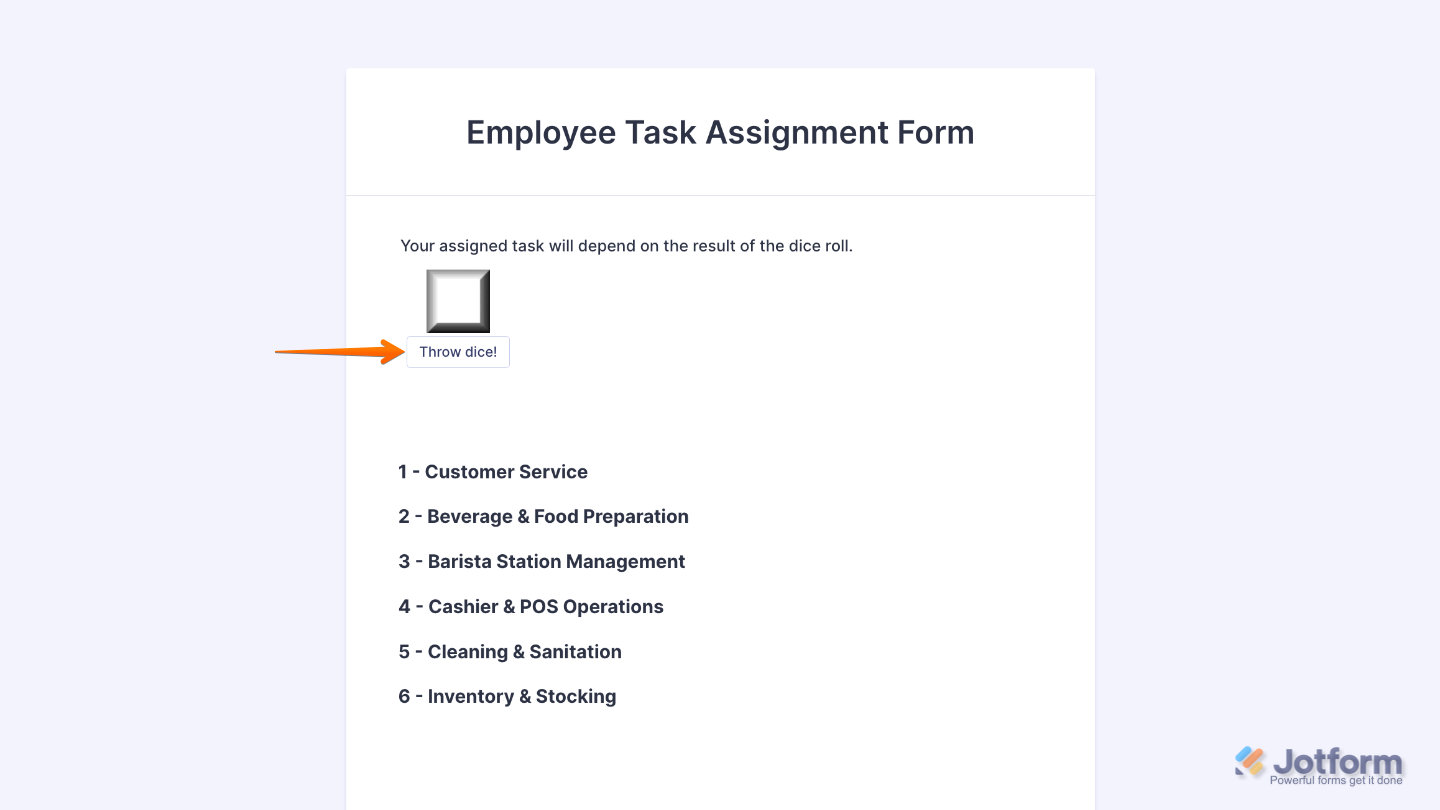
To further customize your Roll Dice field appearance, just click on the Gear icon to open its properties.
Note
For advanced styling, you can add your own custom CSS under the Custom CSS tab in the widget settings and style the Roll Dice field. Our guide on How to Inject CSS Codes to Widgets walks you through everything.
Pro Tips
- The Roll Dice Widget is perfect for forms where you want to inject some playfulness—think games, contests, giveaways, or random prize selection.
- Let users know why they’re rolling dice. A short note like “Roll the dice to see your prize!” helps set expectations and adds excitement.

Send Comment: