The RSS Reader widget is a great way to bring dynamic content directly into your form. This helps you display live updates from blogs, news sites, or any RSS feed right within your form. Instead of having users leave your form to check for new content, you can keep them informed and engaged by showing relevant updates in real time. Setting up the RSS Reader Widget is quick and easy. Simply add your RSS feed URL, adjust how many items to display, and customize the look to match your form’s style.
Here are a few ways to use it:
- Share the Latest News or Updates — If you run a blog, newsletter, or news site, this widget can pull in your latest RSS feed, so your form visitors see up-to-date posts without leaving the form. It keeps your audience informed and engaged with fresh content.
- Highlight Featured Articles or Announcements — You can use the widget to display important announcements, events, or featured articles. It’s a great way to make your form feel more interactive while directing users’ attention to key content.
- Educational or Training Forms — For training programs or educational forms, the RSS Reader can showcase the latest lessons, tips, or updates from your learning portal. Users can quickly see relevant content without searching for it themselves.
- Showcase Industry News or Trends — If your form is part of a research survey, consultation service, or business workflow, embedding relevant industry news keeps users informed and adds context to your questions or services.
Adding and Setting Up the RSS Reader Widget
Adding the RSS Reader widget to your form gives your users an easy way to view the latest updates from your favorite feeds. You can set it up like this:
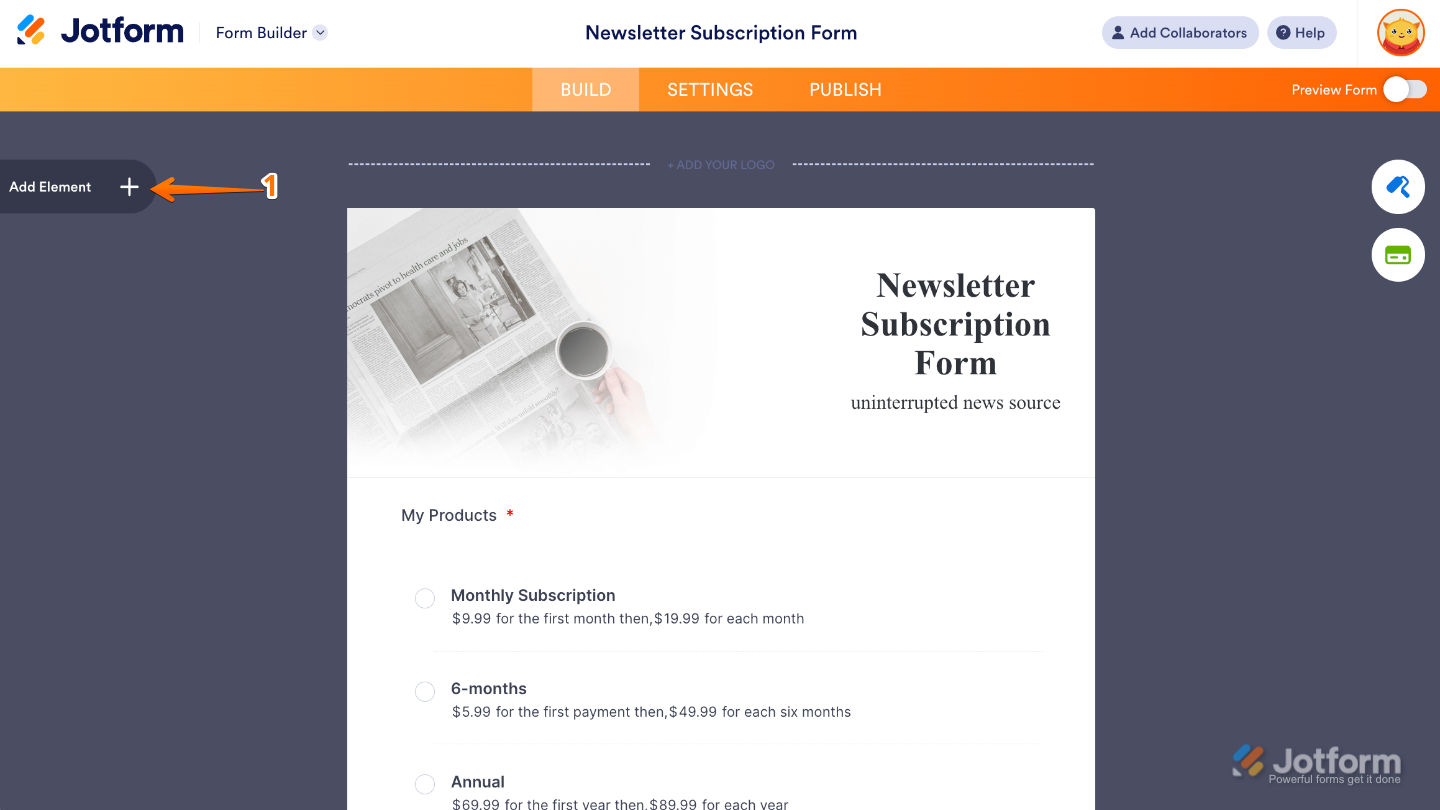
- In Form Builder, click on Add Element on the left side of the page.
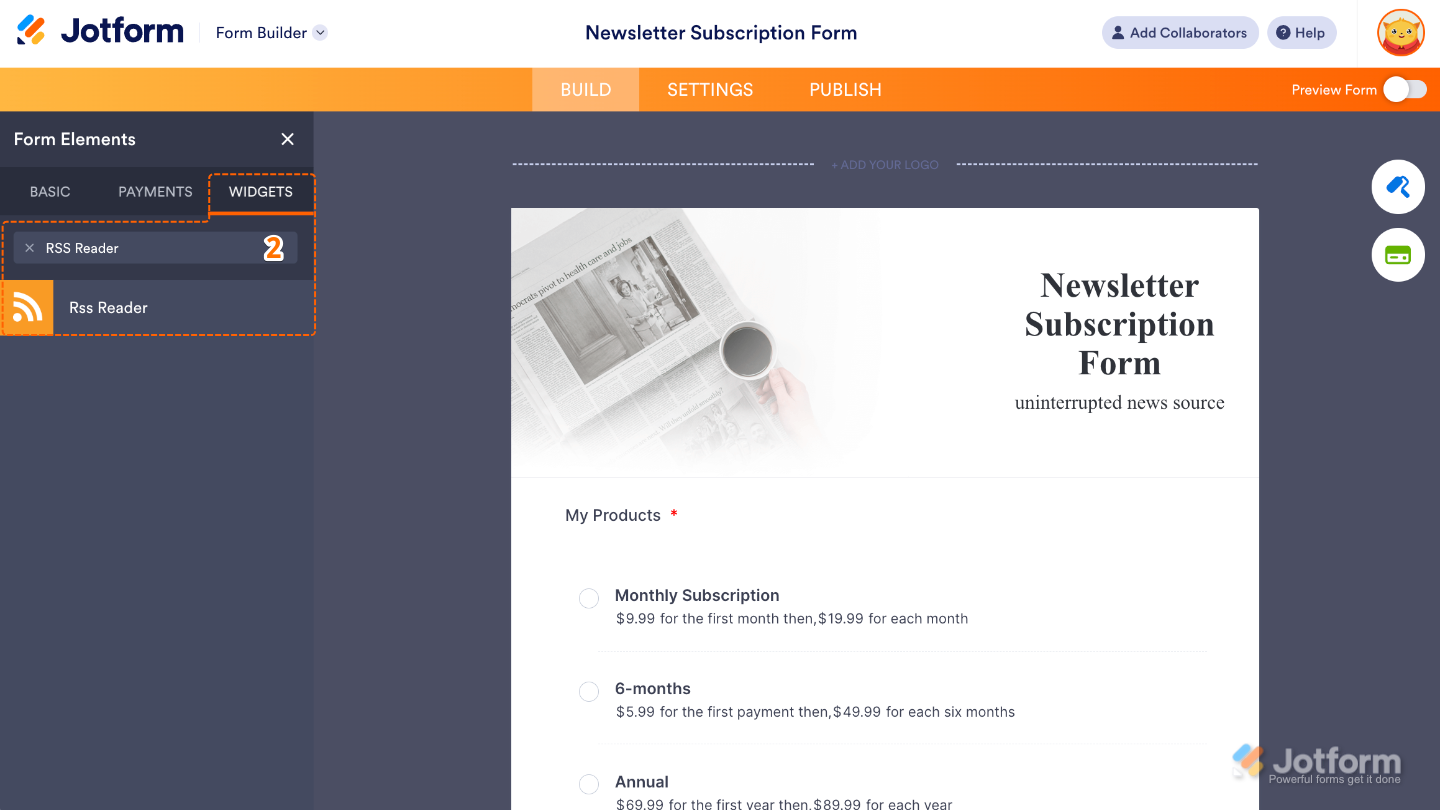
- Now, in the Form Elements menu, under the Widgets tab, search for RSS Reader and then click on it. Or, just drag and drop it to where you want it to be on your form.
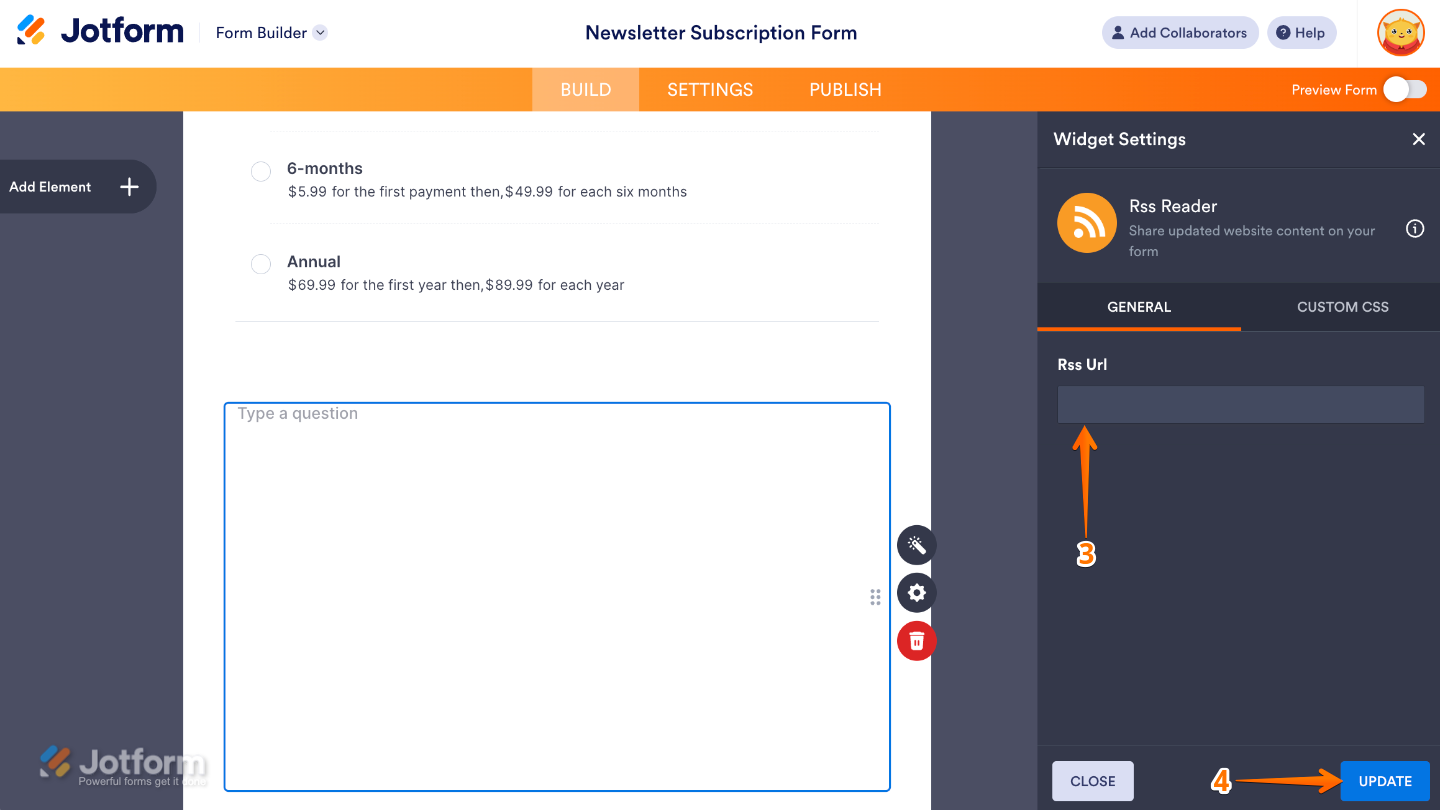
- Next, in the Widget Settings menu that opens on the right side of the page, set up RSS URL option by pasting the link to the RSS feed you want the widget to display in your form.
- Once you’re done, click on Update.
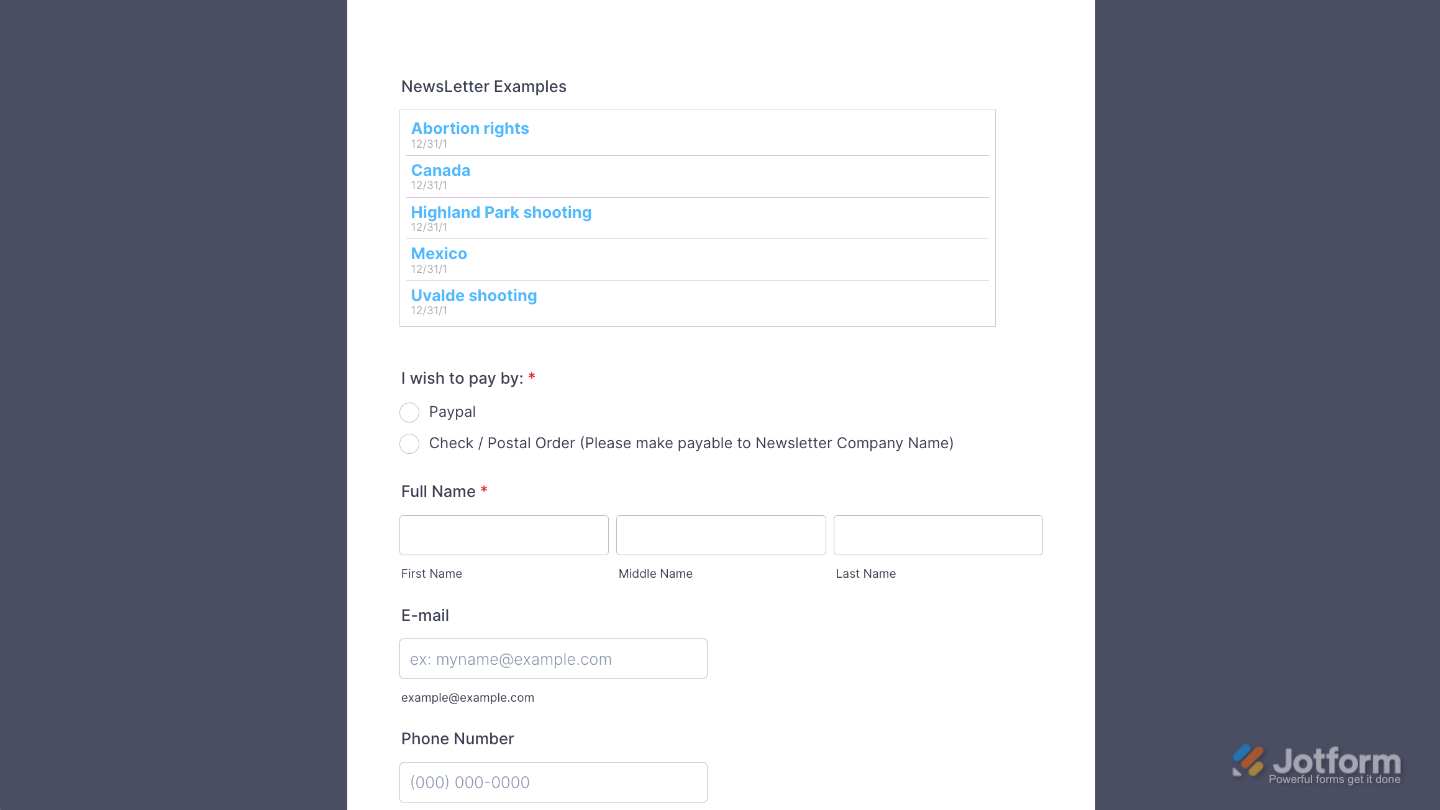
That’s it. You’ve successfully added and set up the RSS Reader widget on your form. Now your users can easily see the latest updates from your chosen feeds, keeping your form dynamic, informative, and engaging. Curious how it works on a live form? Check out this Demo Form.
You can also configure the widget properties, like alignment, labels, size, visibility, and more, to control how it looks and behaves on your form. To learn how it’s done, see our guide on How to Access and Configure the Question Properties of a Widget.
Note
For advanced styling of the RSS Reader widget, you can add your own custom CSS code under the Custom CSS tab in the Widget Settings. Our guide on How to Inject CSS Codes to Widgets walks you through everything.
Pro Tips
- Make sure the feed URL you use is active and trustworthy. A consistent, up-to-date feed ensures your form always displays fresh content.
- The widget works best for showing news, blogs, announcements, or any content that complements your form. Keep it relevant to your audience to add real value.
- Displaying too many feed items can overwhelm users. Start with 3–5 items to keep the section concise and scannable.

Send Comment: