The Simple Domain Whois Checker widget is a perfect fit for an easy way to let users check domain availability right from your form. Instead of sending people off to another website or tool, you can bring the lookup process straight into your form, keeping everything smooth, convenient, and user-friendly. Whether you’re running a registration process, collecting website ideas, or offering domain-related services, this widget helps streamline the experience with just a few clicks.
Here are a few ways to use it:
- Quickly Check Domain Availability — If your form is helping users pick a website name, this widget lets them see instantly whether a domain is already taken. No need to leave the form or open another tool—everything happens right on the page.
- Support Business or Branding Forms — For entrepreneurs, startups, or anyone submitting ideas for web projects, this widget makes it easy to suggest or confirm domains while filling out the form. It streamlines the process and saves time.
- Add Convenience to Consultation or Application Forms — If your form collects info for services like web design, digital marketing, or domain registration, users can check domain availability immediately, reducing back-and-forth and improving the workflow.
- Perfect for Contests or Idea Submissions — If people are submitting project ideas or domain suggestions, the widget ensures they propose unique, available domains—helping you gather valid, actionable entries.
Adding and Setting Up the Simple Domain Whois Checker Widget
Adding the Simple Domain Whois Checker widget to your form gives your users an easy way to look up domain registration details. Here’s the quick way to do it:
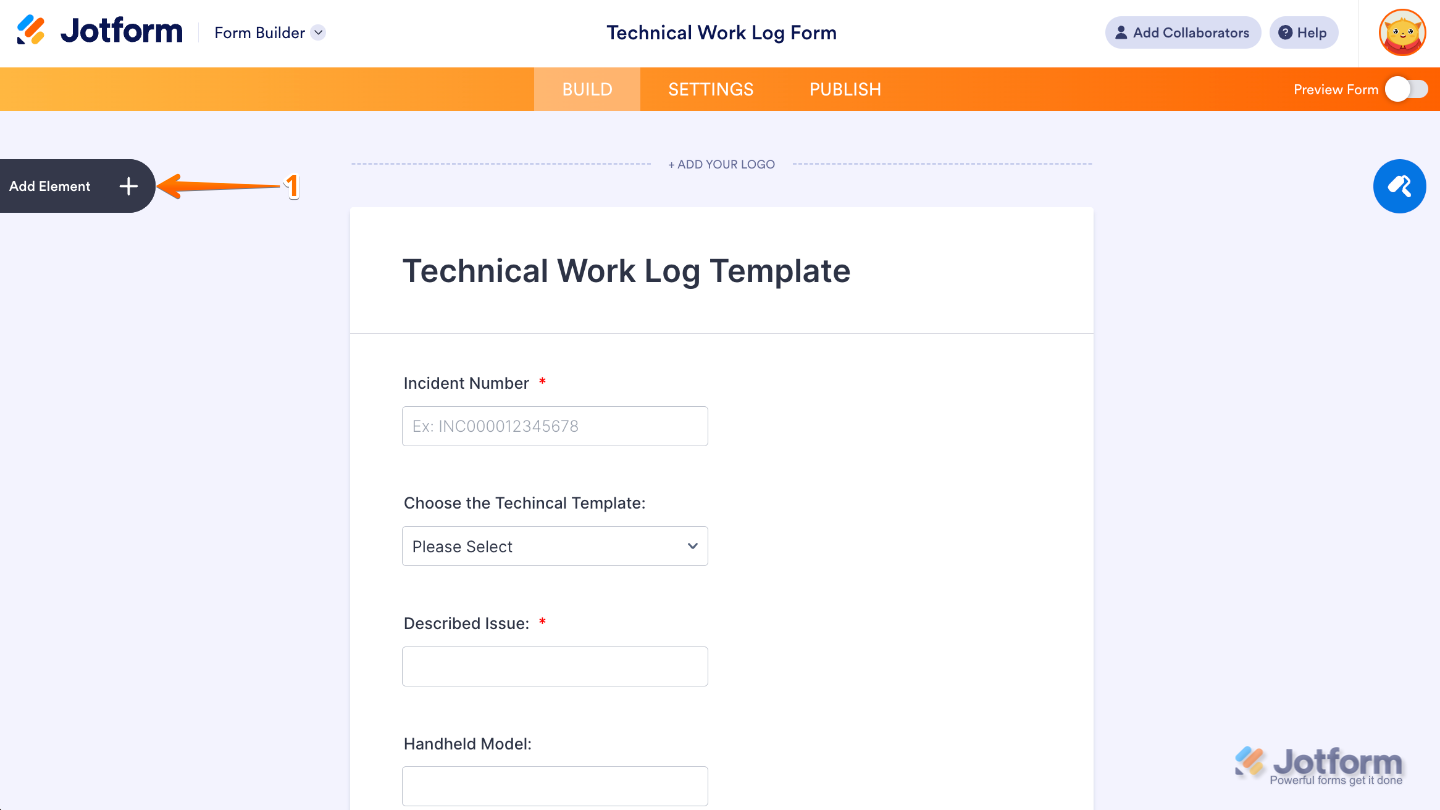
- In Form Builder, click on Add Element on the left side of the page.
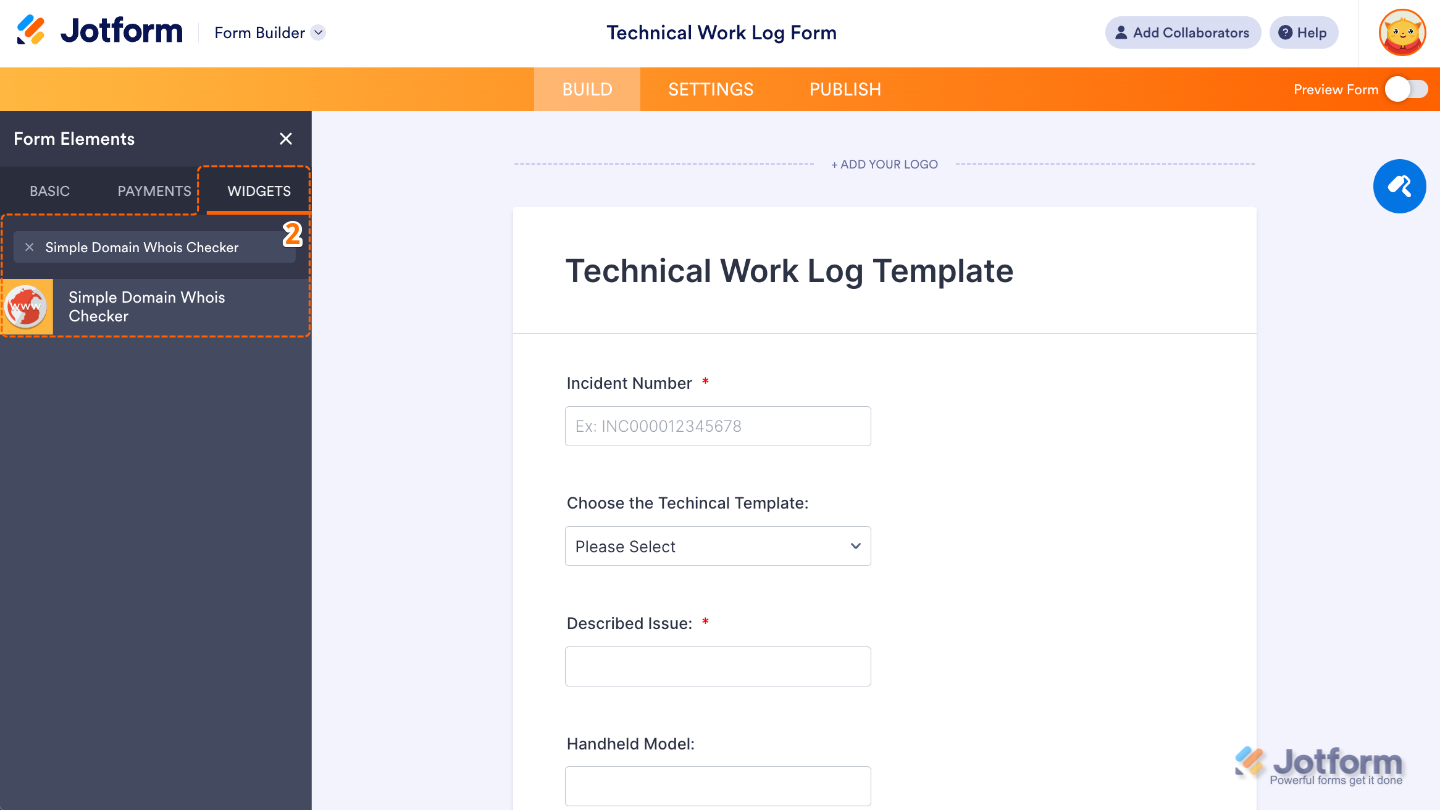
- Now, in the Form Elements menu, under the Widgets tab, search for Simple Domain Whois Checker and then click on it. Or, just drag and drop it to where you want it to be on your form.
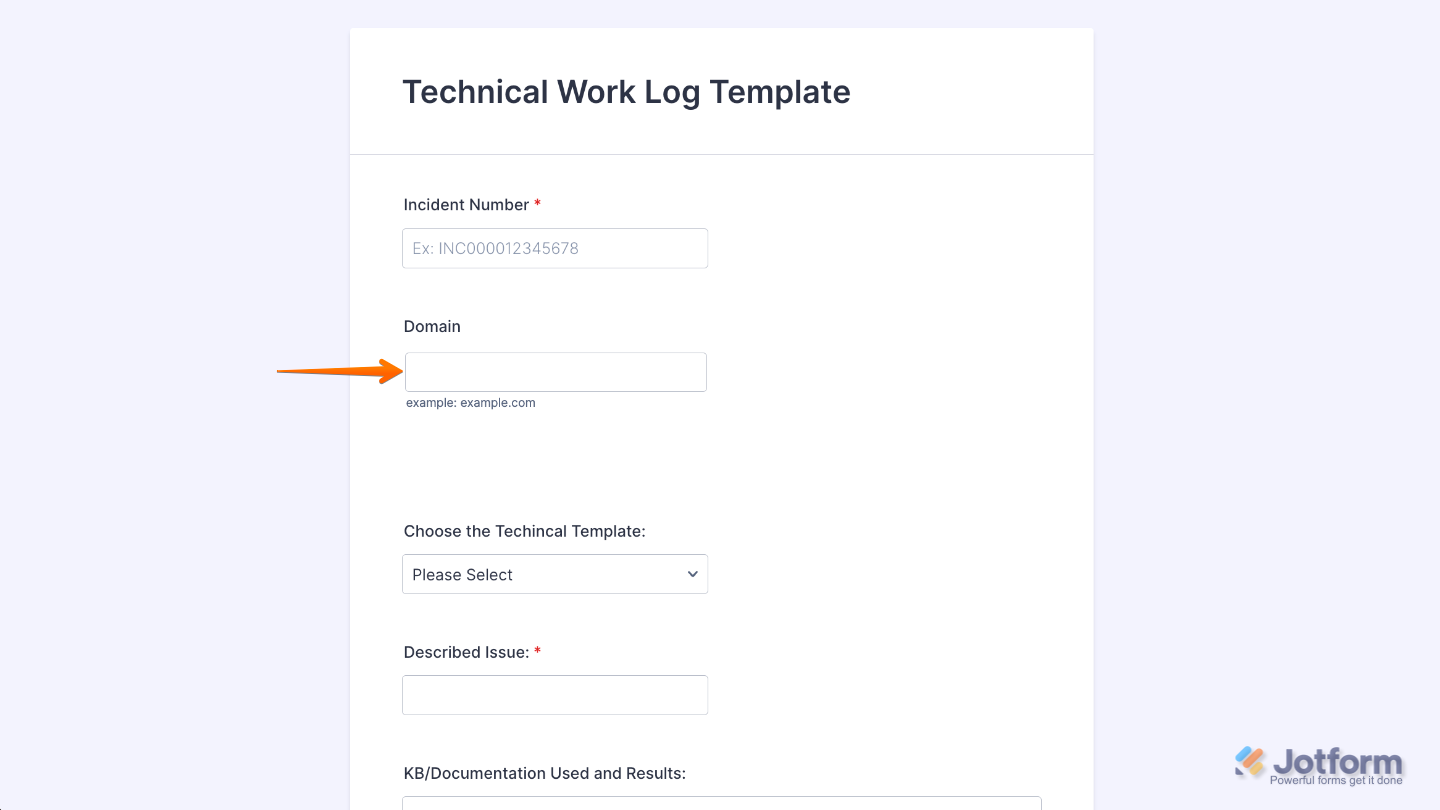
That’s it. You’ve successfully added and set up the Simple Domain Whois Checker widget on your form. Now your users can quickly check domain details and availability, making it easier to get accurate domain information right within your form. Curious how it works on a live form? Check out this Demo Form.
You can also configure the widget properties, like alignment, labels, size, visibility, and more, to control how it looks and behaves on your form. To learn how it’s done, see our guide on How to Access and Configure the Question Properties of a Widget.
Note
For advanced styling of the Simple Domain Whois Checker widget, you can add your own custom CSS code under the Custom CSS tab in the Widget Settings. Our guide on How to Inject CSS Codes to Widgets walks you through everything.
Pro Tips
- This widget shines in forms related to web hosting, domain registration, website requests, or tech support. Adding it to unrelated forms may confuse your users.
- If a domain is taken, prompt users to try alternative extensions or similar names. This creates a smoother, more helpful experience.

Send Comment: