With Jotform, you can easily add an interactive slider to your form to make collecting numerical input smoother and more intuitive. The Slider widget lets people choose a value by dragging along a range, giving you a quick way to gather ratings, estimates, quantities, and other number-based responses without relying on traditional text fields.
It’s a simple, flexible tool that works well for customer feedback forms, patient intake forms, surveys, and anything else that needs clean, easy-to-read numeric data. Whether you’re collecting quick ratings or guiding users toward a specific value range, the Slider keeps your form engaging and effortless to complete.
Here are a few ways to use it:
- Let users pick a number by sliding along a range.
- Ask for quick ratings or experience levels on surveys.
- Gather customer satisfaction scores on feedback forms.
- Allow patients to indicate their mood or pain level.
- Set a custom maximum value so respondents can choose from a range that fits your needs.
Whether you’re creating a new form or updating an existing one, you can add and set up the Slider widget in a few easy steps. Here’s how to do it:
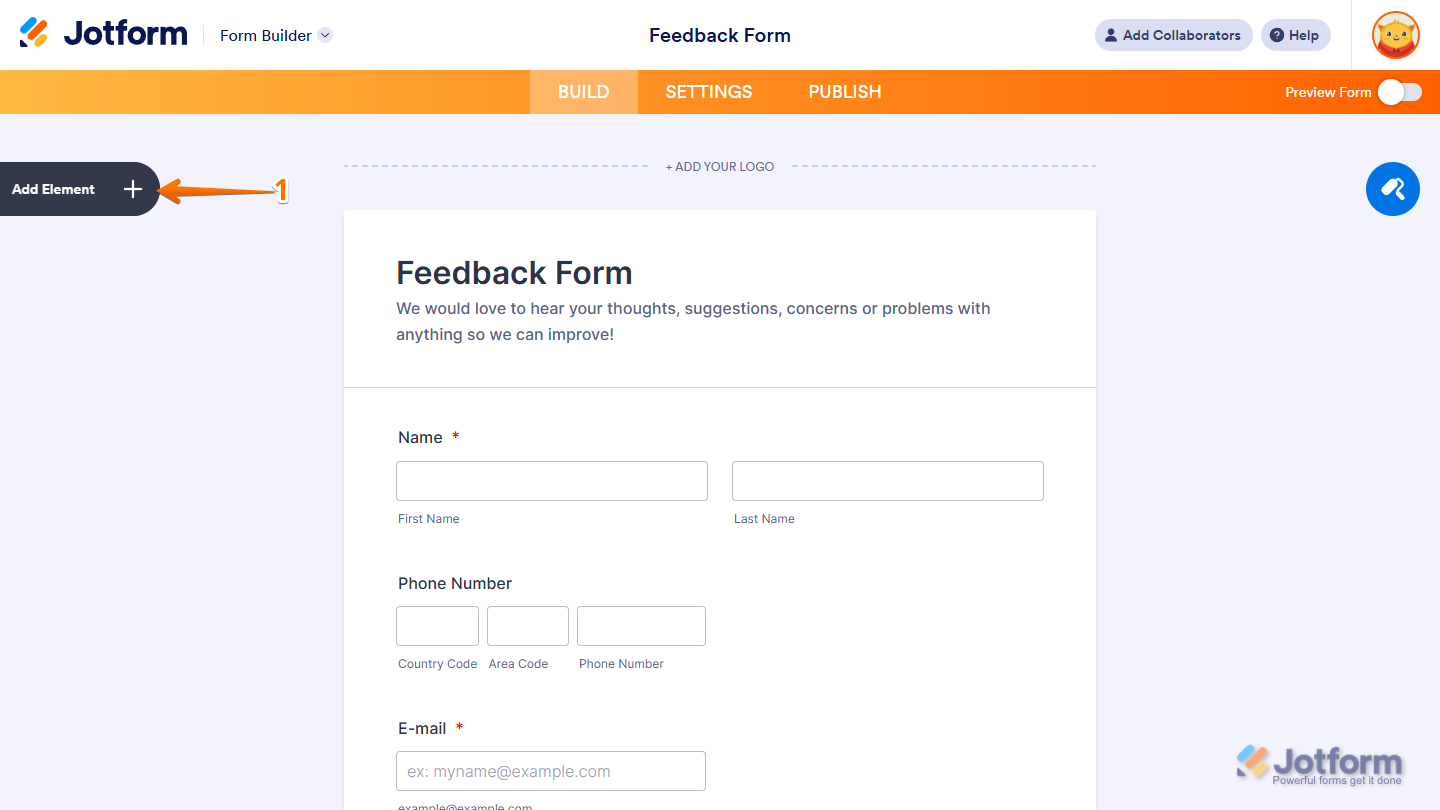
- In Form Builder, click on Add Element on the left side of the page.
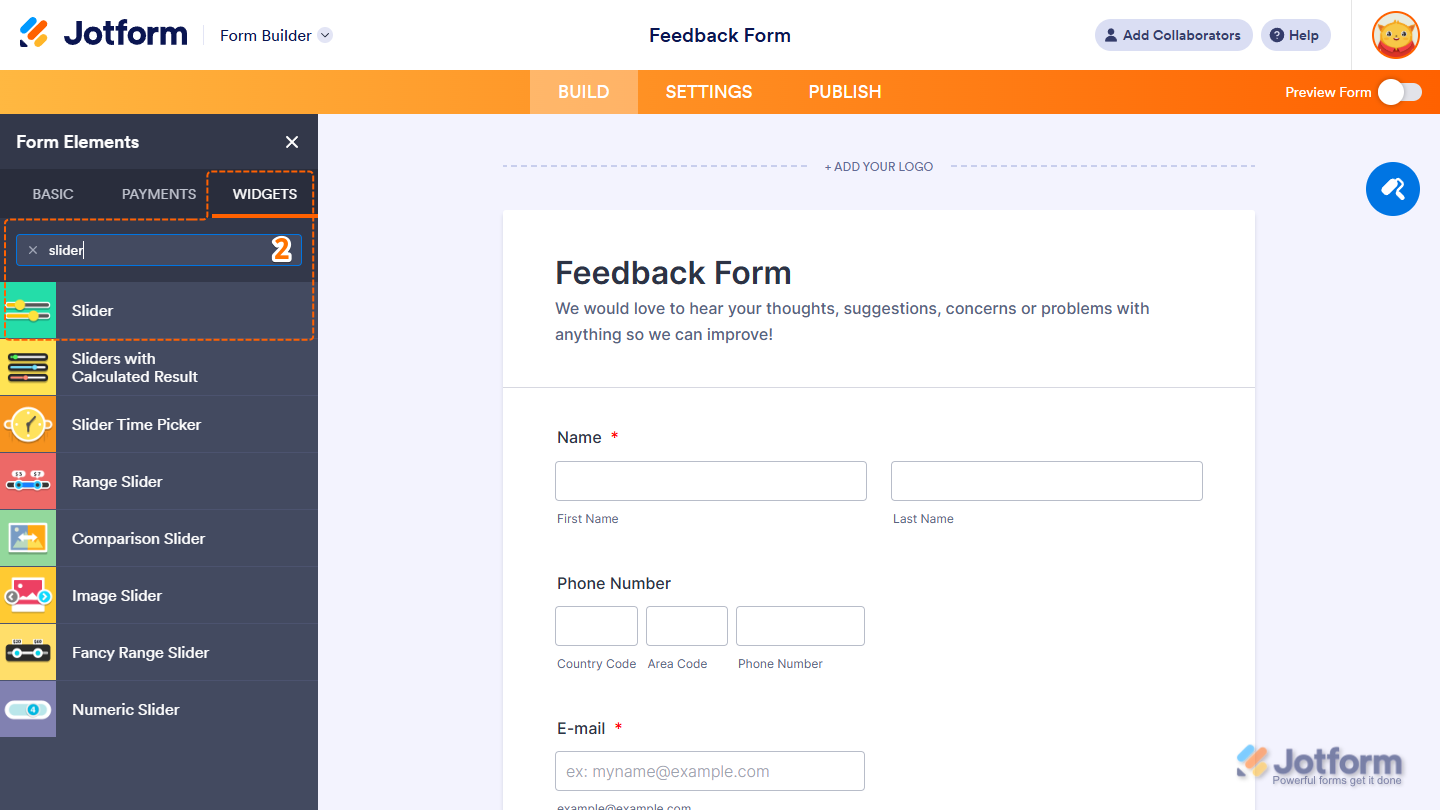
- Now, in the Form Elements menu, under the Widgets tab, search for Slider and click on it. Or, just drag and drop it to where you want it to be on your form.
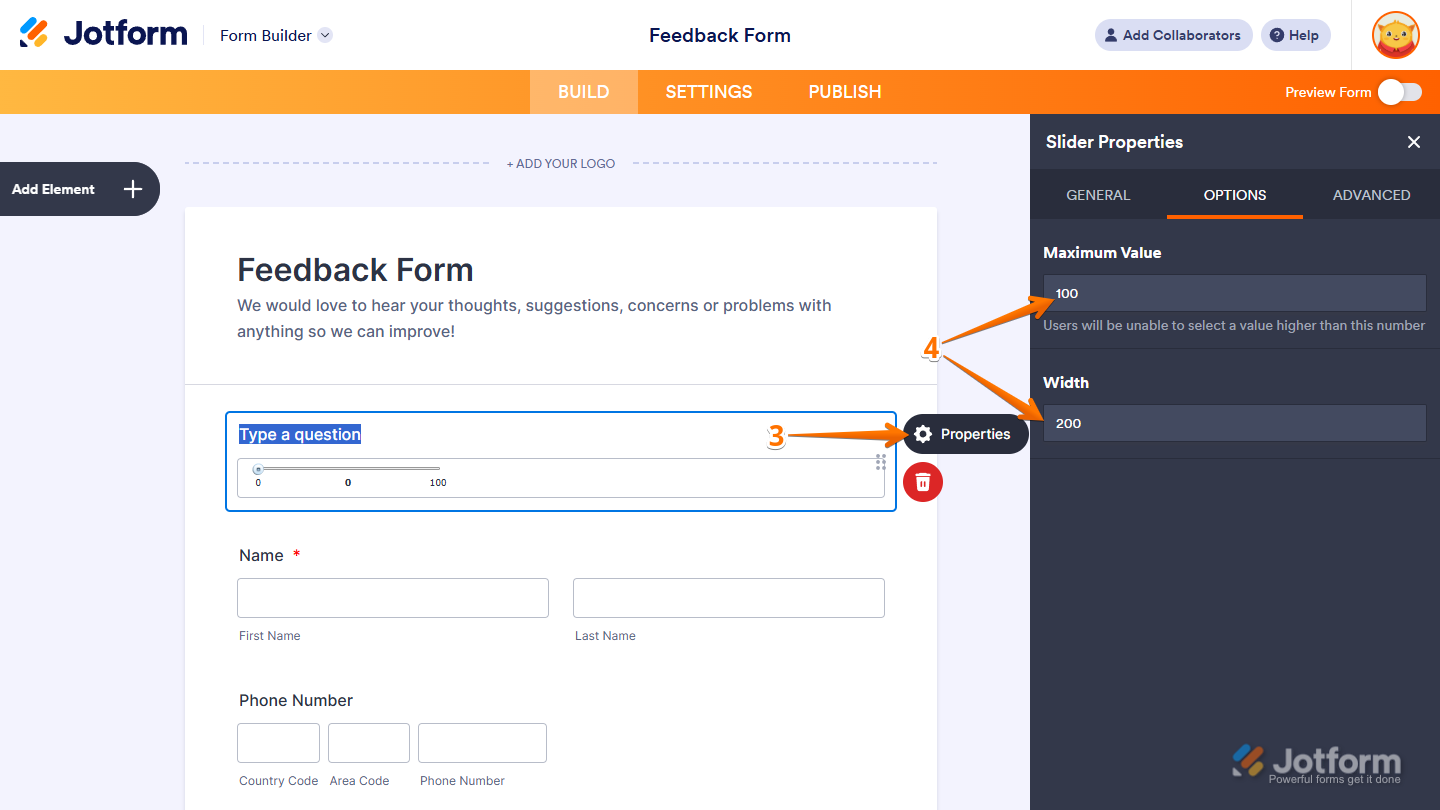
- Next, on the right side of the Slider widget, click on the Gear icon.
- In the Slider Properties menu, under the Options tab, you’ll see this list of settings you can configure:
- Maximum Value — Delete the default value in the input box and enter the highest number that users can select. This sets the top of the range, and users won’t be able to choose a higher number.
- Width — Delete the default value in the input box and enter the width you want for the slider. This adjusts how much horizontal space the slider takes up on your form.
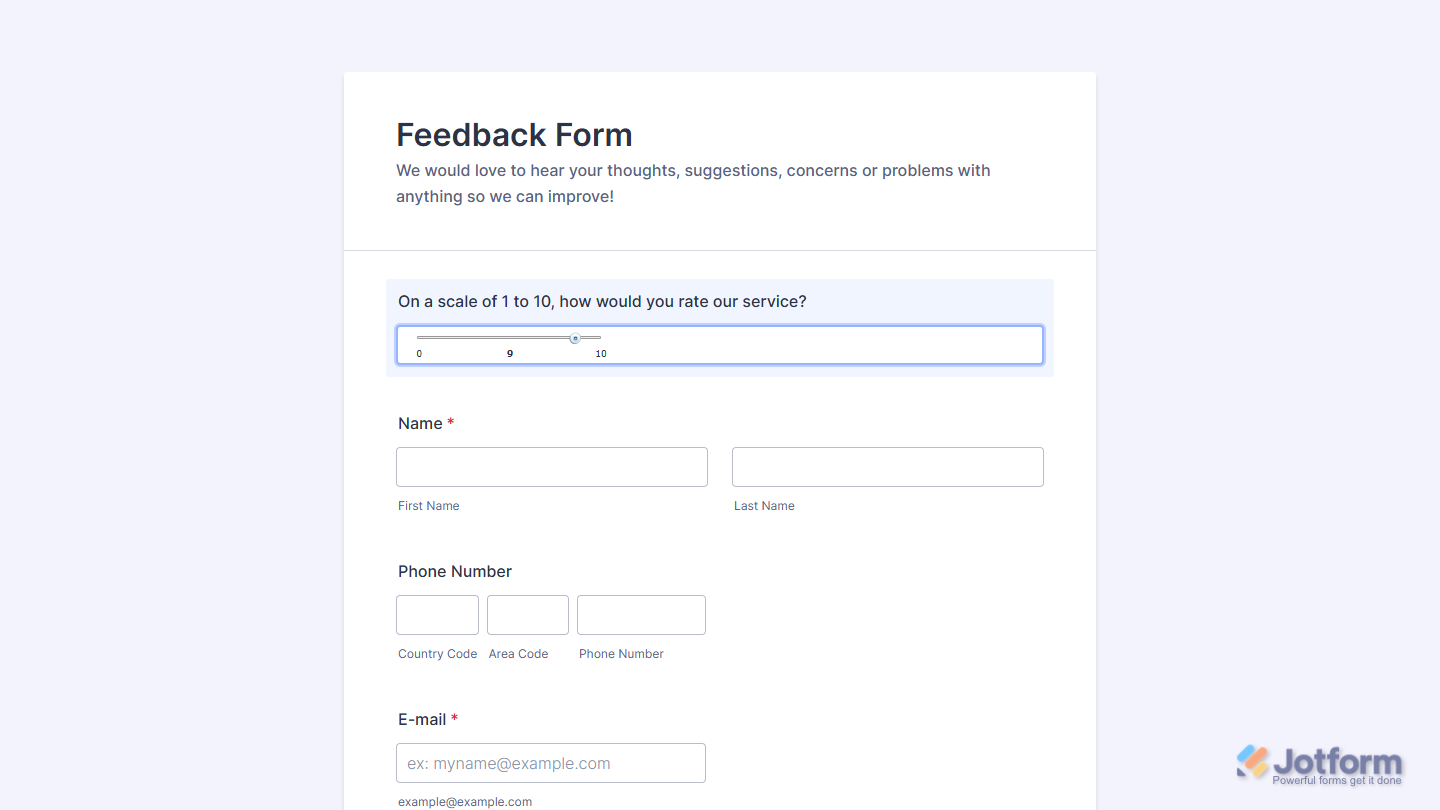
That’s it. Now, you’ve added and set up the Slider widget on your form. You can test it on this demo form.
Note
You can also configure the widget properties, like alignment, labels, size, visibility, and more, to control how it looks and behaves on your form. Check out our guide on How to Access and Configure the Question Properties of a Widget to learn more.

Send Comment: