Jotform’s SMS Confirmation widget, powered by Twilio, helps you do just that by sending a verification code via text message. Once users receive the code, they’ll enter it into the form to confirm their number before submitting. It’s a great way to reduce fake entries, prevent spam, ensure more accurate contact data, and improve the quality of your form submissions. Just enter your Twilio account credentials into the widget settings to get started.
Here are a few ways to use it:
- Verify Phone Numbers Instantly — Instead of collecting numbers that might be mistyped or fake, the widget double-checks by asking users to confirm with a code sent straight to their phone.
- Perfect for Registrations and Sign-Ups — Whether you’re running an event, class, or online service, SMS confirmation ensures you’re gathering valid contact details from participants.
- Add Security to Sensitive Forms — If your form involves accounts, memberships, or anything sensitive, this widget helps keep the process more secure by tying submissions to a verified phone number.
- Reduce No-Shows and Follow-Up Hassles — Since the numbers are confirmed, you’ll have reliable contact info to send reminders, updates, or important notices without worrying about delivery errors.
Notes
- The widget uses Twilio, a third-party service. So to send the messages, you’ll need a Twilio account to connect and use the widget.
- You must enter your Twilio Account SID, Auth Token, and a Twilio-enabled phone number to get started.
Adding and Setting Up the SMS Confirmation Widget
With the SMS Confirmation widget, you can make sure your users provide valid phone numbers by sending users a confirmation code via SMS message. Here’s a quick how-to:
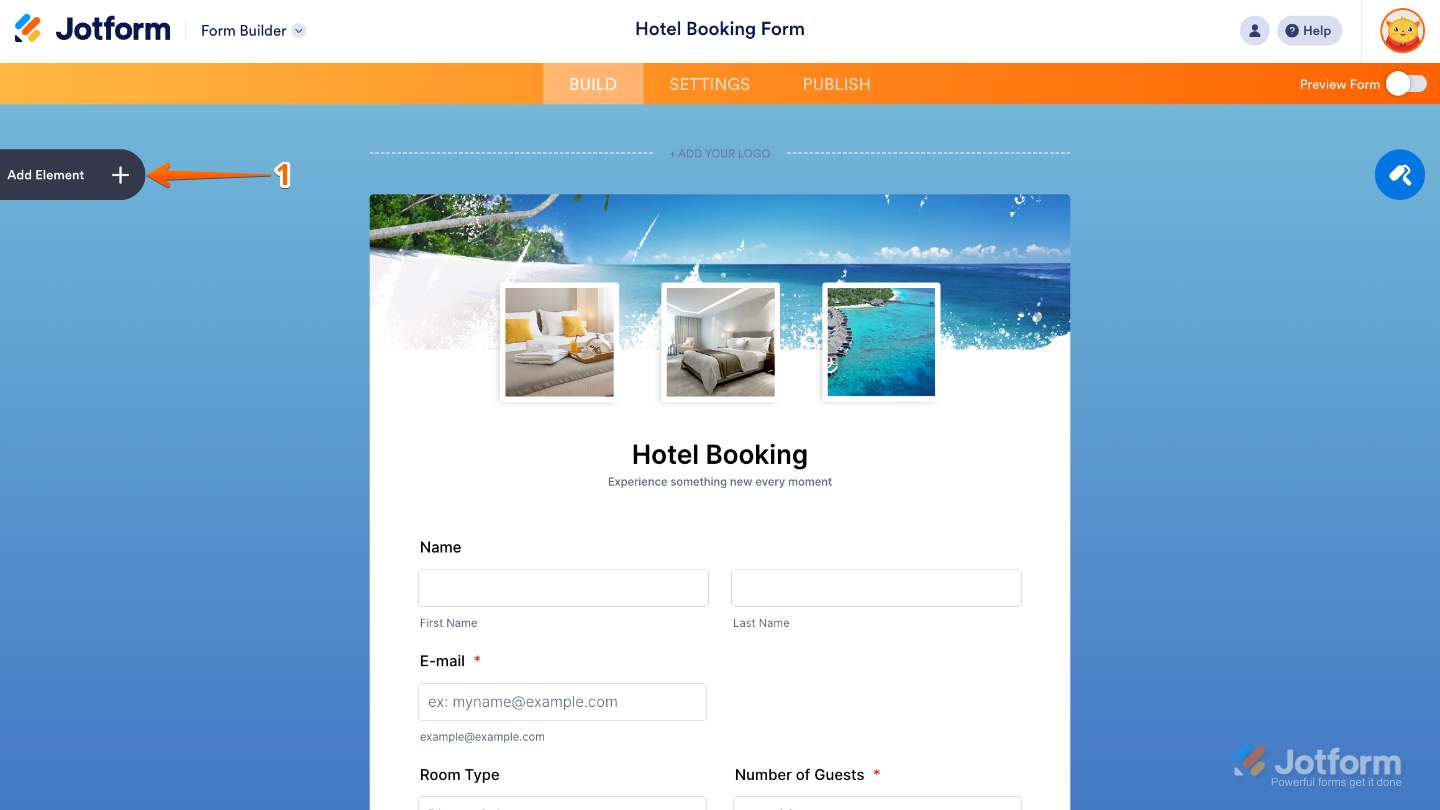
- In Form Builder, click on Add Element on the left side of the page.
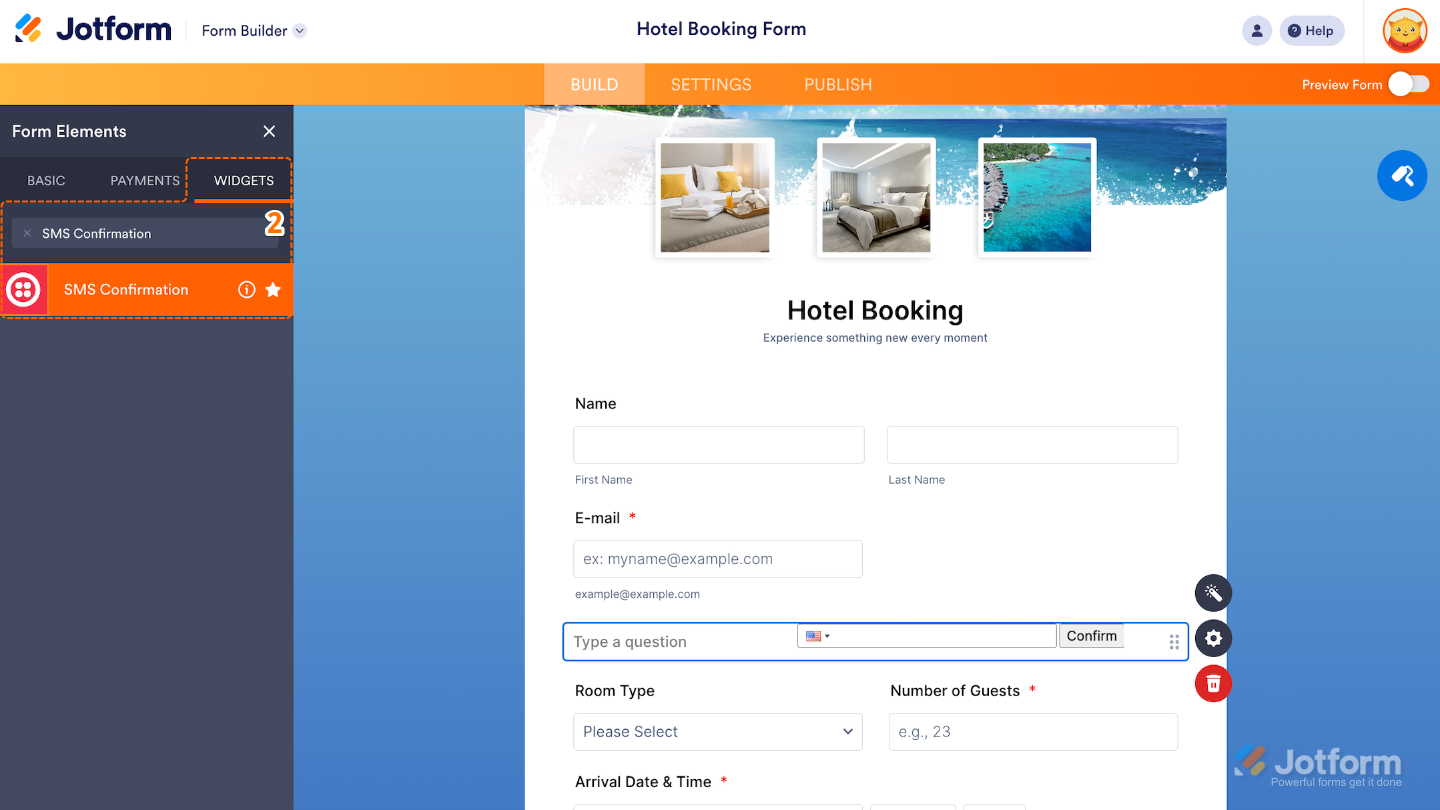
- Now, in the Form Elements menu, under the Widgets tab, search for SMS Confirmation and then click on it. Or, just drag and drop it to where you want it to be on your form.
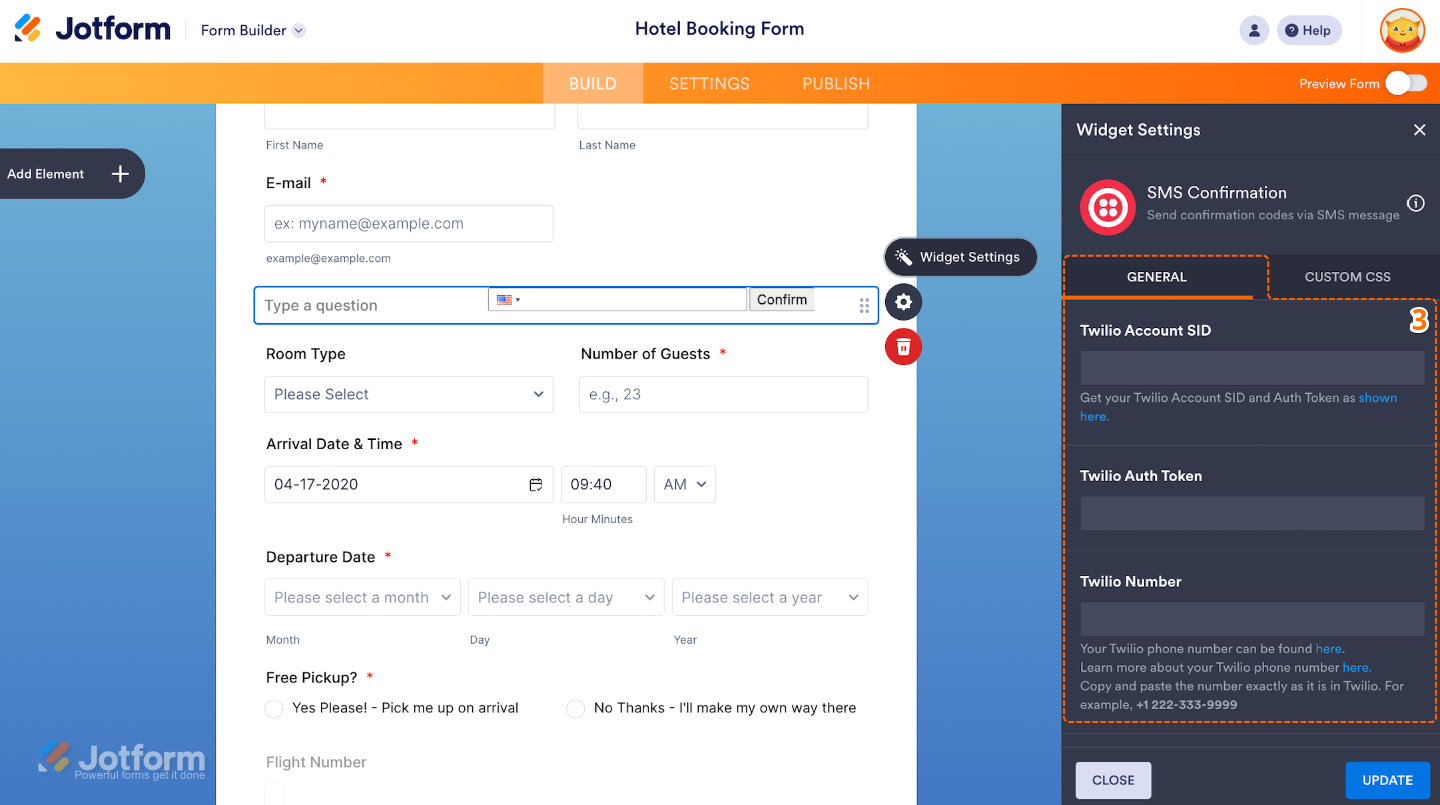
- Next, in the Widget Settings window that opens on the right side of the page, set up the following options:
- Twilio Account SID
- Twilio Auth Token — To connect the widget with your Twilio account, just enter your Twilio Account SID and Auth Token in the fields provided. You’ll find these details in your Console Twilio.
- Twilio Number — Enter here the phone number you’ve purchased or configured in Twilio to send SMS messages. You can find your Twilio’s active phone number in your Tw`ilio Phone Number section.
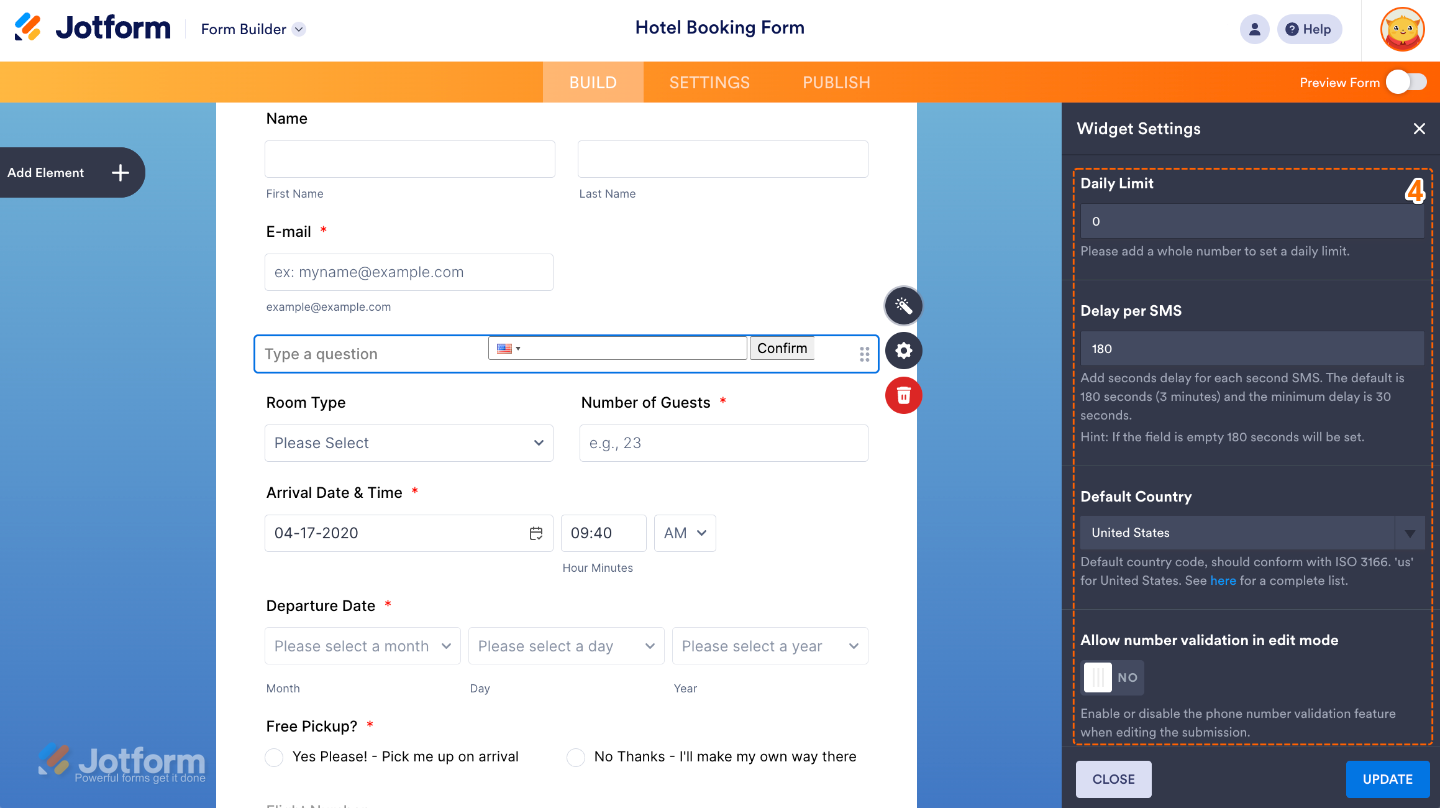
- Then, scroll down and continue to set up these options:
- Daily Limit — Sets the maximum number of SMS confirmations allowed per day for this widget.
- Delay per SMS — Specify the number of seconds of delay between SMS requests.
- Default Country — Edit this to add a default country code for the phone number field.
- Allow number validation in edit mode — When enabled, this allows users to re-verify their number if they edit the form later.
- Scroll down to the bottom and set up these last three options:
- SMS Template — Set this up to manage the message text sent to the user with the confirmation code.
- Confirm Button Label — Edit this to change the text on the button users click to confirm their phone number.
- Custom Error Message — Use this field to write a friendly error message shown when something goes wrong, like an invalid number or missing code.
- Once you’re done, click on Update.
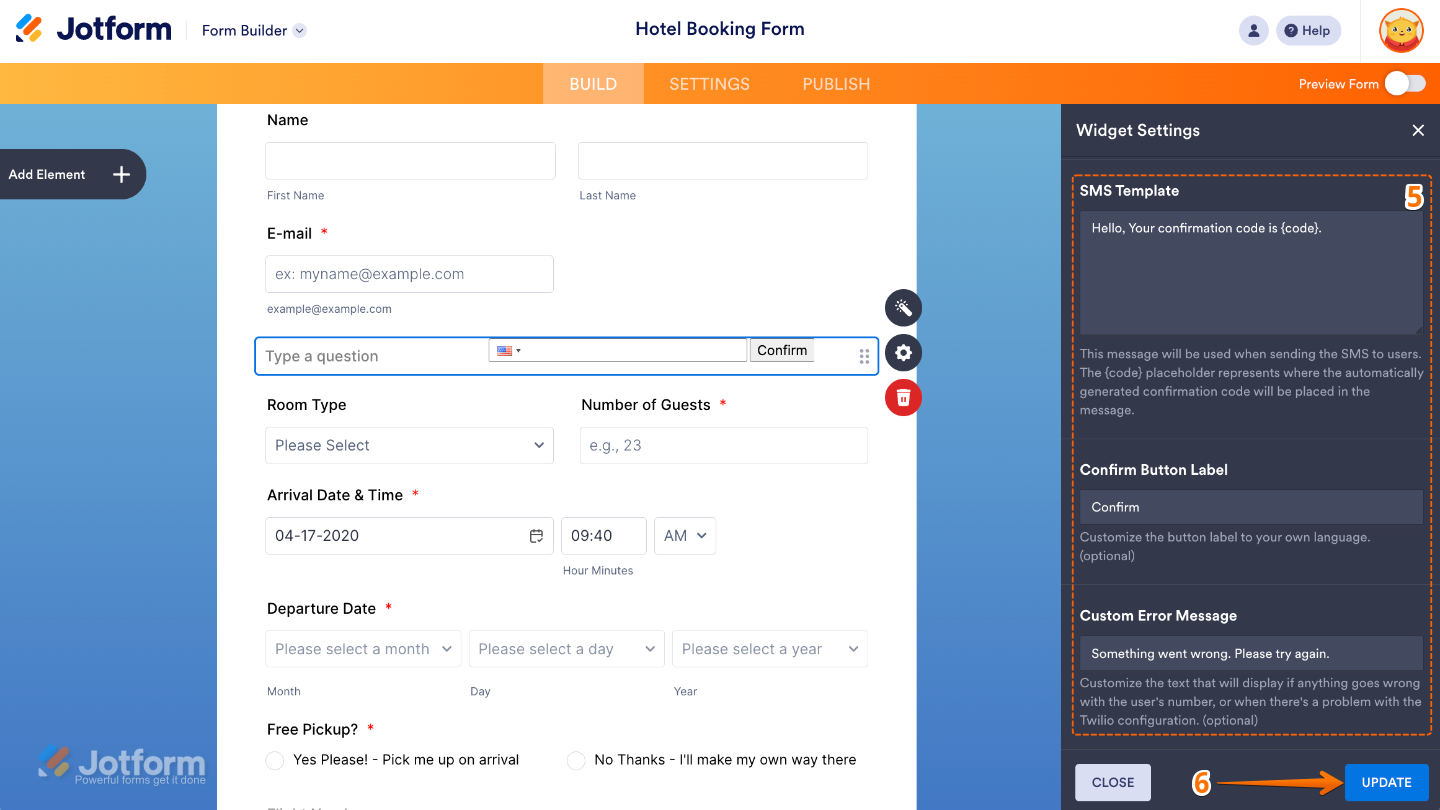
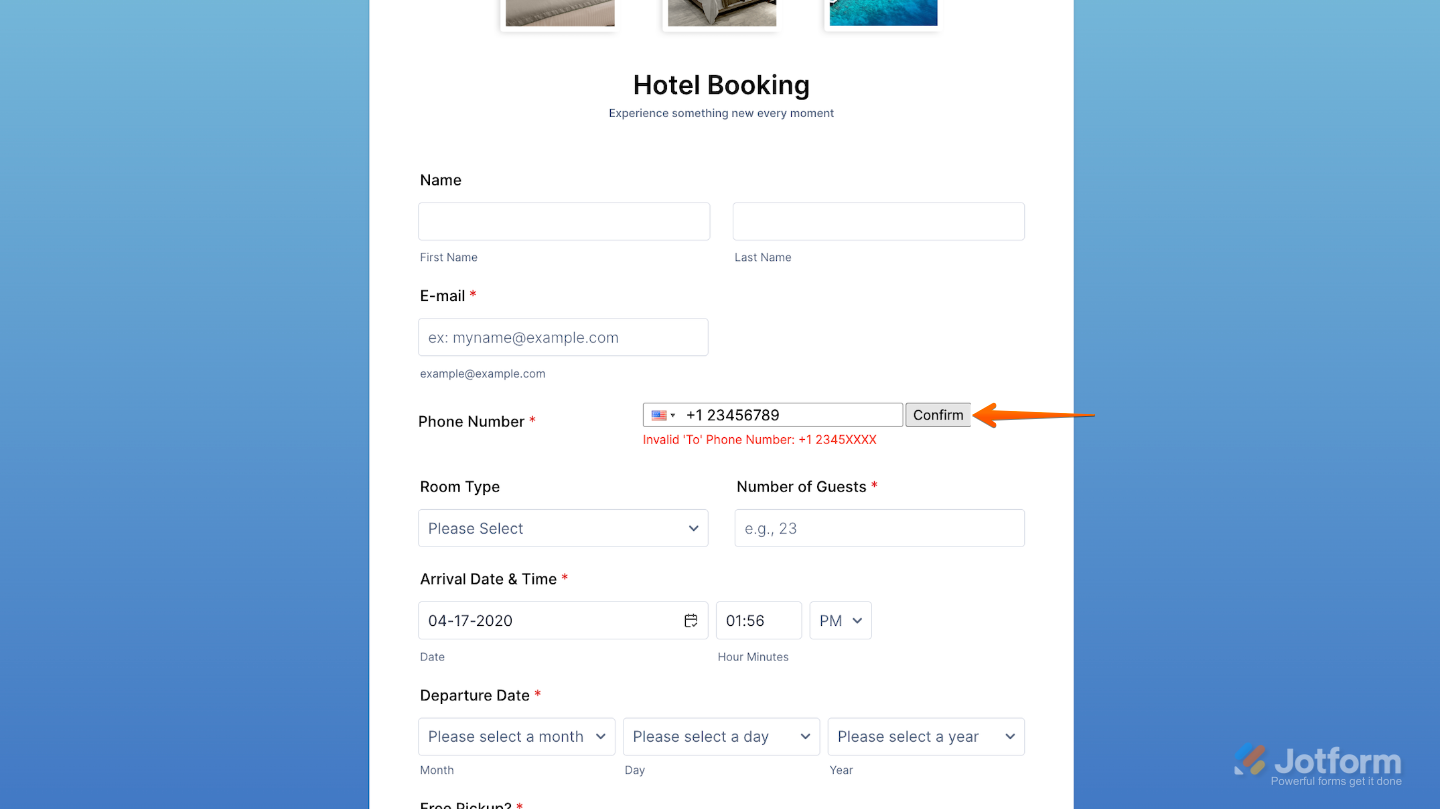
That’s it. You’ve successfully added and set up the SMS Confirmation widget to your form. Now, your form adds a verification step to your users by sending a code to their phone number via SMS. Wondering how it looks in action? Check out this Demo Form.
To further customize your SMS Confirmation field appearance, just click on the Gear icon to open its properties.
Note
For advanced styling, you can add your own custom CSS under the Custom CSS tab in the widget settings and style the SMS Confirmation field. Our guide on How to Inject CSS Codes to Widgets walks you through everything.
Pro Tips
- Test the widget with different country codes to ensure everything works smoothly before publishing your form.
- If users can edit their submissions later, enable the “Allow number validation in edit mode” option to re-confirm their number.

Send Comment: