Jotform makes it easy to add audio directly to your form with the SoundCloud widget, letting you embed music, podcasts, or recordings that play right inside your form so you can share audio content with your users without sending them to another page.
Here are a few ways to use it:
- Add background music or audio clips to make your form more engaging.
- Share podcast episodes, interviews, or voice messages with users.
- Include audio instructions for applications, surveys, or training forms.
- Showcase original music or playlists in event registrations or portfolios.
Whether you’re starting fresh or updating a form, adding and setting up the SoundCloud widget takes only a few steps. Here’s a quick how-to:
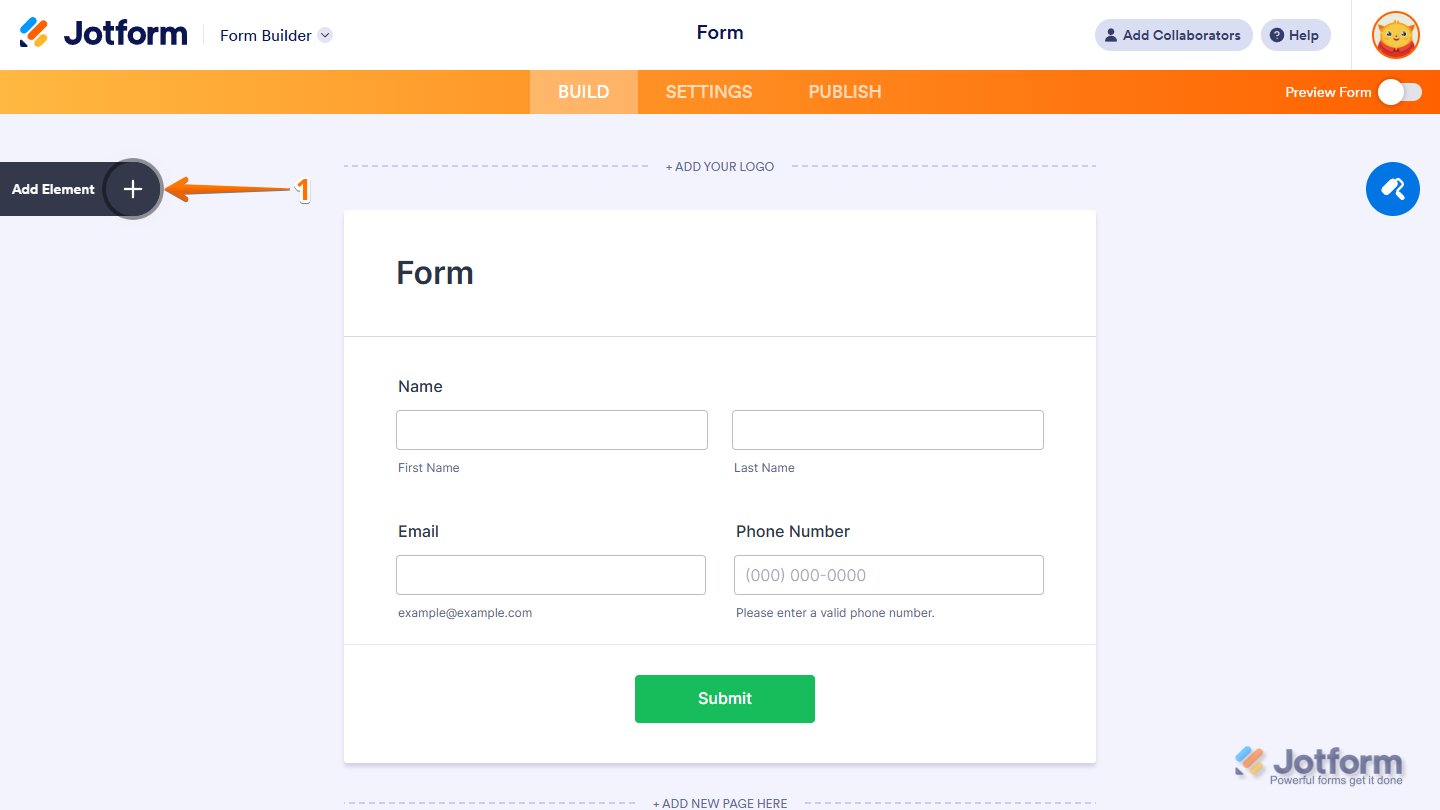
- In Form Builder, click on Add Element on the left side of the page.
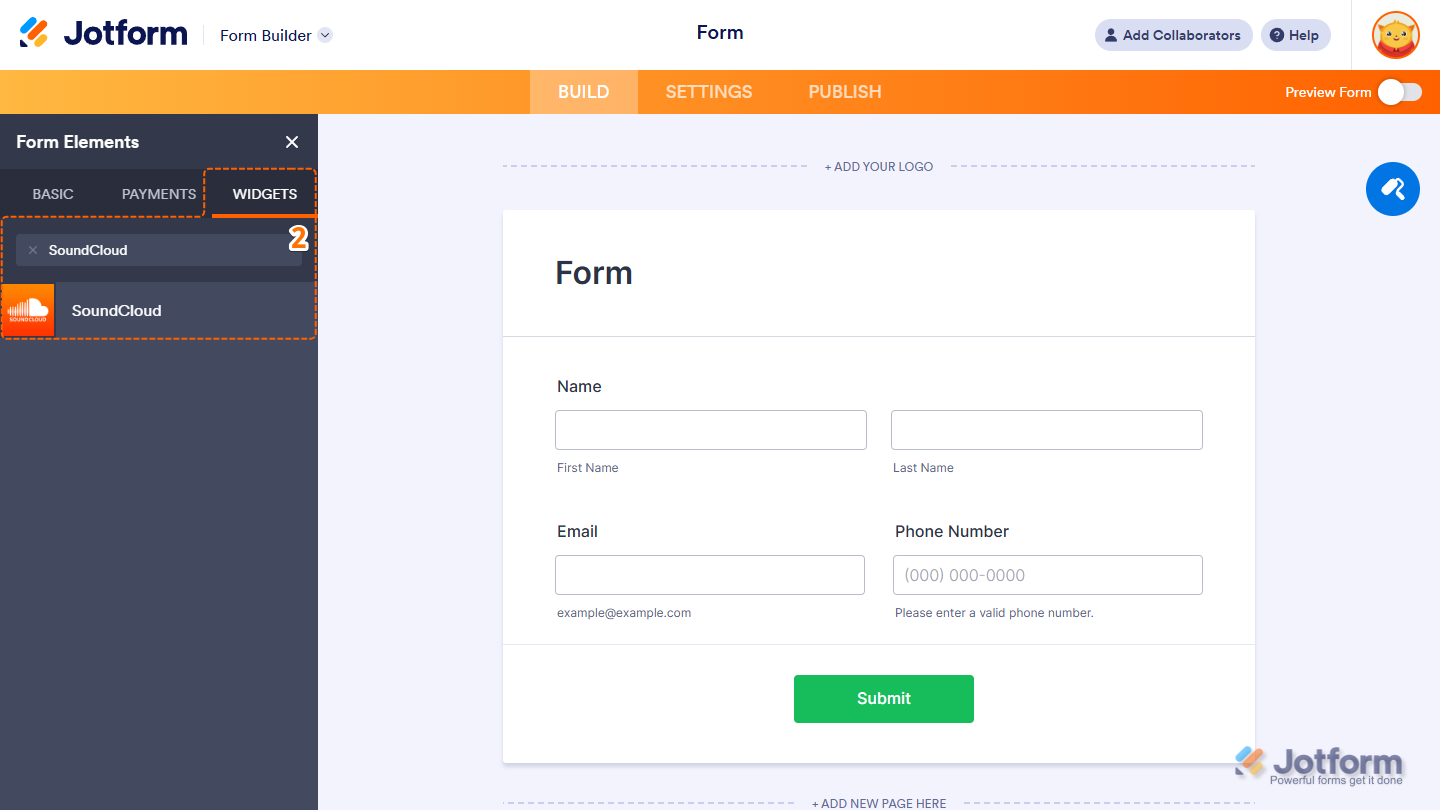
- Now, in the Form Elements menu, under the Widgets tab, search for SoundCloud, and then click on it. Or, just drag and then drop it to where you want it to be on your form.
- Next, in the Widget Settings window that opens on the right side of the page, paste the SoundCloud URL in the URL field.
- Now, click on Update, and you’re all set.
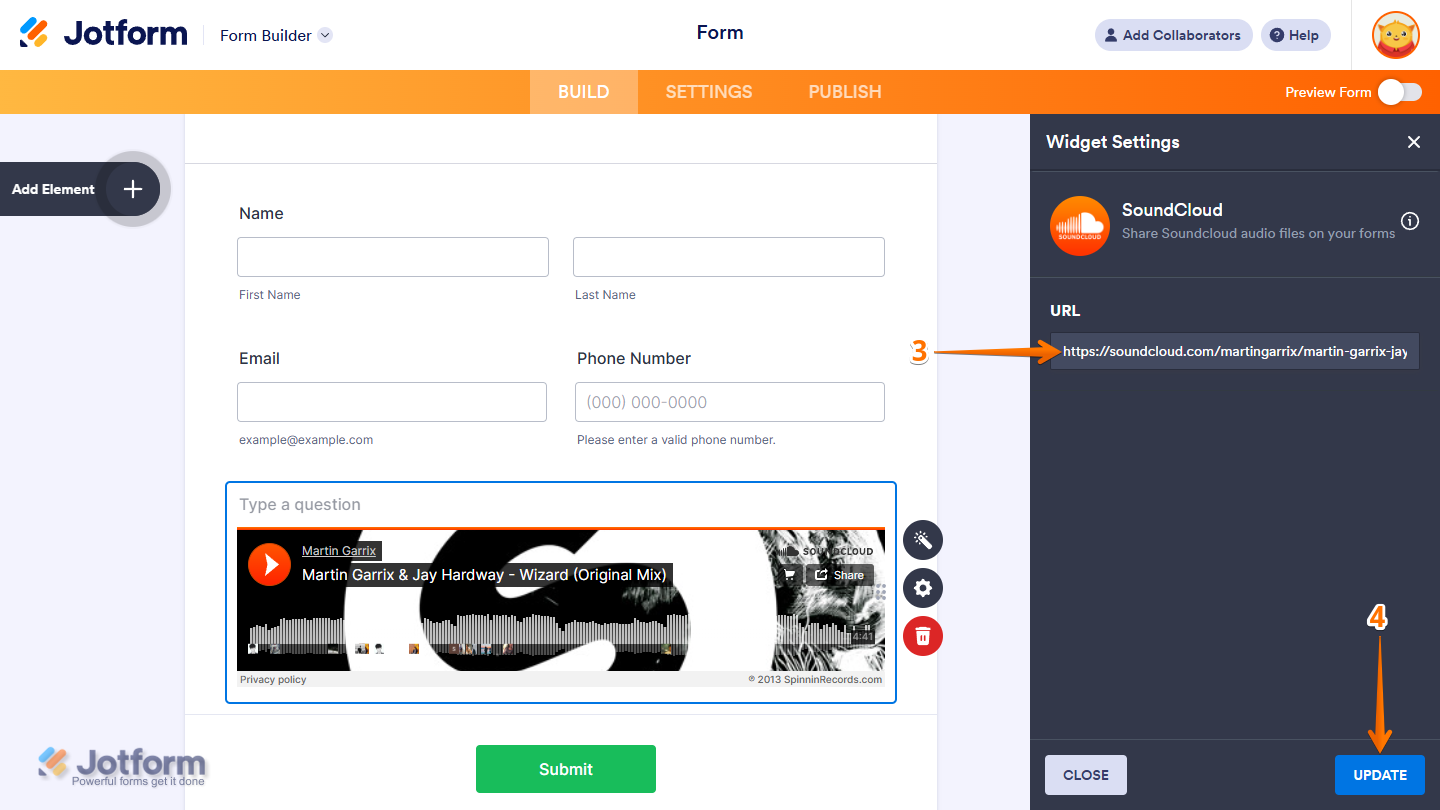
That’s it! You’ve successfully added and set up the Vimeo widget on your form. Want to see how it works? Check out this live demo form.
Note
You can also configure the widget properties, like alignment, labels, size, visibility, and more, to control how it looks and behaves in your form. Check out our guide on How to Access and Configure the Question Properties of a Widget to learn more.

Send Comment: