The Squire Editor widget gives your form a clean, modern text editor that feels familiar and easy to use. Whether you’re collecting detailed feedback, longer responses, or formatted content, this widget helps your users express themselves clearly with tools like bold text, bullet points, and more. It’s a simple way to make your form feel more flexible and user-friendly—and setting it up only takes a moment.
Here are a few ways to use it:
- Create polished text responses — If your form collects written content like descriptions, summaries, or detailed feedback, the Squire Editor makes it easy for users to bold text, add links, adjust formatting, and more. It’s a simple way to encourage clearer, better-organized answers.
- Perfect for content submissions — The Squire Editor gives users the tools they need to submit text that looks clean and professional. Good for running a contest, requesting blog drafts, and even collecting article contributions.
- Great for instructions or narratives — If your form needs respondents to explain processes, provide background info, or submit short stories or reports, the editor ensures their responses look neat and readable.
- Ideal for internal teams — Use it for SOP updates, team notes, or any workflow where staff need to write formatted entries. The familiar formatting toolbar makes the experience feel natural—almost like typing in a mini word processor.
Adding and Setting Up the Squire Editor Widget
Adding the Squire Editor widget to your form gives your users a clean, modern space to type rich, formatted text. You can set it up like this:
- In Form Builder, click on Add Element on the left side of the page.

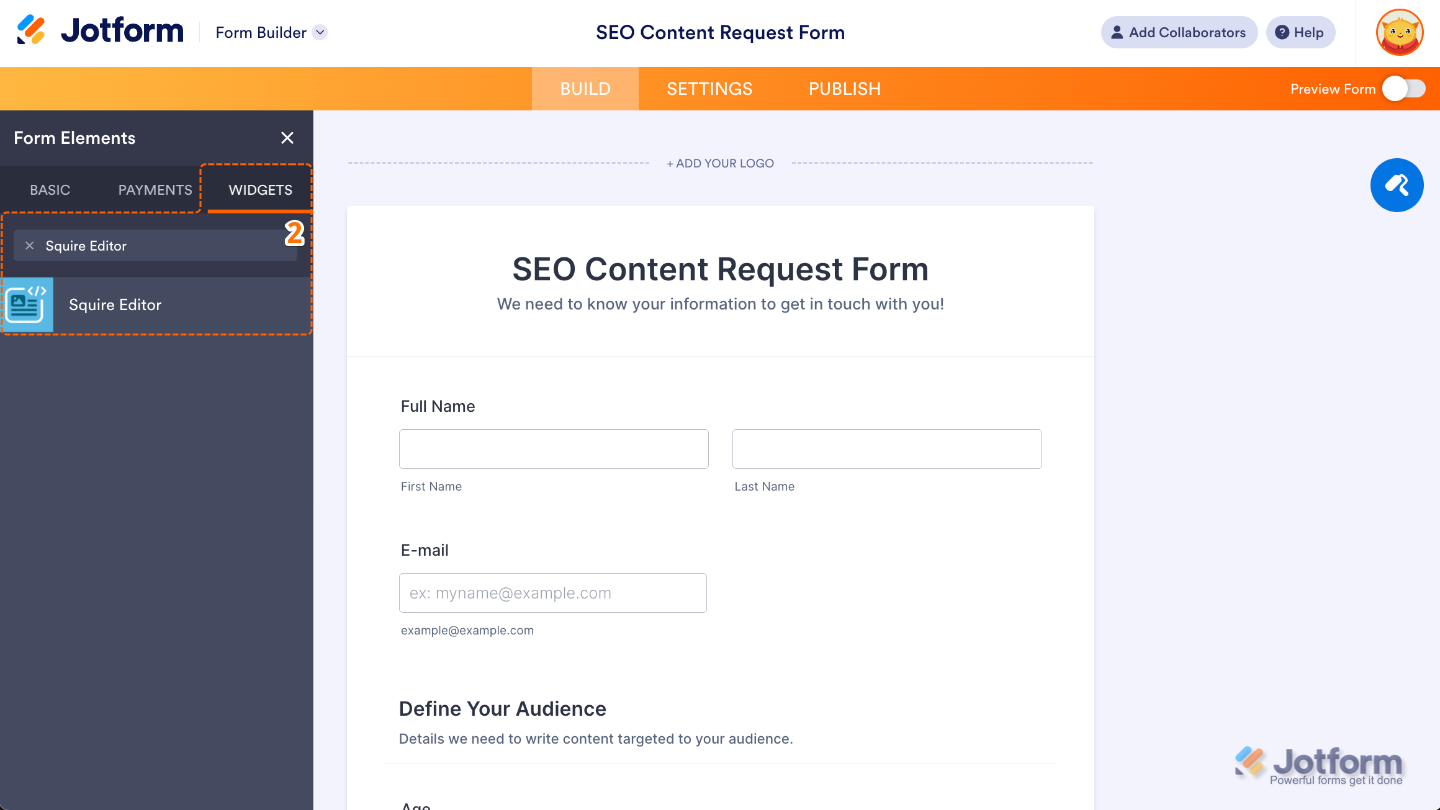
- Now, in the Form Elements menu, under the Widgets tab, search for Squire Editor and then click on it. Or, just drag and drop it to where you want it to be on your form.
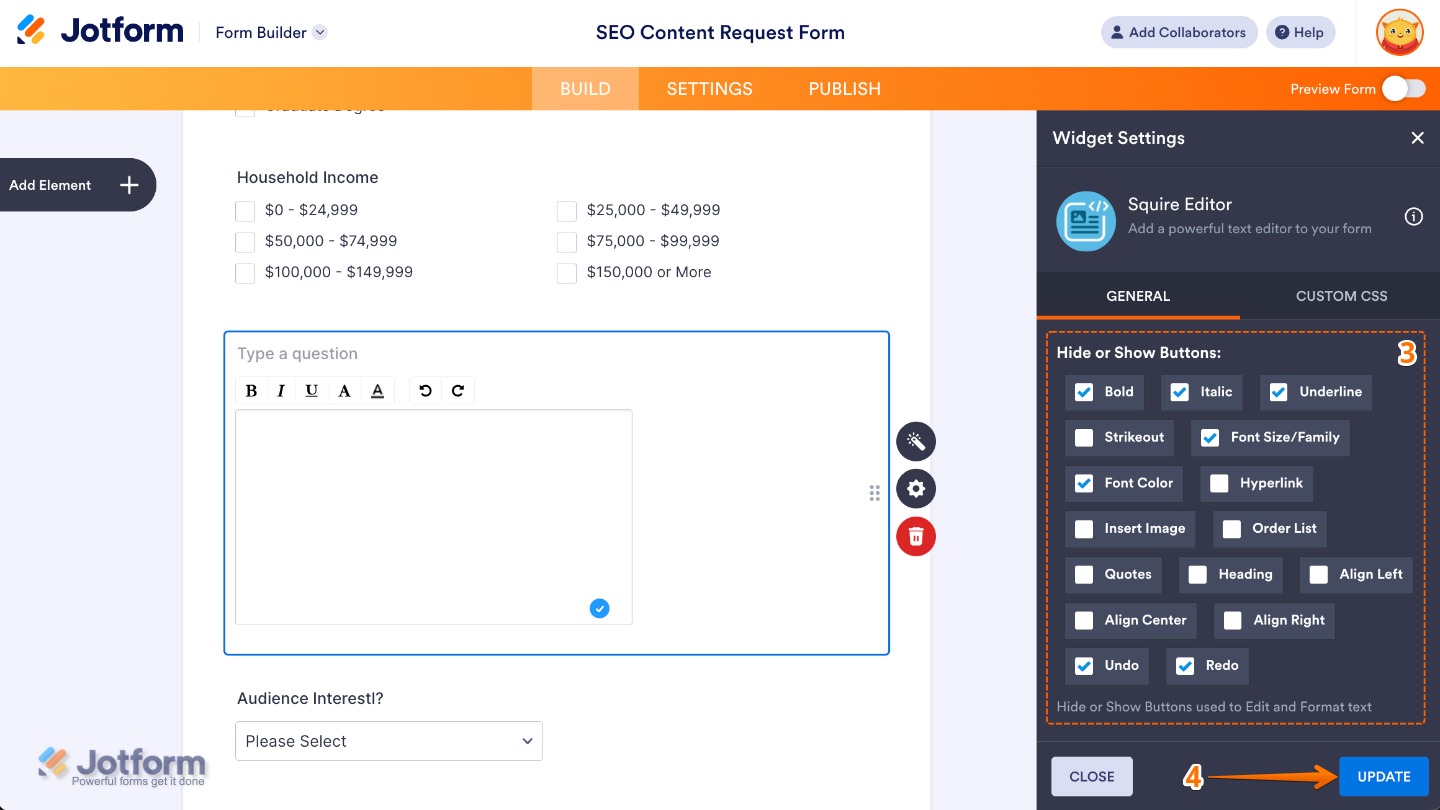
- Next, in the Widget Settings menu that opens on the right side of the page, set up the Hide or Show Buttons option by simply checking or unchecking the boxes next to each option to choose which formatting tools appear in the Squire Editor toolbar.
- Once you’re done, click on Update.
That’s it. You’ve successfully added and set up the Squire Editor widget on your form. Now your users can create rich, well-formatted text with ease—giving them a cleaner, more intuitive way to write without worrying about layout or styling issues. Curious how it works on a live form? Check out this Demo Form.

To further customize your Squire Editor field appearance, just click on the Gear icon to open its properties.
Note
For advanced styling, you can add your own custom CSS under the Custom CSS tab in the widget settings and style the Squire Editor field. Our guide on How to Inject CSS Codes to Widgets walks you through everything.
Pro Tips
- Since the Squire Editor allows rich text formatting, let users know they can style their responses. A simple label like “Write Your Message (with formatting!)” helps set the tone.
- The editor has a variety of formatting options, but you don’t always need them all. Choose only the tools your users truly need to avoid overwhelming them.
- While the editor is mobile-friendly, it still benefits from a bit of extra space. Keep it in its own section so users can tap and type comfortably on small screens.

Send Comment: