If you’ve ever wondered how many people are viewing or interacting with your form, the StatCounter widget makes it easy to keep track. This handy tool quietly monitors your form’s visitor activity in the background, giving you valuable insights into engagement without adding anything visible or distracting for your users. It’s a simple way to understand how your form is performing and make informed decisions based on real data.
Setting up the StatCounter Widget is quick and straightforward. All you need to do is connect your StatCounter project details, and you’re good to go. Once it’s added, you can start collecting analytics right away—no extra steps, no complicated setup. With just a few clicks, you’ll have a powerful tracking tool working behind the scenes to help you stay informed and optimize your forms with confidence.
Here are a few ways to use it:
- Track How Many People View Your Form — If you’re curious about your form’s reach, the widget quietly counts visits for you. It’s great for understanding how often your form is opened, even if users don’t submit it.
- Monitor Engagement for Marketing or Campaigns — Running a promo, survey, or signup form? StatCounter shows you whether people are actually checking out your form, helping you see if your campaign is gaining momentum.
- Compare Views to Submissions — By pairing StatCounter data with form submissions, you can spot drop-offs. If views are high but submissions are low, you’ll know it may be time to improve your form’s flow or messaging.
- Collect Light Analytics Without Extra Tools —If you don’t need heavy analytics platforms, StatCounter gives you quick insights right inside Jotform — no separate dashboard to manage.
Note
The StatCounter widget won’t show up on your form, but don’t worry—it’s working quietly in the background to track your stats.
Adding and Setting Up the StatCounter Widget
Adding the StatCounter widget to your form gives you a simple way to track page views and visitor activity. Setting it up takes no time at all—here’s how:
- In Form Builder, click on Add Element on the left side of the page.
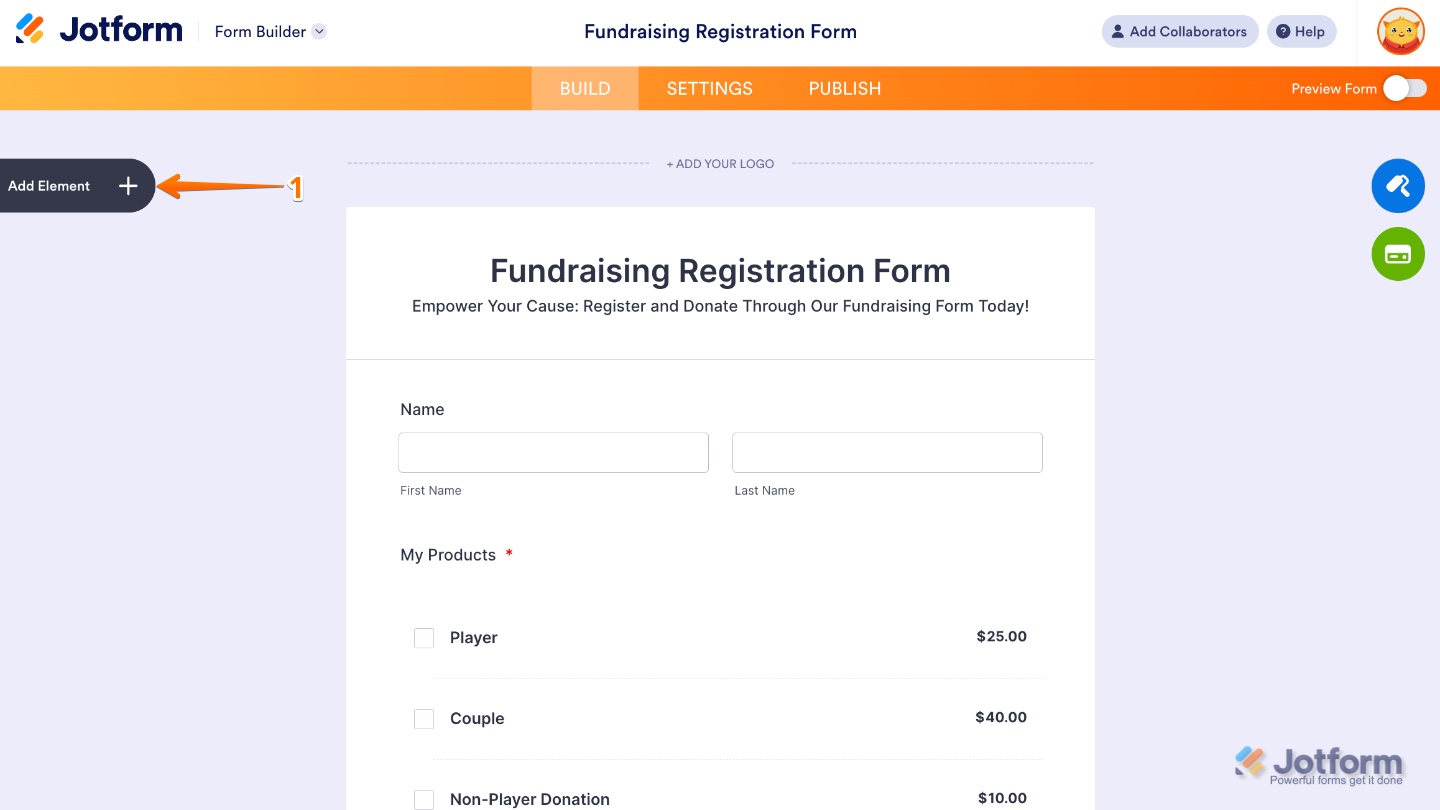
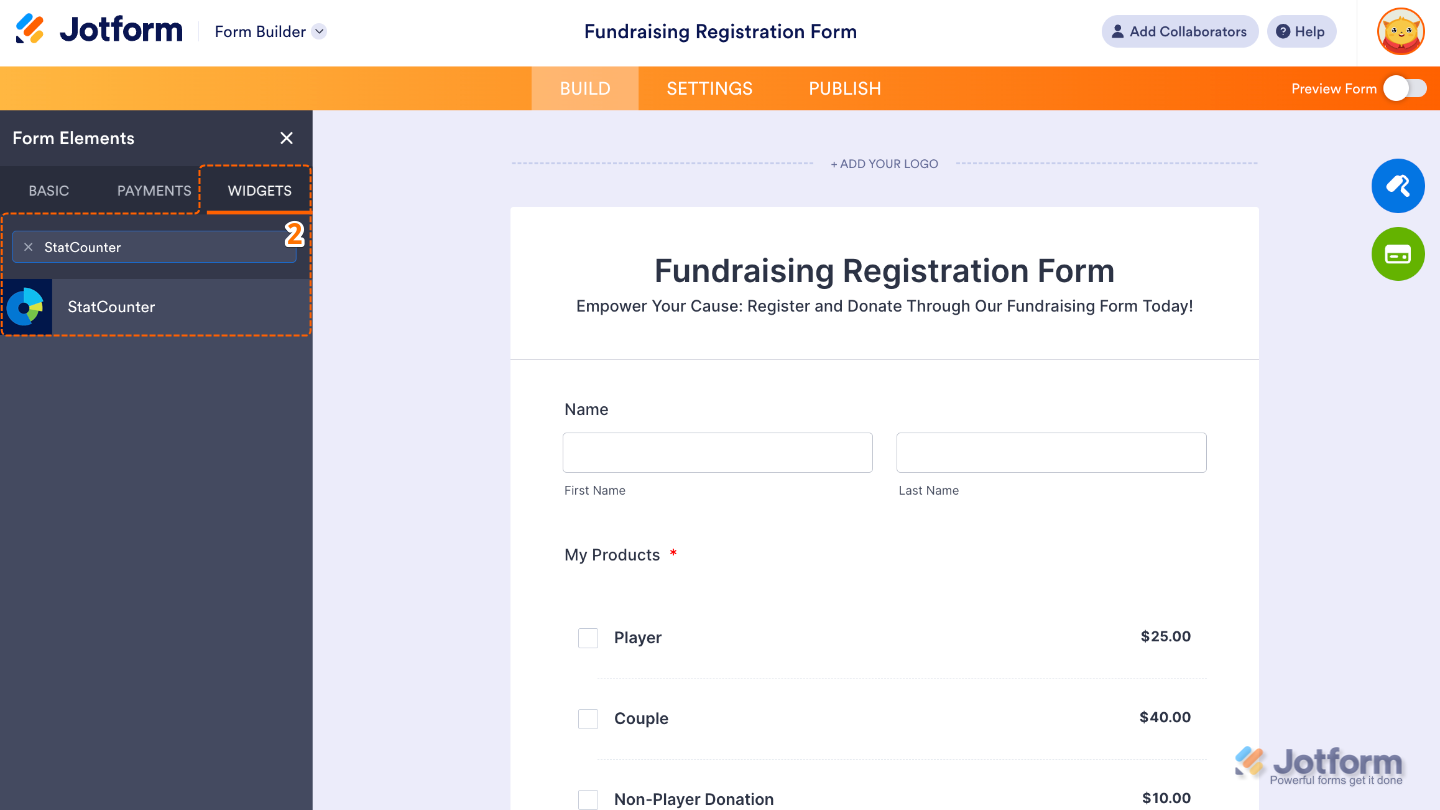
- Now, in the Form Elements menu, under the Widgets tab, search for StatCounter and then click on it. Or, just drag and drop it to where you want it to be on your form.
- Next, in the Widget Settings menu that opens on the right side of the page, set up these options:
- StatCounter Project ID — Enter your unique identifier for your StatCounter project. It tells the widget which project on your StatCounter account should receive the tracking data from your form.
- StatCounter Security Code —Add the special code that verifies your account and keeps your data secure. It ensures that only your StatCounter project receives the tracking info from your form, preventing unauthorized access or mix-ups with other projects.
- Once you’re done, click on Update.
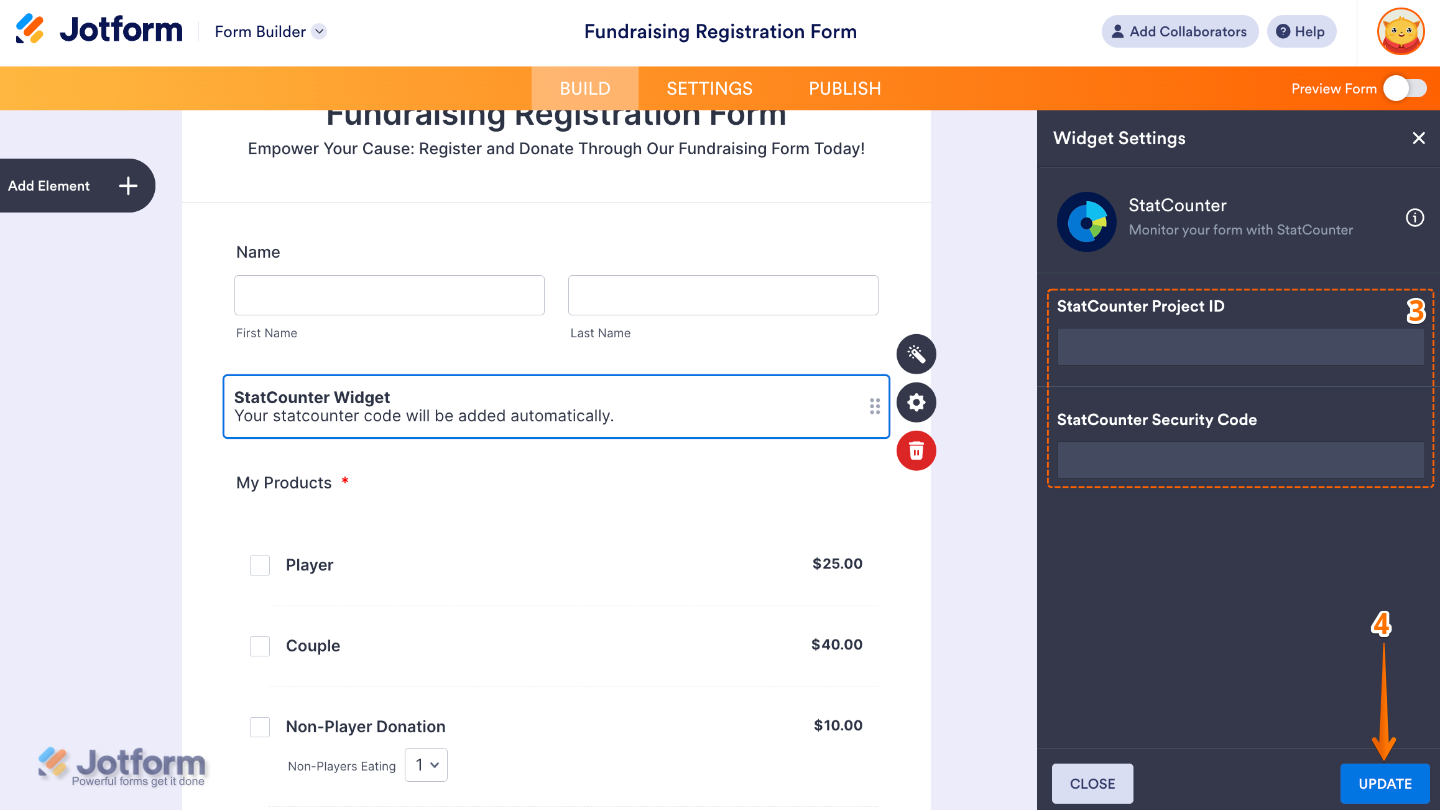
That’s it. You’ve successfully added and set up the StatCounter widget on your form. Now you can easily monitor visitor activity and view counts, giving you helpful insights into how users are engaging with your form.
To further customize your StatCounter field appearance, just click on the Gear icon to open its properties.
Note
For advanced styling, you can add your own custom CSS under the Custom CSS tab in the widget settings and style the StatCounter field. Our guide on How to Inject CSS Codes to Widgets walks you through everything.
Pro Tips
- Make sure you enter the correct Project ID and Security Code. These unique codes link your form to your StatCounter account and ensure your data tracks properly.
- Inform users if you’re tracking visits, and consider adding a privacy note if necessary. Transparency builds trust and avoids confusion.

Send Comment: