With Jotform’s Substring widget, it’s easy to pull out specific parts of a text field—like the first few digits of an ID, the last letters of a code, or anything in between. It works by using the substring function to grab characters between two points in the user’s input. As someone types, the widget reads the selected field and captures only the characters between the index positions you’ve set. It’s a simple way to automate formatting or organize data right inside your form.
Here are a few ways to use it:
- Extract Key Parts of an Entry — If a field contains a long string (like an order number or reference code), you can use the widget to pull out just the section that matters—for example, the last four digits or a prefix.
- Simplify Data Handling — Instead of copying and pasting pieces of text later, let the widget do the trimming for you. It’s perfect for forms that feed into automations or integrations where only part of a value is needed.
- Create Cleaner Reports — When generating reports or tables, the widget helps display only the important parts of a longer string, making your data easier to read and understand.
- Useful for Custom IDs or Tracking Numbers — You can extract certain parts of a generated ID to display in a confirmation email, PDF, or thank-you page without showing the entire code.
Note
The widget only works with text-based fields, like Short Text or Long Text fields.
Adding and Setting Up the Substring Widget
If you need to capture just part of a user’s input, the Substring widget is a handy way to do it. Want to set it up? Just do this:
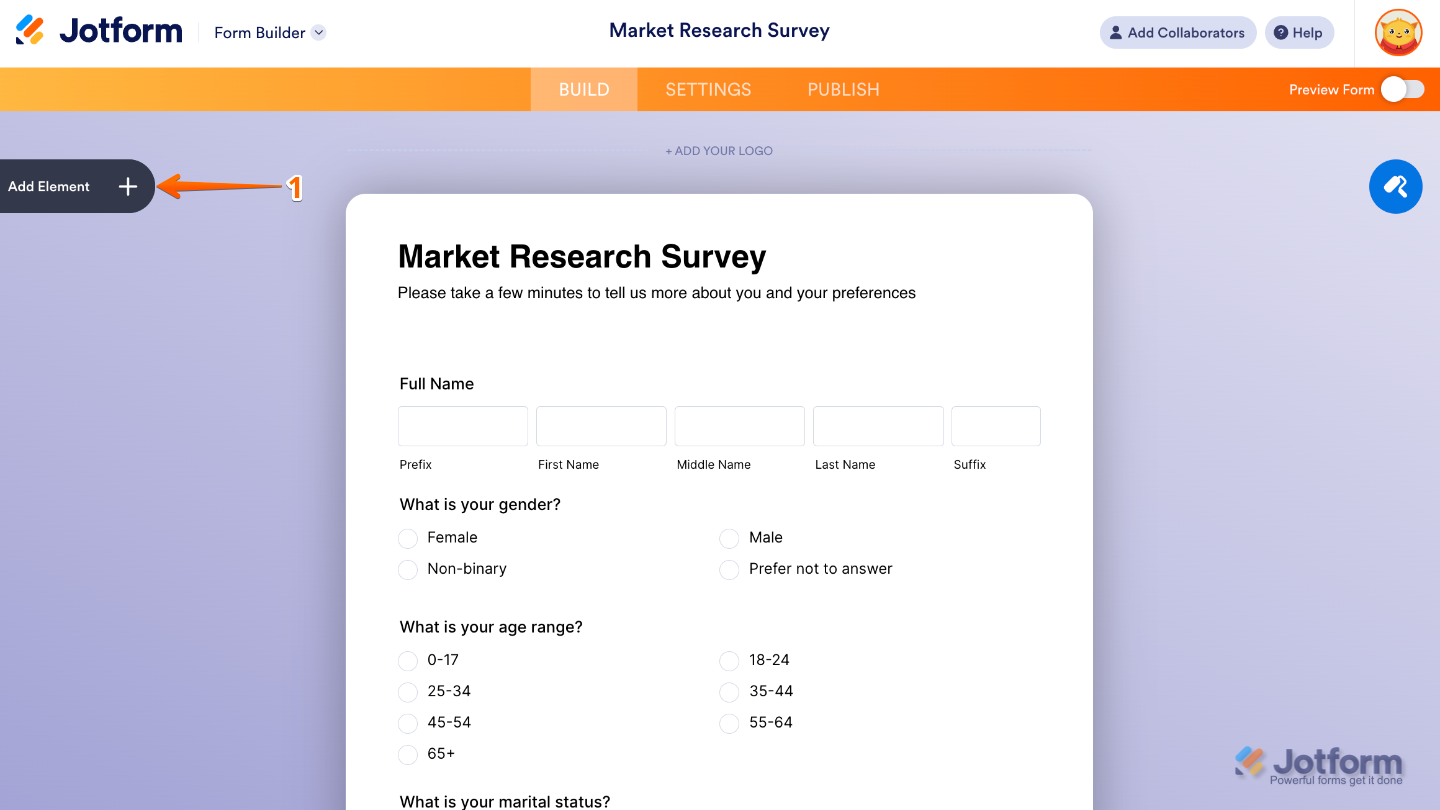
- In Form Builder, click on Add Element on the left side of the page.
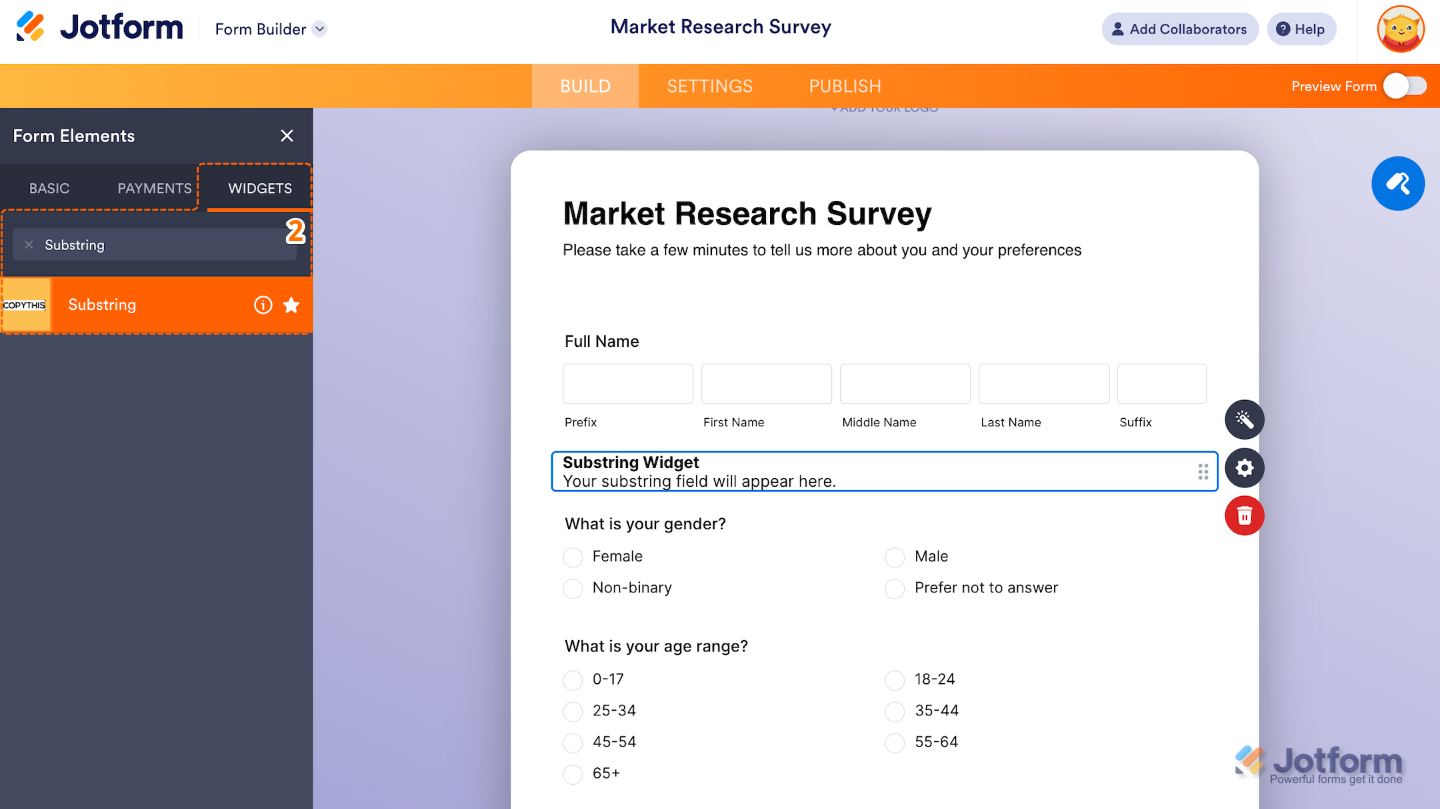
- Now, in the Form Elements menu, under the Widgets tab, search for Substring and then click on it. Or, just drag and drop it to where you want it to be on your form.
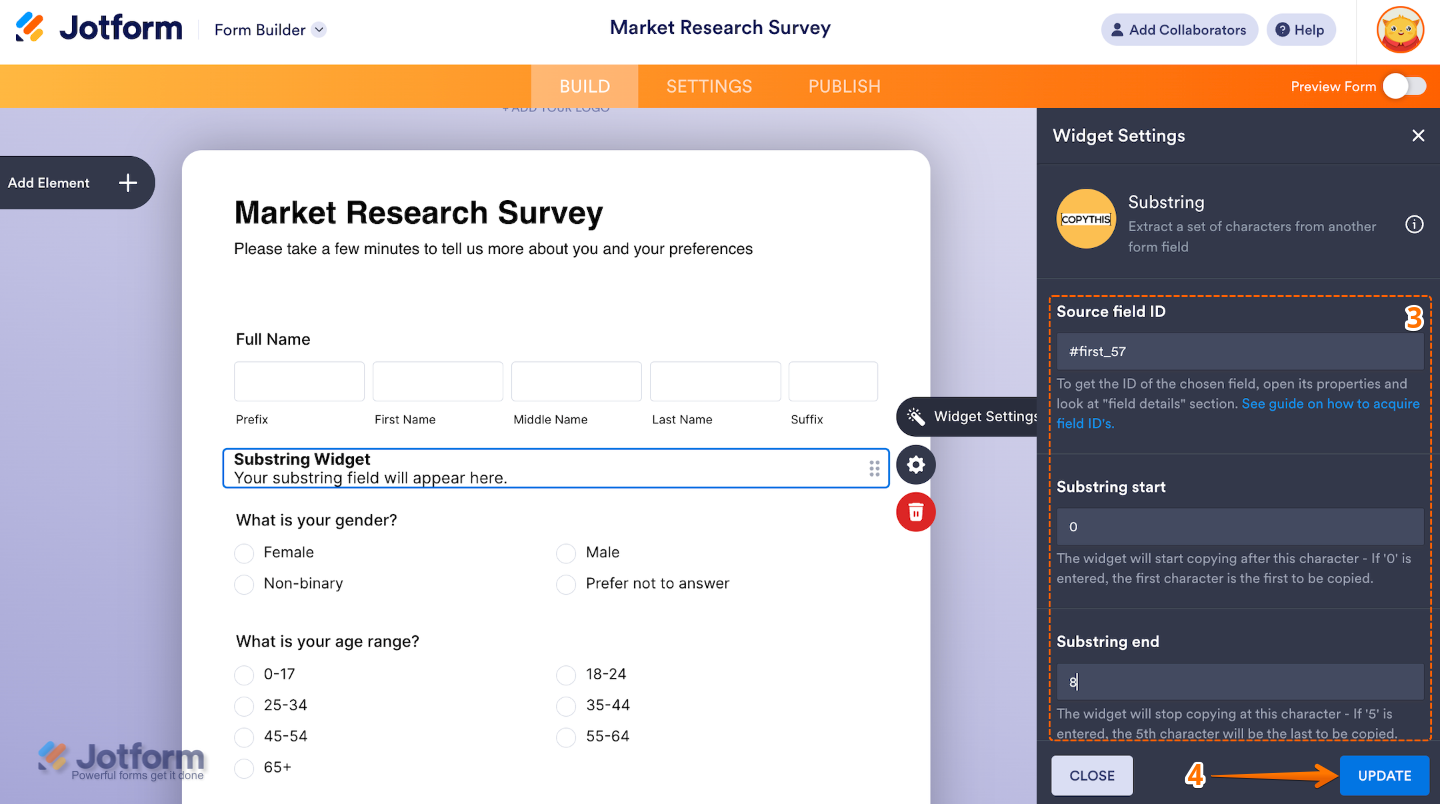
- Next, in the Widget Settings window that opens on the right side of the page, set up the following options:
- Source field ID — Enter here the field ID of the field from which you want to pull the data. To learn how to get the field ID, see our guide on How to Find Field IDs and Unique Names.
- Substring start — This sets the starting position (character index) where the substring should begin.
- Substring end — This sets the ending position (character index) for the substring.
- Once you’re done, click on Update.
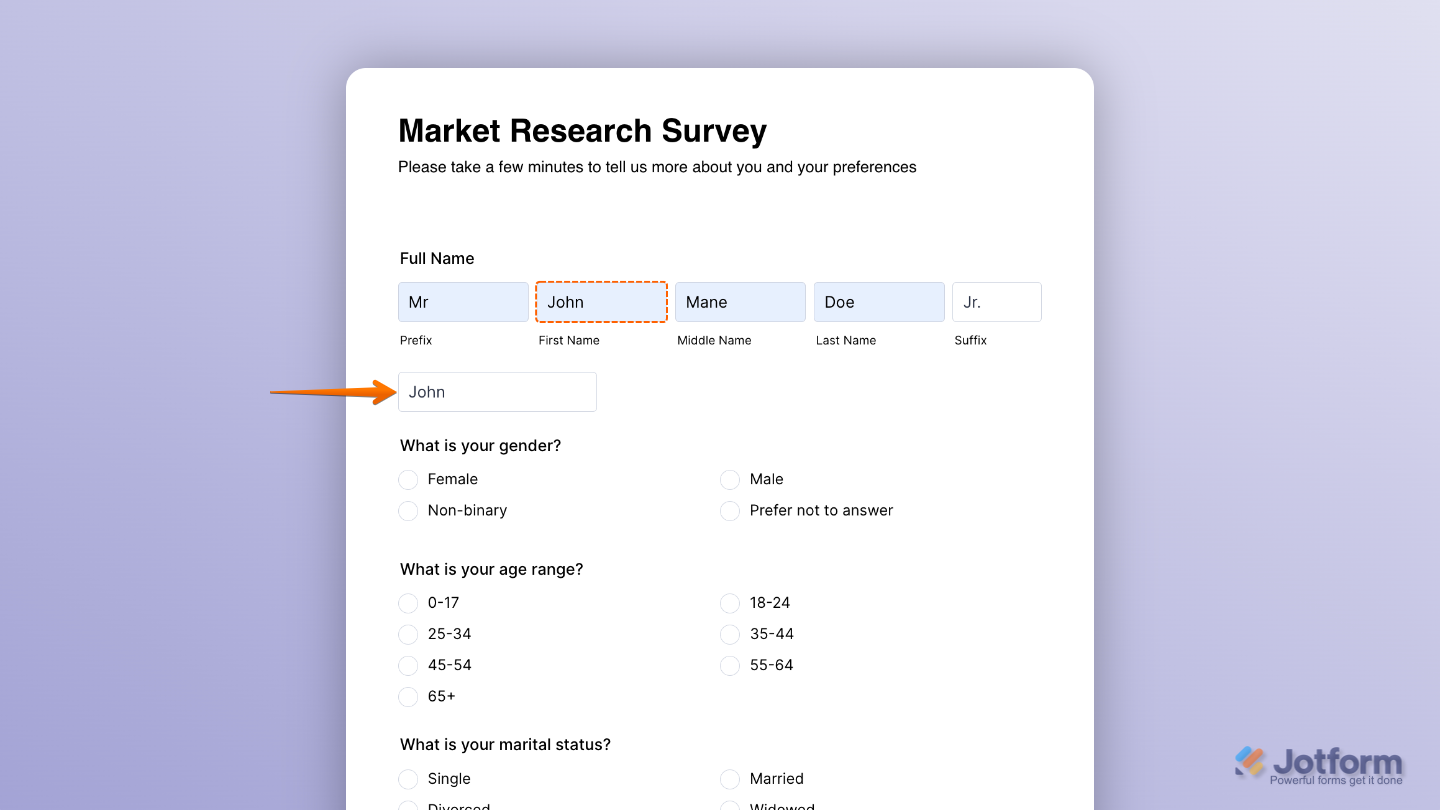
That’s it. You’ve successfully added and set up the Substring widget to your form. Now, you have a field in your form that extracts a portion of text from another form field based on the character positions you define. Wondering how it looks in action? Check out this Demo Form.
To further customize your Substring field appearance, just click on the Gear icon to open its properties.
Note
For advanced styling, you can add your own custom CSS under the Custom CSS tab in the widget settings and style the Substring field. Our guide on How to Inject CSS Codes to Widgets walks you through everything.
Pro Tips
- If you’re extracting from a long field, preview your widget to make sure you’re getting the right character range—test with different inputs.
- Keep labels and helper text clear, so users understand what’s happening if the widget result is shown on the form.

Send Comment: