The Team Approval element in Workflows lets you assign team members to review and approve forms or requests. You can define approval rules, such as requiring a single approver or multiple approvals before proceeding.
This feature streamlines your approval process by establishing a clear workflow, ensuring that each request is reviewed and authorized by the appropriate individuals at the right stage.
Note: Before getting started, you must create a team in your organization. This is important for setting up workflows and ensuring that your team members can be added and collaborate effectively. Once your team is created, you can proceed with configuring your workflows.
Adding the Team Approval Element
Whether you’re setting up a brand-new workflow or adjusting an existing one, adding the Team Approval element is quick and simple—and can be done in just a few easy steps. Here’s how to get going:
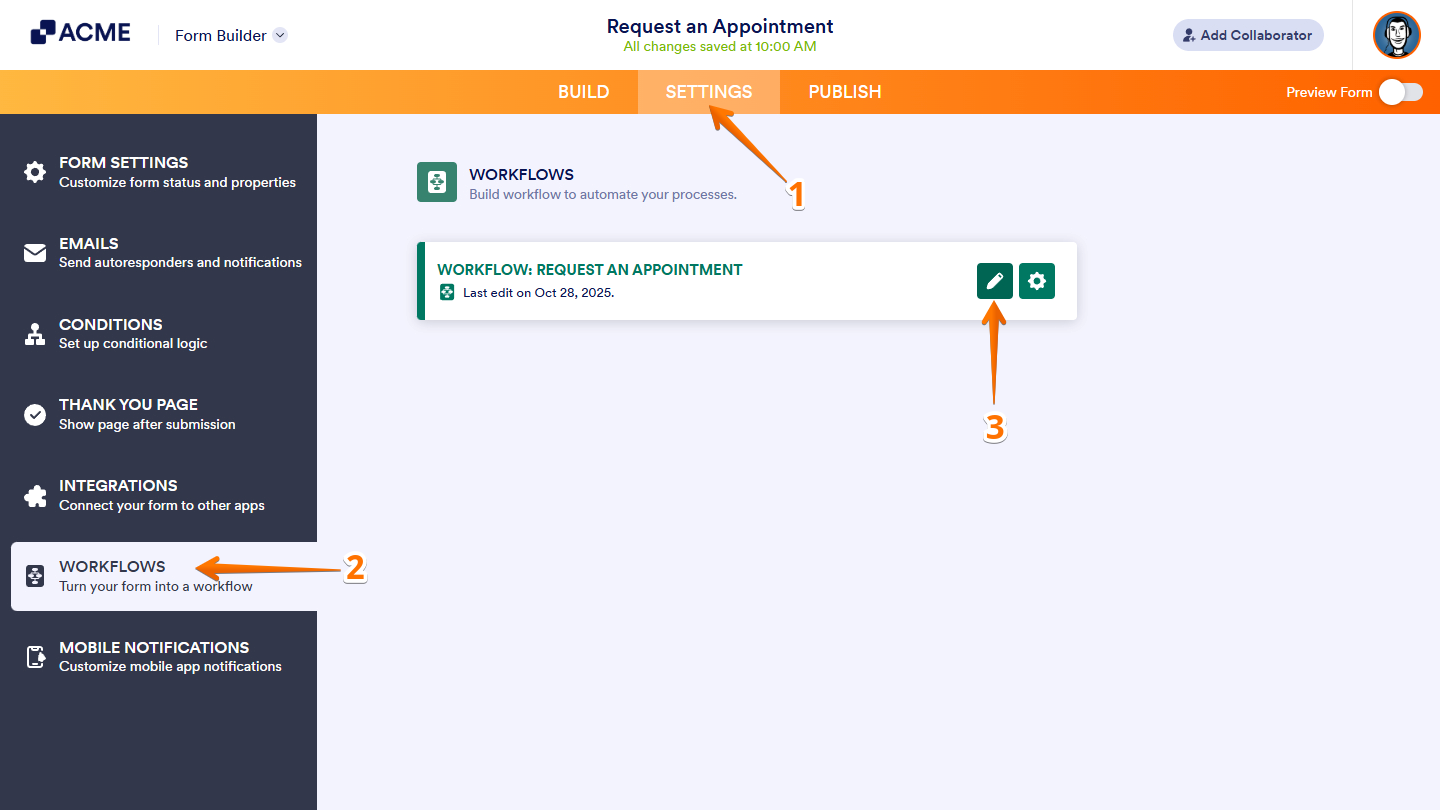
- In Form Builder, in the orange navigation bar at the top of the page, click on Settings.
- Then, in the menu on the left, click on Workflows.
- Next, hover your mouse over the Workflow on the right and click on the Pencil icon to edit it.
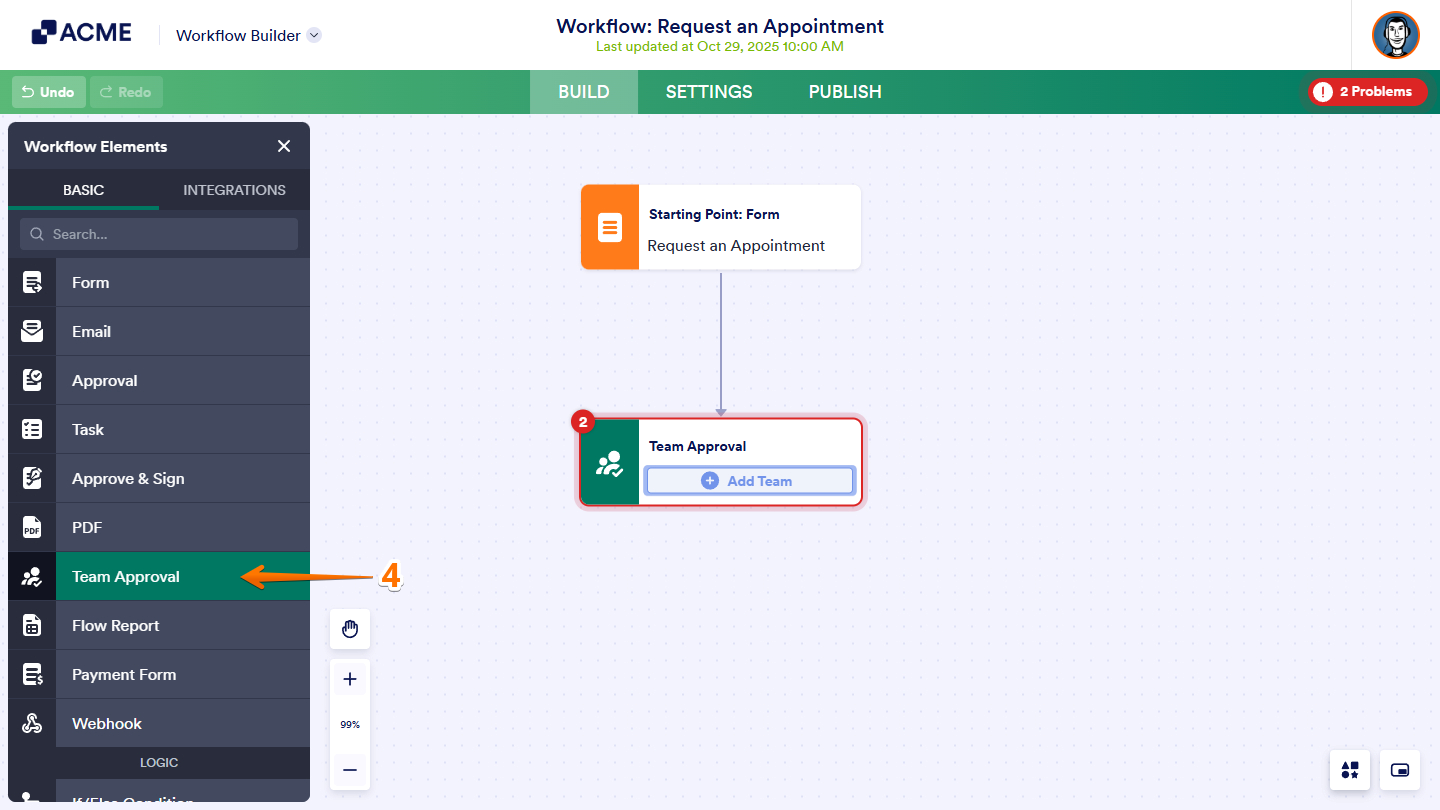
- In the Workflow Elements menu on the left side of the Workflow Builder, go to the Basic tab and click on Team Approval to add it. Or, just drag and drop it to where you want it to be in your workflow.
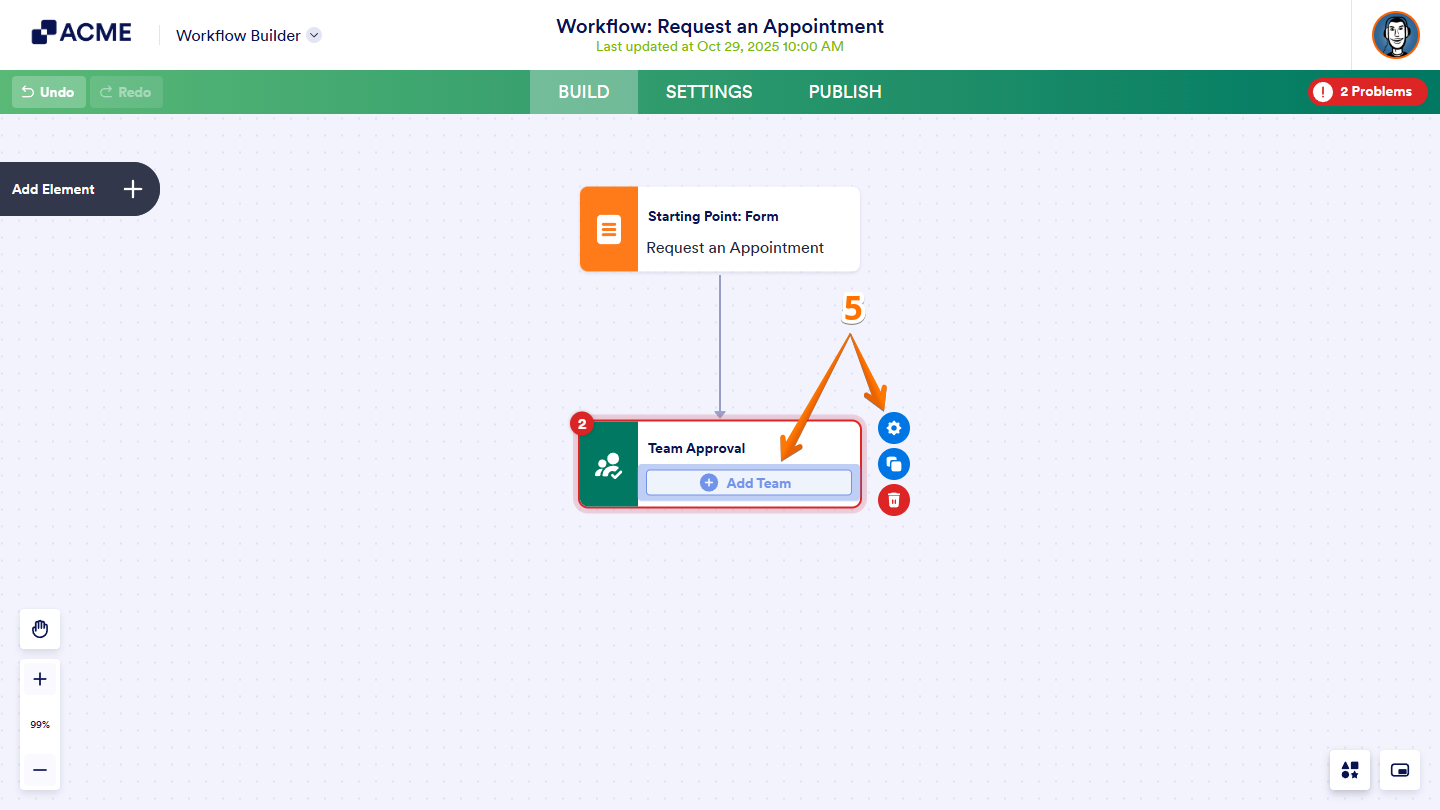
- Then, in the Team Approval element, click on the Add Team button or Gear icon to open the Team Approval Properties menu.
Setting up the General Tab
In the General tab of the Team Approval element, you can configure the key settings that shape your approval process. Define who approves submissions, how approvals are managed, and how notifications are delivered. Whether you’re setting approval rules, requiring signatures, or customizing email alerts, this tab gives you complete control over how approvals are handled within your workflow.
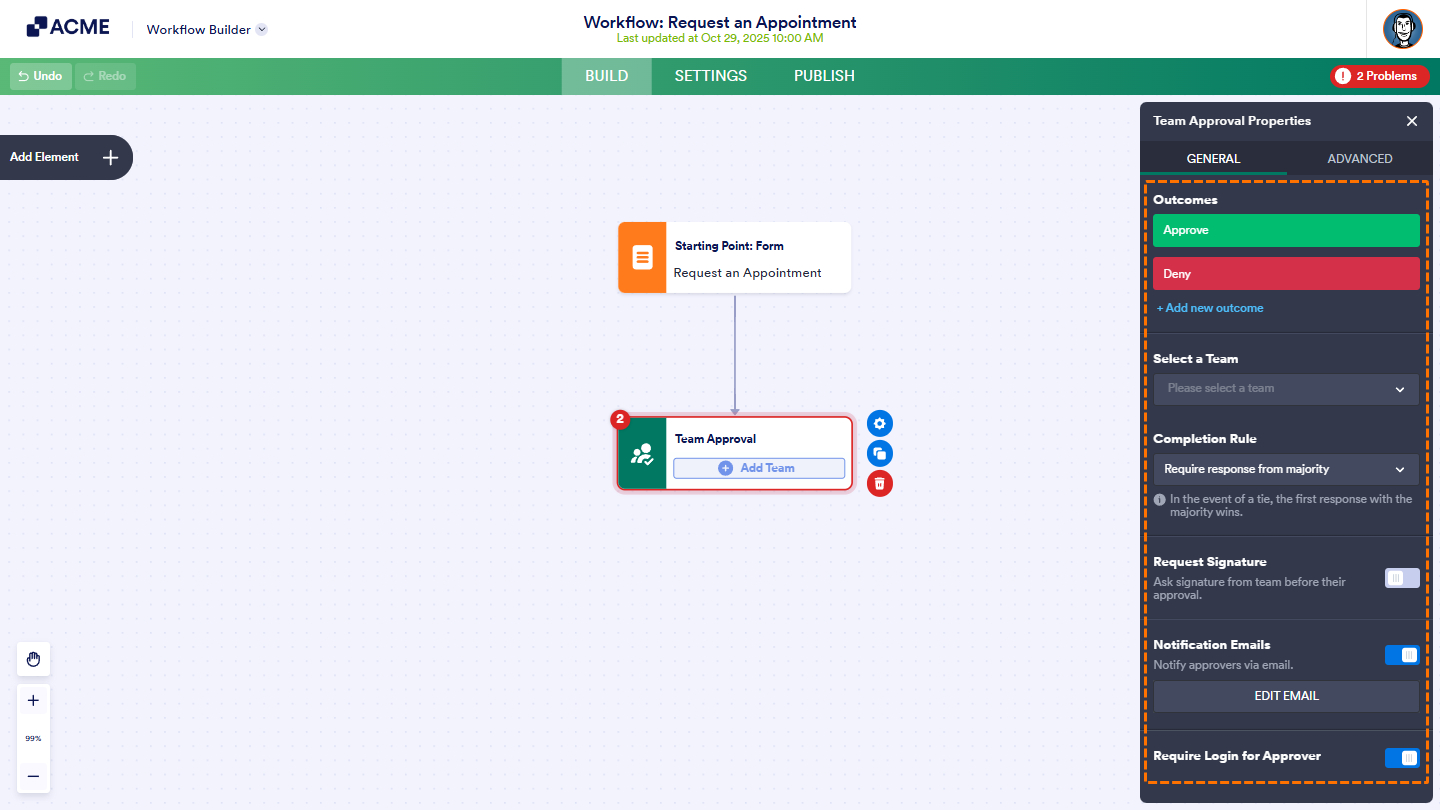
Below is an overview of each feature available in the General Tab:
- Outcome — Add or remove outcomes according to your approval process.
- Select a Team — Select the team responsible for reviewing and approving the request.
- Completion Rule — Select how approvals are completed. You can require a response from one member, all members, a majority, or a specific number of approvers.
- Request Signature — Enable this option to require team members to provide a signature before approving the request.
- Notification Emails — Turn this on to send email notifications to approvers when a new request requires their review.
- Edit Email — Click Edit Email to customize the notification’s subject line and message content. You can also specify the recipient address and attach PDF files if needed.
- Require Login for Approver — Enable this option to require approvers to sign in with their organization account before they can submit their approval.
Note: When you select the Require Response from Majority, Require Response from All, or Require Certain Number of Responses options, in the event of a tie, the first response with the majority wins.
Setting up the Advanced Tab
In the Advanced tab of the Team Approval element, you’ll find additional options to refine and optimize your approval process. These settings let you handle tasks that require more time, information, or follow-up. You can request additional details, set reminders, or automatically escalate pending approvals to ensure tasks are completed accurately and on time.
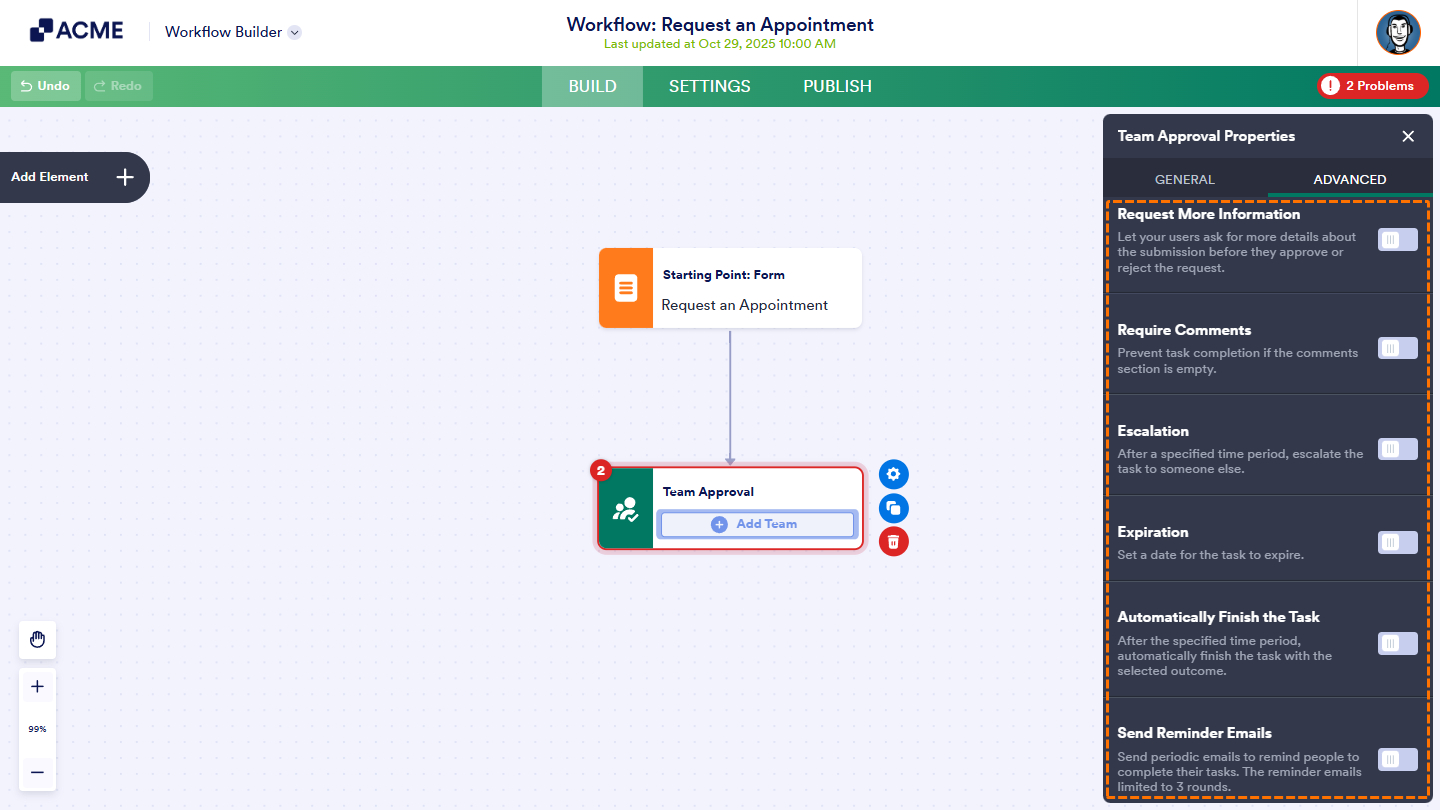
Here’s a quick overview of the options available in the Advanced Tab:
- Request More Information — Allow approvers to request additional details before approving or rejecting a submission.
- Require Comments — Force approvers to add a comment before they can complete the task.
- Escalation — Automatically reassign or escalate the task to another person after a set time.
- Expiration — Set a date or time after which the task expires.
- Automatically Finish The Task — After the specified period, automatically mark the task complete with the chosen outcome.
- Send Reminder Emails — Send periodic email reminders to prompt approvers to complete their tasks.
Connecting the Team Approval Element
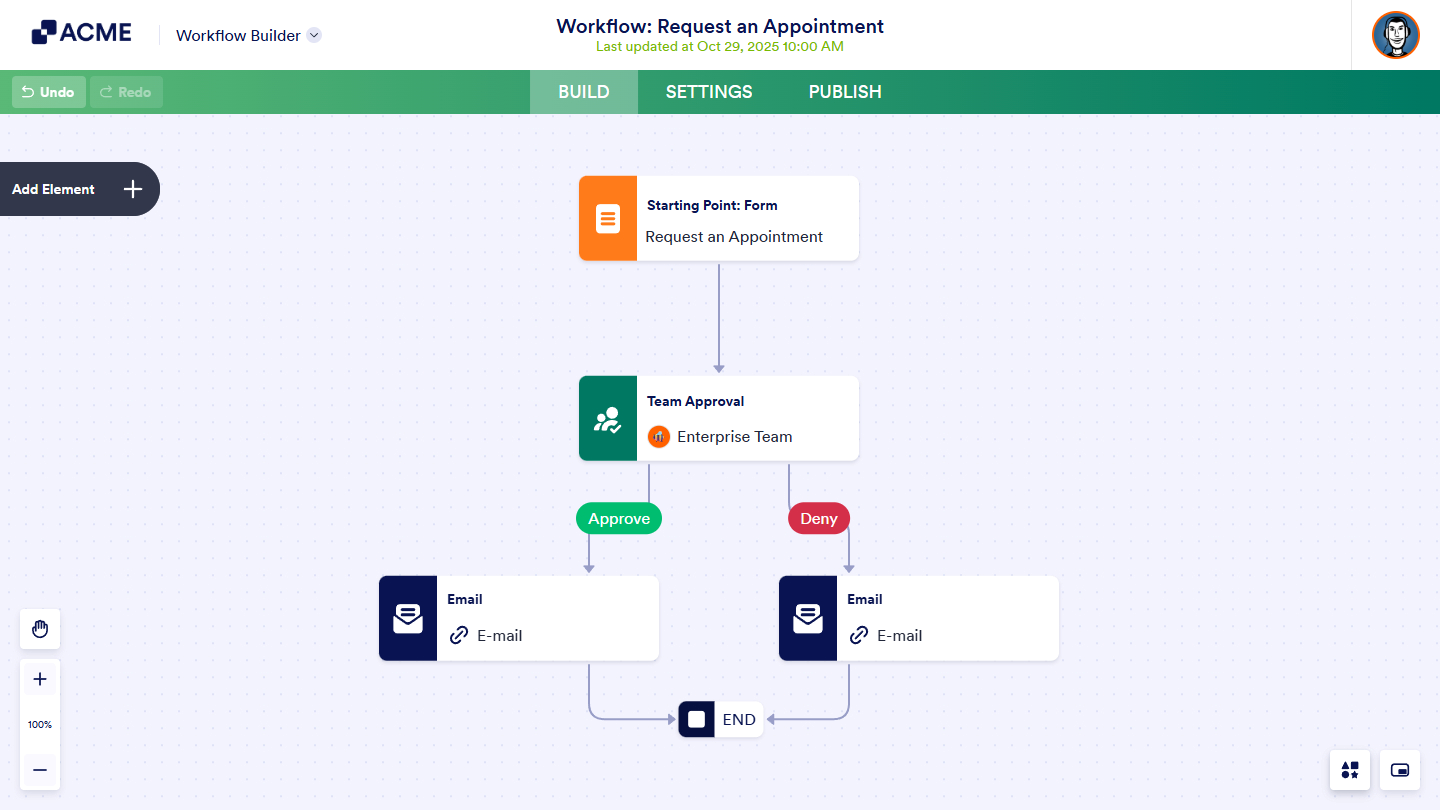
Once finished, continue building your workflow by adding additional elements and connecting them in the Workflow Builder. Use flow lines to link the Team Approval element with other components, ensuring a smooth and logical process flow.

Send Comment: