With Jotform, you can easily bring your live events straight to your audience — right inside your form. The Vimeo Livestream widget lets you embed livestreams, webinars, virtual conferences, and recorded videos in just a few clicks, giving people an effortless way to watch without leaving the page.
This makes your forms more engaging and interactive, whether you’re hosting an online event, gathering registrations, or sharing important broadcasts. It’s a simple way to keep viewers focused, make your content more accessible, and create a smoother experience for anyone who needs to tune in.
Here are a few ways to use it:
- Embed live or recorded Vimeo Livestream videos directly in your form.
- Promote upcoming broadcasts, webinars, or virtual events.
- Let viewers watch your stream while submitting registrations, feedback, or sign-ups.
- Enhance training, onboarding, or educational forms with real-time video content.
- Add event previews or highlight reels to boost interest and engagement.
- Create a more interactive experience for participants during conferences or workshops.
- Keep viewers on one page instead of sending them to an external streaming link.
Adding and Setting Up the Widget
Whether you’re creating a new form or updating an existing one, you can add and set up the Vimeo Livestream widget in a few easy steps. Here’s how to do it:
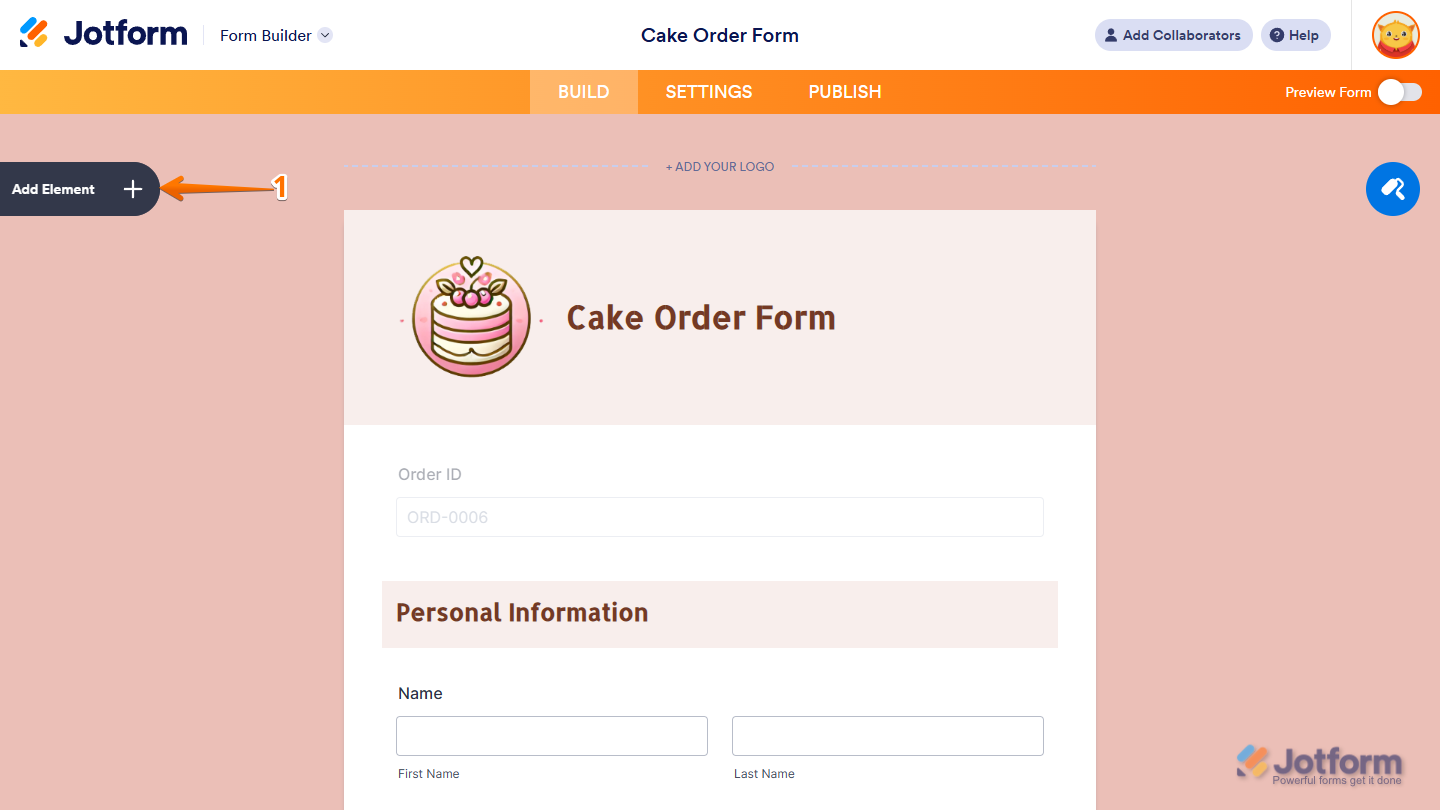
- In Form Builder, click on Add Element on the left side of the page.
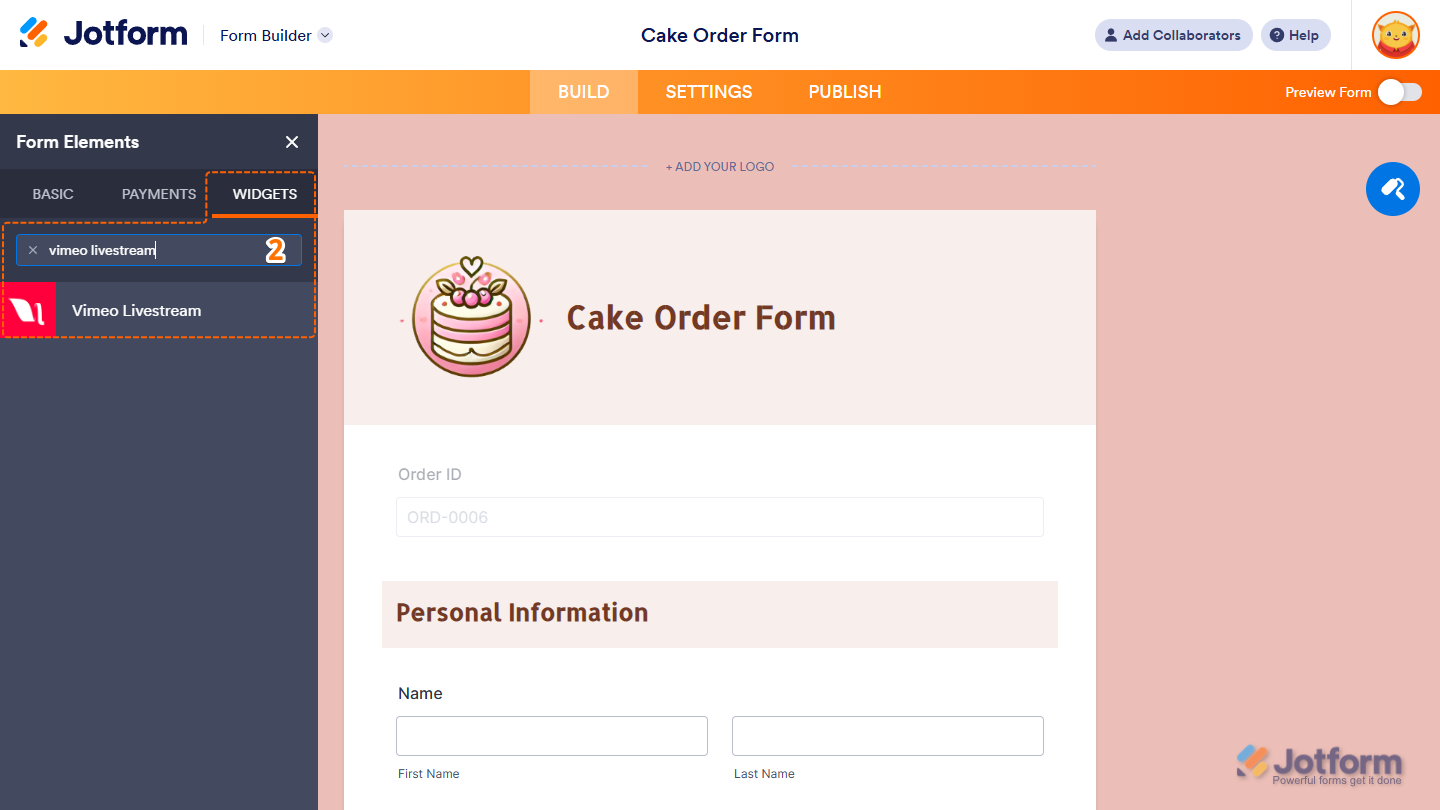
- Now, in the Form Elements menu, under the Widgets tab, search for Vimeo Livestream and click on it. Or, just drag and drop it to where you want it to be on your form.
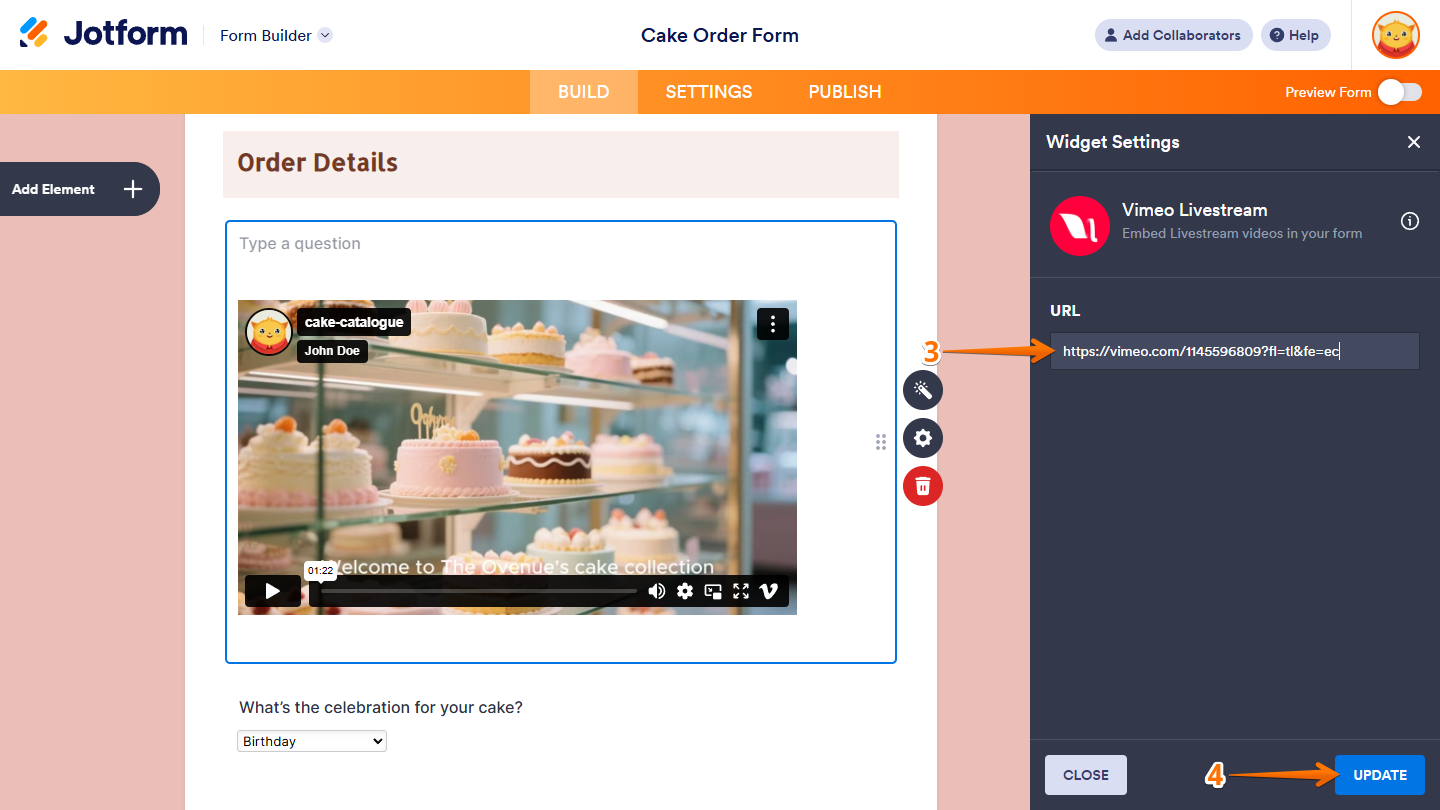
- Next, in the Widget Settings menu that opens on the right side of the page, under the General tab, delete the default link in the URL Input box and enter the URL of the video from Vimeo Livestream that you want to display in your form. If you’re not sure where to find this, check out Getting Your Video URL below.
- Once you’re done, click on Update.
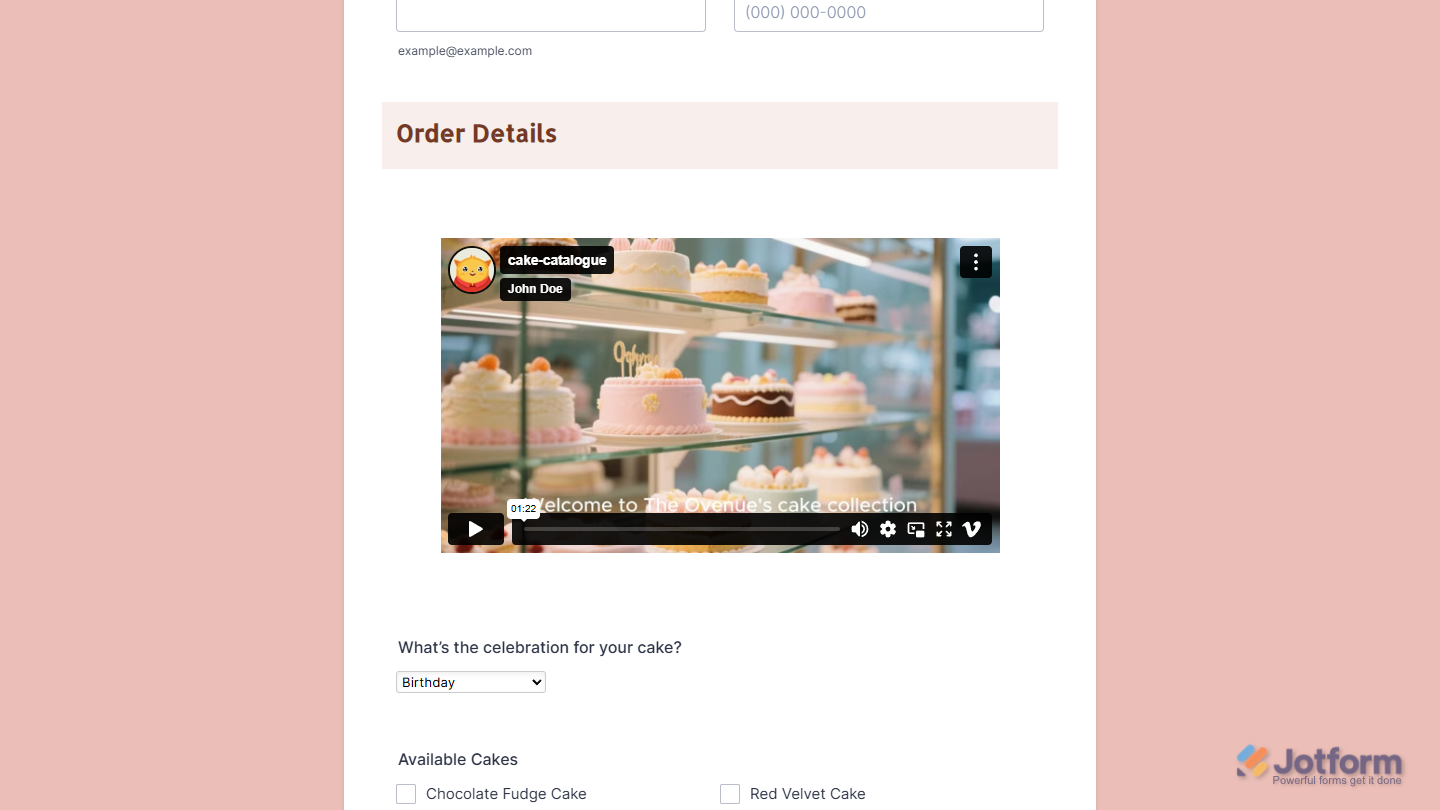
That’s it. Now you’ve added and set up the Vimeo Livestream widget on your form. Wondering how it looks in action? Check out this demo form.
Note
You can also configure the widget properties, like alignment, labels, size, visibility, and more, to control how it looks and behaves on your form. Check out our guide on How to Access and Configure the Question Properties of a Widget to learn more.
Getting Your Video URL
If you want to copy the link to your Vimeo Livestream video, here’s how to find it:
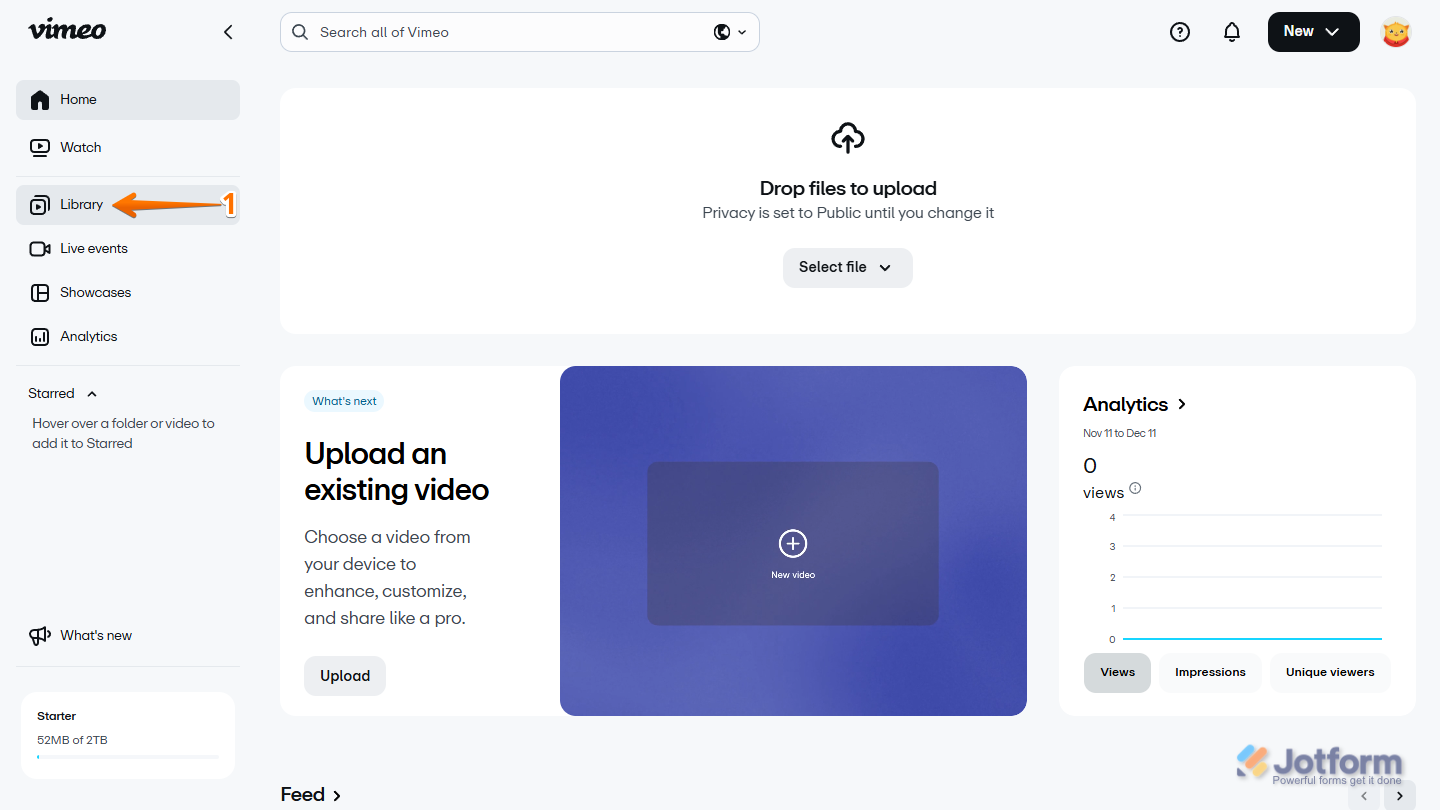
- Log in to Vimeo Livestream and, in the menu on the left side of your Account Home page, click on Library.
- Now, in the Library section, hover your mouse over the video you want to use, and click on the Link icon that appears on the right side of it.
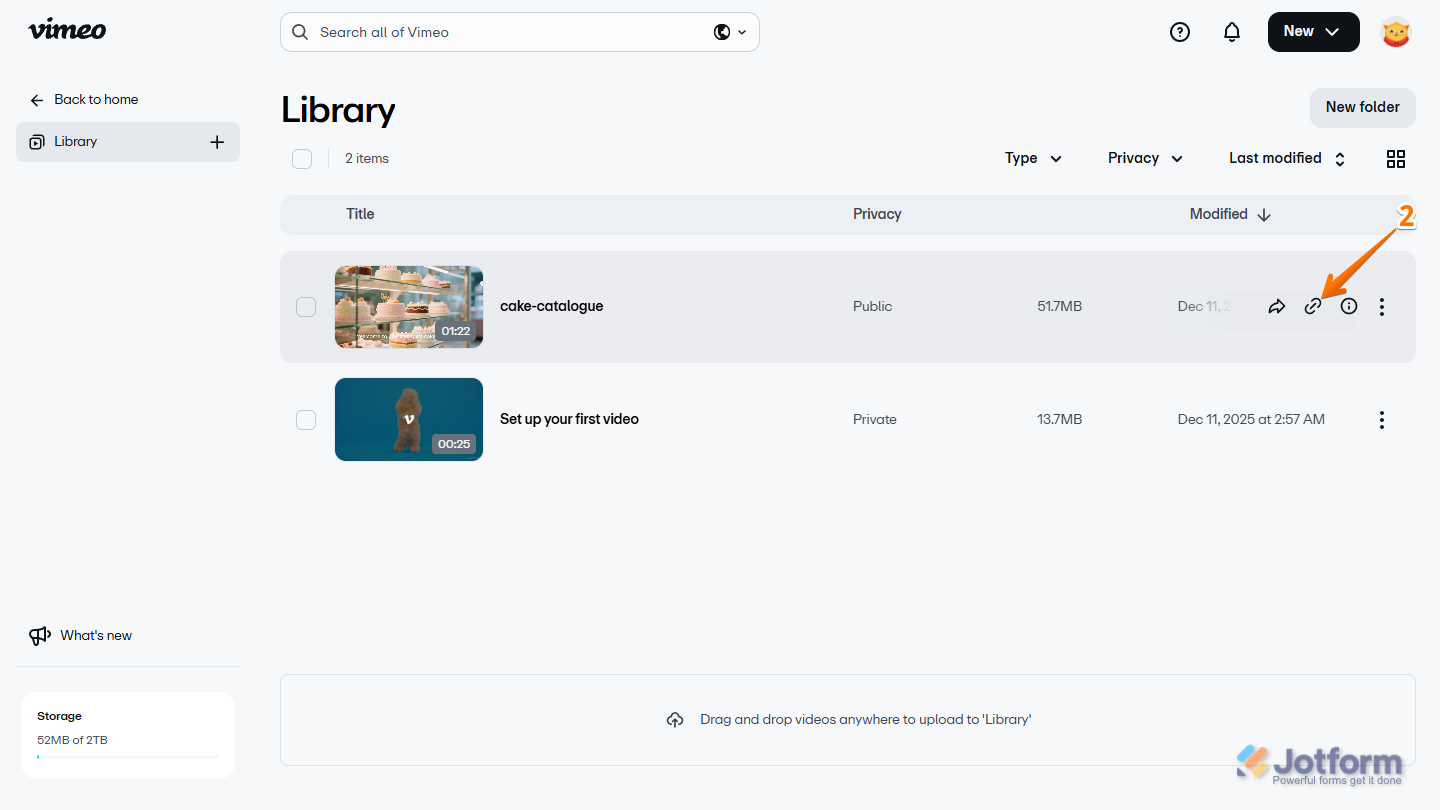
That’s it! Now you have your Vimeo Livestream video link, and you’re ready to add it to your form.

Send Comment: