The W3Counter widget is a handy tool to get a better idea of how many people are visiting your form and interacting with it. It tracks visitor activity in real time, giving you insights into page views, unique visitors, and other useful statistics. It’s a simple way to see how your form is performing without needing any complicated setup or additional analytics software. Adding and setting up the W3Counter Widget is quick and straightforward. Once integrated, it quietly works in the background to collect data while your users focus on filling out the form.
Here are a few ways to use it:
- Track Form Visits With Ease — The W3Counter Widget quietly keeps count of how many people visit your form. It’s a simple way to see whether your form is getting attention—without setting up complex analytics.
- See Which Forms Get the Most Traffic — If you manage multiple forms, this widget helps you spot which ones are attracting the most visitors. That insight can guide where to focus your improvements or promotions.
- Measure Campaign Performance — If you’re sharing your form through email, social media, or ads, the W3Counter helps you see whether those efforts are driving real traffic, so you know what’s working and what’s not.
- Understand Engagement at a Glance — By comparing visits with actual submissions, you can quickly tell if users are dropping off before finishing. This makes it easier to tweak your form layout, wording, or flow.
Adding and Setting Up the W3Counter Widget
Adding the W3Counter widget to your form makes it easy to track visitor statistics and understand how people interact with your page. Its lightweight setup helps you collect useful insights without slowing things down. Here’s the quick way to do it:
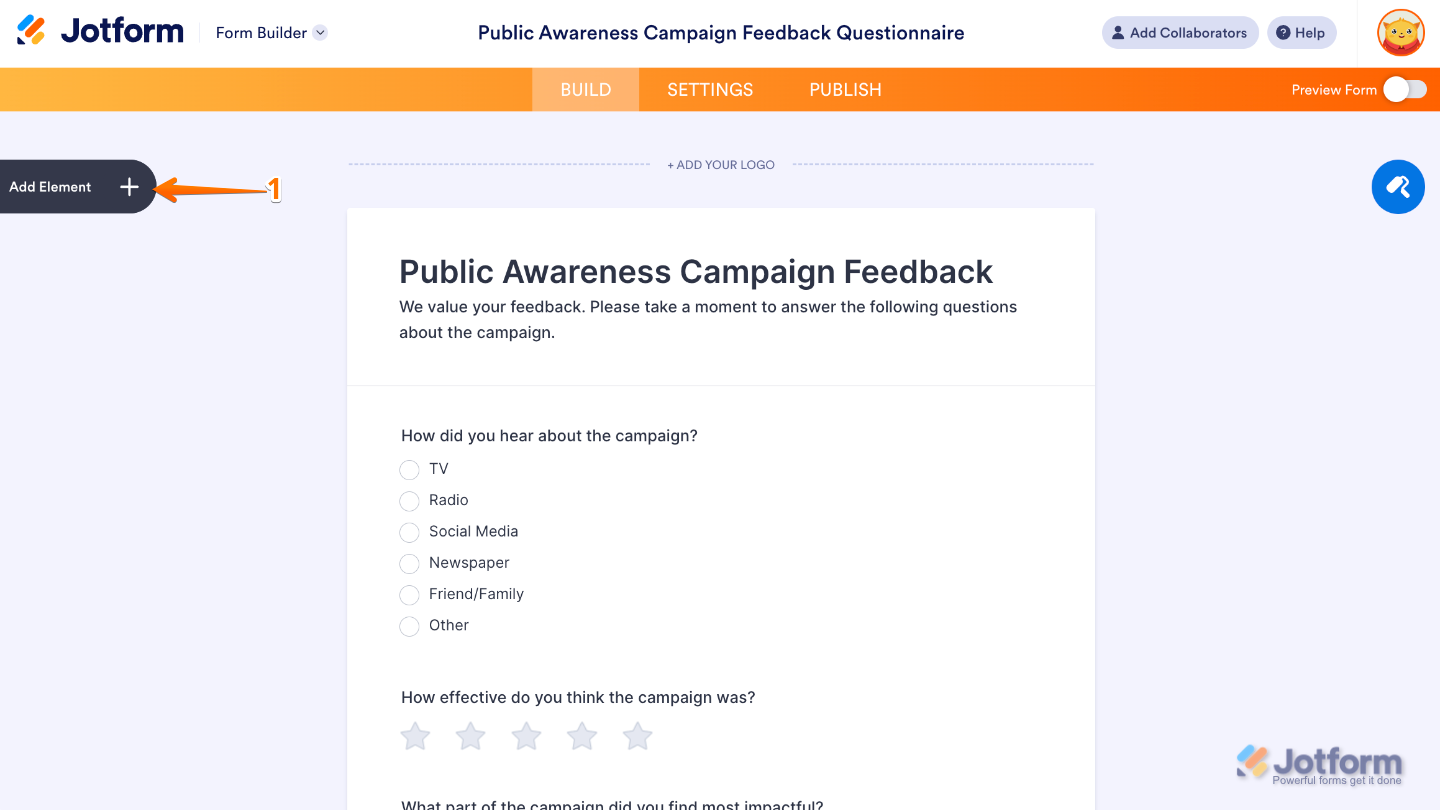
- In Form Builder, click on Add Element on the left side of the page.
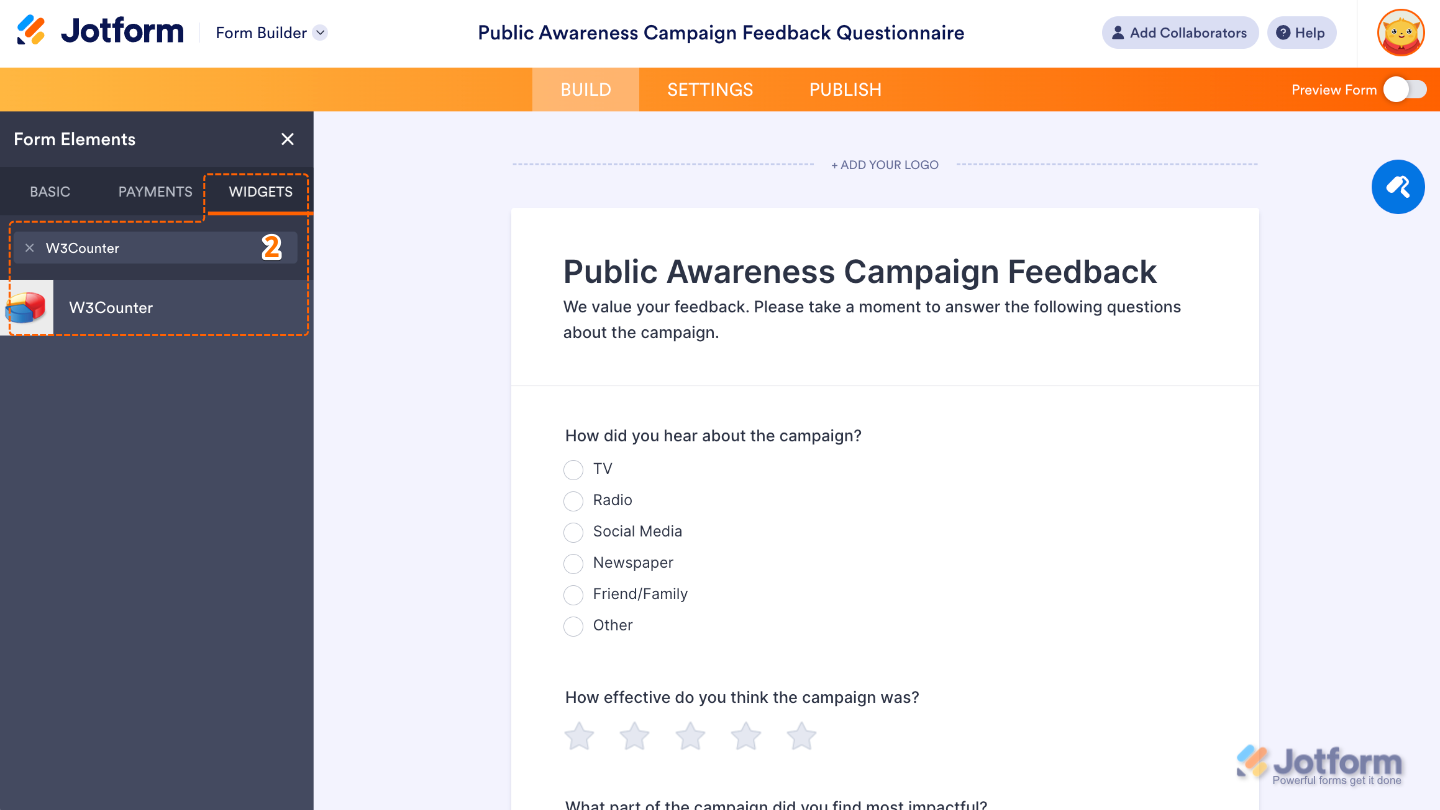
- Now, in the Form Elements menu, under the Widgets tab, search for W3Counter and then click on it. Or, just drag and drop it to where you want it to be on your form.
- Next, in the Widget Settings menu that opens on the right side of the page, set up the Your W3 ID option and enter the unique identifier from your W3Counter account.
- Once you’re done, click on Update.
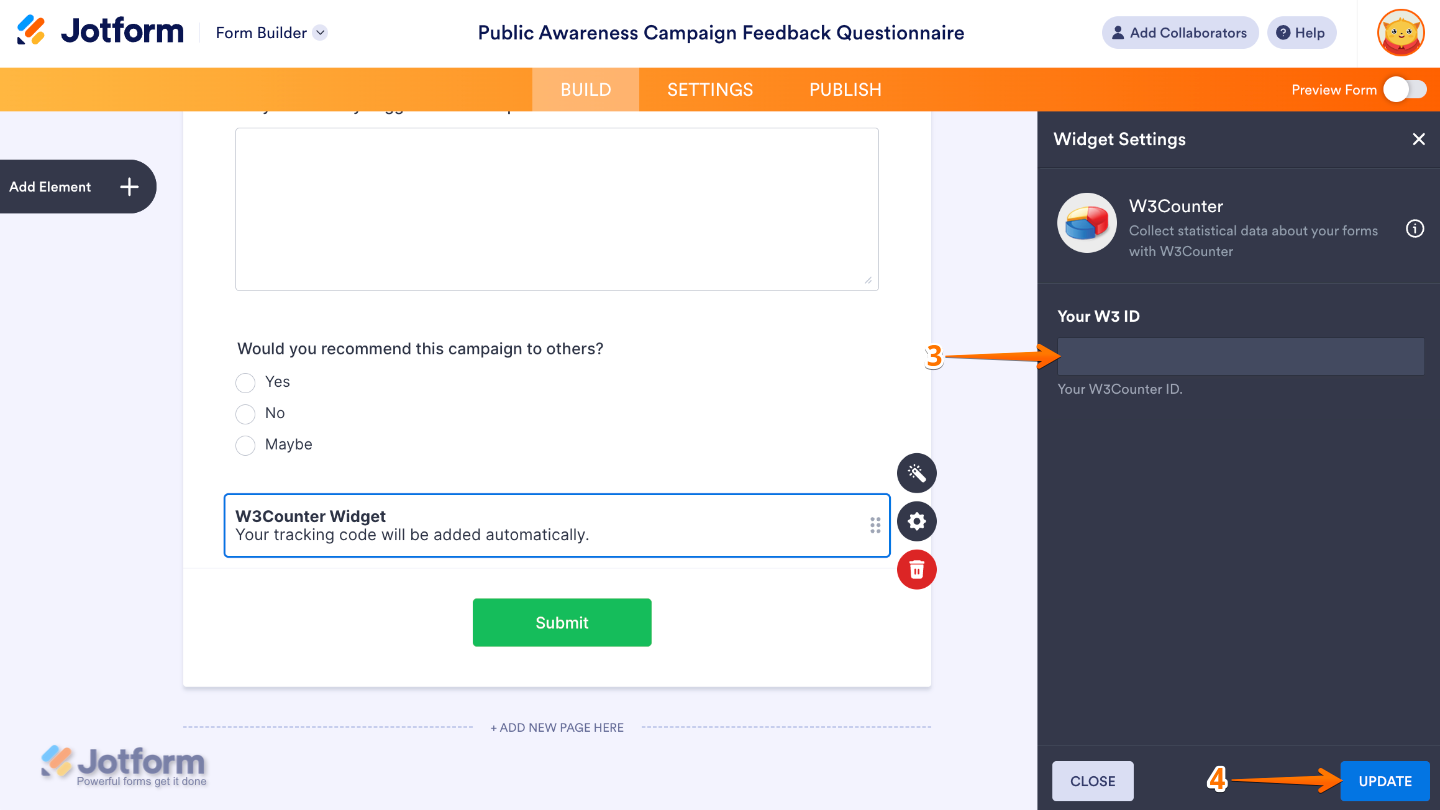
That’s it. You’ve successfully added and set up the W3Counter widget on your form. Now you can easily monitor visitor traffic and engagement, giving you clear insights into how users interact with your form.
You can also configure the widget properties, like alignment, labels, size, visibility, and more, to control how it looks and behaves on your form. To learn how it’s done, see our guide on How to Access and Configure the Question Properties of a Widget.
Pro Tips
- Be mindful of privacy regulations. If your form collects personal data, consider adding a note that analytics are being tracked. Transparency builds trust.
- After adding the widget, submit a test entry and check your W3Counter dashboard to ensure traffic is being recorded properly.

Send Comment: