The Yandex Metrica widget helps you do exactly that by giving you valuable insights into visitor behavior—like where users click, how far they scroll, and how they move through your form. With this widget, powered by Yandex Metrica, you can easily see where users get stuck, adjust your layout to flow better, and make smarter choices to improve your form. When you understand how people actually interact with your form, it becomes much easier to boost completion rates and create a smoother, more enjoyable experience for everyone.
Here are a few ways to use it:
- See How Visitors Interact With Your Form — The Yandex Metrica Widget helps you understand what users actually do on your form—where they click, how far they scroll, and which parts grab their attention. It’s like quietly observing user behavior so you can design smarter forms.
- Identify Drop-Off Points — With Yandex Metrica tracking in place, you can spot sections that may be confusing, too long, or easy to improve—helping you boost completion rates.
- Understand User Behavior With Heatmaps — Yandex Metrica is known for its heatmaps, and this widget lets you use those insights for your form. You can see which fields users interact with the most and which ones they skip, making it easier to optimize layout and flow.
- Improve Mobile vs. Desktop Experience — By tracking visits across devices, you’ll learn how users behave differently on phones, tablets, or desktops. This helps you fine-tune your form so it feels smooth and user-friendly on every screen size.
Adding and Setting Up the Yandex Metrica Widget
Adding the Yandex Metrica widget to your form helps you track visitor behavior and performance with ease. Its seamless integration gives you valuable insights into how users interact with your form, so you can make smarter, data-driven improvements. Here’s how to get started:
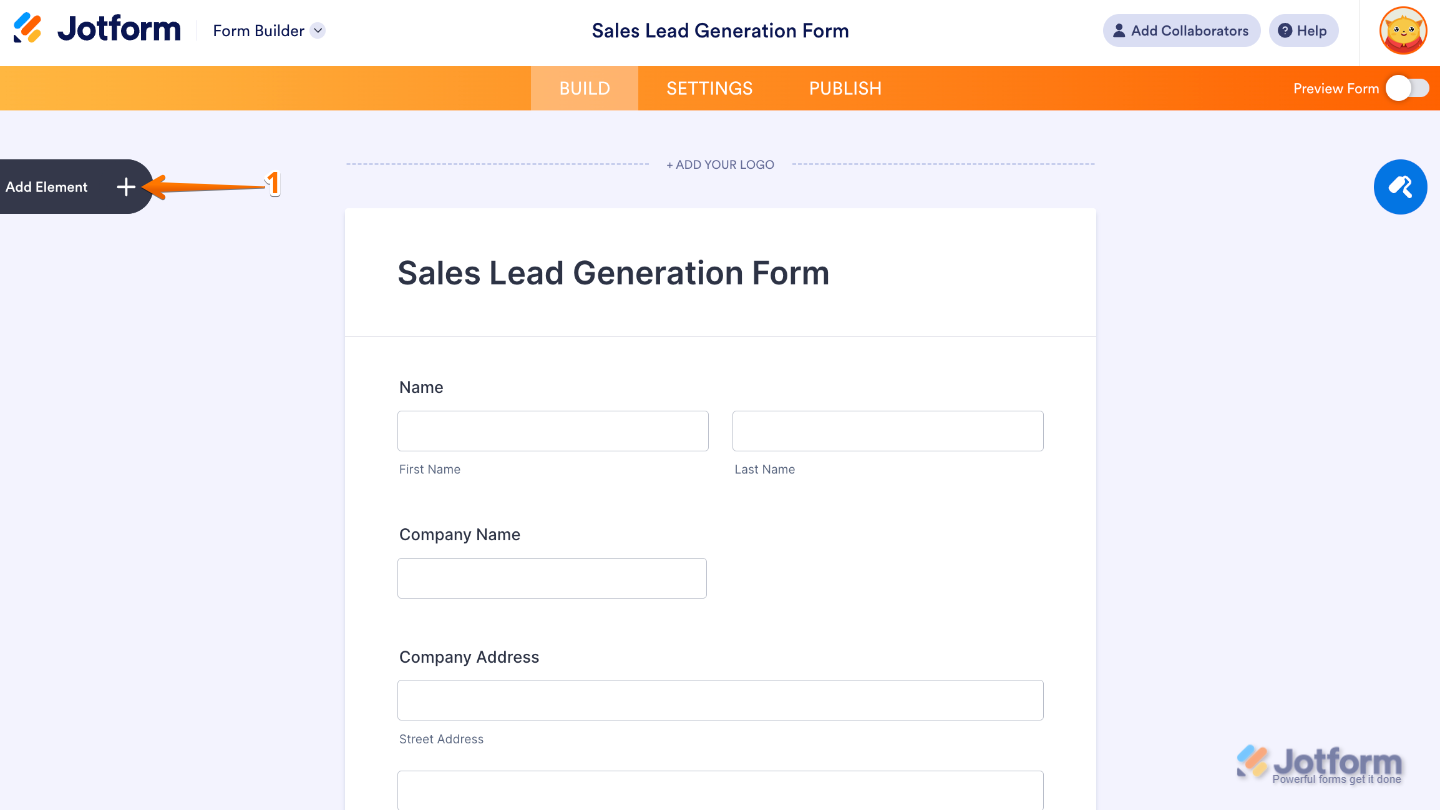
- In Form Builder, click on Add Element on the left side of the page.
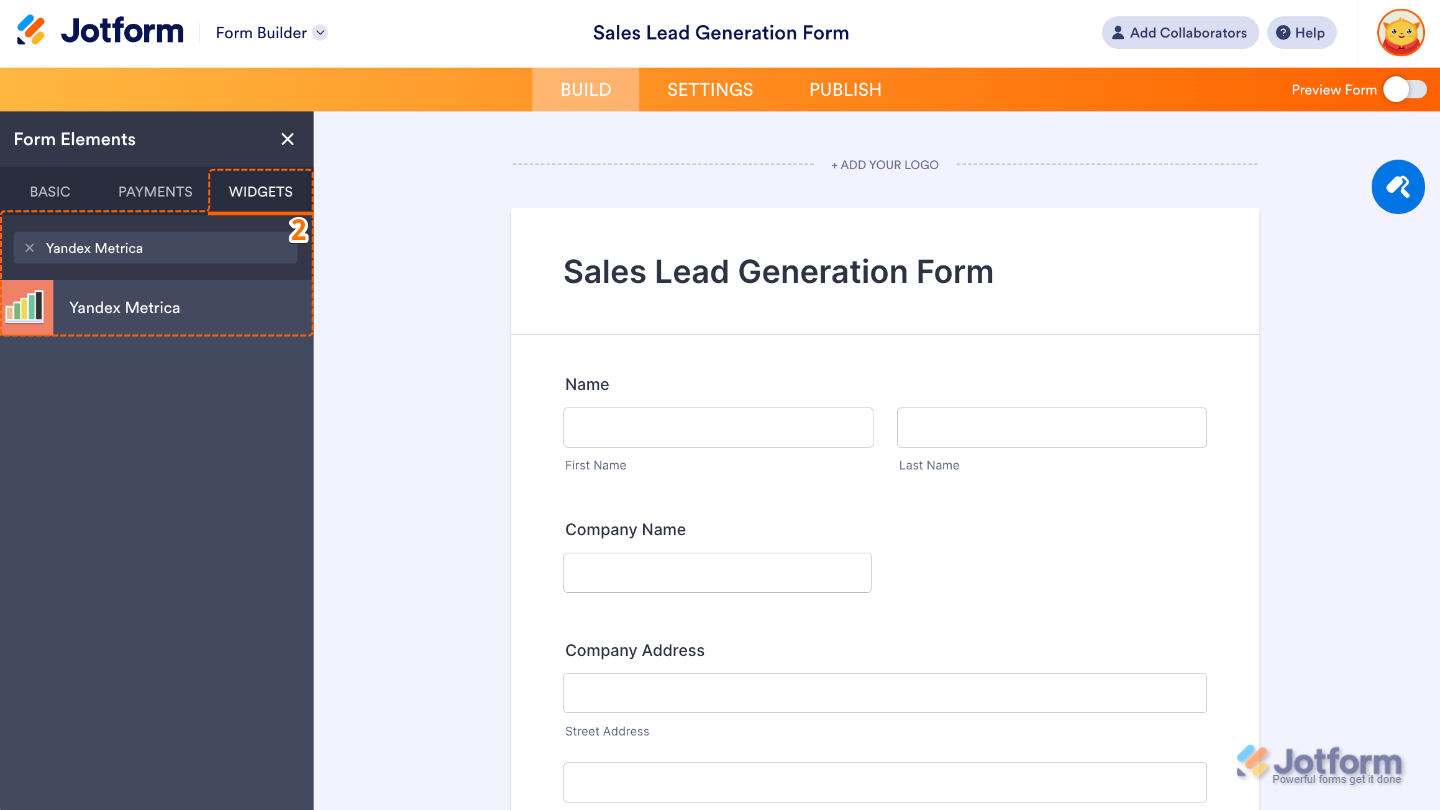
- Now, in the Form Elements menu, under the Widgets tab, search for Yandex Metrica and then click on it. Or, just drag and drop it to where you want it to be on your form.
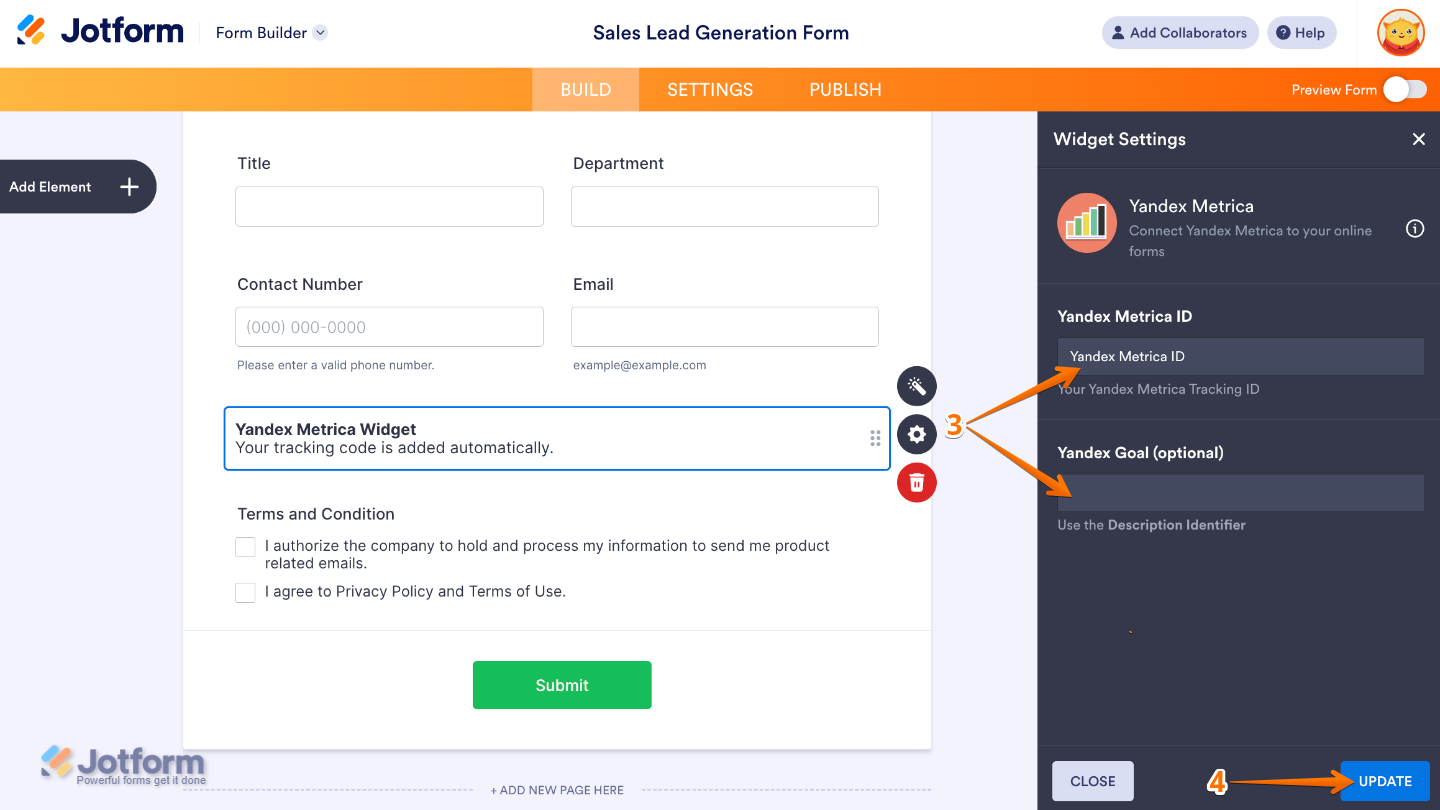
- Next, in the Widget Settings menu that opens on the right side of the page, set up these options:
- Yandex Metrica ID — Enter your unique tracking ID from Yandex Metrica. It tells the widget exactly which Yandex Metrica account should collect data from your form.
- Yandex Goal —Set this up to track specific actions as goals, such as form submissions or key steps in your form.
- Once you’re done, click on Update.
That’s it. You’ve successfully added and set up the Yandex Metrica widget on your form. Now you can easily track visitor activity and gain deeper insights into how users interact with your form.
You can also configure the widget properties, like alignment, labels, size, visibility, and more, to control how it looks and behaves on your form. To learn how it’s done, see our guide on How to Access and Configure the Question Properties of a Widget.
Pro Tips
- Before adding the widget, double-check your Yandex Metrica ID. A correct ID ensures your form visits and interactions are tracked accurately from the start.
- Yandex Metrica is great for spotting where users pause or drop off. Use this info to simplify questions, rearrange fields, or break long forms into steps.
- Submit a test response and visit your form yourself. Then check your Yandex Metrica dashboard to make sure activity is being recorded correctly.

Send Comment: