Collecting accurate location information just got a whole lot easier with the Zip Code Auto-Suggest Widget. Instead of having users type in their zip code manually, this widget provides suggestions as they type, helping them enter the correct information quickly and accurately. It’s perfect for registration forms, surveys, or any form where location matters — reducing errors and saving your users time.
Setting up the Zip Code Auto-Suggest Widget is simple and straightforward. You can customize how the suggestions appear and make sure it fits seamlessly with your form’s design. In just a few steps, you’ll have a smarter, more user-friendly form that helps users provide accurate data effortlessly.
Here are a few ways to use it:
- Speed Up Address Entry — Users don’t have to type the whole address themselves. A few keystrokes, and the widget suggests the correct locations—perfect for busy respondents.
- Reduce Errors — Typos and misformatted addresses can be a headache. This widget ensures users pick valid addresses, so your data is clean and reliable.
- Ideal for Shipping or Delivery Forms — If your form collects customer addresses for deliveries, orders, or reservations, this widget makes the process smoother and more accurate, improving the user experience.
- Great for Registration or Membership Forms —The auto-suggest keeps the process quick and hassle-free to collect addresses for events, memberships, or subscriptions, encouraging users to finish the form.
Adding and Setting Up the Zip Code Auto-Suggest Widget
Adding the Zip Code Auto-Suggest widget to your form gives your users a fast, hassle-free way to enter their postal code. Setting it up takes no time at all—here’s how:
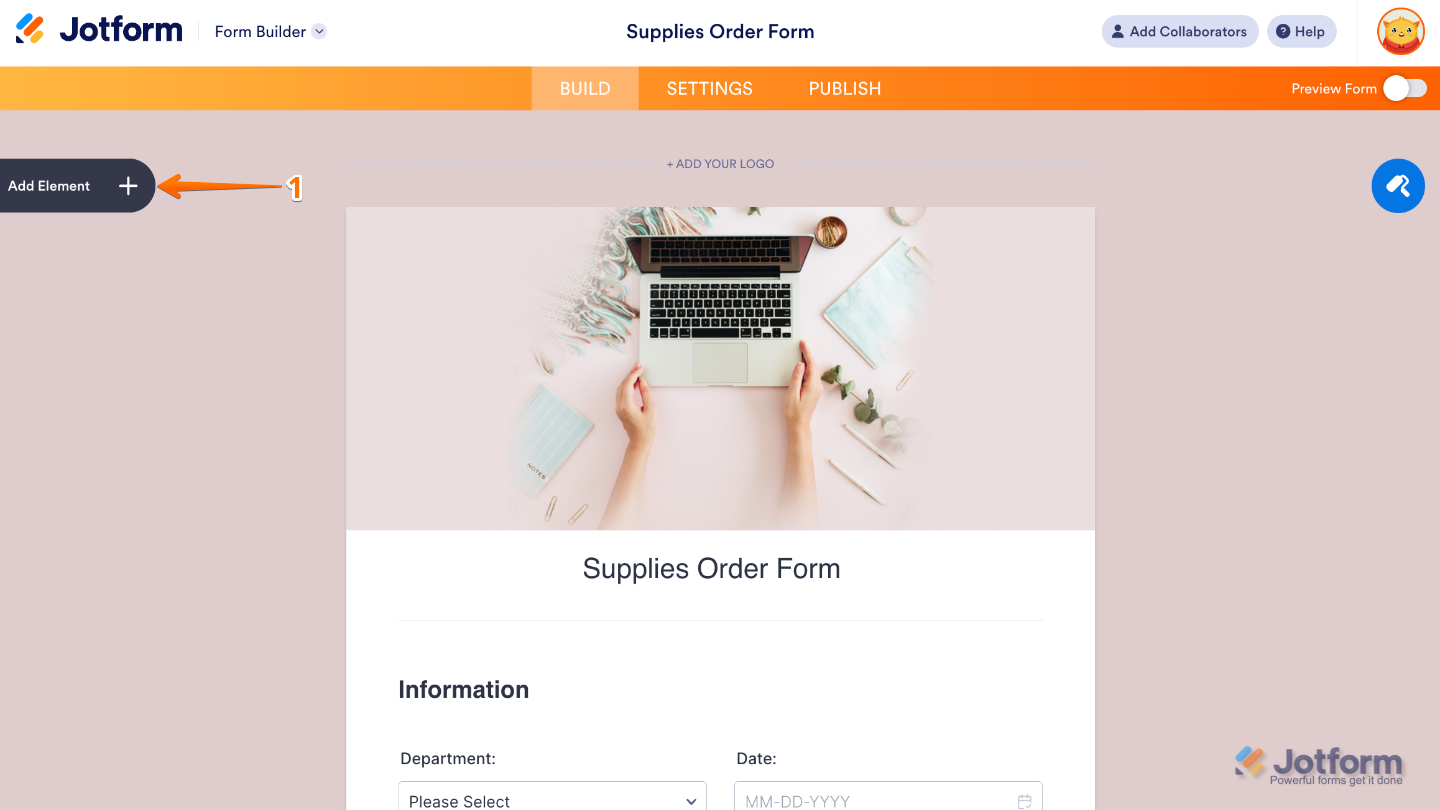
- In Form Builder, click on Add Element on the left side of the page.
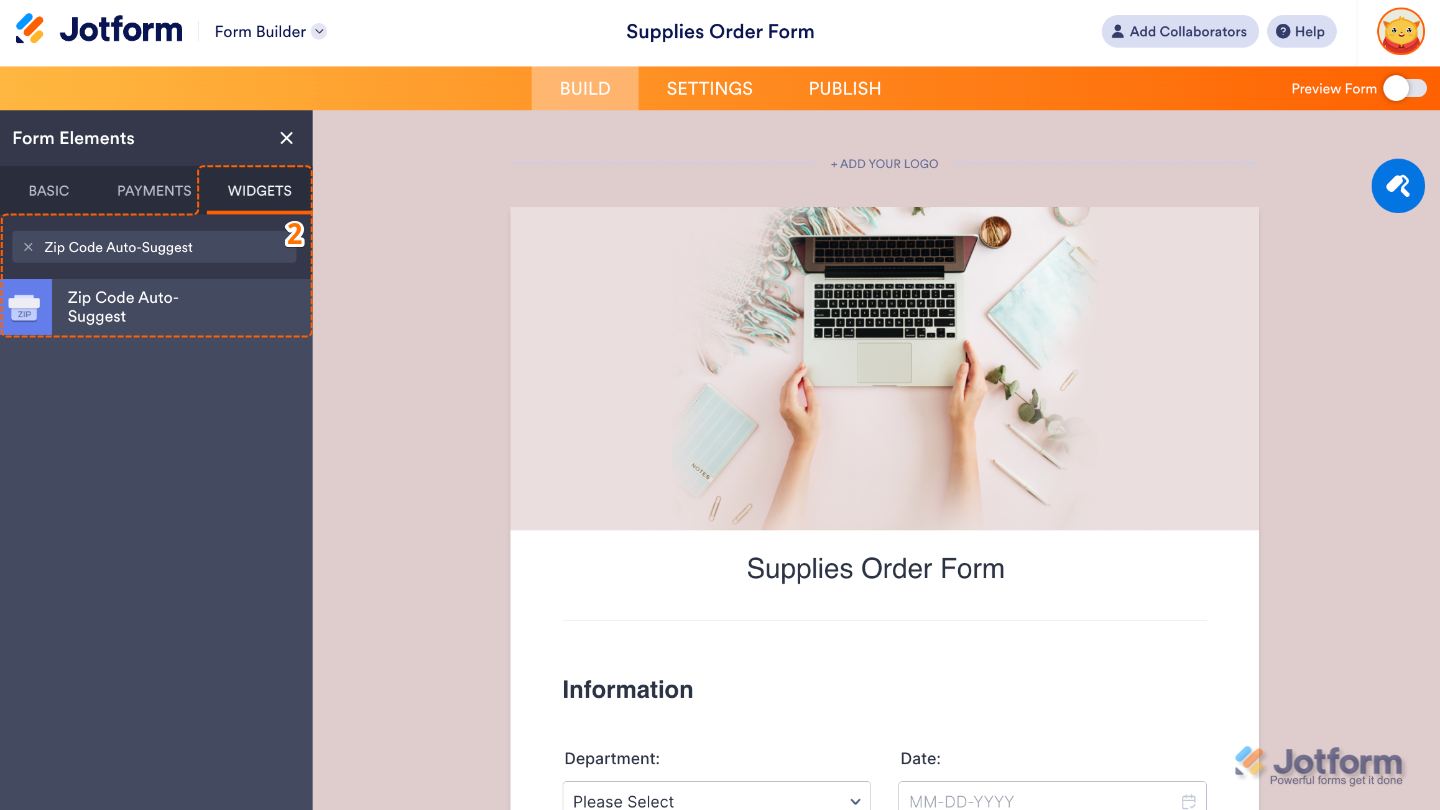
- Now, in the Form Elements menu, under the Widgets tab, search for Zip Code Auto-Suggest and then click on it. Or, just drag and drop it to where you want it to be on your form.
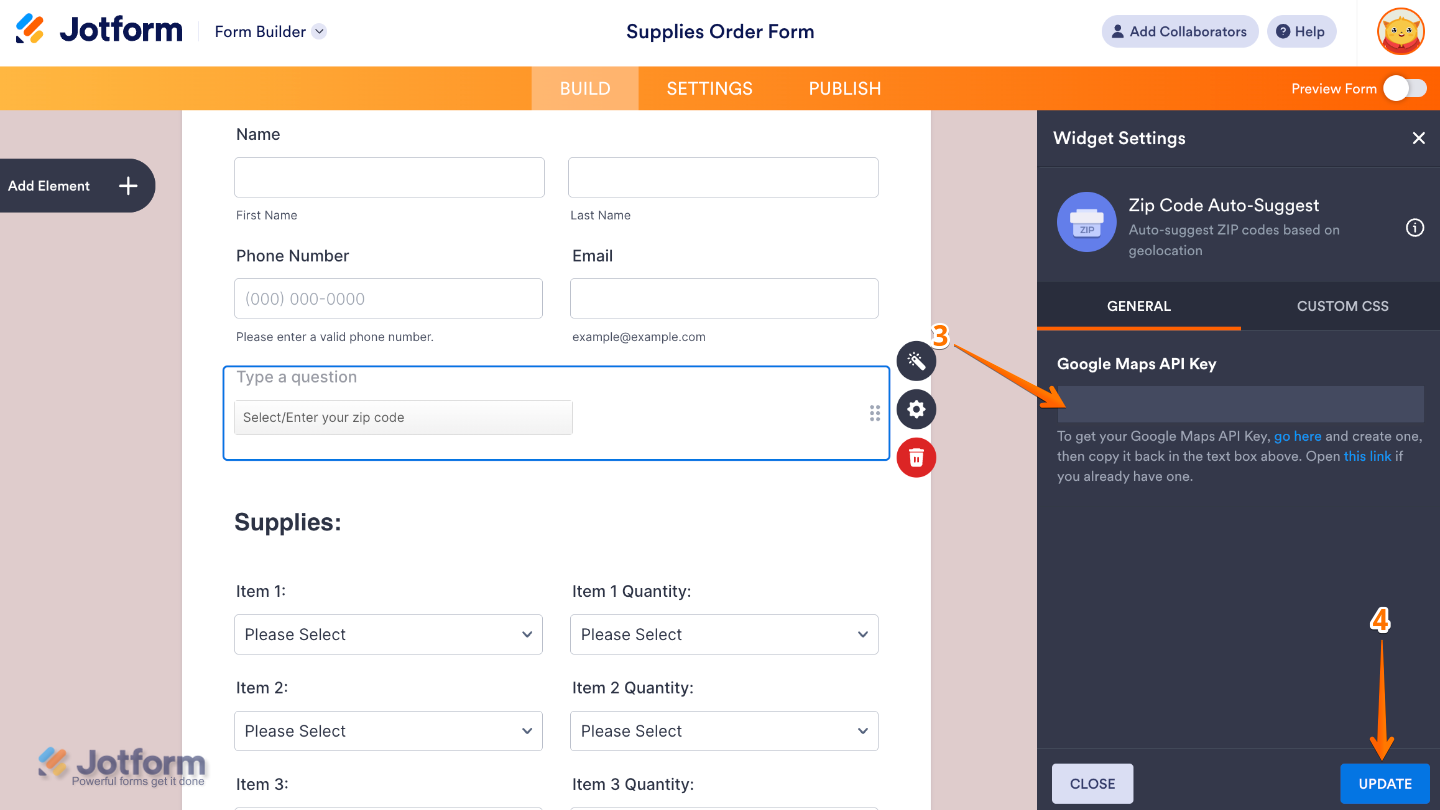
- Next, in the Widget Settings menu that opens on the right side of the page, set up the Google Maps API Key option to add the key that lets the widget talk to Google Maps so it can pull up real, accurate address suggestions as your users type. .
- Once you’re done, click on Update.
That’s it! You’ve successfully added and set up the Zip Code Auto-Suggest widget on your form. Now your users can quickly enter accurate zip codes with helpful suggestions, making address input faster and error-free. Curious how it works on a live form? Check out this Demo Form.
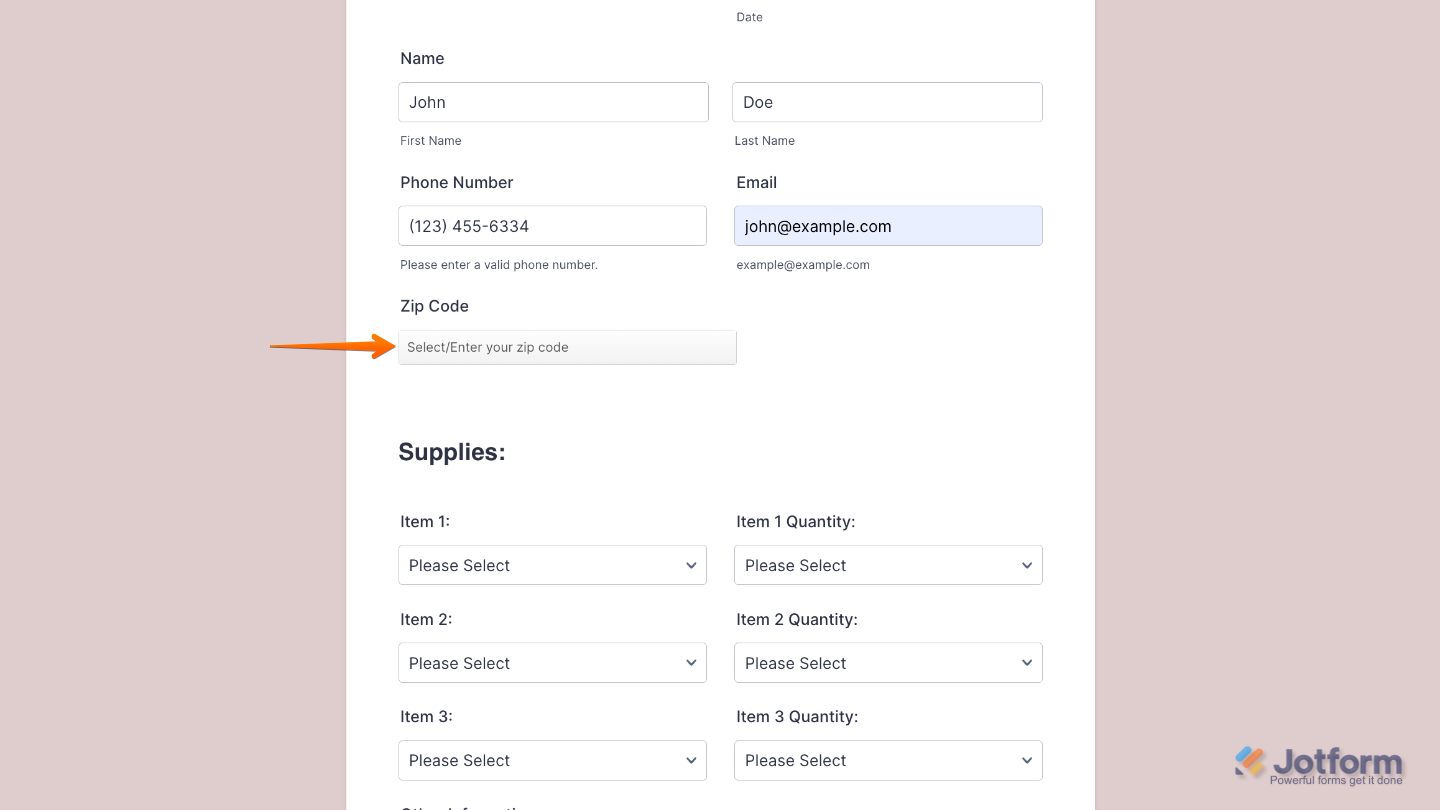
To further customize your Zip Code Auto-Suggest field appearance, just click on the Gear icon to open its properties.
Note
For advanced styling, you can add your own custom CSS under the Custom CSS tab in the widget settings and style the Zip Code Auto-Suggest field. Our guide on How to Inject CSS Codes to Widgets walks you through everything.

Send Comment: