Customer reviews can make all the difference when someone is deciding whether to buy from your store. If you’re already receiving great feedback on eBay, you can showcase those reviews directly on your website. With a live eBay Reviews widget, you can display your store rating and real buyer feedback in a clean, responsive layout that looks great on any device.
The best part is that you don’t need any coding skills. Using Jotform’s free, no-code tool, you can set everything up in just a few clicks—customize the design to match your brand, keep reviews updated automatically, and publish them anywhere with a simple embed code.
Notes
- Make sure you have access to your eBay store account before getting started. You’ll need it to connect your store and generate your reviews widget correctly.
- Your widget will only display public reviews that are visible on your eBay store page.
- If your reviews don’t appear right away, give it a few moments to sync. Widgets may take a short time to reflect updates.
Creating and Getting Your eBay Reviews Widget Embed Code
Before your reviews can appear on your website, you’ll need to generate your embed code from eBay. Don’t worry—it only takes a few clicks, and once you copy the code, you’ll be ready to add your eBay reviews anywhere on your site. You’ll just need to do this:
- Go to the eBay Reviews widget page, then click on Create New Widget on the left side of the page.
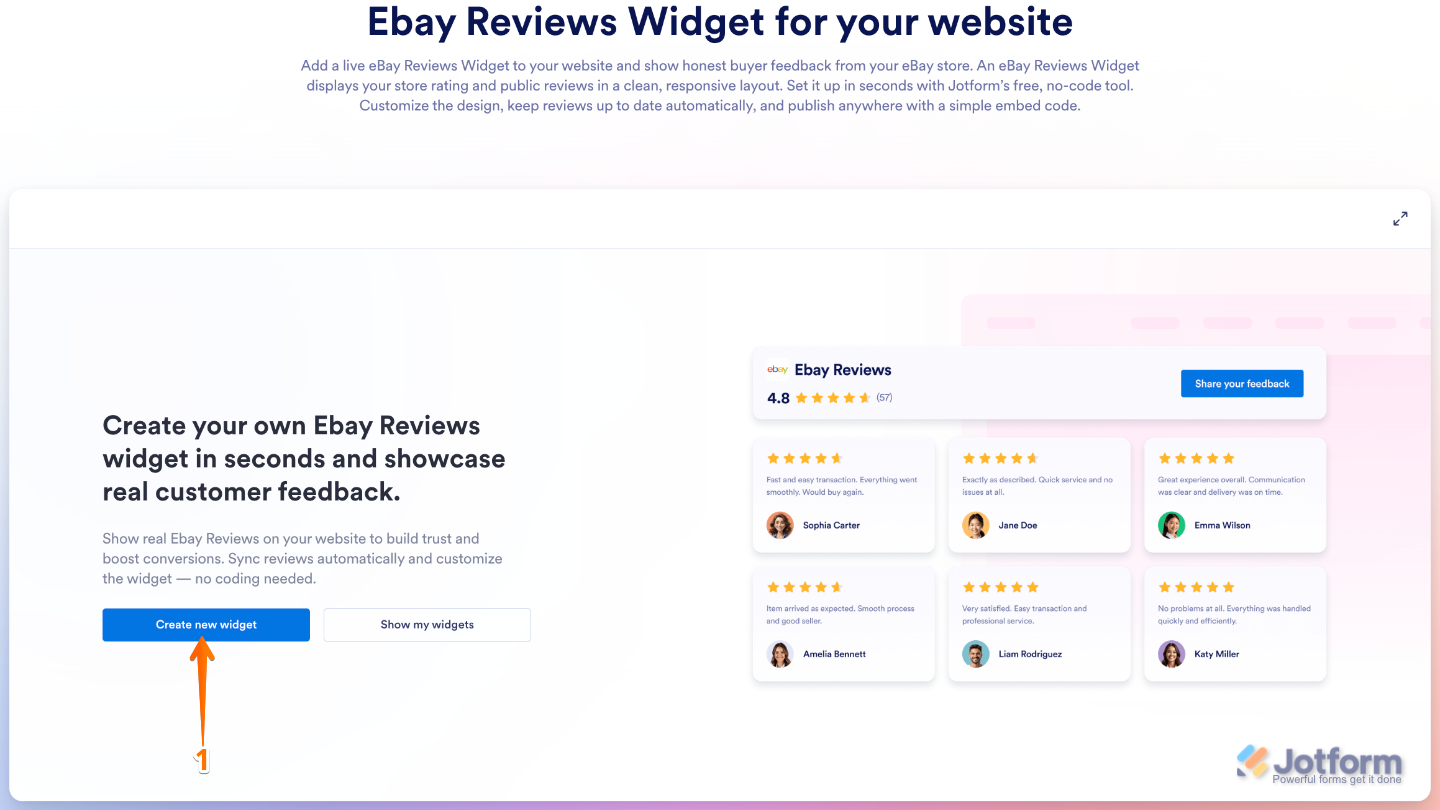
- Next, enter your eBay URL in the eBay URL field.
- Then, on the right side of the Full Width setting, keep it on if you want your widget to automatically stretch across your website, or toggle it off to set its custom fixed width.
- Now, under Layout Options, select one of the following layouts:
- Carousel — This layout displays your eBay reviews in your widget in a slide-style format, showing multiple reviews at a time. Your visitors can browse through them using navigation arrows or pagination dots.
- Slider — This layout highlights one review at a time in your widget for a more focused viewing experience. Like Carousel, your visitors can move through each review individually using navigation arrows or pagination dots.
- Badge — This option adds your widget as a badge on the left or right side of your website that your visitors can use to view your reviews in a side panel. They can scroll through all of them and close the panel at any time.
- Grid — This layout displays the reviews in your widget as neat, evenly sized cards arranged in columns that adjust based on your widget’s width. Your visitors can see multiple reviews at once, giving them a clear, organized view of the feedback.
- List — This layout displays reviews in your widget in a single column, with one review per row. Your visitors can scroll through each one easily, making it simple to read feedback one at a time.
- Masonry — Similar to Grid, this layout arranges reviews in your widget in multiple columns, but each card’s height adjusts based on its content. Your visitors see a visually varied layout that makes browsing feedback engaging.
- After that, click on Continue.
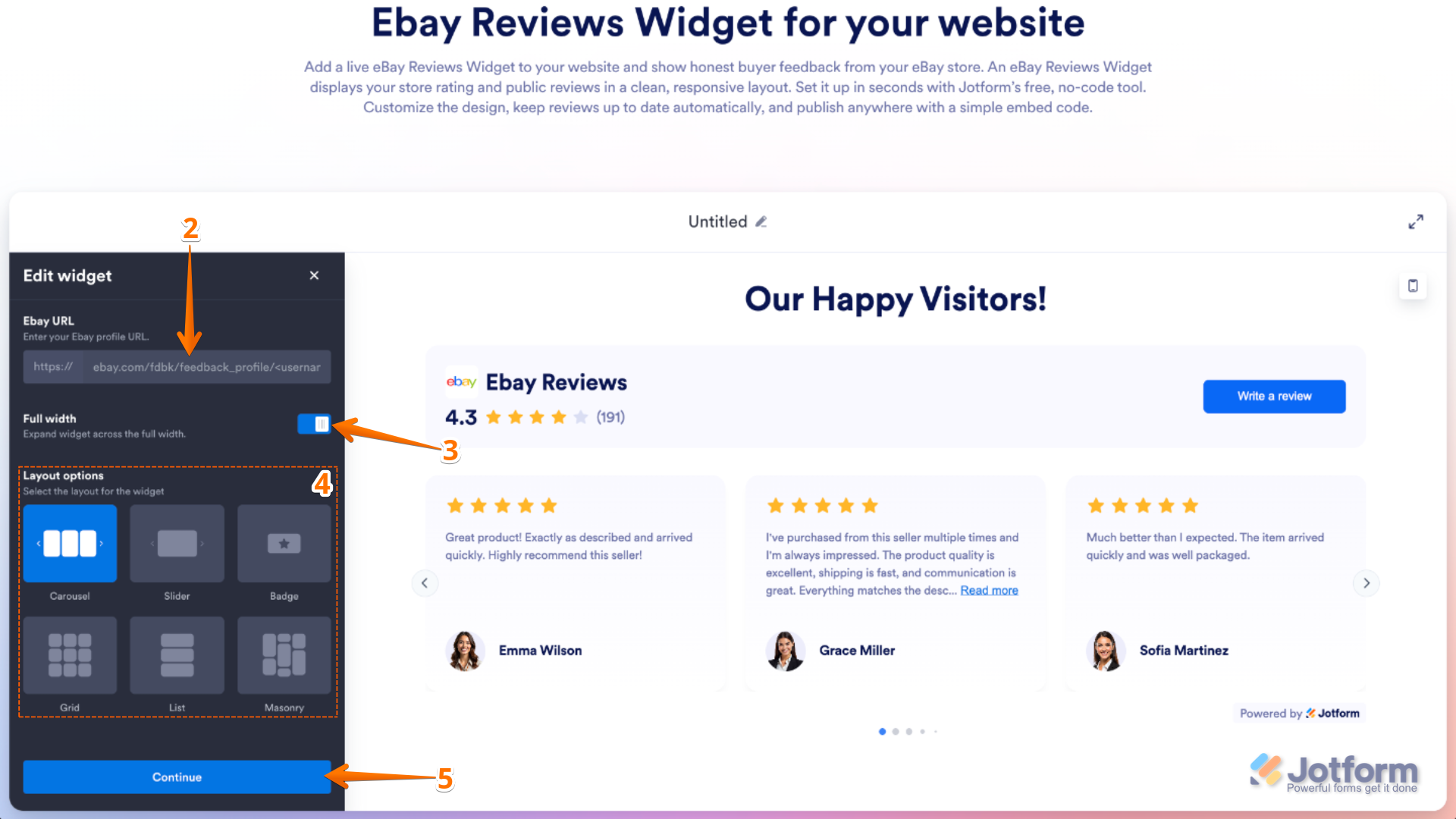
- To continue, depending on the layout you selected, you’ll see the settings you can configure—for example, the options shown in the screenshot below for the Carousel layout:
- Widget Position — This option only appears when you select the Badge layout for your widget. Select whether the badge appears on the left or right side of your website, which also determines where the side panel will slide in from.
- Dark Theme — This sets the color scheme of your widget. You can toggle this on to use a dark theme or keep it off to use the default white theme.
- Close Button — This option only appears when you select the Badge layout for your widget. You can keep it on to show a button that lets visitors close the widget, or toggle it off if you don’t want the button displayed.
- Title — This sets the title displayed at the top of your widget. You can keep the default text or enter a custom title in the input box to better match your website.
- Navigation Arrows — This option only appears when you select the Carousel or Slider layout for your widget. You can keep it on to show arrows that your visitors can use to navigate through reviews, or toggle it off if you want a cleaner look.
- Pagination — This option only appears when you select the Carousel or Slider layout for your widget. Keep it on to display pagination dots below the reviews so visitors can navigate easily, or toggle it off if you prefer not to show them.
- Show Reviews on Click — This option only appears when you select the Badge layout for your widget. Keep it on to let visitors view the full reviews after clicking the badge, or toggle it off to only display the badge with your review rating and number of reviews.
- Load More Button — This option appears when you select the Grid, List, or Masonry layout for your widget, and is also available for the Badge layout in the next section of settings. Keep it on to show a button at the bottom of your widget that lets visitors view more reviews, or toggle it off if you want to display only the initial set of reviews.
- Button Text — This option appears only when the Load More Button setting is enabled and sets the text displayed on the button. You can keep the default text or enter a custom label in the input box.
- Button Color — This option appears only when the Load More Button setting is enabled and sets the background color of the button. You can keep the default color or enter a new hex code in the input box. You can also click on the Color Picker button on the right side of the field and, in the color menu, select a specific color or choose from the predefined options.
- Text Color — This option appears only when the Load More Button setting is enabled and sets the color of the button text. You can keep the default color or enter a new hex code in the input box. You can also click on the Color Picker button on the right side of the field and, in the color menu, select a specific color or choose from the predefined options.
- Jotform Branding — This option appears for all layouts, but in the Badge layout it shows in the next section of settings. Keep it on to display the Jotform branding in your widget, or toggle it off if you prefer to hide it.
- Once everything’s set, click on Continue to proceed.
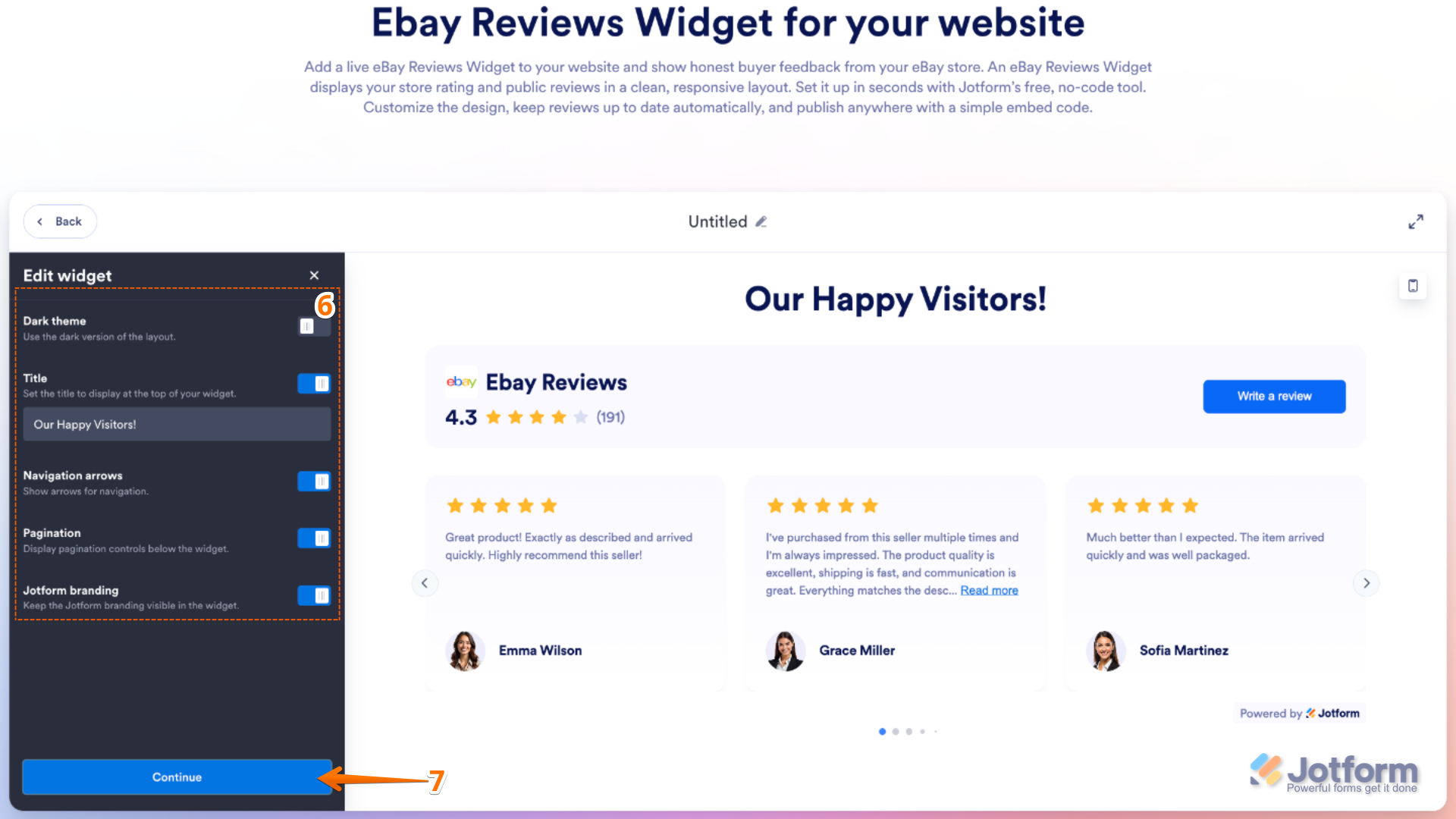
- Now, configure these options:
- Widget Header — Turn this on to display a header above your widget.
- Header Title — Add a clear, catchy heading for your widget.
- Review Details — Choose which details to show, like ratings or the number of reviews.
- CTA Button — Enable this to add a call-to-action button for your users.
- Button Text — Type in the text you want to appear on the button.
- Button Color — Pick a color that matches your style or branding.
- Text Color — Choose the color for your text to make it easy to read and visually appealing.
- Widget Header — Turn this on to display a header above your widget.
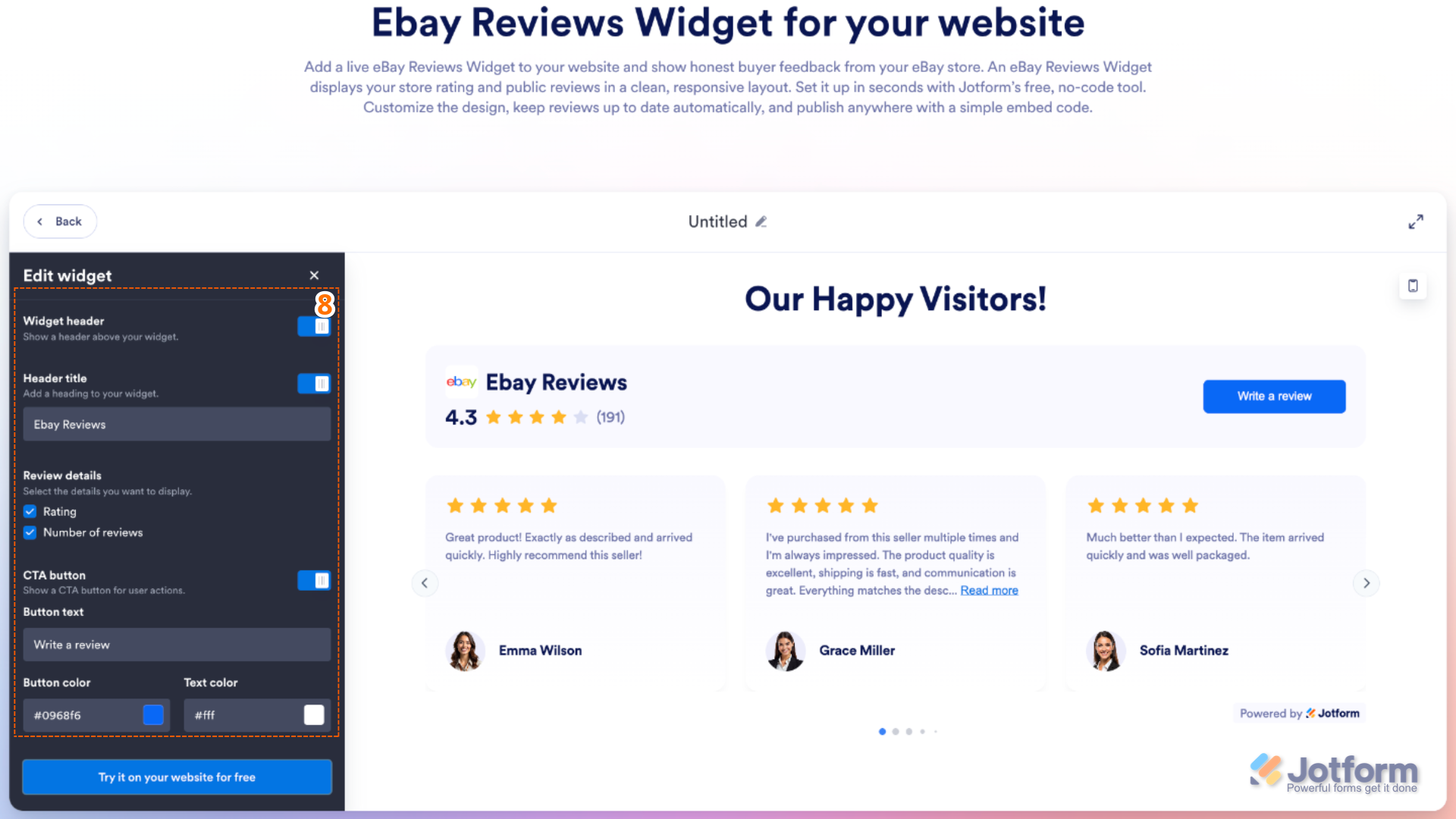
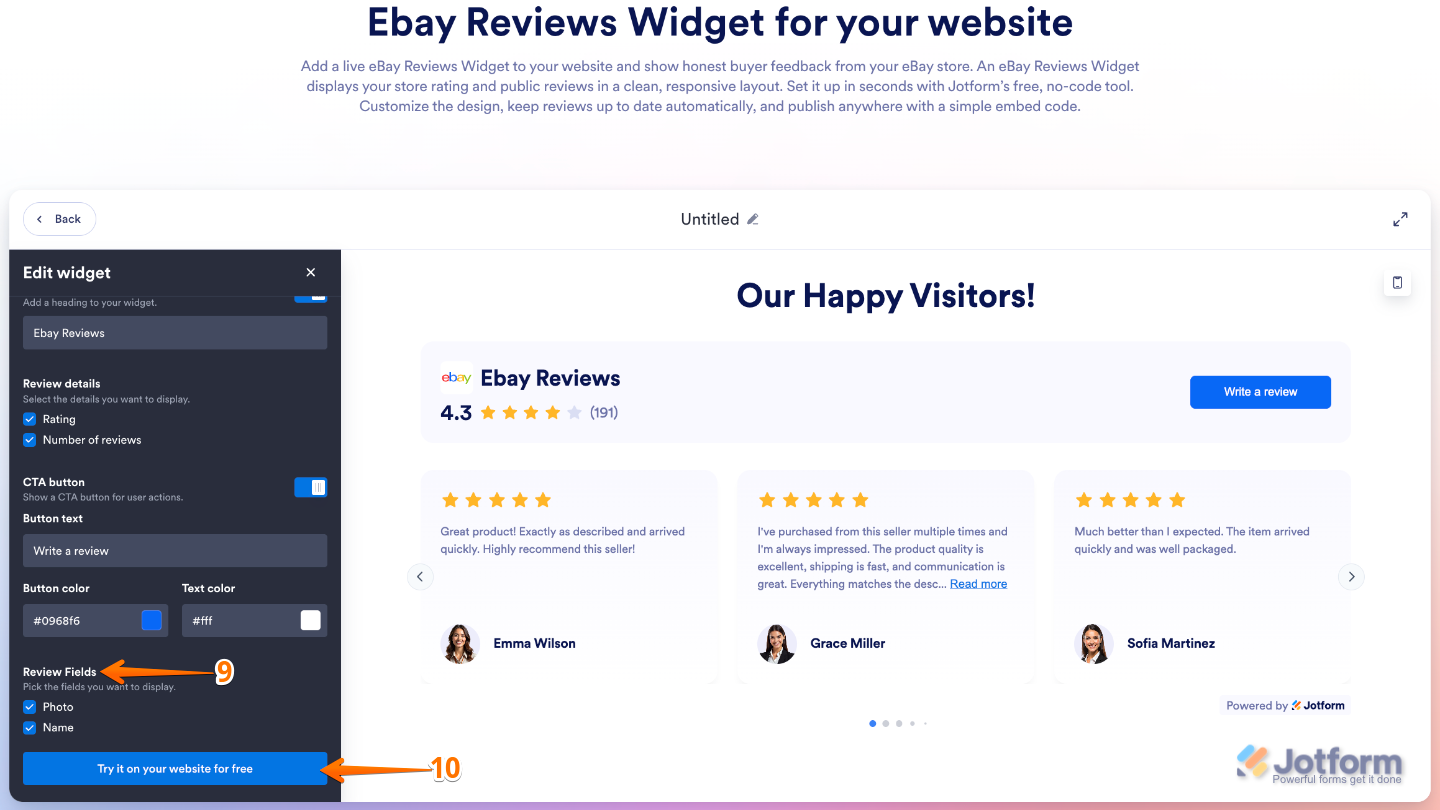
- After that, scroll down to the bottom of the Edit Widget menu and, in the Review Fields settings, remove the checks in the boxes next to the Photo and Name options if you don’t want them to show on each review card, or keep them checked to display them.
- When everything looks correct, click on Try it on your Website for Free.
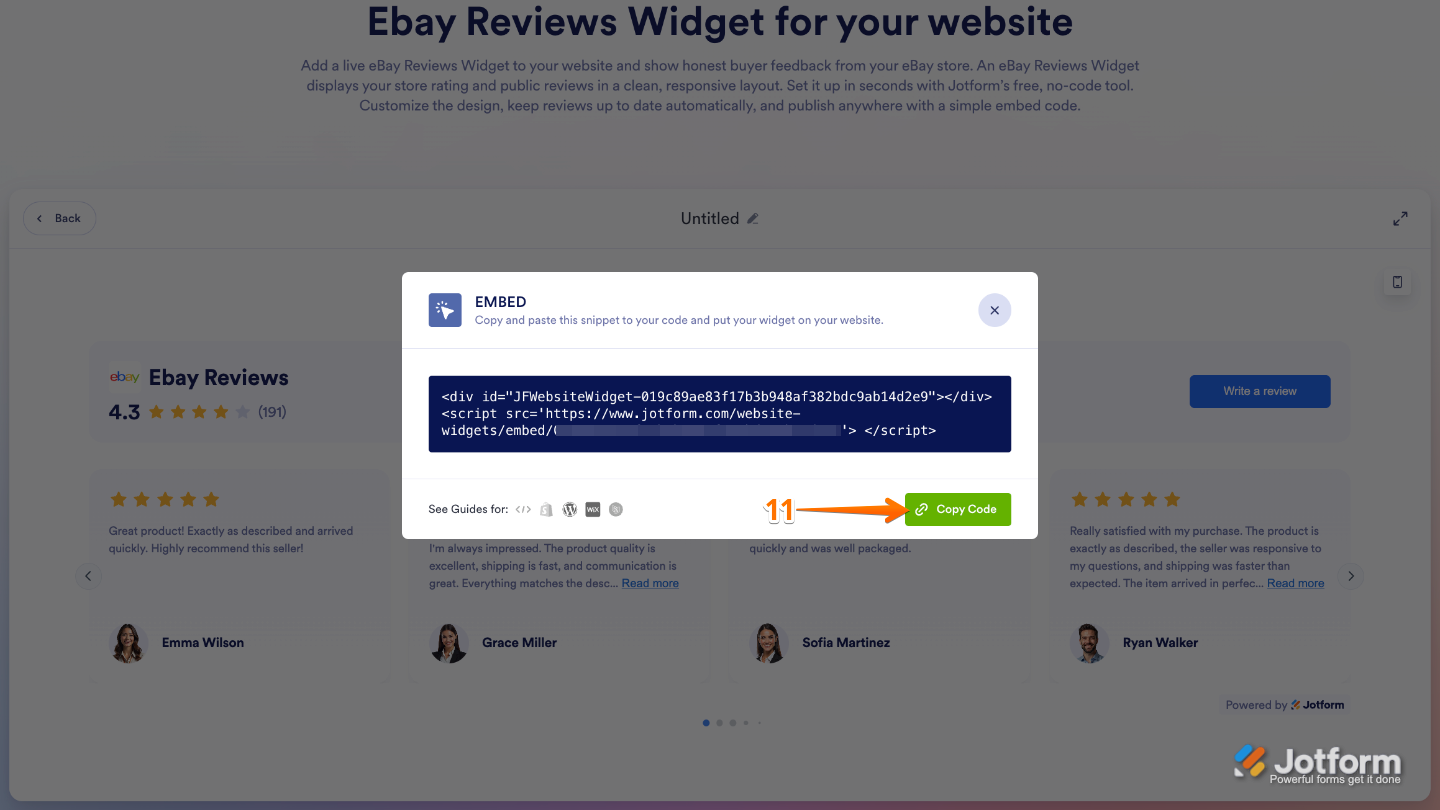
- Finally, in the Embed window that opens, click on Copy Code, and you’re done.
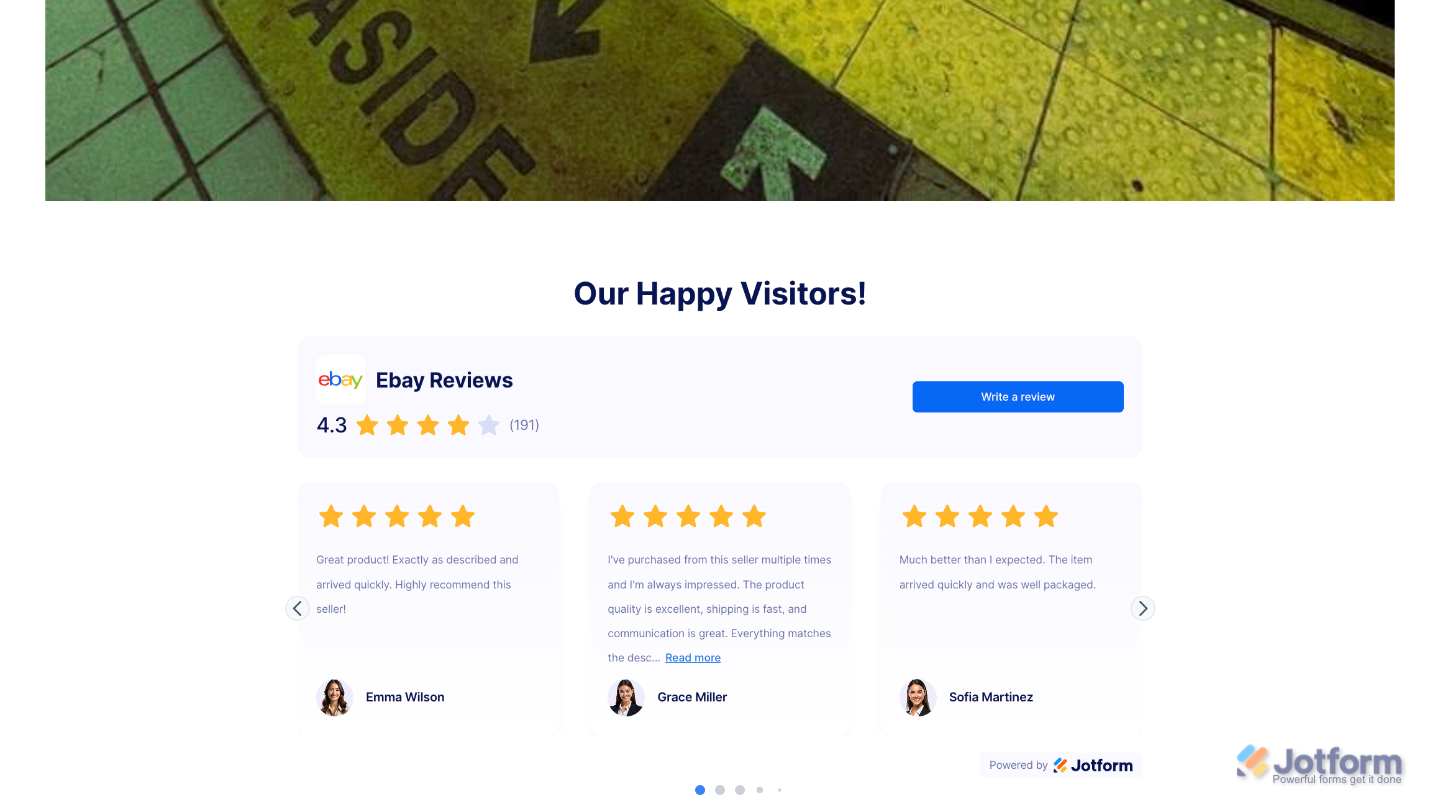
That’s it. Your eBay Reviews widget is all set up. Simply paste the embed code into your website, and your reviews will appear automatically and update in real time. Check out the screenshot below to see how it looks on a sample website built with a Ghost Website template.
Note
You can manage your widget anytime from the My Widgets page. For a step-by-step guide on how to do it, check out our full tutorial on How to Manage Website Widgets.
Pro Tips
- Display your overall rating clearly to build instant credibility with visitors.
- Adjust the widget’s colors, fonts, and layout so it blends seamlessly with your site.
- Add your reviews near product pages, landing pages, or checkout sections to boost buyer confidence.
- Include a gentle call-to-action on your website inviting happy customers to leave feedback on your eBay store.

Send Comment: