Jotform’s QR Code Reader widget makes it easy to collect data by letting users scan QR codes directly in your form. Instead of typing information manually, users can just use their device’s camera to fill in the details automatically, making your forms faster, simpler, and more user-friendly.
Here are a few ways to use it:
- Scan tickets or confirmation QR codes for event check-ins
- Track products or assets instantly by scanning QR codes
- Verify passes, IDs, or registrations on the spot
- Quickly capture information for surveys or feedback forms
Whether you’re creating a new form or updating an existing one, you can add and set up the QR Code Reader in a few easy steps. Here’s how to do it:
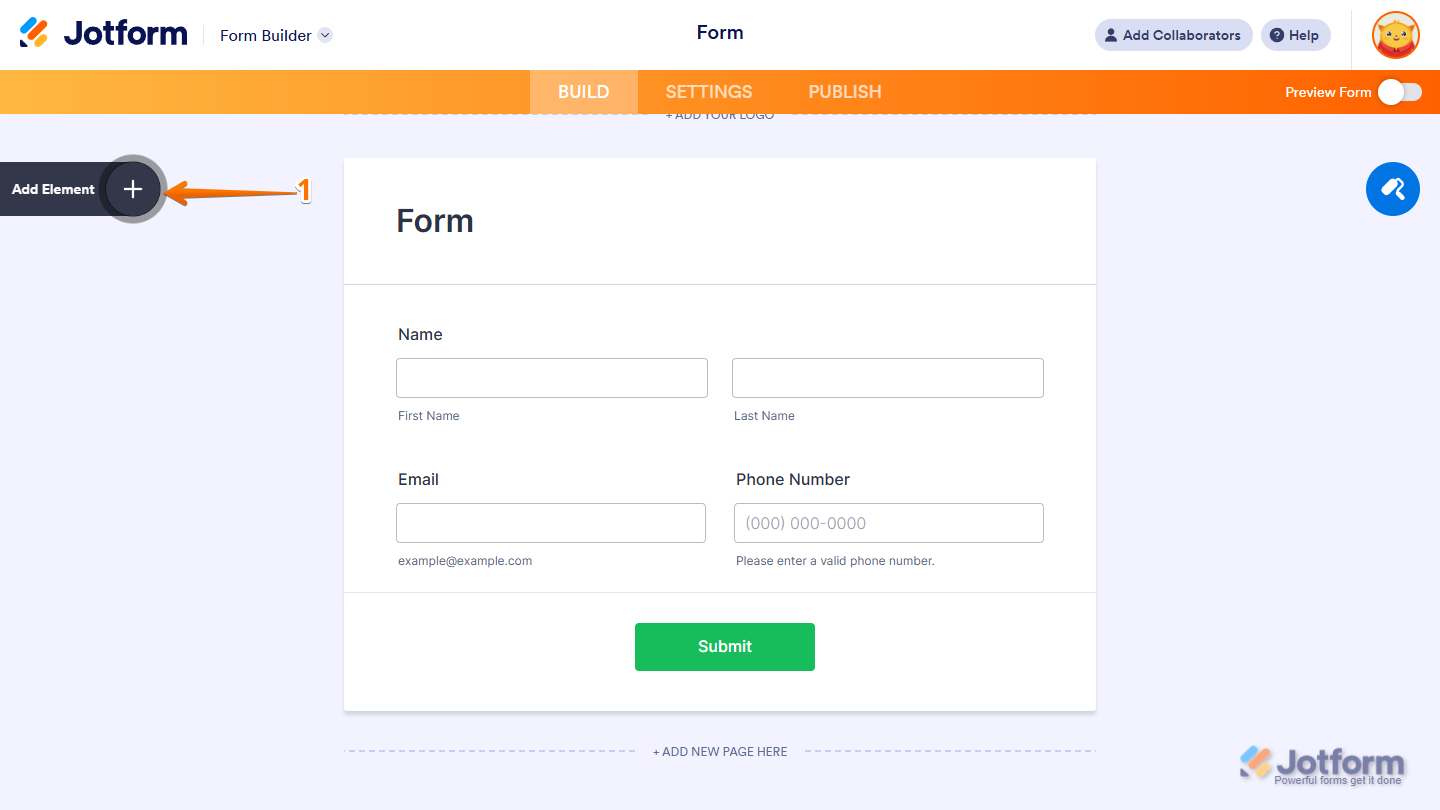
- In Form Builder, click on Add Element on the left side of the page.
- Now, in the Form Elements menu, under the Widgets tab, search for QR Code Reader and click on it. Or, just drag and drop it to where you want it to be on your form.
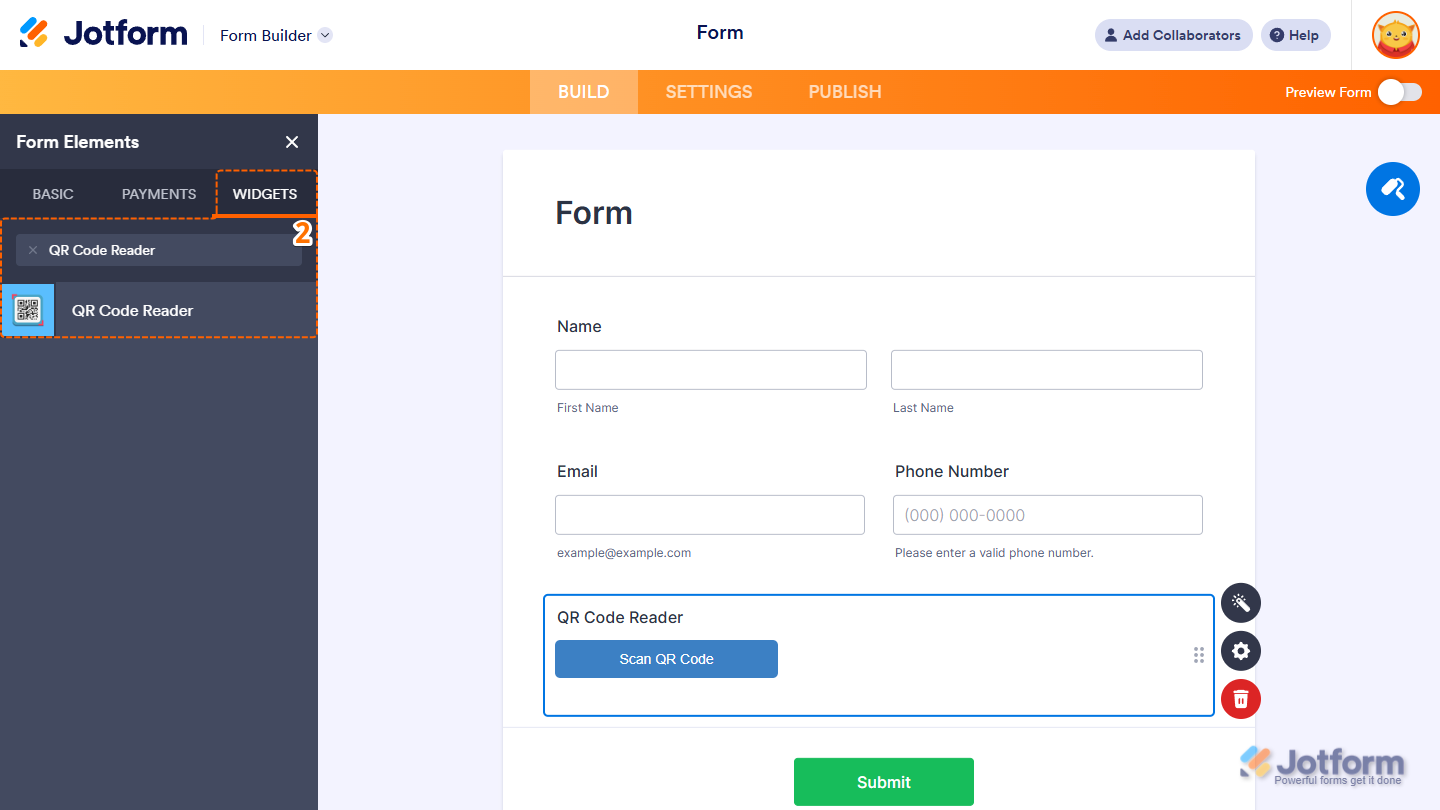
And that’s it! Once you add the QR Code Reader widget, your form is ready to scan QR codes right away. Curious how it works on a live form? Check out this demo.
Note
You can also configure the widget properties, like alignment, labels, size, visibility, and more, to control how it looks and behaves in your form. Check out our guide on How to Access and Configure the Question Properties of a Widget to learn more.

Send Comment: