Adding reviews to your website is one of the easiest ways to build trust with potential customers. If your business already has great feedback on TripAdvisor, you can showcase it where it matters most—on your own site. With a live TripAdvisor Reviews widget, you can display your overall rating and real traveler reviews in a clean, responsive layout that looks great on any device.
The best part is that you don’t need any coding skills. Using Jotform’s free, no-code tool, you can set everything up in just a few clicks. Customize the design to match your brand, keep your reviews updated automatically, and publish them anywhere using a simple embed code. In this guide, we’ll walk you through exactly how to do it.
Note
Before you dive in, make sure you can access your Tripadvisor business page. You’ll need it to grab your embed code and get your reviews looking great on your website.
Creating and Getting Your Tripadvisor Reviews Widget Embed Code
To display your reviews on your website, you’ll first need to get your embed code from the TripAdvisor Review widget. It only takes a few clicks, and once you copy the code, you’ll be ready to add your reviews anywhere you like. Here’s how to get going:
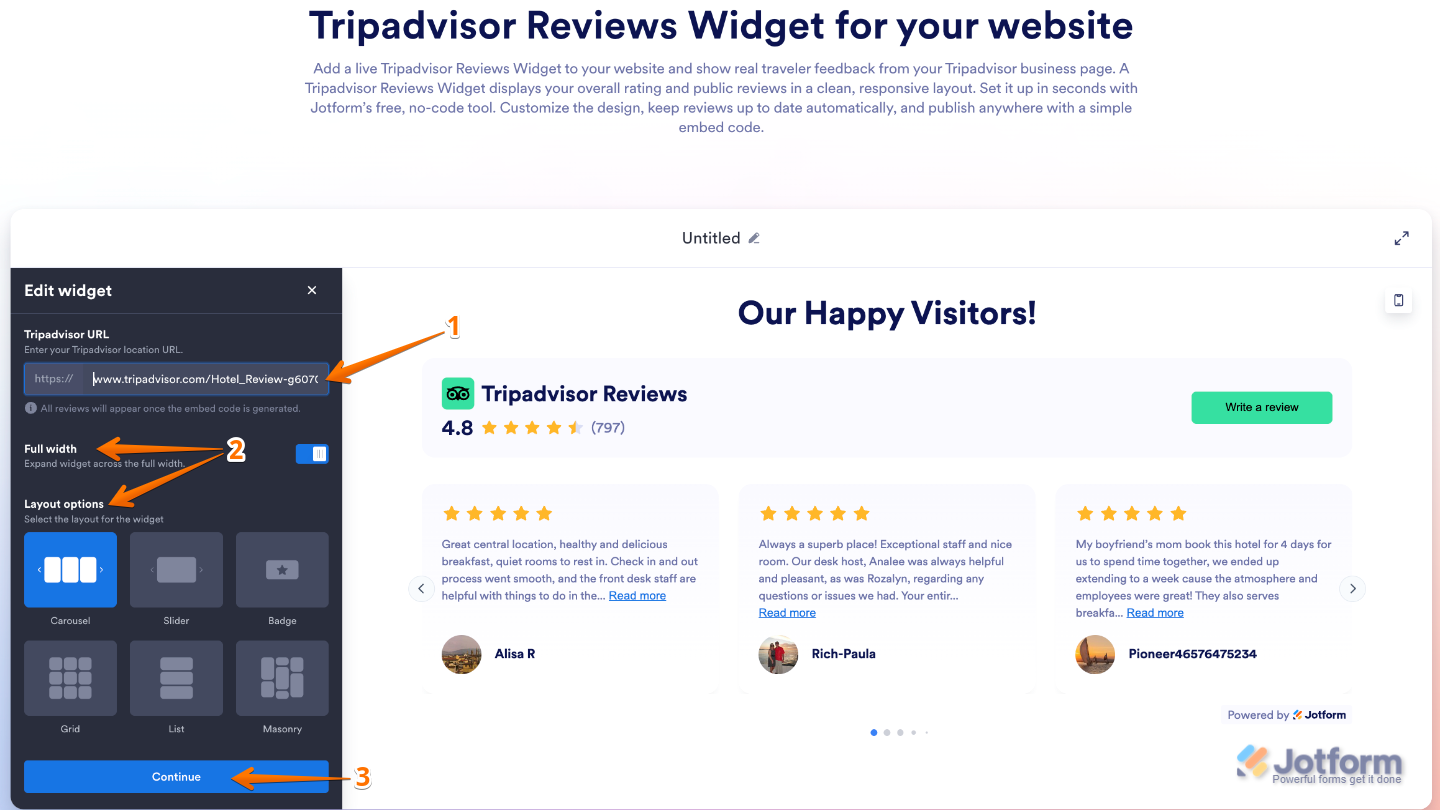
- Go to the Tripadvisor Reviews widget page and enter your Tripadvisor URL in the Tripadvisor URL field on the left side of the page.
- Then, set up these things:
- Full Width — Toggle this on to stretch the widget across the entire page, or turn it off if you’d like to adjust the width manually.
- Layout Options — Choose the layout that looks best for how you want your reviews to appear on the page.
- After that, click on Continue.
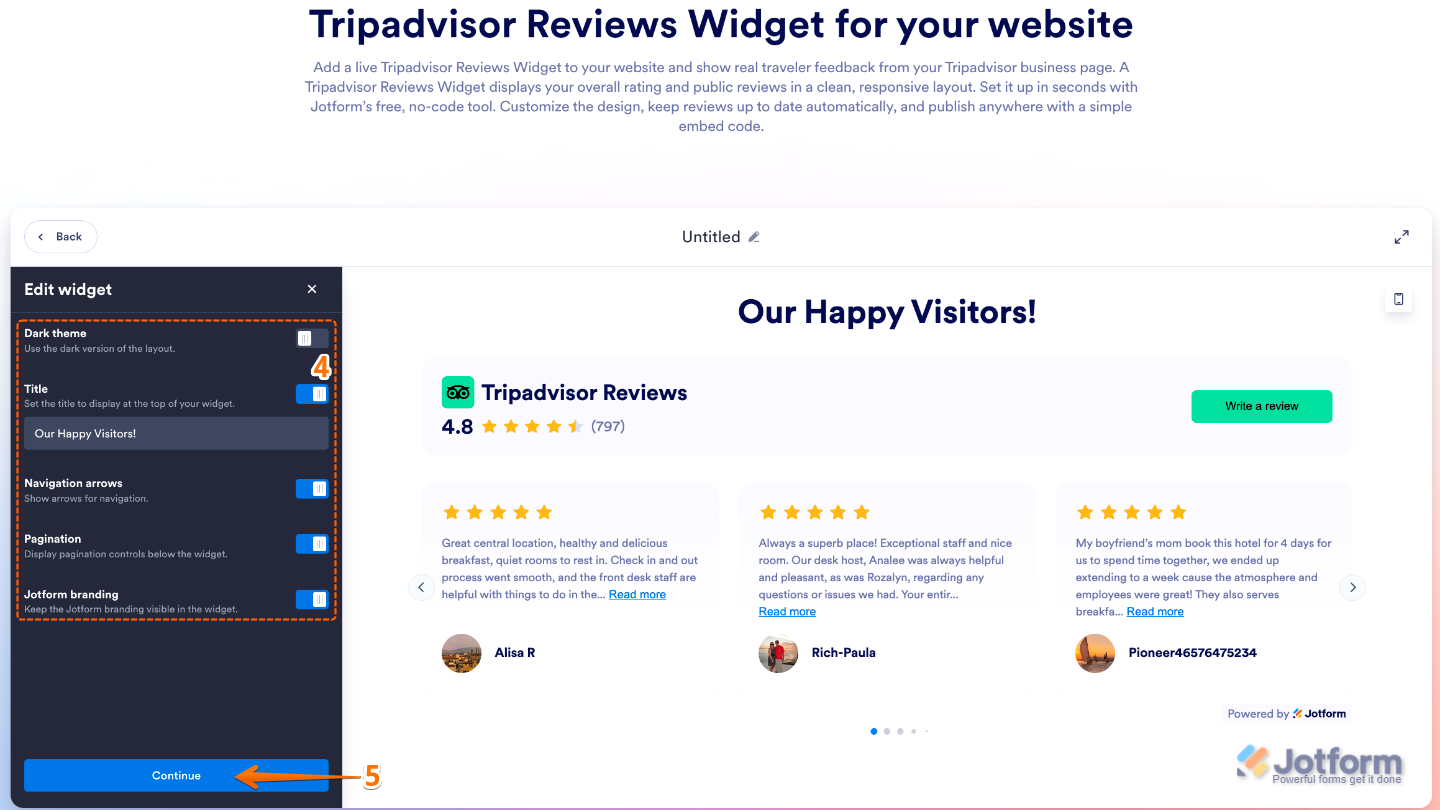
- Next, customize the following options:
- Dark Theme — Turn this on to give your widget a sleek, dark look.
- Title — Switch this on to add a title at the top of your widget.
- Navigation Arrows — Enable this to let users easily move through the reviews using arrows.
- Pagination — Turn this on to show pagination controls below the widget for smoother browsing.
- Jotform Branding — Keep this enabled if you’d like the Jotform branding to stay visible on your widget.
- Then, click on Continue.
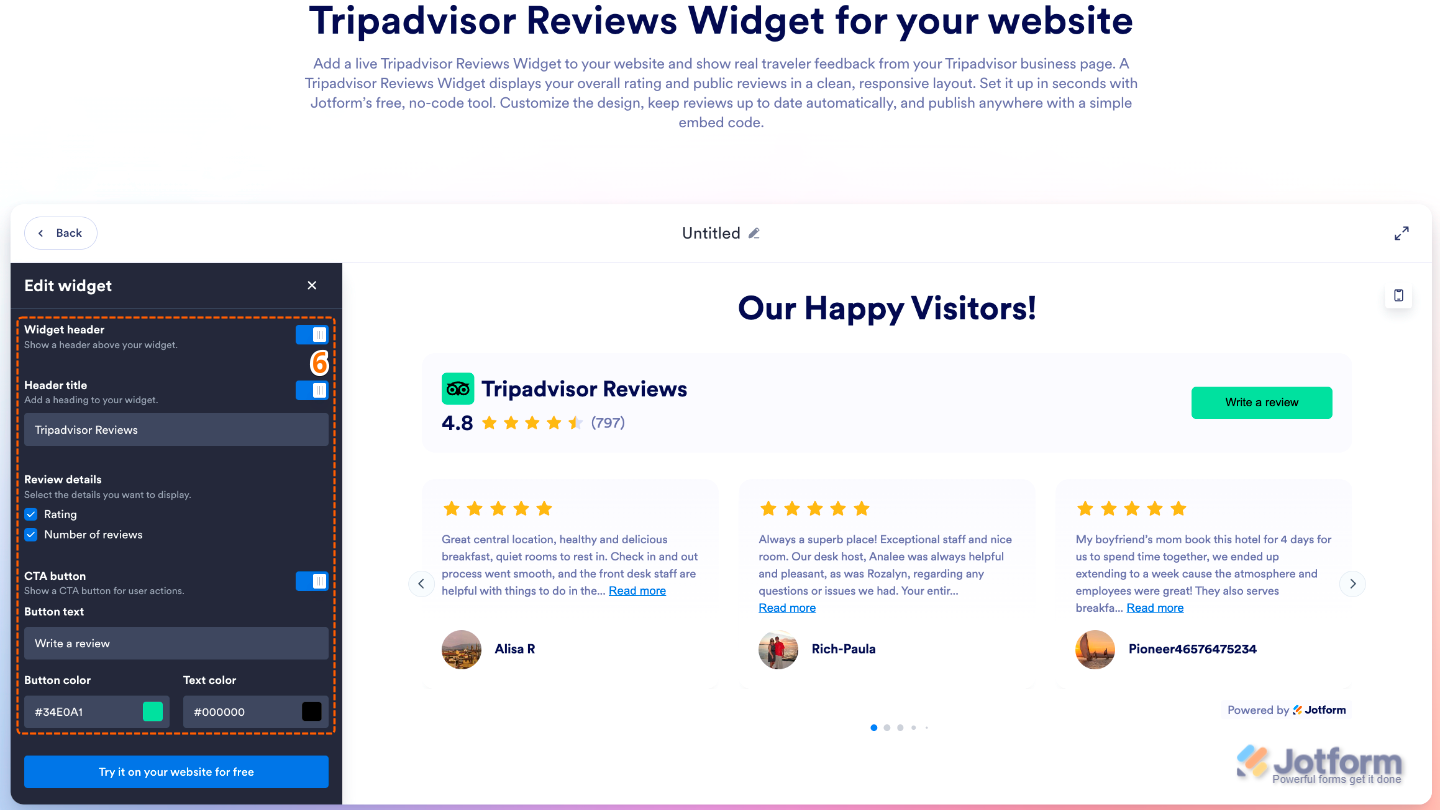
- Now, configure these options:
- Widget Header — Turn this on to display a header above your widget.
- Header Title — Add a clear, catchy heading for your widget.
- Review Details — Choose which details to show, like ratings or the number of reviews.
- CTA Button — Enable this to add a call-to-action button for your users.
- Button Text — Type in the text you want to appear on the button.
- Button Color — Pick a color that matches your style or branding.
- Text Color — Choose the color for your text to make it easy to read and visually appealing.
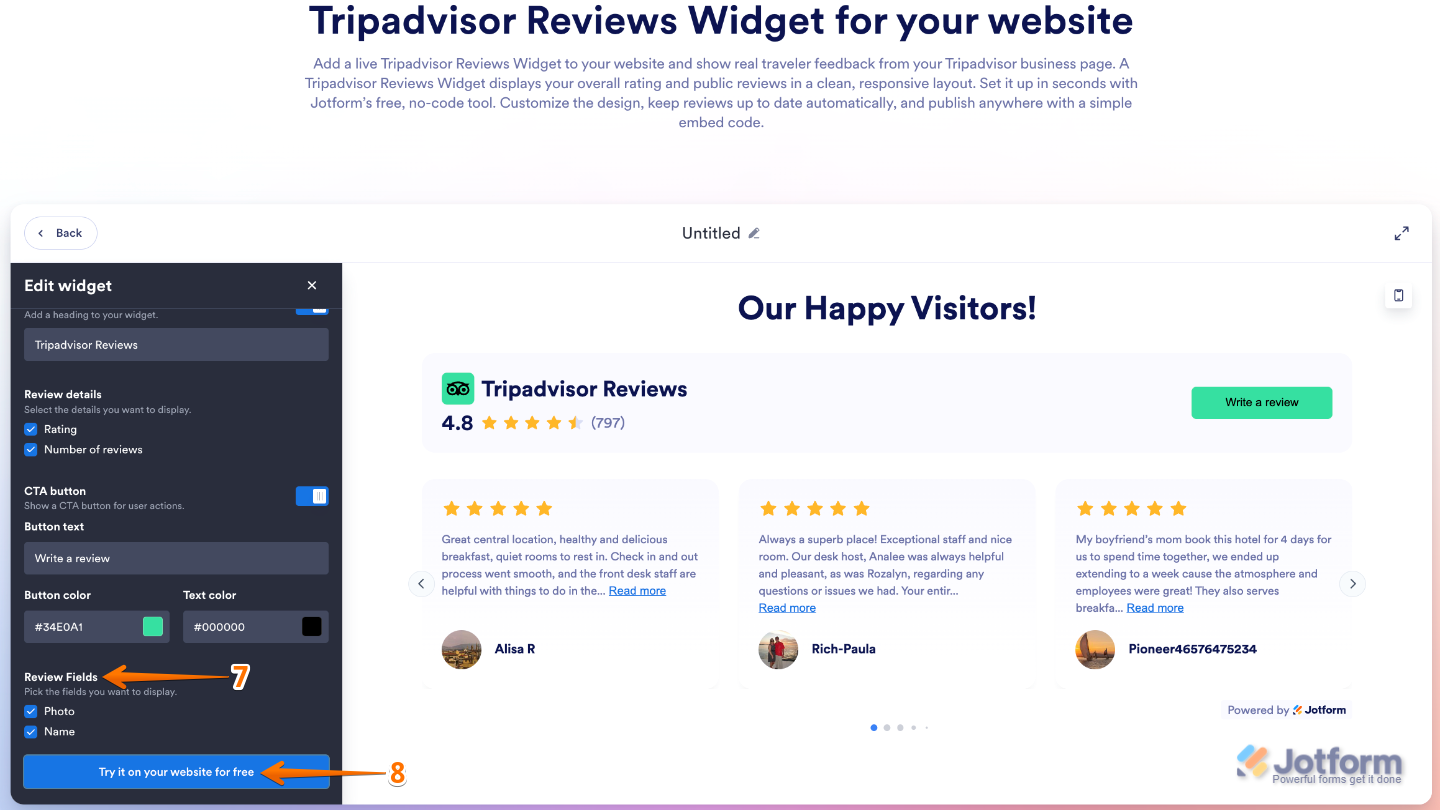
- Then, scroll down to the bottom and configure the Review Fields option by picking which details you want to show, like a reviewer’s photo or name, to give your widget a more personal touch.
- Now, click on Try it on your Website for Free.
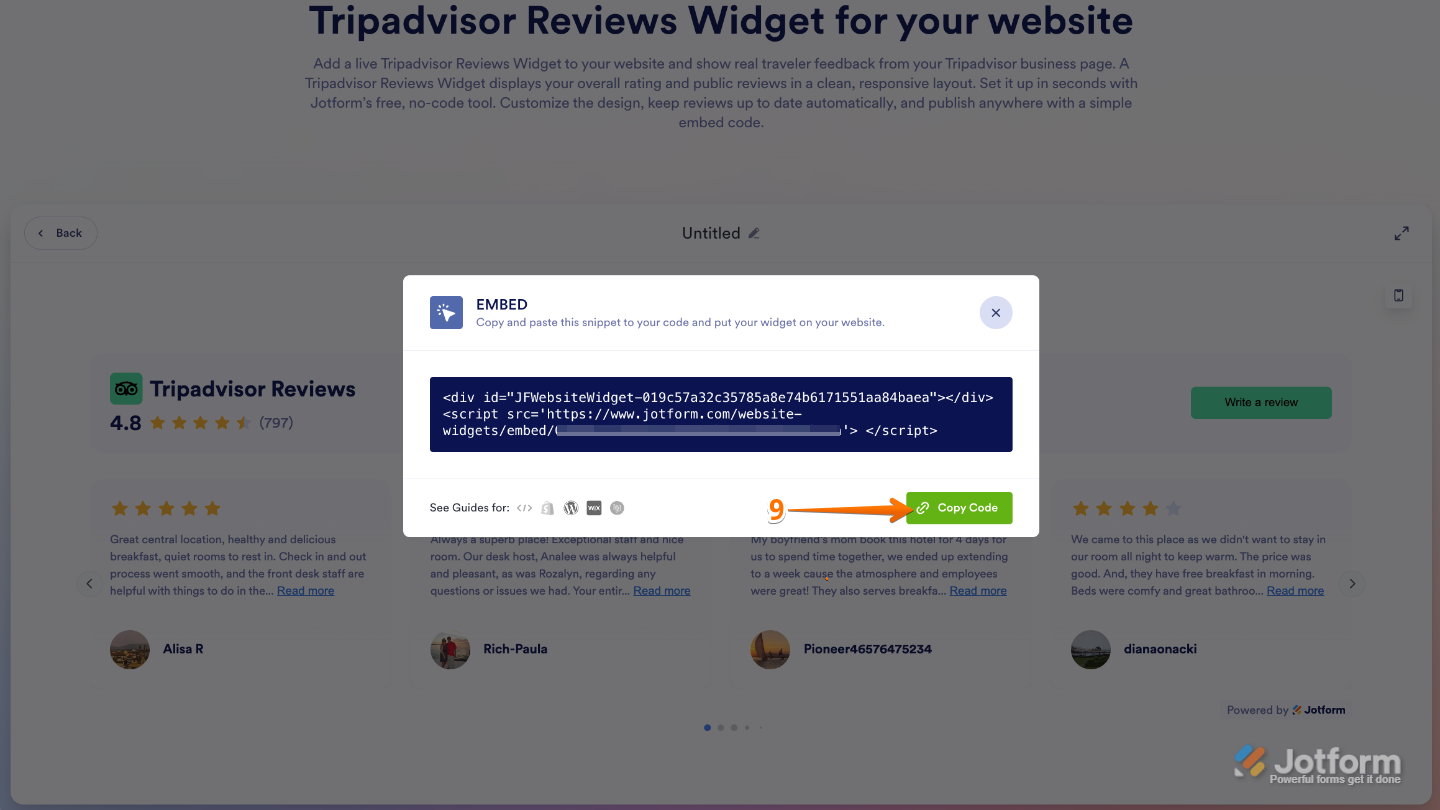
- Finally, in the Embed window that opens, click on Copy Code, and you’re done.
That’s it. Your Tripadvisor Reviews widget is all set up. Simply paste the code into your website, and your reviews will show up automatically and update in real time. Take a look at the screenshot below to see how it looks on an example website built with a Jigsy template.

Note
You can manage your widget anytime from the My Widgets page. For a step-by-step guide on how to do it, check out our full tutorial on How to Manage Website Widgets.
Pro Tips
- Highlight your best reviews by featuring the highest-rated or most detailed reviews to make a strong impression on visitors.
- Keep it updated automatically to ensure new Tripadvisor reviews appear on your site without manual updates.

Send Comment: