Adding a Dashboard to Favorites
Adding a dashboard to your favorites lets you quickly access it without searching through the full list. There are two ways to mark a dashboard as a favorite.
From the Custom Dashboards List
- In Insights, under Custom Dashboards on the left-hand side of the page, hover over the dashboard you want to add to your favorite.
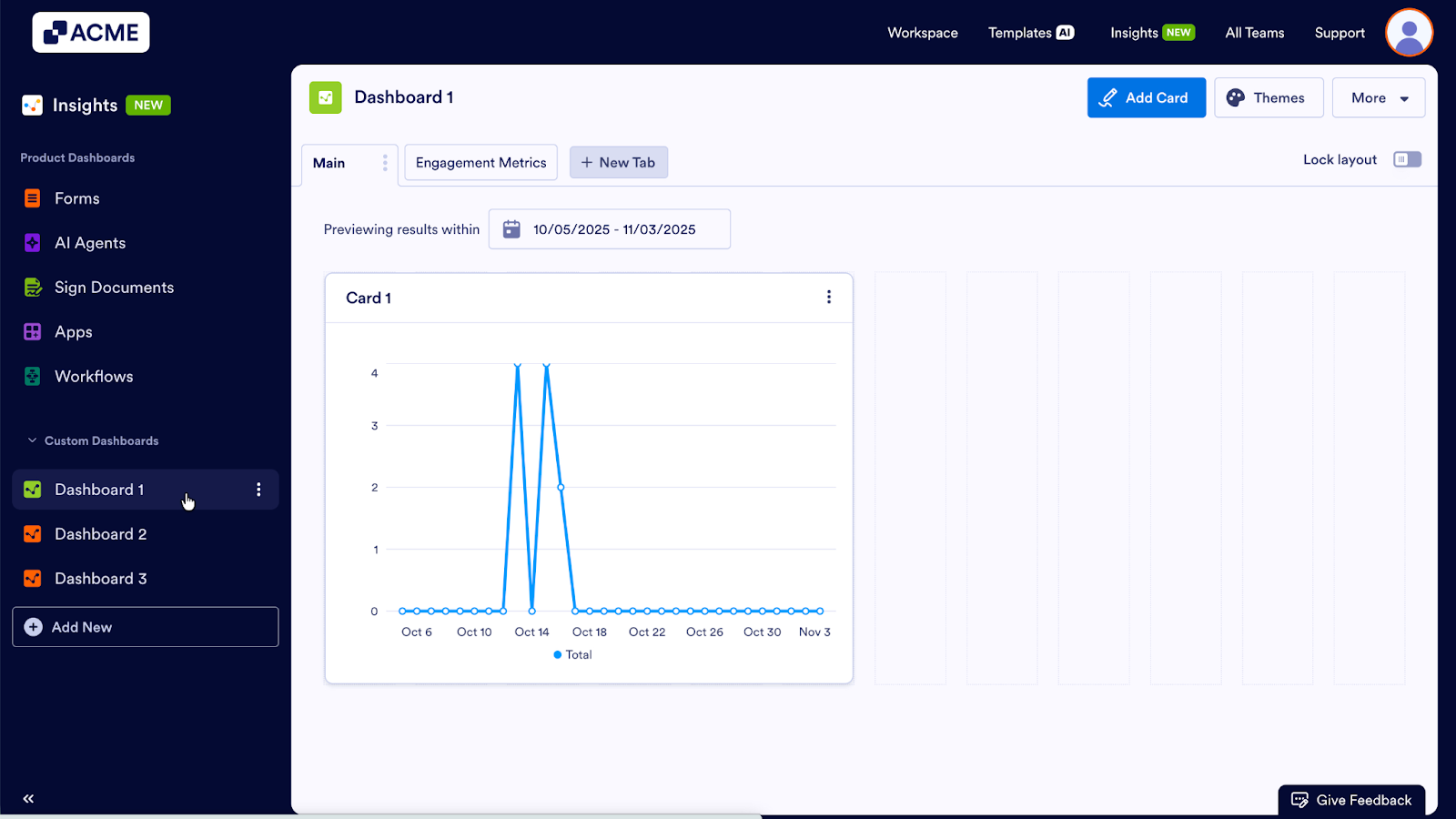
- Then, click on the three-dot menu
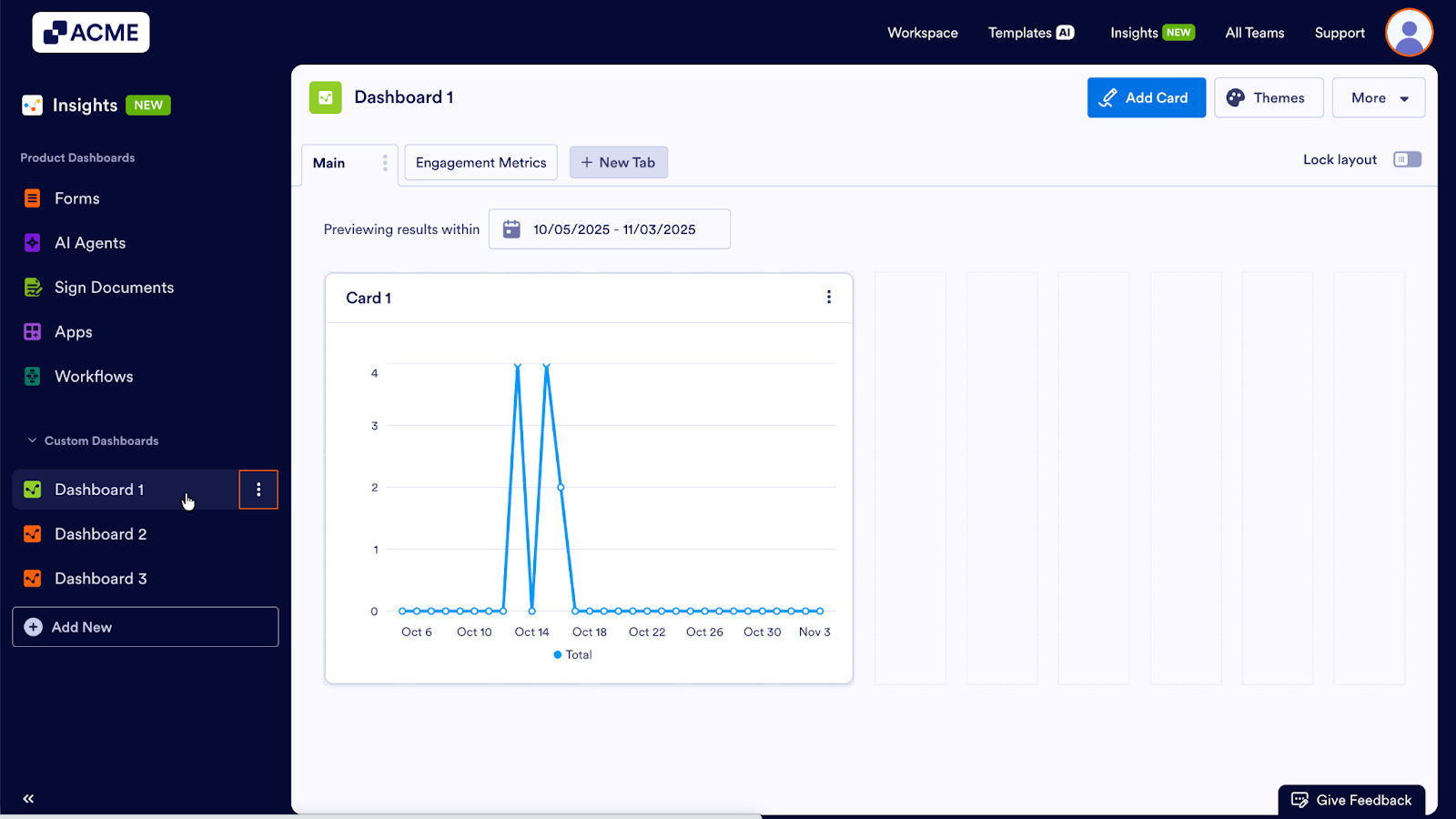
- Finally, select Add to Favorites.
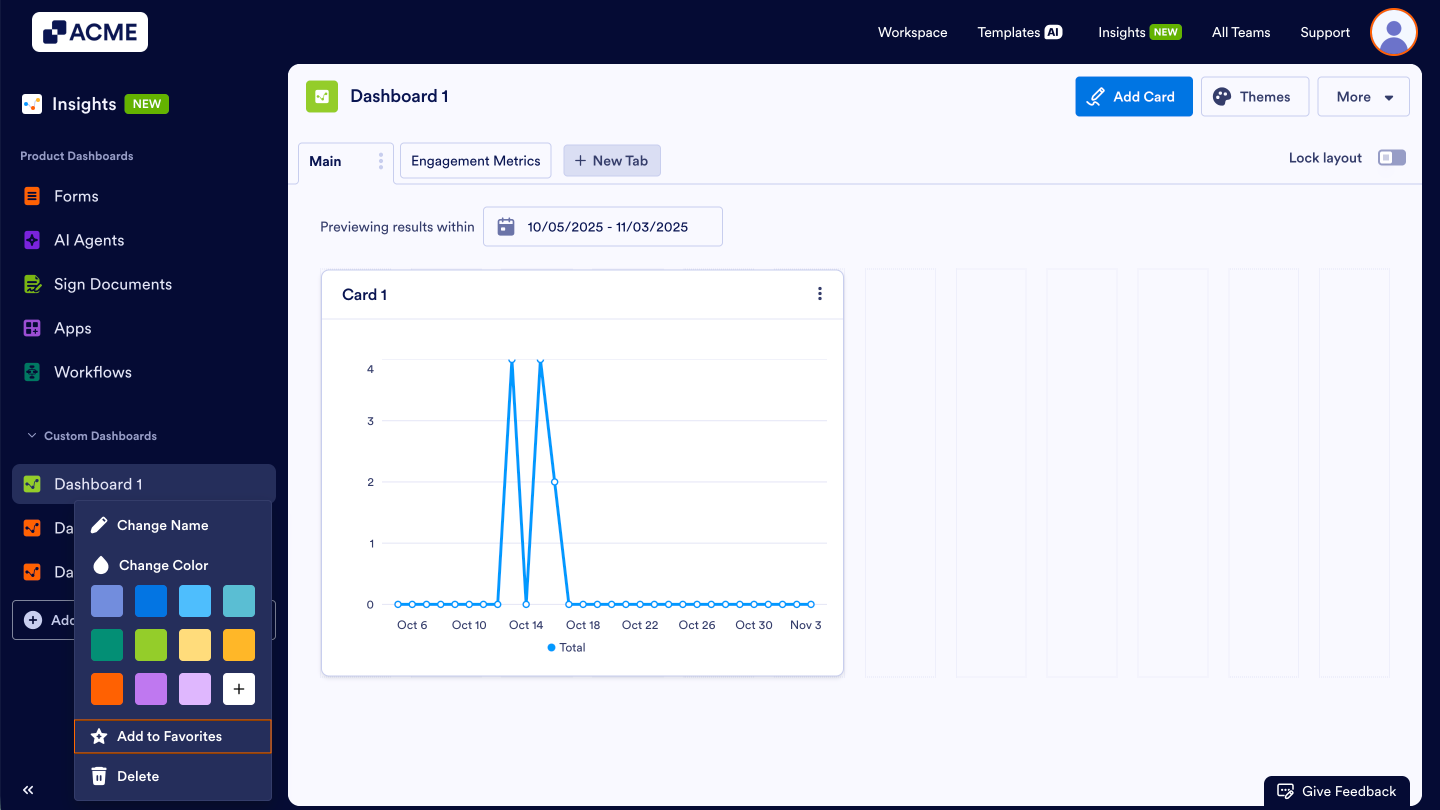
The dashboard will appear under Favorites in the left menu and won’t be under Custom Dashboards
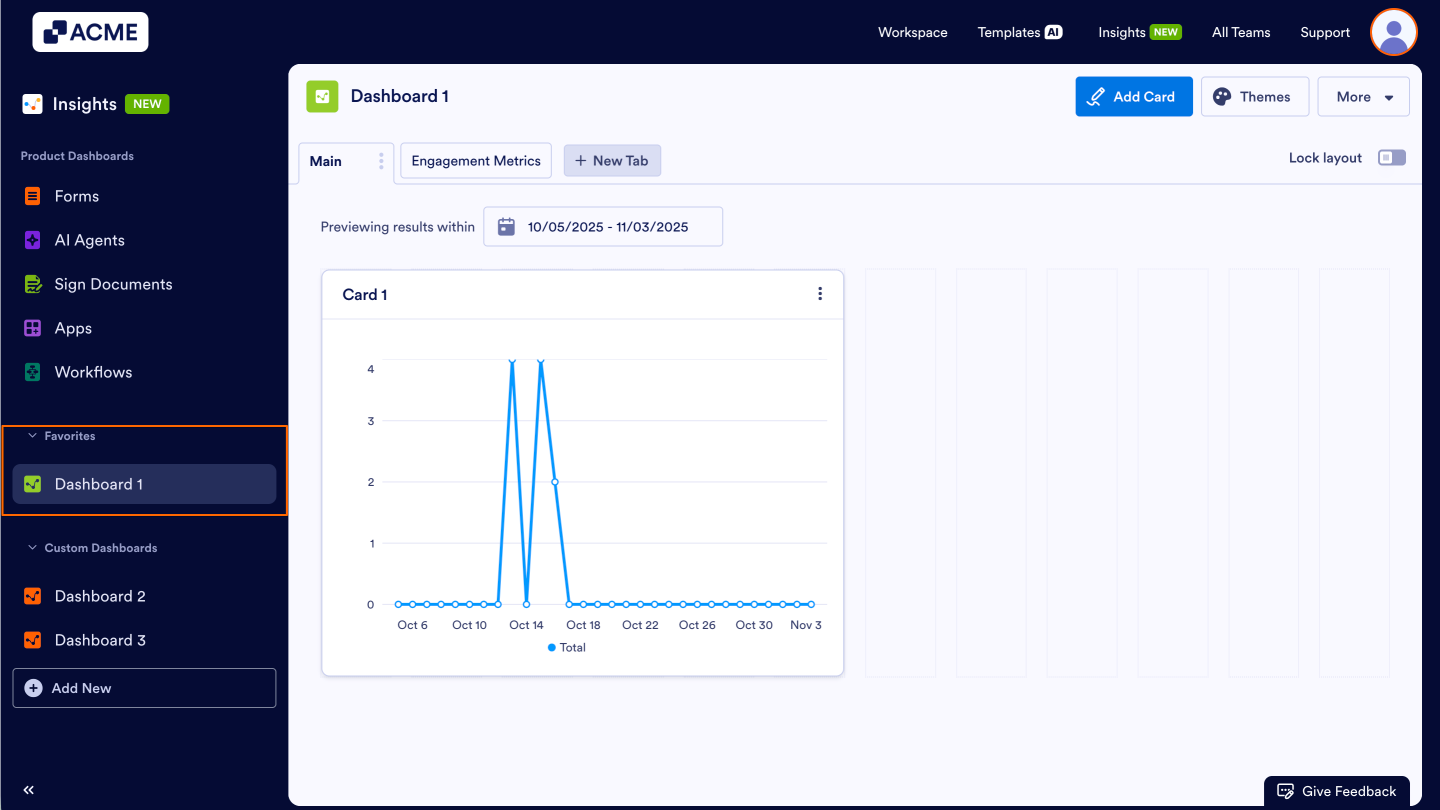
From within the Custom Dashboard
- Open the Custom Dashboard you want to favorite.
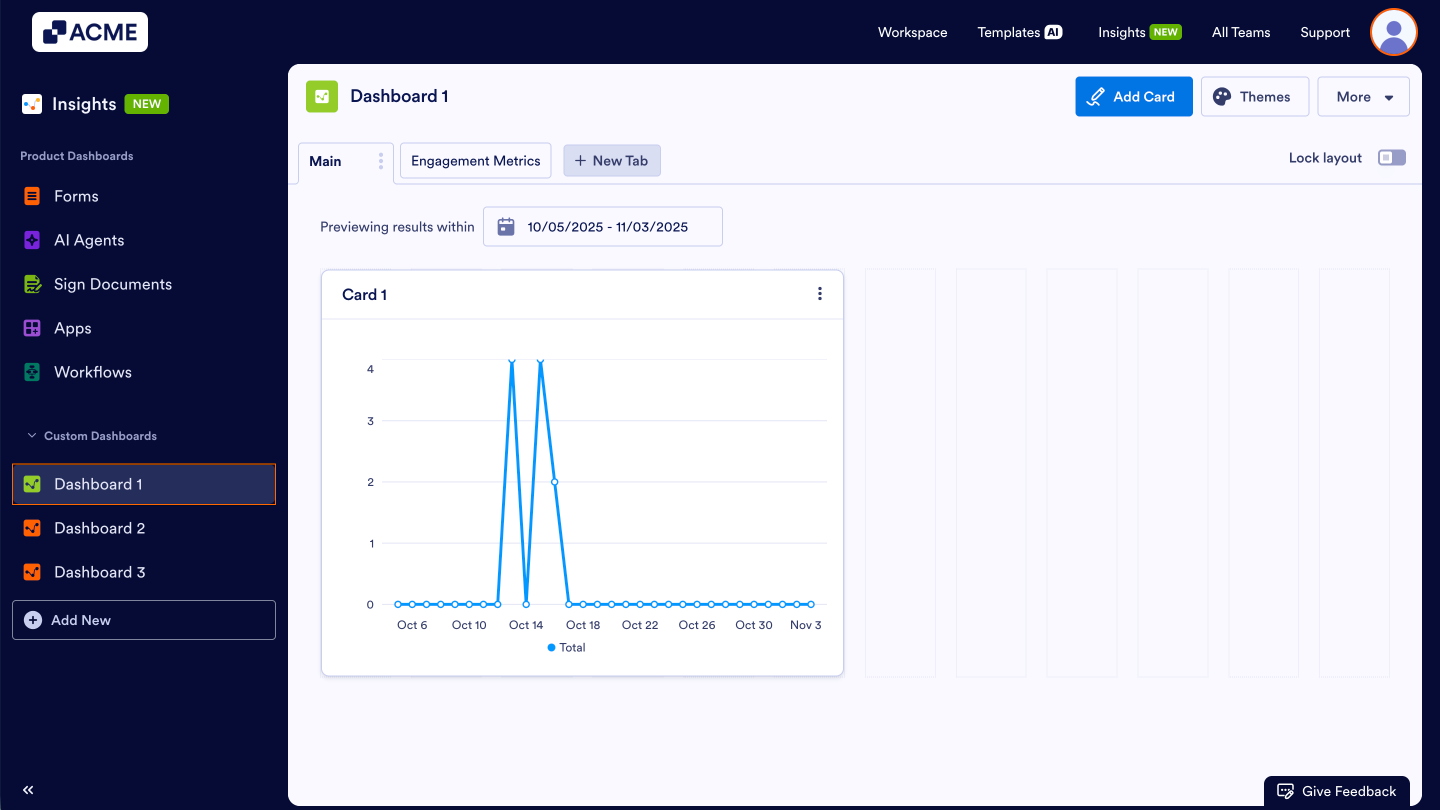
- Then, click on More in the upper right-hand corner of the page.
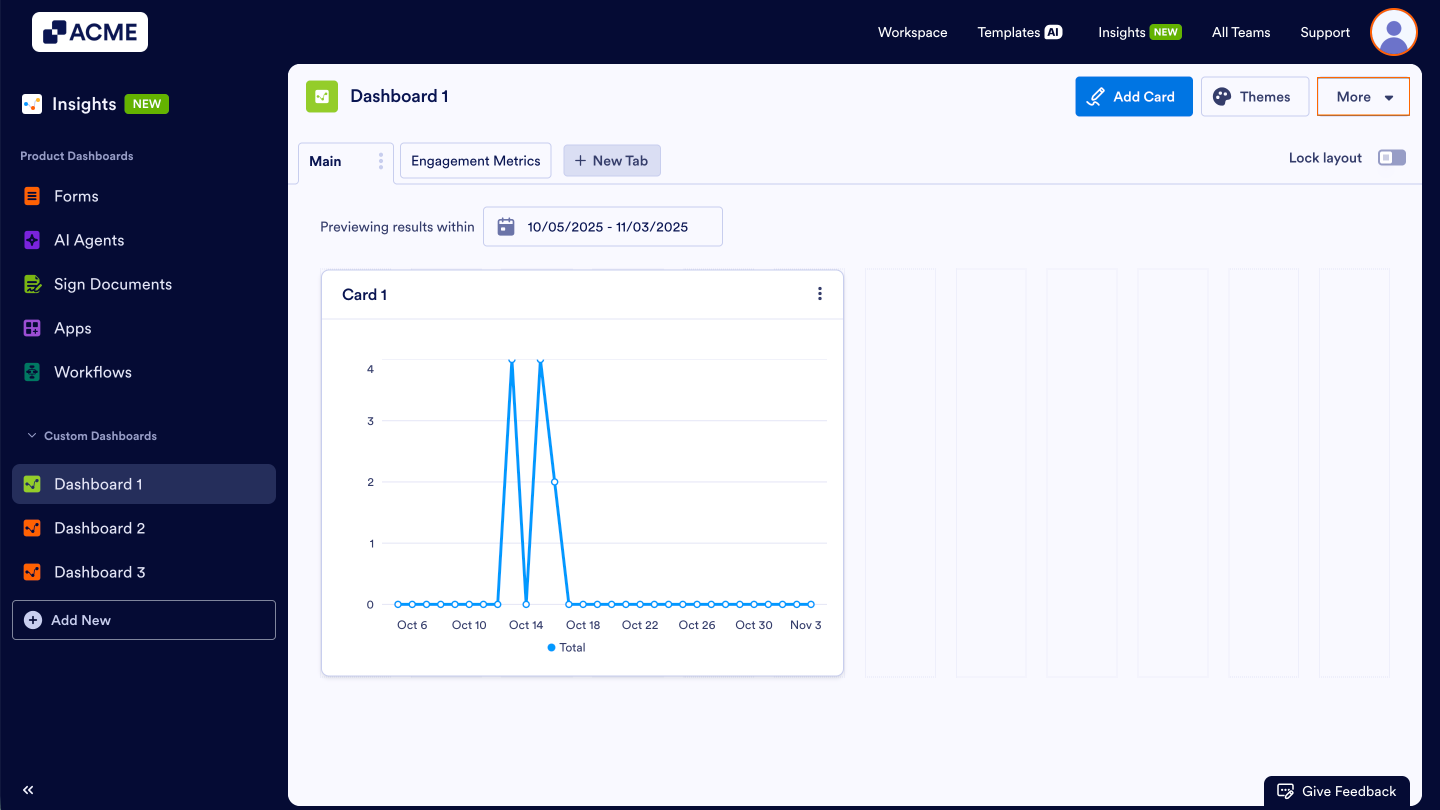
- Finally, select Add to Favorites from the drop-down menu.
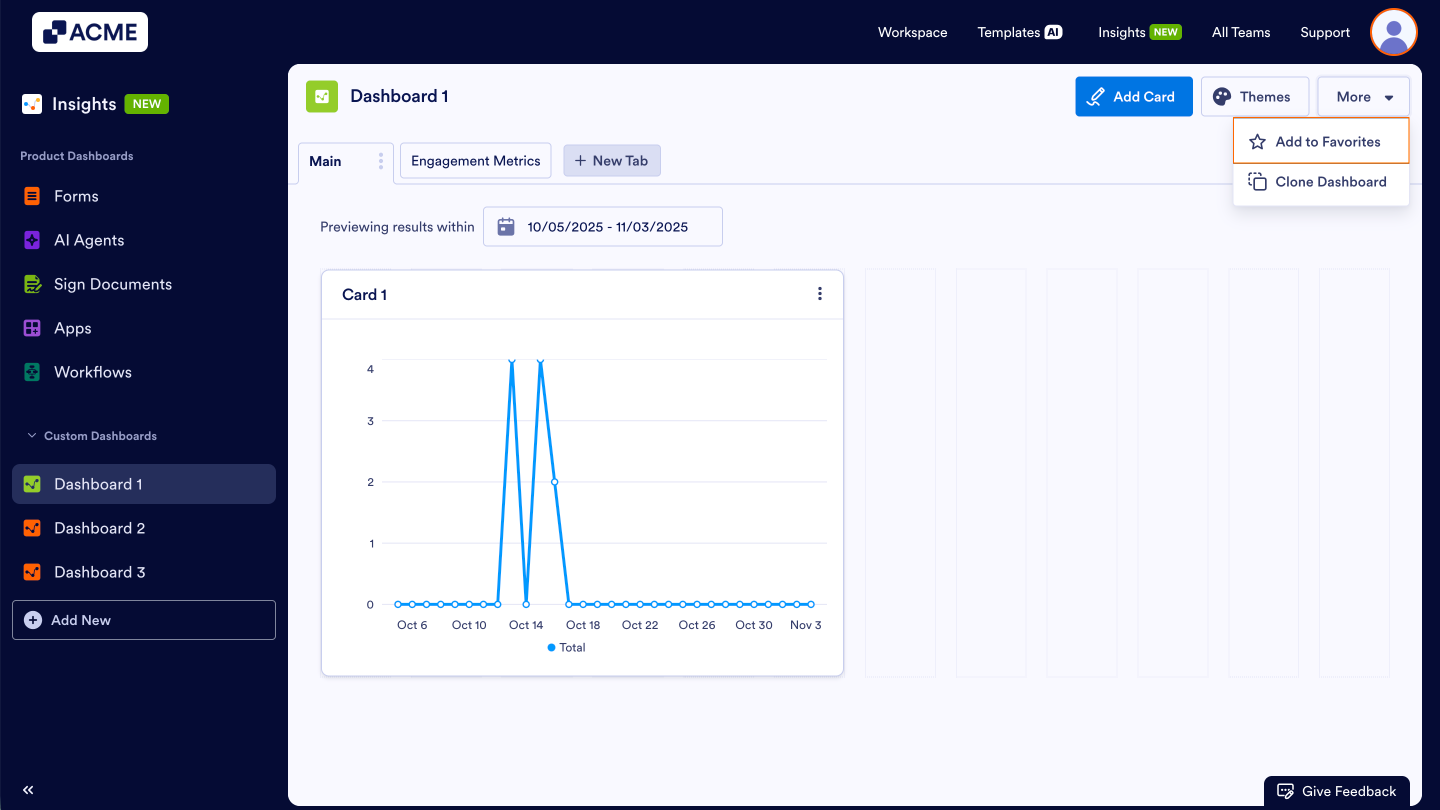
The dashboard will appear under Favorites in the left menu.
Removing Custom Dashboards from Favorites
You can also remove Custom Dashboards from your Favorites. Let’s walk through these steps together:
- In Insights, under Favorites, hover over the dashboard you want to remove.
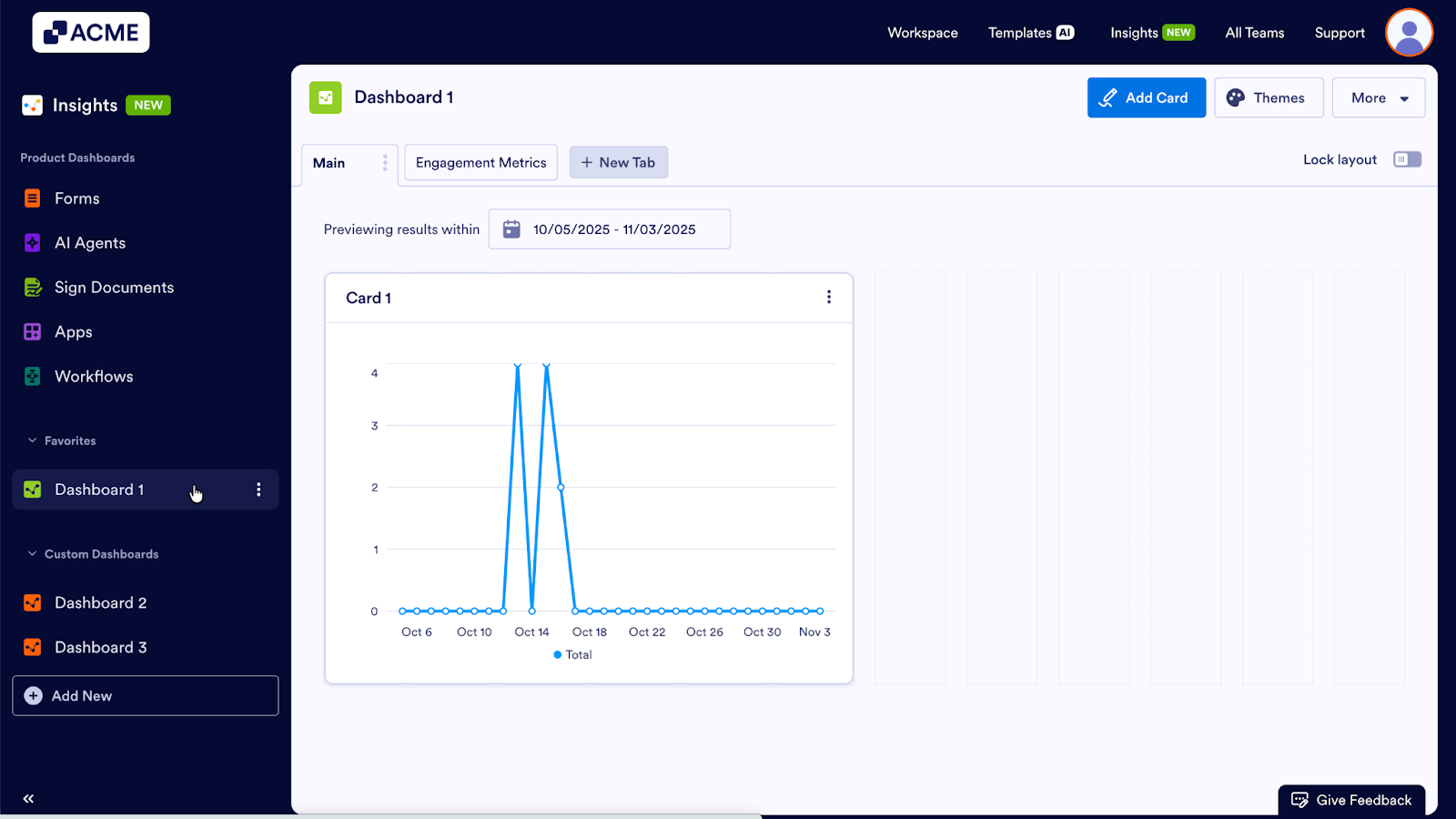
- Then, click on the three-dot menu
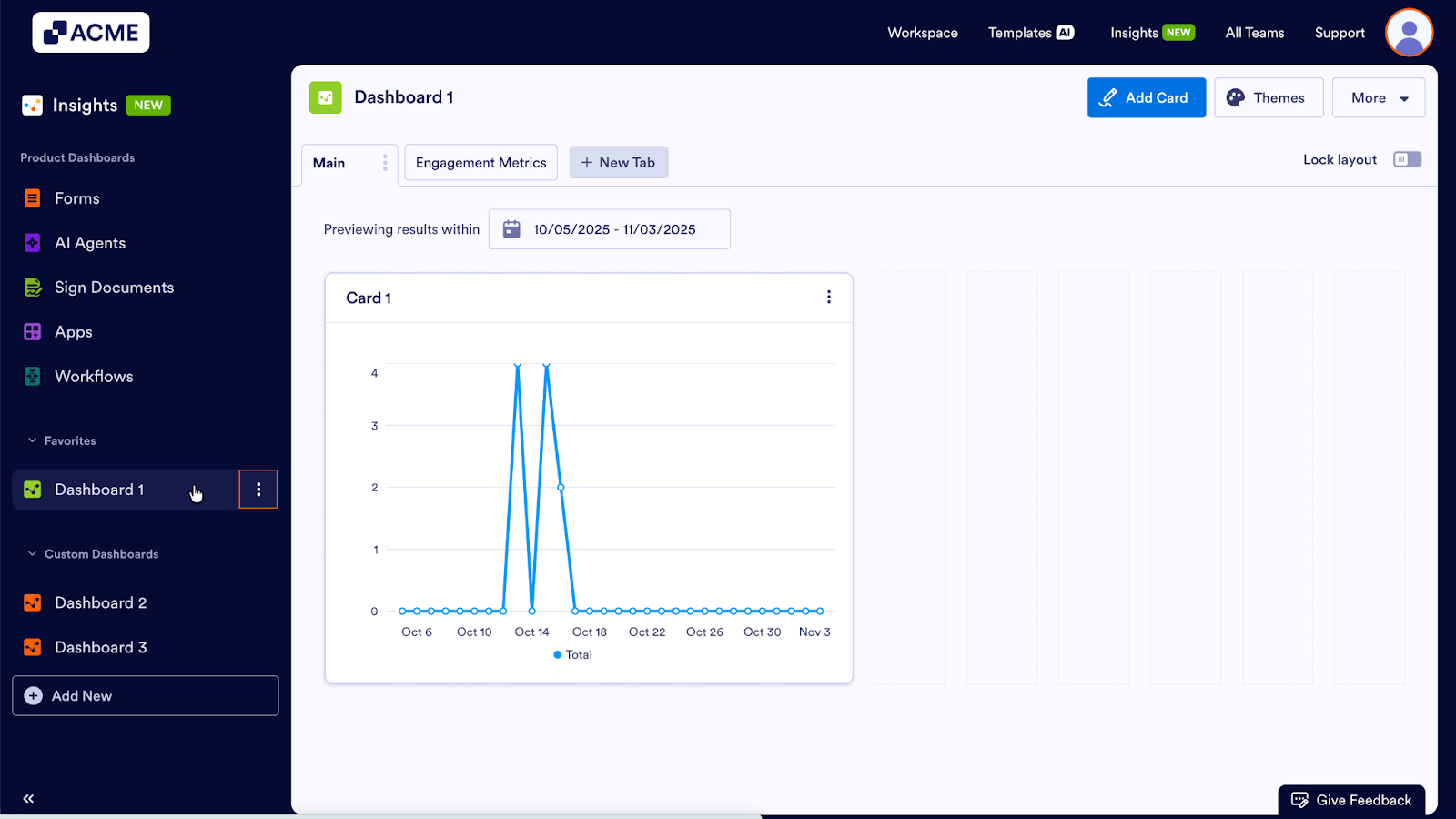
- Finally, select Remove from Favorites from the pop-up menu
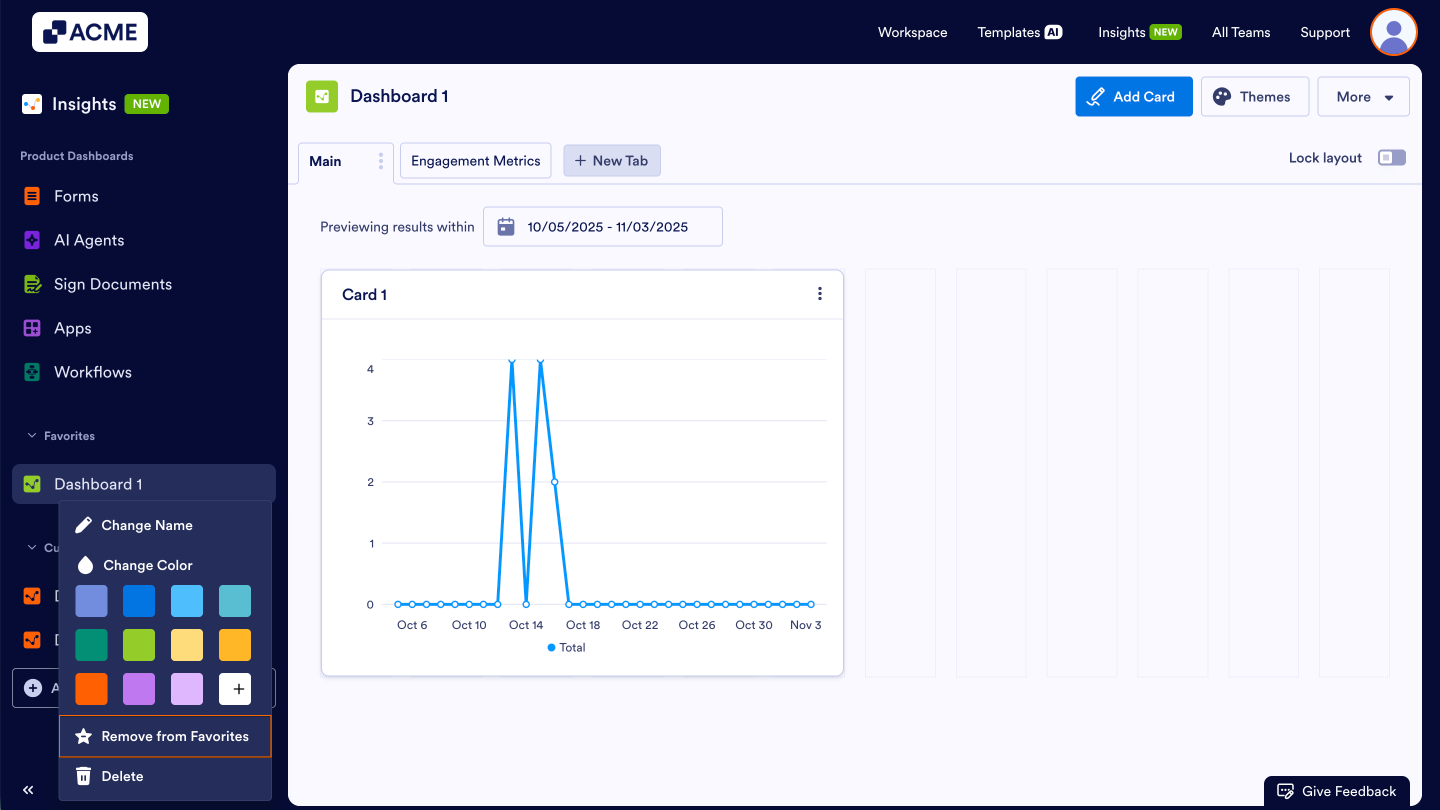
The dashboard will no longer appear under Favorites in the left menu and will appear under Custom Dashboards.

Send Comment: