Themes let you take the customization of your custom Dashboards. Using either System Palettes or Custom Palettes, you can create a consistent and professional look to your Dashboards and control the colors used across cards, chart features, and other visual elements.
In this article, we’ll talk about both types of Palettes, along with managing and editing them. Let’s get started with System Palettes.
System Palettes
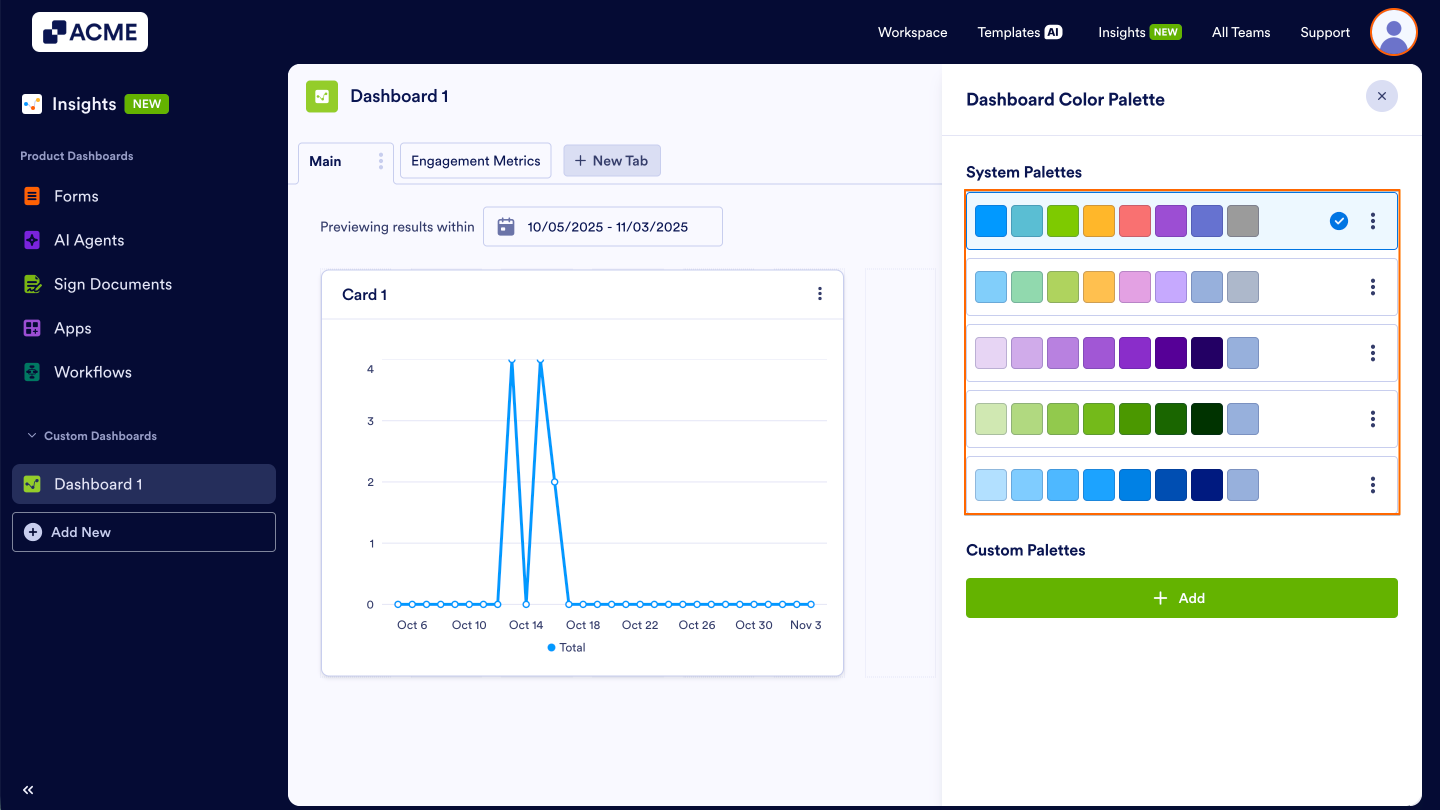
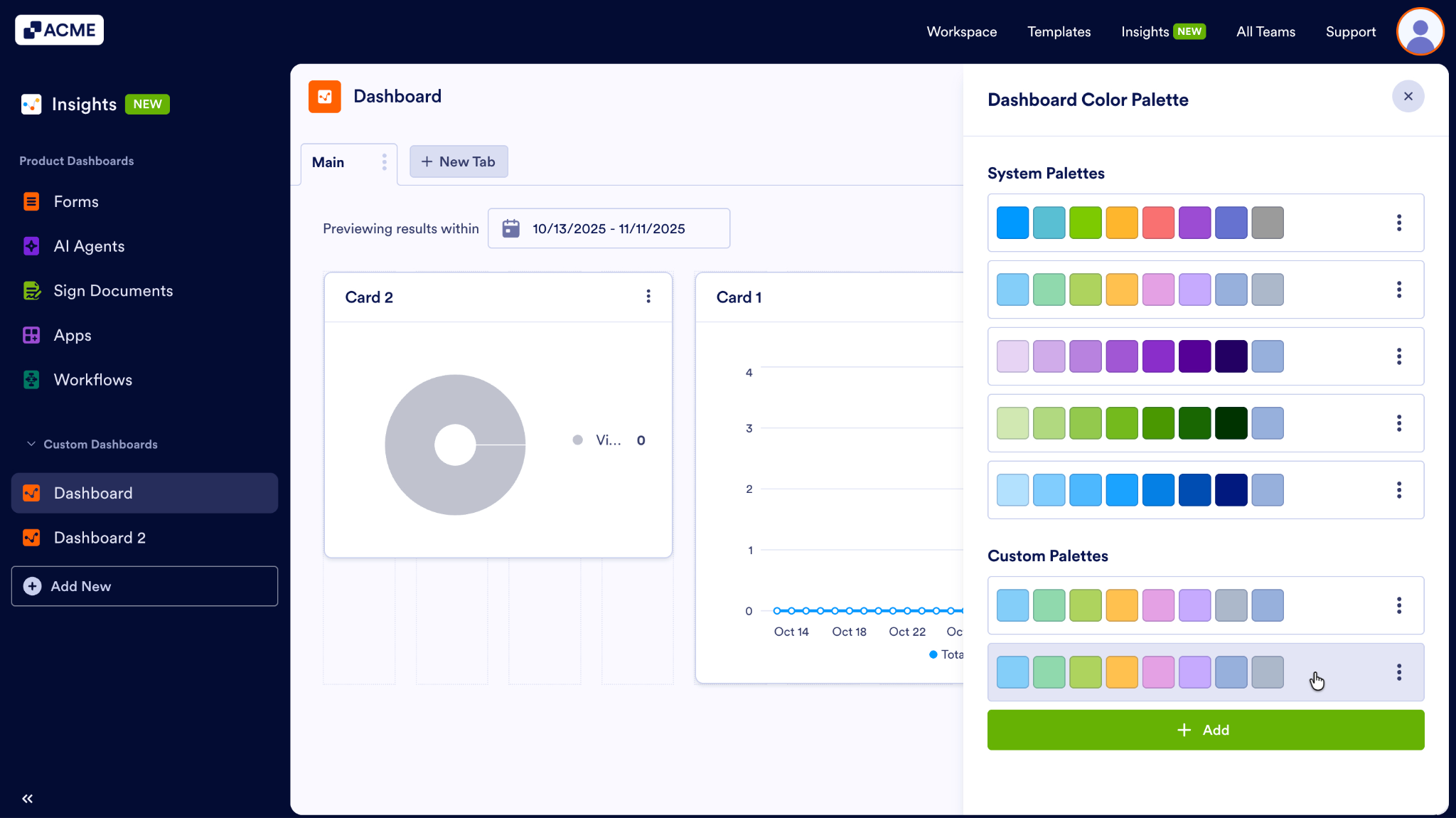
System Palettes are predefined color themes and are designed to provide clear, visually balanced color combinations that work well with all chart types. Let’s walk through applying a System Palette to your Dashboard together:
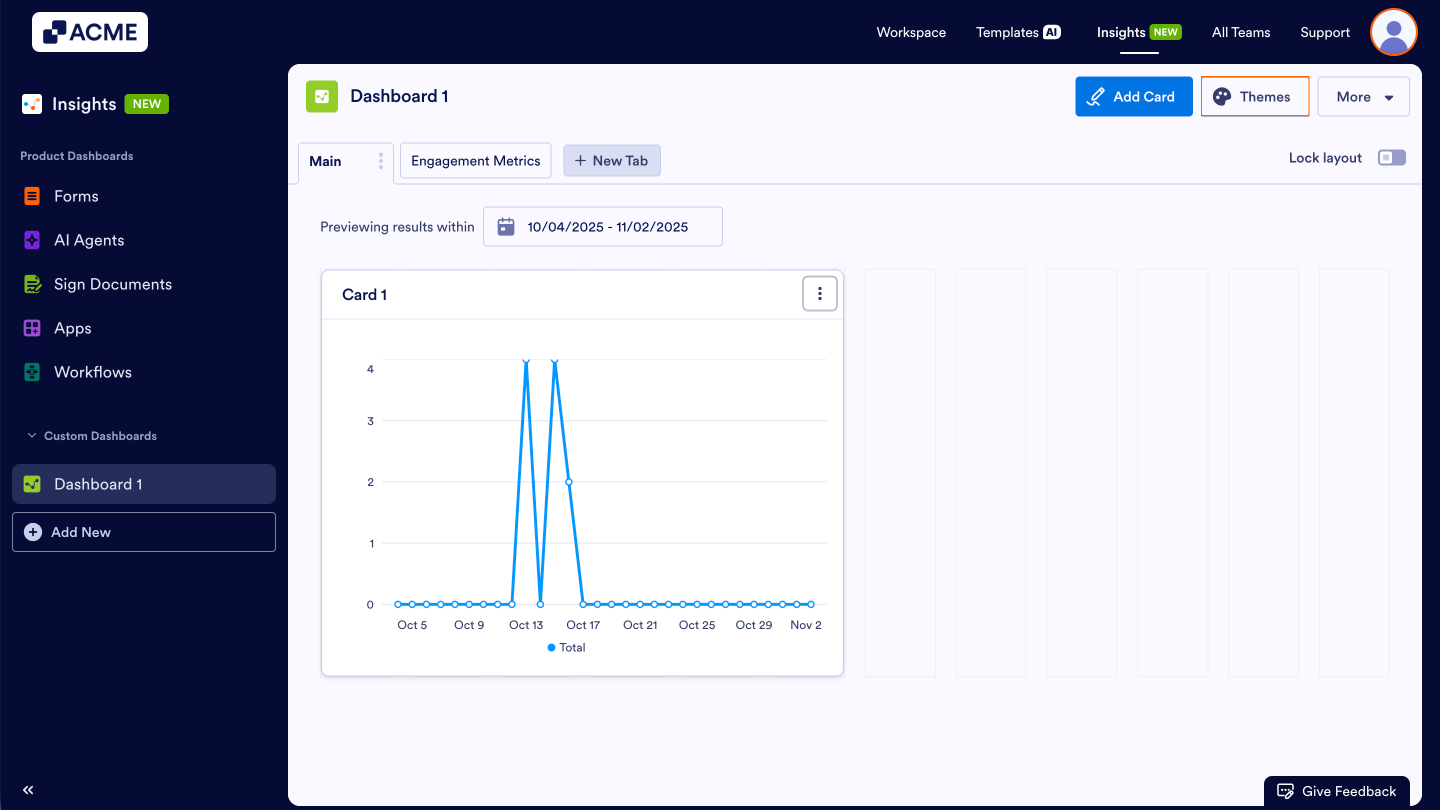
- In your custom Dashboard, click on Themes in the top-right corner.
- Then, select the color palette you want to use.
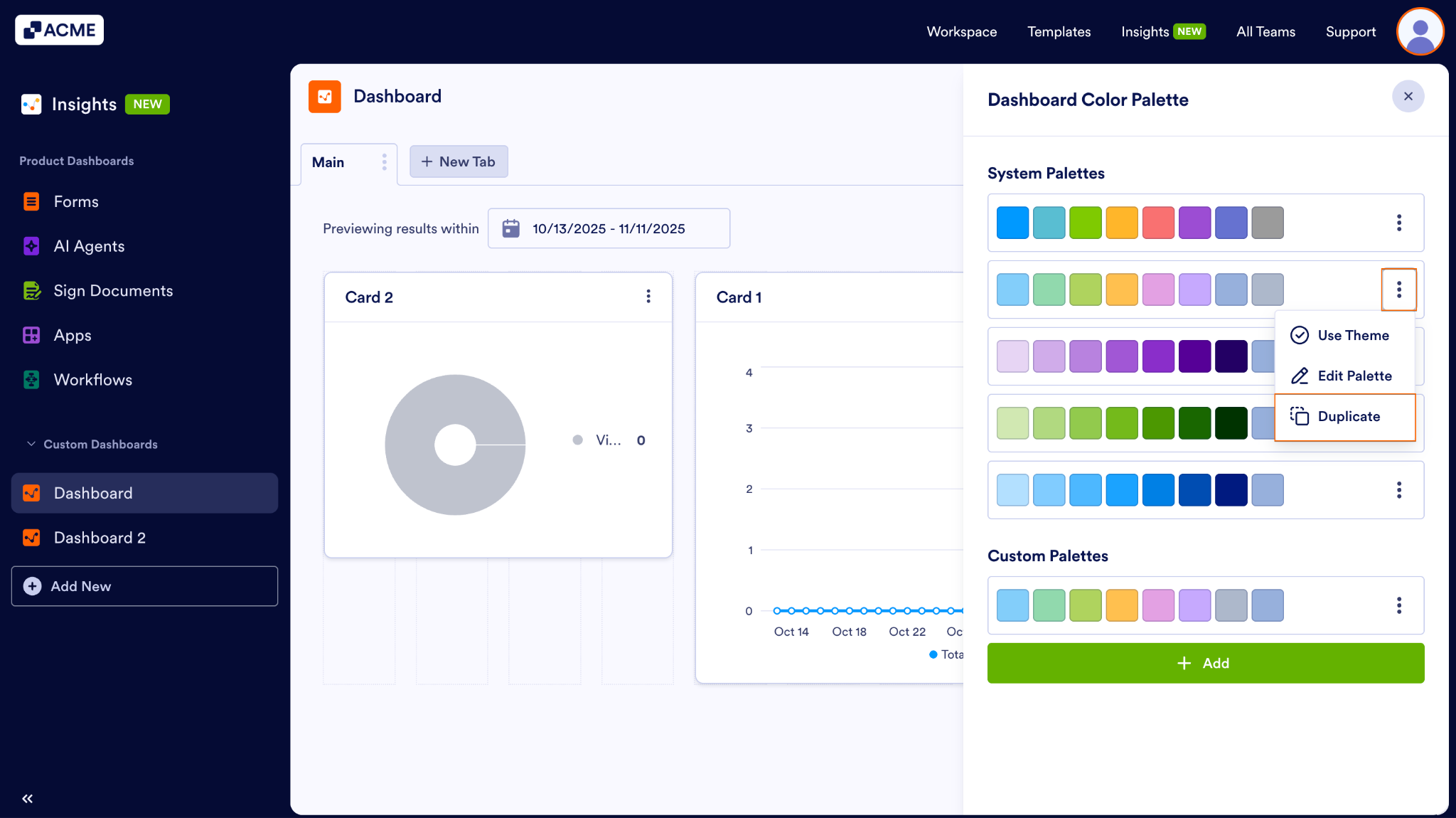
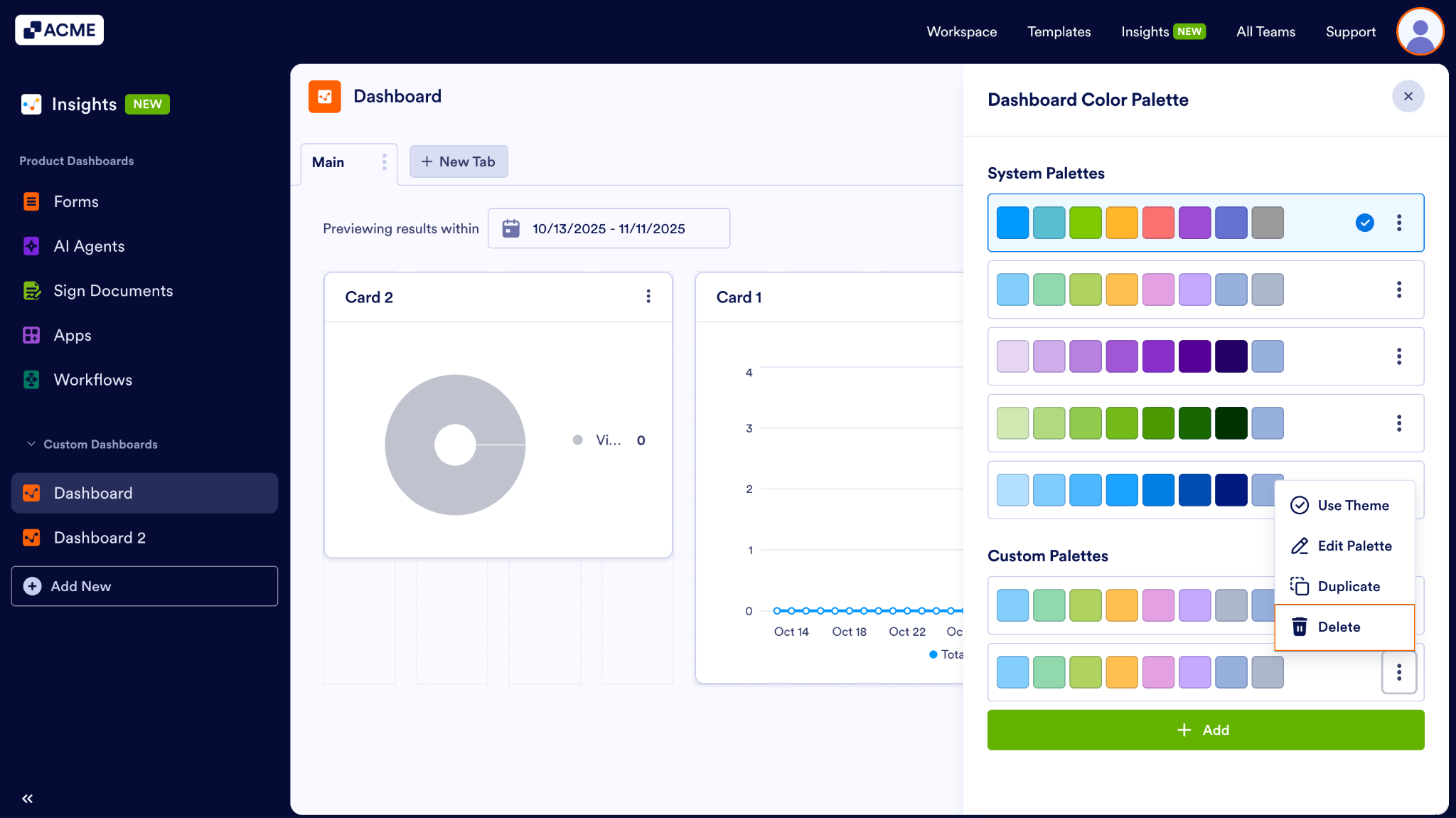
- Alternatively, click on the three-dot menu next to the palette and click on Use Theme.
Custom Palettes
With Custom Palettes, you can create and manage your own theme to align with your organization’s branding or personal preference. These can be found under the System Palettes and can be used across all custom Dashboards. Let’s create a Custom Palette together:
- In your custom Dashboard, click on Themes in the top right-hand corner of the page.
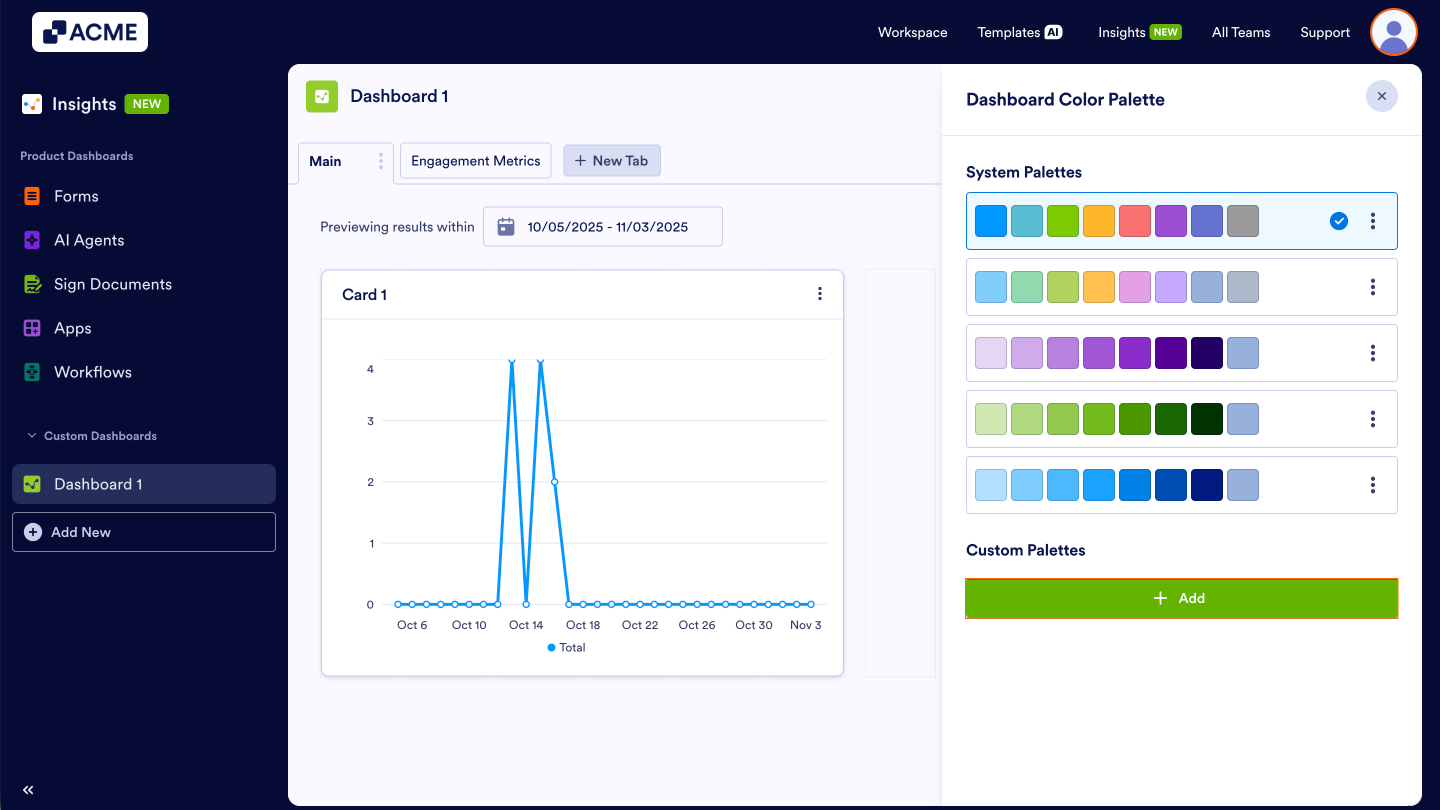
- Then, click on +Add under Custom Palettes to open the color selection menu.
- Click on either the color box next to the HEX code or +Add New Color.
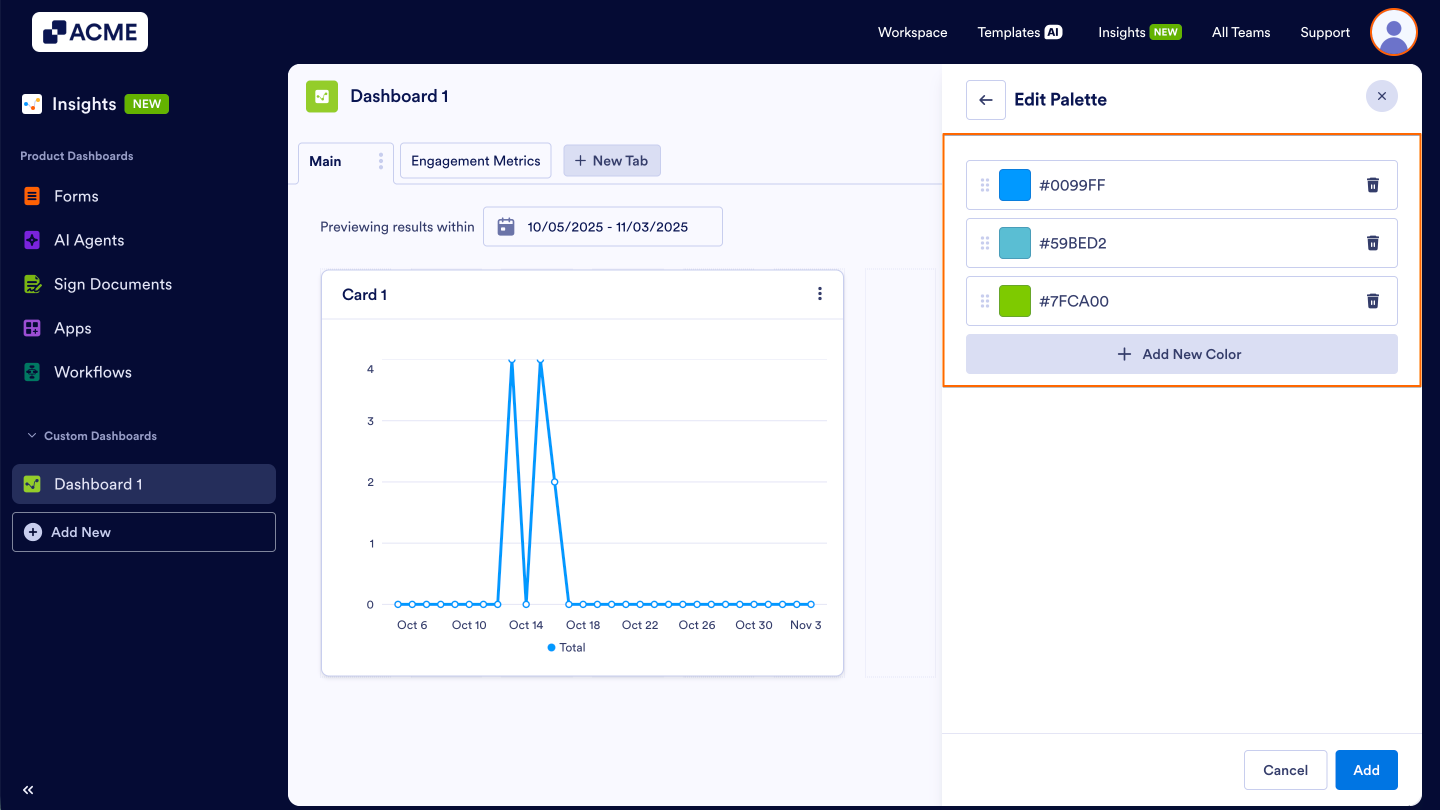
- In the pop-up menu, select the color from the picker or enter a HEX code.
- Repeat steps 3 and 4 until you’ve added all of the colors you need.
- Finally, click on Add to save the palette to your list.
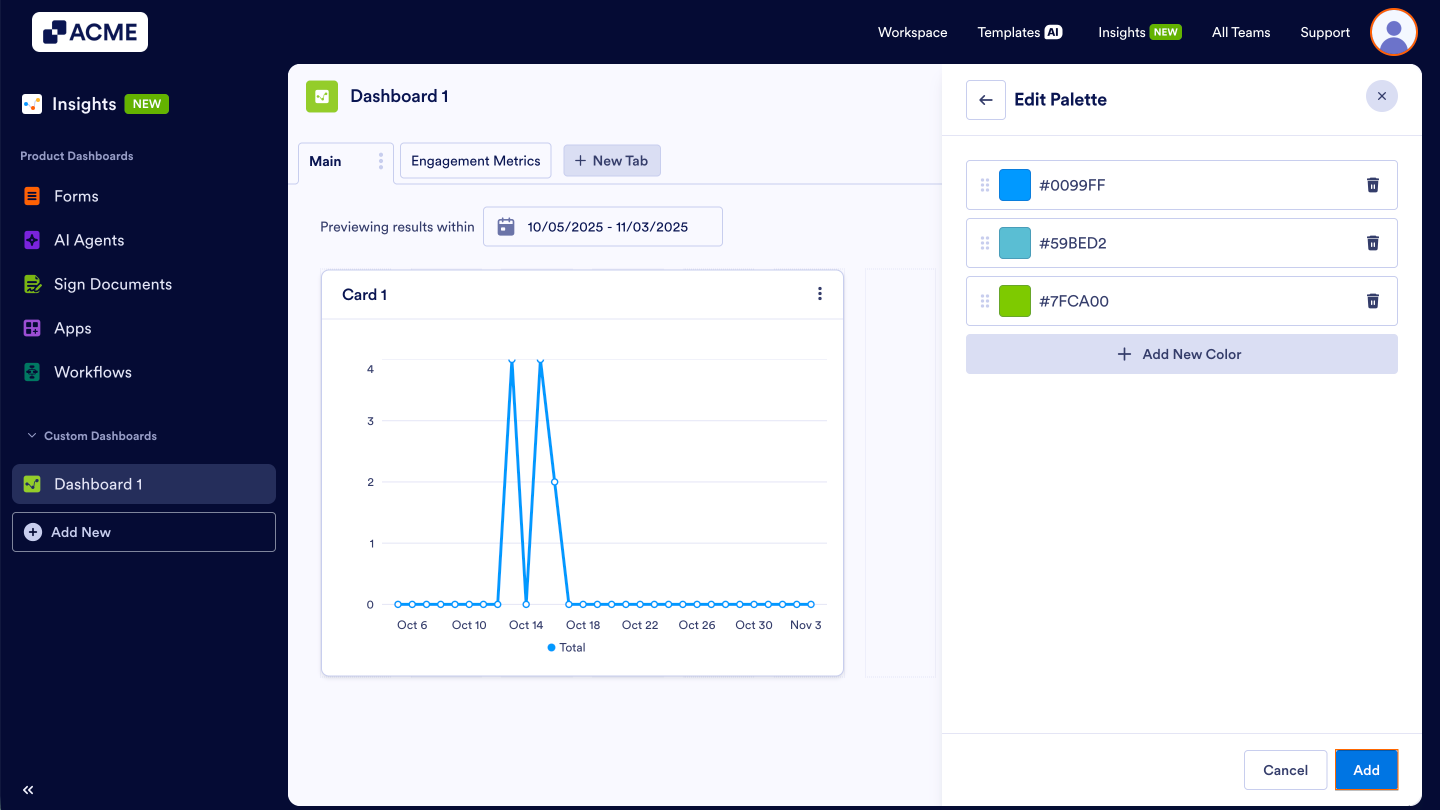
Once created, your custom palette will appear under Custom Palettes, where you can select, edit, or duplicate it as needed to manage your dashboard’s appearance.
Managing Themes
Each palette, whether a System Palette or a Custom Palette, can be edited or duplicated. Let’s go over managing these, starting with editing palettes:
Editing a Palette
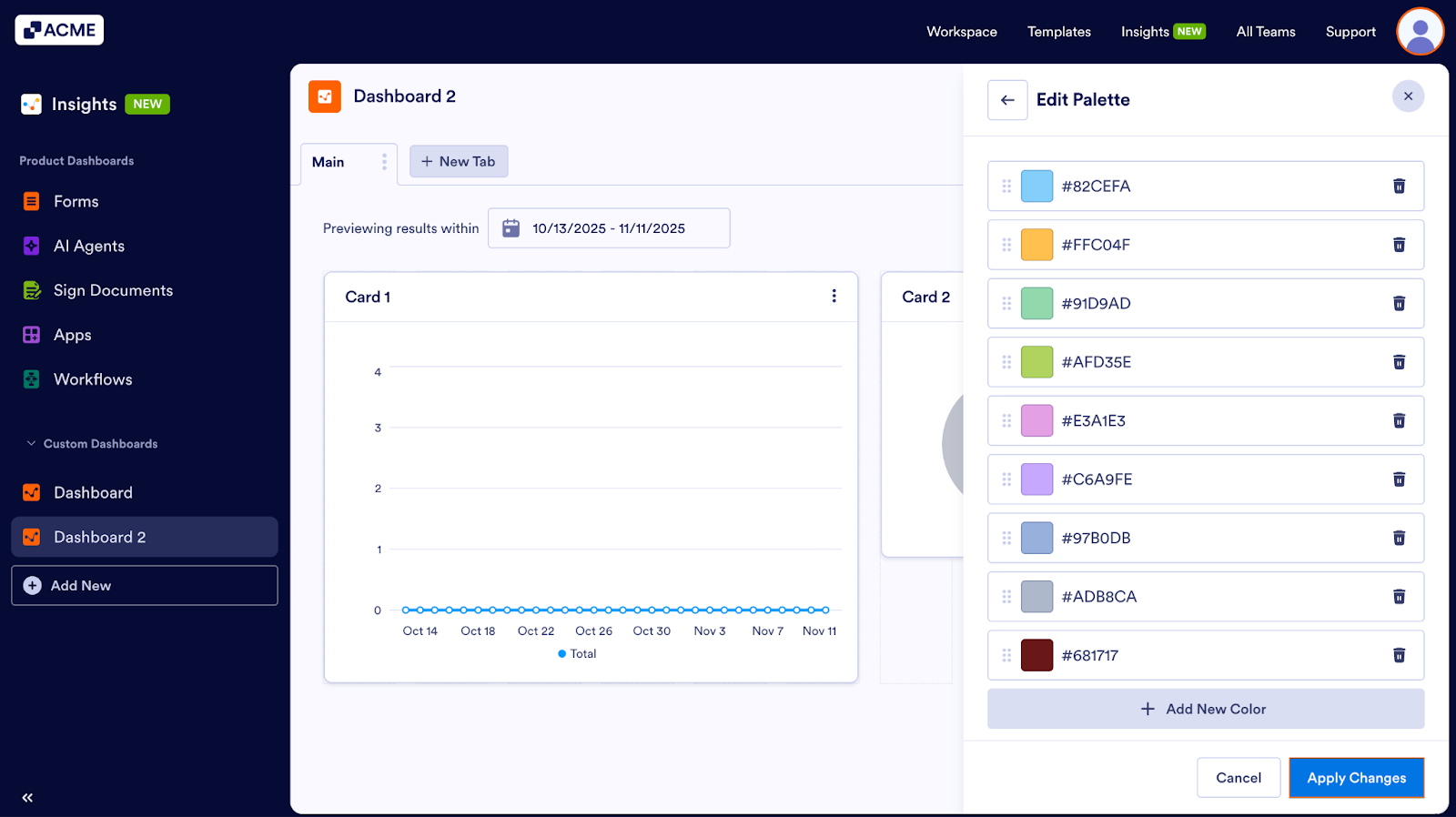
- Under Themes, hover over the theme you’d like to edit.
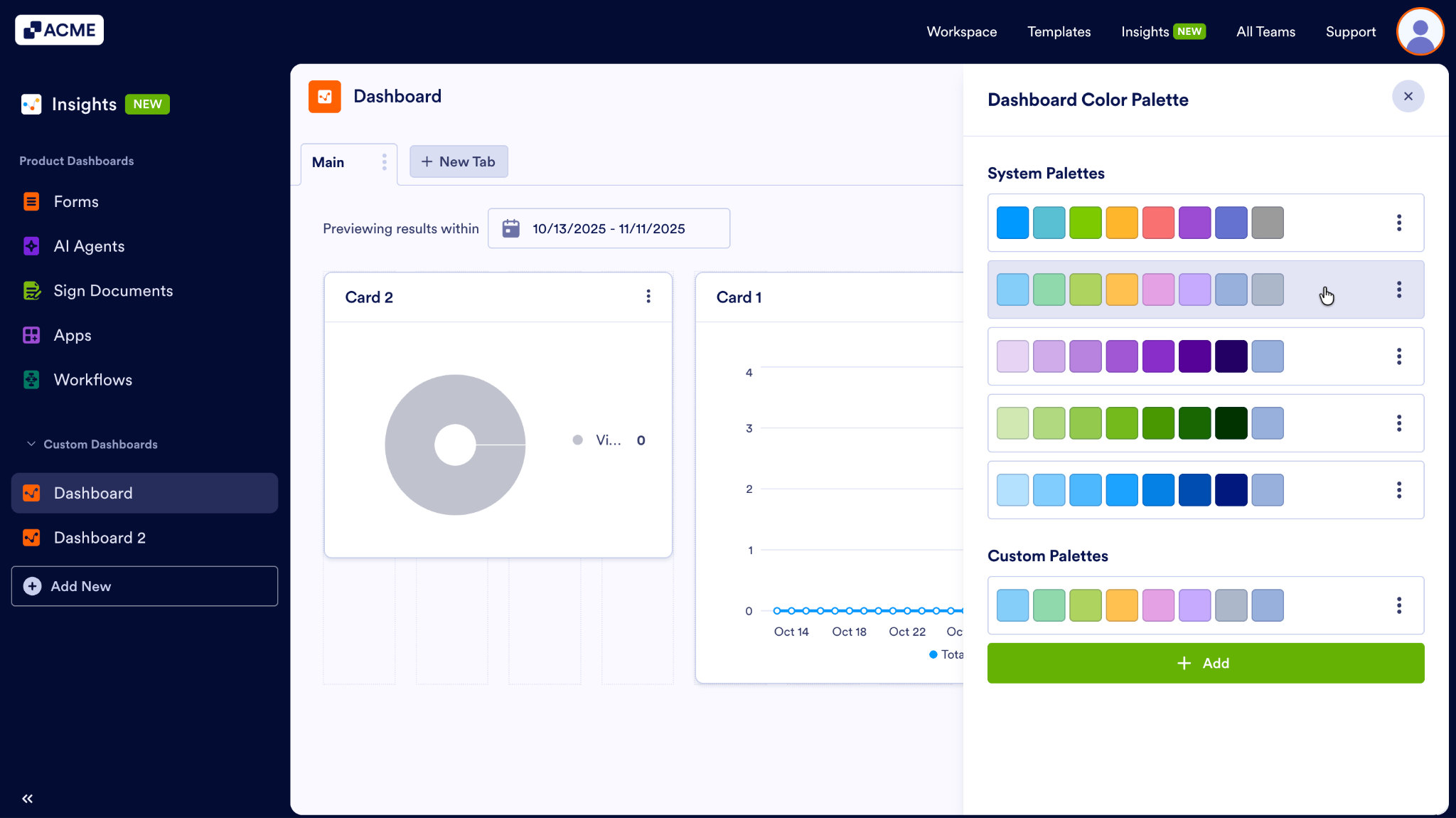
- Then, click on the three-dot menu next to theme and click Edit Palette.
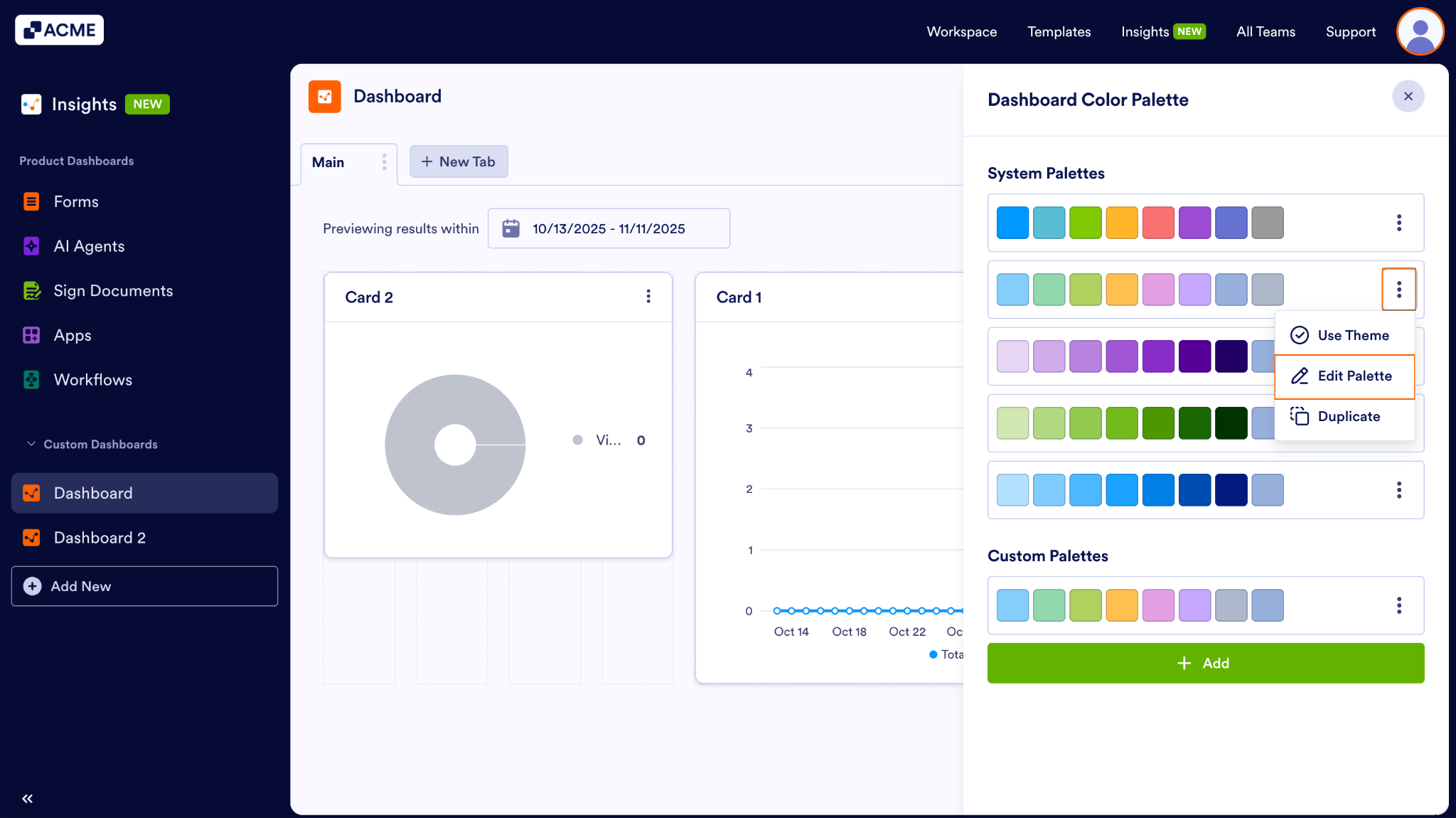
- To update a color, click on the color box next to the HEX Code and select a new color or enter a new code.
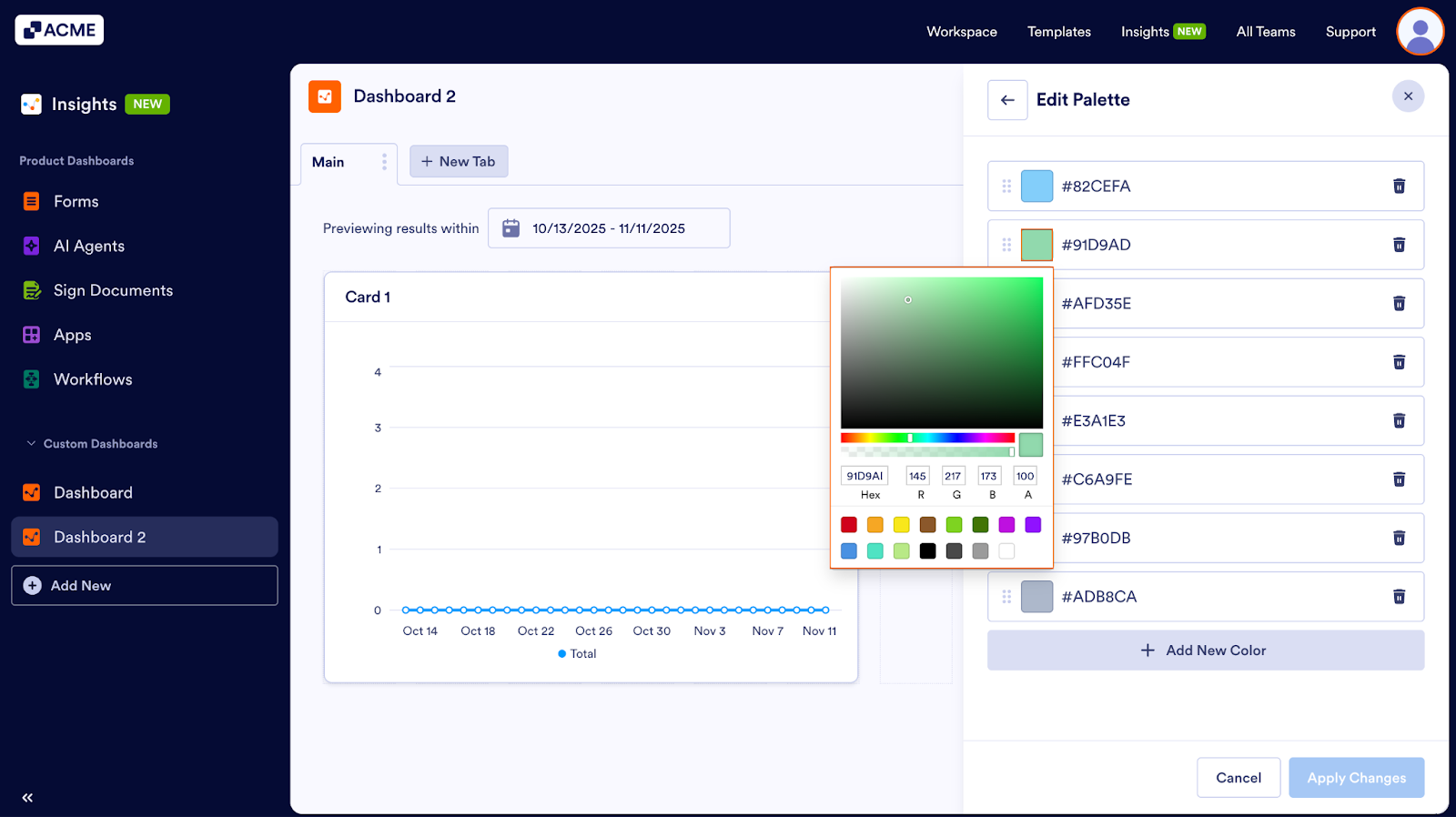
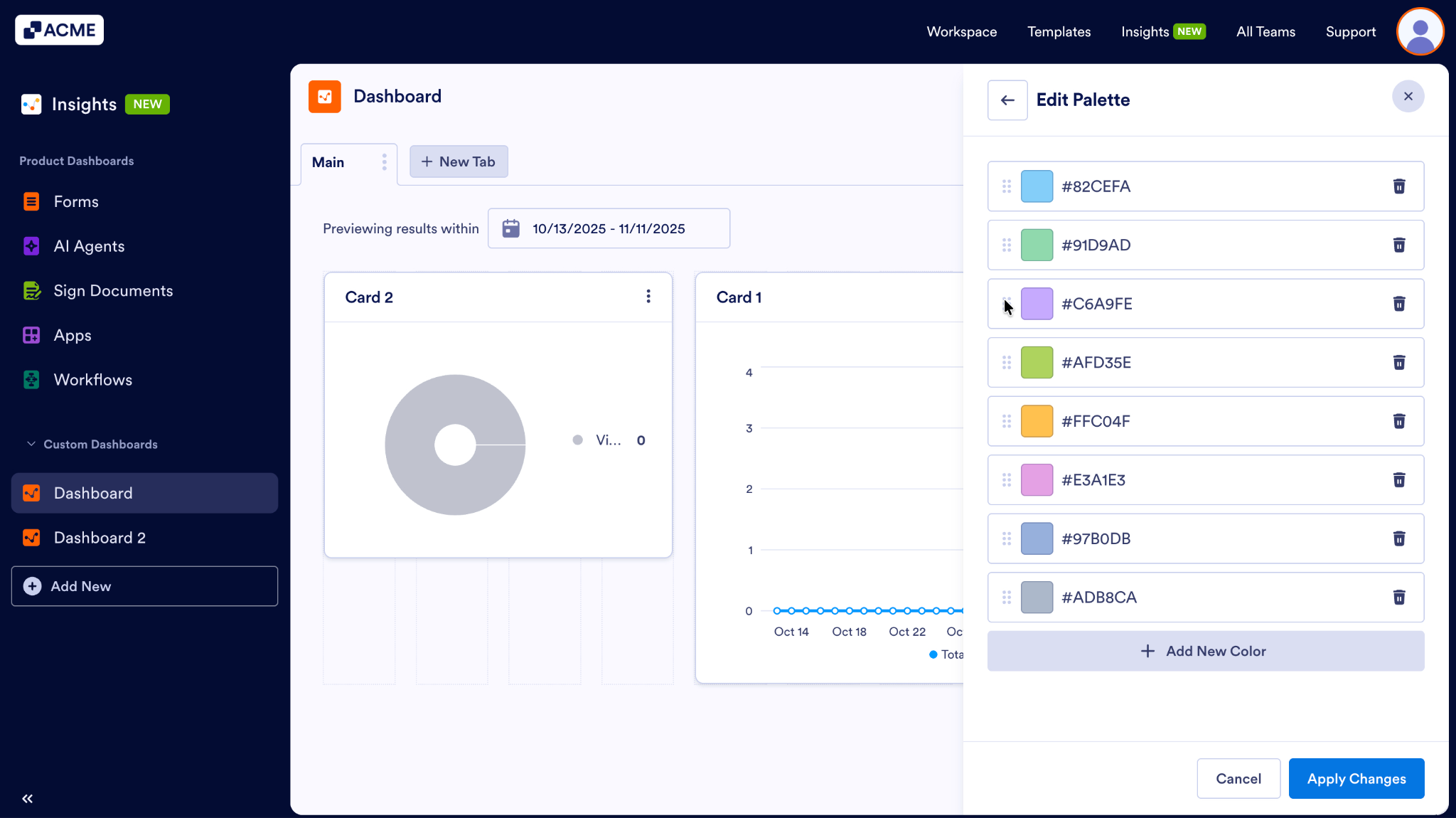
- To rearrange the order, click and hold onto the six dot handle next to the color box.
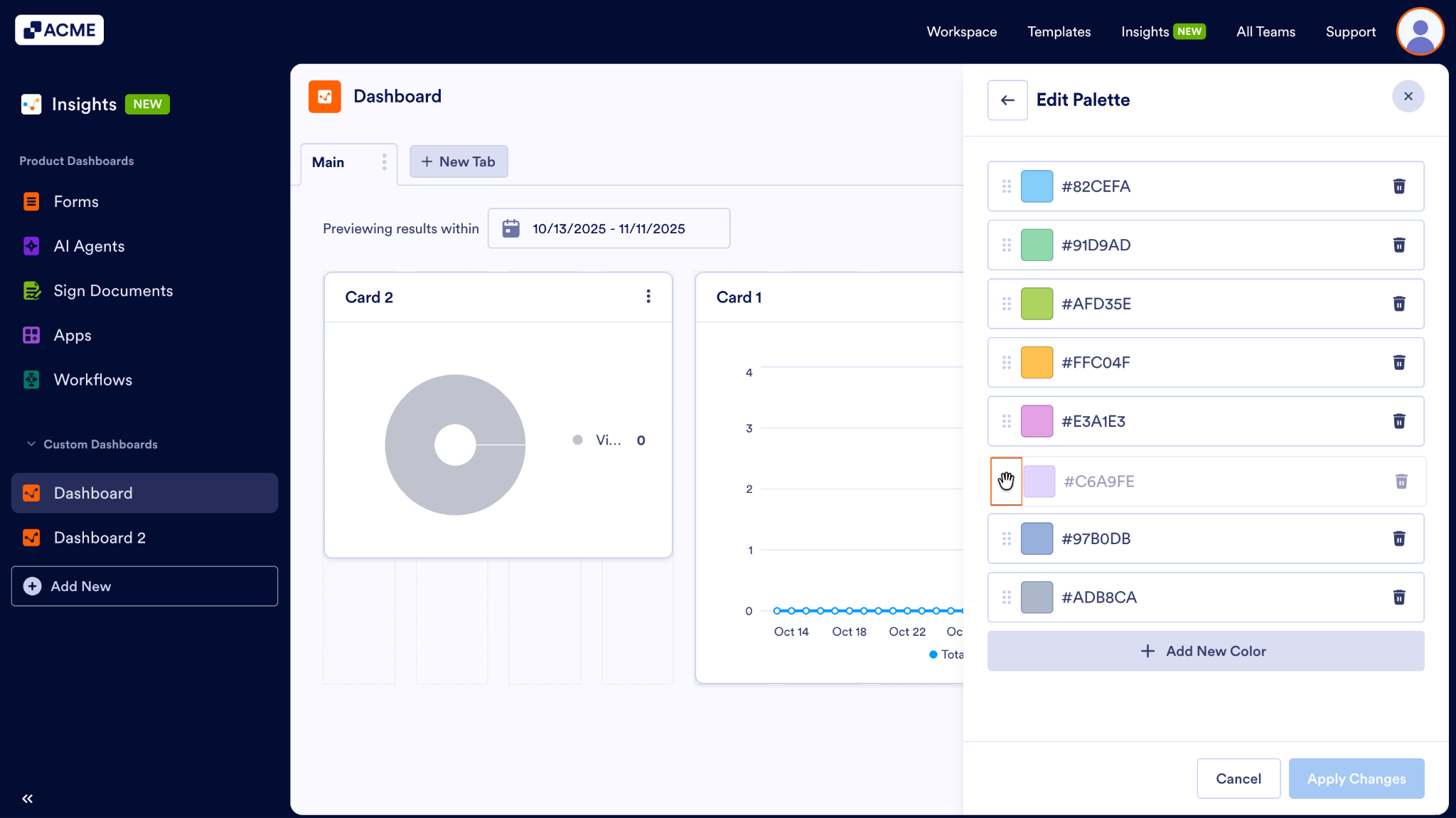
- Drag and drop it into a new position.
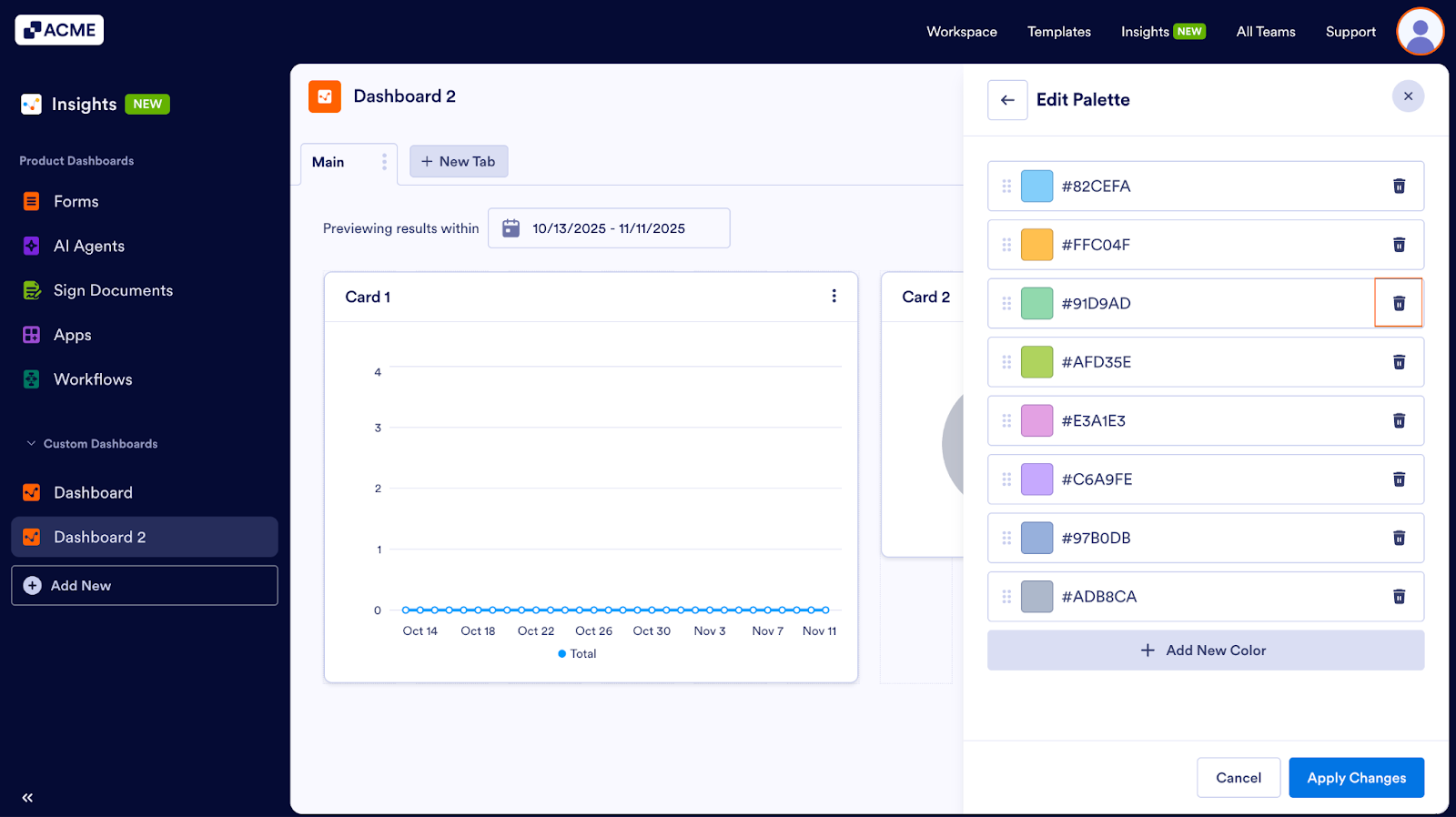
- To delete a color, click on the trash can icon next to the color.
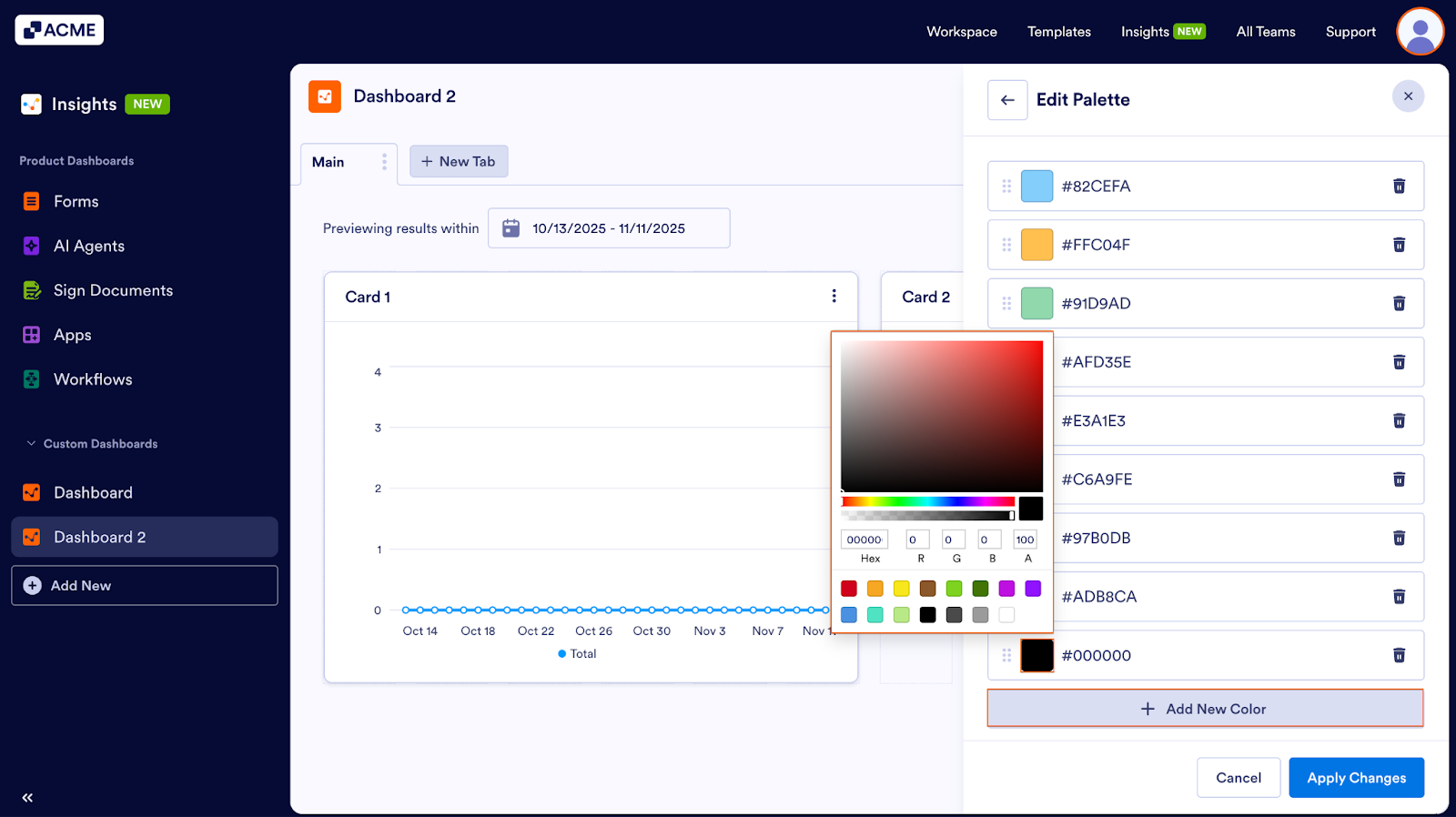
- To add a new color, click on +Add New Color and select the color or enter the HEX Code.
- Finally, click Apply Changes to save the edits you’ve made to the palette.
Duplicating a Palette
- Under Themes, hover over the theme you’d like to duplicate.
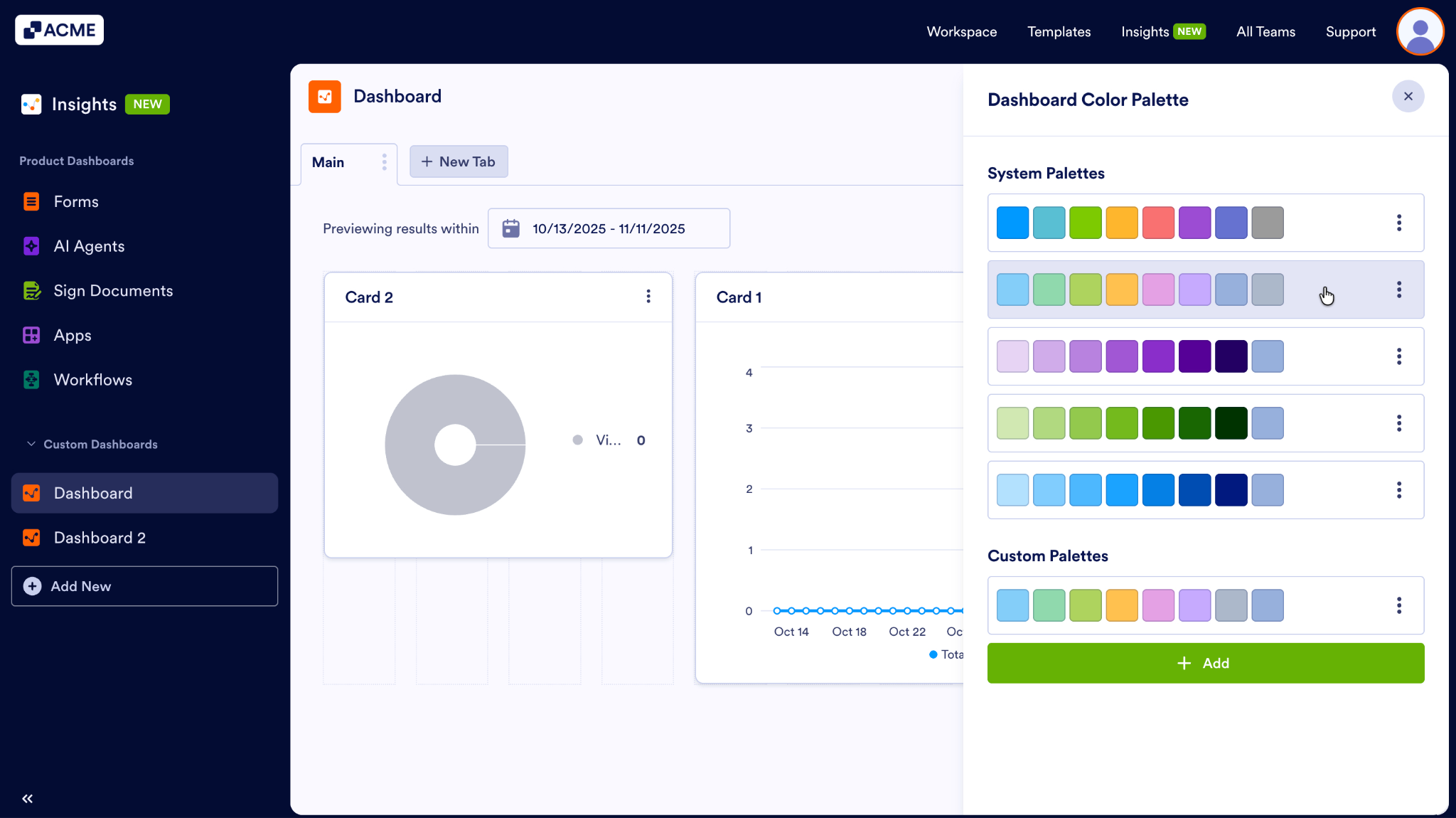
- Then, click on the three-dot menu next to theme and click Duplicate.
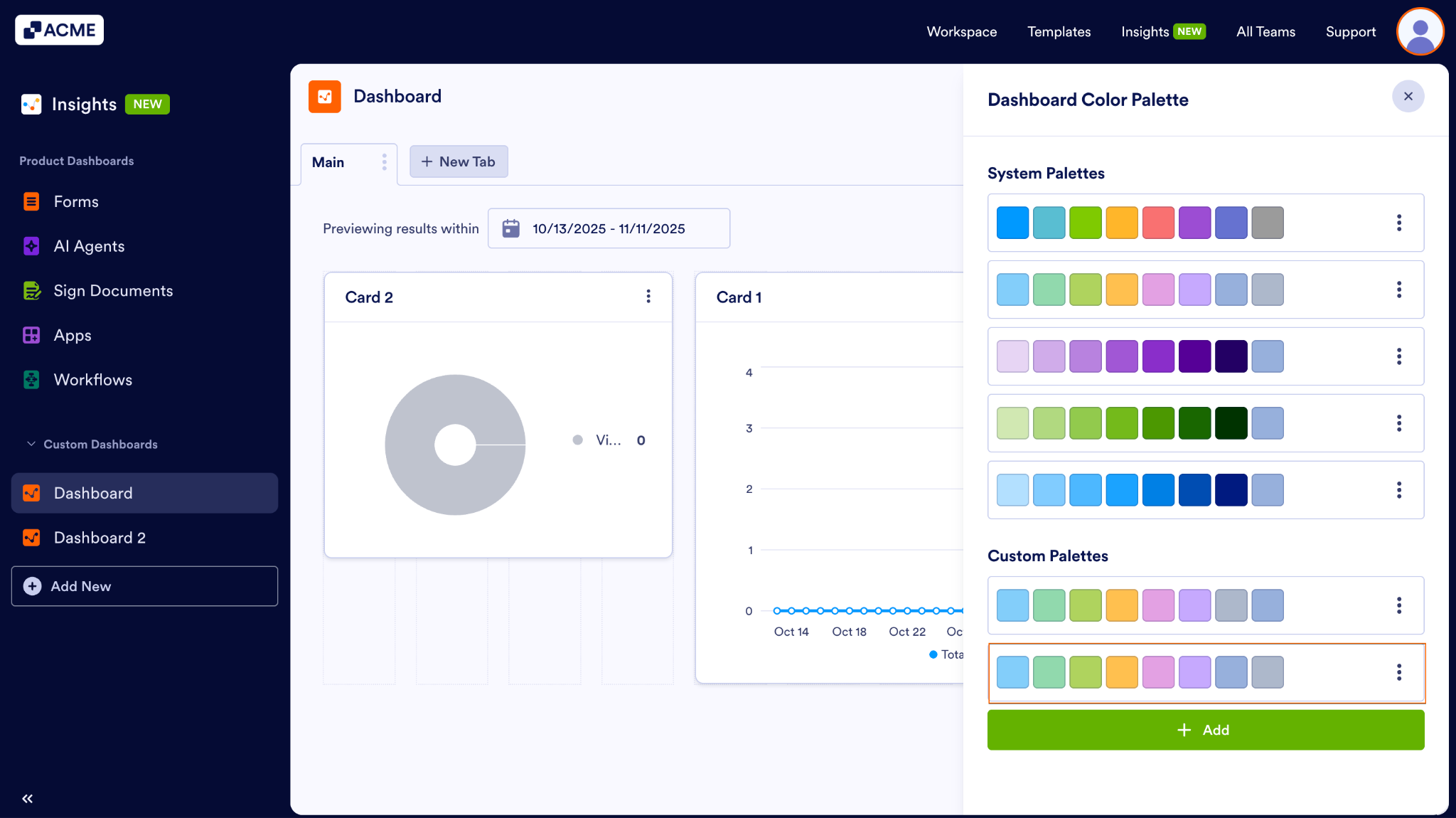
- A copy of the theme will appear under Custom Themes, even if it’s a System Theme.
Deleting a Theme
Only Custom Palettes can be deleted. This is a permanent action and cannot be undone.
- Under Themes, hover over the theme you’d like to delete.
- Then, click on the three dot menu next to the theme and click Delete.

Send Comment: