You can manage all your website widgets from the My Widgets page. This is where you can create new widgets, edit existing ones, copy embed codes, control widget visibility, or delete widgets you no longer need.
Managing your widgets helps keep them organized and ensures they display correctly on your website. You can manage your widgets using the following actions:
- Accessing Your Widgets
- Creating a New Widget
- Editing a Widget
- Getting the Embed Code
- Hiding or Showing a Widget
- Deleting a Widget
- Sorting Widgets
Accessing Your Widgets
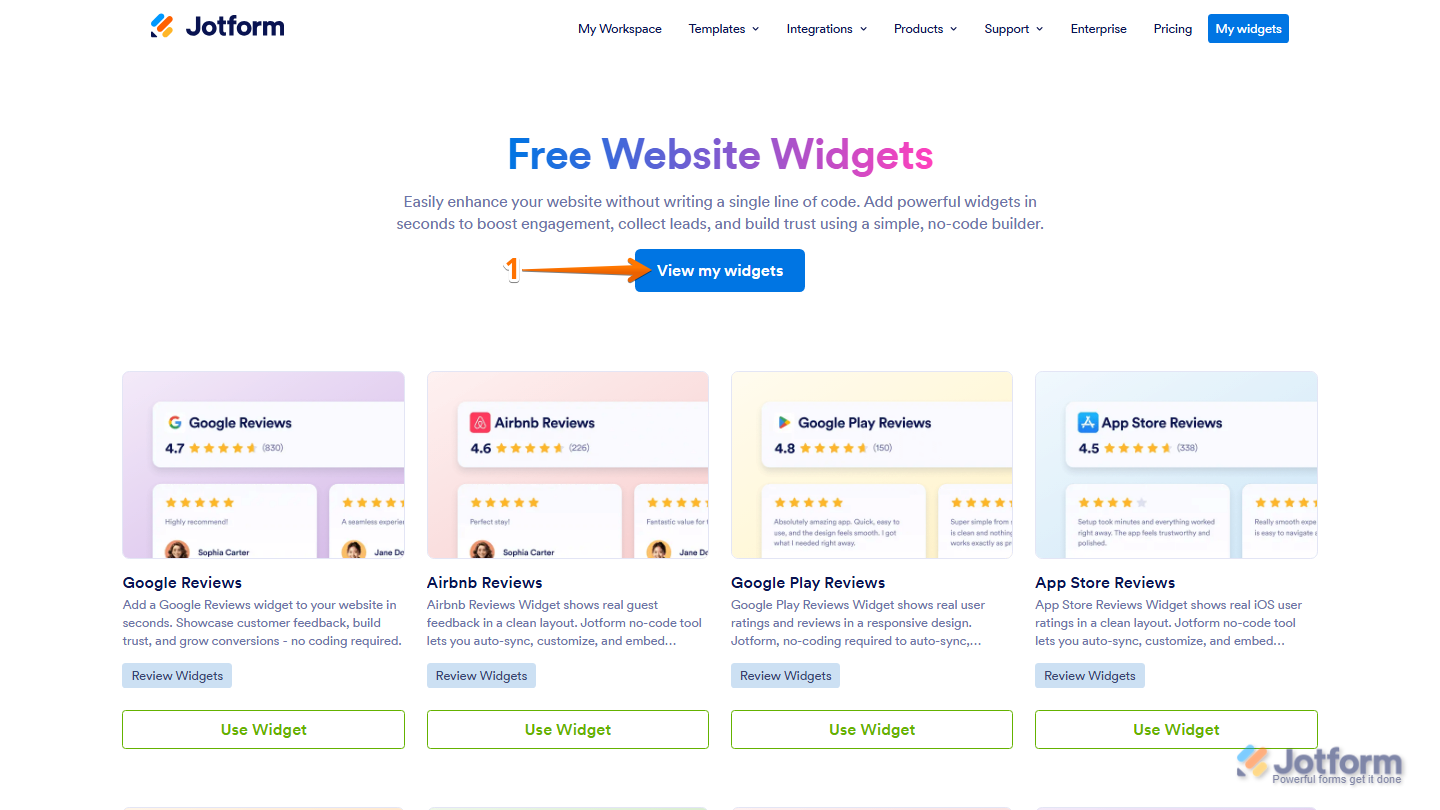
The Website Widgets page lets you view and manage all the widgets you’ve created in one place. This makes it easier to access and manage multiple widgets at once. Here’s how to access it:
- Go to the Website Widgets page and click on View my Widgets.
- Now, you’ll see a complete list of your created widgets.
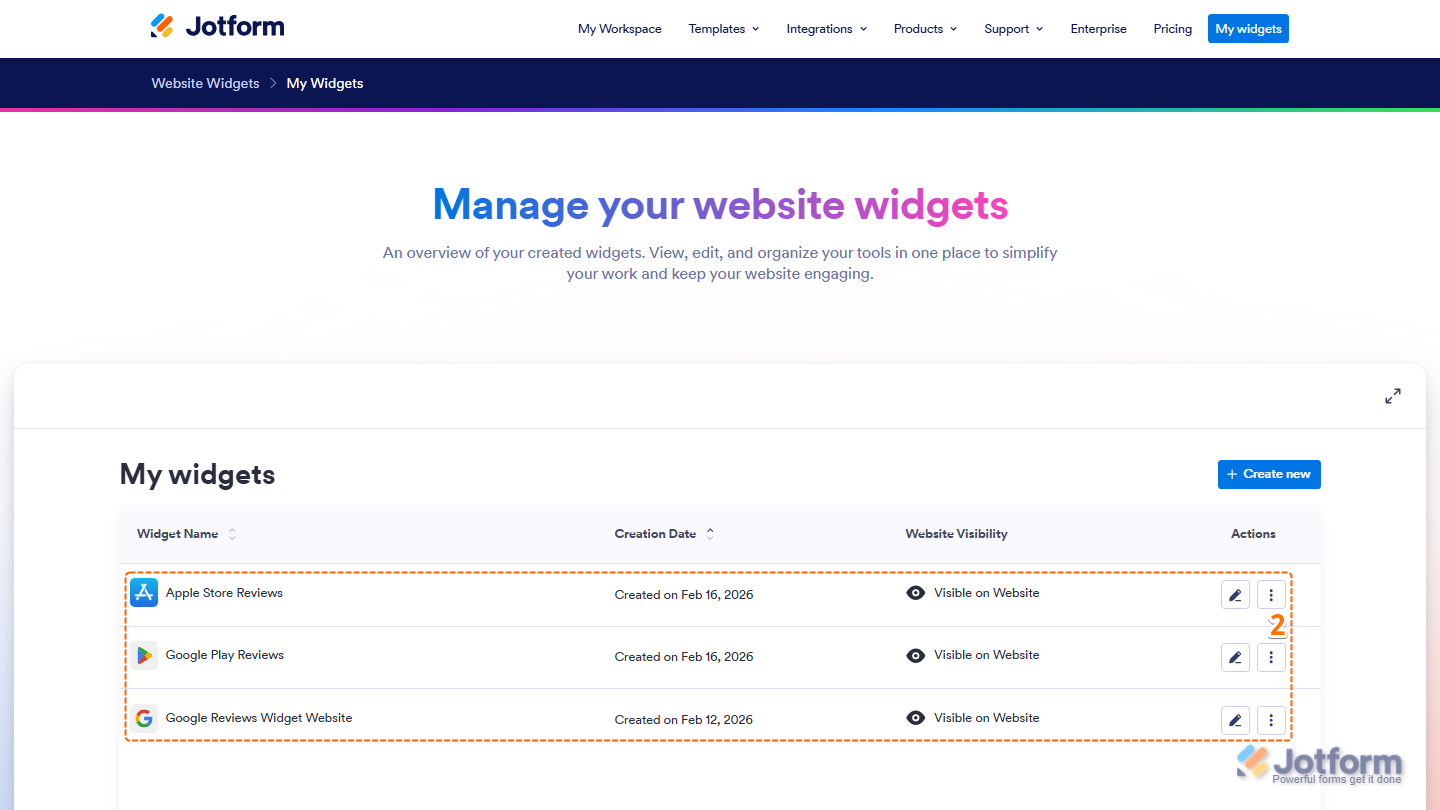
Note
You can also access widgets from a specific widget page, such as Google Reviews, by clicking Show My Widgets. This will show only the widgets created for that widget type. If you access widgets this way, the layout and flow may look slightly different, but the available actions work the same way.
Creating a New Widget
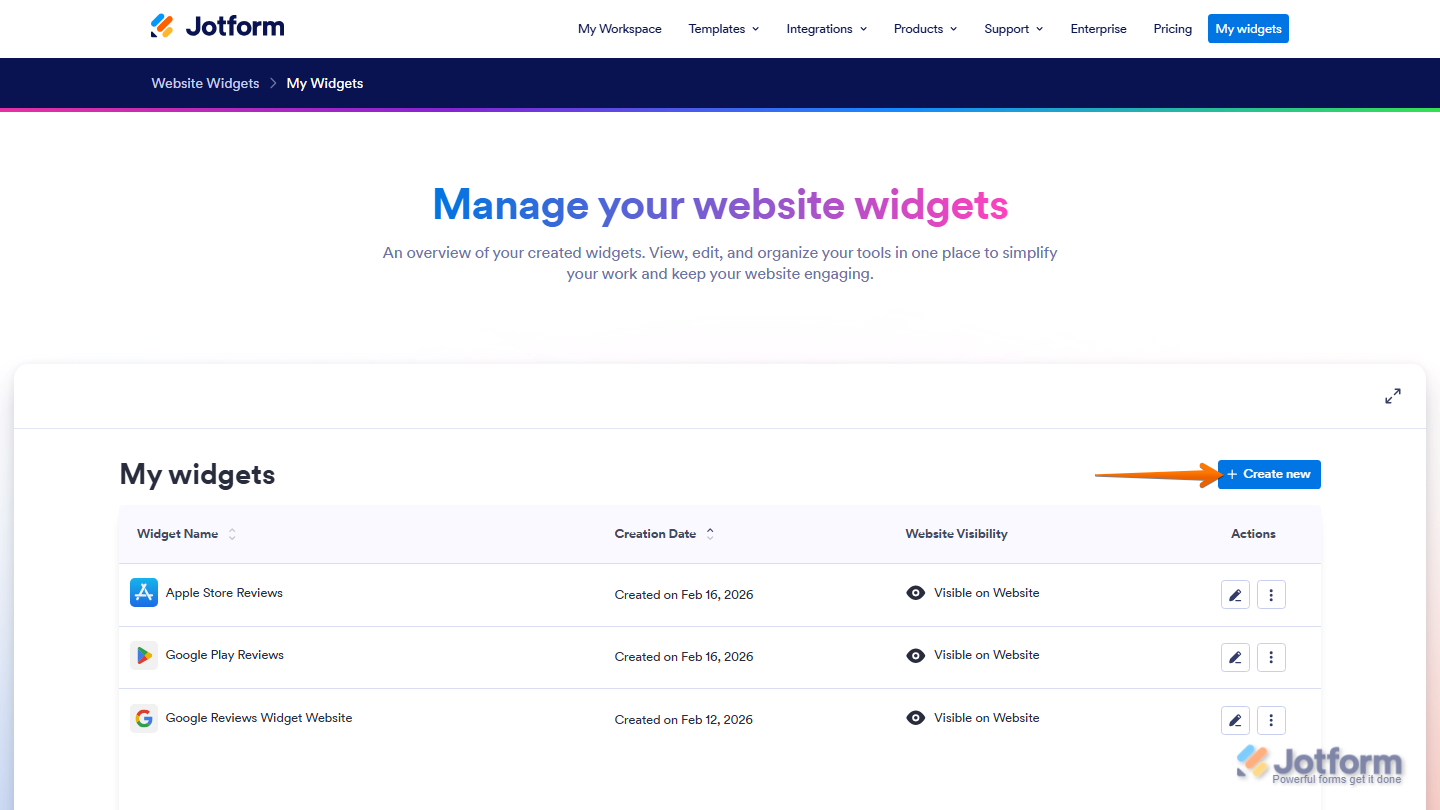
The Create New button lets you add a new widget. Selecting this option opens the Website Widgets page, where you can choose the widget type and configure its settings. Once the setup is complete, the widget will appear in your My Widgets page.
Editing a Widget
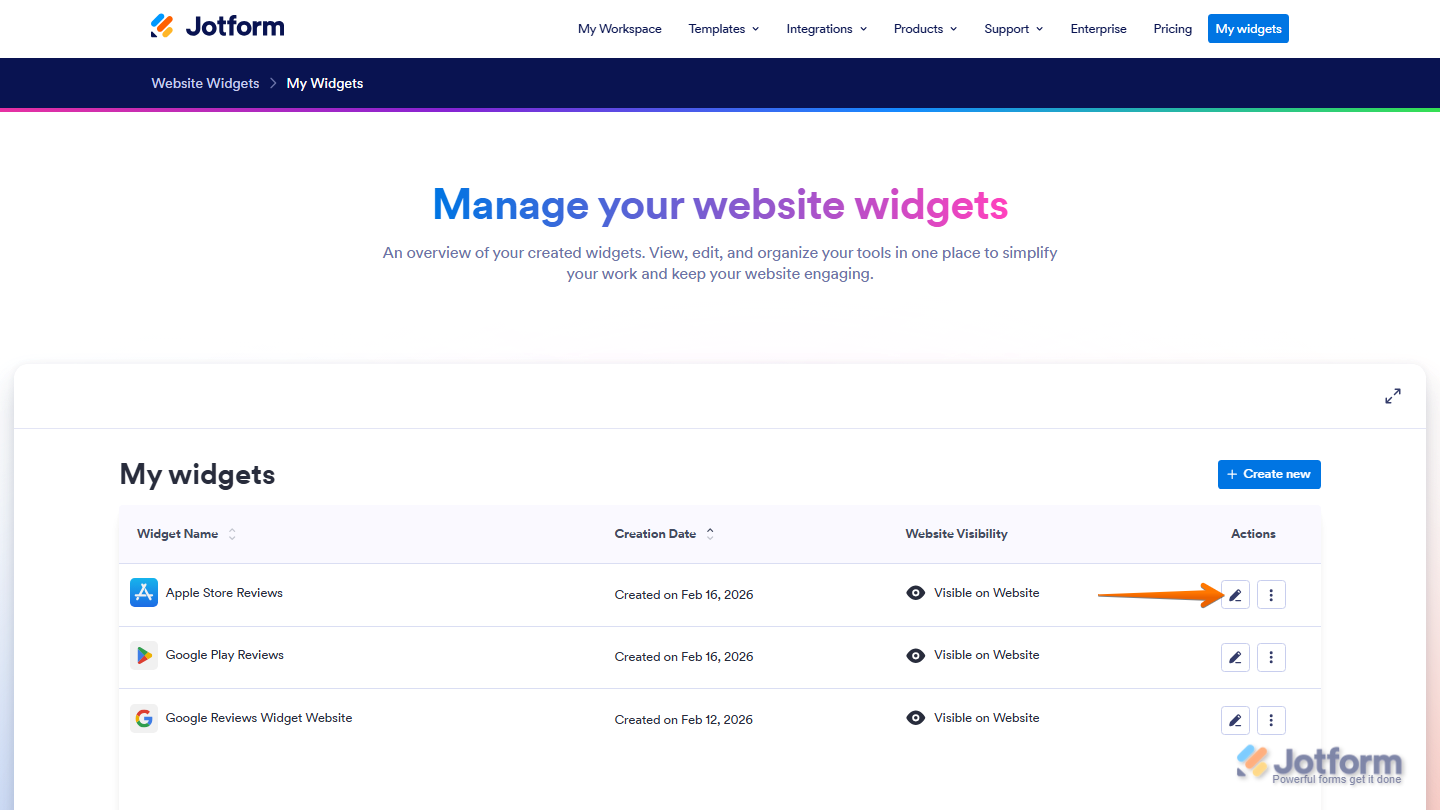
The Pencil icon allows you to edit an existing widget. Selecting this icon opens the widget editor, where you can update its layout, settings, and displayed information.
Getting the Embed Code
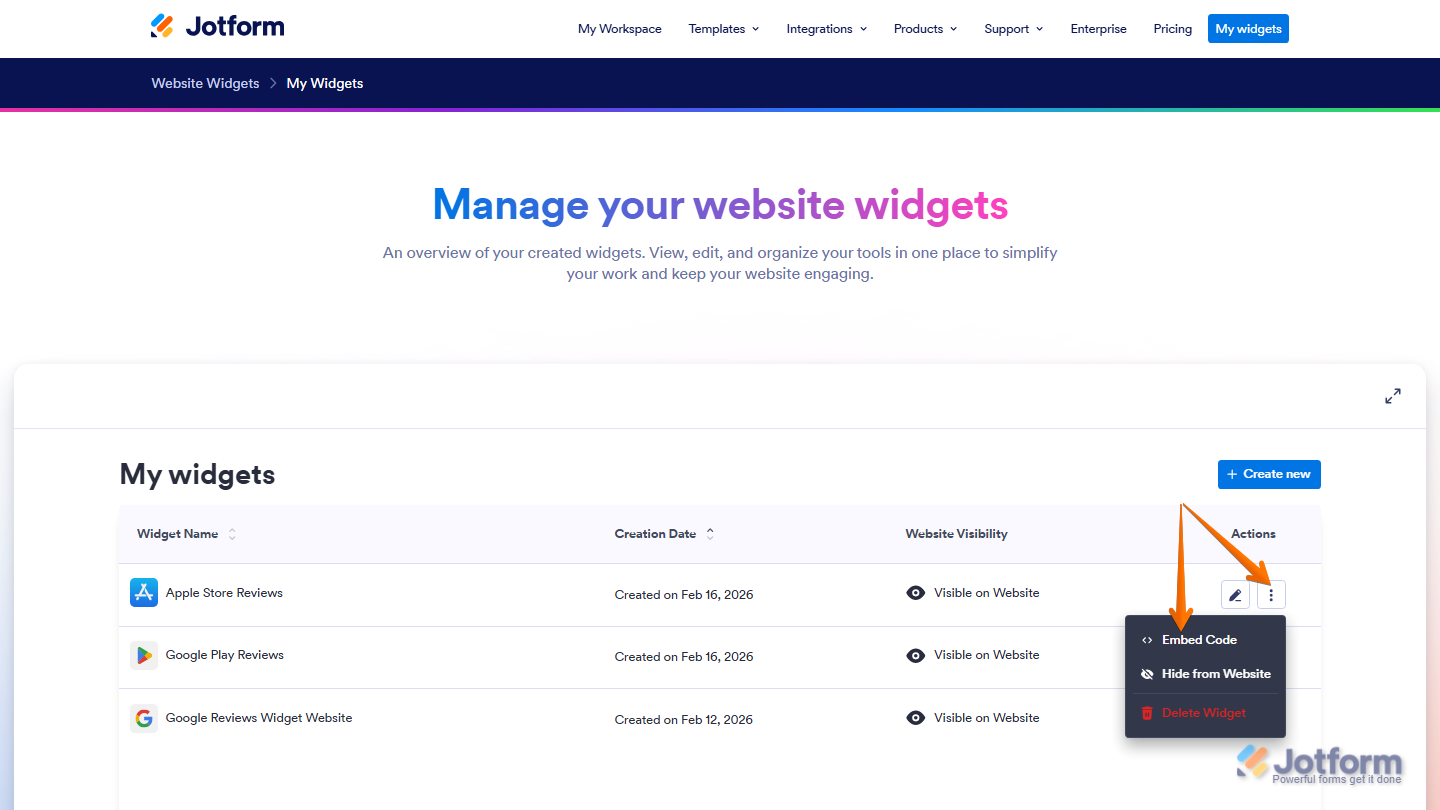
The Three Dots icon opens a menu with additional widget actions. Selecting Embed opens the Embed window, where you can copy the widget’s embed code and add it to your website.
Hiding or Showing a Widget
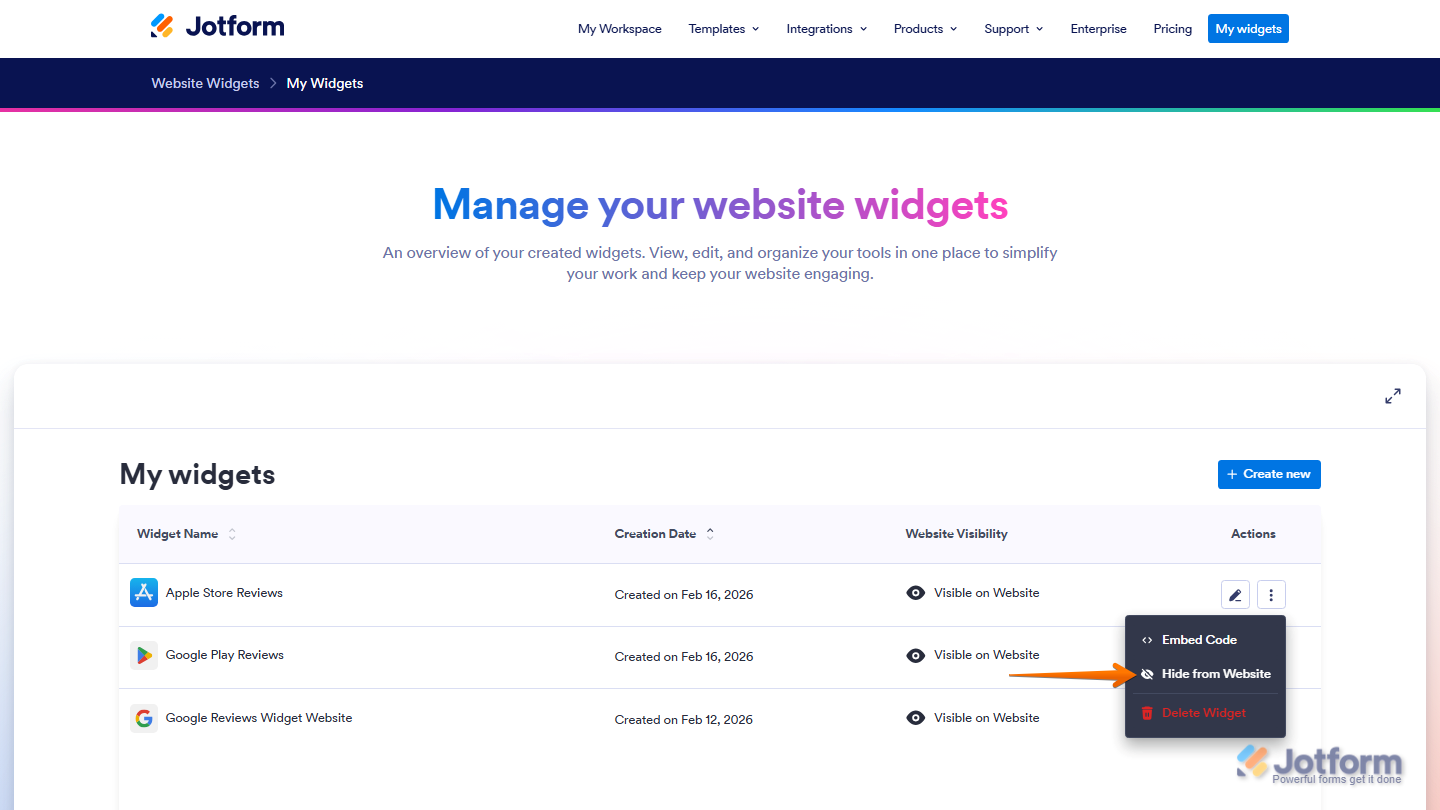
The visibility option in the Three Dots menu controls whether a widget is hidden or visible. This is useful if you want to temporarily disable a widget without deleting it on your website.
Deleting a Widget
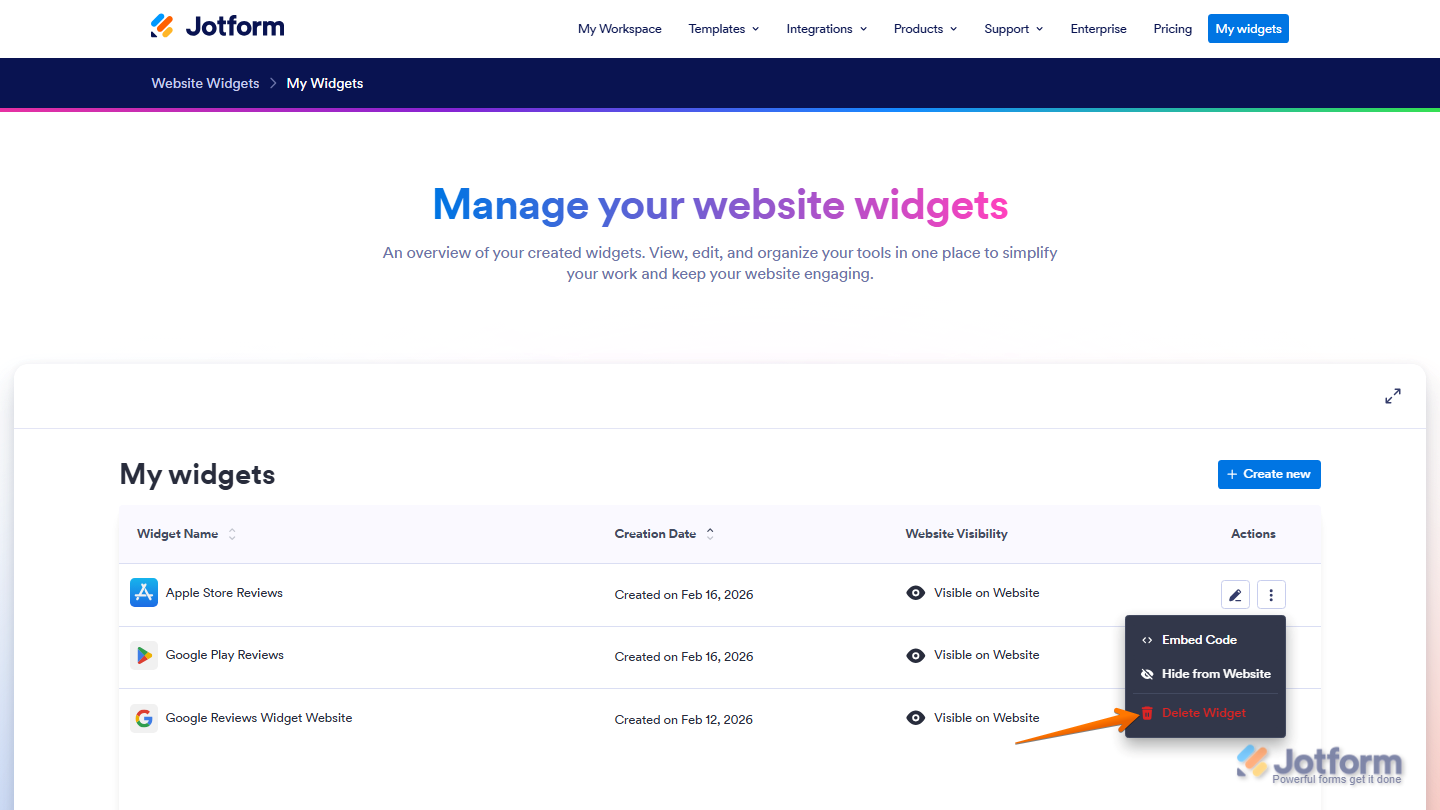
The Delete option in the Three Dots menu permanently removes a widget from your account. Once deleted, the widget will no longer be available or displayed on your website.
Sorting Widgets
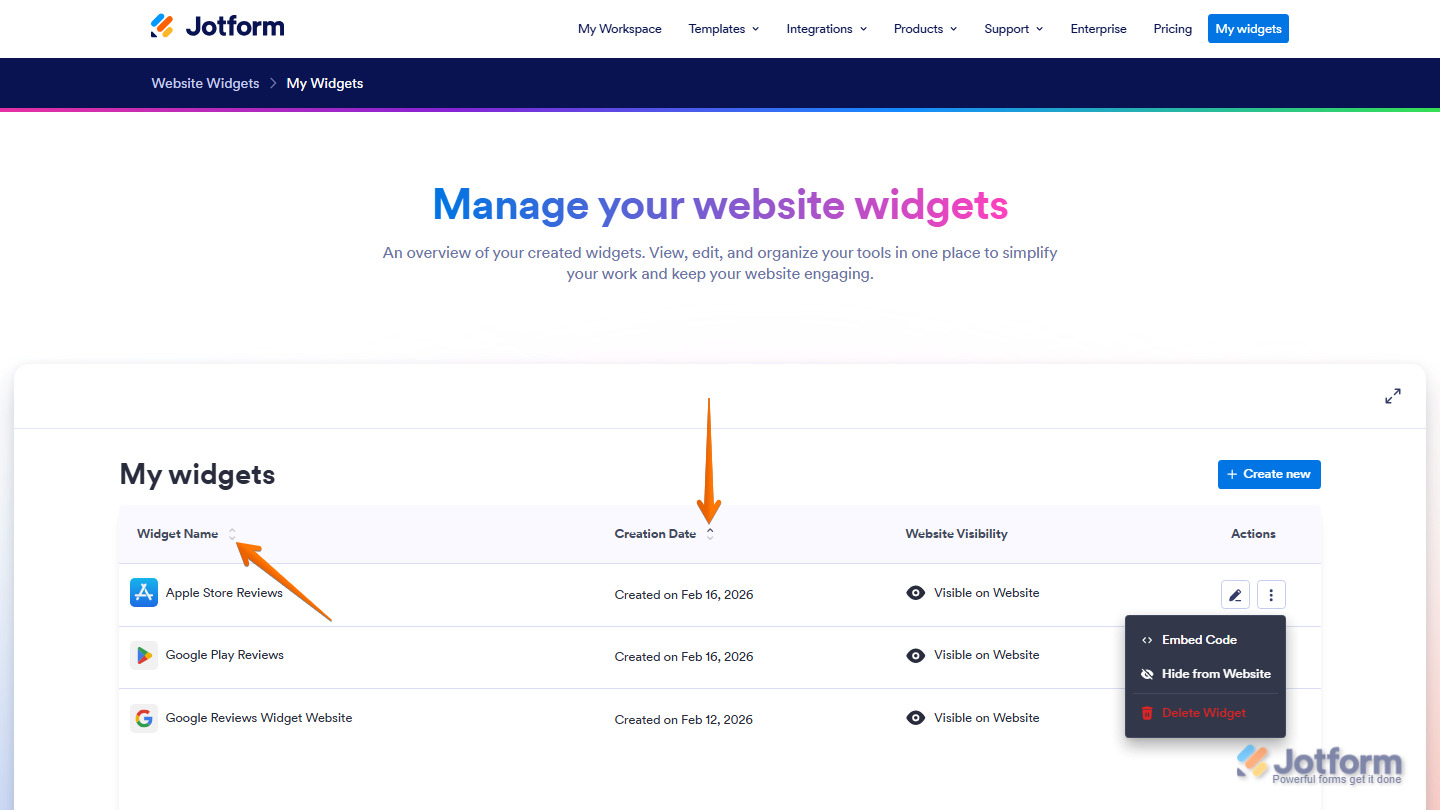
The arrows next to the Widget Name and Creation Date column headers let you sort your widgets. Clicking these arrows changes the order of the list, making it easier to find specific widgets based on their name or when they were created.
That’s it! You can now manage your website widgets from the My Widgets page using the available actions.

Send Comment: