With Jotform’s Appointment field, you can give people an easy way to reschedule or cancel their booking anytime. Just add an edit link to your autoresponder email, and they can update their appointment without needing to contact you. It’s a simple way to save time and keep everything running smoothly.
It only takes a minute to set it up—here’s how:
- In Form Builder, in the orange navigation bar at the top of the page, click on Settings.
- In the menu on the left side of the page, click on Emails.
- Hover your mouse over the Email Autoresponder and click on the Pencil icon to edit it.

- Next, under the Email tab, in the Email Content window, click on Form Fields in the top-right corner of the window.
- Then, in the Dropdown menu that opens, click on Edit Link, and move the link wherever you want.
- Now, click on Save at the bottom of the page, and you’re all set.

And that’s it! You’ve successfully added an edit link to your email autoresponder, so your users can easily cancel or reschedule their appointments. Here’s how it works for them:
- In the Email Autoresponder that they receive, click on Edit Submission Link.
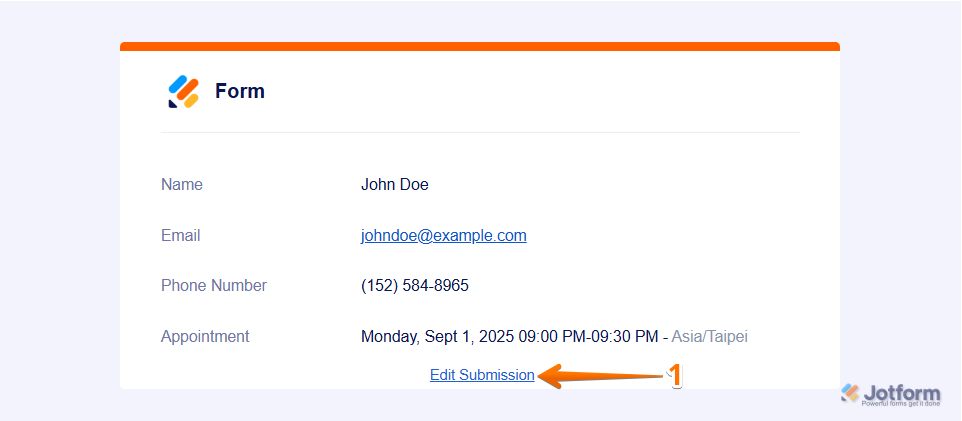
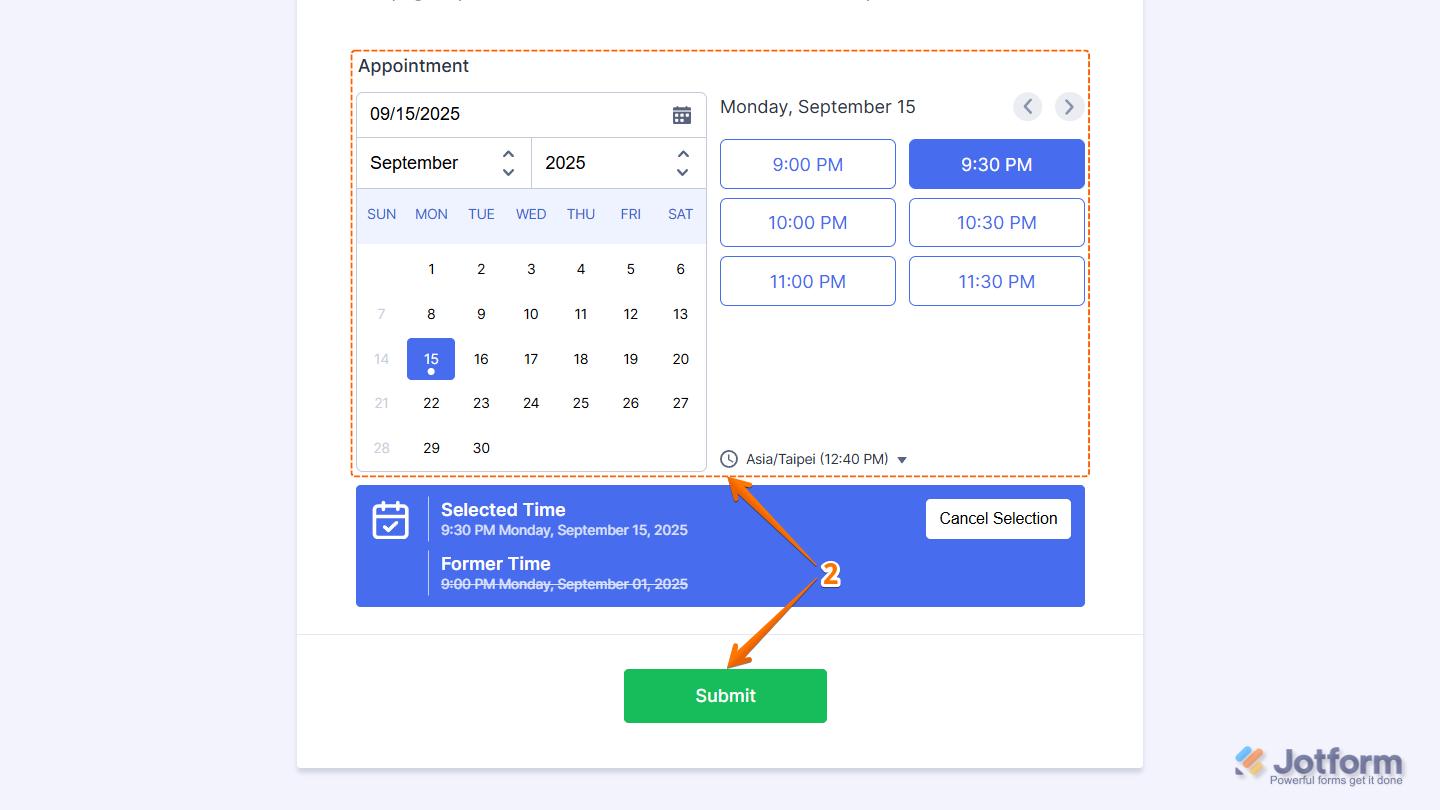
- Now, in the new browser tab that opens with the edit submission form, to reschedule the appointment, select another date or time slot and click on Submit.
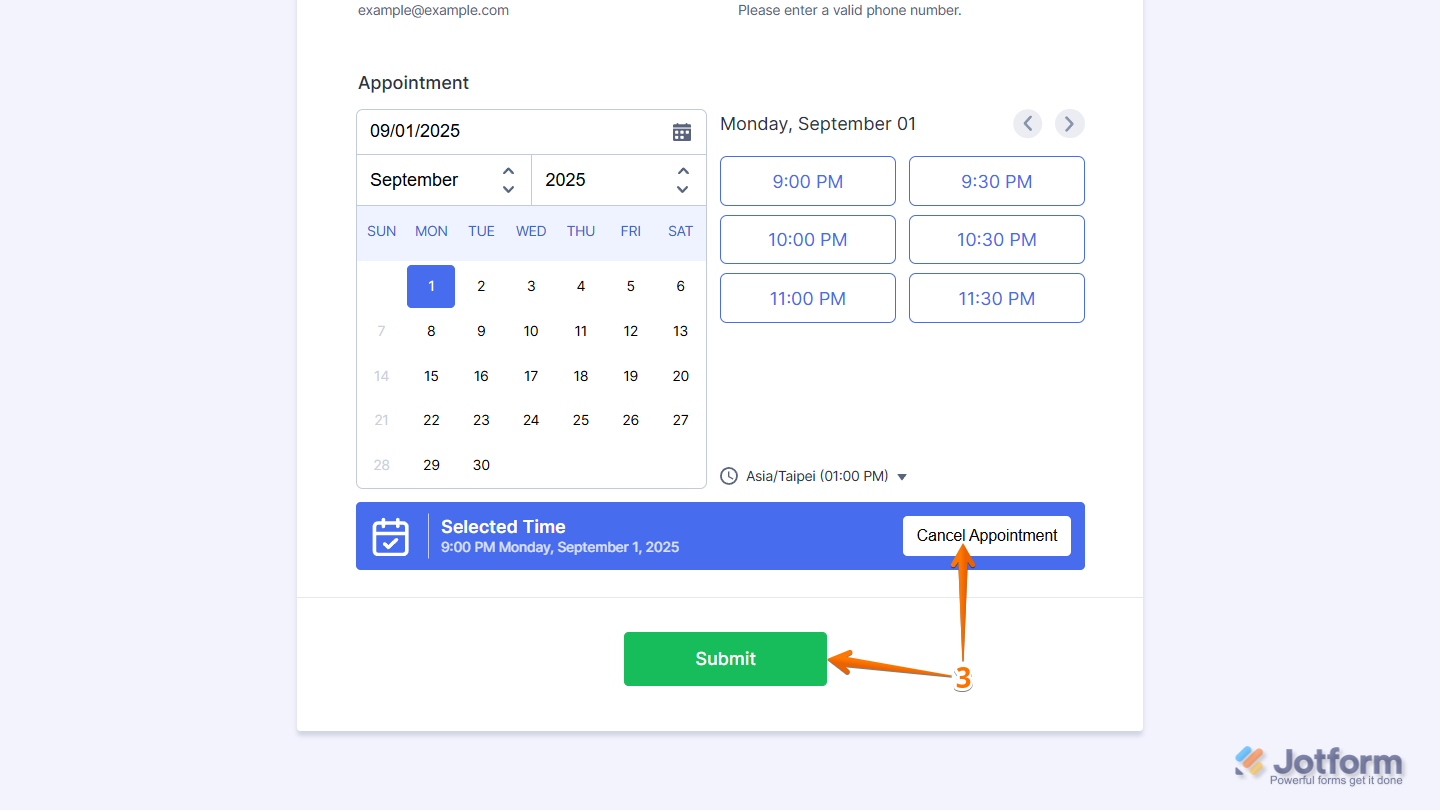
- To cancel the appointment, click on the Cancel Appointment button and click on Submit.
Note
If your appointment field uses two-way sync, this method only works with Google and Outlook Calendars. For Calendly, users need to cancel or reschedule through the email they got from Calendly.

Send Comment:
6 Comments:
February 2, 2026
I do not have an option to add the Form Field "Edit Link" in the email content window. I only see "Submission ID" and "Form Title." (The "Edit Link" field is not already part of the email template.)
January 9, 2026
How do we as an admin cancel any appointments?
May 17, 2025
Hi, just trying to follow the above process so I can allow the cancellation of appointments, however when I get to step 7. DO, unrequire isn't an option?
September 24, 2024
I have been testing my meeting confirmation form on one date: Sept. 27, 2024 at 2:00 p.m. Chicago time and now it will not allow me to set an actual appointment on that date and time. Please help
January 15, 2024
we need to have multi step form we will have a lot of fields . putting all fields in 1 page will not be good in terms of user experience. this is a reply from my above comment. It shwos 404 when im checking the answers.
January 15, 2024
Hi. I have multi step form. I only want the user to show the appointment page. not the whole form. So basically only edit their appointment, not other fields like name etc. I only want the user to only view the appointment details, no other details