Jotform makes it easy to join a team so you can collaborate, access shared forms, and work more efficiently with others. With Jotform Teams, you can send a request to join an existing workspace and get access to the tools and resources your team is already using.
Once your request is approved, you’ll be able to view forms, manage submissions, and contribute based on the permissions assigned to you. It’s a simple way to stay connected, keep everything organized, and start collaborating without any extra setup.
Requesting to Join a Team
If you already know which team you want to join, you can send a request directly from your Teams list. Here’s how to do it:
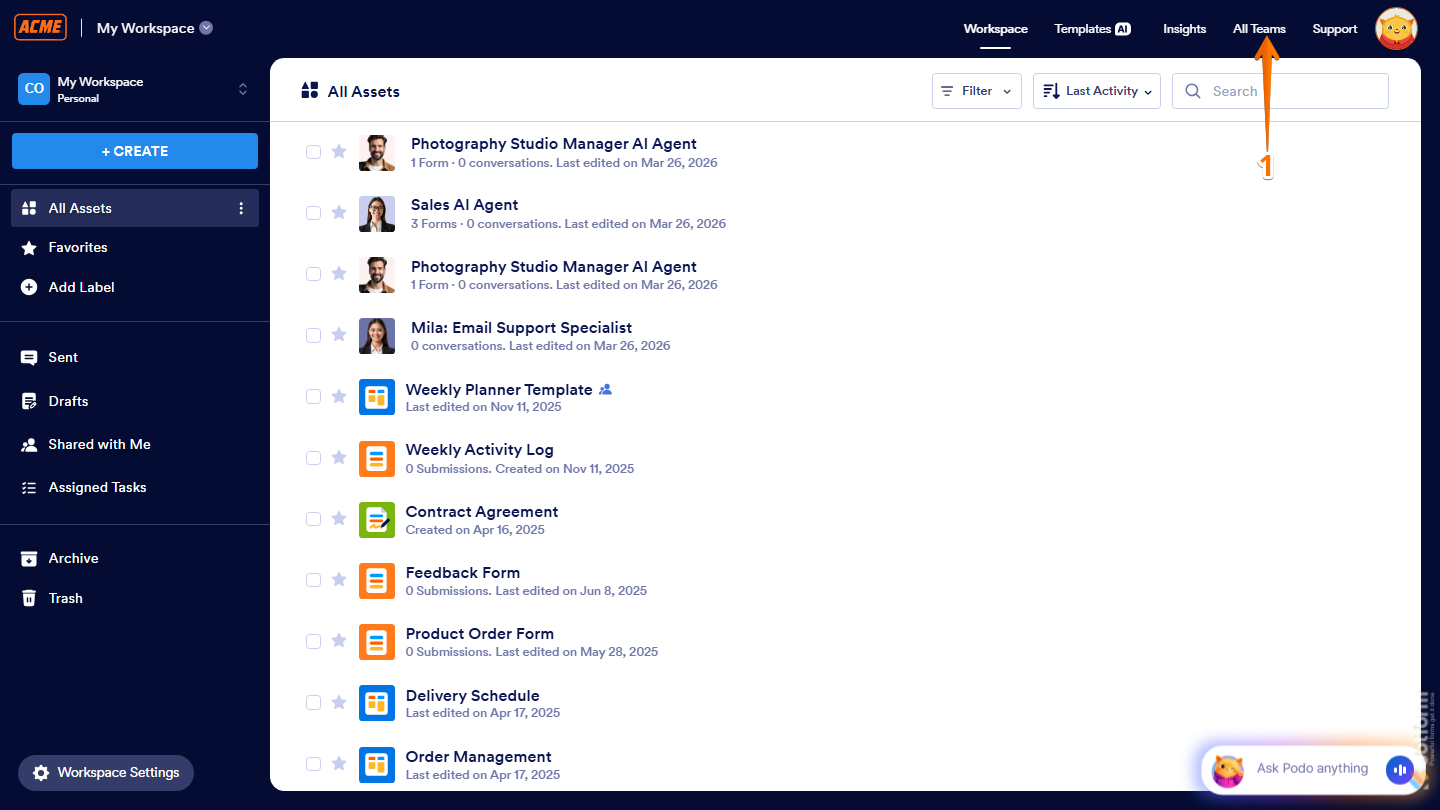
- On your Workspace page, on the top-right side of the page, click on All Teams.
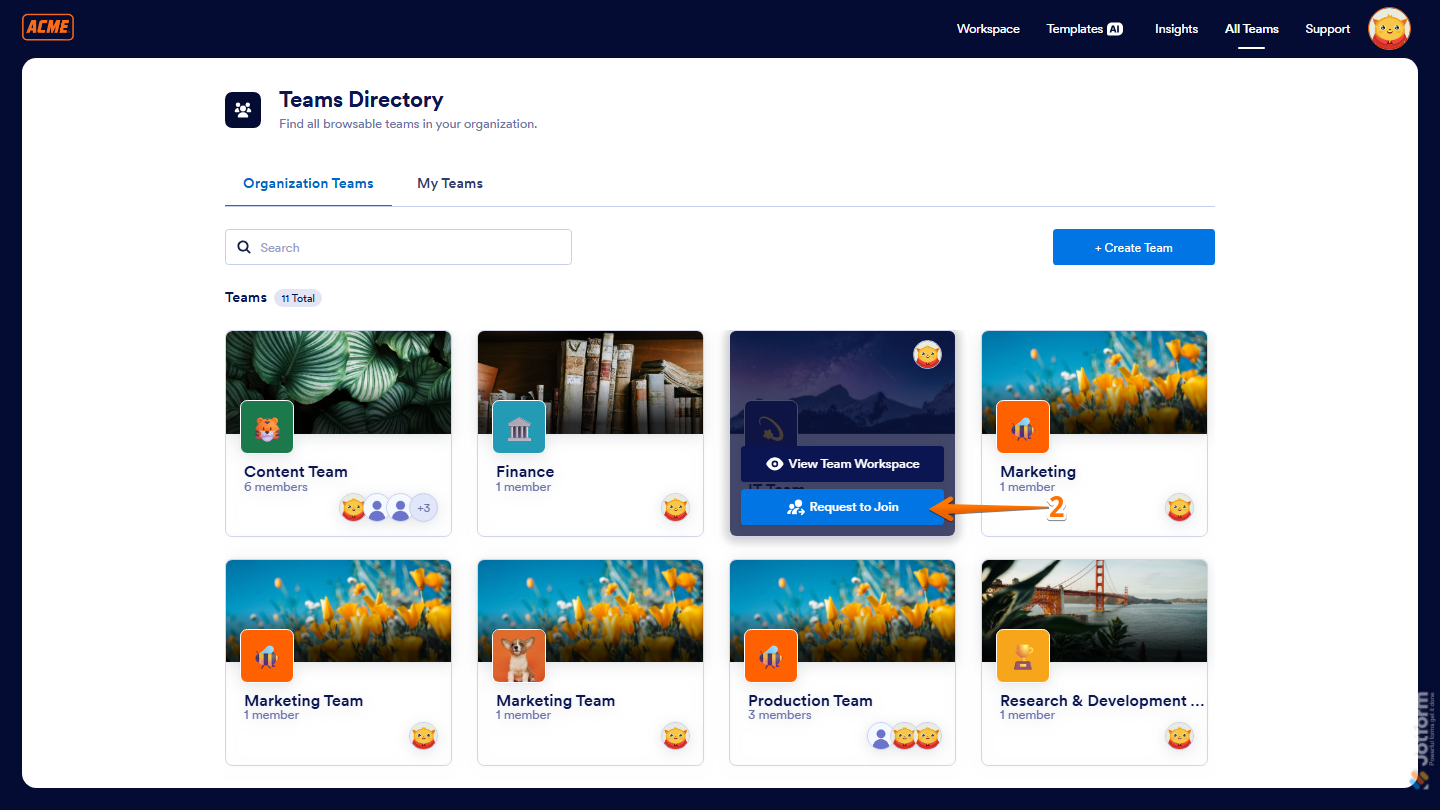
- Now, in the Teams Directory page, under the Organization Teams tab, hover over the team you want to join, then click on Request to Join, and you’re done.
Previewing a Team’s Workspace Before Joining
If you’d like to see what a team’s workspace looks like before joining, you can preview it first. This helps you understand what you’ll have access to once your request is approved. Here’s how to check it:
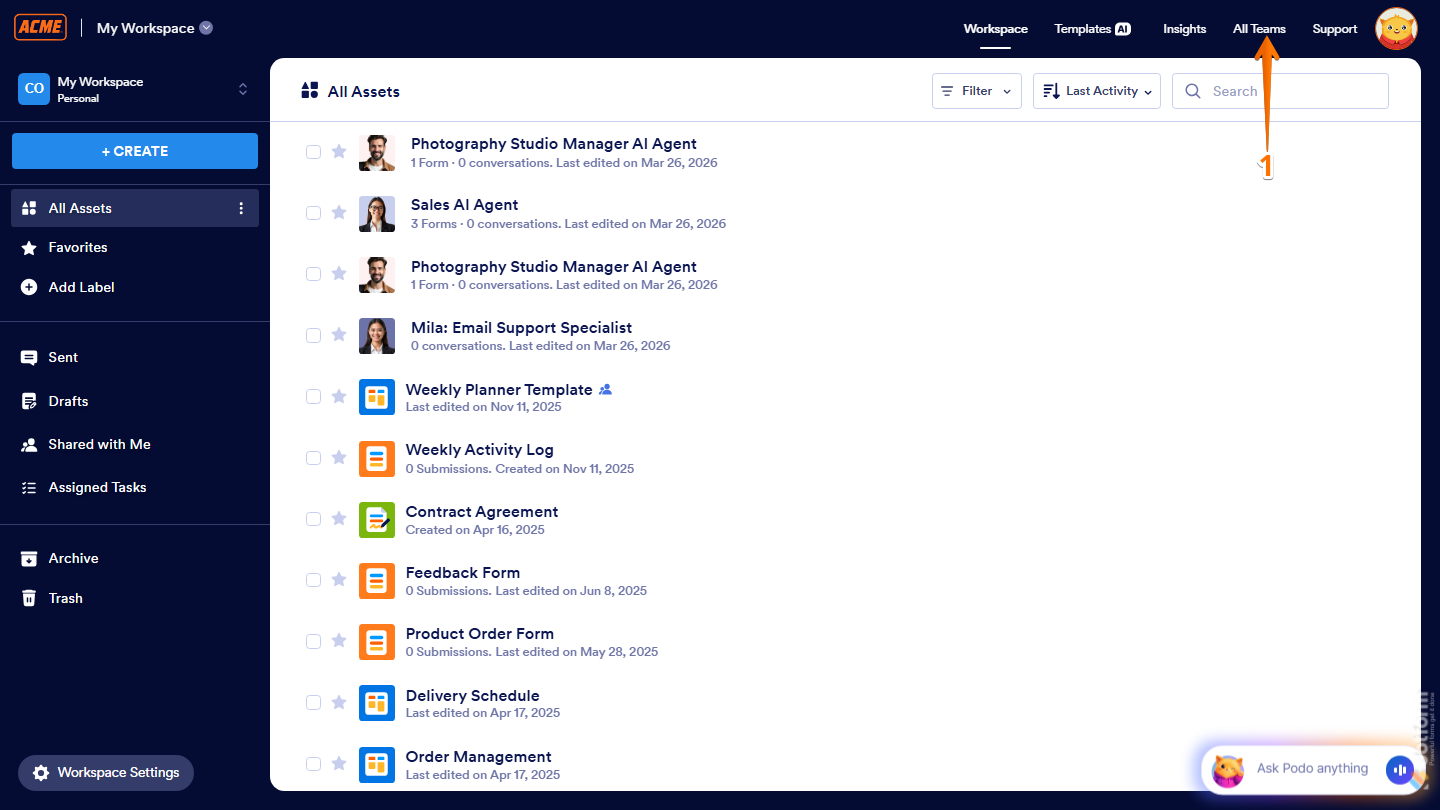
- On your Workspace page, on the top-right side of the page, click on All Teams.
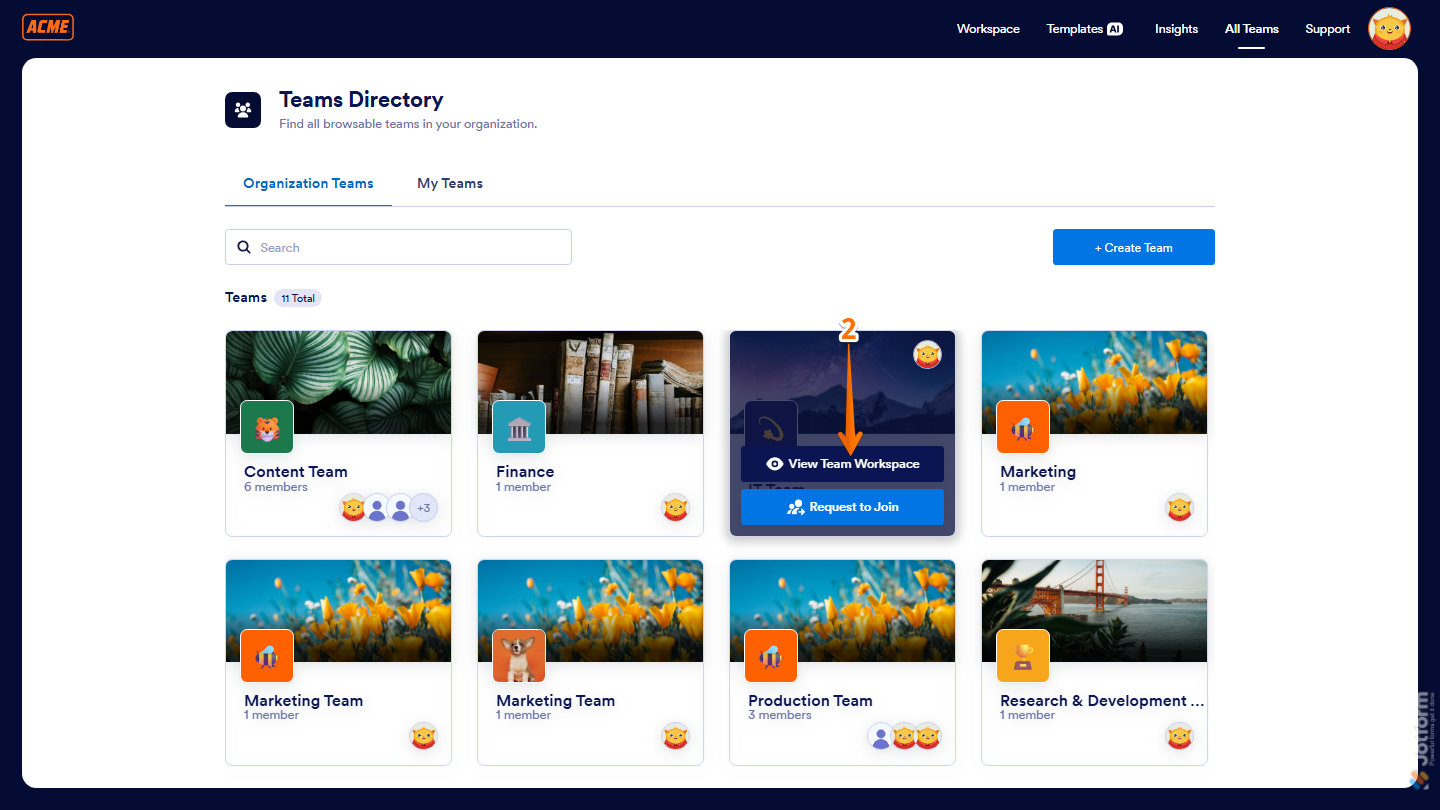
- Then, hover your mouse over the team you want to join, for example, the IT Team, and then click on View Team Workspace.
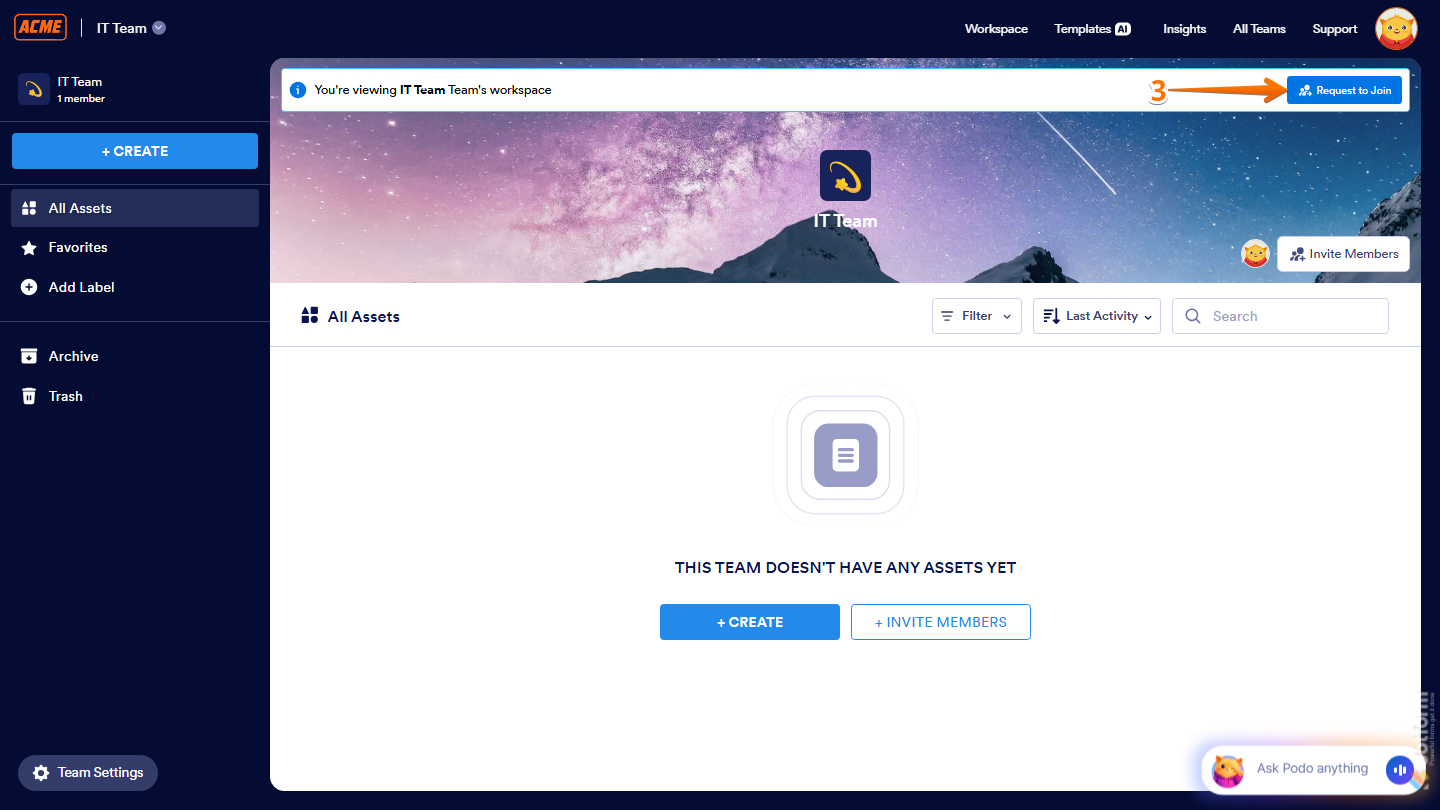
- Now, on the top-right corner of the page, click on Request to Join, and you’re done.
That’s it. After your request is approved, you’ll gain access to the team workspace, including shared forms, submissions, and resources based on your permissions.

Send Comment: