Sometimes you’ll want to share your form setup with someone else so they can copy it into their own account. This is useful when a teammate or client needs the same setup for a registration form, an order form, or a request form—without building everything from scratch.
With Jotform, sharing a form so that other users can clone it is simple. Just send them your form’s direct link, and they can copy the form setup into their account—no rebuilding needed. It’s perfect for teams running similar forms, businesses managing multiple locations, or anyone helping someone else get set up faster. Sharing forms this way saves time, avoids duplicate work, and keeps things consistent. Once you’ve shared the link and checked your settings, cloning will work smoothly for anyone you send it to.
Getting the Direct Link to Your Form
Sharing your form starts with copying its direct link, and you can do it in just a few steps. Here’s how:
- On your Workspace page, click on Type at the top and in the Dropdown menu that opens, uncheck the boxes next to all the assets except Forms, so only they’ll be shown on the page.
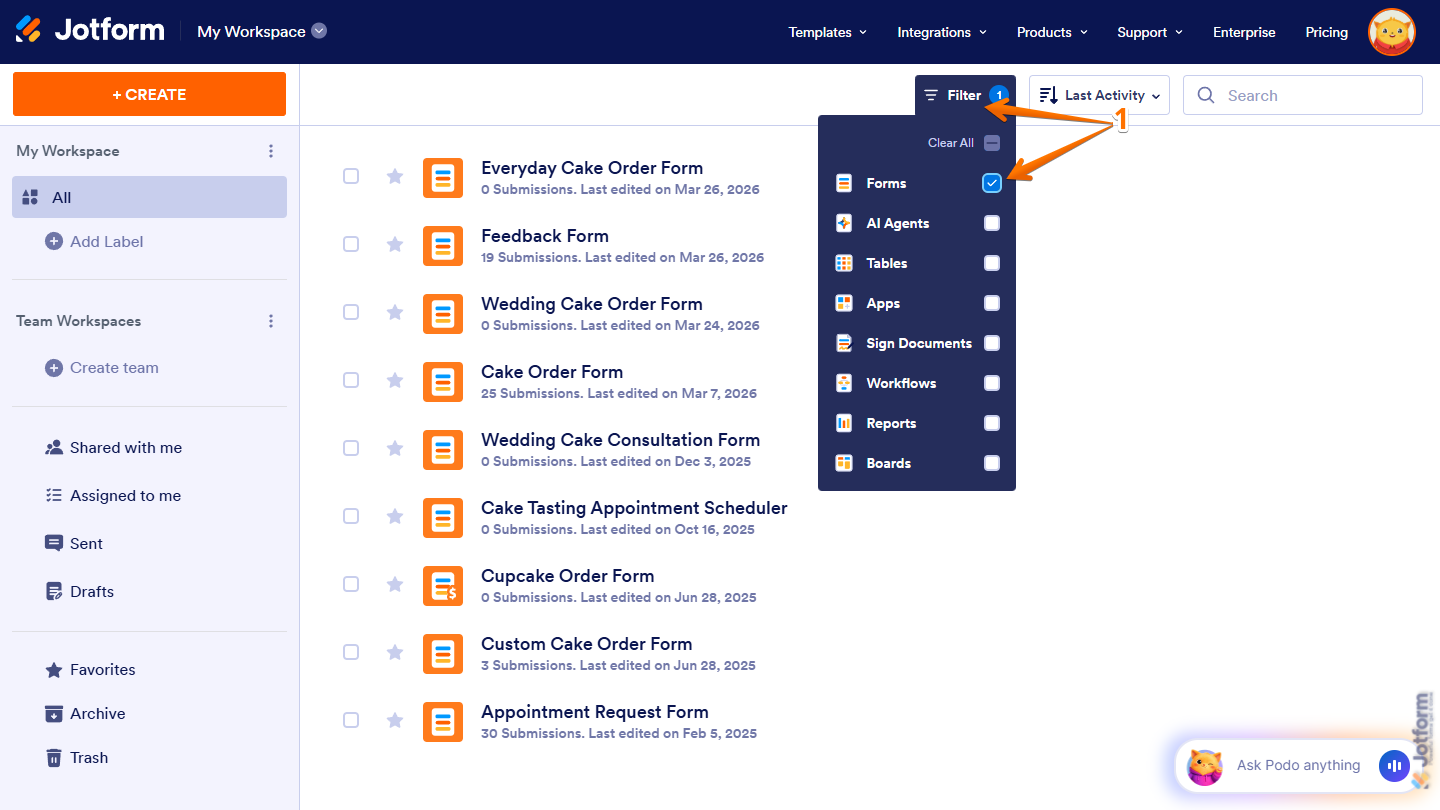
- Now, hover your mouse over the form you want to get the URL for, and click on Edit Form on the right side of the page.
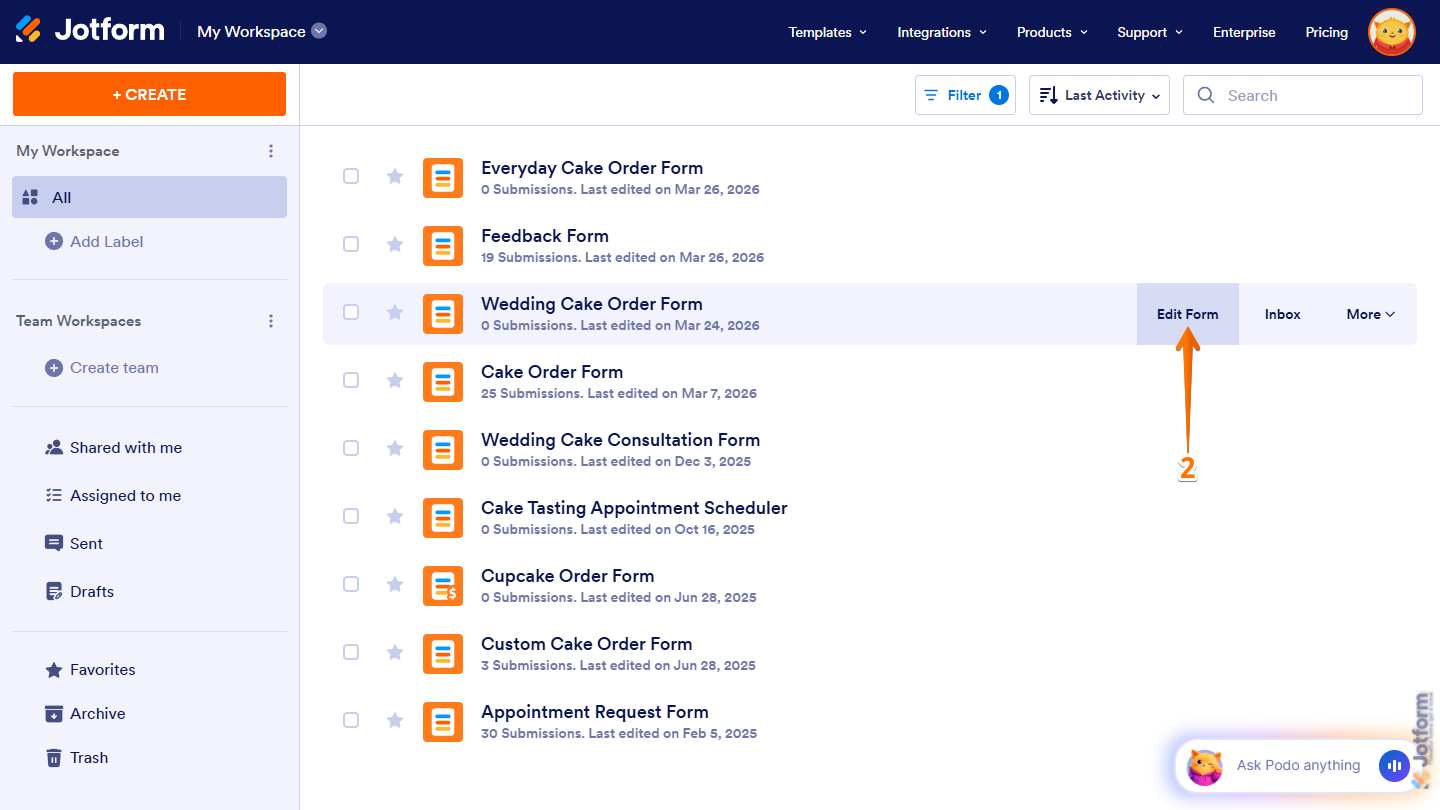
- In Form Builder, in the orange navigation bar at the top of the page, click on Publish.
- Then, under Share With Link, click on Copy Link.
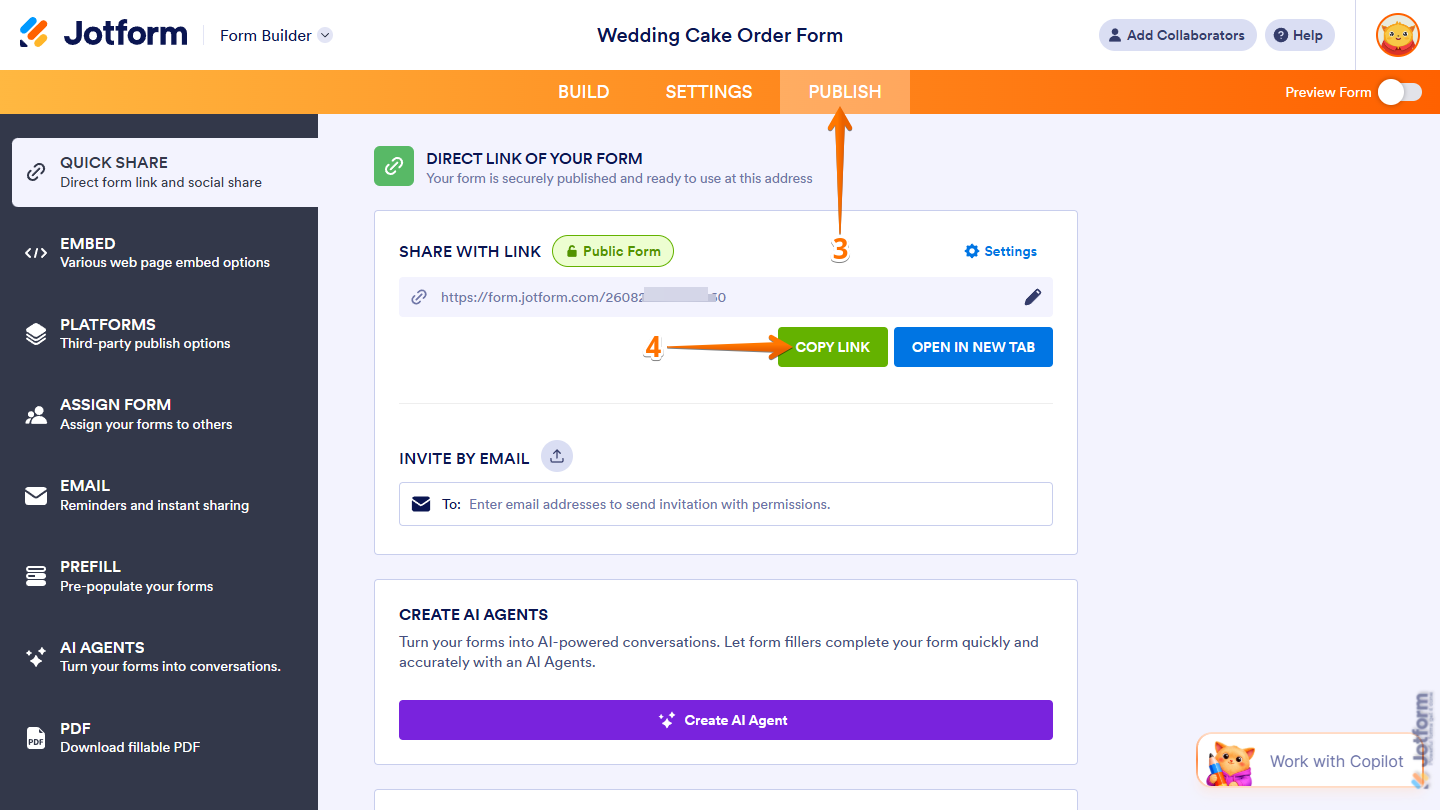
That’s it! You can share the link externally via email or chat so another user can clone the form into their account. Our guide on How to Clone an Existing Form From a URL can walk them through the steps.
Fixing Cloning Errors
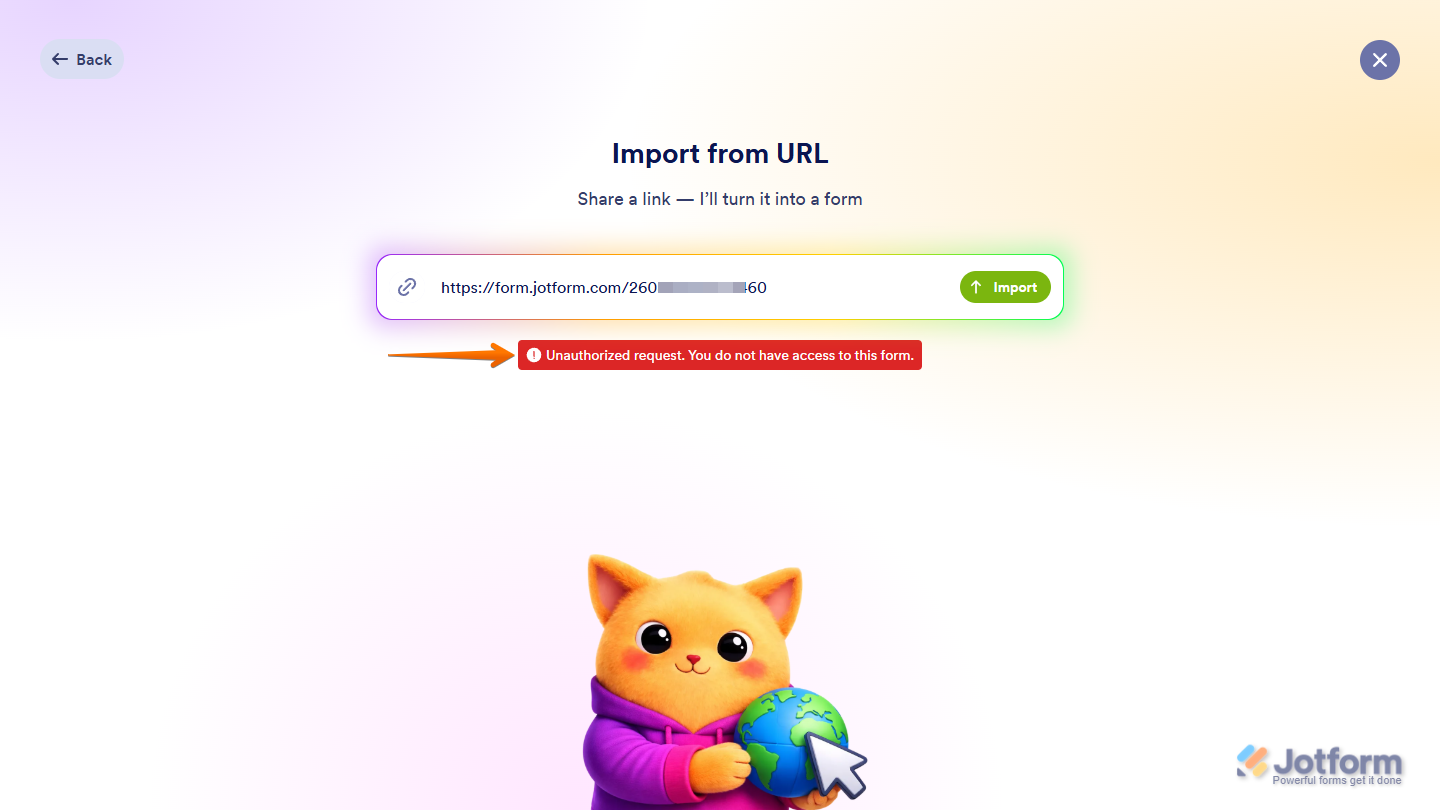
Sharing your form link is usually all you need to do, but if the user you shared it with gets an “Unauthorized request. You do not have access to this form.” error while cloning your form, check your account or form settings to fix it. This usually means your form is set to Private, has Prevent Cloning turned on, or your account settings don’t allow cloning.
Reviewing Your Form’s Access Settings
Other users won’t be able to clone forms that are set to Private. You can set your form to Public in a few easy steps to allow them to clone it. Here’s how:
- On your Workspace page, click on Type at the top and in the Dropdown menu that opens, uncheck the boxes next to all the assets except Forms, so only they’ll be shown on the page.
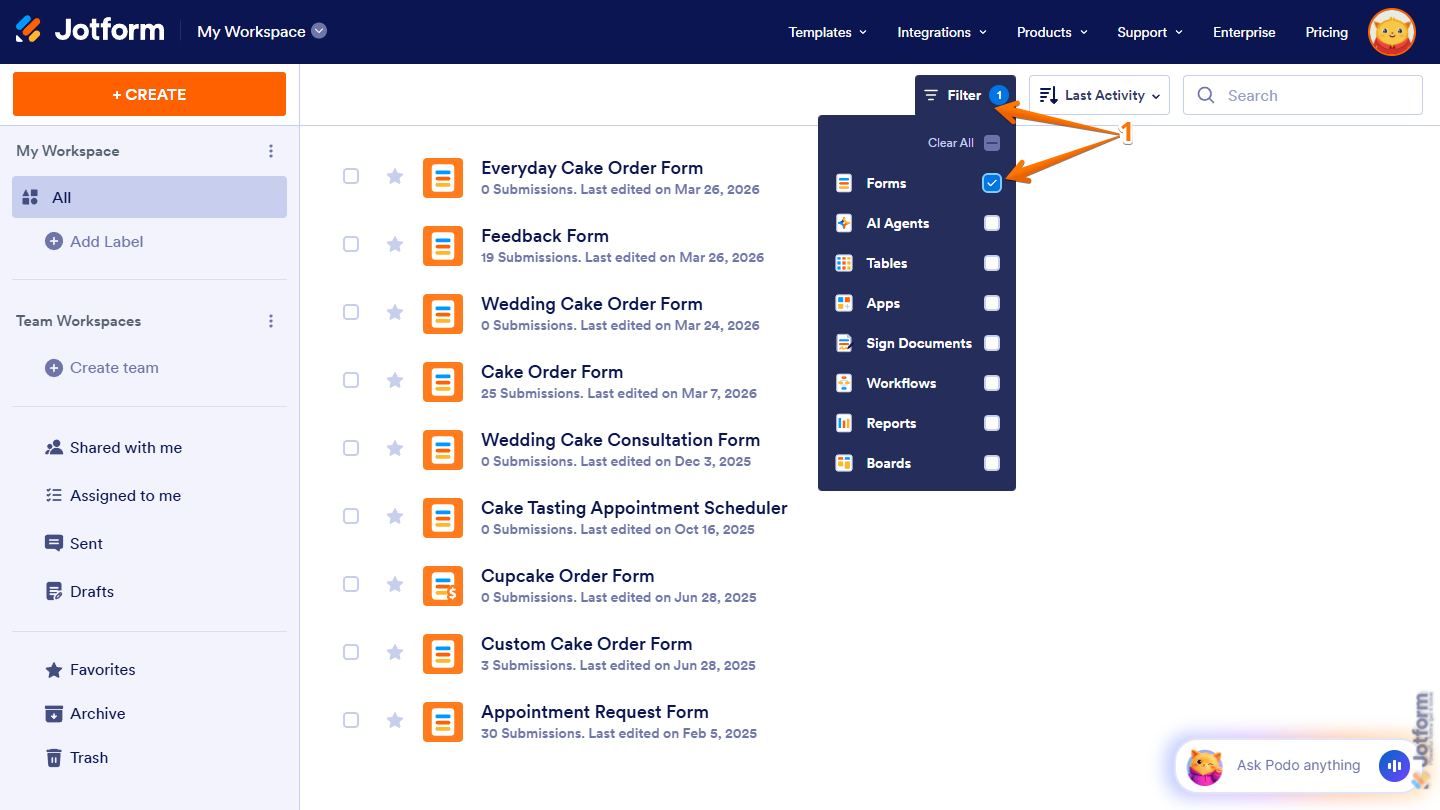
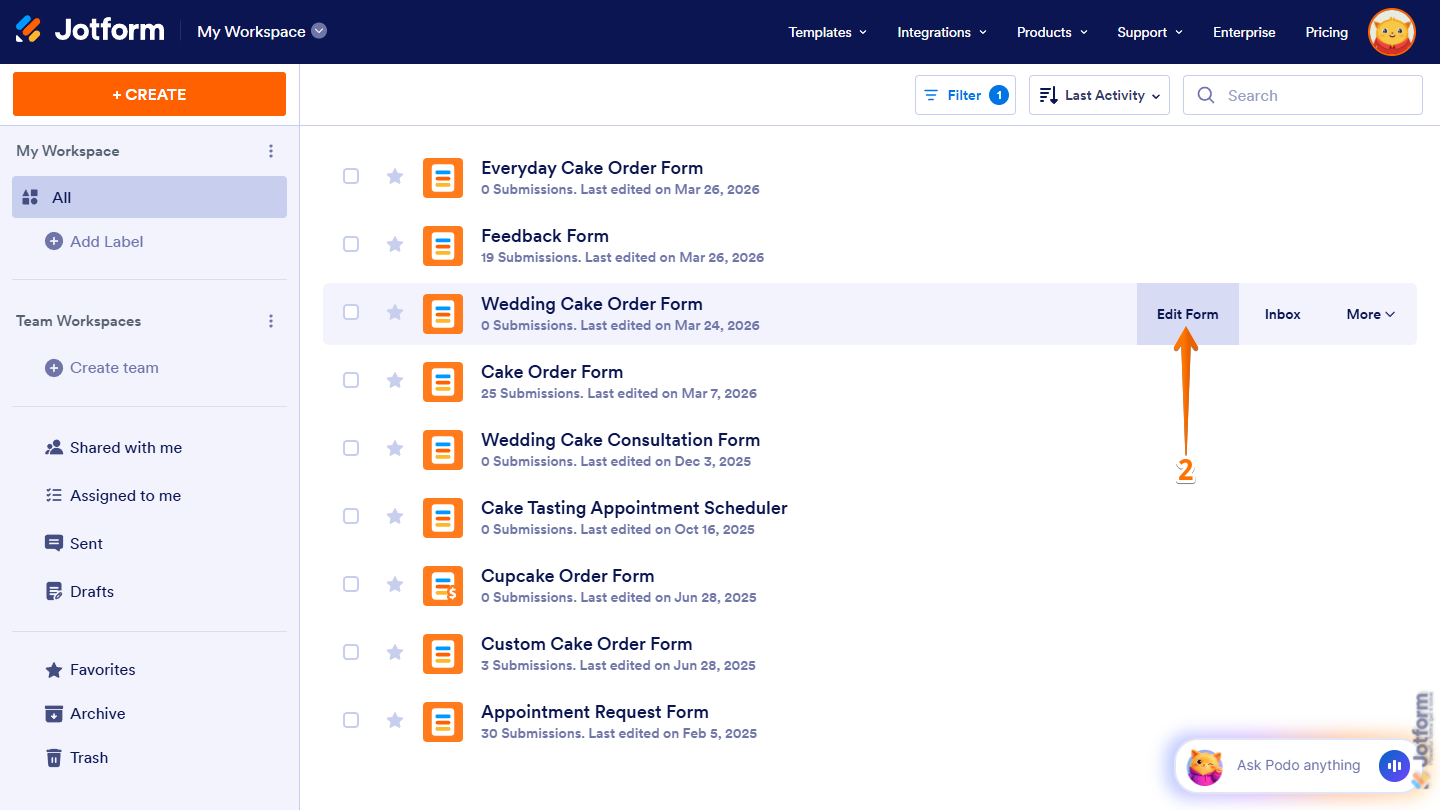
- Hover your mouse over the form you want to set to Public, then click on Edit Form on the right side of the page.
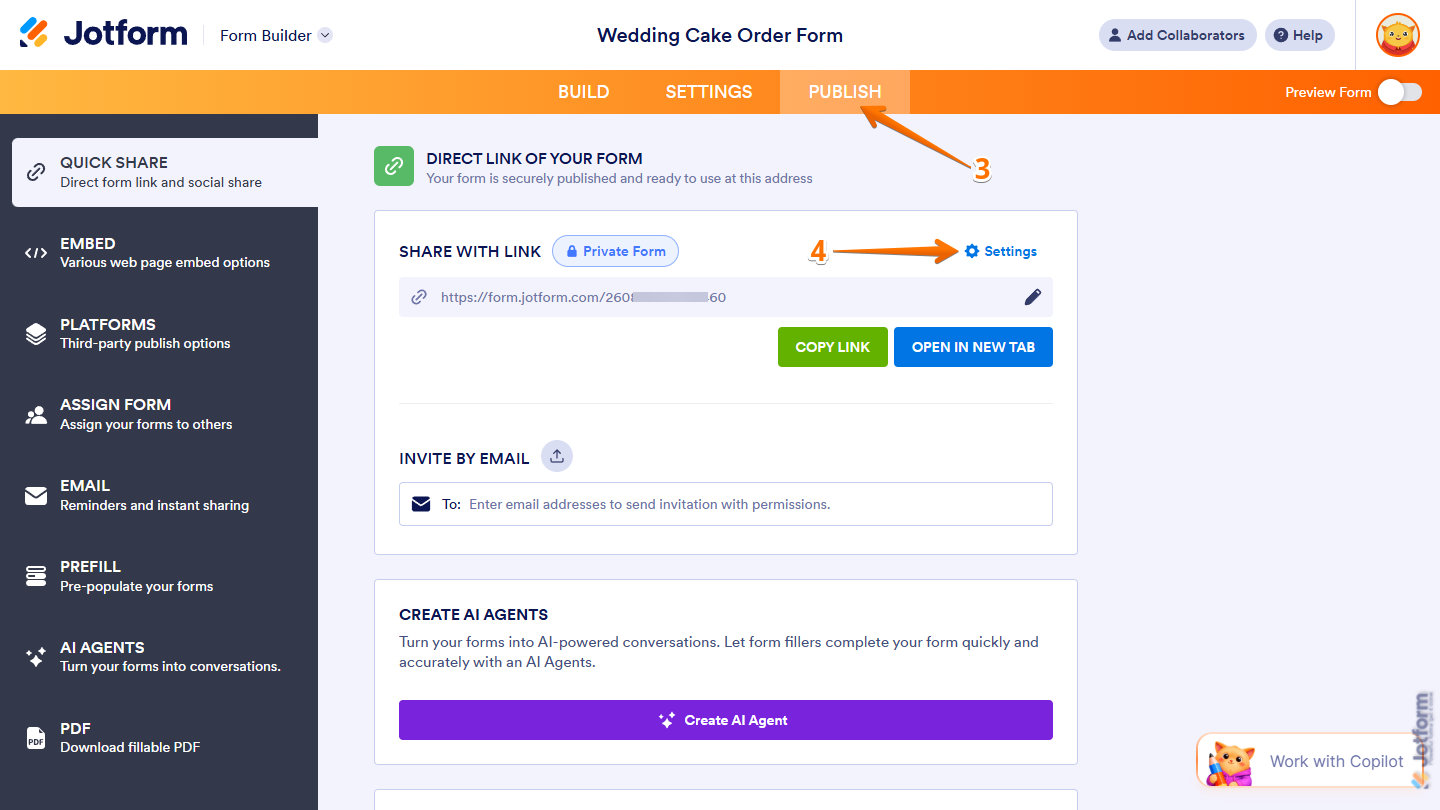
- Then, in Form Builder, in the orange navigation bar at the top of the page, click on Publish.
- Now, in the Quick Share menu, click on Settings on the right side of the Share With Link section.
- Next, in the Settings window, under Access Settings, click on Public Form to select it.
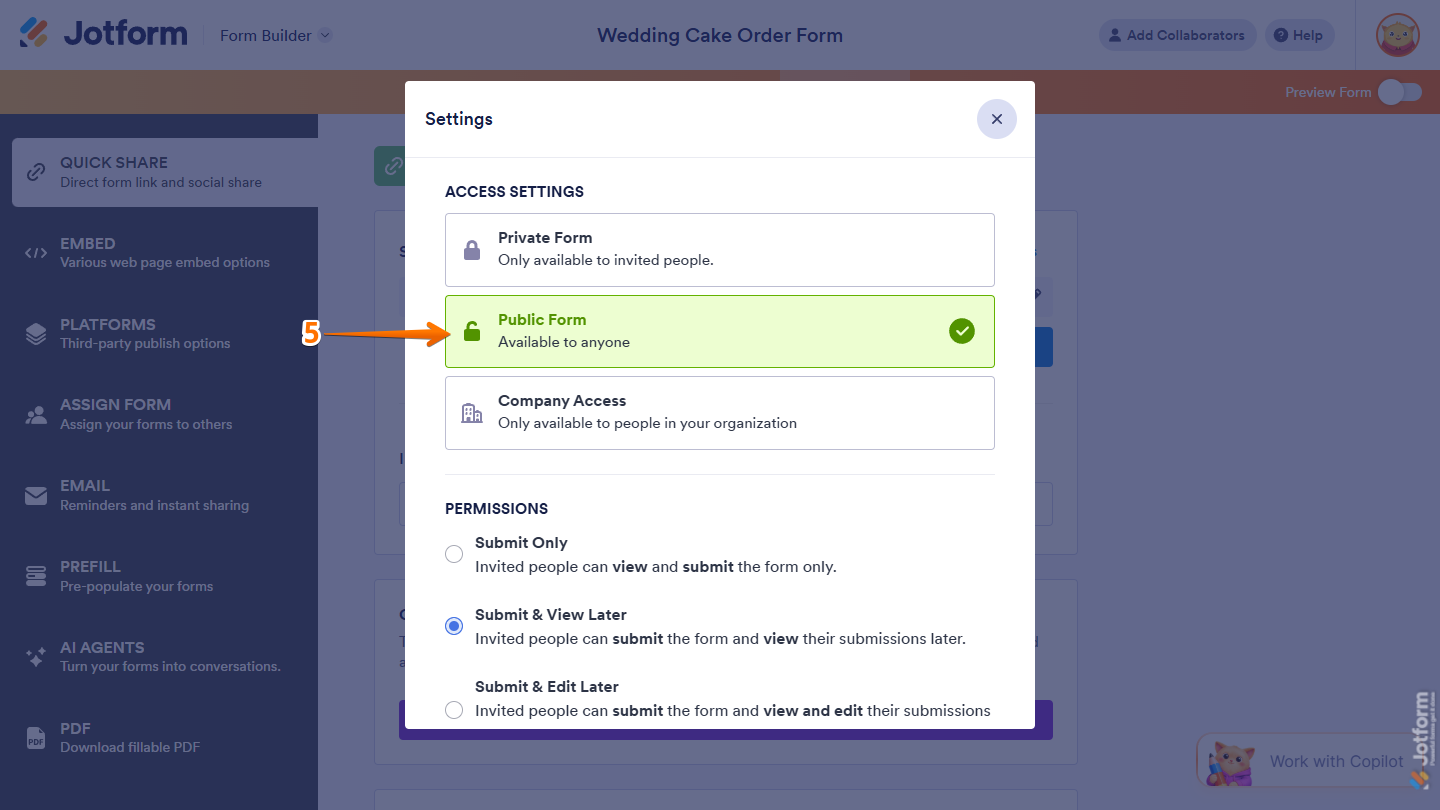
That’s it. Other users can now clone your form now that it’s no longer set to Private.
Checking Your Form’s Cloning Settings
If your form isn’t set to Private and cloning still doesn’t work, check if the form you’re sharing is set to prevent other users from cloning it. When it is, it stops other users from copying that specific form, even if your account allows cloning.
You can easily allow specific forms in your account to be cloned. You can do it in just a few steps:
- On your Workspace page, click on Type at the top and in the Dropdown menu that opens, uncheck the boxes next to all the assets except Forms, so only they’ll be shown on the page.
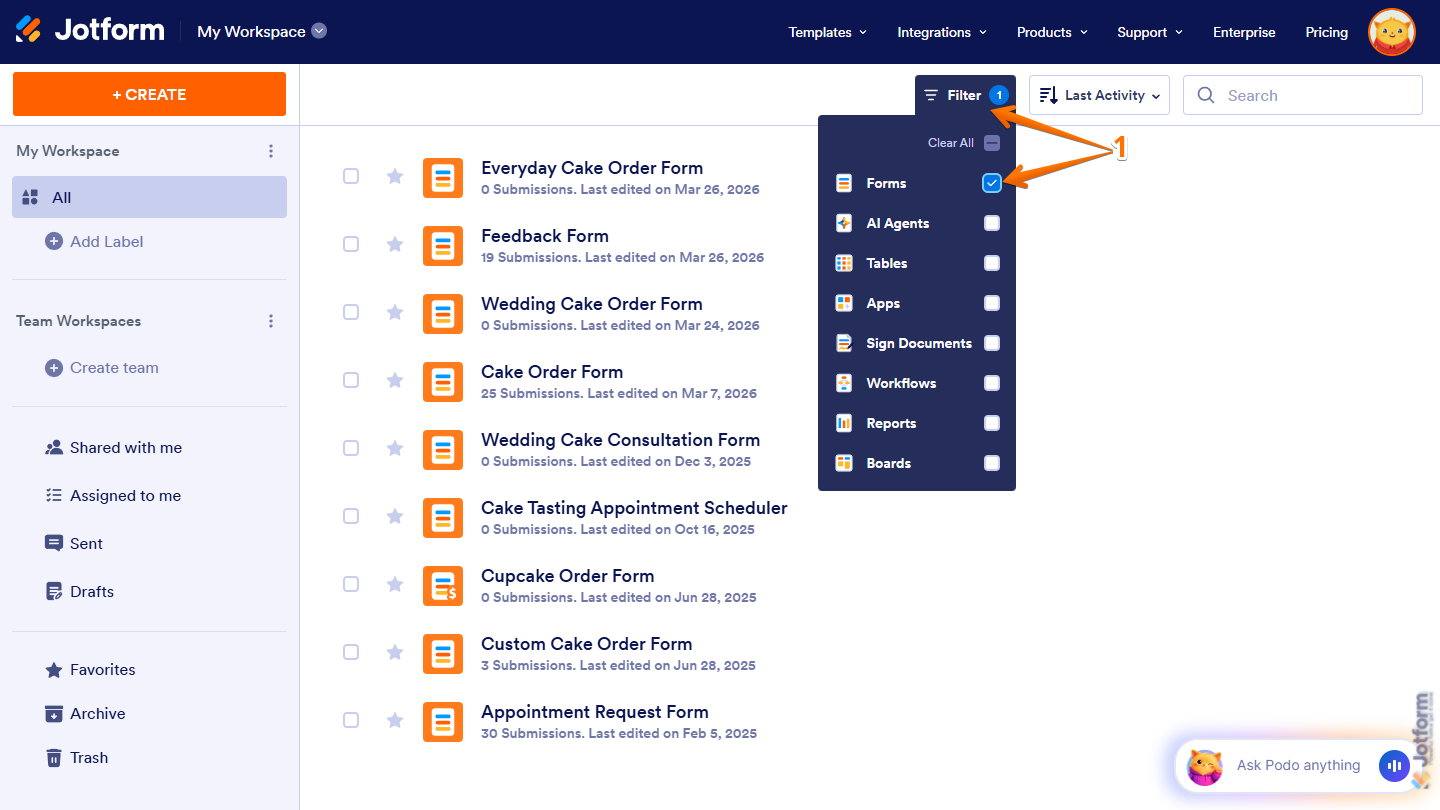
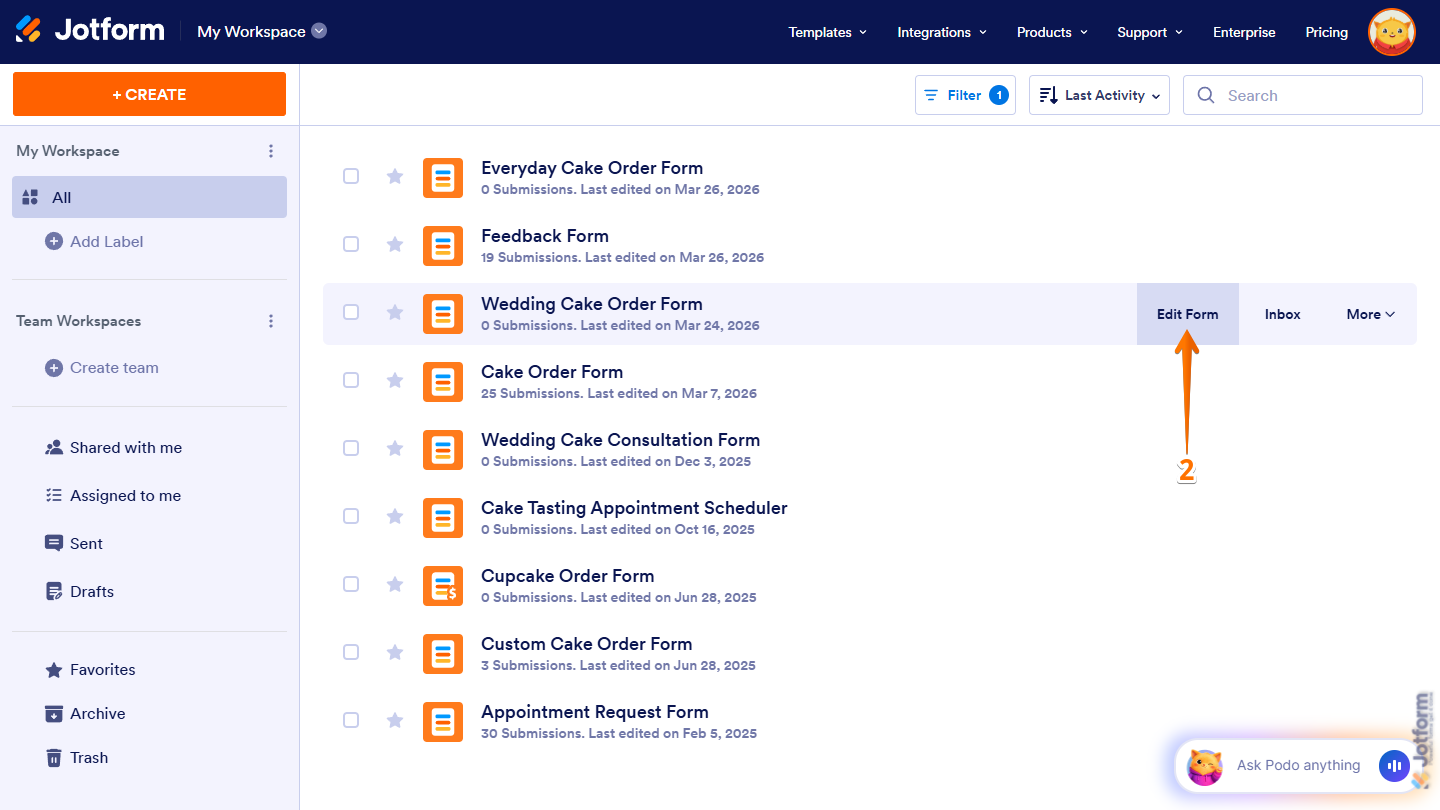
- Hover your mouse over the form you want to allow cloning for, then click on Edit Form on the right side of the page.
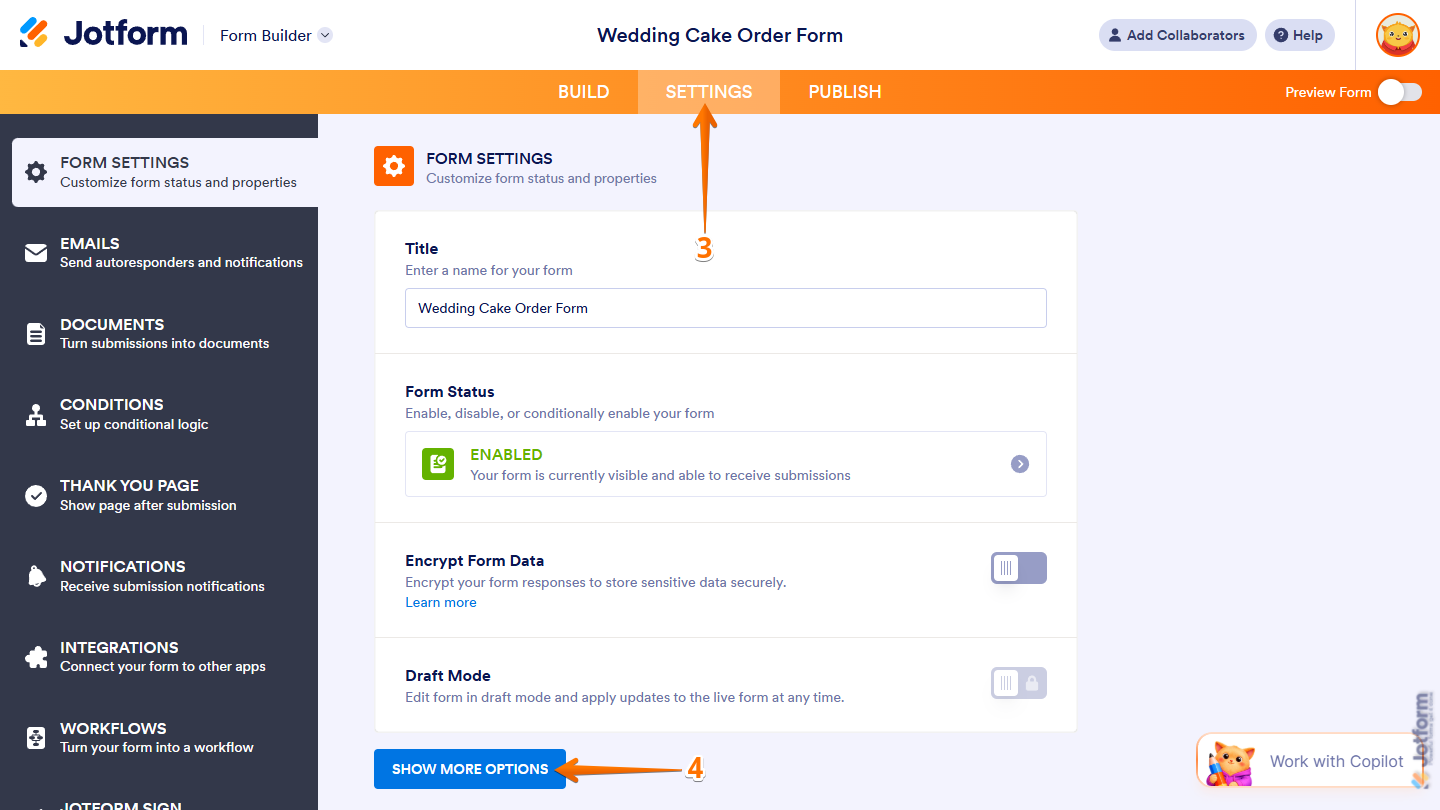
- Then, in Form Builder, in the orange navigation bar at the top of the page, click on Settings.
- Now, under Form Settings, click on Show More Options at the bottom.
- Next, scroll down to the Prevent Cloning section and in the Dropdown menu, select No.
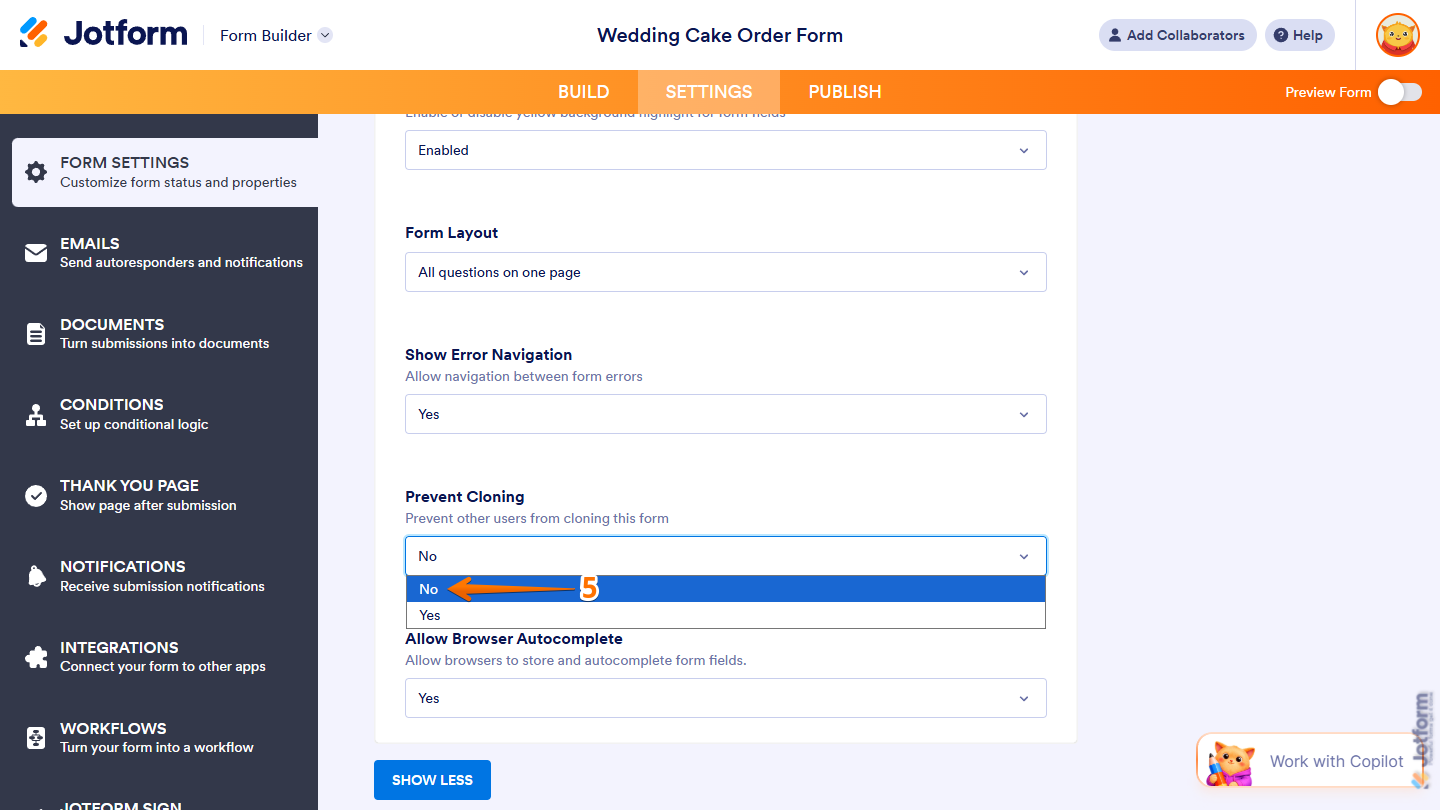
That’s it. Other users can now clone that specific form you’re sharing.
Updating Your Account’s Privacy Settings
If your account settings don’t allow other users to clone your forms, no one will be able to copy them even if they’re set to Public. Updating your account to allow others to clone your forms only takes a second. Here’s what to do:
- On your Workspace page, click on your Profile Picture/Avatar on the top-right side of the page.
- In the menu that opens, click on Settings to open the Settings page in a new browser tab.
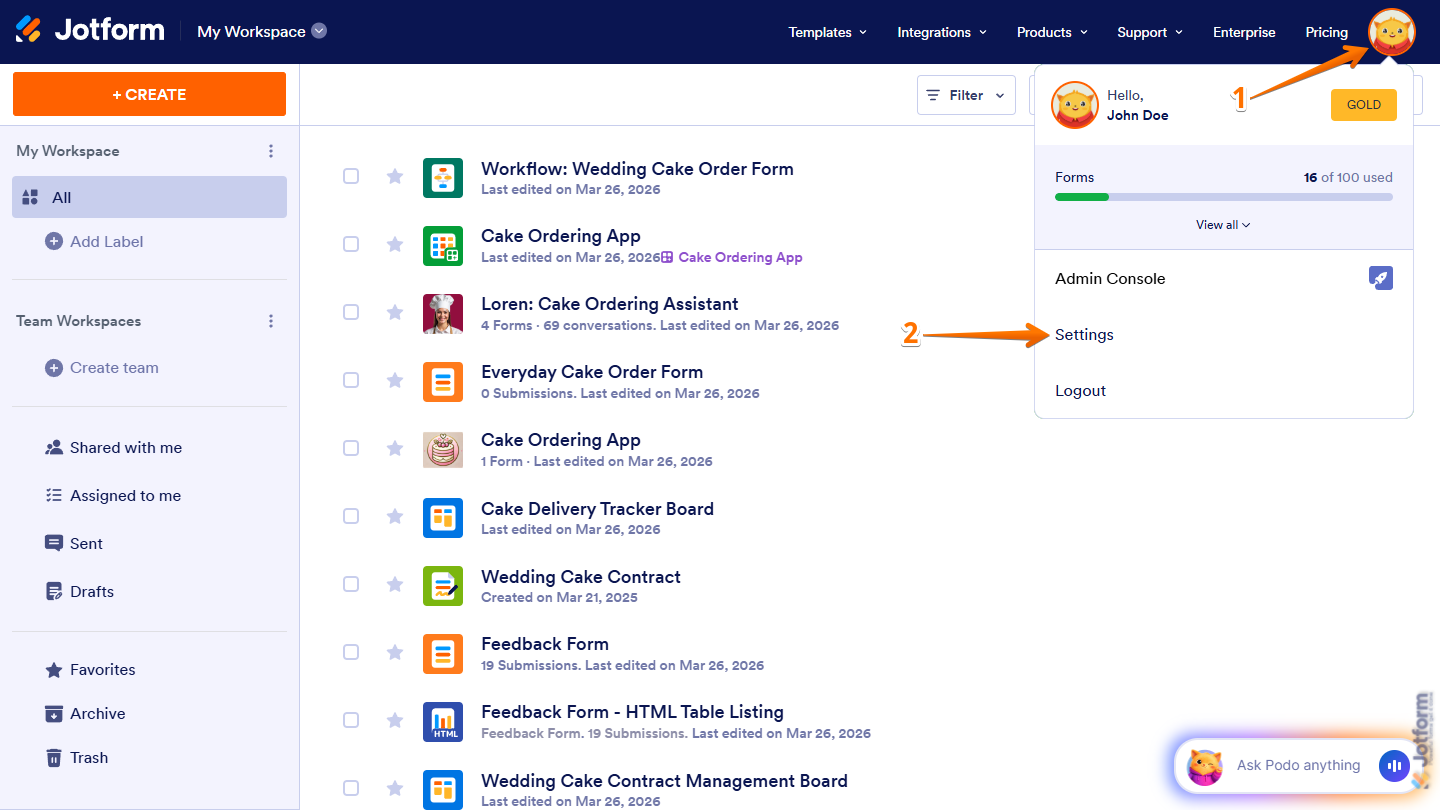
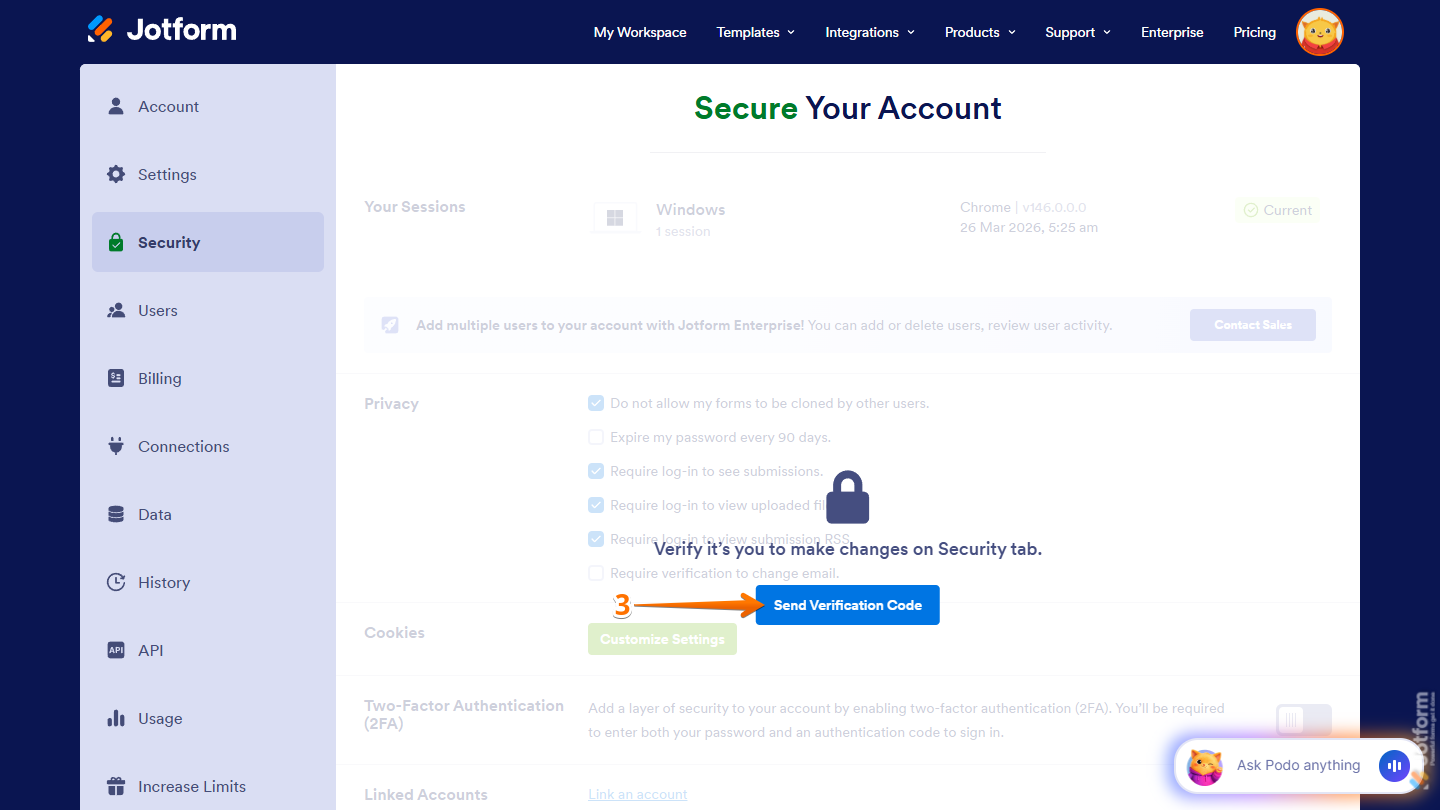
- Now, go to the Security tab on the left, and click on Send Verification Code in the Verification prompt.
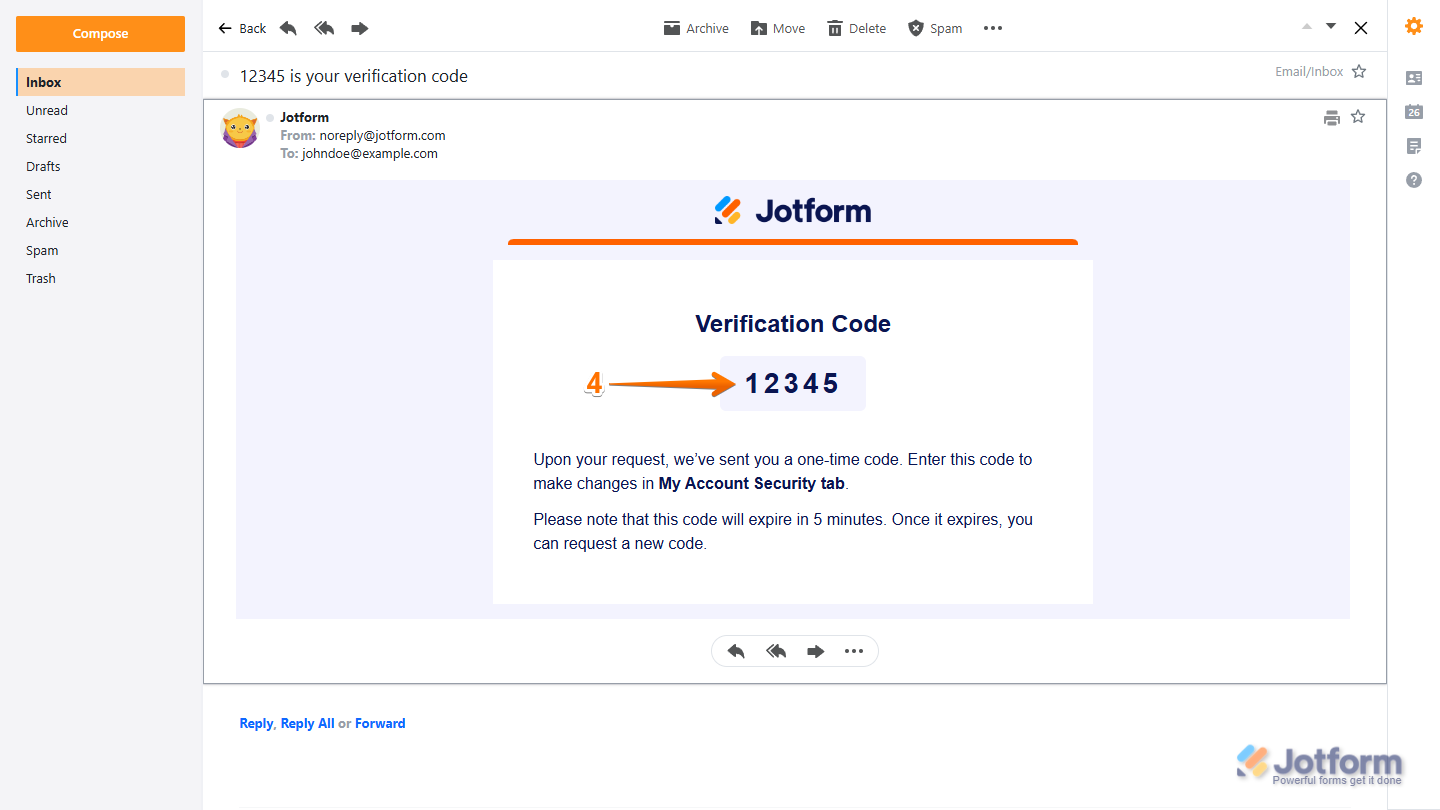
- Then, copy the Verification Code sent to the email address linked to your account.
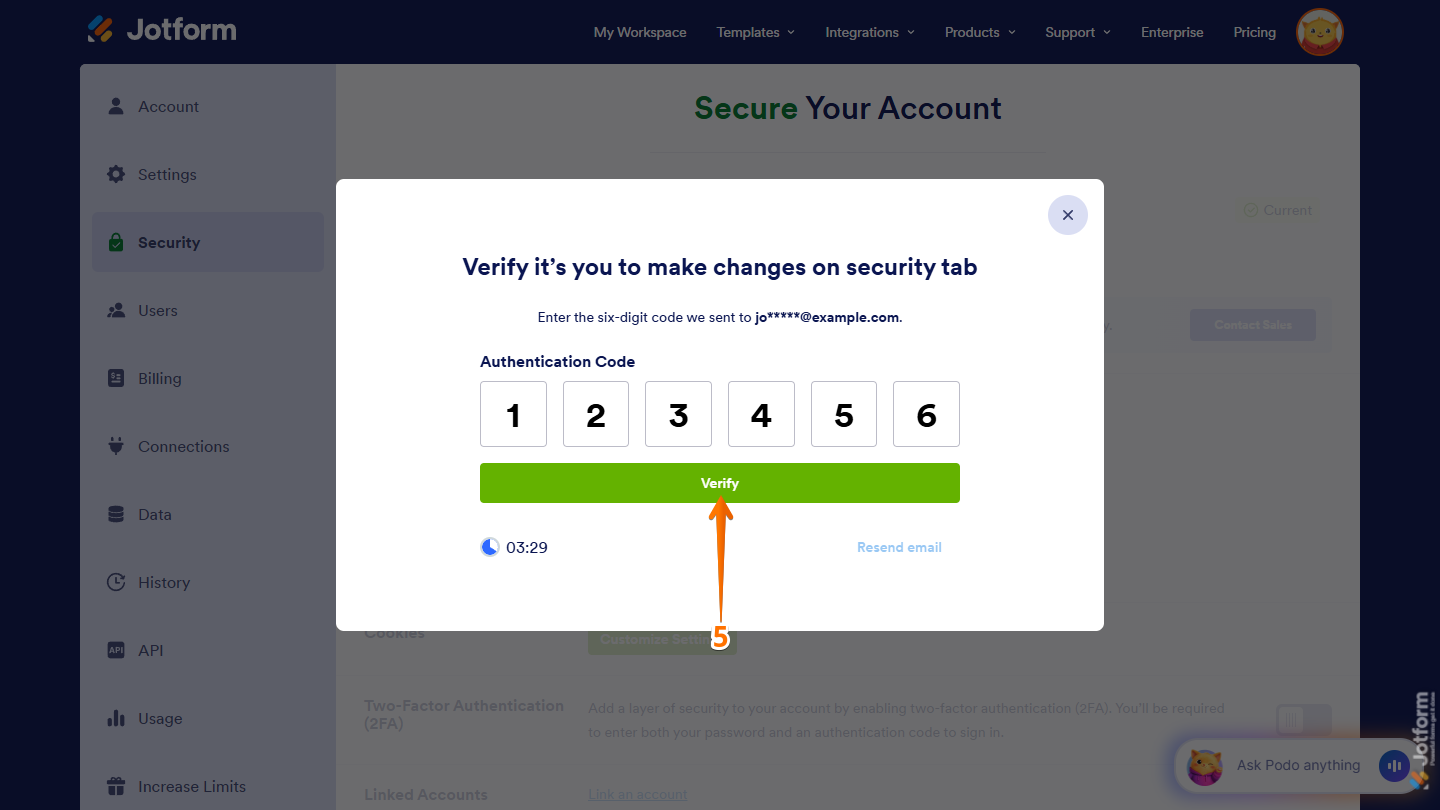
- Next, enter the code to verify you’re making changes to your account, and it’ll be accepted automatically. If it isn’t, or if you enter the wrong code, click on Verify after correcting it.
- Now, under the Privacy section, uncheck the box next to Do Not Allow My Forms to Be Cloned by Other Users.
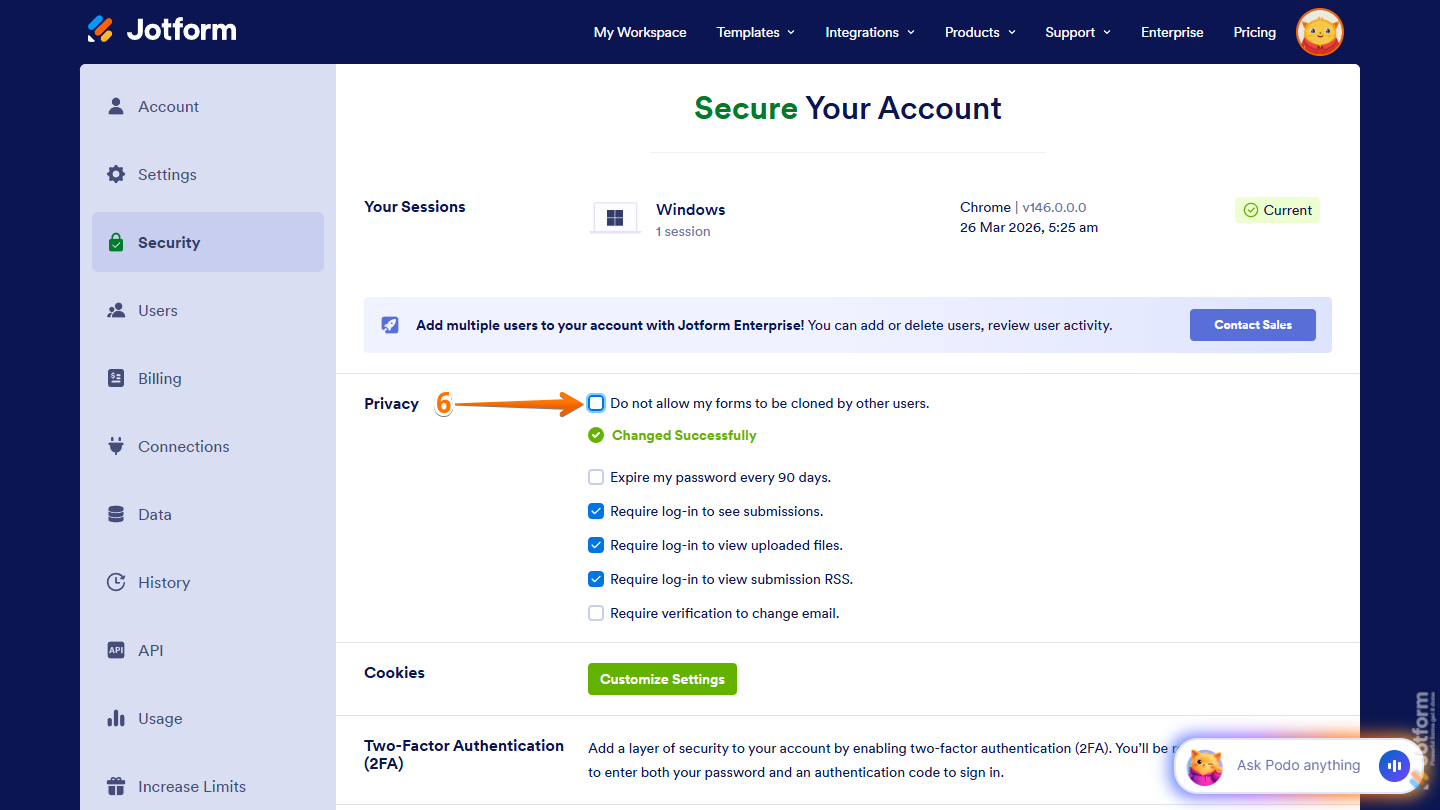
That’s it. Once this setting is updated, users can clone your public forms.

Send Comment: