Jotform makes it easy to collect submissions even when you don’t have an internet connection. With Offline Forms in the Jotform Mobile Forms App, you can fill out forms on your iPad while offline and submit them later once your device reconnects to the internet.
This feature is especially useful for field work, events, surveys, inspections, and registrations where internet access may be limited.
Note
- You can only collect submissions while offline. Editing forms requires an internet connection.
- If you collect many offline submissions, syncing them may take some time once your device reconnects to the internet.
Setting Up Offline Forms on Your iPad
Before you can use forms offline, you need to enable offline access in the Jotform Mobile Forms app. Here’s how:
- In the Jotform Mobile App, on the top-left side of the screen, tap on the Type dropdown.

- Then, in the menu that opens at the bottom, uncheck the boxes next to all the assets except Forms, so only forms will be shown on the page.
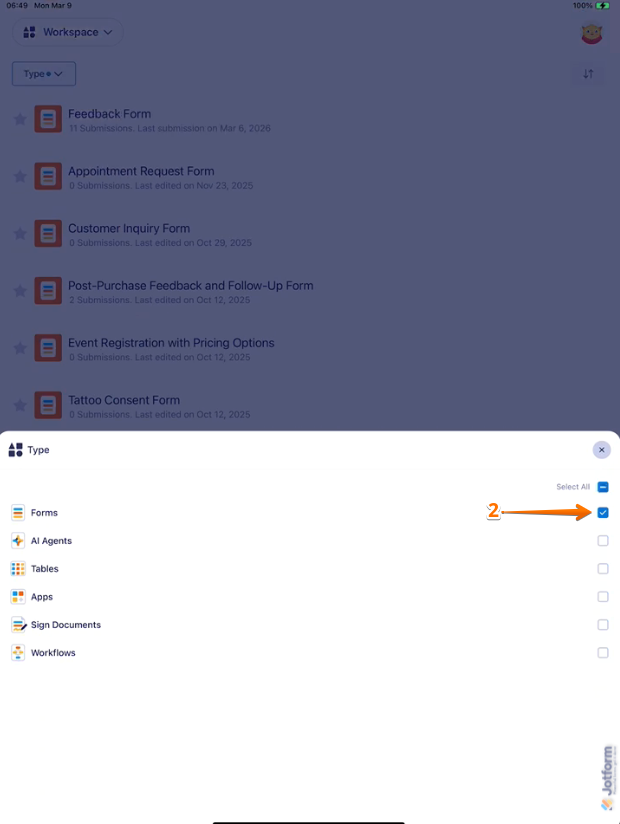
- Next, tap on the form you want to set up for offline use. For example, Feedback Form.
- Then, in the menu that opens, toggle on the Offline Mode option.

Once enabled, the form will be saved in the app and available for use even without an internet connection.
Enabling Offline Mode for Multiple Forms
If you want to enable offline mode for multiple forms, you can manage them from the Offline Forms settings. This is how it’s done:
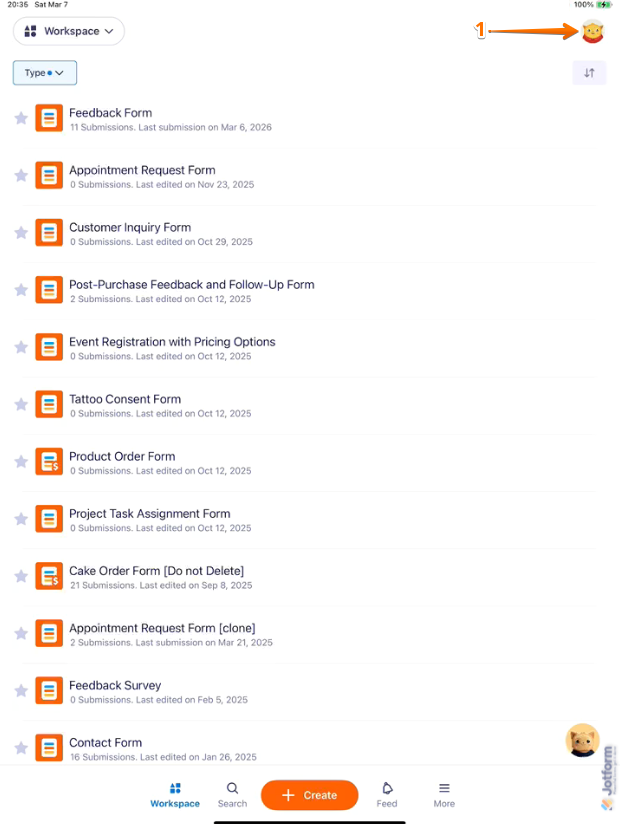
- In the Jotform Mobile App, tap on your Profile Picture/Avatar in the top-right corner of the page.

- Next, on the Settings page, tap on Offline Forms.
- Then, turn on the Toggle Switches of the forms you want to use offline.
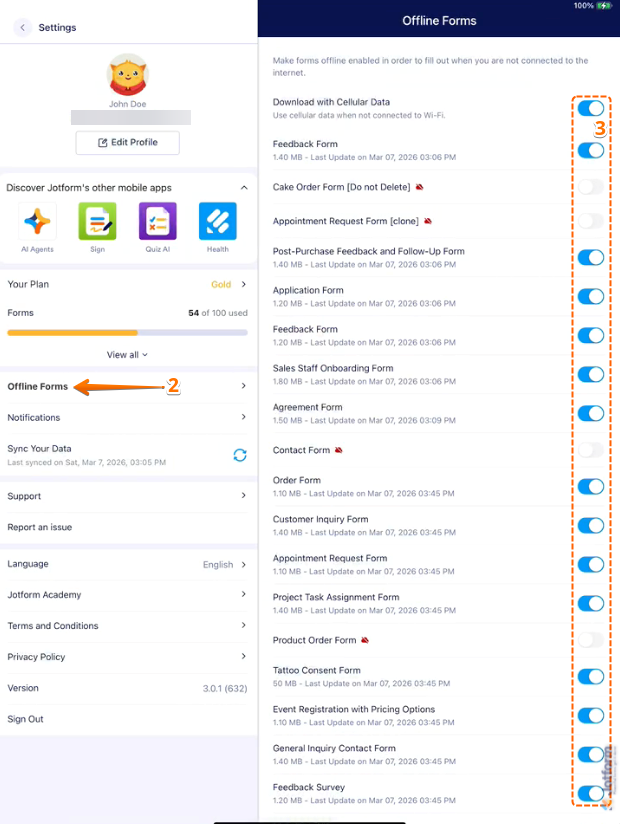
This allows you to quickly control which forms are available for offline use.
Note
Some widgets and form fields are not compatible with Offline Forms. If your form contains unsupported elements, the Offline Mode option will be disabled and marked with a Red Cloud icon. Remove or replace the incompatible fields to enable offline mode.
Syncing Offline Submissions
Once your iPad reconnects to the internet, your offline submissions will automatically sync with your Jotform account. After syncing, the submissions will appear in Jotform Inbox or Tables just like regular online submissions.
If your submissions don’t sync automatically, you can manually sync them by following these steps:
- In the Jotform Mobile App, tap on your Profile Picture/Avatar on the top-right corner of the screen.
- Now, on the Settings screen, in the Sync Your Data section, tap on the Refresh icon and you’re done.
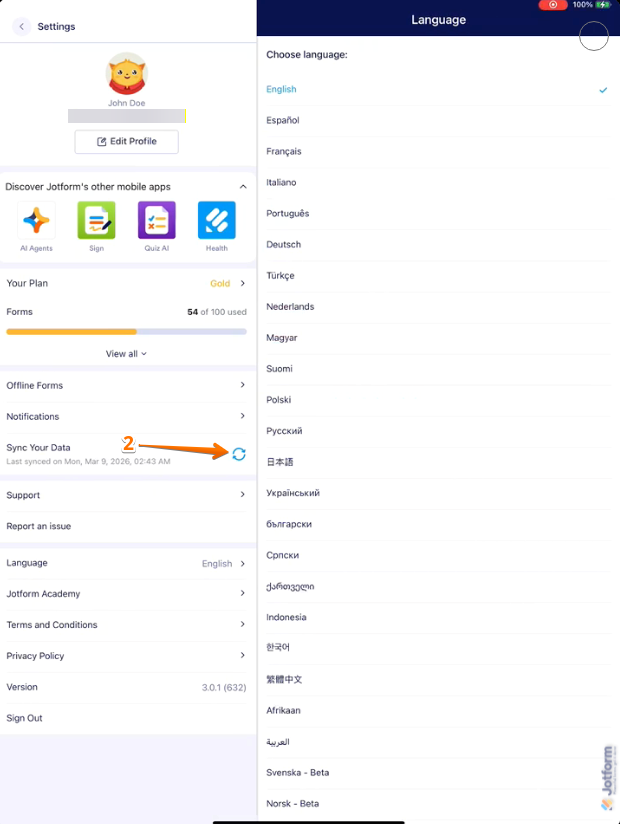
Once the sync is complete, your submissions will be available in your Jotform account.
Pro Tip
If multiple people will use the same iPad to fill out your form, consider enabling Kiosk Mode. This automatically resets the form after each submission and prevents users from accessing other parts of the device. Looking for more info? Our guide on How to Use Kiosk Mode in Jotform Mobile Forms has what you need.

Send Comment:
1 Comment:
January 21, 2025
How well does this process work for an android tablet? It is the same?