With Jotform Apps’ Conditions feature, you can decide who sees what based on each user’s role. Set up simple rules to control when pages or elements appear, so users only access the content that’s relevant to them. It’s an easy way to keep your app secure while making sure everyone gets the right experience.
Note
To use this feature, ensure that you’ve added the users and assigned them roles. Take a look at our guide on How to Monitor and Control App Users for more details.
Setting Visibility for Individual Elements
With element-level visibility, you can choose exactly which parts of your app users see, depending on their role or the condition you select. You can set it up like this:
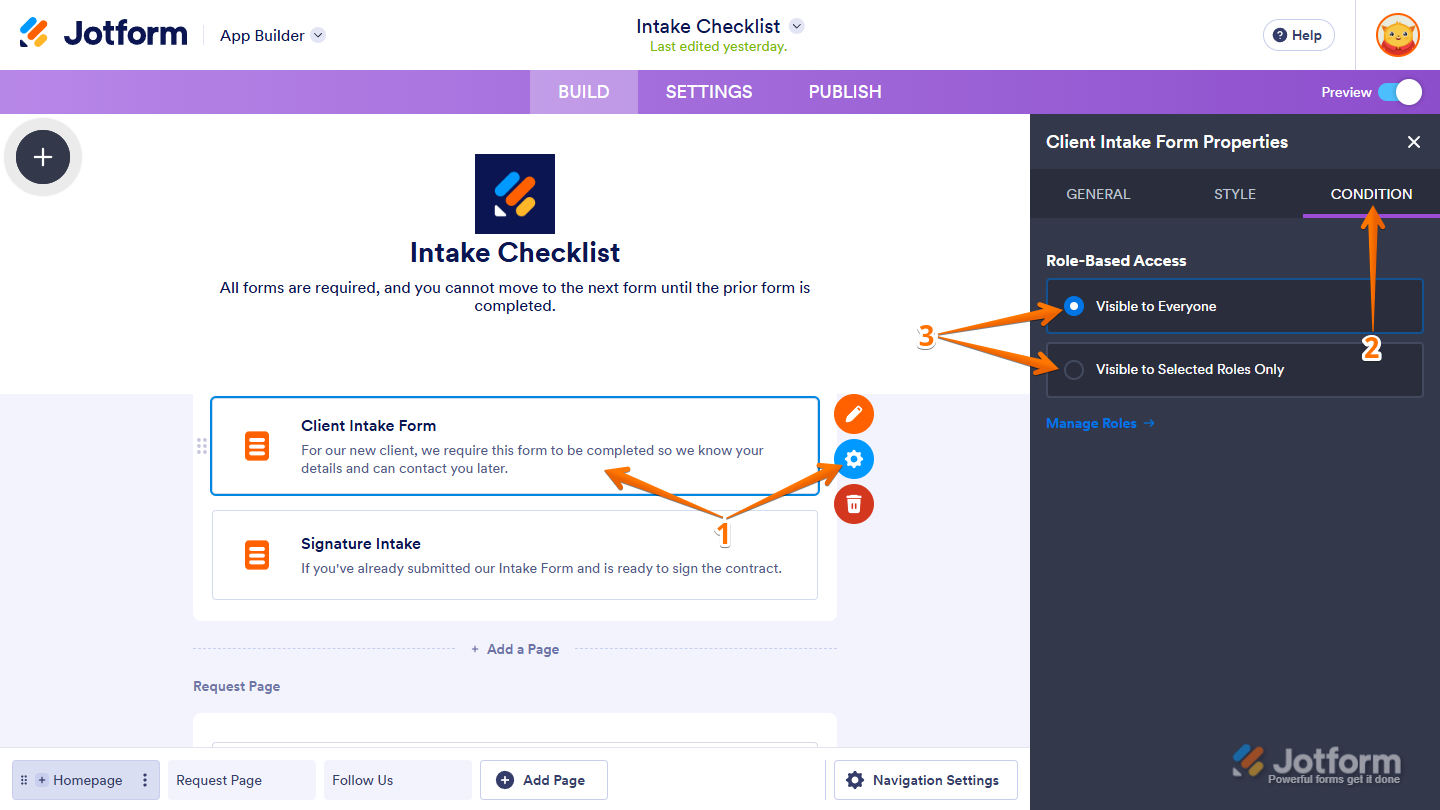
- In App Builder, select the element from the app and click on the Gear icon.
- Then, in the Element Properties menu that opens on the right side of the page, click on Condition.
- Now, select an option from the Role-Based Access section:
- Visible to Everyone — This is the default setting. Select this to make the element visible to all users.
- Visible to Selected Roles Only — Select which user roles can see the element. The element will be visible only to the selected roles.
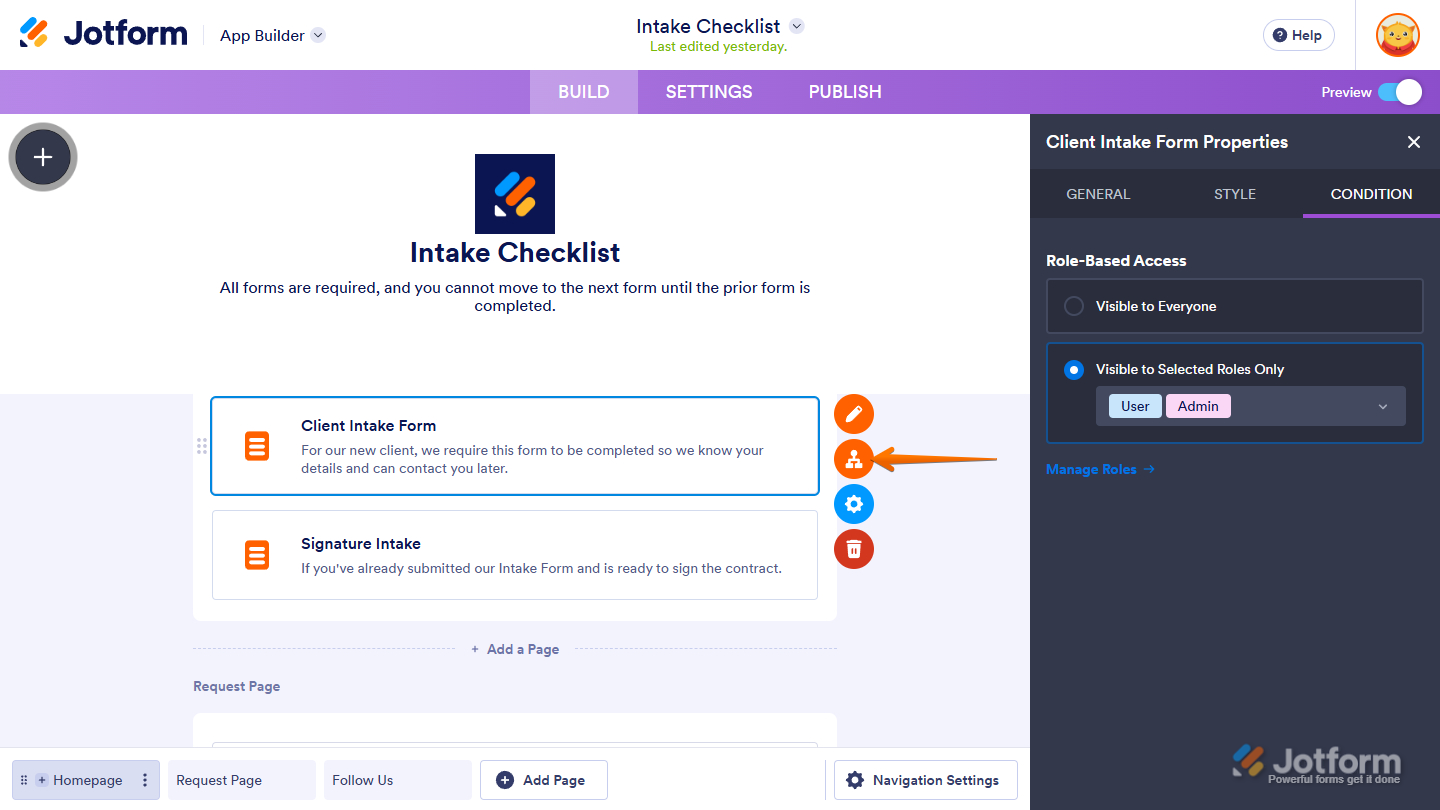
Selecting the Visible to Selected Roles Only option automatically displays a condition icon on the element, indicating that it is configured for user role display.
Setting Visibility for a Page
Page visibility settings let you decide which users can view the page based on their roles or specific conditions, helping keep content organized and relevant. Here’s how to set it up:
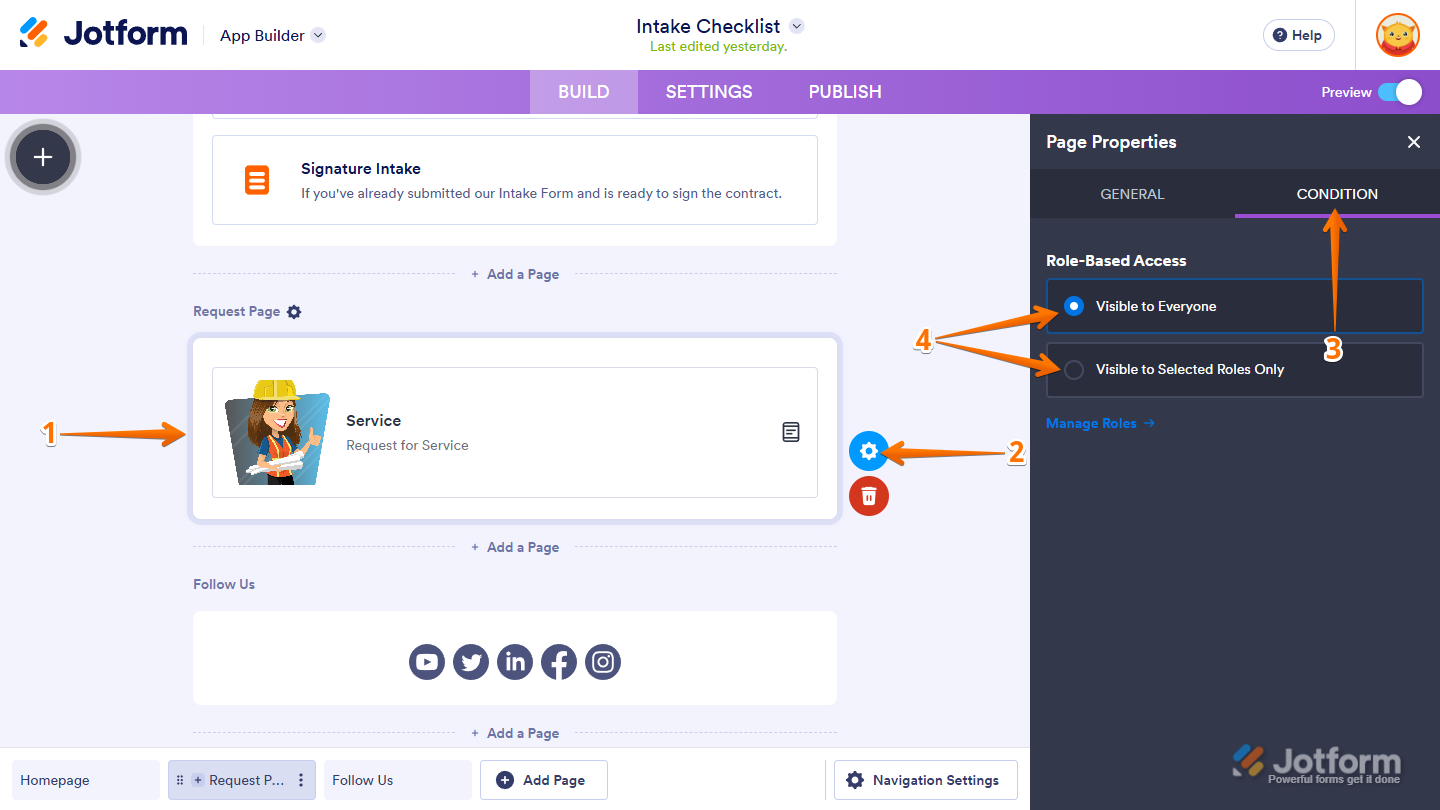
- In App Builder, select the page from the app.
- Then, at the top-left or right side of the selected page, click on the Gear icon.
- Next, in the Page Properties menu that opens on the right side of the page, click on Condition.
- Now, select an option from the Role-Based Access section:
- Visible to Everyone — This is the default setting. Select this to make the page visible to all users.
- Visible to Selected Roles Only — Select the user roles that can see the page. Only the selected roles will have access to it.
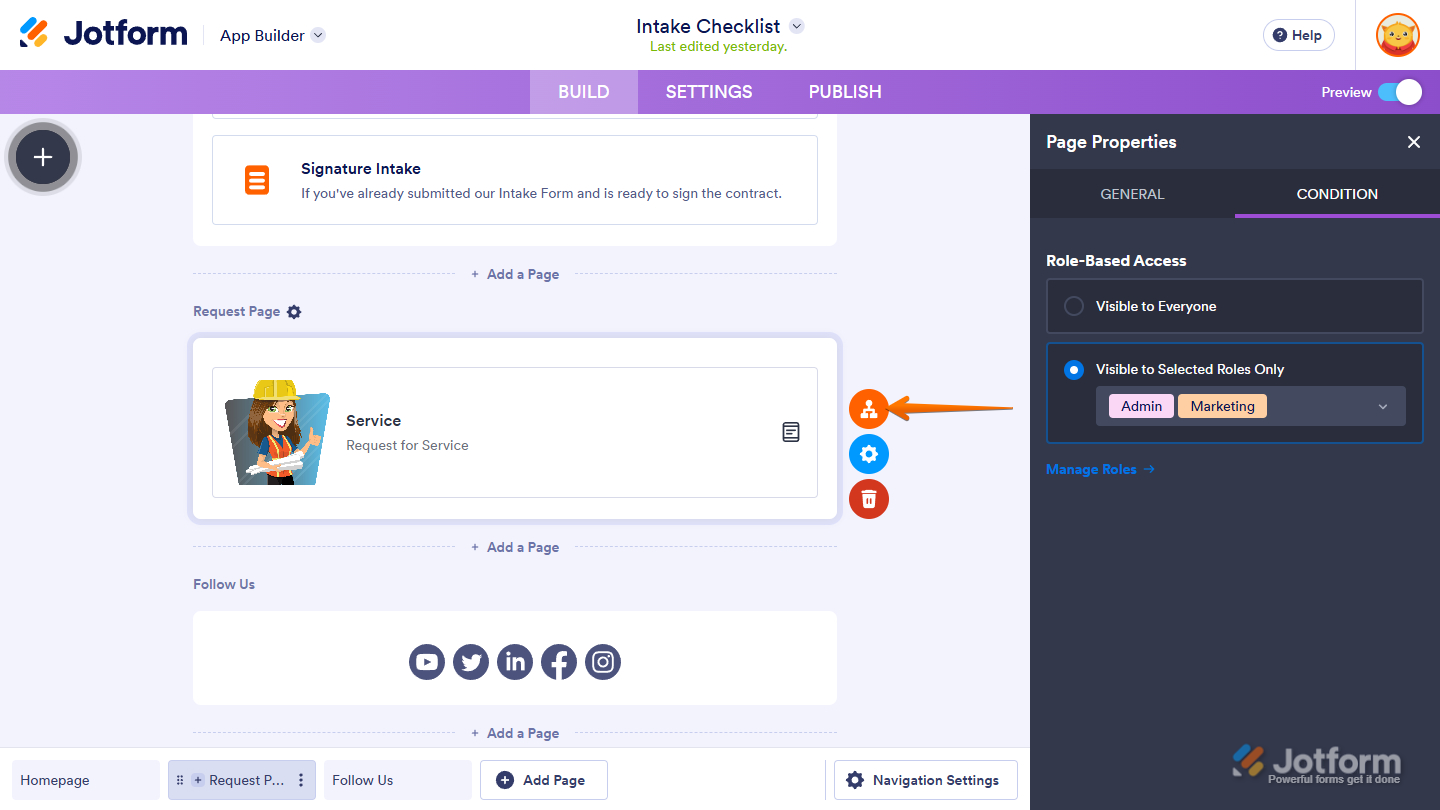
Selecting the Visible to Selected Roles Only option will automatically display a condition icon on the page indicating it was set up for user role display.
That’s it! Your changes are saved and will take effect right away. View your app to test out the visibility settings of the elements or pages.

Send Comment: