Jotform takes the hassle out of unfinished submissions by saving them in the Drafts section of your Workspace. That way, you can come back and complete them whenever you’re ready.
Viewing and Managing Your Form Drafts
You can easily access your saved form drafts on your My Workspace page. Here’s how:
- On the left side menu of your Workspace page, click on Drafts.
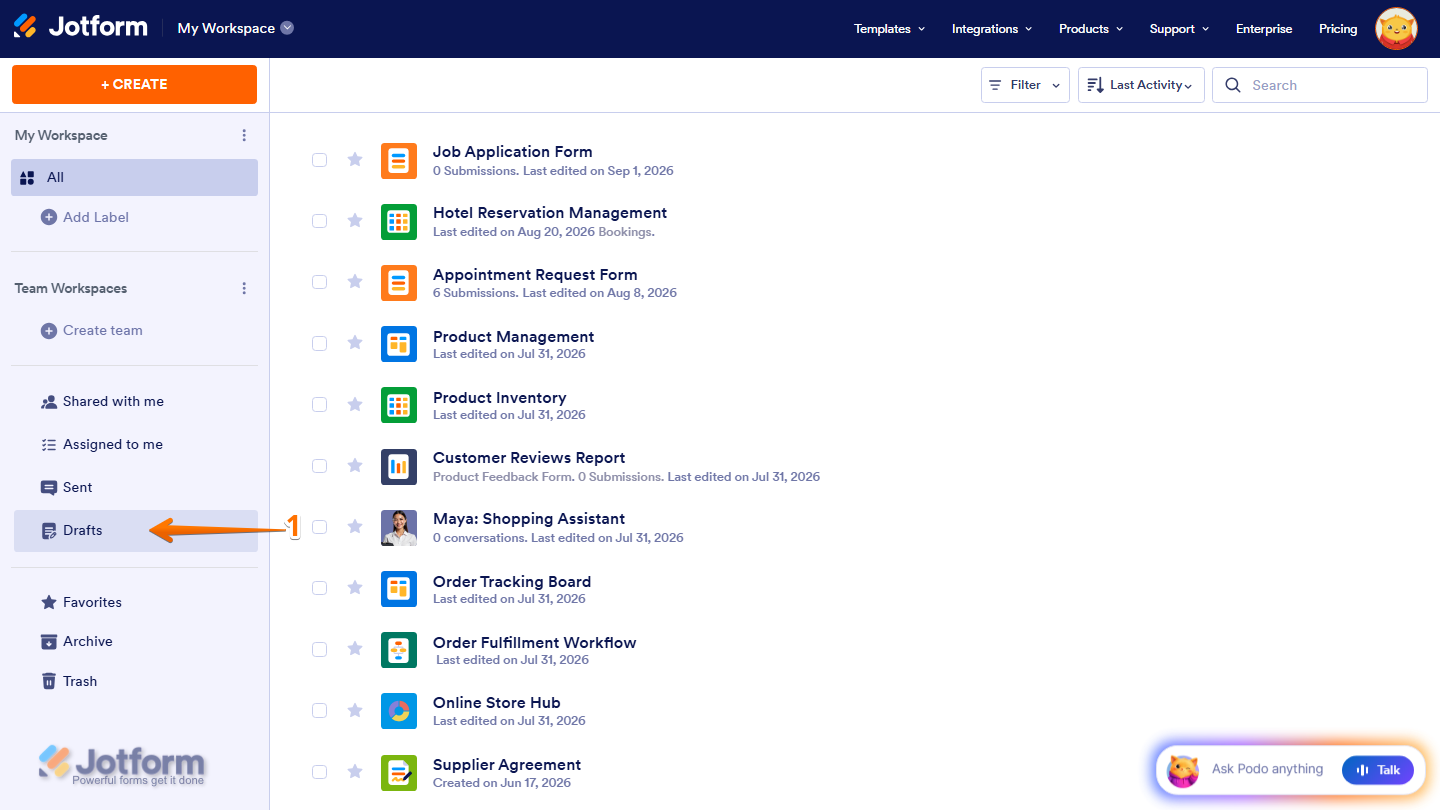
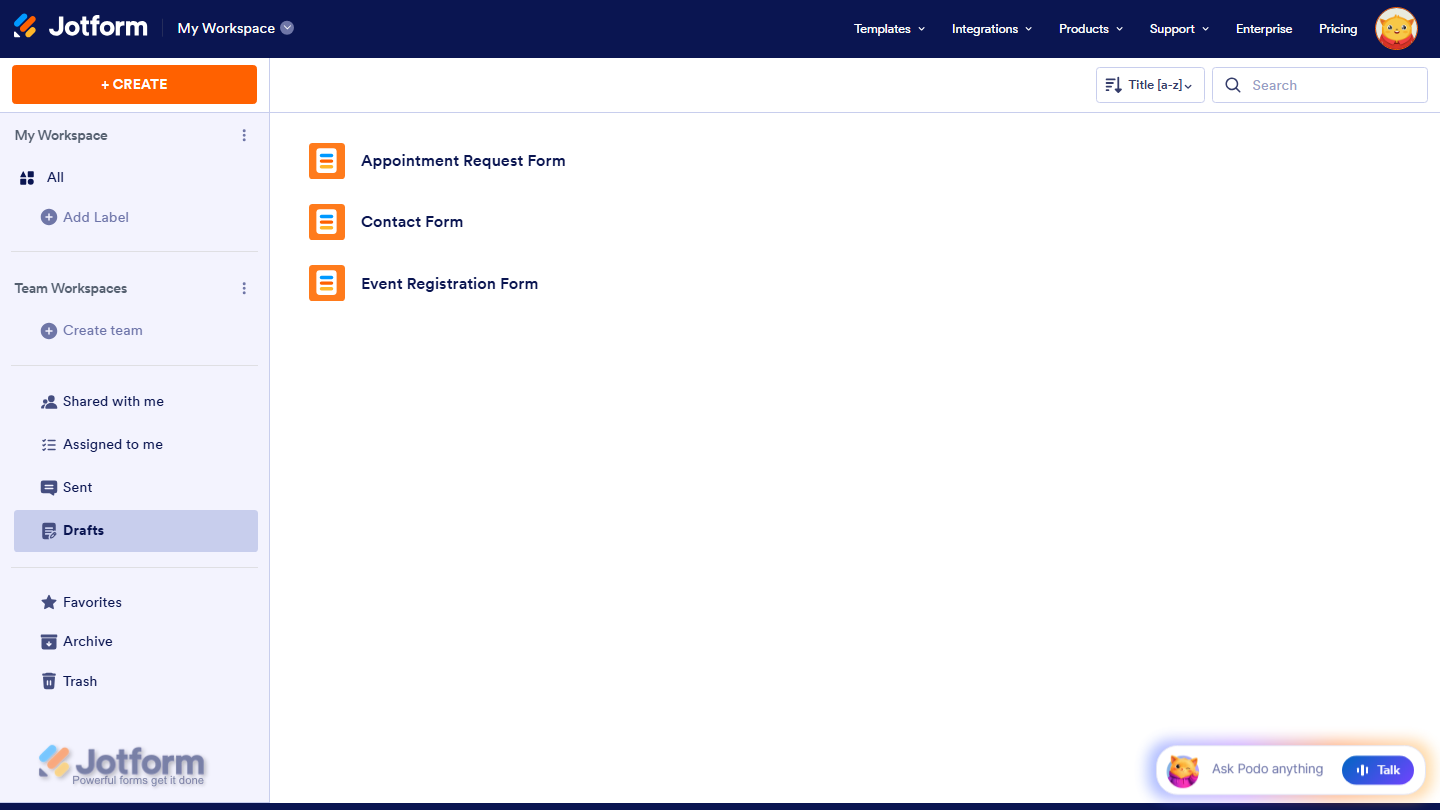
Now, you’ll see a list of the forms you saved but haven’t submitted yet. These are only visible if the form owner enabled the Save button on the form.
Note
If the Save button wasn’t enabled, the form can’t be saved as a draft and won’t appear in your Drafts section. Check out our guide on How to Enable Save and Continue Later on Forms for more details.
Continuing or Discarding a Form Draft
Once your form drafts are listed, you can either continue filling them out or discard them anytime. Here’s how to do it:
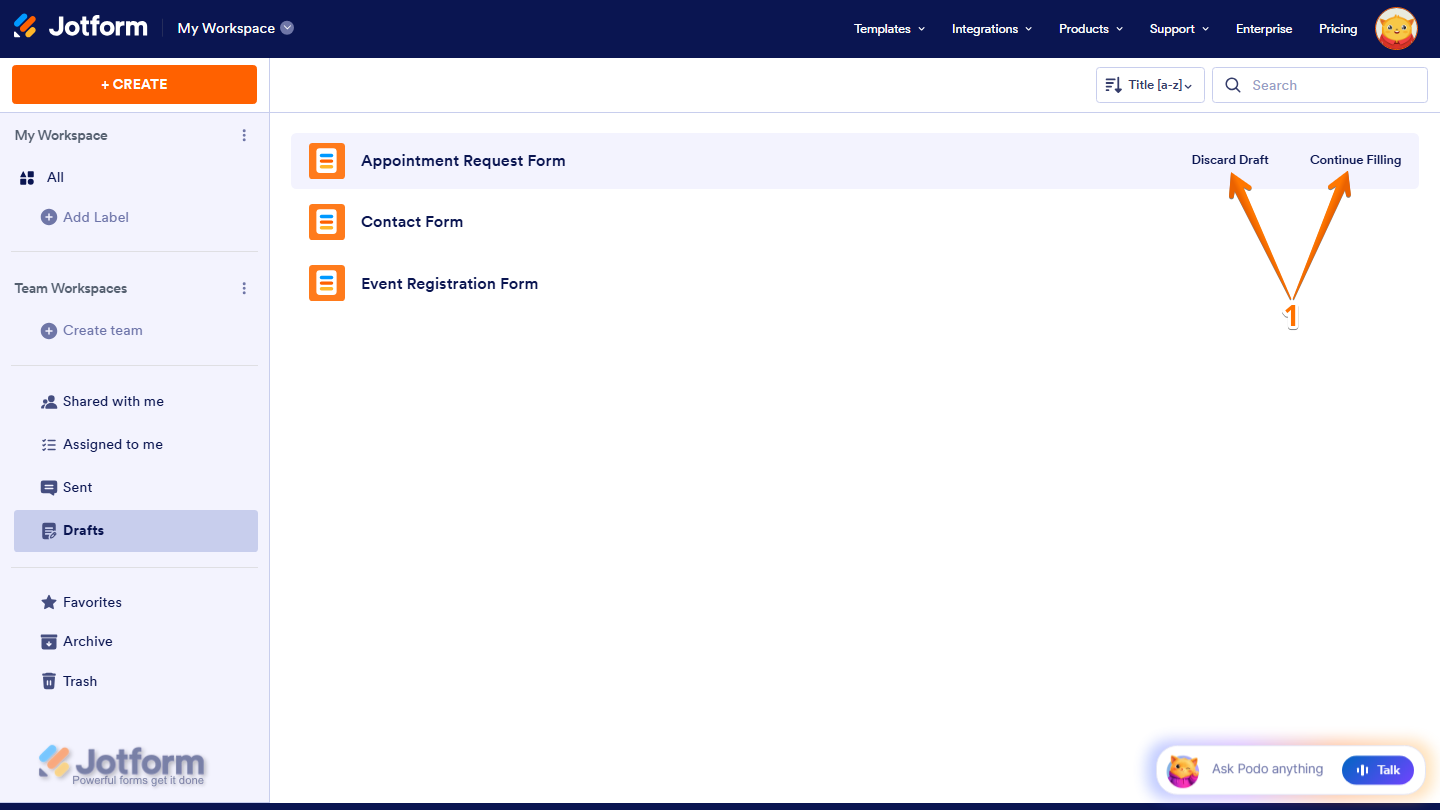
- While you’re still on the Drafts tab, hover your mouse over the form you want to discard or continue filling out, and then select one of the following options:
- Continue Filling — Pick up where you left off and complete the form.
- Discard Draft — Remove the saved draft from your list.
Sorting Your Drafts
You can also organize your form drafts for easier access using the Sorting options in your Workspace. Here’s how to do it:
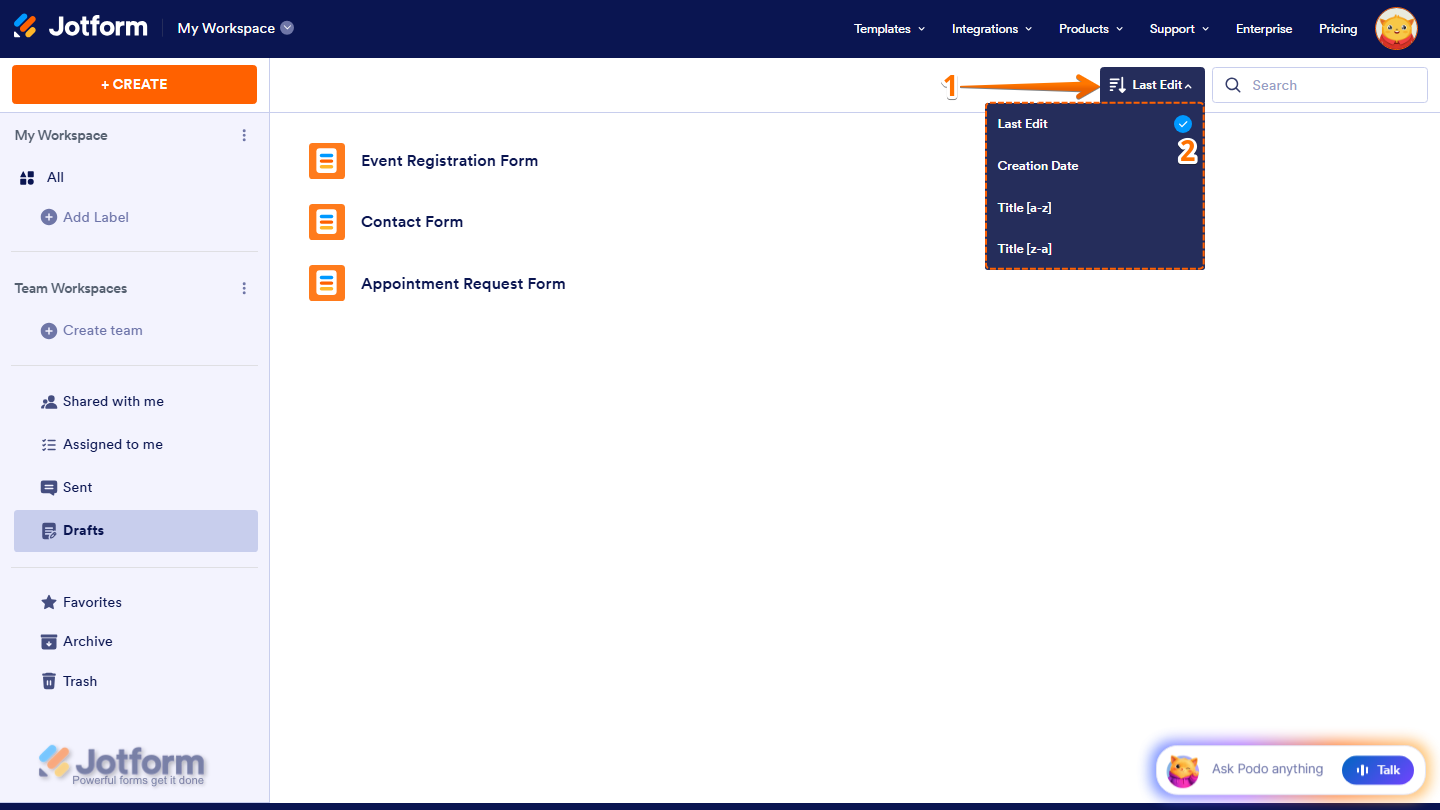
- While you’re still on the Drafts tab, click on the Sort icon on the top-right side of the page.
- Now, in the Dropdown menu, you can sort your assets by selecting one of these choices:
- Last Edit — This displays the most recently updated assets at the top.
- Creation Date — This shows the newest assets first.
- Title (A–Z) — This arranges assets in alphabetical order.
- Title (Z–A) — This lists assets in reverse alphabetical order.
Accessing Saved Drafts Through Email
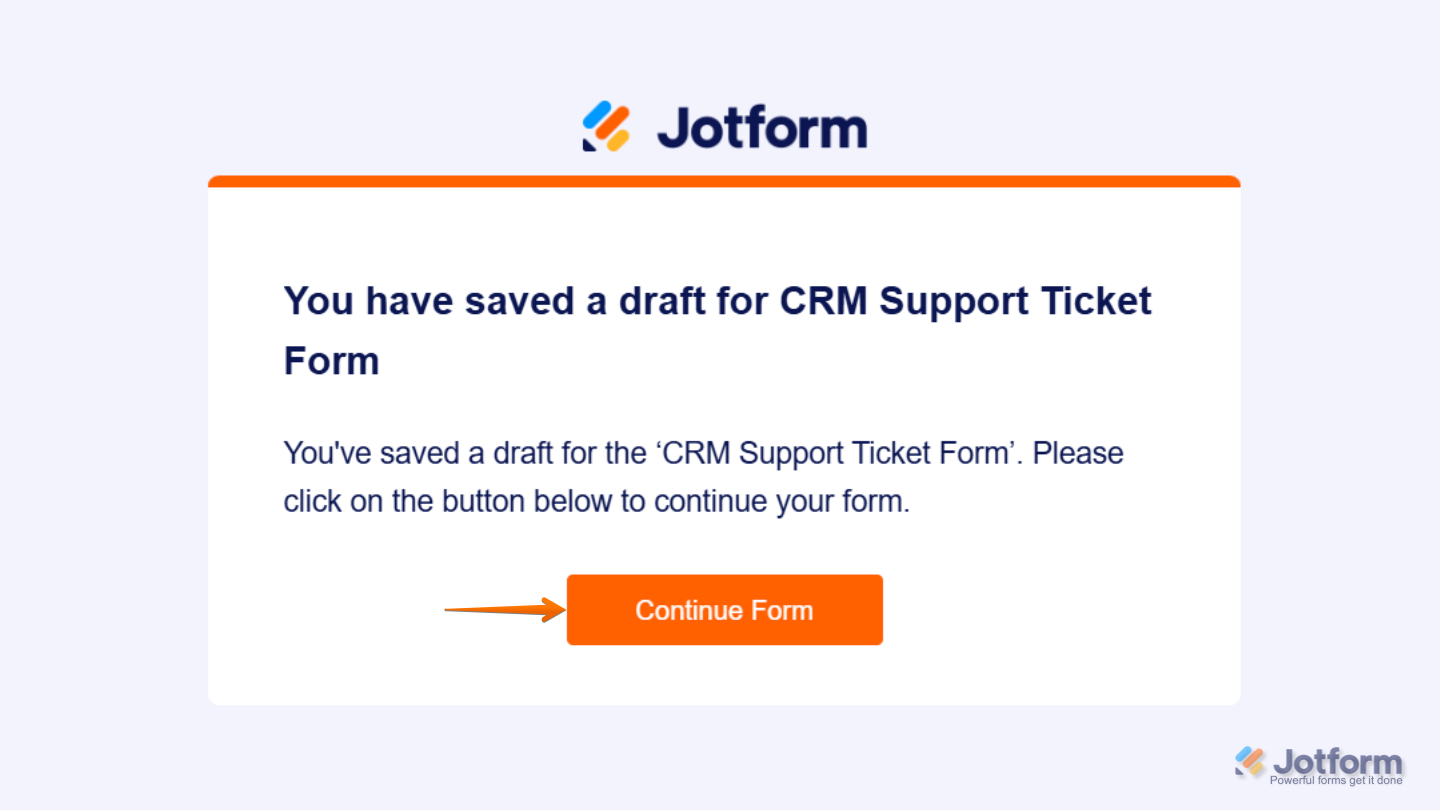
Aside from the Drafts section in your Workspace, Jotform also sends a Continue Form Later email when you save a form draft. The email includes a direct link to your saved draft.
That’s It! The Drafts section lets you keep track of forms you’ve started but haven’t finished, so you can pick up where you left off without starting from scratch.

Send Comment: